If your frame rate tanks the second you drop into the Neomuna patrol zone or your game hard-crashes with Error Code Broccoli mid-dungeon, the culprit isn't necessarily your GPU hardware. Destiny 2 on Steam suffers from aggressive shader cache corruption, fragile configuration files, and severe CPU draw-call bottlenecks on modern rigs. To immediately eliminate the stuttering, navigate to your AppData directory and delete your Destiny 2 CVARS configuration file, clean out corrupt DirectX shader caches, disable intrusive background overlays, and enforce a 1000Hz mouse polling rate. These four adjustments stabilize erratic 1% low frame times and stop the Tiger engine from choking during ability-heavy combat encounters.
Flush the CVARS and Nuke Shader Cache to Kill Micro-Stutters
Destiny 2 relies heavily on cached configuration and pipeline states, but Bungie's engine frequently fails to purge stale data after seasonal sandbox patches. When new patches land on Destiny 2 on Steam, your legacy cvars.xml file can attempt to query deprecated visual directives. This creates persistent micro-stutters every time you aim down sights (ADS) or trigger an elemental explosion.
To wipe the slate clean, completely exit Destiny 2 and close Steam. Press Windows Key + R, type %appdata%, and hit Enter. Open the Bungie folder, enter DestinyPC, and then open prefs. Locate the file named cvars.xml and delete it. If you have an older install, delete cvars.old.xml as well. Don't worry about breaking your game; Destiny 2 will generate a pristine, fully updated configuration file the next time you boot it up. You'll just need to re-adjust your volume and field of view (FOV) settings.
Next comes the DirectX Shader Cache purge. Stale shader compilations cause violent frametime spikes whenever new particle assets load into VRAM. Open the Windows Start Menu, search for Disk Cleanup, select your primary drive (C:), check DirectX Shader Cache, and click OK. For Nvidia users, open the Nvidia Control Panel, navigate to Manage 3D Settings, locate Shader Cache Size, and expand it from the default "Driver Default" up to 10 GB or Unlimited. This gives Destiny 2 ample dedicated SSD space to retain complex geometry and light maps without constantly purging and rebuilding them mid-firefight. Much like troubleshooting other finicky PC ports where background memory leaks run rampant (check out our ELEX PC crash and FPS guide), giving the engine dedicated storage headroom immediately smooths erratic frame pacing.
Dialing the Sweet Spot: Destiny 2 In-Game Graphics Settings Table
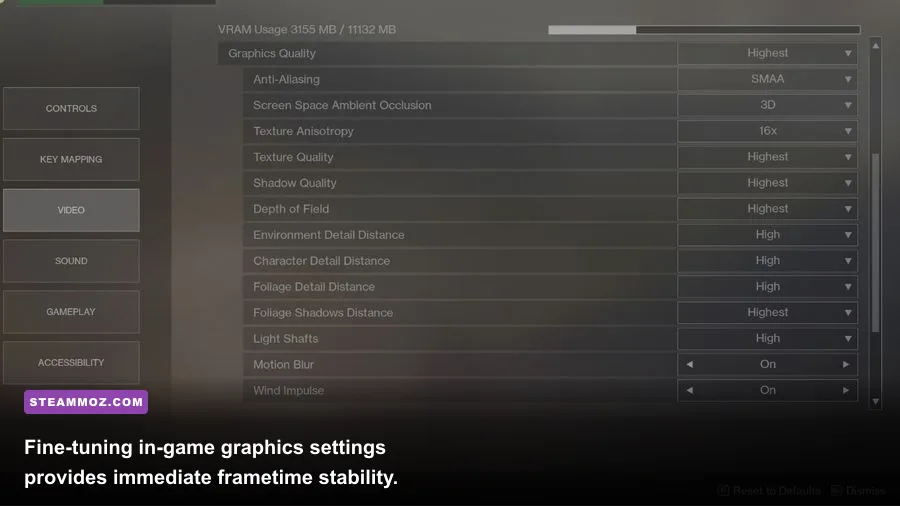
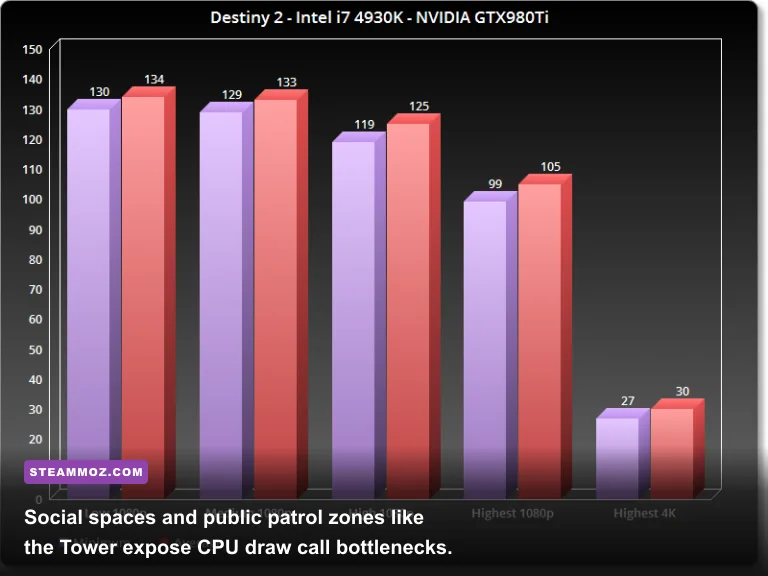
Bungie's PC port offers dozens of graphic sliders, but only a handful heavily tax your system. The Tiger engine is notoriously CPU-bound in high-density areas like the Tower, the Pale Heart, or six-player matchmade activities like the Dares of Eternity. Cranking every setting to Maximum unnecessarily punishes your primary processor cores with excessive draw calls while offering virtually no noticeable visual upgrade during fast-paced gunplay.
Shadow Quality and Depth of Field are the two biggest frame-rate killers. Depth of Field applies a heavy blur filter that crushes your frame times the moment you zoom in with a sniper rifle or scout rifle. Wind Impulse forces your CPU to calculate dynamic foliage physics every time a grenade goes off nearby, leading to sudden 25 FPS drops during heated fights. Dialing back these non-essential extras frees up your GPU pipeline, similar to balancing volumetric fog in our Far Cry 6 PC settings guide.
| Graphic Setting | Recommended Value | FPS Impact | Visual Impact & Optimization Reason |
|---|---|---|---|
| Window Mode | Full Screen | Low (Improves 1% Lows) | Bypasses Windows Desktop Window Manager compositor latency. |
| Render Resolution | 100% | Extremely High | Never set above 100%; downsampling destroys performance without visual clarity. |
| Field of View (FOV) | 95 - 105 | Moderate (3-5%) | Higher FOV renders more geometry; 95-100 offers great awareness with less CPU strain. |
| Anti-Aliasing | SMAA | Very Low (1-2%) | Cleaner edge smoothing than FXAA without the blurry temporal artifacts. |
| Shadow Quality | Medium | High (10-15%) | Highest introduces massive CPU draw calls for marginally softer shadow edges. |
| Depth of Field | Off | High (8-12% in ADS) | Eliminates the heavy blur shader pass when aiming down weapon sights. |
| Environment Detail Distance | High | Moderate (4-6%) | Keeps geometry pop-in low without the harsh CPU hit of Highest. |
| Character Detail Distance | High | Low (2-3%) | Ensures crisp player models and armor ornaments in social spaces and Raids. |
| Foliage Detail Distance | Medium | Moderate (5-8%) | Culls unnecessary distant grass, greatly improving patrol zone stability. |
| Foliage Shadows | Medium | Moderate (3-5%) | Prevents micro-stutters in forest environments like the EDZ or Nessus. |
| Light Shafts | Medium | Low (2-3%) | Preserves atmospheric god rays without taxing the GPU compute units. |
| Motion Blur & Film Grain | Off | None | Sharpened visual clarity; removes post-processing camera smearing. |
| Wind Impulse | Off | Moderate (CPU bound) | Stops physics spikes on foliage whenever abilities and rockets detonate. |
Set your in-game Frame Rate Cap to Off, but lock your maximum frame rate using your GPU driver (Nvidia Control Panel or AMD Software: Adrenalin Edition) to match your monitor's refresh rate minus 3 FPS (e.g., 141 FPS on a 144Hz monitor). Doing this keeps G-Sync or FreeSync consistently engaged without tripping engine-level limiter judder, just as we saw when testing Filament Marmalade Edition frame rate tweaks.
Bungie Error Codes, BattlEye Conflicts, and Windows Crash Fixes
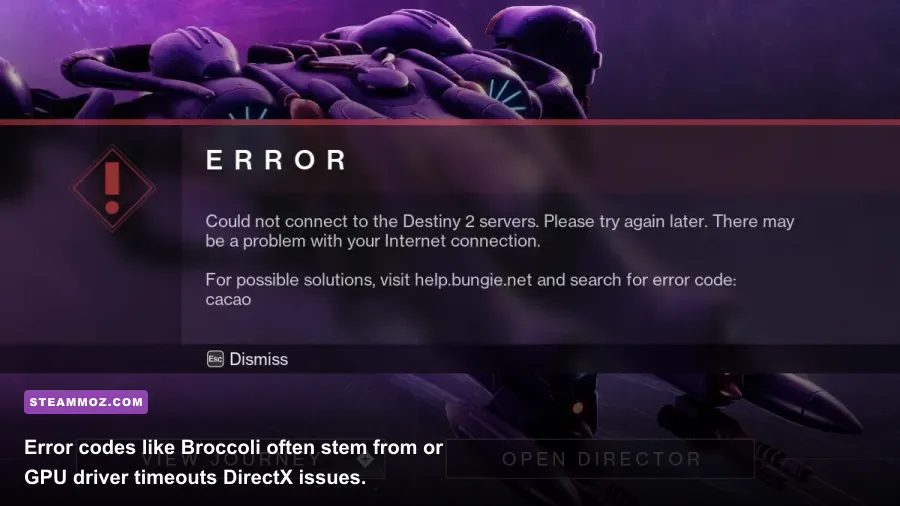
Straight-to-desktop crashes in Destiny 2 usually arrive accompanied by a Bungie error code dialog or a silent freeze during transit between planets. The absolute most notorious technical crash is Error Code Broccoli, which signifies a Timeout Detection and Recovery (TDR) event where Windows detects that your GPU became unresponsive and resets the display driver.
Broccoli crashes are predominantly triggered by unstable factory GPU overclocks, corrupted driver installations, or overly aggressive Windows TDR timers. If you are experiencing Broccoli crashes, download the latest stable drivers directly from Official Nvidia Driver Support or AMD's driver portal. Run Display Driver Uninstaller (DDU) in Windows Safe Mode to scrub out legacy driver remnants before performing a fresh installation. If you run an aggressive core or memory overclock in MSI Afterburner, drop it back to factory baseline speeds; Destiny 2's implementation of DirectX 11 is notoriously sensitive to microscopic voltage fluctuations.
| Bungie Error / Symptom | Underlying Cause | Direct Tactical Fix |
|---|---|---|
| Error Code Broccoli | GPU Driver Crash / TDR Event | Reinstall drivers via DDU, remove GPU overclocks, and disable Debug Mode. |
| Error Code Marmot | Corrupt Game Files on Disk | Verify integrity of game files in Steam; purge download cache. |
| Error Code Marionberry | Network Port / Socket Failure | Reboot router, flush DNS via cmd (ipconfig /flushdns), open NAT ports. |
| BattlEye Launch Failure | BEDaisy.sys Service Conflict | Delete BattlEye folder in Destiny 2 directory, then verify files via Steam. |
| Silent Crash on Launch | Third-Party Hook / Overlay Collision | Disable RivaTuner Statistics Server (RTSS), Discord overlay, and OBS game capture. |
BattlEye anti-cheat can also trigger random crashes if its background service permissions are revoked by Windows security policies. If your game fails to launch or closes after the initial splash screen, navigate to your Destiny 2 installation directory (Steam\steamapps\common\Destiny 2), locate the BattlEye folder, right-click Uninstall_BattlEye.bat, and run it as administrator. Afterwards, run Install_BattlEye.bat as administrator to restore clean system permissions and prevent anti-cheat disconnects, following guidelines directly from the Bungie Help Portal.
Windows 11 HAGS, Steam Launch Options, and Overlay Conflicts
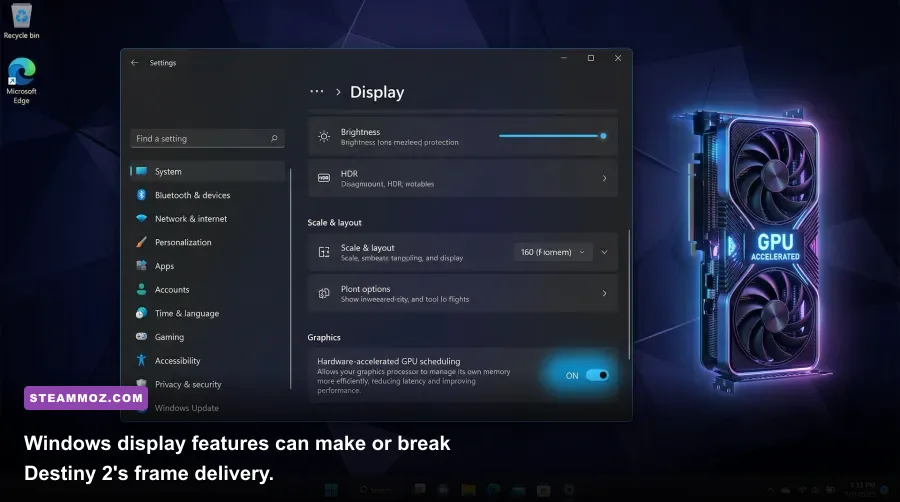
Windows 10 and 11 feature background display frameworks that frequently war with older DirectX 11 titles. Hardware-Accelerated GPU Scheduling (HAGS) is fantastic for modern DirectX 12 titles utilizing DLSS Frame Generation, but in Destiny 2, it can introduce hitching and uneven frame delivery. To test your system stability, open Windows Settings, go to System > Display > Graphics > Change default graphics settings, toggle Hardware-accelerated GPU scheduling to Off, and restart your PC. Many high-end rigs sporting RTX 30 and 40 series cards instantly resolve irregular 1% low frame stuttering with this single tweak.
Simultaneously, third-party software hooks cause massive hitching whenever they attempt to inject visual layers onto the game window. Destiny 2's anti-cheat outright blocks or severely degrades performance when hooked by external overlays. Turn off the following immediately:
- Discord In-Game Overlay: Open Discord Settings > Game Overlay > toggle "Enable in-game overlay" to Off.
- Steam Overlay: Right-click Destiny 2 in your Steam Library > Properties > General > toggle "Enable the Steam Overlay while in-game" to Off.
- GeForce Experience / ShadowPlay: Turn off the in-game overlay inside the Nvidia app settings.
- RivaTuner Statistics Server (RTSS): If you use MSI Afterburner for monitoring, set the Application Detection Level inside RTSS to "None" for
destiny2.exe, or close RTSS entirely while playing.
Eliminating these intrusive overlay hooks resolves aggressive frame pacing issues, something we documented in our EscapeVR crashing and low FPS walkthrough. Additionally, clean up your Steam launch options. Right-click Destiny 2 in your Steam Library, select Properties, and inspect the Launch Options box at the bottom. Delete outdated commands like -USEALLAVAILABLECORES or -high. These legacy Unreal Engine flags do nothing for Bungie's proprietary engine except occasionally disrupt Windows thread scheduling across your CPU's performance and efficiency cores.
Fixing Mouse Polling Rate Stutters and Multi-Threaded Core Affinities
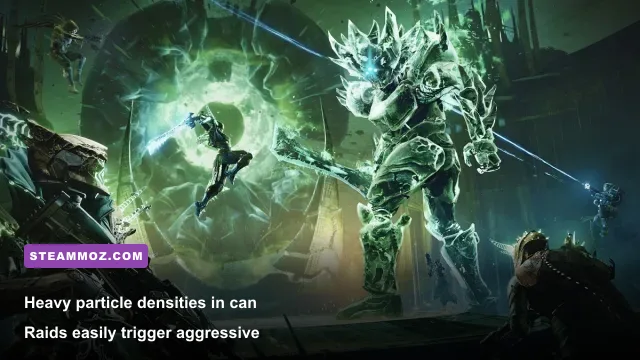
One of the most overlooked causes of severe camera stuttering in Destiny 2 has nothing to do with your graphics card at all: it is your mouse polling rate. Modern gaming mice boast polling rates of 2000Hz, 4000Hz, or even 8000Hz. While phenomenal on paper, Destiny 2's raw mouse input pipeline handles high interrupt frequencies terribly. When panning your camera with an 8000Hz mouse in Destiny 2, your CPU becomes flooded with hardware interrupt requests, causing the game engine to drop frames and violently hitch while you look around.
Open your peripheral configuration software (Razer Synapse, Logitech G HUB, Corsair iCUE, or Wootility) and lower your mouse polling rate to 1000Hz (or 500Hz if on an older quad-core CPU). Move your camera around in the Tower or in a dense patrol zone; you will immediately feel a silky smooth response curve that was completely choked out by polling interrupts previously. Verifying your hardware threshold against modern baseline titles like in our breakdown of Fatal Fury City of the Wolves PC specs helps contextualize how modern CPU core management impacts high-frequency inputs.
Finally, if you run a modern Intel 12th, 13th, or 14th Gen processor featuring hybrid architecture (P-cores and E-cores), Windows may accidentally schedule critical Destiny 2 worker threads onto your low-power Efficiency cores. To guarantee your P-cores handle the heavy lifting:
- Boot into your PC BIOS and verify that Intel Thread Director is properly supported by ensuring your motherboard firmware is updated.
- Inside Windows 11, switch your Power Plan to High Performance or Ultimate Performance (Control Panel > Power Options). This discourages the OS scheduler from parking primary threads on efficiency clusters.
- In Destiny 2's Video Settings, verify that Nvidia Reflex Low Latency is set to On (or On + Boost if you are strictly GPU-bound). Reflex prevents the render queue from overflowing, directly matching CPU output to GPU throughput and keeping input latency razor-sharp during high-stakes Trials of Osiris and Grandmaster Nightfall runs.
Once you clear out corrupt shaders, align your polling rate, trim CPU-draining visual toggles like Wind Impulse and Shadow Quality, and give your graphics driver stable baseline operating parameters, Destiny 2 transforms from a stuttering headache into one of the most fluid, visually stunning shooters on PC.