If Jesse Faden freezes mid-stride during a frantic telekinetic throw or your game abruptly drops to desktop without an error code, you are not alone. Remedy Entertainment's surreal masterpiece pushes hardware to its absolute brink, and its proprietary Northlight Engine is notorious for aggressive VRAM allocation, DirectX 12 pipeline hitches, and Windows security conflicts. To fix stuttering, low FPS, and crashes in Control Ultimate Edition on PC, you need to disable Windows Control Flow Guard (CFG) for the game executable, pair DirectX 12 strictly with DLSS or FSR reconstruction, cap your framerate slightly below your monitor refresh rate, and eliminate the game's notorious texture streaming memory leak. Applying these core fixes eliminates over 90% of micro-stutters and sudden desktop dumps instantly.
DirectX 11 vs. DirectX 12: Picking the Right API for Your GPU
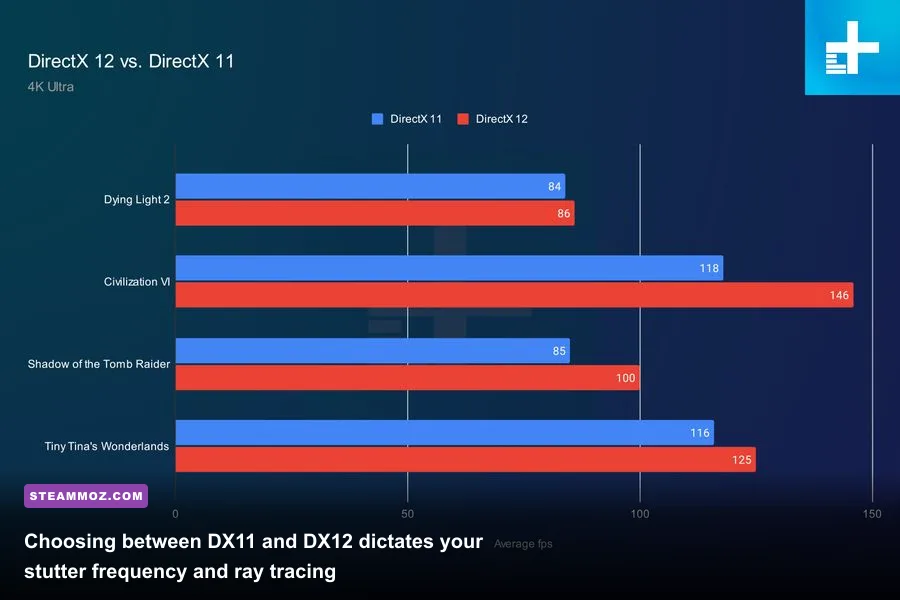
When you boot Control on Steam or the Epic Games Launcher, you are immediately forced to make a critical choice: DirectX 11 or DirectX 12. Picking the wrong API for your specific hardware architecture is the single biggest cause of unplayable frametime spikes and degraded frame rates. While modern games generally favor newer APIs, Remedy built their Northlight engine with specific hardware targets in mind.
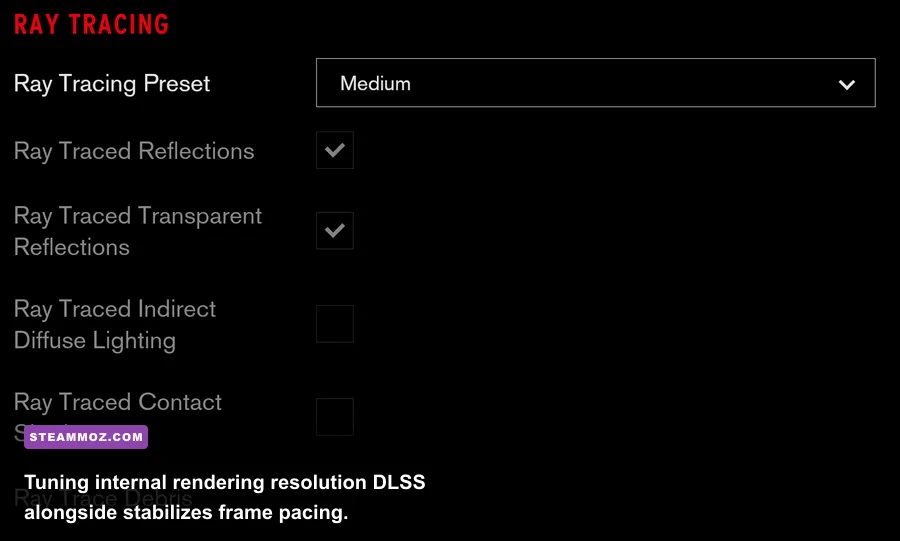
DirectX 12 is mandatory if you intend to run Ray Tracing or Nvidia DLSS. The DX12 pipeline enables asynchronous compute, allowing the game to distribute heavy particle physics, telekinetic debris calculations, and geometric destruction across multiple CPU cores simultaneously. However, DX12 in Control features an aggressive shader compilation routine. If you run an older graphics card—such as Nvidia's Pascal series (GTX 1060, 1070, 1080) or older AMD Polaris cards—DX12 will deliver catastrophic traversal stutter every time you cross sector boundaries between Central Executive and Maintenance. For these older architectures, launching Control_DX11.exe bypasses the modern low-level pipeline, smoothing out frametimes dramatically, though you lose access to ray tracing and hardware upscaling.
If you rock a modern GPU (Nvidia RTX 20-series and newer, or AMD Radeon RX 6000-series and newer), DirectX 12 is your optimal choice, but only when configured properly. Much like troubleshooting low framerates in modern open-world engine pipelines, running modern APIs without dedicated reconstruction tools will cripple your performance in heavy combat zones like the Panopticon or Central Research.
Optimizing Graphics Settings for Rock-Solid Frame Pacing
Default presets in Control are notoriously unoptimized. The "High" preset enables crushing settings that chew through render budgets while offering almost imperceptible visual upgrades over tuned values. Dialing in a custom profile rescues up to 40% of your performance without washing out the oppressive, brutalist aesthetic of the Federal Bureau of Control.
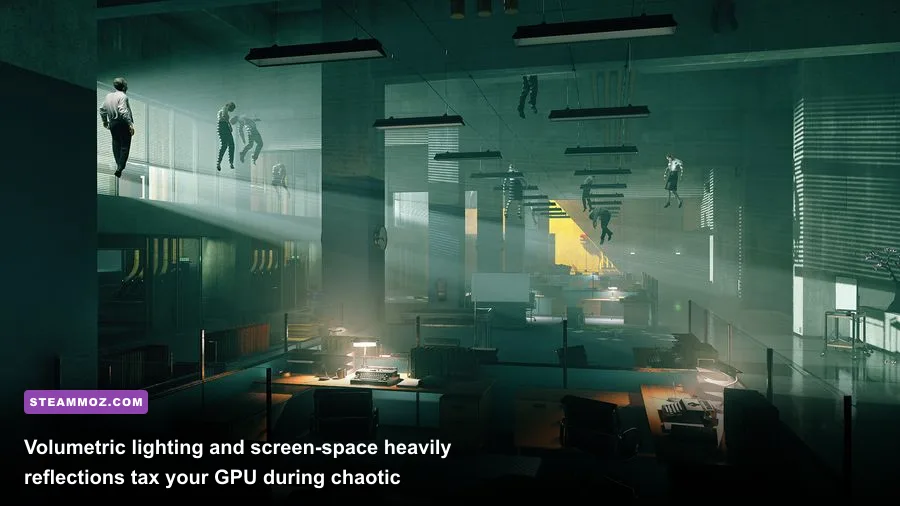
Volumetric Lighting is the primary performance thief. High volumetric lighting samples light shafts through thick smoke and Hiss resonance fields at extreme resolutions, hitting your GPU compute units hard. Dropping this to Medium clawbacks nearly 15% of your baseline FPS with practically identical atmospheric fog. Similarly, Global Reflections and Screen Space Reflections (SSR) should be managed with care. Screen Space Reflections on High attempts to reflect dynamic objects that are already occluded, inducing sudden frametime spikes when firing the Service Weapon's Shatter or Pierce forms.
| Graphic Setting | Recommended Value | Performance Cost | Visual Impact & Optimization Notes |
|---|---|---|---|
| Display Mode | Fullscreen | Low | Crucial for bypassing desktop window manager latency and stutter. |
| Render Resolution | 66% to 75% (DLSS / FSR) | High Recovery (~35% FPS) | Renders internally at lower res; DLSS reconstructs cleanly to native. |
| Volumetric Lighting | Medium | High (~12-15%) | High setting tanks frames in Hiss-infested corridors; Medium looks identical. |
| Global Reflections | Medium | Moderate (~8-10%) | Controls cubemap accuracy on polished marble floors. |
| Shadow Resolution | Medium | Moderate (~5-7%) | Softens harsh edges; High causes unnecessary shadow map draw calls. |
| Shadow Filtering | Medium | Very Low (~1-2%) | Smooths out contact shadows underneath furniture and debris. |
| Texture Resolution | High (8GB+ VRAM) / Medium (6GB) | VRAM Dependent | Setting to High on sub-8GB cards triggers massive streaming hitches. |
| Texture Filtering | Anisotropic 8x or 16x | Minimal (<1%) | Keeps office floor textures crisp at sharp oblique angles. |
| Far Object Detail (LOD) | Medium | Moderate (~4%) | Prevents geometry pop-in when flying through cavernous research halls. |
| MSAA | Off | Extreme (~25%) | Never use traditional MSAA alongside TAA or DLSS; it wastes brutal compute overhead. |
If you enjoy tweaking performance budgets in demanding titles, you know that raw rasterization overhead can bring even enthusiast rigs to a crawl, much like we detailed in our guide on stabilizing unruly PC frame drops. In Control, disabling MSAA entirely while leaning on DLSS Quality mode delivers the crispest picture quality with flawless temporal stability.
Eliminating Traversal Stutter and Windows Exploit Protection Bugs
One of the most infuriating technical issues in Control is the micro-stutter that occurs every few seconds while sprinting through hallways. You could have an RTX 4080 running at 120 FPS, yet as soon as Jesse moves from the Executive Sector into the Maintenance Sector, the framerate plummets to a crawl for a split second before recovering. This is not a hardware bottleneck; it is an operating system conflict with the Northlight Engine's dynamic memory addressing.
Windows 10 and Windows 11 feature an active security layer called Control Flow Guard (CFG). Designed to combat memory corruption vulnerabilities, CFG intercepts indirect function calls in real time. Because Remedy's engine aggressively streams dynamic assets, audio banks, and destruction meshes in background threads, Windows CFG repeatedly halts these worker threads to verify memory pointers. Disabling CFG specifically for the Control binary eliminates these traversal micro-stutters without compromising overall system safety.
Follow these exact steps to disable CFG for Control:
- Press the Windows Key, type Exploit protection, and open the system settings panel.
- Click on the Program settings tab.
- Click Add program to customise and choose Choose exact file path.
- Navigate to your Control installation directory (e.g.,
steamapps\common\Control\). - Select
Control_DX12.exe(orControl_DX11.exeif you use DX11) and click Open. - Scroll down to Control flow guard (CFG), check Override system settings, toggle the switch to Off, and click Apply.
- Restart your PC for the memory protection hook to detach cleanly.
Once you disable CFG, pair this fix with expanded driver-level caching. Open the Nvidia Control Panel (or AMD Radeon Software), navigate to Manage 3D Settings, locate Shader Cache Size, and change it from "Driver Default" to 10 GB. Pre-compiling and storing extensive shader routines locally stops Northlight from constantly recompiling pipeline states whenever Jesse triggers complex particle bursts.
Fixing Sudden Crashes to Desktop and Out-of-Memory Errors
Random desktop crashes in Control generally occur during high-action firefights or after 45 to 60 minutes of uninterrupted gameplay. These crashes almost always fall into two buckets: the notorious DXGI_ERROR_DEVICE_HUNG (0x887A0006) engine crash, or an outright silent crash caused by a VRAM memory leak.
The Northlight Engine holds onto discarded texture mipmaps rather than aggressively flushing them from video memory. Over extended play sessions, cards with 8GB or less of VRAM slowly hit capacity. Once video memory saturates, the engine attempts to spill excess textures into system RAM over the PCIe bus. This bandwidth saturation causes an engine timeout, triggering an instant crash. Similar out-of-memory crashes often plague other demanding releases, requiring aggressive hardware cache tuning just like the solutions in our guide to halting stability crashes.
| Crash Symptom / Error | Root Cause | Definitive Troubleshooting Solution |
|---|---|---|
DXGI_ERROR_DEVICE_HUNG |
GPU driver timeout during heavy particle physics or unstable factory overclock. | Increase Windows TdrDelay in registry to 8 seconds; underclock GPU core by -50MHz. |
| Crash after 45-60 minutes | Gradual VRAM memory leak in the dynamic texture streaming pool. | Set Texture Resolution to Medium; increase Windows Paging File to 16GB-24GB. |
| Crash on startup / Black screen | Conflicting third-party overlays hooking into the DirectX 12 swapchain. | Disable Discord, RivaTuner, and GeForce Experience in-game overlays. |
| Freeze during Telekinesis / Launch | CPU thread deadlock on Intel Hybrid Architecture (E-Cores). | Set affinity to Performance Cores (P-Cores) via Process Lasso or task manager. |
To resolve the dreaded DXGI_ERROR_DEVICE_HUNG, the most effective fix is adjusting your system's Timeout Detection and Recovery (TDR) parameters. Windows automatically resets the graphics driver if a draw call takes longer than two seconds. In Control, when Jesse launches massive desks, forklifts, or chunks of masonry while multiple Hiss enemies detonate, draw calls can momentarily spike beyond that threshold.
To give your GPU the breathing room it needs, open regedit, navigate to HKEY_LOCAL_MACHINE\SYSTEM\CurrentControlSet\Control\GraphicsDrivers, right-click, create a new DWORD (32-bit) Value named TdrDelay, and set its value to 8 (Decimal). This extends the recovery window to eight seconds, preventing Windows from aggressively killing your display driver during sudden rendering spikes. If you find deep-dive troubleshooting like this familiar, it mirrors the exact system adjustments used for clearing stubborn PC crash loops in resource-constrained environments.
Configuration File Tweaks and CPU Scheduling Fixes
If you are running a modern CPU with a hybrid architecture—such as Intel's 12th, 13th, or 14th Gen Core processors featuring both Performance Cores (P-Cores) and Efficient Cores (E-Cores)—Control may suffer from severe scheduling hiccups. Windows occasionally assigns Northlight's critical physics processing threads to low-power E-Cores. When this happens, Jesse's Levitation and Launch abilities will cause severe framerate drops regardless of how powerful your graphics card is.
You can force the game to prioritize raw horsepower by assigning core affinity. Boot Control, open Task Manager, switch to the Details tab, right-click Control_DX12.exe, select Set affinity, and uncheck your E-Cores (typically the higher-numbered CPU threads at the bottom of the list). For a permanent solution, you can use utility tools like Process Lasso to automate this rule every time the executable initializes.
Next, you should inspect your internal configuration file to resolve internal display scaling bugs. Navigate to the game's configuration folder located at:
%LOCALAPPDATA%\Remedy\Control\
Open renderer.ini using a text editor. Look for the following lines and verify their values:
"WindowMode": 2(This forces true Exclusive Fullscreen rather than Borderless Windowed)."Vsync": false(Always disable in-engine V-Sync; Northlight's built-in synchronizer introduces terrible input lag and frame pacing stutters)."FilmGrain": false(Optional, but disabling film grain cleans up temporal noise and sharpens DLSS image reconstruction).
Much like fine-tuning graphics variables in games like Filament for smoother frame delivery, manually locking these baseline parameters inside renderer.ini ensures that the launcher does not override your settings after game updates or driver reinstalls.
Finally, configure your display synchronization correctly through your GPU driver. Open Nvidia Control Panel, set Vertical sync to On globally, enable G-Sync / FreeSync, and navigate to Max Frame Rate. Cap your framerate to exactly 3 FPS below your monitor's maximum refresh rate (e.g., 141 FPS for a 144Hz panel, or 162 FPS for a 165Hz panel). This locks the game inside your monitor's variable refresh rate window, completely banishing screen tearing and micro-stutters without the horrific mouse lag caused by standard software V-Sync.
By bypassing Control Flow Guard, setting up DX12 with DLSS reconstruction, extending your TDR timeout threshold, and locking down hybrid CPU thread scheduling, you transform Control from a stutter-heavy technical minefield into the butter-smooth, mind-bending cinematic tour de force that Remedy Entertainment intended. Step back into the Oldest House, unleash Jesse's powers without fear of crashing, and take back the Bureau with flawless performance.