
Apex Legends micro-stutters, sudden frame drops in the middle of a World's Edge gunfight, and random desktop crashes without error codes almost always boil down to three culprits: corrupted DirectX shader caches after seasonal patches, engine physics de-syncs caused by running uncapped framerates above 190 FPS, or an overly aggressive Texture Streaming Budget choking your system VRAM. If your game locks up the instant Bangalore pops her smoke or your framerate tanks from 165 to 70 when dropping into Fragment East, you don't need a brand-new graphics card. You need to strip away Respawn’s unoptimized defaults, tame the Source engine's quirks, and configure your system so Windows stops fighting your GPU for memory bandwidth.
Optimize In-Game Video Settings for Maximum Frames and Visual Clarity
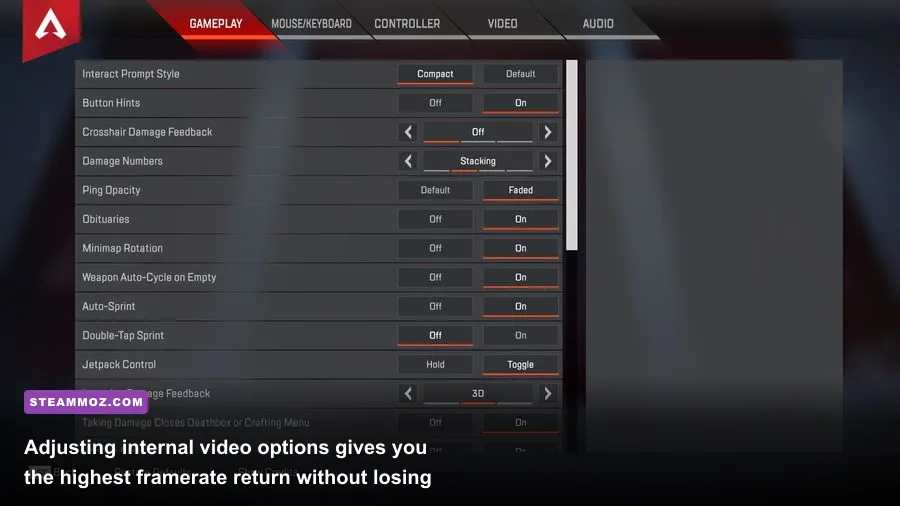
Apex Legends runs on a heavily modified version of Valve's Source engine. While this engine allows for razor-sharp hit registration and snappy movement mechanics, it handles modern graphical pipelines poorly when you crank up post-processing sliders. Finding the sweet spot means eliminating bells and whistles that blind you during competitive gunfights while killing your frametime consistency.
The single biggest performance trap in the video menu is the Texture Streaming Budget. Many players assume that because their graphics card features 8GB of VRAM, they should set this slider to "Insane (8GB)". Don't do it. Apex reserves VRAM aggressively, and setting this value to your card's theoretical limit forces Windows to page overflow assets into system RAM. That memory swap causes an instantaneous, gut-wrenching 200-millisecond stutter right as you aim down sights. If you run an 8GB GPU like an RTX 3070 or RX 6700 XT, set your budget to High (4GB) or Very High (6GB). If you run a 6GB card, drop it down to Medium (3GB). You won't notice a visual difference in weapon skins or legend models, but your 1% low framerates will instantly stabilize.
Next, tackle the shadow cascade. Sun Shadow Coverage and Sun Shadow Detail are massive CPU hogs that chew through draw calls, especially in open fields on Storm Point and Olympus. Setting them to Low or Disabled nets an immediate 12-15% jump in overall frames. Combine that with turning off Volumetric Lighting and Dynamic Spot Shadows, and you clear out unnecessary visual clutter that masks enemy silhouettes lurking in dark corners of the map.
| In-Game Setting | Competitive Recommendation | Performance Impact | Tactical / Visual Advantage |
|---|---|---|---|
| Display Mode | Full Screen | Very High | Eliminates desktop compositor lag and cuts input latency |
| Aspect Ratio & Resolution | 16:9 Native (1080p / 1440p) | High | Prevents spatial scaling distortion during long-range tracking |
| Field of View (FOV) | 104 to 110 | Moderate | Maximizes peripheral awareness with negligible frame loss |
| Texture Streaming Budget | High (4GB) or Medium (3GB) | High (1% Lows) | Prevents VRAM overflow micro-freezes during rapid weapon swaps |
| Texture Filtering | Anisotropic 2X or 4X | Very Low | Keeps ground terrain readable at negligible GPU cost |
| Ambient Occlusion Quality | Disabled | High (8-10% FPS) | Removes muddy corner shadows; makes enemies stand out clearer |
| Sun Shadow Coverage | Low | Moderate | Drastically reduces CPU draw calls across wide outdoor environments |
| Sun Shadow Detail | Low | Moderate | Smooths out frame drops during intense ring rotations |
| Spot Shadow Detail | Disabled | High | Prevents sudden frame drops near complex artificial lighting |
| Volumetric Lighting | Disabled | Moderate | Eliminates blinding light shafts when shooting toward the sun |
| Dynamic Spot Shadows | Disabled | Moderate | Removes unnecessary calculations for moving world lights |
| Model Detail | Medium | Low | Prevents enemy model pop-in at extreme sniper ranges |
| Effects Detail | Low | High | Stops frame crashes during multiple ultimate ability deployments |
| Impact Marks | Low or Disabled | Low | Cleans up visual noise from bullet holes on walls |
| Ragdolls | Low | Low (CPU Bound) | Lightens CPU load during chaotic multi-squad wipes |
Much like the optimization adjustments detailed in our settings tuning for high FPS, trimming back non-essential lighting transforms your baseline stability without leaving you at a disadvantage against rival squads.
Fix Apex Legends Crashing Without Error Codes and Desktop Hangs
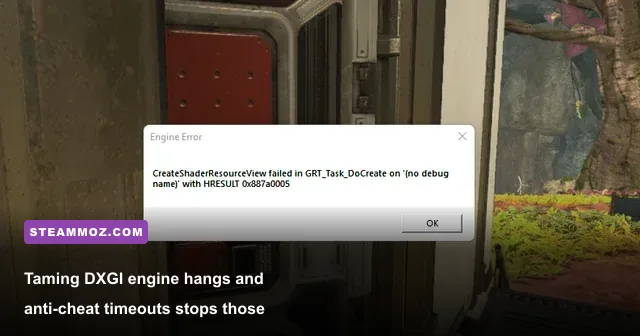
Few things spark gamer rage quite like wiping two squads, picking up a gold shield, and having your game silently vanish directly to the Windows desktop. When Apex Legends crashes without an error message, it is rarely a hardware failure. Instead, it is typically an unhandled exception between Easy Anti-Cheat (EAC), corrupted DirectX runtimes, or aggressive third-party background hooks.
Start by auditing your DirectX version. Respawn introduced an experimental DirectX 12 beta mode that promises better multi-core CPU utilization. While DX12 handles CPU bottlenecks adequately on high-core processors, it remains notoriously prone to memory leaks, random device removal crashes (DXGI_ERROR_DEVICE_REMOVED), and severe hitching when loading new skins mid-game. If you are experiencing unexplained desktop drops, force Apex back to rock-solid DirectX 11. Head into your Steam Library, right-click Apex Legends, hit Properties, and wipe out any -eac_launcher_settings SettingsDX12.json launch strings. DX11 remains the most stable, battle-tested API for this engine.
Next, resolve common Easy Anti-Cheat conflicts. If EAC encounters a blocked memory query caused by aggressive antivirus software or outdated certificate validations, it kills the game executable instantly with zero warning. Navigate to your installation directory:
C:\Program Files (x86)\Steam\steamapps\common\Apex Legends\EasyAntiCheat
Right-click EasyAntiCheat_Setup.exe, run it as Administrator, select Apex Legends from the drop-down menu, and click Repair Service. Once that finishes, navigate back to the main game folder, locate r5apex.exe, right-click it, go to Properties > Compatibility, and ensure "Run this program as an administrator" is unchecked. Forcing administrator mode on the executable while EAC runs in standard user mode frequently triggers silent shutdown flags.
You also need to eliminate the overlay menace. Background overlays inject dynamic DLL hooks into the game’s rendering pipeline, which the Source engine despises. Turn off the following immediately:
- Discord Overlay: Open Discord Settings > Game Overlay > toggle off. Also head to Voice & Video > Advanced and disable "Use our latest technology to capture your screen".
- EA App In-Game Overlay: Open the EA App settings, navigate to Application, and disable the in-game overlay toggle entirely.
- GeForce Experience / AMD Adrenalin In-Game Overlays: Keep the driver software, but turn off active screen hooks and automatic instant replay highlights if you experience freezing when landing in high-density points of interest.
If you still encounter driver-level timeouts, you might need a clean slate. Use Display Driver Uninstaller (DDU) in Windows Safe Mode to scrub away residual driver bloat, then perform a clean install using the official NVIDIA Driver Download or AMD equivalent. As we explored when solving severe PC crashes and low framerates, wiping out corrupt driver registrations often resolves crashes that standard troubleshooting completely misses.
Steam and EA App Launch Options That Actually Move the Needle

The internet is littered with placebo launch options copied from old CS:GO and CS:Source forums from 2011. You have likely seen people recommending commands like -high, -threads 8, or -nod3d9ex. Stop using them. On modern Windows 10 and 11 systems running hybrid architectures (such as Intel 12th, 13th, or 14th Gen chips with Performance and Efficient cores), adding -high tells Windows to force non-gaming threads onto your priority cores, causing devastating micro-stutters. Meanwhile, -threads overrides the engine’s natural thread-pool allocator and can induce severe crashing during map rotations.
Here are the verified, functional launch options that genuinely improve game delivery:
+fps_max 180 -novid -fullscreen -cl_forcepreload 0
Let's break down exactly what each of these parameters does for your system:
+fps_max 180: Caps your engine framerate. Why 180? The Source engine suffers from a legacy physics issue where frame rates pushed past 190 FPS begin to jitter. The game’s internal tick rate clashes with rendering interpolation, creating a stuttering sensation even if your monitor displays 240Hz. Capping at 180 or matching your display's G-Sync ceiling (such as 141 or 162 FPS) guarantees flawless frame times.-novid: Skips the unskippable EA and Respawn startup cinematics, allowing you to load into the main lobby screen in seconds.-fullscreen: Forces the game client into an exclusive display state on boot rather than borderless windowed mode, reducing hardware DWM (Desktop Window Manager) input delay.-cl_forcepreload 0: Crucial tweak. Many older performance guides falsely claim that setting preload to 1 boosts speed. In reality, forcing preload keeps outdated map geometry loaded in RAM, which creates violent 1-second hitches whenever a squad triggers a nearby zip-line or fires an energy weapon. Setting it to 0 streams assets dynamically without memory stalls.
If you want to go one step further, take advantage of the pro-level videoconfig.txt modification. Press Windows Key + R, paste %USERPROFILE%\Saved Games\Respawn\Apex\local, and open videoconfig.txt using Notepad. Locate the line that reads:
"setting.csm_enabled" "1"
Change the "1" to a "0", save the document, right-click videoconfig.txt, choose Properties, and check Read-only. This tweak completely disables Cascaded Shadow Maps. You will lose dynamic ground shadows cast by players, but you will gain an immediate, rock-solid 15% to 20% framerate uplift inside high-rise locations like Olympus Estates or World's Edge Skyhook. This mirrors the exact config modifications we rely on in our framerate rescue guide for stutter-heavy engines.
Eradicate Micro-Stutters: Shader Cache, Polling Rates, and Windows Tuning
You can have an RTX 4080 and a Ryzen 7 7800X3D, but if your operating system stalls behind micro-tasks while playing Apex, your mouse movement will feel heavy, sluggish, and inconsistent. The fix begins with your mouse hardware. Many modern competitive mice boast polling rates of 4000Hz or 8000Hz. While impressive on paper, the modified Source engine struggles to process thousands of coordinate updates per second while running high tick calculations. Rapidly flicking your mouse across your mousepad at 8000Hz can drop your framerate from 240 down to 40 FPS in a fraction of a second. Lower your mouse polling rate in your peripheral software (Razer Synapse, Logitech G Hub, or Wooting) to 1000Hz or a maximum of 2000Hz. Your tracking will immediately feel crisp and stutter-free.
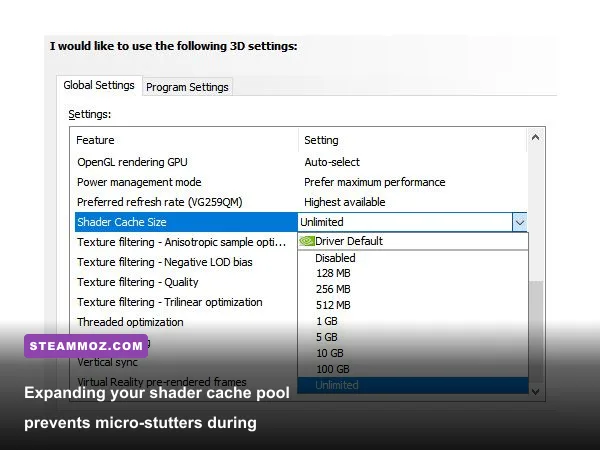
Another major culprit behind micro-stutters is shader cache exhaustion. When Respawn deploys mid-season balance updates, the game has to recompile shaders on the fly. If your GPU driver assigns an undersized shader storage pool, the game constantly dumps and rewrites compiled assets to your SSD right as you swing into combat.
To resolve this in the NVIDIA Control Panel:
- Open NVIDIA Control Panel and select Manage 3D Settings.
- Scroll down in Global Settings to Shader Cache Size.
- Switch it from "Driver Default" to 10GB or 100GB.
- Locate Low Latency Mode and set it to On. (Avoid "Ultra" in the control panel if you already run NVIDIA Reflex enabled in-game, as having both fight for buffer control can induce frametime jitter).
- Set Power Management Mode to Prefer Maximum Performance to ensure your GPU clock speeds don't drop down to idle states between matches.
| System / OS Component | Identified Symptom | Recommended Fix | Direct Result |
|---|---|---|---|
| DirectX Shader Cache | 1-second hitch when firing weapons for the first time | Purge DXCache and bump driver cache to 10GB+ | Eliminates mid-fight compilation spikes permanently |
| Gaming Mouse Polling | Massive frame drops only while swinging the crosshair | Lower polling frequency from 4K/8K to 1000Hz | Prevents CPU interrupt overload on the primary game thread |
| Game Bar & DVR | Periodic frametime spikes every 60 seconds | Disable Windows Background Recording & Xbox Game Bar | Frees up constant SSD write buffers and system interrupts |
| Exploit Protection (CFG) | Erratic 1% low frames on Windows 11 | Disable Control Flow Guard specifically for r5apex.exe | Cuts instruction validation overhead on CPU pipelines |
| System RAM Configuration | General choppiness in hot drops like Lava Siphon | Enable XMP/EXPO profiles in Motherboard BIOS | Unlocks dual-channel memory bandwidth for asset streaming |
If you have never cleaned out old, bloated shader caches, you can do so manually. Close Apex Legends, press Windows Key + R, type %LOCALAPPDATA%\NVIDIA\DXCache, and delete the contents inside that folder. For AMD users, open the AMD Adrenalin software, go to Gaming > Graphics > Advanced, and click Reset Shader Cache. The next time you launch the game via the Apex Legends Steam page, let the game sit on the title screen for three minutes. You will see "Compiling Shaders" in the bottom corner. Let it complete to 100% before queuing up into a match.
For more insights on stabilizing game engines prone to sudden performance drop-offs, check out our breakdown on rescuing performance in complex open-world titles.
Frame Pacing and the 190 FPS Engine Limit: Pro Configuration

Achieving competitive dominance in Apex Legends isn't just about cranking your framerate as high as humanly possible; it's about delivering those frames at laser-consistent intervals. If your system pushes 240 FPS one second and plunges to 130 FPS the moment a Gibraltar defensive bombardment drops, that violent variance destroys your muscle memory and causes display tearing.
Apex Legends relies on an engine tick clock that exhibits micro-judder when framerates exceed roughly 190 FPS. Even with a high-end 240Hz or 360Hz monitor, running completely uncapped creates visual unevenness. For the tightest frametimes possible, lock your framerate using the in-game command or an external tool like RivaTuner Statistics Server (RTSS).
The golden rule for G-Sync and FreeSync variable refresh rate displays is straightforward: cap your frames slightly below your monitor's maximum refresh ceiling. Use this configuration standard:
- 144Hz Monitor: Cap your framerate to 141 FPS.
- 165Hz Monitor: Cap your framerate to 162 FPS.
- 240Hz Monitor: Cap your framerate to 180 or 190 FPS (do not exceed 190 to avoid the engine's built-in physics judder).
Pair this cap with NVIDIA Reflex Low Latency set to On + Boost inside the in-game video settings. Reflex dynamically optimizes your CPU-to-GPU render queue. By enabling Boost, the driver prevents your graphics card from downclocking during lighter hallway sequences, ensuring instantaneous response times the moment an enemy Octane slides around a corner with a Peacekeeper.
Finally, ensure your system hardware isn't bottlenecked by basic configuration oversights. Apex is notoriously memory bandwidth sensitive. If your DDR4 or DDR5 RAM is running at default JEDEC speeds (2133MHz or 4800MHz) because you forgot to enable XMP or EXPO in your BIOS, your minimum framerates will suffer massively when dropping into high-density zones. Restart your PC, hop into your BIOS, enable your memory profile, and ensure your sticks are operating in dual-channel mode. Check out the official troubleshooting resources on EA Apex Legends Support or verify your Visual C++ libraries via Microsoft Visual C++ Redistributables if you still suspect runtime conflicts.
Similar to the pacing balance we explored in our guide to taming severe frametime instability, a locked, predictable framerate will always outperform erratic, uncapped frames. Apply these targeted tweaks, dial in your launch arguments, and dive back into the Outlands with silky-smooth responsiveness and zero fears of crashing out of your next ranked match.