
If your match turns into a slideshow or dumps you straight to desktop the second a Sicilian army drops ten Donjons or a Burgundian player pops Flemish Revolution, you are wrestling with engine-level memory thrashing and thread starvation. The immediate fix for micro-stuttering in Age of Empires II: Definitive Edition – Lords of the West is disabling the Enhanced Graphics (UHD 4K) Pack, configuring a static 16 GB Windows virtual paging file, and forcing driver-level frame capping. The modernized Genie engine under the hood relies heavily on a single master simulation thread; when high-resolution textures swamp your VRAM or audio buffers desync, that primary thread locks up, dragging your frame rates into the dirt regardless of your graphics card.
Dialing in the Graphics: The Settings That Kill Performance
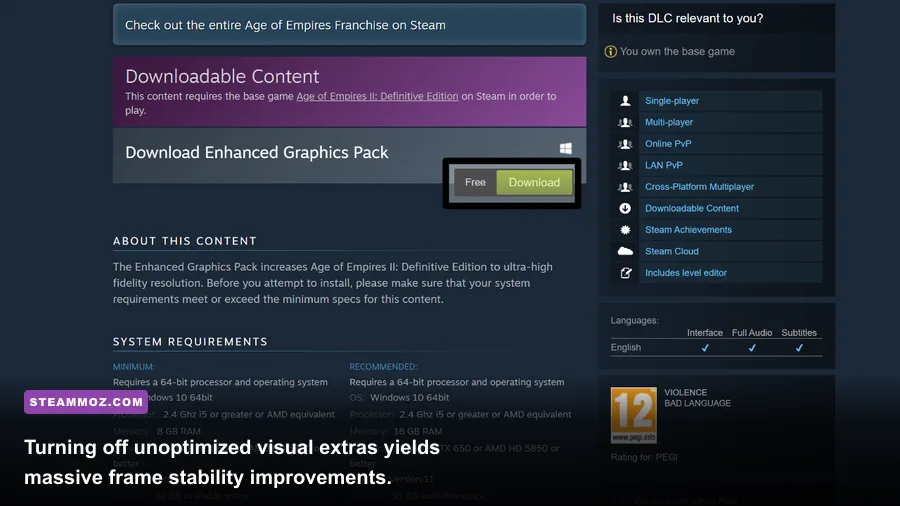
The Definitive Edition looks gorgeous compared to the 1999 original, but its visual pipeline features massive overhead traps. The biggest performance sink in the game is the Enhanced Graphics Pack (UHD). Unless you are running on a true 4K panel with more than 10 GB of high-speed VRAM, this DLC pack introduces brutal frame-time spikes whenever you pan the camera across active trade routes or large skirmishes. Even high-end GPUs suffer from sudden asset-streaming hiccups because AoE2 DE renders tens of thousands of individual 2D sprite frames into system memory. Disabling this optional DLC from your Steam properties immediately clears up intermittent camera hitching.
Beyond texture sizing, dynamic particle effects and post-processing filters tax your CPU render queue without giving you any tactical advantage. Disabling 3D Snow, Fog, and Bloom keeps your visual clarity sharp while preserving vital processor overhead for combat calculations. Similar to the optimization steps we laid out in our Filament Marmalade Edition settings for higher FPS guide, stripping away excessive post-processing stabilizes erratic frame pacing instantly.
| Setting | Recommended Value | Frame-Time Impact | Tactical & Visual Note |
|---|---|---|---|
| Enhanced Graphics (UHD) | Disabled | Extreme (15–30 ms reduction) | Massively frees up VRAM; eliminates panning hitching |
| Resolution Scale | 100% (Native) | Moderate | Never downscale; blur ruins unit outline readability |
| Particles | Low | High in Battles | Reduces FPS drops during Trebuchet & Bombard fire |
| Bloom & Fog | Disabled | Low to Moderate | Improves map contrast and prevents lighting pipeline lag |
| 3D Snow | Disabled | Moderate | Removes persistent CPU simulation overhead on winter maps |
| V-Sync (In-Game) | Off | High Input Delay | Introduces sluggish mouse latency; cap FPS via driver instead |
| Animated Water | Low or Medium | Minor | Prevents frame pacing issues on island and migration maps |
Always turn off in-game V-Sync. The engine implementation causes dreadful mouse input latency on building placement grids. To eliminate tearing without turning your cursor into mud, leave V-Sync disabled inside the game menu and cap your maximum frame rate to your monitor's native refresh rate using your GPU control software.
Fixing Engine Bottlenecks: Memory Leaks and Virtual RAM
Does your game abruptly close without an error message 35 minutes into an intense 4v4 imperial slugfest? That is the classic out-of-memory exception. The Lords of the West update added complex mechanics—like Coustillier burst charges and mass unit conversions—that create large object arrays in system memory. When AoE2 DE exhausts physical memory, it offloads assets to the Windows pagefile. If your pagefile is managed automatically by Windows or restricted to a tiny drive, the game crashes instantly the moment memory usage spikes.
Setting up a manual, high-capacity pagefile eliminates 90% of mid-game and late-game crashes. Open Windows Search, type sysdm.cpl, hit Enter, navigate to the Advanced tab, and click Settings under Performance. Switch to the Advanced tab again, select Change under Virtual Memory, uncheck automatic management, and select your fastest NVMe SSD. Set a Custom size with an Initial size of 16384 MB and a Maximum size of 24576 MB. Click Set and restart your PC.
This step solves memory thrashing issues across many demanding strategy and sim titles, much like our troubleshooting process for EscapeVR the Basement crashing and low FPS fixes. Without an adequate virtual buffer, the modified Genie engine cannot swap discarded building destruction animations fast enough, leading to hard desktop freezes.
DirectX, GPU Drivers, and Clean Launch Configurations
Outdated runtime libraries and overlay hooks are notorious for interfering with the game's DirectX 11 wrapper. If your game crashes while launching the Grand Dukes of the West or Edward Longshanks campaigns, the issue often stems from corrupt runtime dependencies. Head to Microsoft's official directory and install the all-in-one Microsoft Visual C++ Redistributable packages (both x86 and x64 builds). Reboot your machine to ensure the updated DLL hooks register properly.
Next, bypass the crash-prone intro cinematic loop by tailoring your Steam launch parameters. Right-click Age of Empires II: Definitive Edition in your library, open Properties, and paste the following parameters into the Launch Options field:
SKIPINTRO -nostartupmovies
These commands bypass the video decoder completely, jumping straight into the interactive main menu. This eliminates startup driver handshakes that cause black-screen hangs on modern multi-monitor setups. As we've detailed when tuning high-octane titles like in our Far Cry 6 GOTY Upgrade Pass settings for max FPS guide, trimming pre-rendered startup calls saves your display drivers from unexpected D3D device crashes.
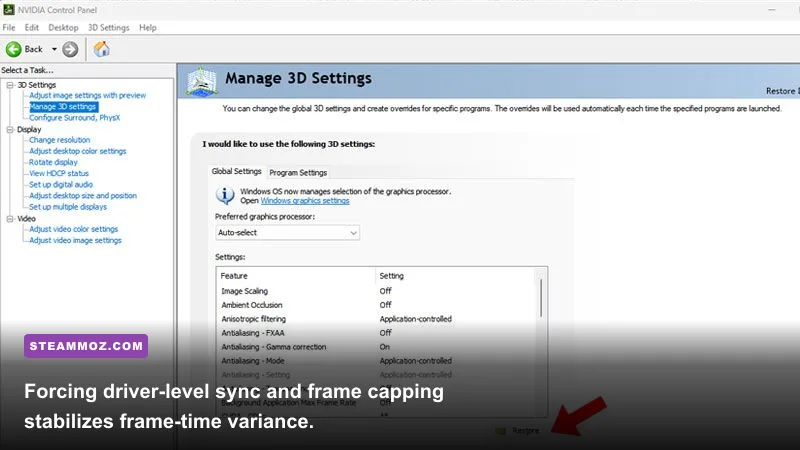
Inside your NVIDIA Control Panel or AMD Software, configure the application profile for AoE2DE_s.exe:
- Power Management Mode: Prefer Maximum Performance
- Low Latency Mode / Radeon Anti-Lag: On (not Ultra)
- Threaded Optimization: On
- Max Frame Rate: Match your display (e.g., 141 FPS on a 144 Hz screen)
If you run third-party background software such as RivaTuner Statistics Server, Discord Overlay, or GeForce Experience ShadowPlay overlay, disable their hooks specifically for AoE2 DE. The game's Direct3D hook will crash with a silent 0xc0000005 access violation if multiple software hooks attempt to intercept the primary render target simultaneously.
Resolving Desyncs, Multiplayer Freezes, and Mod Conflicts
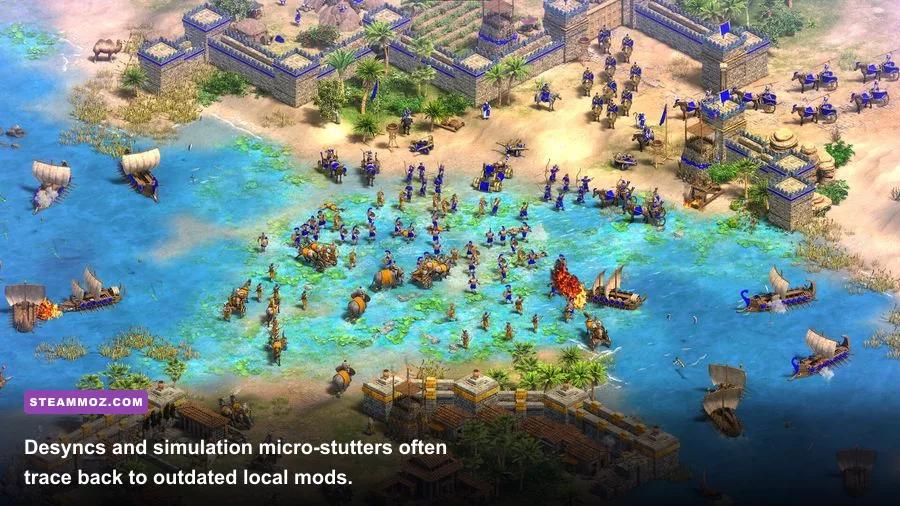
Few things hurt more than dropping out of a ranked match with a desync warning while mounting an imperial comeback. In the Lords of the West expansion, new civ mechanics trigger rapid state verification checks between the host and clients. If your local game files contain outdated balance mods, custom UI tweaks, or corrupted event mods from older patches, the deterministic simulation engine flags a mismatch and drops the connection.
Clean out your mod directory to establish a known-good baseline. Press Windows Key + R, paste the following path, and hit Enter:
%USERPROFILE%\Games\Age of Empires 2 DE\
Open the folder labeled with your unique Steam ID number, enter the mods folder, and temporarily delete everything inside both the local and subscribed folders. Relaunch the game and verify your installation files through the Age of Empires II: Definitive Edition on Steam client to pull down fresh vanilla assets.
| Issue / Error Pattern | Root Engine Cause | Troubleshooting Step | Fix Reliability |
|---|---|---|---|
| Desync / Out of Sync Error | Mod version mismatch or client clock divergence | Purge local mods folder; verify game files on Steam | 95% |
| Instant Crash on Map Load | Corrupted asset cache or VRAM overflow | Set 16 GB pagefile; disable UHD Enhanced Graphics | 90% |
| Micro-stutters during scrolling | Single-thread CPU bottleneck / high mouse polling | Lower mouse polling rate to 500 Hz; enable Threaded Opt. | 85% |
| Freeze during Flemish Revolution | Mass entity spawn pathfinding saturation | Update GPU driver; close heavy CPU background apps | 80% |
| Startup Black Screen Hang | Media Foundation video codec failure | Add SKIPINTRO to Steam launch properties | 99% |
Additionally, add an exclusion for the entire Age of Empires 2 DE installation directory inside Windows Defender Antivirus. Real-time scanning engines often lock temporary replay files and save files while the engine writes to them, causing a 1-to-2-second gameplay freeze that drops your match sync.
Audio Driver Latency and CPU Core Affinity Tweaks
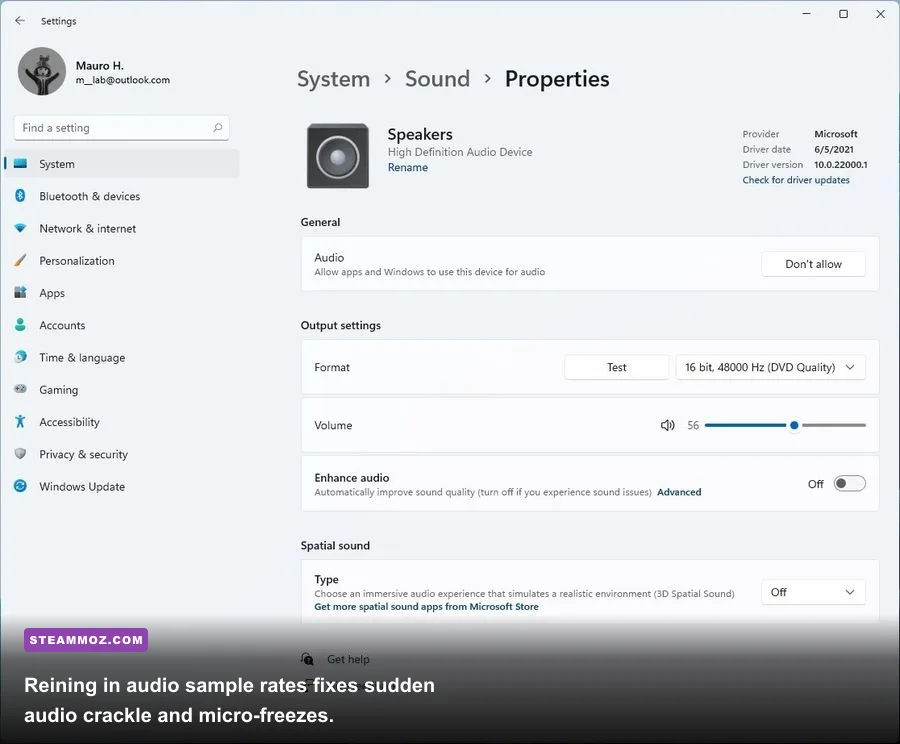
An overlooked cause of micro-stuttering in Age of Empires II is the FMOD audio engine. When heavy siege weapons fire or dozens of Sicilian Serjeants battle in close quarters, the game triggers hundreds of simultaneous 3D sound events. If your Windows sound playback device is configured to an extreme audiophile sample rate (such as 192,000 Hz / 24-bit or 384,000 Hz), the audio thread stalls the game logic while downsampling on the fly.
Open your legacy Sound Control Panel (type mmsys.cpl in Windows Search). Right-click your active audio device, click Properties, and navigate to the Advanced tab. Under the Default Format drop-down, select 24-bit, 48000 Hz (Studio Quality) or 16-bit, 44100 Hz (CD Quality). Hit Apply and test in-game. This eliminates the random pops, clicks, and associated millisecond-long frame drops during chaotic battles.
Finally, check your peripheral polling rates. Modern gaming mice default to 1,000 Hz or even 4,000 Hz polling rates. Because the game recalculates cursor raycasting across an isometric coordinate grid on the main CPU thread, rapid mouse movements at ultra-high polling rates cause severe micro-stuttering. Drop your mouse polling rate to 500 Hz or 1,000 Hz inside your mouse software (Razer Synapse, Logitech G Hub, or similar). Hardware considerations matter just as much as in titles like Fatal Fury City of the Wolves PC specs explained or when stabilizing performance in Elex PC fixes that stop crashes and rescue your FPS.
If you run an Intel 12th, 13th, or 14th Gen processor with hybrid architecture, the Windows scheduler can occasionally assign AoE2's primary simulation thread to an Efficiency (E) core. You can prevent this by downloading Process Lasso and restricting AoE2DE_s.exe to your Performance (P) cores only. For persistent campaign mission script issues or multiplayer matchmaking stability updates, consult the official Age of Empires support portal for recent hotfix patch logs.