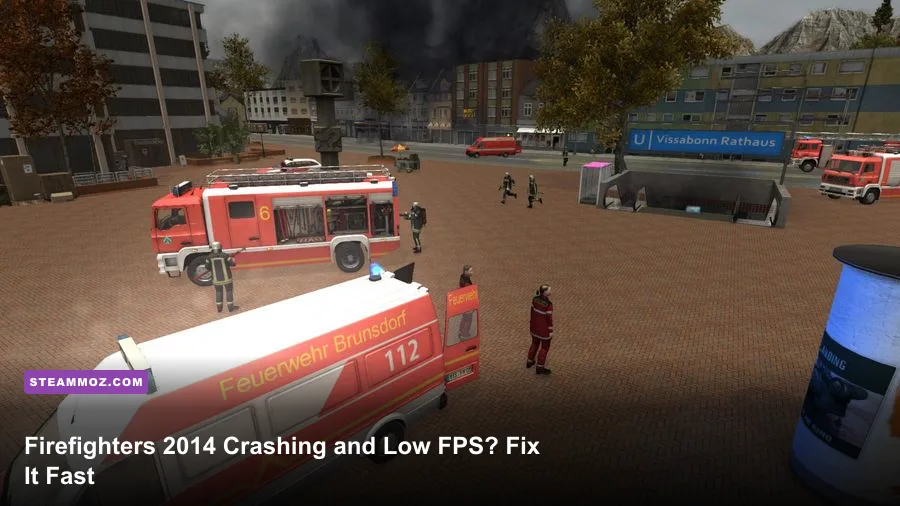
Firefighters 2014 - The Simulation Game usually stops crashing or running poorly after four fixes: verify the Steam files, disable fullscreen optimizations, use a sensible 1280×720 or 1920×1080 profile, and install a clean current GPU driver. Start there before touching obscure Windows tweaks. This is an older PC release, so modern overlays, aggressive high-resolution scaling, and compatibility problems can hurt it more than the game's relatively modest graphics ever should.
The important distinction is whether you have a true crash, a steady low frame rate, or brief stutter when a mission loads. They look similar from the driver's seat, but the fixes aren't identical. A crash to desktop points toward corrupted files, old DirectX components, permissions, or an overlay conflict. Low FPS points toward resolution, shadows, reflections, and driver behavior. Stutter often comes from shader caching, background recording, or the game fighting Windows' fullscreen handling.
Check the PC baseline before changing settings

Firefighters 2014 was designed for hardware that is now far below a typical gaming PC. Steam's store listing gives the game a roughly 2 GHz dual-core processor, 2 GB of RAM, a DirectX 9-era graphics card such as a GeForce 9600 GT or Radeon HD 3850, and around 2 GB of storage as its minimum target. Those numbers describe launch-era compatibility, not a guarantee that every modern Windows configuration will behave perfectly.
That distinction matters on laptops. A modern integrated GPU can be technically faster than the listed card but still deliver worse results if Windows launches the game on the power-saving adapter. Open Windows Settings, select System, then Display, Graphics, and add the game's executable if it is missing. Set it to High performance. On NVIDIA systems, make the same choice in NVIDIA Control Panel under Manage 3D settings; AMD users can select the high-performance profile in Adrenalin.
| Component | Listed or practical baseline | Recommended modern target | Why it matters |
|---|---|---|---|
| Operating system | Windows XP/Vista/7-era support | Windows 10 or 11 fully updated | Modern Windows needs compatibility adjustments for older executables. |
| Processor | 2 GHz dual-core class | Any recent 4-core desktop or laptop CPU | Helps with vehicle movement, traffic, fire effects, and simulation updates. |
| Memory | 2 GB RAM | 8 GB system RAM | Leaves room for Steam, browser tabs, and driver services. |
| Graphics | GeForce 9600 GT or Radeon HD 3850 class | Modern integrated graphics or better | Enough headroom for 1080p without maxing every legacy effect. |
| Storage | About 2 GB free | At least 5 GB free on the game drive | Prevents failed updates, shader-cache issues, and awkward temporary-file errors. |
For a second opinion on diagnosing old PC games, our ELEX crash and FPS troubleshooting guide covers the same driver, overlay, and compatibility traps in a newer but similarly temperamental PC environment.

🎮 Firefighters 2014 - The Simulation Game
Looking to experience this game? Grab your digital key directly on our store for $4.99.
View on Steammoz Store →Fix Firefighters 2014 crashes in the right order
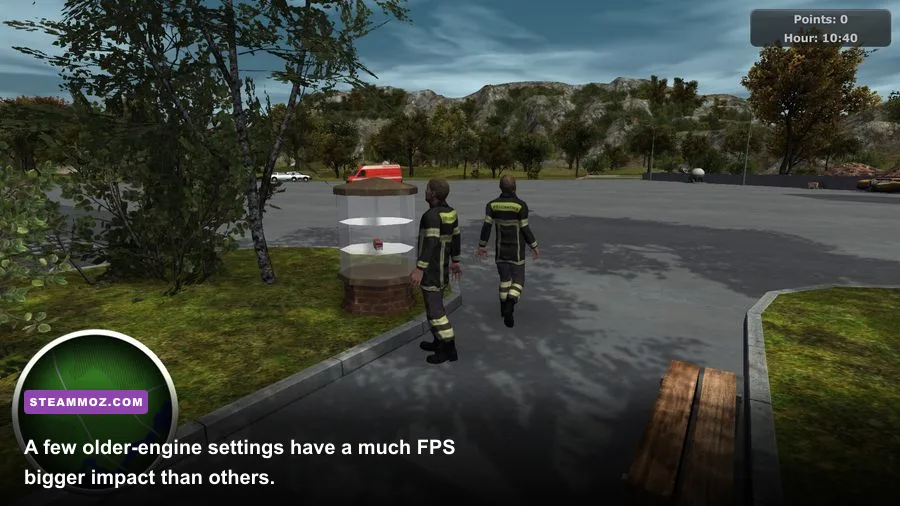
Don't begin by deleting random files from the installation folder. Work from the least destructive repair to the more forceful one, testing the game after each step. That makes it obvious which change solved the problem and protects your saves and settings.
1. Verify the Steam installation
In Steam, right-click Firefighters 2014, open Properties, choose Installed Files, and select Verify integrity of game files. Steam will replace missing or damaged files, but it won't normally remove a broken custom configuration. Let the process finish completely, then restart Steam before launching the game.
If verification reports a problem every time, check your drive. A nearly full disk, antivirus quarantine, or a read-only game folder can cause the same files to fail repeatedly. Temporarily check your security software's quarantine history and add the Steam library as an exception only if you trust the installation. Never download replacement DLL files from a random website.
2. Install the legacy DirectX runtime
A current DirectX 12 installation does not automatically include every optional legacy library used by older games. Install Microsoft's official DirectX End-User Runtime Web Installer, reboot, and test again. This does not downgrade DirectX 12; it adds older side-by-side components that a DirectX 9-era game may request at startup.
3. Test compatibility and administrator settings
Open Steam's local files, locate the main game executable, right-click it, and select Properties. Under Compatibility, test Windows 7 compatibility mode first. If that fails, try Windows XP Service Pack 3. Enable Disable fullscreen optimizations. Only enable Run this program as an administrator if the game cannot create or update its settings; running every game as administrator is not a universal performance fix.
Compatibility mode can repair a black screen or immediate desktop crash, but it can also interfere with newer overlays. If the game launches and your mouse feels wrong, turn compatibility mode off and keep only fullscreen optimization disabled. Change one checkbox at a time.
4. Remove overlay and hook conflicts
Turn off Steam Overlay for this title, then test. Also disable Xbox Game Bar recording, Discord overlay, NVIDIA ShadowPlay, AMD recording, MSI Afterburner/RivaTuner's on-screen display, and ReShade if you installed it. Older renderers are particularly sensitive to several programs trying to inject into the same process.
If the crash happens only when you press Alt+Tab, use borderless windowed mode if the game offers it. If it doesn't, use ordinary windowed mode as a diagnostic test. A windowed launch that works while exclusive fullscreen crashes is a strong sign that Windows' display-handling layer, not your hardware, is the culprit.
Best graphics settings for higher FPS and smoother driving
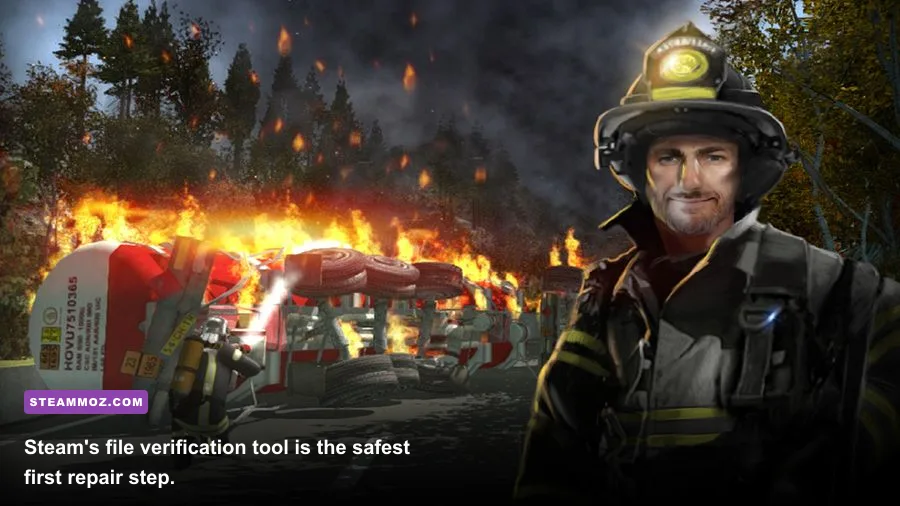
Firefighters 2014 doesn't need an expensive GPU, but its older renderer can waste performance on settings that produce little visible improvement. Start at 1280×720 if you're on integrated graphics or a 1366×768 laptop panel. On a modern desktop, 1920×1080 is a sensible ceiling. Avoid forcing 4K through the GPU driver; legacy menus and scaling can become unstable, and the extra pixels buy very little in this game.
| Setting | Recommended value | FPS impact | Visual trade-off |
|---|---|---|---|
| Resolution | 1920×1080 desktop; 1280×720 low-end | High | Lowering this is the fastest way to recover GPU headroom. |
| Fullscreen | Windowed or borderless for troubleshooting | Low to medium | May reduce Alt+Tab crashes and black screens. |
| Anti-aliasing | Off or the lowest available option | Medium to high | Edges look rougher, but moving vehicles gain useful headroom. |
| Shadows | Low or medium | High | Fire scenes remain readable while shadow updates cost less. |
| Reflections | Low or off | Medium | Road and water reflections are not worth severe drops during incidents. |
| Texture quality | High if VRAM allows; medium on integrated graphics | Low | Textures usually affect memory more than raw frame rate. |
| Effects or particles | Medium | Medium to high | Smoke and fire are the heaviest moments; lower this for steadier scenes. |
| V-Sync | Off for testing; on only if tearing is distracting | Low | Off avoids a hard refresh-rate step while diagnosing stutter. |
Use a repeatable test rather than judging the menu. Launch the same mission or replay the same stretch of road, drive through a busy area, and watch what happens when smoke, flames, vehicles, and pedestrians appear together. If the game is smooth in the station but collapses at an active incident, lower shadows and effects before textures. If FPS is low everywhere, lower resolution and anti-aliasing first.
Cap the frame rate only after the game is stable. A 60 FPS cap can reduce unnecessary GPU load on a modern card, while a 30 FPS cap may feel steadier than an erratic 40–60 FPS on weaker hardware. Use your GPU driver's per-game frame limiter if the game has no reliable cap. Don't stack three limiters at once; that often creates uneven frame pacing.
Stop stuttering, freezing, and sudden FPS drops
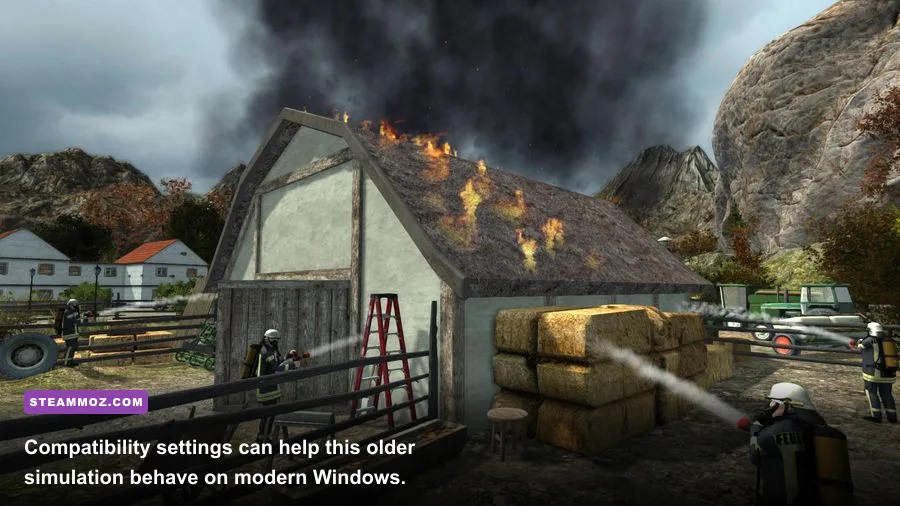
Low average FPS and stutter need different treatment. If the counter says 60 but the camera hitches every few seconds, the problem may be background activity or shader compilation rather than a weak GPU. Let Steam finish downloads, close browser video tabs, pause cloud-sync utilities, and disable background recording. On a laptop, plug in the charger and set Windows power mode to Best performance.
Check temperatures with a trusted monitor. If the GPU or CPU starts hot and then drops clock speed, clean dust from the vents and confirm that the laptop isn't using a quiet or battery profile. Firefighters 2014 itself is light enough that thermal throttling usually indicates a system problem, not an unusually demanding game scene.
Try both fullscreen and windowed modes. Some older games deliver better frame pacing in exclusive fullscreen, while others behave better in a borderless desktop window on Windows 11. Disable hardware-accelerated GPU scheduling temporarily if stutter began after a driver or Windows update, then compare. This is a test, not a guaranteed fix.
For GPU drivers, use NVIDIA's official driver download page or AMD's official support page. Choose a clean installation when the problem began immediately after a driver update. If the game worked before that update, rolling back to the previous stable driver can be more effective than repeatedly installing the newest package.
Our EscapeVR crashing and low-FPS fixes also explains why overlays, power plans, and display modes can create stutter even when a PC easily clears the published requirements.
Repair black screens, missing controls, and save-related crashes
A black screen with sound usually means the renderer selected a display mode your monitor dislikes. Use windowed mode, lower the desktop resolution temporarily, and launch again. Once the menu appears, choose a conservative resolution and disable anti-aliasing. If the game stores its resolution in a configuration file, close Steam, back up that file, and edit only the resolution or fullscreen values. Never overwrite the original until you know the replacement works.
If controls disappear or a controller behaves unpredictably, disconnect extra USB gamepads, wheels, and virtual-controller software. Test with keyboard and mouse first. Steam Input can also interfere with older games, so open the game's Steam properties and disable Steam Input for the test. Reconnect devices one at a time after the game accepts input normally.
Crashing while loading one particular mission may indicate a damaged save or configuration rather than a universal game failure. Back up the save folder before moving anything. Then rename the configuration folder so the game creates fresh settings, launch it, and test a new profile. If a new profile works, restore saves one at a time. This protects progress while identifying whether one file is corrupted.
Windows Security's Controlled Folder Access can block an old game from writing saves. Check Windows Security, Virus & threat protection, and Ransomware protection if the game forgets settings or crashes immediately after a mission completes. Add the executable only when necessary, and remove the exception if it doesn't help.
A clean troubleshooting profile that usually works
For a modern Windows PC, use this baseline: 1920×1080, windowed or borderless mode, anti-aliasing off, shadows medium, reflections low, effects medium, textures high, V-Sync off while testing, and a 60 FPS driver cap once frame pacing is stable. On integrated graphics, switch to 1280×720, shadows low, effects low or medium, and textures medium.
Apply changes in this order: verify files, install the legacy DirectX runtime, disable overlays, select the dedicated GPU, test compatibility mode, then tune resolution and effects. Reboot after driver or DirectX installation. If the game still crashes, test a new Windows user account or a clean boot to rule out background software. Keep a note of every change; troubleshooting becomes much faster when you aren't guessing which of six tweaks caused the improvement.
| Symptom | Most likely cause | First action | Escalation step |
|---|---|---|---|
| Crash before the menu | Missing legacy DirectX file or corrupted install | Verify Steam files and install Microsoft's legacy runtime | Test Windows 7 compatibility mode. |
| Black screen with audio | Unsupported fullscreen resolution | Launch windowed and select 1280×720 | Back up and reset the configuration file. |
| Low FPS everywhere | Wrong GPU, resolution, or heavy anti-aliasing | Force the high-performance GPU and lower resolution | Use the low-end profile in the graphics table. |
| Drops during fires | Shadows, effects, smoke, and reflections | Lower effects and shadows | Cap FPS to the game's sustainable rate. |
| Periodic hitching | Overlay, recording, shader, or background process | Disable overlays and background capture | Compare fullscreen with borderless mode. |
| Settings or saves vanish | Folder permissions or Controlled Folder Access | Run once with appropriate write permissions | Check Windows Security and back up saves. |
Don't use unofficial “FPS booster” programs, DLL packs, or registry cleaners. They rarely understand a 2014 simulation game's renderer and can introduce the exact missing-library or permission problem you're trying to solve. The same cautious approach helped in our Edna & Harvey PC requirements guide, where old software behavior mattered more than headline hardware power.
If you want a broader reference for older PC titles, our Far Cry 2 PC specifications breakdown covers similar issues with legacy APIs and modern Windows. For Firefighters 2014 specifically, the winning setup is refreshingly simple: clean files, legacy runtime support, no injected overlays, a dedicated GPU, and restrained effects settings. Once those pieces are in place, emergency scenes should stop turning a manageable simulation into a slideshow or a desktop crash.