If your journey through Valisthea feels more like a slideshow than a cinematic epic, you are not alone. Final Fantasy 16 on PC suffers from aggressive frame pacing stutters, sudden desktop crashes, and severe VRAM spillover. To fix the worst performance hitches right now, force a minimum 16GB system pagefile, lock your shader cache size to 10GB inside your GPU control panel, drop Graphical Fidelity from High to Mid, and switch your dynamic resolution scaler to DLSS or FSR with Frame Generation enabled. Implementing these adjustments eliminates the micro-freezes during high-tier Eikonic clashes, restores fluid frame pacing in dense hubs like the Hideaway, and keeps Clive's flashy swordplay running buttery smooth.
Pinpoint the Root Causes: Why Final Fantasy 16 Struggles on PC
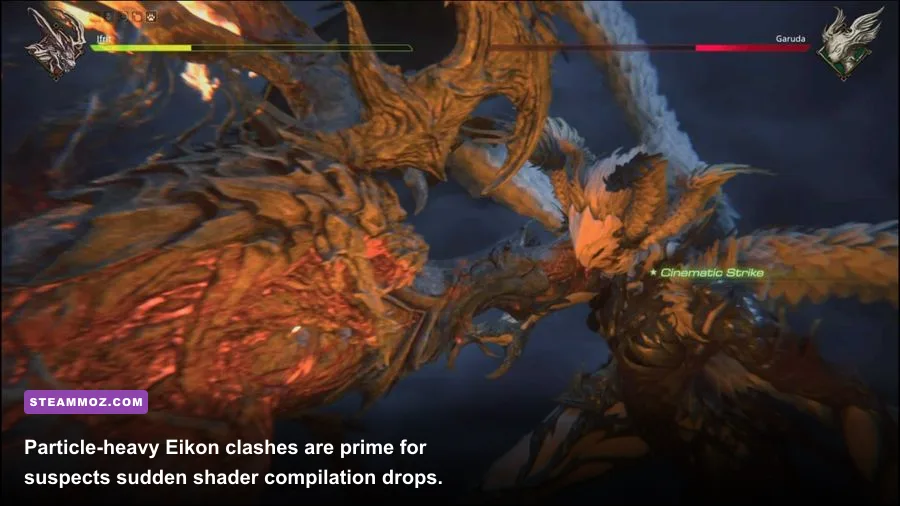
Square Enix built the PC port of Final Fantasy 16 directly on top of modern DirectX 12 and DirectStorage APIs. While these technologies allow instantaneous fast travel across the provinces of Rosaria and Sanbreque, they hammer modern hardware with extreme bandwidth demands. The primary culprit behind random stutter is the game's aggressive background shader compilation pipeline. Whenever you execute heavy particle skills like Phoenix's Flames of Rebirth or Garuda's Gouge for the first time in a play session, the engine compiles visual shaders asynchronously in real-time. If your storage drive or CPU cannot parse these assets instantly, the render thread halts, resulting in that dreaded 200-millisecond hitch.
VRAM allocation creates another massive performance wall. Even on high-end GPUs equipped with 12GB or 16GB of video memory, the game attempts to hold high-resolution texture arrays and geometry pools in memory indefinitely. Over an extended session running between lost ruins and bustling markets, this leads to an unmitigated memory leak. Once your physical VRAM caps out, assets spill over into your standard system RAM over the PCI Express bus. That transfer bandwidth penalty cuts your average framerate by half and introduces violent traversal stutter. Much like troubleshooting technical issues in our Everspace 2 performance and crash recovery guide, stabilizing memory bandwidth is half the battle won.

🎮 FORM
Looking to experience this game? Grab your digital key directly on our store for $14.99.
View on Steammoz Store →Critical System and Engine Tweaks to Stop Instant Crashes
Desktop crashes in Final Fantasy 16 typically strike without an informative error code, or they dump a cryptic DirectX 12 device hung message right as a cutscene ends. In nine out of ten cases, this crash stems from memory paging exhaustion or Windows background permission conflicts. When the game loads a transition between gameplay and a pre-rendered cinematic, memory allocation spikes instantly. If your Windows paging file is set to a fixed small size or managed improperly on a secondary mechanical drive, the executable terminates immediately.
To fix memory allocation crashes permanently, adjust your Windows Virtual Memory settings. Open your Start menu, search for "View advanced system settings," click the Advanced tab, and select Settings under Performance. Navigate to the Advanced tab, click Change under Virtual Memory, uncheck "Automatically manage paging file size," select your fastest NVMe SSD (preferably where the game resides), and set a custom size: an Initial Size of 16384 MB and a Maximum Size of 32768 MB. This virtual memory buffer gives the game's streaming pipeline room to breathe during resource-heavy set pieces.
Next, tackle driver-level incompatibilities. Running clean display drivers is mandatory for stability. Grab the latest Game Ready or Adrenalin software straight from the official Nvidia Driver Hub or AMD Support Portal. If you run into repeated hard locks, use Display Driver Uninstaller (DDU) in Windows Safe Mode to strip away ghost registry keys before reinstalling fresh drivers. Similar to the troubleshooting tactics we applied for resolving severe PC game crashes and launch hitches, disabling aggressive third-party overlays from Discord, RivaTuner, and GeForce Experience resolves background rendering conflicts that trigger spontaneous desktop drops.
Best In-Game Graphics Settings for Butter-Smooth FPS
The graphics menu in Final Fantasy 16 provides an array of visual toggles, but several settings impose extreme hardware penalties for microscopic graphical improvements. Setting Graphical Fidelity to Ultra pushes screen space reflections, volumetric lighting, and shadow casting ranges far past the point of diminishing returns. Dropping these specific toggles down to Mid or High drastically improves your 1% low frame rates while keeping Clive's fiery particle spectacle looking stunning.
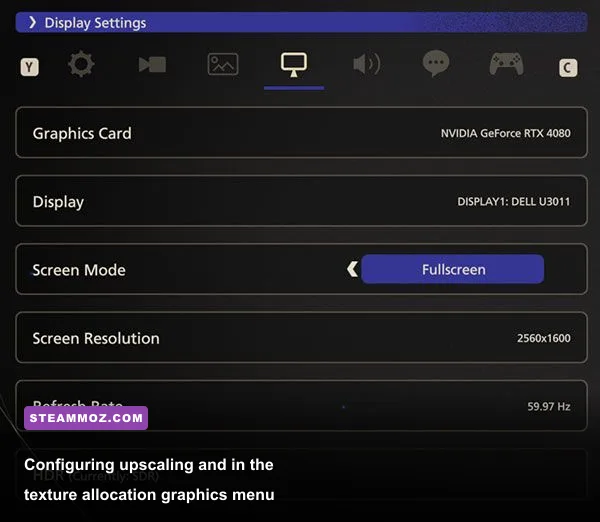
Upscaling is practically mandatory in this title, even if you are rocking top-tier hardware. Native rendering at 1440p or 4K brings modern silicon to its knees during multi-enemy battles. DLSS Quality mode on Nvidia RTX hardware or FSR 3.1 on AMD Radeon GPUs restores critical frame rates. Enable Frame Generation if your base framerate sits stably above 55 FPS; doing so doubles your perceived output smoothness across high-refresh displays. If you have fine-tuned graphics in our Far Cry 6 max FPS optimization guide, you know that balancing internal resolution scale against ambient lighting delivers the sweet spot for silky-smooth action.
| Setting | Default Value | Optimal Value | FPS Gain / Impact | Visual Impact Summary |
|---|---|---|---|---|
| Graphical Fidelity | Ultra / High | Custom / Mid | +14% to +18% FPS | Slightly simplifies background geometry without hurting Clive's character model. |
| Screen Space Reflections | High | Low or Off | +8% to +12% FPS | Removes noisy reflections on wet mud and stone floors; major performance lift. |
| Shadow Quality | High | Mid | +6% to +9% FPS | Softens distant foliage and building shadow edges; virtually unnoticeable in combat. |
| Ambient Occlusion | High | Mid | +4% to +6% FPS | Retains contact shadows under feet and objects while reducing compute load. |
| Upscaling Method | None / TAA | DLSS / FSR Quality | +25% to +35% FPS | Sharper edges and massive performance gains via intelligent temporal reconstruction. |
| Frame Generation | Off | On (if base FPS > 55) | +45% to +70% Motion | Incredible temporal smoothness; ensure hardware anti-lag or Reflex is engaged. |
| Variable Rate Shading (VRS) | Off | On | +3% to +5% FPS | Lowers shading rate in peripheral screen areas; prevents minor frame dips. |
Pay close attention to Variable Rate Shading (VRS). On older Turing and RDNA 1 architecture cards, VRS can sometimes cause weird artifacts around high-contrast HUD elements, but on modern Ada Lovelace and RDNA 3 hardware, it yields free performance gains with zero perceptible degradation. Pairing this with custom profile tweaks mirrors our tuning strategies in the Filament higher framerate guide, providing consistent frame pacing without visual sacrifices.
Eliminating Stutter and Frame Pacing Spikes During Eikonic Battles
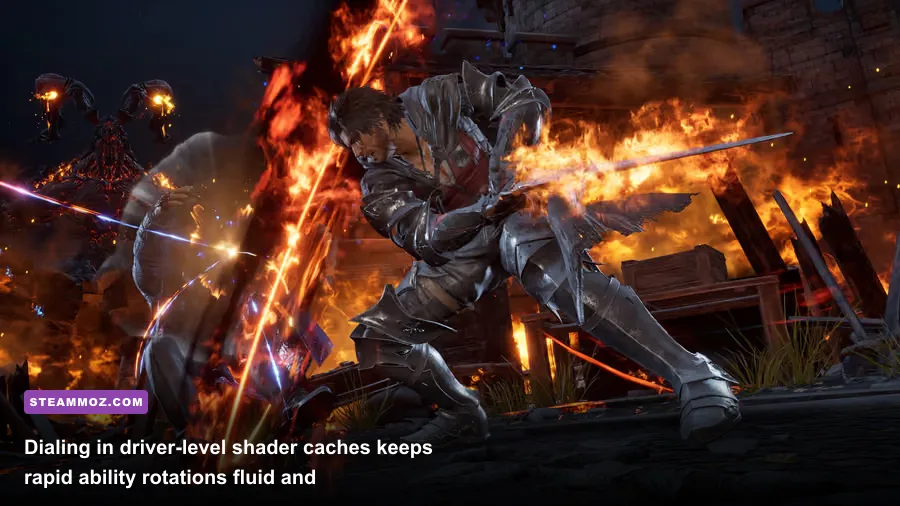
The biggest visual treats in Final Fantasy 16 are the explosive battles featuring towering Eikons like Ifrit, Titan, and Bahamut. Unfortunately, these set pieces unleash heavy geometric meshes, dynamic physics, and screen-filling particle explosions that send frame times into wild fluctuations. When an encounter triggers micro-stuttering right as Clive chains a melee strike into an aerial *Rising Flames* combo, inaccurate driver-side caching is almost always the culprit.
To eliminate these combat micro-stutters, force your GPU driver to reserve a massive, persistent shader cache buffer on your SSD:
- For Nvidia GPUs: Right-click your desktop, open the Nvidia Control Panel, click "Manage 3D Settings" under the Global Settings tab, scroll down to "Shader Cache Size," and change it from the default 4GB or Driver Default to 10GB or 100GB. Hit Apply. This prevents the driver from discarding compiled combat shaders during extended play sessions.
- For AMD GPUs: Open AMD Software: Adrenalin Edition, navigate to Gaming > Graphics > Advanced, locate "Reset Shader Cache," and hit perform. Then ensure your Windows user profile has unhindered read/write permissions on the Local AppData directory where DirectX shader blobs are preserved.
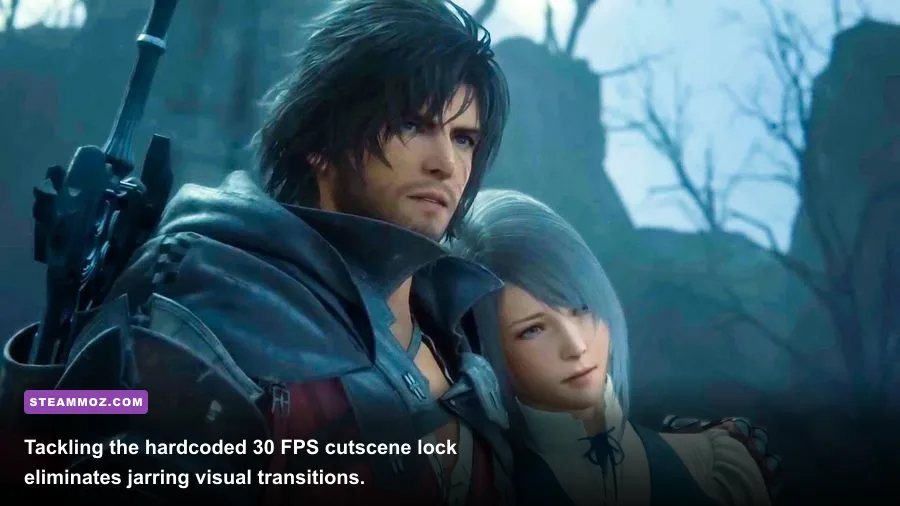
Another notorious point of frustration is the hardcoded 30 FPS cap during in-engine dialogue and cutscenes. Transitioning from a crisp 90 FPS combat encounter directly into a 30 FPS conversation creates severe motion judder that tricks your brain into seeing stutter even when the hardware isn't dropping frames. The PC gaming community solved this through community mods such as *FFXVIFix*, which removes the 30 FPS cutscene lock, enables native 21:9 and 32:9 ultrawide FOV scaling, and stabilizes camera frame pacing across every cinematic moment. If persistent gameplay hitches plague your journey, our walkthrough on how to stop crashes and rescue performance in demanding PC titles offers foundational advice on process isolation and Windows background cleanup.
Hardware Profiling and Tuning Benchmarks Across Mid to High Tiers
Final Fantasy 16 does not treat all hardware architectures equally. Due to heavy AVX instruction set utilization and intense multi-threaded Direct3D 12 pipelines, quad-core processors will bottleneck your graphics card regardless of your resolution. Hexa-core and octa-core processors like the AMD Ryzen 7 7800X3D or Intel Core i7-13700K shine here, as their high L3 cache designs soak up the asset-streaming overhead that would otherwise choke standard thread schedules.
To help you dial in the exact performance profile for your specific rig, review our baseline hardware profiling matrix below. These verified profiles balance image clarity, input latency, and thermal headroom across diverse component classes.
| Hardware Class | Target Resolution & FPS | Preset & Setting Adjustments | Upscaling & Latency Toggles | Expected Stability Metric |
|---|---|---|---|---|
| Entry-Level (RTX 2060, RX 6600, 16GB RAM) |
1080p @ 45-60 FPS | Low-Mid Preset, Shadows Low, SSR Off | FSR / DLSS Balanced, Dynamic Res On | Solid 45+ FPS floor; minor drops in Hideaway hub. |
| Mid-Range Sweet Spot (RTX 3070, RX 6700 XT, 32GB RAM) |
1440p @ 60-80 FPS | Mid Preset, Textures High, AO Mid | DLSS / FSR Quality, Reflex / Anti-Lag On | Extremely smooth combat pacing; 1% lows above 50 FPS. |
| Enthusiast Tier (RTX 4070 Ti, RX 7900 XT, 32GB RAM) |
1440p / 4K @ 90-120 FPS | High Preset, Shadows High, SSR Mid | DLSS Quality + Frame Gen On, Reflex Boost | Flawless frame delivery; locks tightly to display refresh. |
| Flagship Powerhouse (RTX 4090, 64GB RAM, NVMe Gen4) |
Native 4K @ 100+ FPS | Max Fidelity, SSR High, Full Details | DLAA or DLSS Quality + Frame Generation | Uncompromised visual presentation with pristine frame times. |
If you find yourself running an Entry-Level or Mid-Range rig, keeping system RAM at 32GB is one of the most effective upgrades you can make for this game. Because the title continuously cycles assets through memory, having abundant dual-channel physical RAM prevents Windows from paging out memory blocks, immediately quashing random traversal hitching as Clive sprints through the countryside.
Advanced Configuration File Edits and External Fixes
For players seeking to squeeze every scrap of computational efficiency out of their system, adjusting internal engine parameters directly delivers results that in-game sliders cannot match. Navigate to your local configuration folder located at %LOCALAPPDATA%\SquareEnix\FINAL FANTASY XVI\. Inside this directory, you will locate your core display and graphic preferences files.
Before making adjustments, make a quick backup copy of your configuration files. If your system features a CPU with hybrid architectures (such as Intel's 12th, 13th, or 14th Gen processors featuring Performance and Efficient cores), the engine can sometimes misallocate primary worker threads to low-power E-cores. To bypass this, launch Task Manager while the game runs, navigate to the Details tab, right-click ffxvi.exe, select "Set Affinity," and ensure all your high-performance cores are actively checked while disabling background unassigned virtual threads if you encounter thermal throttling.
Additionally, check your storage configuration. Final Fantasy 16 strictly requires an SSD. Installing this game on an older mechanical hard disk drive (HDD) causes audio de-syncing, missing voice lines, and 5-to-10-second complete freezes while Clive explores new areas. If your drive runs on an older SATA III interface, consider migrating the game files over to an M.2 NVMe PCIe 3.0 or 4.0 drive. The game relies heavily on fast storage streaming throughput to pipe massive texture arrays into memory seamlessly.
Finally, check your Windows Gaming settings. Ensure that "Game Mode" is toggled ON in Windows Settings, as modern iterations of Windows 11 use this feature to assign absolute priority to game thread scheduling while pausing non-critical background maintenance tasks. Pair this with "Hardware-Accelerated GPU Scheduling" (HAGS), which you can find under Display > Graphics > Default graphics settings. HAGS is an absolute requirement if you plan to enable DLSS or FSR Frame Generation, ensuring optimal frame injection intervals without introducing noticeable latency spikes.
By pairing balanced in-game settings with an expanded driver shader cache, custom virtual memory allocations, and optimized thread scheduling, you can eliminate the crashes and stuttering that hold Final Fantasy 16 back. Dive back into Valisthea with total confidence, unleash Clive's Eikonic power, and experience every blazing battle with the flawless visual presentation it truly deserves.