For the best Farming Simulator 22 Steam PC performance, start with 100% resolution scaling, High textures, Medium shadows, reduced foliage distance, SSAO off, and a frame-rate cap that your system can hold consistently. Use DLSS or FSR only when your GPU cannot maintain your target, then tune shadows, mirrors, lights, and draw distance before dropping texture quality.
That last point matters. Farming Simulator 22 rarely behaves like a simple GPU benchmark. A quiet field may run beautifully at 100 FPS, while a busy farm packed with vehicles, sheds, animals, workers, and placeable production buildings can hammer your CPU and produce ugly frame-time spikes. The goal isn't a flashy peak number; it's a stable frame rate while you drive through the busiest part of your map.
This guide targets the Steam PC version, including the current PC release from the official Steam page. Before changing settings, update your GPU driver, let shaders compile after a driver or game update, and check GIANTS Software's official PC information for platform requirements. If other games are also crashing or stuttering, our ELEX PC fixes guide covers several useful Windows and driver checks that apply here too.
Start With the Right FPS Target for Your Hardware
Pick a target before touching sliders. At 60 Hz, a locked 60 FPS is usually better than bouncing between 48 and 80 FPS. On a 120 Hz or 144 Hz display, 90 or 120 FPS can feel excellent in first-person vehicle views, but FS22's CPU-heavy farm scenes may not sustain it. A stable 60 or 72 FPS is the smarter target if your farm has dozens of machines active.
FS22's minimum PC specification is modest on paper, but the recommended specification is a more realistic starting point for large maps and high settings. The game also relies heavily on system memory and storage performance once you add maps, vehicle packs, and production mods. Keep the game and mod folder on an SSD if possible; an SSD won't magically raise average FPS, but it can reduce loading and asset-streaming misery.
| Hardware Profile | Recommended Target | Starting Preset | Expected Use |
|---|---|---|---|
| GTX 1650 / RX 570, 16GB RAM | 45-60 FPS | Medium | 1080p farming with moderate mods |
| RTX 2060 / RX 6600, 16GB RAM | 60-90 FPS | High | 1080p or 1440p with sensible shadows |
| RTX 3060 / RX 6700 XT, 16-32GB RAM | 60-120 FPS | High to Very High | Large maps and detailed vehicles |
| RTX 4070 / RX 7800 XT, modern six-core CPU | 90-144 FPS | Very High | High-resolution play with selective upscaling |
Those are practical starting points, not promises. A Ryzen 5 5600 paired with an RTX 4070 can still dip in a dense multiplayer farm because the processor and simulation workload become the limit. Conversely, an older CPU with a powerful GPU may show low GPU utilization while vehicles and AI workers are active. Watch both frame rate and frame time with an overlay such as MSI Afterburner. A graph full of spikes tells you more than the biggest FPS number in the corner.

🎮 Farming Simulator 22
Looking to experience this game? Grab your digital key directly on our store for $39.99.
View on Steammoz Store →The Best Farming Simulator 22 Graphics Profile
Set the display resolution to your monitor's native resolution first. At 1080p, use 1920x1080; at 1440p, use 2560x1440. Native resolution keeps vehicle edges and field textures crisp. Use resolution scaling as your first performance lever only after you have tested the heavy options below. Dropping from 100% to 90% can recover frames with a tolerable image-quality loss, while 70-80% looks noticeably soft on distant crops and machinery.
Texture quality is rarely the first setting to cut if your graphics card has enough VRAM. High textures make tractors, buildings, and terrain materials look dramatically better, and the FPS cost is often small. Lower textures when you see hitching during camera movement, missing surfaces, or VRAM usage close to your card's limit. The culprit is usually memory pressure, not raw shader performance.
| Setting | Recommended Value | FPS Impact | Visual Trade-Off |
|---|---|---|---|
| Resolution | Native monitor resolution | High | Lowering it makes the entire image softer |
| Resolution Scaling | 100%; 90% for extra headroom | Very high | Lower values reduce clarity on crops and signs |
| Texture Quality | High | Low to medium | Lower settings blur vehicles and buildings |
| Texture Filtering | 16x if available | Low | Keeps field and road textures sharp at angles |
| Shader Quality | High | Medium | Lower settings flatten lighting and material detail |
| Shadow Quality | Medium or High | High | Lower values remove contact shadows and crisp silhouettes |
| Shadow Distance | Medium | High | Distant trees, sheds, and vehicles lose shadows |
| Foliage Draw Distance | Medium to High | High on large maps | Farmland and vegetation pop in sooner |
| Terrain Quality | High | Medium | Lower settings reduce ground detail and deformation quality |
| Post-Process Anti-Aliasing | High | Low to medium | Lower values create shimmer on fences and crop rows |
| SSAO | Off for FPS; On for visuals | Medium | Off removes ambient contact shading around objects |
| Depth of Field | Off | Low | Removes cinematic blur, usually improving clarity |
| Bloom | Off or Low | Low | Less glow around lamps and bright surfaces |
| Cloud Quality | Medium | Medium | Lower skies look less layered and dynamic |
| Mirrors | Medium or Low | High while driving | Reflection detail and distance are reduced |
| Max Lights | Medium | High at night | Fewer simultaneous headlights and light sources |
For most players, the sweet spot is High textures, High filtering, High shaders, Medium shadows, Medium foliage distance, Medium mirrors, and SSAO disabled. This profile preserves the details you actually stare at from a tractor seat while cutting effects that quietly render the scene multiple times.
DLSS, FSR, and Anti-Aliasing
If your version and hardware expose an upscaler, NVIDIA RTX owners should test DLSS Quality first. It renders internally below native resolution and reconstructs the image, usually providing a better clarity-to-performance balance than a large manual scaling drop. Start with Quality at 1440p and compare it against native 100% scaling around power lines, crop rows, and vehicle grilles.
AMD and mixed-GPU systems can try FSR at Quality. FSR is useful, but thin vegetation and distant fencing can shimmer more than with native rendering. Sharpening can help, though excessive sharpening produces bright halos around building roofs. Keep post-process anti-aliasing at High when possible and judge the result while moving, not from a stationary screenshot.
Which Settings Cost the Most FPS in Real Farm Scenes?
Shadows are usually the first major performance offender. Farming Simulator 22 renders long outdoor scenes filled with trees, equipment, sheds, and terrain edges, so high shadow quality and distance can produce a large GPU bill. Medium shadows still preserve useful depth around tractors and buildings. If you need more performance, reduce shadow distance before dropping textures.
Mirrors deserve special attention. A vehicle mirror is another view of the world, and that view may include fields, buildings, workers, and other machines. If FPS collapses when you switch to a cab view or look backward, reduce mirror quality and distance. You can keep the main scene attractive while avoiding a second expensive high-detail render.
Foliage distance affects both GPU workload and perceived smoothness. High values keep distant trees, crops, and hedgerows visible, but large maps multiply that cost. Medium is the best competitive-style setting even in a relaxing simulator because the visual difference appears mainly at the horizon. Terrain quality matters more when you're close to fields, tracks, and sculpted ground, so leave it High unless your system is genuinely struggling.
| Symptom | Likely Bottleneck | First Change | Why It Works |
|---|---|---|---|
| GPU usage sits near 99% | Graphics workload | Lower scaling, shadows, or mirrors | Reduces pixels or expensive scene passes |
| GPU usage is low during farm dips | CPU or simulation load | Cap FPS and reduce active workers/mod clutter | Stops the GPU waiting for the game thread |
| FPS drops while looking backward | Mirrors and vehicle view | Lower mirror quality and distance | Reduces secondary scene rendering |
| Night driving causes stutters | Lights and shadows | Lower Max Lights and shadow settings | Limits simultaneous dynamic lighting |
| Camera movement hitches | VRAM or asset streaming | Lower textures one step and use an SSD | Reduces memory pressure and loading pauses |
| Dips occur near huge farms | CPU simulation or draw calls | Reduce FPS target and decorative objects | Improves frame-time consistency in busy areas |
Don't blindly chase GPU usage. FS22's simulation includes vehicle physics, workers, animals, productions, traffic, and network activity. On a CPU limit, reducing resolution may change almost nothing. That is the moment to cap your frame rate, close background applications, and audit the save itself rather than turning every visual option to Low.
For comparison, our Far Cry 6 FPS settings guide explains a similar GPU-versus-CPU diagnosis, while the EscapeVR low-FPS fixes cover frame-time checks that are also useful for troubleshooting FS22.
Stable Frame Times for Large Maps and Modded Farms
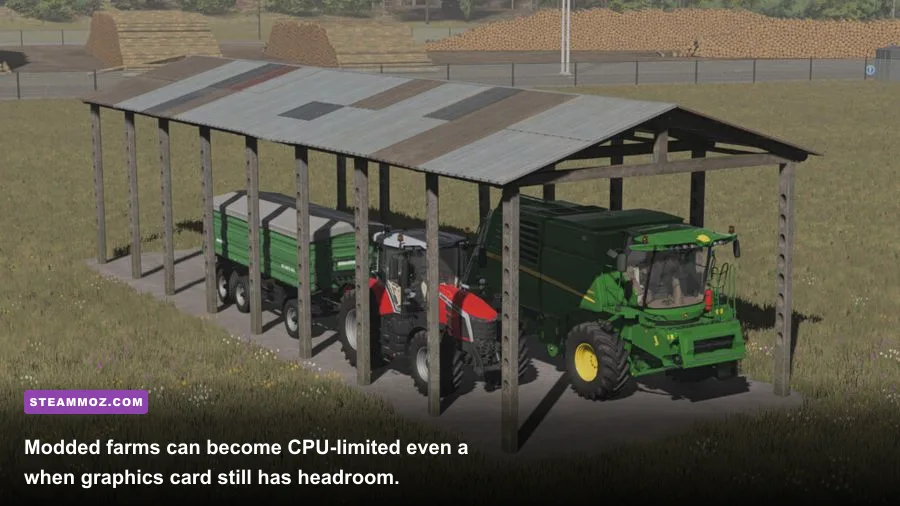
Base-game performance is only half the story. A save on Elmcreek with a few tractors behaves very differently from a heavily modded Haut-Beyleron farm packed with placeables and production chains. Every extra machine, animated object, light, and script can add work. Mods are not automatically badly optimized, but a large collection makes it harder to identify the offender.
Test methodically. Save your current game, disable recently added mods, and load the same location at the same time of day. Drive the same route from the farmyard to a field while watching the frame-time graph. If the hitch disappears, re-enable mods in batches. This is much faster than changing ten graphics options and guessing what helped.
AI workers and traffic can expose CPU limits. If you run multiple workers, keep an eye on the busiest yard rather than an empty field. Multiplayer adds synchronization work, so a host with an older processor may see dips that clients don't. A 60 FPS cap gives the simulation breathing room and avoids wasting CPU and GPU resources chasing 100 FPS that lasts only on quiet roads.
Windows and Driver Checks Worth Doing
- Install FS22 on an SSD and leave free space for Windows and shader caches.
- Use the latest stable NVIDIA or AMD driver, then restart before testing.
- Set the game to High performance in Windows Graphics settings if you have integrated and dedicated graphics.
- Close browsers, recording tools, RGB utilities, and overlays while diagnosing stutters.
- Use exclusive fullscreen or borderless consistently; switching modes can reset display behavior.
- Verify Steam files after a crash, especially following a major game or DLC update.
- Keep the frame cap a few frames below refresh rate: 58 for 60 Hz, 116 for 120 Hz, or 141 for 144 Hz.
FS22 also benefits from patience after updates. The first launch can rebuild shader data, and the initial drive around a new map may stream assets that aren't cached yet. Judge performance after a few minutes in a repeatable route. If the game crashes after installing a mod, remove the newest addition before blaming your graphics profile. Our crashing and FPS troubleshooting guide has a useful clean-test approach for isolating conflicting files.
Three Ready-to-Use FS22 Steam PC Profiles
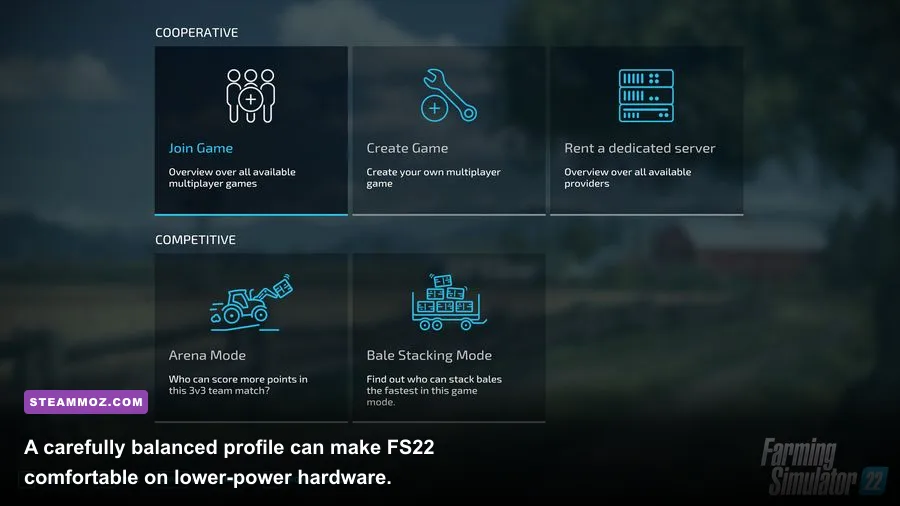
Use these profiles as baselines, then adjust one setting at a time. The Balanced profile is the one I'd recommend to most players because it protects clarity without pretending every farm can hold an esports-style frame rate.
| Profile | Resolution and Upscaling | Core Settings | Best For |
|---|---|---|---|
| Max FPS | 1080p, 90-100% scaling; DLSS/FSR Quality if needed | Textures High, shadows Low, mirrors Low, foliage Medium, SSAO Off, lights Low | Older GPUs and 60 FPS targets |
| Balanced | Native 1080p or 1440p, 100% scaling | Textures High, shaders High, shadows Medium, mirrors Medium, foliage Medium, SSAO Off | Most mid-range PCs and large saves |
| Visual Quality | Native resolution, 100% scaling | Textures Very High, shadows High, foliage High, mirrors High, SSAO On, lights High | High-end PCs and screenshots |
| Low-Power Laptop | 1080p, 75-85% scaling; FSR Quality | Textures Medium, shadows Low, terrain Medium, mirrors Low, foliage Low, effects Off | Integrated graphics or entry-level GPUs |
For a 60 FPS target, start with Balanced and cap the game at 60. If the farmyard still dips, lower mirrors, then shadows, then foliage distance. If the frame rate remains low everywhere, reduce scaling to 90% or enable upscaling. If only dense locations dip while GPU usage falls, stop lowering resolution and investigate CPU load, workers, traffic, and mods.
For 1440p, keep textures and filtering high but use DLSS or FSR Quality before cutting the native resolution. The extra pixel count makes upscaling more valuable, while high-quality textures preserve the satisfying detail on equipment. On a 4K monitor, upscaling is practically essential for mid-range cards; native 4K with Very High shadows and mirrors is a luxury setting, not a sensible default.
My Final Smooth-Performance Checklist
After applying a profile, test the same demanding route: begin in your main yard, enter a tractor cab, turn on the lights, look into a mirror, drive past your animal area, and head toward a busy field. Repeat it during daylight and at night. This catches the exact situations that make FS22 feel uneven.
- Set native resolution and a realistic FPS cap.
- Keep textures High unless VRAM or streaming causes trouble.
- Set shadows and mirrors to Medium before sacrificing image resolution.
- Use Medium foliage distance and High terrain quality as the default compromise.
- Disable SSAO, depth of field, and bloom when chasing consistency.
- Test DLSS or FSR Quality instead of immediately dropping to 70% scaling.
- Compare GPU utilization against frame time during a busy farmyard dip.
- Separate graphics problems from CPU, worker, traffic, and mod problems.
- Change one option at a time and record the result.
The best Farming Simulator 22 Steam PC settings aren't the ones that make an empty field hit the highest number. They're the settings that keep your cab view steady when three workers are operating, your yard is full of machinery, headlights are on, and the game is streaming a huge map. Start with Balanced, cut mirrors and shadows first, and only lower resolution scaling when the GPU—not the farm simulation—is truly holding you back.
For more PC tuning advice, Steamoz's higher-FPS settings guide offers another practical example of testing visual quality against frame-time stability. You can also follow the official Farming Simulator 22 ModHub for supported content, and check the GIANTS Software forums when a specific map, mod, or patch creates unusual performance problems.