
While Tower of Fantasy on Steam delivers fast-paced anime sci-fi combat across sprawling open worlds like Aesperia and Vera, its native PC client leaves a lot to be desired. Out of the box, Hotta Studio's port suffers from washed-out color grading, heavy temporal anti-aliasing (TAA) smear, an aggressive 120 FPS cap with terrible frame pacing, and clunky controller bindings. Because the game relies on Tencent's Anti-Cheat Expert (ACE) system, you can't install traditional runtime DLL hooks or raw asset overrides without risking an account ban. However, you can completely transform your visual clarity, input responsiveness, and framerate stability using safe, external modifications: low-level Unreal Engine 4 configuration mods, non-invasive ReShade shaders, high-refresh frame uncappers, and customized Steam Input action sets.
The Safety Rulebook: What Gets You Banned vs. What Is Client-Safe
Before touching a single file, you must understand how Tower of Fantasy enforces security. The Steam client boots alongside Anti-Cheat Expert (ACE), which monitors the memory stack, scans for injected dynamic link libraries (DLLs), and verifies game package signatures inside the QRSL/Content/Paks directory. If an anti-cheat scan detects modified .pak files that alter character models or weapon hitboxes, your account will get flagged during login integrity checks.
Safe modifications operate strictly outside memory injection and encrypted asset modification. You can safely tweak Unreal Engine 4's native initialization text files (Engine.ini and GameUserSettings.ini), run driver-level display post-processing, and apply standalone shader overlays via ReShade's official repository when configured strictly to read the back-buffer without hooking into network packets. Modifying system-level configuration parameters is entirely client-side, leaves game packages untouched, and bypasses anti-cheat triggers while fundamentally fixing rendering pipelines, much like troubleshooting technical hurdles in Elex PC fixes that rescue your FPS.

🎮 FORM
Looking to experience this game? Grab your digital key directly on our store for $14.99.
View on Steammoz Store →The Unreal Engine 4 Configuration Mod: Eliminating Blur and Stutter
Tower of Fantasy is built on Unreal Engine 4.26, and its default graphics presets apply forced post-processing effects that make the game look like someone smeared petroleum jelly over your monitor. The built-in TAA generates distracting ghosting behind fast-moving Simulacra like Lin or Fenrir, while forced chromatic aberration and depth of field wash out horizon vistas. You can completely bypass these restrictions by deploying an Engine.ini configuration mod.
To implement this mod manually, press Win + R, paste the path %LOCALAPPDATA%\Hotta\Saved\Config\WindowsNoEditor\, and open Engine.ini in a plain text editor. Scroll to the very bottom of the document and append custom rendering variables governed by the Unreal Engine documentation. The script below disables temporal ghosting, kills forced motion blur, optimizes the texture streaming pool, and forces full-resolution anisotropic filtering:
[SystemSettings]
r.DefaultFeature.MotionBlur=0
r.MotionBlurQuality=0
r.DepthOfFieldQuality=0
r.SceneColorFringeQuality=0
r.Tonemapper.Quality=1
r.Tonemapper.Sharpen=1.15
r.MaxAnisotropy=16
r.Streaming.PoolSize=4096
r.Streaming.HLODStrategy=2
r.ViewDistanceScale=2.5
r.StaticMeshLODDistanceScale=0.65
r.PostProcessAAQuality=4
r.TemporalAACurrentFrameWeight=0.2
r.TemporalAASamples=4
Setting r.Streaming.PoolSize to 4096 allocates 4GB of your VRAM specifically for caching world textures, which instantly eliminates the notorious stutter when speeding through Mirroria on a vehicle. Meanwhile, adjusting r.TemporalAACurrentFrameWeight to 0.2 tightens up the temporal accumulation buffer, delivering pin-sharp anime outlines without disabling anti-aliasing entirely, solving visual friction similar to what we see in our Filament display and FPS tuning guide.
| Engine.ini Variable | Default Value | Modded Value | In-Game Impact |
|---|---|---|---|
r.DefaultFeature.MotionBlur |
1 (Enabled) | 0 (Disabled) | Kills sickening camera blur during fast dashes and dodges. |
r.SceneColorFringeQuality |
1 (Enabled) | 0 (Disabled) | Eliminates purple/green chromatic aberration on screen borders. |
r.DepthOfFieldQuality |
2 (High) | 0 (Disabled) | Removes artificial background blur; keeps distant landmarks sharp. |
r.Streaming.PoolSize |
1000 (1GB) | 4096 (4GB) | Prevents texture pop-in and hitching during high-speed traversal. |
r.ViewDistanceScale |
1.0 (Standard) | 2.5 (Extended) | Renders terrain, chests, and exploration puzzles far into the distance. |
Transforming Visuals with ReShade: Banishing the Washed-Out Palette
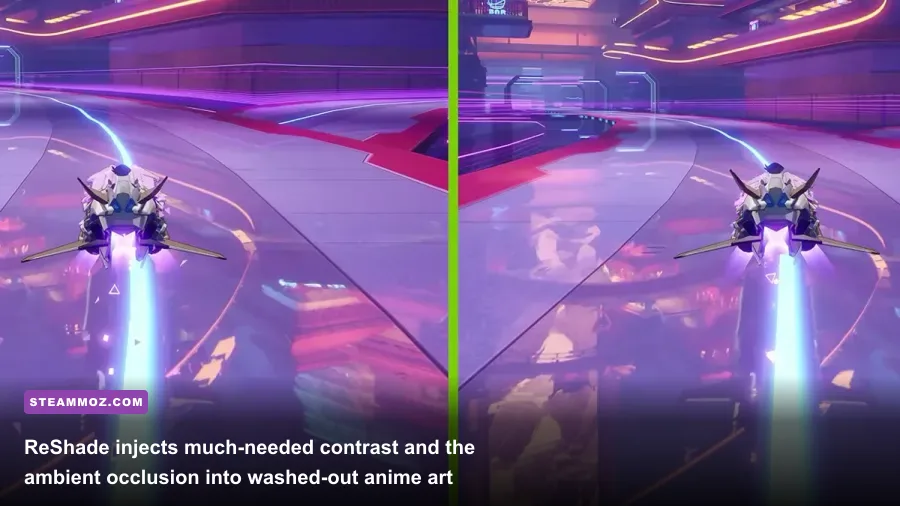
Hotta Studio chose an excessively bright tonemapping curve for Tower of Fantasy, resulting in clipped highlights in desert zones and flat, milky shadows in cyberpunk environments. Installing ReShade completely redeems the game's presentation by restoring localized contrast, simulating global illumination, and boosting edge micro-contrast without muddying the cel-shaded anime aesthetic.
When installing ReShade for the Steam edition, direct the installer to your real game executable located at steamapps\common\Tower of Fantasy\Hotta\Binaries\Win64\QRSL-Win64-Shipping.exe (never install it to the launcher binary in the root directory!). Select DirectX 11/12 as the rendering API. Once installed, avoid downloading sprawling shader bundles that tank performance. Instead, stick to a lean shader stack configured to match our exact tuning values:
- AMD FidelityFX Contrast Adaptive Sharpening (CAS.fx): Set
Sharpnessto0.450. This cleans up the soft edges left by UE4's upscaler without creating bright pixel halos around your character's silhouette. - qUINT MXAO (qUINT_mxao.fx): Set
Sample QualitytoMedium (High Impact on GPU)andAmbient Occlusion Amountto0.85. This injects realistic ambient drop-shadows beneath character boots, vehicle treads, and structural ledges that the base game completely omits. - PD80 04_Contrast_Brightness_Saturation (PD80_04_Contrast_Brightness_Saturation.fx): Dial
Contrastto+0.08andBlack Levelto+0.02. This crushes the milky grey atmospheric fog that ruins indoor areas like the Vera Oasis or District 9 research hubs. - Curves (Curves.fx): Choose the
Lumaformula with a mild S-curve setting (Contrast 0.15) to give neon signs in Mirroria real visual punch without oversaturating your Simulacrum's skin tones.
This shader stack extracts an enormous amount of visual depth with an average rendering cost of just 4 to 7 frames per second on mid-tier GPUs like the RTX 3060 or RX 6600 XT, mirroring the optimization efficiency discussed in our breakdown of Far Cry 6 performance settings for max FPS.
Frame Pacing and High-Refresh Uncapping: Eliminating Micro-Stutter
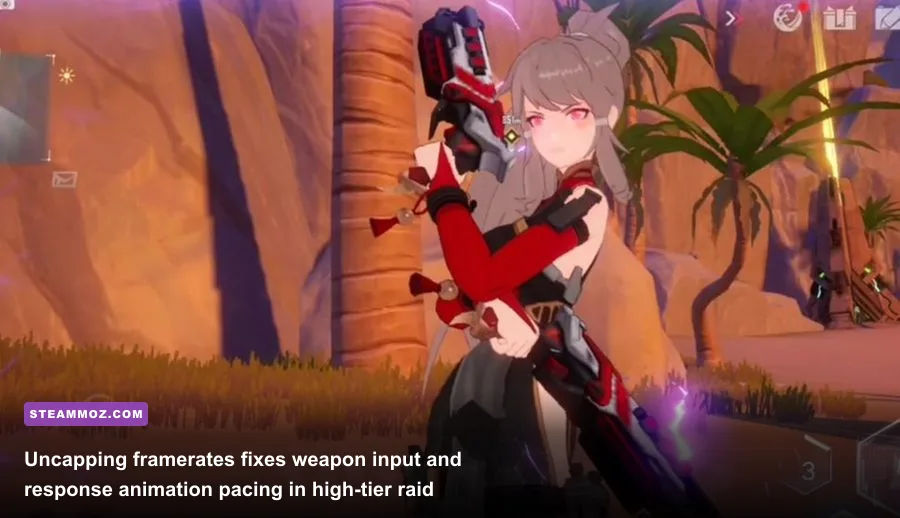
The native Steam client limits you to fixed refresh rate options: 25, 30, 60, 90, and 120 FPS. Even if you pick 120 FPS on a 144Hz, 165Hz, or 240Hz gaming monitor, the game's internal frame pacing engine frequently desynchronizes, manifesting as micro-stuttering during camera sweeps. This happens because the internal physics tick loop tries to lock onto uneven time slices.
You can unlock perfectly matched, variable refresh rate (VRR) frame delivery through an external config tweak. Head back to your config directory (%LOCALAPPDATA%\Hotta\Saved\Config\WindowsNoEditor\) and open GameUserSettings.ini. Locate the following lines and modify them accordingly:
FrameRateLimit=0.000000
bUseVSync=False
Setting FrameRateLimit=0 completely uncaps the engine's internal limiter. Next, don't rely on the game engine to manage frame presentation. Open your GPU control panel (NVIDIA Control Panel or AMD Software: Adrenalin Edition), add QRSL-Win64-Shipping.exe, and apply an external frame cap exactly 3 FPS below your display's native refresh rate (e.g., 141 FPS for 144Hz panels, 162 FPS for 165Hz displays). Pair this with G-Sync/FreeSync Enabled and Low Latency Mode set to Ultra (or AMD Radeon Anti-Lag). This offloads frame pacing to your display driver, eliminating micro-stutters and lowering input lag to near-zero levels during frantic DPS rotations involving Samir's dual EM stars or Alyss's skill loops. If you run into general engine crashes when tweaking rendering pipelines, check out our troubleshooting steps for low FPS and client crashing fixes.
| Display Profile | Target Monitor Refresh | Driver-Level Frame Limit | Primary Benefit |
|---|---|---|---|
| Standard Smooth | 60Hz | 57 FPS | Rock-solid frame times with zero tearing on budget setups. |
| Competitive Esports | 144Hz / 165Hz | 141 FPS / 162 FPS | Instant dodge trigger registration and zero Phantasia input lag. |
| Extreme Enthusiast | 240Hz+ | 237 FPS | Flawless camera panning across high-density world boss fights. |
Steam Input Overhaul: Fixing Clunky Controller Controls
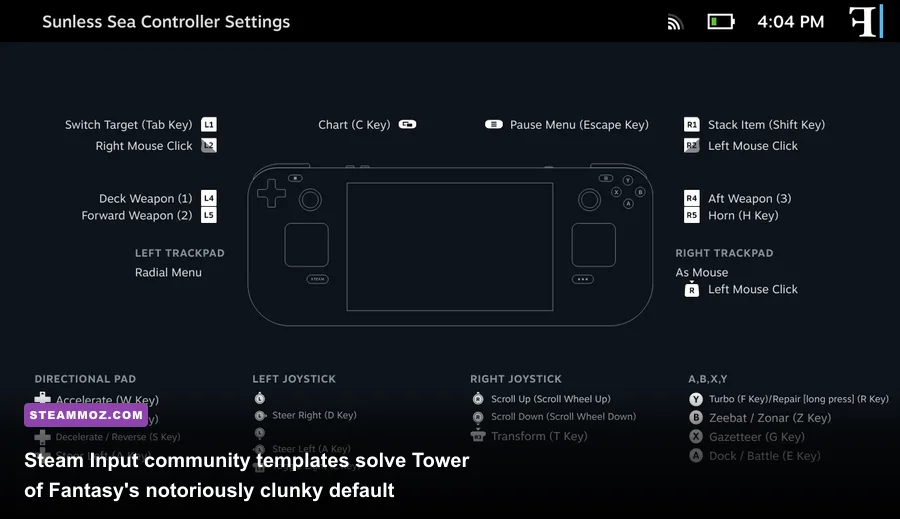
Tower of Fantasy's default controller implementation is notoriously clunky on PC. The native gamepad layout forces you to use an awkward virtual mouse cursor to claim daily bounties, navigate Simulacra menus, or activate Relics. Worse, swapping between three active weapons often drops inputs during tight animation cancels.
To fix this, you don't need a third-party keymapper—you can use an advanced Steam Input Community Profile mod. Right-click Tower of Fantasy in your Steam Library, select Properties > Controller, and make sure Enable Steam Input is active. Open the Controller Configurator and apply the following essential layout reworks:
- Action Layer for UI Navigation: Create a secondary action set named "Menu Mode" that activates automatically whenever the left mouse cursor appears on screen. Map the left thumbstick to raw mouse output with an exponential curve and bind
Right TriggertoLeft Mouse Click. You'll breeze through inventory screens without reaching for your physical mouse. - Radial Menu for Quick Relics: Instead of pressing awkward face-button combinations to swap between your Jetpack, Cybernetic Arm, and Omnium Shield, configure the controller's Left Trackpad (or D-Pad) as a 4-way Virtual Radial Menu. Assign each quadrant to the keyboard shortcuts
1,2,3, and4. Activating Relics in mid-air exploration becomes completely seamless. - Gyro Aiming for Bow Weapons: If you use ranged Simulacra like Tsubasa or Annabella, set the controller's gyroscope to trigger "As Mouse" only when holding down
Left Trigger (Aim Down Sights). This brings precise micro-aiming to the controller, making it effortless to snipe weak spots on world bosses like Rudolph or Magma without fighting analog deadzones.
Overhauling your controller pipeline eliminates combat clunkiness just as thoroughly as dialing in your combat configurations in demanding action flight games.
Audio and UI Clarity Tweaks for End-Game Raids
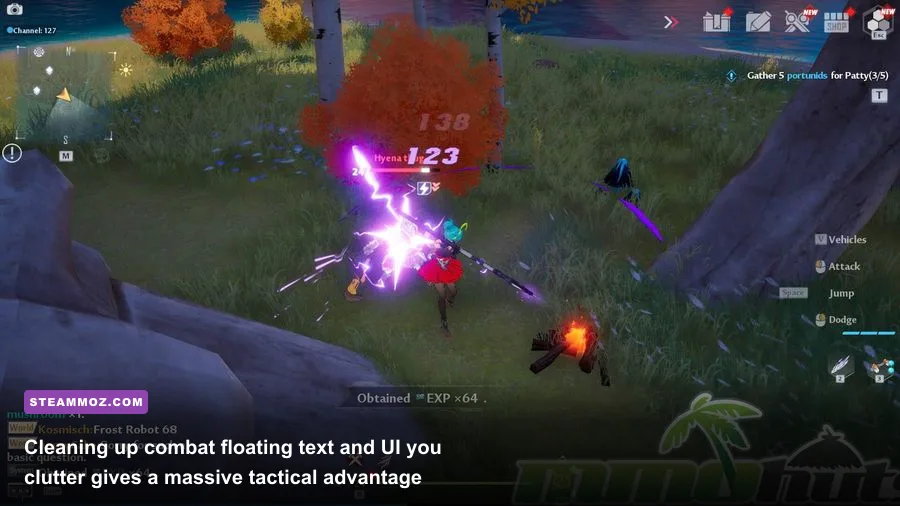
Once you step into high-end co-op challenges like Void Abyss, Origin of War, or Frontier Clash Hard, the visual effects of eight players spamming ultimate abilities will completely blind you. While there is no approved external mod to strip UI assets directly due to anti-cheat protections, you can achieve a radically cleaner HUD using a hybrid approach of in-game display parameters and driver-level overrides.
Navigate to the in-game Settings > Basic tab and drop Other Wanderer Skill Opacity down to 15%. This single change eliminates the blinding glare of allied discharge skills while keeping hostile boss telegraphs fully visible. Next, under Display Settings, toggle Special Effects Quality to Medium; counter-intuitively, this removes redundant ground-level particle smog while preserving sharp red boundary lines on fatal boss mechanics.
For audio, Tower of Fantasy's dynamic mix suffers from severe compression that makes footsteps inaudible over combat explosions. If you are on Windows 10 or 11, enable Loudness Equalization under your Windows Sound Control Panel properties for your primary playback device. This acts as an automated hardware-level dynamic range compressor, boosting quiet enemy audio telegraphs and footsteps while curbing deafening weapon discharge sound effects. For official community updates regarding client enhancements, keep an eye on the Tower of Fantasy Global official portal.
By pairing raw Engine.ini graphical tweaks, targeted ReShade color correction, an unlocked frame pacing profile, and a custom Steam Input controller layout, you will transform Tower of Fantasy from a messy mobile port into a visually stunning, responsive, high-framerate PC action MMORPG—all while keeping your account completely safe from anti-cheat bans.