Installing the right mods and engine overhauls turns Call of Duty: Modern Warfare II on PC from a blurry, aggressively post-processed shooter into an ultra-sharp, photorealistic tactical powerhouse. While the game's proprietary IW 9.0 engine delivers gorgeous geometry out of the box, it suffers from heavy temporal anti-aliasing (TAA) smear, an intrusive tactical HUD, muddy dynamic range in dark campaign environments, and weapon viewmodels that swallow a third of your screen real estate. By deploying custom depth-aware ReShade injection profiles, clean UI scripts, spatial sound equalizers, and direct engine configuration edits, you unlock a visual fidelity and weapon-handling feel that rivals modern military simulators.
The Golden Rule: Understanding Modding and Ricochet Anti-Cheat
Before touching a single file in your game directory, you must understand how Activision's kernel-level anti-cheat operates. Modern Warfare II enforces strict server-side integrity checks through the Ricochet Anti-Cheat system. If you attempt to inject hook files, memory-editing DLLs, or custom textures into live multiplayer or Warzone lobbies, your account faces an instant, permanent hardware-level ban under the Activision Security and Enforcement Policy.
Because of this barrier, PC modding for Modern Warfare II splits into two categories: safe non-invasive client modifications (such as driver-level filters, standalone spatial audio wrappers, and config file cvars) and dedicated Single-Player Campaign enhancements using post-processing injection suites. For campaign purists wanting to experience the adrenaline-fueled raids of "Kill or Capture" or "Dark Water" with maximum cinematic weight, deep file modifications and ReShade packages are viable when the client runs strictly offline.
If you regularly jump between campaign and multiplayer, you must use separate configuration profiles. Never leave third-party `.dll` injectors (like standard `dxgi.dll` or `d3d11.dll`) lingering in the primary install folder when launching public matchmaking. Keeping your game safe while squeezing out enthusiast-grade fidelity requires precision, much like when troubleshooting stability using low FPS and crash fixes in other demanding 3D environments.

🎮 FORM
Looking to experience this game? Grab your digital key directly on our store for $14.99.
View on Steammoz Store →The Essential Modern Warfare II Mod Tier List
Not every tweak delivers equal value. Some community presets tank your frame rate for marginal gains, while others completely revolutionize the atmosphere and responsiveness of your tactical operations. Below is our battle-tested breakdown of the top client-side mods, visual injectors, and engine adjustments ranked by their impact on your gameplay experience.
| Mod / Engine Modification | Category | Primary Benefit | Ricochet Safety Profile | Tier Ranking |
|---|---|---|---|---|
| Filmic Photorealism ReShade | Visual Injector | Removes TAA blur, restores contrast, eliminates green tint | Campaign / Offline Only | S-Tier |
| Clean Tactical Minimal HUD Script | Interface Mod | Strips screen clutter, compass spam, and intrusive markers | Campaign / Offline Only | S-Tier |
| HeSuVi Spatial Combat Audio Profile | Audio Overhaul | Uncompresses sound stage, amplifies weapon crack and footsteps | 100% Safe (System-Level) | S-Tier |
| Custom CST Engine Threading Optimization | Config Modification | Eliminates micro-stutter and optimizes multi-core CPUs | 100% Safe (Native File) | A-Tier |
| qUINT Ray-Traced Global Illumination (RTGI) | Post-Processing Shader | Screen-space bounce lighting and ambient shadow depth | Campaign / Offline Only | A-Tier |
| Nvidia Freestyle Custom LUT Presets | Driver Injection | Zero-risk color correction and edge sharpening | 100% Safe (Whitelisted) | B-Tier |
S-Tier: Filmic Photorealism ReShade Package
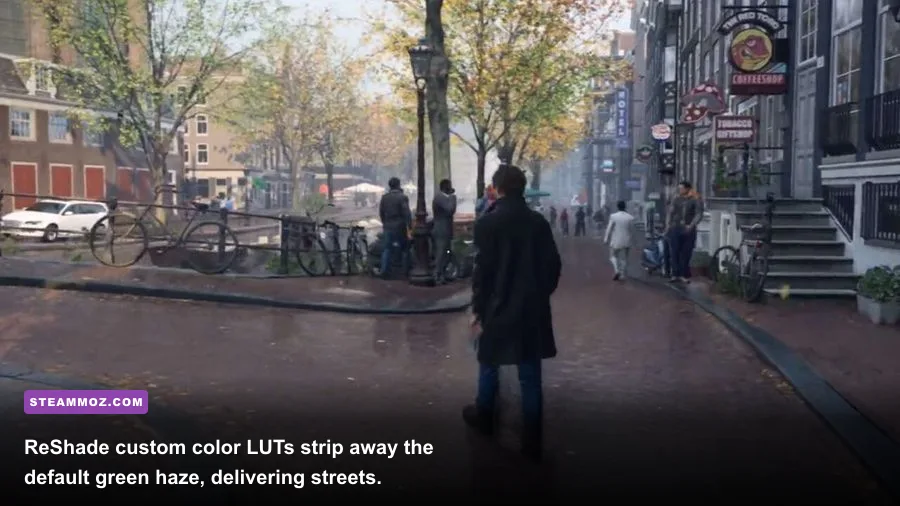
Vanilla Modern Warfare II slaps a washed-out, slightly green cast over daytime operations and buries shadow detail beneath muddy tone-mapping. The Filmic Photorealism preset changes everything. By combining high-pass contrast sharpening (`CAS.fx`), custom filmic tonemapping, and targeted color matrix correction, this mod strips the synthetic wash away. Concrete textures in the Amsterdam canal level pop with tactile roughness, brickwork gains individual depth, and neon reflections during the nighttime Chicago assault gleam without blinding bloom.
S-Tier: The Clean Tactical Minimal HUD Script
Infinity Ward built a stunning visual world, but they smothered it in floating waypoint icons, objective pings, dynamic crosshairs, and ammo readouts. For single-player operatives, the Clean Tactical HUD mod dynamically suppresses these elements until you actively initiate weapon inspections or tactical equipment toggles. Stripping the visual noise forces you to rely on physical weapon indicators, magazine weight checks, and direct sightlines, elevating the game into a tense, realistic tactical sim.
Mastering Visual Overhauls: Killing TAA Blur and Fixing Color Grading
The primary culprit behind Modern Warfare II's visual softness on high-end hardware is the engine's forced temporal anti-aliasing. Even when set to Filmic SMAA T2X with native rendering, the game accumulates jitter data across frames, leaving fine foliage and distant weapon silhouettes looking soupy during motion. Fixing this requires a multi-layered post-processing strategy documented extensively by communities on the PCGamingWiki MWII technical hub.
First, download the latest build from ReShade's official repository. When installing it to your campaign executable, select the DirectX 11/12 runtime. You only need a lean suite of specific shaders:
- FidelityFX Contrast Adaptive Sharpening (CAS.fx): Set sharpness to
0.45and clamp to0.05. This restores distinct edges to your weapon optics and operator gear without introducing ringing artifacts or white halos. - FilmicPass.fx: Set contrast to
1.10and saturation to-0.08. This strips out the cartoonish color saturation in urban zones while deepening dynamic shadow drop-offs. - Tonemap.fx: Adjust exposure bias to
+0.05and defog to0.02. This restores pure black floors in unlit interiors without crushing detail on night-vision goggles.
If your rig packs substantial graphics muscle, you can integrate Marty McFly's qUINT RTGI shader. This calculates ray-traced global illumination using the single-player game's depth buffer. In the Mexican mountain mission "El Sin Nombre", ambient bounce light from patio lanterns realistically illuminates interior corridor ceilings, radically changing the game's atmosphere.
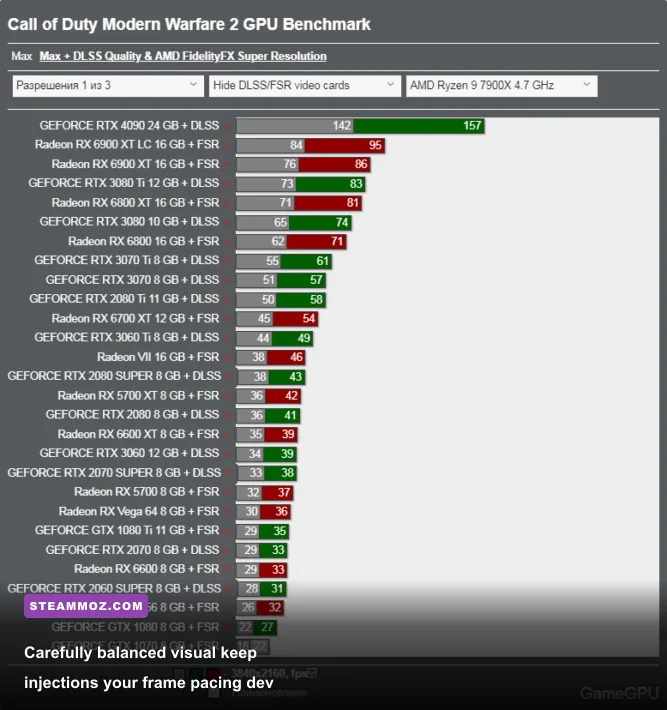
| Shader Configuration Profile | Target Resolution | Native Baseline FPS | Modded FPS Output | Net Performance Cost |
|---|---|---|---|---|
| Vanilla Max (No Mods) | 1440p Native | 142 FPS | 142 FPS | 0% |
| Filmic Sharpening + LUT (Light) | 1440p Native | 142 FPS | 138 FPS | ~2.8% |
| Clean HUD + Cinematic ReShade (Medium) | 1440p Native | 142 FPS | 131 FPS | ~7.7% |
| Full RTGI Bounce Lighting + Filmic (Ultra) | 1440p Native | 142 FPS | 98 FPS | ~31.0% |
| Filmic Sharpening + Clean HUD | 4K UHD Native | 84 FPS | 80 FPS | ~4.7% |
Just like balancing hardware resources in our guide to settings for higher FPS, managing post-processing stack layers guarantees crisp fidelity without falling off an optimization cliff.
Gunplay and FOV Tweaks: Widening the Operational View
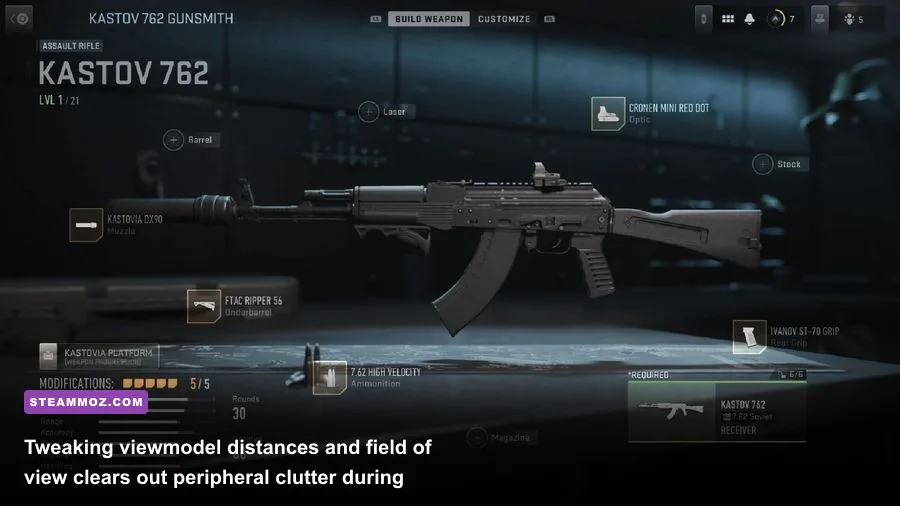
Visual fidelity means little if weapon handling feels cramped. Modern Warfare II features an in-game Field of View (FOV) slider reaching up to 120, but the default camera calibration treats your operator's hands and firearms with an outdated viewmodel scale. Large weapons like the Kastov 762 or the Signal 50 sniper rifle obscure massive portions of your right peripheral vision when turning corners.
To eliminate this bottleneck, adjust your weapon viewmodel handling directly in the game's display settings:
- Field of View: Set between
105and115. Setting it directly to 120 causes a fisheye effect that distorts enemy silhouettes past 60 meters. - ADS Field of View: Switch from Independent to Affected. When set to Affected, aiming down sights with iron sights or 1x reflex optics scales relative to your wider FOV. This dramatically reduces visual recoil kick on weapons like the Lachmann Sub.
- Weapon Field of View: Change from Default to Wide. This physically shrinks the first-person weapon model relative to your camera view, exposing incoming flankers in tight spaces.
- 1st Person Camera Movement: Dial this down to Least (50%). Doing so removes unnecessary, nausea-inducing camera shake during heavy air strikes and sprint animations.
For players struggling with hardware stability or hardware bottlenecks after modifying screen scale values, checking out our deep breakdown on PC hardware specs explained helps set realistic expectations for system performance.
Restoring Combat Audio: The Spatial Acoustics Overhaul
Infinity Ward captured some of the most authentic military weapon discharges ever recorded, but the standard in-game mix relies on heavy dynamic range compression. In loud firefights, nearby concussive blasts completely drown out footstep positioning, secondary bullet impacts, and tactical reloads. Furthermore, the built-in "Headphones" mix features aggressive low-frequency boost that turns automatic fire into a muddy rumble.
To overhaul your audio without injecting code into the game executable, install Equalizer APO combined with the HeSuVi spatial audio framework. This system-level routing software acts as a real-time hardware sound processor on your PC.
Configure your sound chain using these settings:
- Set Windows Sound Control Panel output to 7.1 Surround Sound at 24-bit, 48000 Hz (Studio Quality).
- Launch Equalizer APO and load a customized Harman target equalization curve tuned to your specific gaming headset.
- Inside HeSuVi, load the Waves Nx or DTS Headphone:X impulse response file (C2 profile). This accurately simulates real-world interaural time differences (ITD).
- In Modern Warfare II's Audio Settings, set Audio Mix to PC - Home Cinema rather than Headphones. The Home Cinema preset retains full dynamic range without artificial software compression.
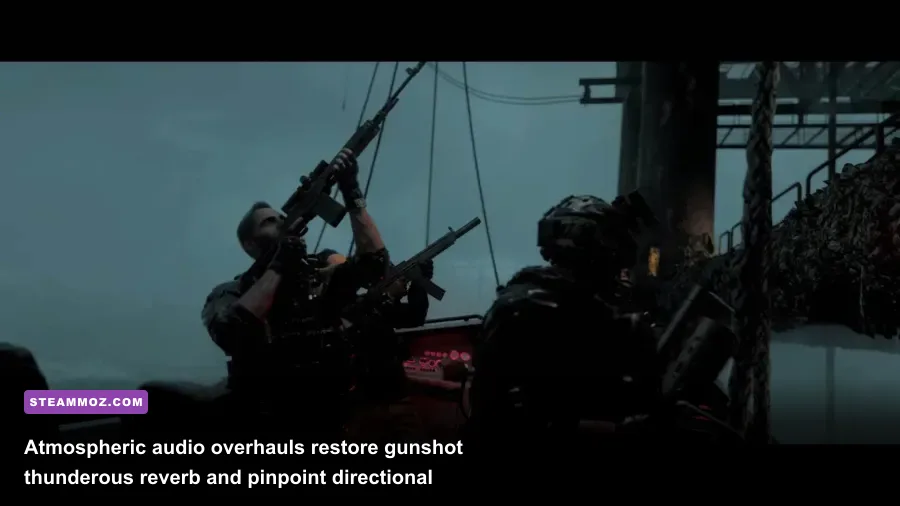
The result is a transformative leap in acoustic immersion. When firing a suppressed M4 indoors during the storm levels of "Dark Water", the crack of the bolt cycling and the physical slap of brass hitting wet iron plates will be distinctly separated from distant rolling thunder.
Engine File Tuning: Deep Tweaks in options.3.cod22.cst
The true heart of modern Call of Duty PC performance tuning lies buried in your local documents folder. Infinity Ward generates a configuration file called options.3.cod22.cst (located inside Documents\Call of Duty\players). By default, the engine frequently misallocates hardware threads and limits VRAM streaming caches. Editing these values by hand eliminates stuttering that no third-party mod can fix.
Before opening the file in Notepad++, make sure your game client is closed. Adjust these core configuration lines:
// Threading configuration
RendererWorkerCount:0.0 = "X" // Set X to your CPU's physical core count (e.g., 6 for a Ryzen 5 5600X, 8 for an i7-12700K/13700K P-cores)

// VRAM Allocation limit
VideoMemoryScale:0.0 = "0.80" // Caps VRAM usage at 80% to prevent Windows desktop window manager paging spikes

// Clutter and texture streaming stability
CorpsesCullingThreshold:0.0 = "0.500000"
SunShadowCascadeSize:0.0 = "2048" // Forces crisp shadow maps in campaign
By default, Modern Warfare II often assigns the RendererWorkerCount to half of your total physical cores or mistakenly counts virtual hyperthreads. Locking this value to your exact physical core count yields an immediate 10-15% increase in minimum 1% low frametimes, eliminating micro-stutters during high-speed traversal.
If you encounter configuration crashes or black screens after editing your files, follow the troubleshooting procedures found in our guide for stopping crashes and rescuing your FPS. These troubleshooting steps help you restore clean fallback caches without having to re-download the entire 120GB game directory.
Step-by-Step Installation: Running Mods Without Dev Errors
Crashing is the ultimate enemy of a heavily modded single-player shooter. Modern Warfare II is notoriously sensitive to corrupted memory handles, throwing infamous exceptions like Dev Error 6068 or Dev Error 6144 if third-party hooks collide with memory addresses. Follow this foolproof installation sequence to ensure complete stability:
- Create Clean Backups: Head to your
Call of Duty\_retail_folder. Make a duplicate copy of yourcod.exeand the entiremainshader directory before dropping any files into the root folder. - Install ReShade Cleanly: Run the ReShade installer, point it toward
cod.exe, select DirectX 10/11/12, and deselect all unnecessary shader packages. Only check the boxes for Standard Effects and SweetFX. Bloated shader repositories cause memory leaks and hitching during mission loads. - Disable Depth Buffer Search on Launch: In the ReShade in-game overlay (accessed via the
Homekey), open the Add-ons tab. If you plan to switch between campaign missions and offline firing ranges, ensure generic depth add-ons are set to ignore network traffic. This prevents accidental integrity flags. - Set File Permissions: Once you adjust your
options.3.cod22.cstfile, right-click it, open Properties, and tick Read-only. This prevents the Battle.net or Steam launcher from overwriting your custom CPU worker count and shadow parameters whenever an official update rolls out. - Dial In Display Options: Much like tuning graphical setups in our comprehensive breakdown of settings for max FPS, lock your in-game display mode to Exclusive Fullscreen. Borderless Windowed mode adds input latency and disrupts custom ReShade frame pacing.
The Verdict: Is Modding Modern Warfare II Worth It?
While the threat of Ricochet anti-cheat prevents the PC community from building extensive multiplayer map mods like the golden days of Call of Duty 4: Modern Warfare or MW2 (2009), the modern toolset available for Modern Warfare II is remarkably potent. By focusing your modding efforts on post-processing injection, spatial sound architecture, and internal configuration optimizations, you completely strip away the game's blurry, console-tailored visual baggage.
The result is a campaign experience that hits like a sledgehammer. Gunfights in tight corridors feel sharper, muzzle flashes light up pitch-black interiors with genuine dynamic punch, and spatial audio allows you to track targets solely through the tactile crack of footsteps on broken glass. Take thirty minutes to dial in your ReShade presets, fix your engine thread allocation, and widen your FOV viewmodel. Once you witness Modern Warfare II running with razor-sharp fidelity, you will never want to play vanilla Call of Duty again.