ENSLAVED: Odyssey to the West Premium Edition can run smoothly on modern PCs, but its older Unreal Engine 3 build has a few predictable trouble spots. The fastest fixes are to verify Steam files, install the game on a writable local drive, disable overlays, rebuild its configuration files, and use a capped 60 FPS profile instead of forcing an unstable high-refresh setup. If the game still crashes, compatibility settings and driver-level overrides are the next places to look.
This isn't a case where throwing a new graphics card at the problem solves everything. The Premium Edition launched in 2013 with the base adventure, Pigsy's Perfect 10 DLC, and costume extras, and its PC options were designed around much older Windows and driver behavior. That makes modern overlay software, aggressive frame-generation tools, ultrawide tweaks, and overly high frame rates more likely to cause trouble than to improve the experience.

🎮 Get ENSLAVED: Odyssey to the West Premium Edition
Ready to dive in? Grab your copy today for just $2.99.
Check OfferStart with the fixes that remove most crashes
Before changing advanced settings, give Steam and the installation a clean baseline. Right-click the game in your Steam library, open Properties, choose Installed Files, and select Verify integrity of game files. This replaces damaged archives and is especially useful if the game crashes while loading a chapter or DLC rather than immediately at launch.
Next, open the installation folder from the same menu and locate the game's executable. Run Steam itself once as administrator only if your Windows account is blocking file access; permanently running every game with elevated privileges isn't a good default. More importantly, avoid installing the game inside a heavily protected custom folder if the launcher cannot write configuration data.
- Disable Steam Overlay: open Properties and turn off Enable the Steam Overlay while in-game. Also disable overlays from Discord, GeForce Experience, AMD Adrenalin, MSI Afterburner/RivaTuner, and Xbox Game Bar for the first test.
- Close monitoring tools: RivaTuner's frame limiter and hardware monitoring hook into older DirectX games. Re-enable them later, one at a time, after the game is stable.
- Install pending Windows updates: old DirectX 9-era games can depend on legacy components even when DirectX 12 is installed.
- Repair legacy DirectX files: use Microsoft's official DirectX End-User Runtime Web Installer. It adds missing side-by-side libraries without replacing your modern DirectX version.
- Test a clean launch: start the game with no reshade, texture injector, ultrawide patch, or frame-generation wrapper active.
If the game crashes after changing resolution or display mode, don't keep reopening it and hoping the setting will reset. Rebuilding the configuration is quicker. Back up, then remove or rename the game's local configuration folder and launch again so the game can generate fresh defaults. The exact folder can vary by Windows installation, so search File Explorer for Enslaved and look in Documents\My Games, AppData\Local, and AppData\Roaming. Rename the folder to something like Enslaved_backup rather than deleting it.
That reset clears a bad fullscreen resolution, corrupted graphics option, or invalid controller setting. If your saves are stored in the same location, copy them somewhere safe first. Steam Cloud can restore saves, but a manual backup is smarter when troubleshooting an old PC port.
Match the symptom to the likely cause
| Symptom | Most likely cause | First fix to try |
|---|---|---|
| Crash before the menu | Overlay, missing legacy runtime, corrupt config | Disable overlays, install DirectX runtime, reset config |
| Crash when loading a chapter | Damaged game archive or save/config problem | Verify files and test an earlier save |
| Black screen after changing resolution | Bad fullscreen or unsupported display mode | Rename the configuration folder |
| Random desktop crashes during play | Hook conflict, unstable overclock, driver issue | Remove injectors and return GPU settings to stock |
For wider troubleshooting context, our guides to ELEX crash and FPS fixes and EscapeVR: The Basement performance problems cover the same modern-overlay conflicts, although their game-specific files are different.
🎮 ENSLAVED: Odyssey to the West Premium Edition
Looking to experience this game? Grab your digital key directly on our store for $2.99.
View on Steammoz Store →Use a stable 60 FPS profile before chasing higher numbers
ENSLAVED is built around console-era timing and animation systems. A modern GPU may report hundreds of frames per second in an empty corridor, but uncapped output can produce uneven frame pacing, physics oddities, or sudden stutter when the camera enters a dense outdoor area. A locked 60 FPS target is the sensible starting point, even on a 144Hz monitor.
Set the desktop and game to the monitor's native resolution first. If 1920x1080 is stable, keep it. Dropping to 1600x900 or 1280x720 helps only when the GPU is genuinely overloaded; it won't cure a CPU-side hitch, a shader compilation pause, or an overlay conflict. Use the game's own limiter if it behaves correctly. If it doesn't, cap the executable externally at 60 FPS with your GPU control panel or RTSS, but don't run both limiters at once.
| Setting | Recommended value | FPS impact | Visual trade-off |
|---|---|---|---|
| Resolution | Native 1080p or 1440p | High if lowered | Keep native resolution for sharper edges |
| Frame rate | Locked 60 FPS | Stability gain | More consistent animation than uncapped output |
| Anti-aliasing | Enabled, reduce only if needed | Medium | Lowering it makes foliage and railings shimmer |
| Texture quality | High | Low on modern GPUs | Preserves character and environment detail |
| Shadow quality | Medium or High | Medium to high | Medium is the best first cut for outdoor dips |
| Effects or post-processing | High, then Medium if stuttering | Medium | Lower settings can flatten lighting and smoke |
| V-sync | Use one method only | Variable | Prevents tearing but may add input latency |
For a fixed-refresh display, in-game V-sync is the simplest option. For G-Sync or FreeSync, disable the game's V-sync if it causes sluggishness, enable adaptive sync for the display, and cap the game a few frames below the panel's maximum refresh rate. The key is consistency. A clean 60 FPS lock feels dramatically better than a graph that swings from 144 to 48 whenever a large robot encounter begins.
What to lower first
Shadow quality is usually the best performance lever because outdoor scenes combine dynamic lighting with heavy geometry. Effects can be next, particularly if explosions or smoke cause spikes. Keep textures high unless your graphics card has very limited VRAM; texture quality mostly affects memory use rather than raw frame rate. Anti-aliasing is worth preserving at 1080p because the game's industrial edges, vines, and thin metal walkways look rough without it.
Don't use a “high performance” Windows power plan as a magic fix. On a desktop it may change little, while on a laptop it can increase heat and trigger thermal throttling. Plug the laptop in, select its dedicated GPU in Windows Graphics settings, and check temperatures during a long outdoor section instead.
Fix Unreal Engine 3 stutter and bad frame pacing
Low average FPS and bad frame pacing are different problems. If an FPS counter says 60 but movement still feels jerky, the game may be presenting frames unevenly. This is common in older Unreal Engine 3 titles when shader caches, storage access, or background hooks interrupt the render thread.
Install the game on an SSD if possible. It won't transform a 30 FPS machine into a 60 FPS machine, but it can shorten streaming hitches as Trip and Monkey move between large areas. Leave at least 10 percent free space on the drive, close browsers with heavy video tabs, and pause downloads while testing.
Reset any CPU or GPU overclock to stock. An overclock can pass a synthetic benchmark and still crash an older DirectX game after twenty minutes. Likewise, don't force modern driver features such as Radeon Anti-Lag, NVIDIA low-latency overrides, image sharpening, or unofficial frame generation until the unmodified game is stable.
NVIDIA and AMD users should create a game-specific profile rather than changing global settings. Use the driver profile to choose the dedicated GPU, leave texture filtering at application-controlled, and test V-sync in one location only. If shader compilation stutters on the first run, allow the game to revisit the same areas a few times before judging performance. Repeated identical stutters after that point suggest a configuration or hook problem, not normal shader warm-up.
Windowed borderless mode can help if exclusive fullscreen produces black screens or alt-tab crashes, but it may add a little latency. If borderless performance is worse, return to fullscreen and use a conservative resolution. Avoid forcing an ultrawide aspect ratio unless you accept the possibility of stretched menus, cropped cutscenes, or broken field-of-view behavior.
Recommended profiles by hardware
| PC profile | Resolution target | Graphics preset | Cap |
|---|---|---|---|
| Older integrated graphics | 720p | Low/Medium, shadows Low | 30 or stable 45 FPS |
| GTX 1050 Ti / RX 570 class | 1080p | High, shadows Medium | 60 FPS |
| GTX 1660 / RX 580 class | 1080p | High | 60 FPS |
| Modern mid-range GPU | 1440p | High, test enhanced driver options off | 60 or 120 FPS after testing |
The original PC requirements are extremely modest by current standards, but “can launch” and “runs correctly” aren't the same thing. A system with a fast GPU can still be bottlenecked by a CPU thread, a bad hook, or an old compatibility assumption. That is why lowering every setting often changes nothing.
Compatibility settings for Windows 10 and 11
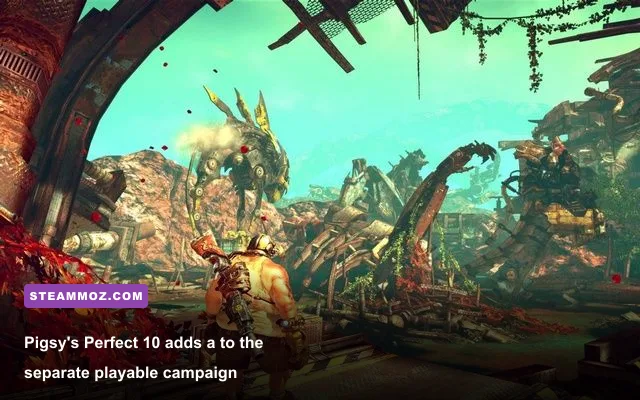
If the game crashes before reaching the main menu, right-click its executable, open Properties, select Compatibility, and test Disable fullscreen optimizations. This is more useful than immediately forcing Windows 7 compatibility mode. Compatibility mode can fix a narrow launch problem, but it can also interfere with modern input, permissions, or fullscreen behavior.
Try these changes one at a time:
- Disable fullscreen optimizations and launch normally.
- If that fails, test Windows 7 compatibility mode.
- Enable “Run this program as administrator” only if the game cannot create or update its configuration.
- Turn off Windows Game Bar capture and background recording.
- Whitelist the executable in antivirus software only when security software is clearly quarantining or blocking a file.
Never download a random DLL from a third-party “missing file” site. For a missing runtime, use Microsoft's DirectX package or the redistributables supplied through Steam and the game's installation. A mystery DLL can replace one crash with malware, version conflicts, or a new startup failure.
If only Pigsy's Perfect 10 crashes, verify the complete installation rather than assuming the DLC is inherently broken. The expansion uses Pigsy's ranged weapon and stealth-focused mechanics, but its launch files still depend on the base game's installation and configuration. A clean base-game test followed by a clean DLC test helps isolate whether the problem is content-specific or global.
Also check controller software. DS4Windows, Steam Input remapping, flight-stick drivers, and virtual controller utilities can collide with older games. Test with keyboard and mouse, then reconnect the controller after reaching the menu. If that works, create a simple Steam Input layout instead of stacking multiple remappers.
A clean troubleshooting order that saves time
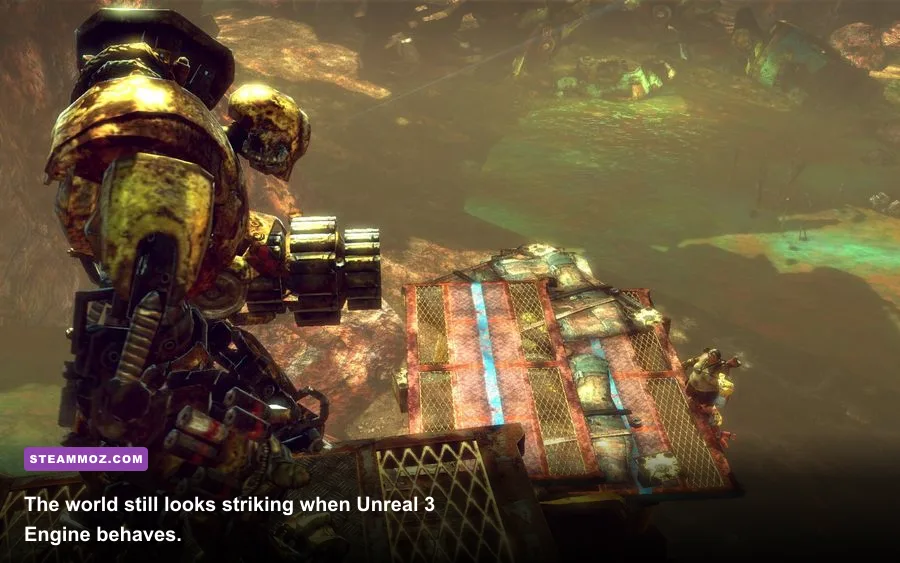
Use this order rather than changing ten variables at once. You want each test to answer a question, not create a new mystery.
Step 1: establish an unmodified baseline
Disable overlays, remove ReShade and mods, reset the config folder, and launch at 1080p with a 60 FPS cap. Play through the opening sequence and the first outdoor traversal section. If it works, the core installation is healthy.
Step 2: verify the files and runtimes
Run Steam's file verification and install the legacy DirectX runtime. Restart Windows afterward. This catches incomplete downloads and missing side-by-side components that a graphics driver reinstall won't repair.
Step 3: isolate performance from crashing
For crashes, keep the 60 FPS cap and focus on overlays, permissions, compatibility, and controller software. For low FPS, record GPU usage, CPU usage, temperatures, and frame-time behavior. If GPU usage is low while FPS falls, lowering resolution won't help; reduce shadows, close background software, and investigate CPU or streaming limits.
Step 4: add improvements carefully
Re-enable one overlay, limiter, or visual mod at a time. Test for at least fifteen minutes, including a combat encounter and a large outdoor area. This game has a linear structure, so repeating a known chapter section is a better test than standing in the menu.
| Test stage | Configuration | What it proves | Next move |
|---|---|---|---|
| Baseline | No overlays, native resolution, 60 FPS cap | Whether the unmodified port is stable | Add settings changes slowly |
| File check | Steam verification plus legacy DirectX | Whether installation/runtime files are intact | Retest the failing chapter |
| Performance test | Monitor frame time and GPU load | Whether the limit is GPU, CPU, or streaming | Lower the correct setting |
| Compatibility test | Fullscreen optimization toggle | Whether Windows display handling is involved | Try borderless or Windows 7 mode |
Keep the official Steam page for ENslaved: Odyssey to the West Premium Edition bookmarked for installation and update information. Ninja Theory's official website provides developer background, while Bandai Namco's official site is the appropriate place for publisher support channels.
For comparison, Steamoz's Far Cry 2 PC specs guide explains why old PC requirements can be misleading, and our Filament settings guide takes the same frame-pacing-first approach. The broader lesson is simple: stabilize the original game before adding modern enhancements.
Most players will solve ENslaved's PC problems with a verified installation, fresh configuration files, disabled overlays, legacy DirectX components, and a sensible 60 FPS cap. If the game still fails after that sequence, capture the crash timing, Windows Event Viewer faulting module, GPU driver version, and whether the crash happens in the base campaign or Pigsy's Perfect 10. Those details turn a vague “it crashes” report into a diagnosis—and keep you from wasting hours lowering settings that were never the real problem.