Don’t Be Afraid crashing or running below 60 FPS on PC usually comes down to four things: corrupted Unreal Engine files, outdated GPU drivers, shader compilation stutter, or settings that overload shadows and post-processing. Start by verifying the Steam installation, update your graphics driver, disable overlays, and use the performance profile below before touching more advanced Windows fixes. The game is built around dark interiors, so you can cut expensive shadow effects without turning the entire horror experience into blurry soup.
Don’t Be Afraid is a first-person psychological horror game following David, a kidnapped child trapped in a disturbing mansion filled with traps, grotesque scenes, stealth sections, and hostile encounters. That mix makes performance problems particularly nasty: a crash during exploration is annoying, but a sudden frame-time spike during a chase can ruin the timing of a hiding or escape sequence. This guide targets the Steam PC version and separates genuine crash fixes from settings that only help low FPS.
Check the Basics Before Changing Advanced Settings
Before editing configuration files, establish whether the problem is the game, Windows, or your hardware. Open the official Don’t Be Afraid Steam page and compare your system with its listed requirements. The minimum specification is modest by modern standards, but meeting a minimum GPU requirement does not guarantee a locked 60 FPS at 1080p, especially in areas with dynamic lighting and dense shadowing.
Verify the installation
In Steam, right-click Don’t Be Afraid, select Properties, open Installed Files, and choose Verify integrity of game files. Wait for the process to finish even if Steam reports that only one file needs replacing. Unreal Engine games can fail because of a single damaged executable, asset bundle, or shader-related file. Restart Steam after the repair rather than launching immediately from the verification window.
Remove the easy sources of conflicts
Temporarily disable the Steam Overlay under the game’s Properties menu. Also test with Discord Overlay, Xbox Game Bar, NVIDIA App or GeForce Experience overlays, AMD Adrenalin recording, MSI Afterburner’s on-screen display, and RGB or motherboard monitoring utilities turned off. These tools hook into the rendering process; most work fine, but a crash that disappears when overlays are disabled gives you a clean direction.
Run the game from its normal Steam shortcut rather than an old desktop shortcut pointing to a previous installation. If you use launch options, remove them for the first test. Options copied from another Unreal Engine game can cause a black screen or immediate crash here. Do not add random commands such as -high, -dx12, or -USEALLAVAILABLECORES unless you are testing one specific change.
| Check | How to test it | What the result means | Priority |
|---|---|---|---|
| Steam files | Properties → Installed Files → Verify integrity | Repairs missing or damaged game data | First |
| Overlays | Disable Steam, Discord, GPU and Xbox overlays | Identifies hook or capture conflicts | High |
| Background apps | Close browsers, launchers and monitoring tools | Frees RAM and removes injection conflicts | High |
| Window mode | Test borderless and exclusive fullscreen | Separates display-mode bugs from GPU problems | Medium |
If you want another example of this troubleshooting mindset, our guide to ELEX PC crash and FPS fixes covers the same useful order of operations: verify first, isolate software conflicts second, then tune the renderer.

🎮 Don't Be Afraid
Looking to experience this game? Grab your digital key directly on our store for $1.99.
View on Steammoz Store →Stop Don’t Be Afraid From Crashing on Launch
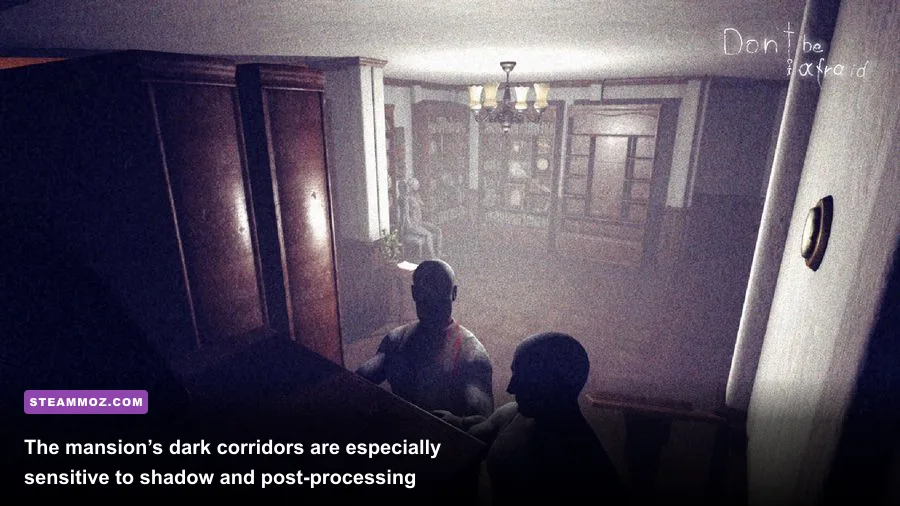
A crash before the main menu is usually more useful diagnostically than a crash in the mansion. If the game closes instantly, freezes on a black screen, or returns you to the desktop after the logos, work through these fixes in order. Change one thing at a time so you know which fix actually mattered.
Update or clean-install the graphics driver
Install the current WHQL driver directly from the official NVIDIA driver page or the official AMD support page. If Don’t Be Afraid started crashing immediately after a driver update, use the driver installer’s clean-install option or roll back to the previous stable driver. Laptop owners should prioritize the driver supplied by their laptop manufacturer if the generic package causes display switching problems.
Make sure the game uses the dedicated GPU. In Windows, go to Settings → System → Display → Graphics, add the game executable if it is not listed, select Options, and choose High performance. On a laptop, play while connected to AC power and set the Windows power mode to Best performance. A game accidentally running on integrated graphics can look like a crash problem because the GPU runs out of memory during scene loading.
Reset damaged local configuration
Corrupted settings can survive a reinstall because they live outside the Steam installation folder. Close the game and Steam, then back up your save files before renaming the game’s local configuration folder under %LOCALAPPDATA% or %APPDATA%. Search Windows File Explorer for a folder named DontBeAfraid, HydraGames, or a similarly named Unreal project folder. Rename it to DontBeAfraid_backup, launch the game, and let it create fresh settings.
Do not delete the backup until you confirm your saves are safe. Steam Cloud may restore saves, but it is not a substitute for a manual copy. If a clean configuration fixes the launch crash, copy saves back one group at a time rather than restoring every old file, because a damaged profile can bring the problem back.
Repair Windows dependencies
Install or repair Microsoft Visual C++ Redistributable 2015–2022 in both x64 and x86 versions from Microsoft’s official Visual C++ download page. Restart Windows afterward. Also run Windows Update, reboot, and check Reliability Monitor by searching for View reliability history. An error that consistently names the same DLL or graphics module is far more valuable than guessing from the crash timing.
For a final file-system check, open Terminal or Command Prompt as administrator and run sfc /scannow. If Windows reports repairable corruption, reboot before launching the game again. Avoid registry cleaners; they rarely solve a game crash and can create new problems.
Use These Settings to Recover Low FPS
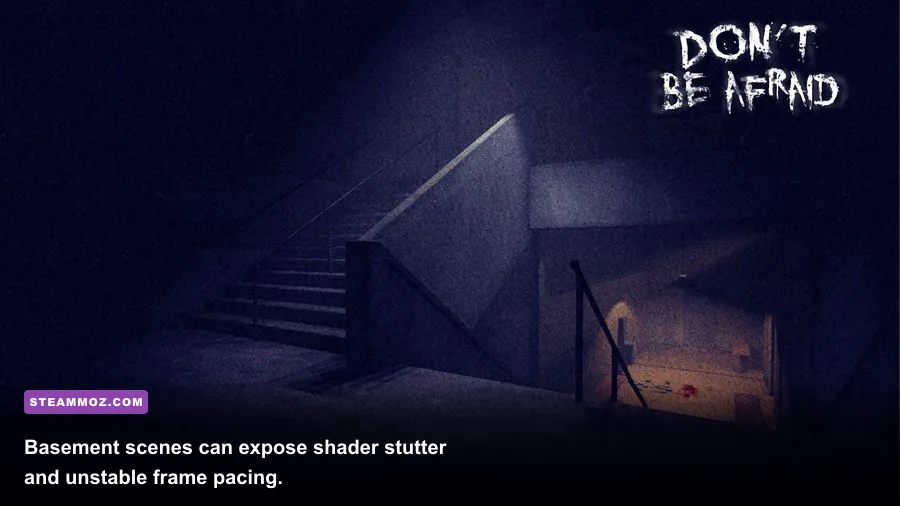
Don’t Be Afraid’s biggest performance costs are usually shadow quality, ambient occlusion, post-processing, and resolution. Start at 1920×1080 with a 60 FPS cap. If your monitor is 144Hz, do not chase 144 FPS in this game unless your hardware has plenty of headroom; horror games feel far better with stable frame pacing than with a 90-to-45 FPS swing.
Apply the settings in the table, restart the game, and test the same corridor for at least two minutes. A single hallway can mislead you because the game streams assets as you move between rooms. Walk, trigger a loading transition, turn toward the darkest lit area, and repeat the test during a chase or enemy encounter. Watch GPU usage and frame time in a trusted overlay only after you have tested with overlays disabled.
| Setting | Recommended value | Typical FPS impact | Visual trade-off |
|---|---|---|---|
| Resolution | 1920×1080; 1600×900 for weak GPUs | Very high | Lower resolution is sharper with proper scaling than heavy blur |
| Resolution scale | 100%; test 90% only if needed | Very high | Below 90% noticeably softens text and silhouettes |
| Shadows | Medium | High | Less contact-shadow detail, but darkness remains atmospheric |
| Ambient occlusion | Low or Medium | Medium | Corners lose some depth; usually hard to notice while moving |
| Post-processing | Medium | Medium | Reduces expensive screen effects and can improve clarity |
| Effects | Medium | Low to Medium | Less detail in particles and impact effects |
| Textures | High if VRAM allows; Medium below 4GB | Low GPU, high VRAM use | Lower texture quality makes surfaces visibly muddy |
| Anti-aliasing | Medium | Low to Medium | Lower values introduce shimmer on edges |
| V-Sync | Off for testing; on if tearing appears | Variable | Can add latency or lock behavior depending on display |
The best order for lowering settings
Drop shadows first, then ambient occlusion, then post-processing. These settings reduce the cost of the lighting-heavy mansion without destroying the game’s core mood. Leave textures high when possible because texture quality mostly consumes VRAM rather than raw shader performance. If your GPU has 4GB or less, use Medium textures and close every browser window before launching.
Resolution is the last major lever. If your GPU is pinned near 99% usage, lowering resolution or resolution scale will help. If GPU usage sits around 50–70% while FPS remains poor, the limit may be CPU-side, shader compilation, background software, or frame pacing. In that situation, lowering every visual option will not magically fix the bottleneck.
Cap the frame rate instead of chasing peaks
Use the in-game frame-rate limit if available. Otherwise, set a cap through your GPU control panel or RTSS after confirming the game is stable without the overlay. A 60 FPS cap is sensible for a 60Hz display; on a 120Hz or 144Hz monitor, try 72 or 90 FPS only if the game can hold it consistently. A locked 45 FPS profile is preferable to constant drops from 60 to 30 on older hardware.
Fix Stutter, Freezes, and Shader Hitching
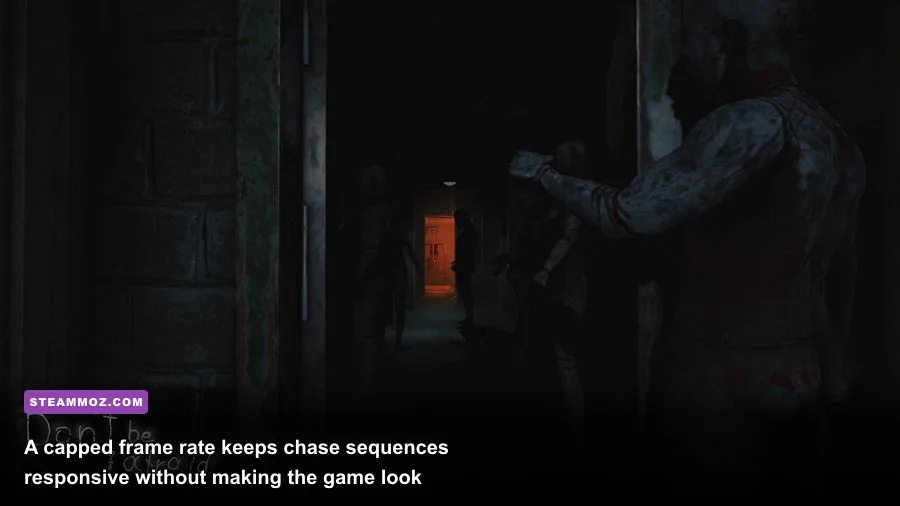
Not every pause is a crash. Don’t Be Afraid can hitch when a new room, lighting effect, or enemy sequence is loaded. If the game resumes after several seconds, you are dealing with a stall rather than a desktop crash. The goal is to reduce the size of each frame-time spike, not simply increase the average FPS number.
Give the game a clean shader cache
After changing GPU drivers, Windows may rebuild its shader cache. The first trip through an area can therefore stutter more than later runs. Let the game sit at the menu for a minute, load a save, and revisit the same route twice before judging the result. If stuttering remains severe after a driver change, clear the DirectX shader cache through Windows Settings → System → Storage → Temporary files, select DirectX Shader Cache, and restart.
Do not clear the cache every time you see one hitch. The cache exists to prevent repeated compilation. Clearing it is useful after driver changes or corrupted cache behavior, but repeated deletion guarantees that the game has to rebuild everything again.
Use borderless mode as a diagnostic
Test exclusive fullscreen and borderless windowed mode separately. Borderless can behave better with modern Windows desktop composition and alt-tabbing, while exclusive fullscreen sometimes offers cleaner latency. If one mode crashes and the other works, keep the stable mode and disable Windows fullscreen optimizations on the executable as a second test: right-click the game executable, choose Properties, open Compatibility, select Disable fullscreen optimizations, and apply.
Disable HDR and variable refresh rate temporarily while diagnosing. Once the game is stable, re-enable them one at a time. G-SYNC or FreeSync usually improves smoothness, but a mismatched V-Sync and frame cap can produce uneven pacing. A practical combination is adaptive sync enabled, in-game V-Sync enabled or driver V-Sync enabled according to your display setup, and an FPS cap a few frames below the panel’s refresh rate.
Check temperatures and memory pressure
Use a monitoring tool only for a short diagnostic session. If the GPU reaches its thermal limit and clock speed drops, clean dust from the case, improve airflow, or raise the fan curve. If system RAM is nearly full, close Chrome, launchers, video editors, and virtual machines. If VRAM is full, lower textures and resolution before reducing every other setting. Texture streaming pressure often creates pauses that look like random crashes.
Our Everspace 2 crashing and FPS guide explains the same useful distinction between a true application failure and a frame-time spike. That distinction matters here: a crash requires logs and file repair, while a hitch needs shader, temperature, or streaming diagnosis.
Build a Stable Profile for Older PCs and Laptops
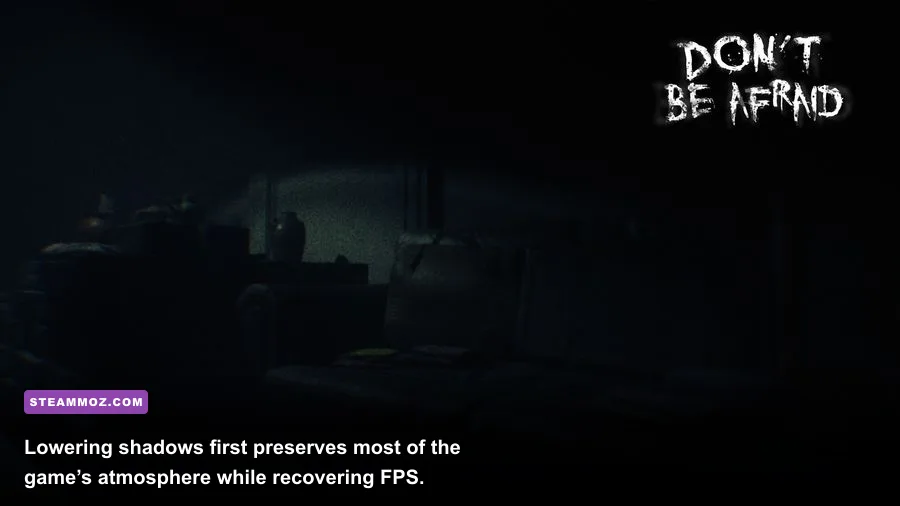
If your PC is near the minimum specification, stop aiming for maximum visuals and create a consistent profile. Don’t Be Afraid benefits more from stable frame delivery than ultra-quality shadows. The following profiles are practical starting points, not magic presets: the exact result depends on your CPU, GPU, driver, memory configuration, and resolution.
| Hardware target | Resolution | Core profile | Realistic goal |
|---|---|---|---|
| Integrated graphics or older laptop GPU | 1280×720 or 1600×900 | Textures Low/Medium, shadows Low, AO Off/Low, effects Low, post-processing Low | 30 FPS with fewer severe drops |
| Entry-level dedicated GPU | 1920×1080 | Textures Medium, shadows Medium, AO Low, effects Medium, post-processing Medium | 45–60 FPS depending on scene |
| Mainstream 1080p GPU | 1920×1080 | Textures High, shadows Medium/High, AO Medium, effects High, post-processing Medium | Locked 60 FPS in most scenes |
| Modern high-end GPU | 1920×1080 or 2560×1440 | Textures High, shadows High, AO High, effects High, post-processing High | 60 FPS with headroom |
Power, storage, and Windows settings
Install the game on an SSD if possible. An SSD will not double your average FPS, but it can reduce loading pauses and asset-streaming stalls compared with a heavily fragmented or nearly full hard drive. Keep at least 15 percent free space on the Windows and game drives. Set the Windows power plan to Balanced or High performance depending on your laptop’s heat behavior; High performance is useless if it causes thermal throttling after ten minutes.
Disable background recording in Windows Game Bar and GPU software. Turn off unnecessary startup applications through Task Manager, but do not disable security software permanently. If antivirus scanning causes repeated stalls, add the Steam library and game folder as an exclusion only if you understand the security trade-off and trust the installation.
Players who enjoy tuning older PC games may also find our Harvey’s New Eyes PC requirements guide useful for understanding why minimum specifications are not the same thing as a smooth target.
When Nothing Works, Read the Crash Evidence
If Don’t Be Afraid still crashes after verification, a clean configuration, driver repair, and overlay test, stop repeating the same reinstall. Look for crash reports in the game’s installation directory and under Windows locations such as %LOCALAPPDATA%\CrashDumps. Open Event Viewer → Windows Logs → Application and find the error at the crash time. Note the faulting application, exception code, and module name.
A graphics module such as nvlddmkm or atidxx64 points toward the GPU driver, overheating, an unstable overclock, or VRAM pressure. A crash mentioning a game executable after a clean driver install is more likely to involve damaged files, configuration, or an engine-specific bug. Memory-related exception codes justify testing Windows Memory Diagnostic and removing CPU or RAM overclocks, including “stable” XMP or EXPO profiles.
Reset every overclock and undervolt while troubleshooting. Unreal Engine titles can expose marginal GPU stability that other games never touch, particularly during shader compilation and rapid lighting changes. If the game only crashes after 20 or 30 minutes, monitor temperatures and clocks rather than focusing exclusively on launch fixes.
Finally, report reproducible failures through the official Steam community hub with your CPU, GPU, RAM amount, Windows version, driver version, resolution, graphics profile, and the exact action that triggers the crash. Include whether verification found files and whether overlays were disabled. That information is dramatically more useful to the developer than “game broken.” For related troubleshooting habits, our Far Cry 6 FPS settings guide shows how to document a repeatable performance profile instead of guessing.
The short version is simple: verify the files, clean up overlays, update or roll back the GPU driver, regenerate local settings, and lower shadows before textures. Then cap the frame rate to something your PC can actually hold. Don’t Be Afraid is at its best when the game’s tension comes from David’s surroundings—not from wondering whether the next doorway will trigger a crash.