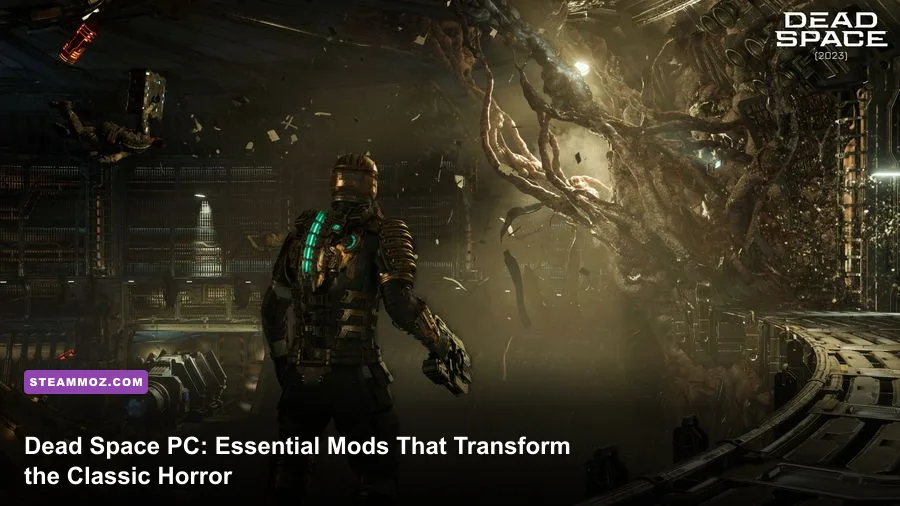
The 2008 classic Dead Space remains an untouchable triumph of survival horror, but boot it straight out of your Steam or EA App library onto modern hardware, and you will hit a technical wall. The unmodded PC port suffers from brutal negative mouse acceleration, broken physics above 60 FPS that literally lock story doors, and a suffocating 60-degree field of view that places Isaac Clarke right in front of your reticle. To make this masterpiece playable today, you need a precise batch of community fixes: Meth0d's Raw Mouse Input fix, a strict external frame limiter, the Flawless Widescreen FOV correction, and cris12u's HD Texture Overhaul. With these essential tweaks installed, you eliminate the console-port lag and turn the original trip through the USG Ishimura into a smooth, razor-sharp 120 FPS horror masterclass.
Why Dead Space PC Demands Mods Before Your First Playthrough
Dead Space was developed during an era when EA's internal engines tied their entire physics calculation suite directly to a 60 Hz frame cycle. When modern graphics cards spit out 200 to 500 frames per second on the Ishimura's vintage assets, the Havok physics engine shatters. Severed limbs vibrate violently against the deck plates, audio cues de-sync from cutscenes, and most notoriously, the security door in the Chapter 1 tram repair bay refuses to trigger its unlock script, completely halting your progression before you even claim your first Stasis module.
The control scheme fares even worse on modern setups. The stock game processes mouse movement as an emulated analog stick, introducing varying deadzones, aggressive axis smoothing, and reverse acceleration where rapid sweeps of your mouse move Isaac's targeting reticle slower than a slow glide. Throw in the default in-game V-Sync option—which aggressively cuts your monitor's refresh rate down to a jittery 30 FPS—and aiming the Plasma Cutter feels like wading through wet cement. Just like sorting out frame pacers in EscapeVR basement low FPS fixes or resolving low-level engine bottlenecks in Elex PC fixes that rescue your FPS, taking fifteen minutes to patch Dead Space transforms a broken port into one of the snappiest, most terrifying shooters on your drive.

🎮 FORM
Looking to experience this game? Grab your digital key directly on our store for $14.99.
View on Steammoz Store →Essential Dead Space Mod Tier List: Ranked from Mandatory to Polished
Not every community mod is created equal. Some mods are mission-critical patches that prevent hard locks, while others are subtle visual upgrades that make the Ishimura's rusted bulkheads look magnificent on high-resolution displays. We have ranked the community's best tools into tiers based on how essential they are for a flawless run.
| Mod / Tool Name | Tier Rating | Primary Function | Performance / Stability Impact |
|---|---|---|---|
| Dead Space Raw Mouse Input (Meth0d) | S-Tier (Mandatory) | Removes analog stick emulation, deadzones, and acceleration via dinput8 hook. | Zero FPS impact; completely fixes camera aiming responsiveness. |
| RivaTuner / Driver 60-120 FPS Framerate Cap | S-Tier (Mandatory) | Locks frame delivery to stabilize engine tick rates and prevent script breakage. | Zero performance loss; eliminates physics de-sync and door glitches. |
| Flawless Widescreen / FOV Fixer | A-Tier (Essential) | Expands horizontal FOV from 60° up to 85°-95° based on aspect ratio. | Negligible (1-2 FPS); vastly improves peripheral vision and reduces motion sickness. |
| Dead Space HD Texture Overhaul (cris12u) | A-Tier (High Value) | Replaces low-res 512px assets with clean 2K/4K PBR-faithful textures. | Requires ~4GB VRAM; zero stutter if modern GPU is used. |
| True Ishimura Cinematic ReShade | B-Tier (Optional) | Restores crushed black levels, adds subtle chromatic dispersion and bloom. | Minor (3-5% FPS drop); dramatically sharpens lighting contrast. |
| DirectX 9 Audio Latency Restorer | B-Tier (Optional) | Fixes 3D surround sound staging on modern Windows 10/11 spatial audio. | Zero FPS impact; restores positional audio cues for lurking Slashers. |
The Non-Negotiable Core: Fixing Raw Mouse Input and Broken 60 FPS Physics
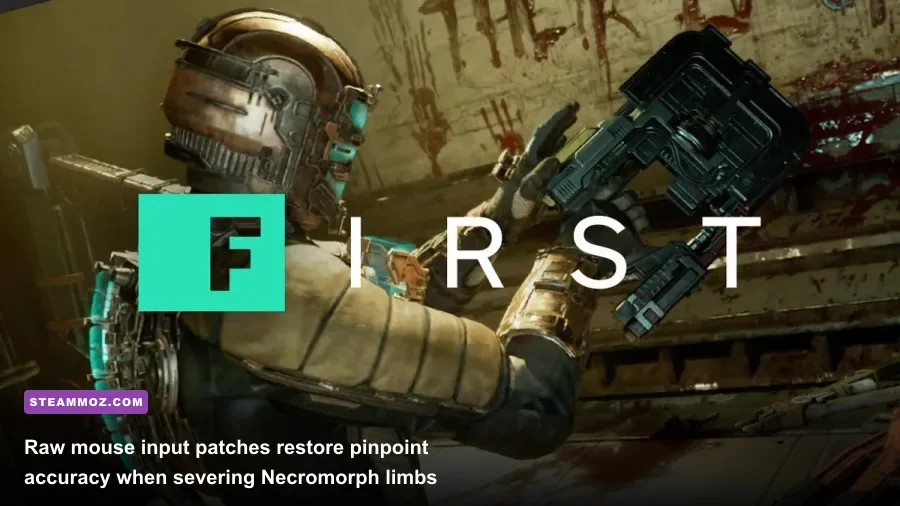
Before touching graphics or audio, you must install Meth0d's Mouse Fix. Available through community archives and detailed thoroughly on the PCGamingWiki Dead Space entry, this tiny fix consists of a single dinput8.dll file dropped directly into your game's root installation folder (where Dead Space.exe lives). This custom wrapper intercepts your mouse movements before the game engine can run them through its native gamepad translation filter. The result? Pure, 1:1 raw mouse input. Slicing off a leaping Slasher's blade at point-blank range becomes an exercise in skill rather than an agonizing wrestling match with an artificial deadzone.
Next comes the physics and frame-pacing issue. The in-game V-Sync setting in Dead Space is fundamentally broken: it forces your monitor to lock Isaac at half your display's native refresh rate—frequently capping you at a miserable 30 FPS. Turn V-Sync OFF inside the in-game menus immediately. Then, open your GPU control software—either the NVIDIA Control Panel, AMD Radeon Software, or RivaTuner Statistics Server (RTSS)—and set up a hardware-level frame limit.
| Target Refresh Rate | Recommended Hardware Cap | Physics Behavior | Ideal Play Scenario |
|---|---|---|---|
| 60 Hz Displays | 59.94 or 60 FPS | 100% stable; identical to original console engine tick rate. | Standard playthroughs; zero risk of Chapter 1 tram lockouts. |
| 120 Hz Displays | 119 FPS | 98% stable; physics behave normally; ragdolls occasionally twitch. | The sweet spot for ultra-smooth aiming and rock-solid script execution. |
| 144 Hz+ Displays | 120 FPS (Hard Cap) | Uncapped rates above 130 FPS cause doors to unbind and corpses to explode. | Do not exceed 120 FPS; anything higher actively breaks level triggers. |
If you have spent time calibrating display timings in Filament Marmalade Edition settings for higher FPS or managing lockups in Everspace 2 crashing fixes, you know how critical external frame limiters are. Clamping Dead Space at 60 or 120 FPS resolves all script stalls while keeping Isaac's boots firmly planted on the metal grating.
Visual Modernization: High-Resolution Textures and Wider FOV
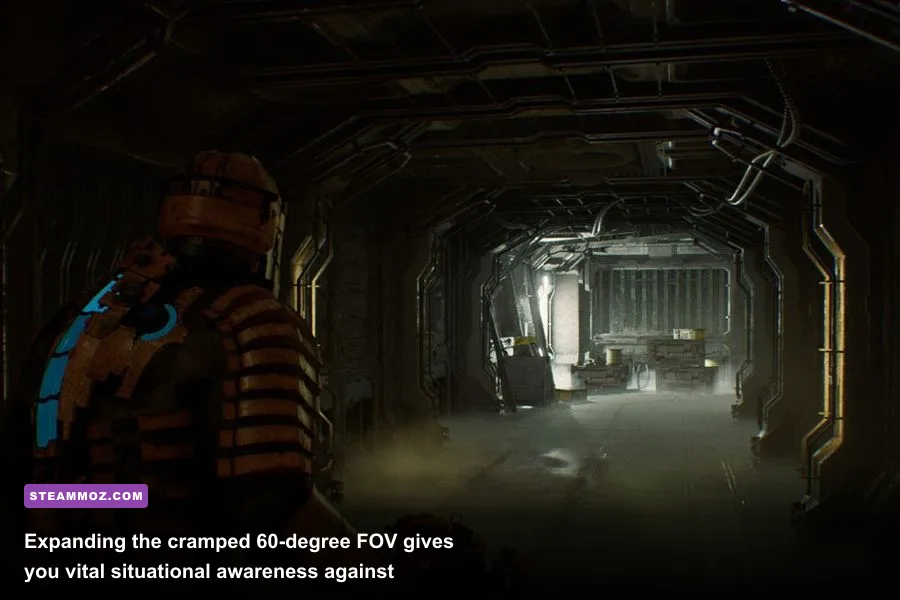
Once Isaac controls like an elite third-person shooter protagonist, it's time to tackle the visual presentation. By default, Dead Space uses an extremely tight 60-degree horizontal field of view. While the claustrophobia was an intentional design decision for small CRT televisions in 2008, on an ultra-wide or 27-inch 1440p gaming monitor, Isaac covers almost 40% of the entire display area. This causes severe disorientation and prevents you from spotting flankers crawling out of wall vents.
The definitive remedy is using the Dead Space plugin within Flawless Widescreen. This utility hooks into the game process dynamically, allowing you to widen the FOV slider by +15% to +25%. Pushing the camera back just a few virtual feet reveals Isaac's full RIG suit spine indicator without detaching the camera so far that it breaks the personal, intimate dread of the Ishimura's claustrophobic corridors. More importantly, it leaves the diegetic weapon hologram sights perfectly aligned with your crosshair orientation.
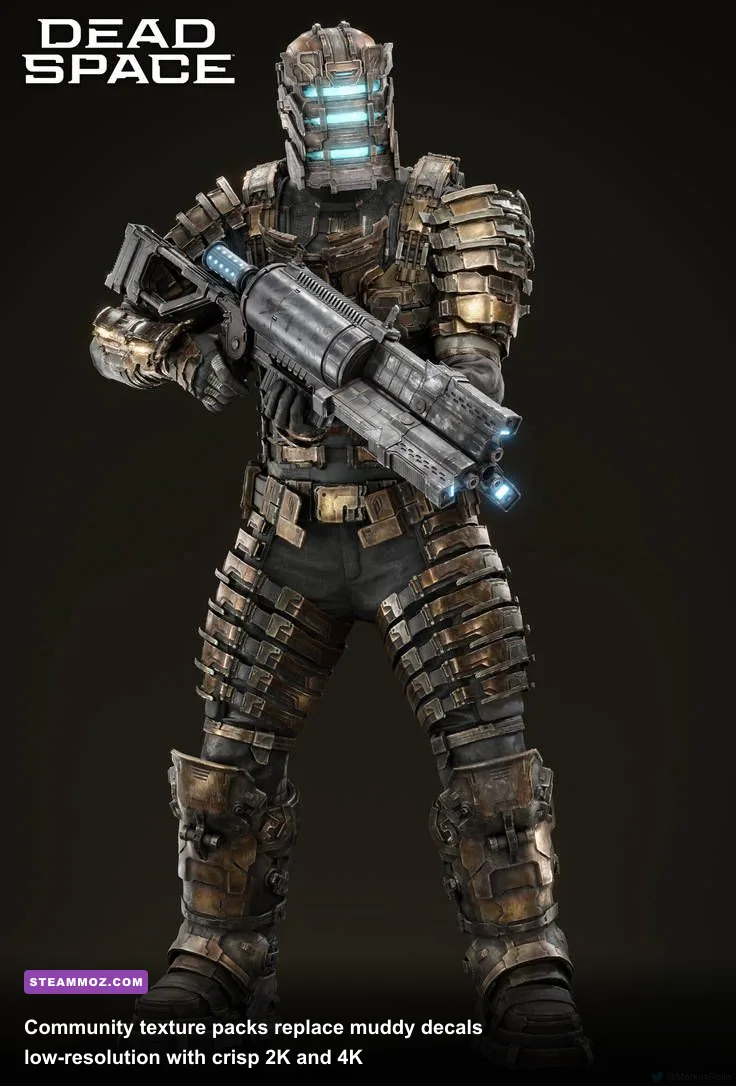
To pull the visuals up to modern display resolutions, install the Dead Space HD Texture Overhaul by cris12u, hostable via Nexus Mods Dead Space hub. This mod replaces thousands of muddy 512x512 textures with hand-cleaned, AI-upscaled 2K and 4K assets. Rust seams on hydraulic bulkheads, warning signs in the Medical Deck, and the carbon-fiber detailing across Isaac's Level 3 Engineer Suit regain razor-sharp clarity. Best of all, because Dead Space's geometry is relatively lightweight, even budget graphics cards with at least 4GB of VRAM will maintain a pinned 120 FPS without hitching or memory spills.
Atmospheric ReShade and Sound Tweaks for Pure Survival Horror
Modern gaming displays—especially IPS panels—frequently wash out the near-pitch-black shadow levels of older DirectX 9 titles. Dead Space relies entirely on contrast: the piercing blue light of your RIG suit illuminating an otherwise black hallway where an acid-spitting Brute lurks. Installing a tailored ReShade configuration breathes heavy industrial mood back into the engine.
When setting up ReShade for Dead Space, focus on three specific shaders:
- qUINT_lightroom: Used to dial in precise black floor correction. Lowering the black levels slightly crushes the milky gray fog that modern GPU drivers inject into DX9 backbuffers, restoring the pitch-black shadows that developer Visceral Games originally intended.
- Delc_Sharpen: A minimal pass of smart contrast sharpening counteracts the blur caused by the game's vintage edge anti-aliasing.
- AmbientLight: Adds a very subtle bleed to Isaac's glowing blue helmet slits and health spine, producing an authentic volumetric cast against steam pipes without dropping frames.
On the audio front, modern versions of Windows often collapse the game's phenomenal 5.1 surround sound mix into muddy stereo. If you play on a multi-channel headset or surround system, using an OpenAL or DirectSound audio wrapper like IndirectSound restores accurate spatial audio. You will hear every scurrying pair of Necromorph claws echoing above your ceiling ducting with terrifying directional accuracy.
Optimal Modern Setup and Troubleshooting Conflicts
When stacking multiple wrappers like dinput8.dll for raw input and dxgi.dll or d3d9.dll for ReShade, conflicts can arise if files try to overwrite the same hook. Getting everything to boot cleanly is straightforward if you configure your directories in the correct order.
| Installation Step | File / Tool Needed | Target Directory | Troubleshooting Check |
|---|---|---|---|
| 1. Clean Installation | Base Game (Dead Space on Steam) | /steamapps/common/Dead Space/ |
Verify file integrity before placing any third-party DLLs. |
| 2. Raw Mouse Input | dinput8.dll (Meth0d Fix) |
Game root folder | If mouse feels unresponsive, ensure Steam Input is disabled in controller settings. |
| 3. Frame Cap Config | NVIDIA CP / RTSS | Global / Application profile | Turn game's internal V-Sync OFF; lock framerate externally to 60 or 120 FPS. |
| 4. FOV Injection | Flawless Widescreen | Standalone execution | Launch Flawless Widescreen in background before launching Dead Space. |
| 5. Texture Overhaul | Large Address Aware (LAA) + Mod Files | Game root / TexMod injector | Apply 4GB LAA patch to Dead Space.exe to prevent out-of-memory CTDs. |
If you encounter random crashes to desktop while loading new transit sectors, the culprit is almost always the 32-bit memory limit of the original executable. Running a quick 4GB Patch (Large Address Aware) on Dead Space.exe allows the retro engine to utilize up to 4GB of system RAM instead of suffocating at 2GB, completely clearing up crashes when running high-resolution textures alongside an aggressive ReShade profile.
Fine-tuning hardware and driver settings is just as rewarding here as it is when optimizing tactical gear in our Far Cry 6 beginner loadout guide or reviewing weapon tier scaling in the Everspace Deluxe upgrade weapons breakdown. Taking a few moments to eliminate input lag and texture pop gives this landmark survival horror experience the definitive presentation it deserves on modern gaming hardware. Install the raw input wrapper, clamp your framerate, kick the FOV out to 90 degrees, and experience the dread of the USG Ishimura all over again with flawless modern precision.