
Jumping into the modern Xbox ecosystem isn't as simple as hitting download and grabbing a gamepad. Whether you are booting up titles through an Xbox Series X|S, running the PC Xbox app on Windows 11, or streaming via Xbox Cloud Gaming, Microsoft has blurred the lines between hardware platforms—and created a minefield of hidden file restrictions, subscription confusions, and latency traps along the way. If you don't configure your storage directories, tune your network buffers, and understand the difference between Xbox Play Anywhere and standard storefront licenses before you start playing, you will lose save files, burn unnecessary cash, and suffer through atrocious input delay.
The Xbox Ecosystem Map: Subscriptions, Cloud, and Native Play
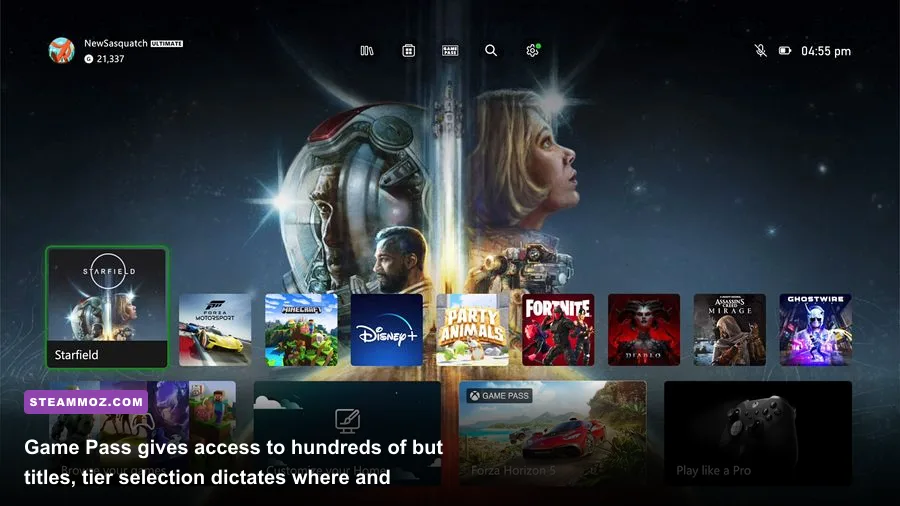
Microsoft no longer treats Xbox as a plastic box sitting beneath your TV. Today, Xbox is an overarching service layer spanning consoles, Windows desktops, handhelds like the ROG Ally, smart TVs, and web browsers. Before you spend a single dollar, you need to understand where your games are actually running: locally on dedicated hardware, locally on Windows x86 hardware, or remotely on custom Xbox Series X server blades located in an Azure datacenter.
Your subscription tier directly governs what hardware you can touch. If you sign up for PC Game Pass, you get native Windows PC licenses, access to EA Play on desktop, and Day One first-party releases from Xbox Game Studios, Bethesda, and Activision Blizzard. But you do not get cloud streaming or console access. If you pick Xbox Game Pass Core, you are stuck with a barebones legacy multiplayer subscription on console with a curated pool of around 25 games. Xbox Game Pass Ultimate remains the all-inclusive tier, combining PC, Console, EA Play, Cloud Gaming, and perks into a single monthly bill. You can check current service status and updates directly at the official Xbox Cloud Gaming portal.
If you're jumping between heavy PC releases, make sure your hardware can handle modern rendering pipelines before buying high-tier passes; our breakdown on the Fatal Fury City of the Wolves PC specs reveals just how demanding upcoming cross-platform engines are becoming.
| Subscription Tier | Native Platforms | Cloud Gaming Access | Online Console Multiplayer | Ideal Gamer Profile |
|---|---|---|---|---|
| PC Game Pass | Windows 10/11 Only | No | Not Applicable (Free on PC) | Pure desktop and gaming laptop players |
| Game Pass Core | Xbox Series X|S, Xbox One | No | Yes | Console players who only play Call of Duty or FIFA online |
| Game Pass Standard | Xbox Series X|S, Xbox One | No | Yes | Console players wanting a backlog without Day One launches |
| Game Pass Ultimate | PC, Console, Cloud, Handhelds | Yes (1080p / 60fps) | Yes | Multi-platform players, handheld owners, cloud streamers |
Watch Out for Rotating Library Exits
Games on Game Pass are not yours forever. First-party studio titles from Halo and Forza to DOOM and Fallout remain permanent fixtures, but third-party publishers operate on temporary contracts—usually 12 to 18 months. Microsoft announces departures twice a month via the dashboard. When a game leaves the catalog, your local installation locks up until you purchase the full license, though your cloud saves remain intact indefinitely on Microsoft's servers.
PC Xbox App Headaches: Deliverance from the Windows Store Architecture
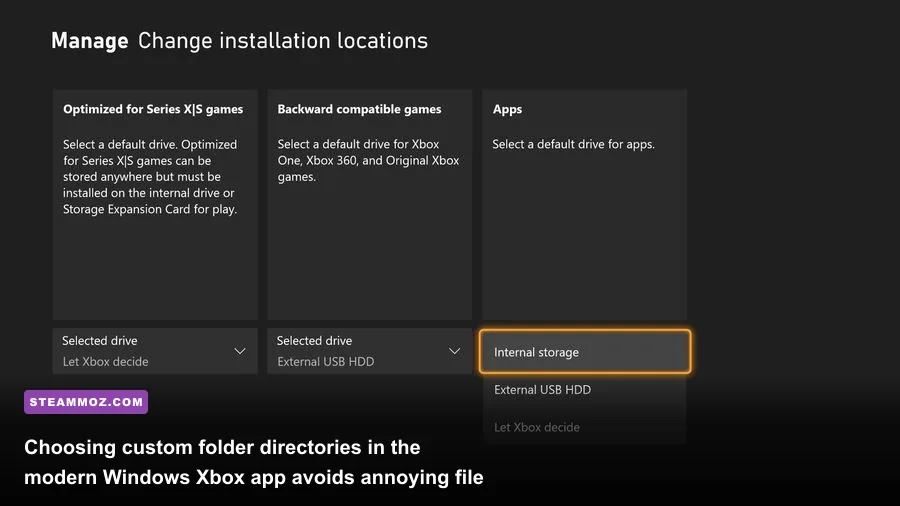
If you plan to play Xbox games on a PC, prepare to battle Microsoft's historically messy Windows file system. Historically, games installed via the Microsoft Store or PC Xbox App were quarantined inside heavily encrypted, hidden WindowsApps directories. You couldn't access executable files, inject custom reshade shaders, apply translation patches, or point external launchers toward the game.
Thankfully, modern updates permit open folder installs, but you must manually turn this on before queuing your first massive download. Open the Xbox App, click your profile icon in the top-left corner, enter Settings > General, and look under the Game install options section. Point the default installation folder to a custom root directory on your fastest NVMe SSD (for example, D:\XboxGames). This ensures you have full administrative read/write access to game binaries, configuration files, and assets.
Storage Drive Formatting: The NTFS Absolute Requirement
The Xbox PC app will refuse to install games or outright corrupt files if your storage drive uses exFAT, FAT32, or certain ReFS allocations. Drives must be formatted to NTFS with a standard 4KB allocation cluster size. If you try downloading massive 100GB+ titles to an external exFAT drive, the Xbox client will hit error code 0x80070057 or fail silently at 99%. If you run into random desktop crashes after getting your games installed, check our diagnostic strategies in ELEX PC fixes that stop crashes to see how missing system runtimes and permissions derail open-world game engines.
The Modding Reality: UWP vs. Win32 Wrappers
While standard Win32 packaged titles on Game Pass now allow file modifications, games packaged under Universal Windows Platform (UWP) guidelines still reject memory injection tools like Script Hook, Special K, or Cheat Engine. If you are a heavy modder who lives on Nexus Mods for titles like The Elder Scrolls V: Skyrim or Starfield, be aware that script extenders (such as SKSE or SFSE) frequently encounter signature mismatches on Game Pass editions due to unique executable headers that differ from their Steam counterparts.
Cloud Gaming Latency: Network Tweaks That Save Your Sanity
Xbox Cloud Gaming (xCloud) allows you to launch massive titles without waiting for a 150GB download to complete, but the streaming experience lives or dies on local network latency, packet stability, and decoding hardware. Microsoft caps xCloud video streams at 1080p resolution and 60 frames per second with an average bitrate hovering between 9 to 15 Mbps. While that data footprint is modest, frame pacing consistency is critical.
A Wi-Fi connection operating on a crowded 2.4GHz frequency band is unplayable for cloud gaming. The radio interference causes massive packet drops, turning fast camera sweeps into a pixelated mosaic while spiking input latency over 150 milliseconds. If you cannot route an RJ-45 Ethernet cable directly to your device, lock your router to an uninterrupted 5GHz or Wi-Fi 6 channel with channel widths set to 40MHz or 80MHz.
| Connection Method | Typical Added Input Latency | Packet Loss Risk | Frame Pacing Stability | Playability Verdict |
|---|---|---|---|---|
| Cat6 / Cat5e Ethernet Cable | < 5 ms | Near Zero (< 0.1%) | Extremely Smooth | Flawless for action games and shooters |
| 5GHz / 6GHz Wi-Fi (Near Router) | 10 - 20 ms | Low (< 1%) | Stable with minor jitter | Great for RPGs, tolerable for shooters |
| 2.4GHz Wi-Fi (Crowded Spectrum) | 45 - 100+ ms | High (3% - 8%) | Frequent frame stutters | Only acceptable for turn-based strategy |
| 4G LTE / 5G Mobile Data | 35 - 80 ms | Variable (Tower Congestion) | Aggressive macroblocking | Decent on small mobile screens only |
The Browser Secret: Ditch the App for Microsoft Edge
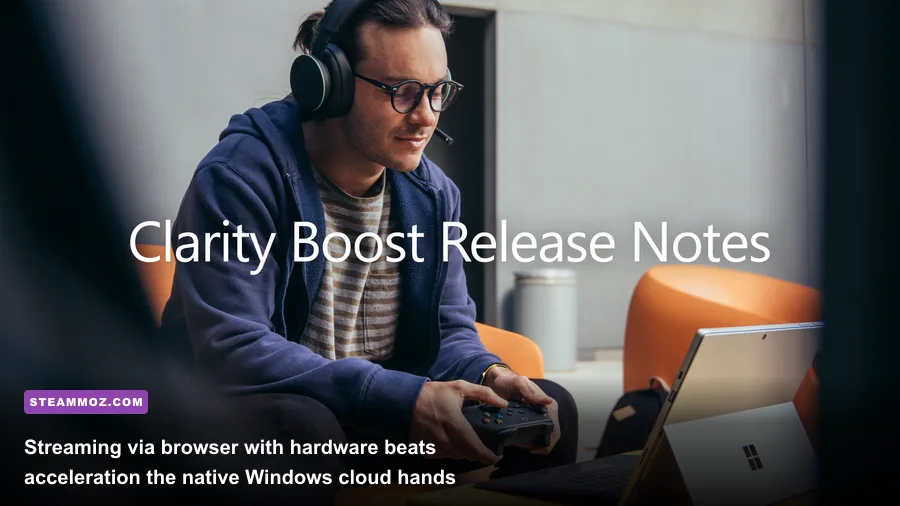
On PC, running Xbox Cloud Gaming inside the native Windows Xbox App often introduces strange input buffering and soft video scaling. For a substantially crisper image, launch Microsoft Edge, navigate to the cloud portal, log in, and toggle on Edge's proprietary Clarity Boost feature. Clarity Boost applies a lightweight, spatial upscaling filter directly through the browser's hardware-accelerated video pipeline. It sharpens UI text, cleans up muddy textures, and removes the muddy vaseline layer typical of compressed H.264 video streams.
For players diving into expansive graphical landscapes via the cloud or on local rigs, dialing in your rendering baseline makes all the difference. Our guide detailing Far Cry 6 settings for max FPS highlights how spatial upscalers and render scaling behave under intense render loads.
Controller Synergy, Bluetooth Jitter, and Input Polling
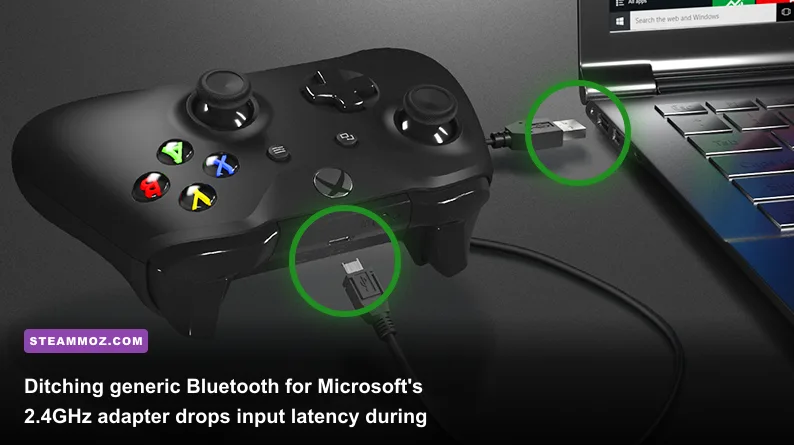
You cannot talk about Xbox gaming without addressing controllers. While Xbox consoles and Windows PCs have native plug-and-play compatibility with the official Xbox Wireless Controller, how you link that controller directly impacts your in-game precision. Standard Bluetooth connections are fine for navigating UI menus, but Bluetooth introduces polling fluctuations, fluctuating from 8ms up to 25ms of hardware input lag, alongside potential pairing drops if other wireless peripherals crowd the room.
For the lowest possible latency on PC, bypass basic motherboard Bluetooth. Grab the official Xbox Wireless Adapter for Windows. This dedicated USB dongle leverages Microsoft's proprietary 2.4GHz Xbox Wireless protocol instead of Bluetooth. It handles up to eight controllers simultaneously, transmits uncompressed stereo audio through the controller's 3.5mm headphone jack (which Bluetooth cannot do on PC), and holds a rock-solid, stable polling rate with near-zero signal deviation.
Calibrating Deadzones and Firmware Updates
Out of the box, standard Xbox controllers come with slight stick drift tolerances hardcoded into general games. Install the Xbox Accessories App from the Microsoft Store. This utility allows you to:
- Flash new controller firmware updates that address Bluetooth disconnect bugs on Windows 11.
- Remap any face button, bumper, or paddle natively at the OS layer.
- Configure custom stick deadzone thresholds to eliminate phantom drift in competitive titles.
- Adjust trigger actuation zones—vital for racing games where you need granular throttle input.
If you encounter unexpected input freezes or software hang-ups during setup, troubleshooting system display bottlenecks with the steps in our EscapeVR low FPS and crash breakdown will help resolve background driver conflicts. Additionally, the configuration rules in our Filament settings for higher FPS guide demonstrate how minor adjustments in background polling liberate extra CPU frame time.
Cross-Play, Smart Delivery, and Cross-Progression Realities
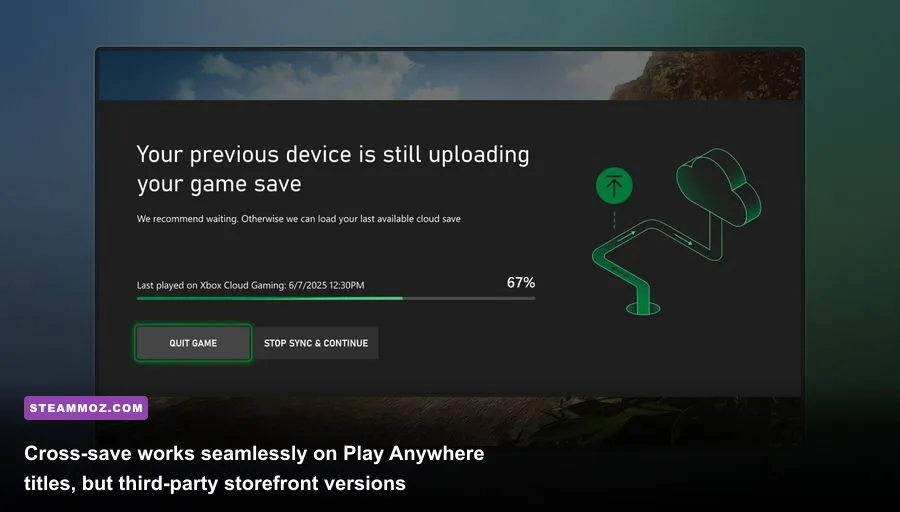
Microsoft's marketing team loves the terms "Smart Delivery" and "Xbox Play Anywhere," but they mean completely different things, and confusing them will cost you hours of replayed progress. You need to know the operational boundaries of each feature before switching between devices.
Smart Delivery is strictly a console-side delivery technology. If you purchase an Xbox game supporting Smart Delivery (such as Gears 5 or Forza Horizon 5) on an Xbox One, and later upgrade to an Xbox Series X, the console will automatically download the enhanced Series X assets (4K textures, 60/120 FPS modes, ray tracing features) without charging you for an upgrade remaster or "next-gen edition." You do not have to buy separate SKUs.
Xbox Play Anywhere, on the other hand, bridges the console-to-PC divide. When a game carries the Play Anywhere badge on the Microsoft Store:
- A single digital purchase grants you licenses on both Xbox consoles and Windows PC.
- Your save games, unlocked achievements, downloadable content (DLC), and in-game currency synchronize across platforms instantly via the cloud.
- You can pause your session on an Xbox Series X in your living room, fire up your gaming laptop on the road, and resume playing from the exact second you left off.
However—and this is the massive catch—this does not apply to Steam purchases. If you buy an Xbox Game Studios title like Halo: The Master Chief Collection or Sea of Thieves on Steam, you must log into your Microsoft Account for cross-network matchmaking, but your save files and DLC purchases may not transfer cleanly between the Steam and Windows Store environments unless the developer has established their own external account pipeline (like Bethesda.net or Bungie.net). Check the store metadata on the official Xbox Support documentation before double-dipping on multiple storefronts.
Preventing Cloud Save Desynchronization
Because Xbox cloud sync runs automatically in the background upon closing a title, force-quitting games (such as pressing Alt + F4 on PC or immediately yanking your console's power cord) will sever the upload pipe before your latest local save states hit Azure servers. When you switch to a second device, you will be met with a scary pop-up warning that your cloud save does not match your local save. Always exit to the game's main title menu first, allow five to ten seconds for telemetry data to transmit, and then quit to dashboard.
If you're jumping between resource-heavy expansions, ensuring your platform preserves save cache sanity is as essential as resolving engine bottlenecks; look over the optimization principles covered in our Everspace 2 crash and FPS guide to keep long-session data secure.
Quick Resume Mechanics and Memory Management
For console players on Xbox Series X and Series S, Quick Resume is easily one of the most impressive technical features of this generation, but it requires tactical management. Unlike basic suspend modes on legacy consoles, Quick Resume writes the entire active RAM state of your running game directly into a dedicated cache on the internal custom NVMe SSD. It allows you to juggle between three to six active games, hopping between an open-world RPG, a racing simulator, and an indie roguelike in less than eight seconds flat without going through startup splash screens.
However, Quick Resume has severe blind spots with live-service, always-online titles. Games like Destiny 2, Diablo IV, Rainbow Six Siege, and Call of Duty: Warzone require persistent, real-time client-to-server heartbeats. When you suspend an online game using Quick Resume, the server terminates your session due to an inactivity timeout. When you reopen the game hours later via Quick Resume, the client attempts to restore an invalid network handshake, frequently resulting in error codes, disconnected lobbies, or broken audio channels.
Get into the habit of manually quitting online multiplayer games: press the Xbox Guide Button, highlight the game tile, press the Menu Button (Three Lines), and select Quit. Reserve Quick Resume strictly for single-player, offline adventures where memory state freezing works reliably without network corruption.
Final Checklist Before You Launch
Before launching your first Xbox title, run through this baseline setup: verify your Game Pass tier matches your actual hardware setup, reformat your PC storage target to clean NTFS, grab a dedicated 2.4GHz wireless controller adapter, switch to Microsoft Edge for your cloud streaming sessions, and double-check storefront badges before assuming cross-save progression will bridge your libraries. Nailing these fundamentals guarantees a smooth, uncompromised experience across Microsoft's expansive gaming ecosystem.