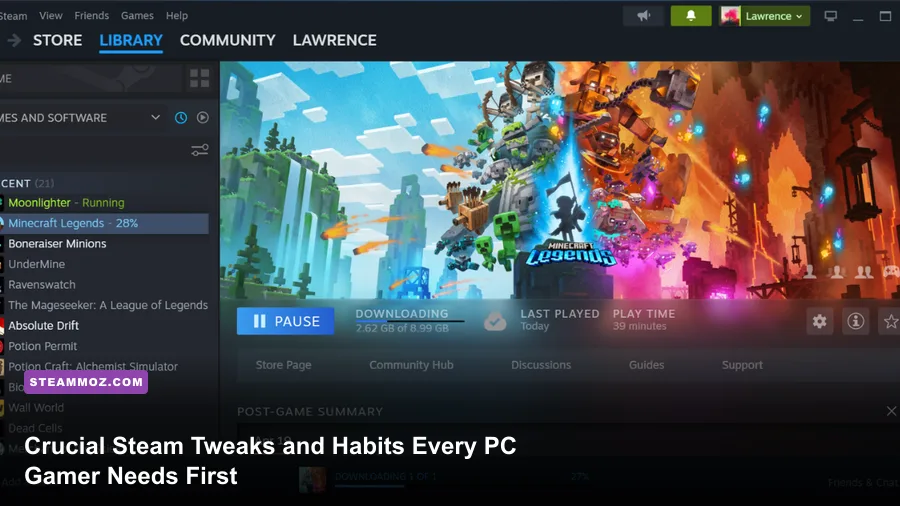
Jumping into Steam PC gaming isn't as simple as installing the client, buying a flashy title, and hitting play. If you launch games out of the box without tailoring your client settings, managing your storage partitions, and understanding how background processes interact with your hardware, you're going to run into shader stutters, crashed overlays, unexpected save wipes, and lost cash on non-refundable titles. Dialing in a few critical client settings, setting up proper drive pathways, mastering the Steam Input translation layer, and tracking how playtime clocks against the store's refund policy will save your sanity and deliver the smooth frame rates your hardware was built for.
Tame Your Storage Drive: NVMe Allocation and Shader Cache Bloat
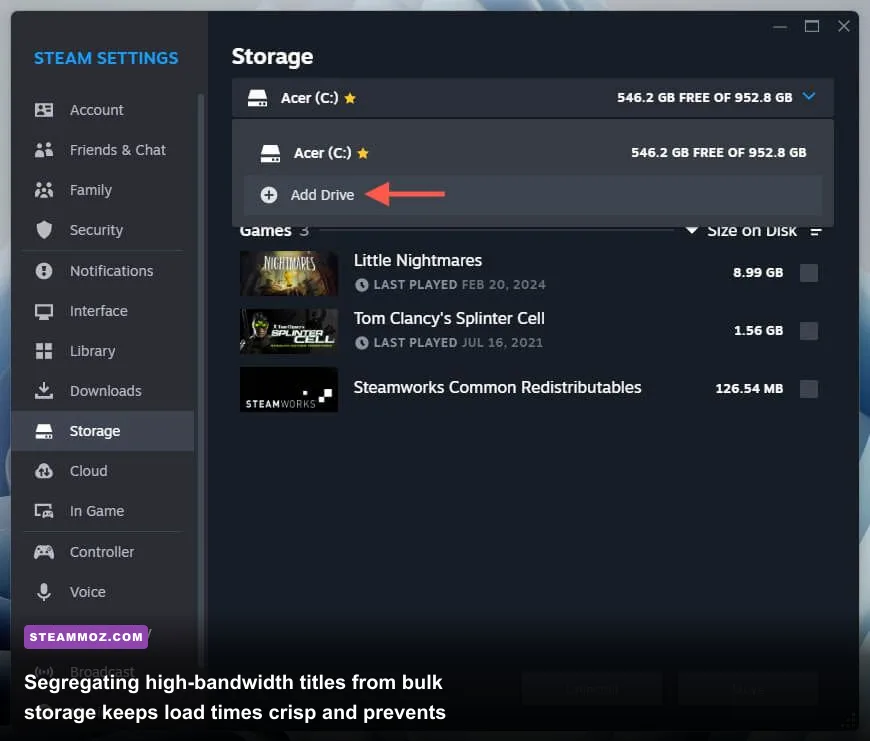
Modern PC titles regularly push install footprints past 100 GB, but simply letting Steam dump games onto your primary C: drive is a fast track to Windows performance degradation. Steam allows you to create multiple libraries across different physical drives via Settings > Storage. You should always reserve your highest-speed NVMe PCIe 4.0 or 5.0 drive exclusively for games that utilize DirectStorage or feature heavy asset streaming, while banishing smaller indie titles, retro releases, or visual novels to secondary SATA SSDs or bulk storage drives.
Before launching demanding titles, it pays to verify whether your rig meets the baseline specs, much like checking requirements for fighters in our Fatal Fury City of the Wolves PC specs breakdown or reviewing legacy hardware demands in our Far Cry 2 PC specs guide. When an NVMe drive fills beyond 80 to 85 percent of its total capacity, write amplification climbs and read latency spikes, directly translating into severe asset-loading hitching during traversal.
There's also a silent storage thief you need to monitor: Shader Pre-Caching. Found under Settings > Downloads, this feature downloads pre-compiled shader files for games running via Vulkan or DirectX wrappers. While this prevents nasty in-game micro-stutters during dynamic lighting calculations, the cache directory (located in your main steamapps/shadercache directory) can silently swell to 40 GB or more over time. If you install and uninstall titles frequently, Steam does not always purge these compiled binaries immediately. Regularly audit this folder or toggle pre-caching off for games you rarely boot to prevent your operating system drive from choking on ghost data.
Master Steam Input: Calibration, Deadzones, and Action Layers
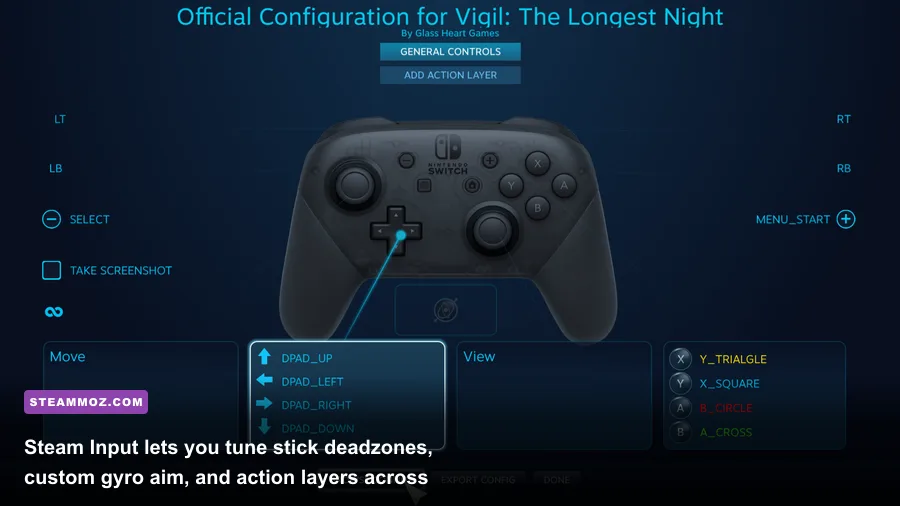
Plugging a controller into your PC used to be a coin toss of driver conflicts, but Steam Input has turned Valve's client into the most advanced controller translation system on the market. Whether you're rocking a PlayStation DualSense, an Xbox Wireless Controller, a Nintendo Switch Pro Controller, or an esoteric third-party fight stick, Steam intercepts raw gamepad input and converts it to whatever schema the game demands—even allowing you to map keyboard-and-mouse commands directly to analog sticks.
Never accept raw default controller settings for precision games. Head into Settings > Controller to set hardware calibration. Here, you can define custom analog stick deadzones. Factory hardware often features a 5% to 10% native drift; setting an anti-deadzone or tightening your inner deadzone to 3% gives you instantaneous response in shooters and racing sims without wandering crosshairs. You can inspect advanced controller mappings and developer integrations straight through the official Steam Input documentation.
The real superpower of Steam Input lies in Action Sets and Action Layers. Accessible via the controller icon on any game's library page, this lets you change what physical buttons do based on contextual gameplay states. For instance, you can map your controller's internal gyroscope to activate mouse-level aiming precision exclusively when holding down the Left Trigger (Aim Down Sights), reverting back to normal analog turning the second you release it. If a developer releases a clunky port without native controller support, browse the Community Layouts tab. Veteran players upload bespoke control schemes that map complex radial menus, shift-modifiers, and rapid-fire macros to standard gamepads.
Crush Frame Stutters: Client Settings and Overlay Optimization
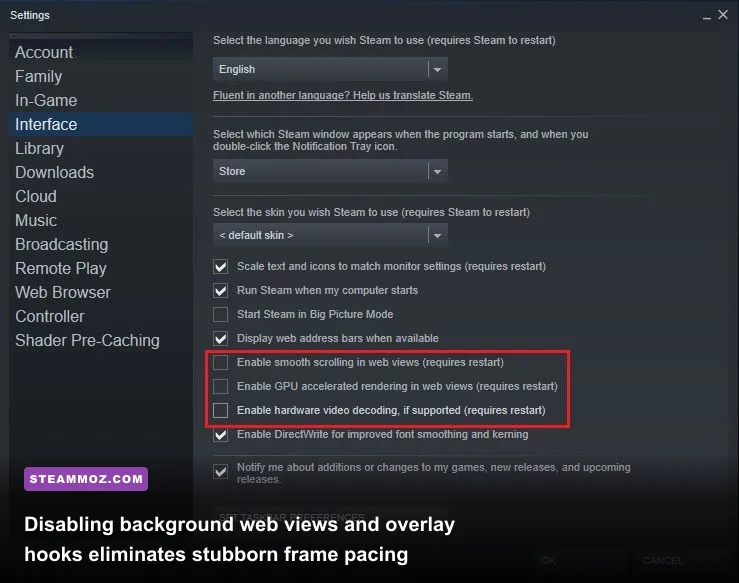
By default, the Steam desktop client runs multiple underlying instances of Chromium (Steam WebHelper) to render the store, friends list, and animated community feeds. If you run a mid-range rig or push maximum refresh rates on a high-end monitor, these background processes can steal GPU compute cycles and cause sudden frame pacing frame drops. Much like resolving frame drops covered in our Elex PC crash and FPS rescue guide, adjusting background client hooks stops intermittent micro-freezes before they derail your gameplay.
Head to Settings > Interface and consider disabling smooth scrolling and animated avatars if your system struggles under load. More critically, navigate to Settings > In-Game. While the Steam In-Game Overlay provides swift access to your friends list, browser guides, and achievement tracking, its DirectX and Vulkan graphic injection hooks can clash with third-party telemetry suites like RivaTuner Statistics Server (RTSS) or OBS Studio game capture hooks. If you experience mysterious desktop crashes on launch, turning off the overlay for that specific game via its individual Properties window is often the quickest remedy.
To keep your system running cleanly, balance your client toggles using the performance profile outlined below:
| Client Feature / Setting | Recommended Value | Hardware Impact | Tactical Gaming Benefit |
|---|---|---|---|
| Enable Steam Overlay | Disabled on unstable games | Low to Medium CPU/GPU Hook | Eliminates DLL injection conflicts with external FPS trackers and OBS overlays. |
| GPU Accelerated Rendering in Web Views | Enabled (Disabled on low VRAM) | 50–150 MB Dedicated VRAM | Frees up system CPU cycles on modern graphics cards; turn off if VRAM-constrained. |
| Allow Downloads During Gameplay | Off (Strictly Disabled) | High Disk I/O & Ping Spike | Prevents asset decompression threads from causing frame drops and multi-player lag. |
| Shader Pre-Caching | Enabled (Audit monthly) | Local Drive Space Overhead | Eliminates mid-combat compilation stutters when entering new visual zones. |
| Cloud Synchronization | Enabled (Manual back-ups active) | Negligible Bandwidth | Seamlessly keeps save games aligned across your desktop PC and mobile handhelds. |
Tweaking these options ensures system resources flow directly to your GPU pipeline rather than servicing idle client threads. For additional frame-rate optimization strategies across demanding engines, look into our step-by-step breakdown on Filament settings for higher FPS.
Steam Cloud Desyncs and Save Management Pitfalls
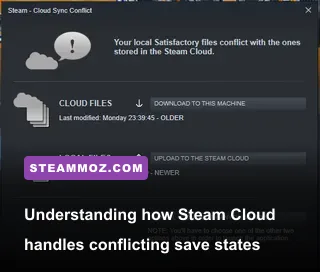
Steam Cloud is an incredible convenience, automatically moving your campaign progress between your primary desktop and devices like the Steam Deck. However, blindly trusting it without knowing how it handles sync conflicts can destroy dozens of gameplay hours. A cloud conflict typically occurs when you quit a game abruptly during a network outage or switch hardware before the previous session finishes uploading data to Valve's servers.
When the Steam client presents a Cloud Conflict dialog box, never click through it hastily. Steam will show you two dates: the Local Save timestamp and the Cloud Save timestamp. If you spent four hours grinding a single-player campaign offline on your laptop, the Cloud version will actually be older, despite being hosted on the server. Selecting the wrong file will overwrite your local save permanently, with no native recovery option available inside the client interface.
Smart PC gamers build an insurance policy by learning where local saves live. Most Steam games do not store save game data inside steamapps/common. Instead, Windows tucks them away in three distinct locations:
%USERPROFILE%\Saved Games\[Developer or Game Name]%APPDATA%\Local or %APPDATA%\Roaming\[Game Title][Steam Install Folder]\userdata\[Your Unique SteamID3]\AppID\remote
Before testing experimental mods or troubleshooting volatile software crashes—such as those covered in our Everspace 2 crashing and technical guide—manually copy that AppID folder to an external backup directory. You can also research precise save locations for any release on the crowdsourced PCGamingWiki resource database, ensuring your progress remains untouchable regardless of client sync misfires.
Smart Store Navigation: Sales Traps, Editions, and the Refund Trap
Buying games on Steam without an established strategy is an easy way to waste money. Between seasonal sales, publisher weekends, and third-party key retailers, games fluctuate in price constantly. You should never buy an older title at full digital retail without consulting the SteamDB price tracking index. SteamDB provides historical price charts across every regional currency, exposing whether a "30% Off" banner is actually a historic low or an inflated baseline price intended to lure careless buyers during a seasonal event.
Equally critical is understanding the exact boundaries of Steam's official refund policy. Valve grants refunds for virtually any title, no questions asked, provided your request meets two ironclad criteria: you must request the refund within 14 days of purchase, and you must have less than 2 hours of documented playtime. This system is exceptionally fair, but it contains a notorious trap for new PC gamers: launcher run-time.
If a game launches an external client (like EA App, Ubisoft Connect, or custom MMO patchers) or spends 75 minutes compiling shaders on the initial launch screen, that counted clock time ticks relentlessly toward your two-hour cutoff. If you spend 90 minutes troubleshooting graphical crashes, input glitches, or driver freezes, you have burned through almost your entire refund window before playing a single level. Keep a sharp eye on your session duration. If troubleshooting crosses the 60-minute mark and the game still fails to run stably, initiate the refund process immediately rather than gambling with your consumer protection.
| Store Strategy / Feature | Operational Mechanism | Critical Rule / Timeframe | Player Advantage |
|---|---|---|---|
| Standard Refund Window | Automated play-clock check via Steam client | Strictly under 2 hours playtime / 14 days ownership | Risk-free testing of technical stability and engine performance on your rig. |
| Steam Seasonal Sales | Storewide deep discounts (Spring, Summer, Autumn, Winter) | Occurs roughly every 3 months on a set Valve schedule | Saves 50% to 85% on established back-catalog titles and premium bundles. |
| Edition Upgrades | Purchasing Deluxe/GOTY bundles vs standalone DLC | Always inspect "Complete Your Collection" bundle math | Avoids double-paying for base assets when snagging season passes and extra gear. |
| Dynamic Wishlisting | Automated email/mobile notification on price cuts | Triggers on publisher discounts and historic low sales | Keeps your gaming backlog organized and limits impulsive, full-price purchases. |
When weighing premium editions and post-launch expansions, check whether the upgrade delivers real mechanical content or just cosmetic filler, similar to our gear breakdown in the Everspace Deluxe Upgrade equipment analysis. Keeping your wishlist lean, tracking historic sale lows, and strictly policing your first 90 minutes of gameplay ensures your Steam library stays packed with incredible games that run flawlessly—without draining your wallet in the process.