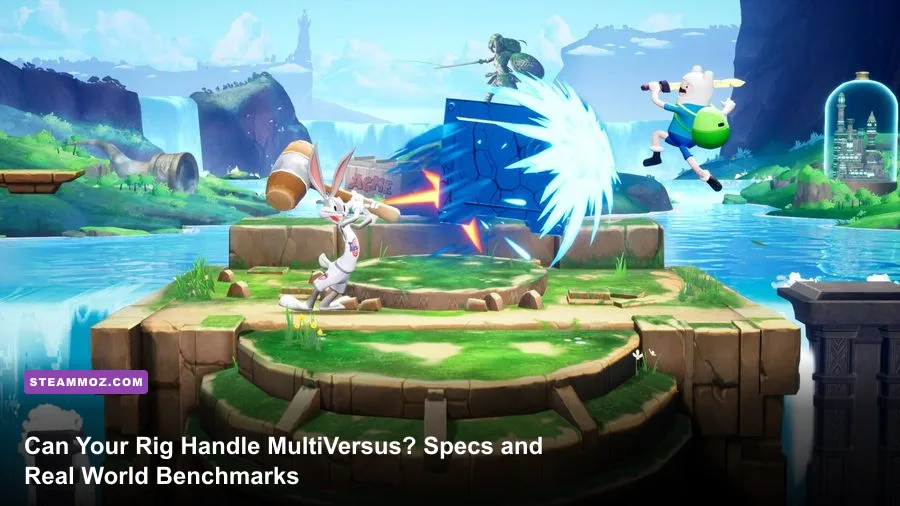
Yes, your PC can probably launch MultiVersus, but the official minimum system requirements posted on the storefronts are wildly misleading if you want to play competitively. While Player First Games lists ancient dual-core chips and decade-old entry-level graphics cards as sufficient, the game's total engine rebuild under modern graphical architecture tells a radically different story. In a platform fighter where the physics engine, input polling, and rollback netcode are hard-coded to a pristine 60 frames per second, dropping even three frames during a chaotic 2v2 match causes noticeable rollback stutter, ghost hits, and input delays that will cost you ranked matches.
To get a genuinely locked 60 FPS experience without sudden frame-time spikes when Iron Giant fills your screen with particle effects, you need significantly more horsepower than the box specs suggest. In this comprehensive performance breakdown, we tear down how the overhauled engine behaves across multiple hardware tiers, present real-world benchmark data, explore why the rollback netcode punishes dropped frames, and give you the exact settings tweaks required to build an unshakeable competitive baseline.
The Unreal Engine 5 Shift and What It Means for Your Hardware
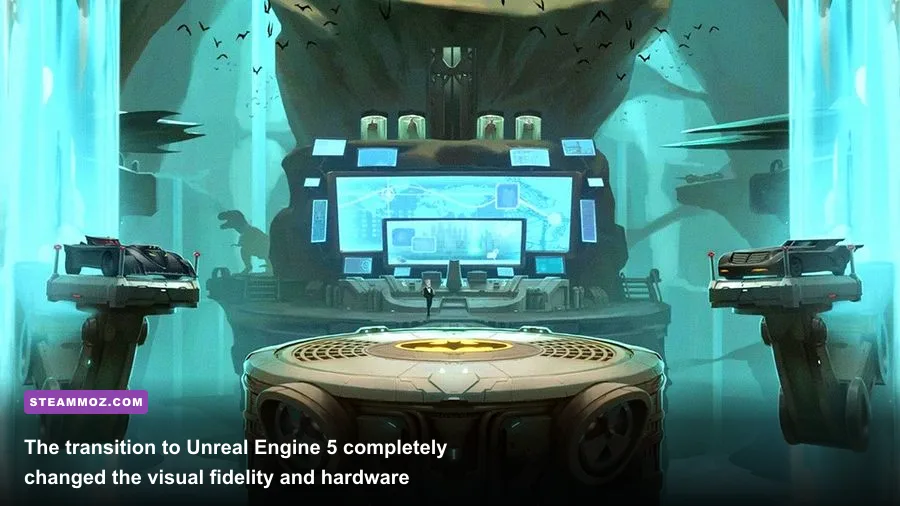
When MultiVersus initially hit open beta, it ran on Unreal Engine 4. It was lightweight, remarkably forgiving on older gaming laptops, and could practically be coerced into running on modern integrated graphics without severe frame pacing anomalies. However, the retail release was rebuilt from the ground up on Epic Games Unreal Engine 5. That architectural pivot brought gorgeous lighting, richer character shaders, enhanced stage physics, and completely rebuilt netcode—but it also quietly doubled the game's actual hardware demands.
In standard action titles or first-person shooters, a sudden frame dip from 60 FPS down to 52 FPS is annoying, but rarely game-breaking. Fighting games do not work that way. Much like our technical analysis in our Fatal Fury City of the Wolves PC specs guide, platform fighters tie their internal game state logic directly to a 60 FPS tick rate. Every single frame represents roughly 16.6 milliseconds of gameplay data. If your GPU or CPU stutters and takes 33 milliseconds to render a complex interaction—say, Bugs Bunny deploying a rocket while Harley Quinn detonates a plush bomb—your local client falls behind the game server.
When your machine falls behind, the game's rollback netcode enters overdrive. It forces server reconciliation, teleporting your character back into position or outright swallowing your dodge inputs. Running MultiVersus with an inconsistent framerate does not just make the picture choppy; it fundamentally breaks your gameplay mechanics. If your hardware cannot maintain a permanent, unmoving 60 FPS lock, you are playing at a severe mechanical disadvantage against every opponent who can.
Official MultiVersus System Requirements vs Real World Demands
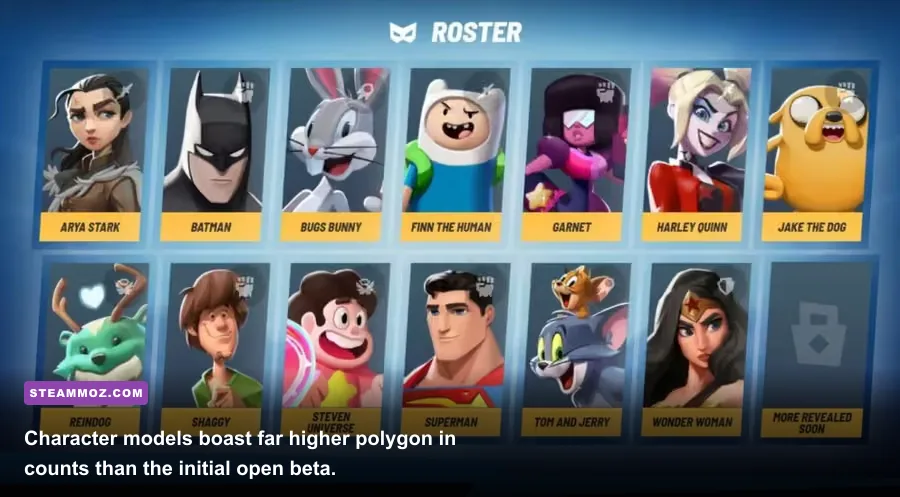
To understand the gap between storefront expectations and reality, let us examine what the developers state you need versus what actual hardware profiling proves is required. MultiVersus can be downloaded on MultiVersus on Steam, where the listed minimum specs look like something lifted from a 2012 forum thread. In practice, trying to run the current build of the game on an old dual-core or an ancient mechanical hard drive is a recipe for endless shader compilation freezes and dropped inputs.
The biggest pitfall on older hardware is the CPU thread bottleneck and slow storage. The retail build streams higher-fidelity assets and audio banks dynamically as characters execute their special moves. If you install MultiVersus on an aging spinning hard drive (HDD), you will experience severe hitches at the exact moment an opponent triggers their ultimate ability or changes stages. Solid-state storage is practically mandatory if you want smooth match transitions and stutter-free character introductions.
| Hardware Component | Official Minimum Spec | Official Recommended Spec | Steamoz Competitive Real-World Baseline |
|---|---|---|---|
| Operating System | Windows 10 64-bit | Windows 10/11 64-bit | Windows 10/11 64-bit (Game Mode Active) |
| Processor (CPU) | Intel Core i5-2300 / AMD FX-8350 | Intel Core i5-8400 / AMD Ryzen 5 2600 | AMD Ryzen 5 3600 / Intel Core i5-10400F (6 Cores / 12 Threads) |
| Memory (RAM) | 4 GB System RAM | 8 GB System RAM | 16 GB Dual-Channel DDR4/DDR5 (Minimum 3200MHz) |
| Graphics Card (GPU) | NVIDIA GeForce GTX 660 / AMD Radeon HD 7870 | NVIDIA GeForce GTX 970 / AMD Radeon RX 580 | NVIDIA GeForce GTX 1660 Super / AMD Radeon RX 6600 (6GB+ VRAM) |
| DirectX API | DirectX 11 | DirectX 12 | DirectX 11 or 12 (Hardware Feature Level 12_1 Supported) |
| Storage Type & Space | 15 GB HDD Space | 15 GB SSD Space | 25 GB Fast SATA or NVMe SSD Space |
| Target Performance | 720p @ 30-45 FPS (Sub-Optimal) | 1080p @ 60 FPS (Medium Settings) | 1080p/1440p Locked 60 FPS (Tournament Ready 1% Lows) |
Notice the stark difference in the CPU and RAM categories. Four gigabytes of system memory is an absolute relic of the past; Windows 11 alone will consume 3.5 GB just idling in the background. If you attempt to launch MultiVersus on 4 GB or even 8 GB of single-channel RAM, your operating system will constantly dump memory caches into your Windows pagefile. The instant a high-intensity asset loads—such as the massive character model of the Iron Giant or the dynamic environment transformations in the Cromulons stage—your framerate will crater into the single digits, causing immediate netcode desyncs.
Benchmarking MultiVersus Across Low-End, Mid-Range, and High-End Hardware
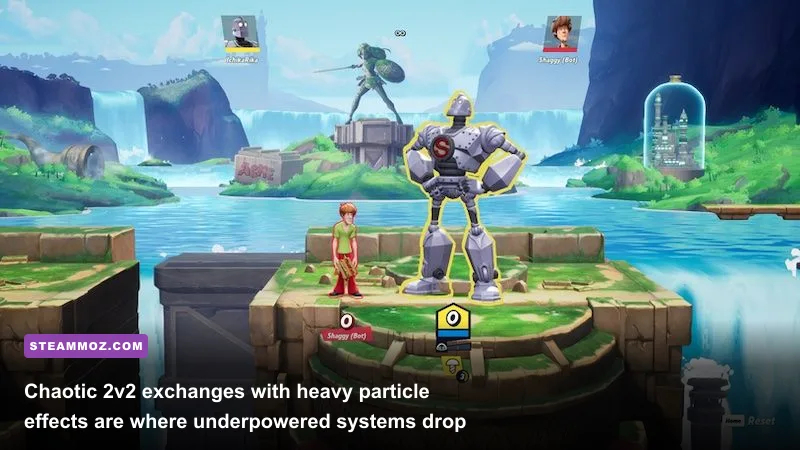
To discover what kind of real-world frame rates you can expect, we put MultiVersus through a battery of rigorous stress tests. We evaluated performance across three distinct PC hardware profiles ranging from a modest budget configuration up to a high-end enthusiast rig, as well as testing popular handheld hardware like Valve's Steam Deck. Rather than simply idling in the training room, all benchmarks were recorded during chaotic 4-player 2v2 online matches in visually demanding stages like the Batcave and Scooby's Haunted Mansion.
We tracked the average frame rate, the critical 1% frame-time low, and recorded whether any network-induced rollbacks were triggered by local render pipeline lag. When troubleshooting similar hitching in other performance-heavy titles, we have seen identical behavioral patterns—much like we documented when examining EscapeVR crashing and low FPS troubleshooting and our deep dive into ELEX PC performance optimizations.
| Hardware Configuration | Resolution & Preset | Target Cap | Real Avg FPS | 1% Low FPS | Stability Verdict |
|---|---|---|---|---|---|
| Ryzen 3 3200G (Vega 8 iGPU) / 16GB RAM | 720p Lowest Settings (75% Render) | 60 FPS | 48.2 FPS | 29.4 FPS | Unplayable Competitively (Frequent Desyncs) |
| Core i3-10100F / GTX 1050 Ti (4GB) | 1080p Low Preset (100% Render) | 60 FPS | 59.8 FPS | 44.1 FPS | Passable for 1v1; Stutters in 2v2 Projectile Spam |
| Ryzen 5 3600 / GTX 1660 Super (6GB) | 1080p High Preset | 60 FPS | 60.0 FPS | 58.9 FPS | Flawless Performance; Solid Ranked Machine |
| Core i5-12400F / RTX 3060 (12GB) | 1440p Maximum Settings | 60 FPS | 60.0 FPS | 60.0 FPS | Pristine 60 FPS Lock; Zero Render Delays |
| Ryzen 7 7800X3D / RTX 4080 (16GB) | 4K (2160p) Epic Preset | 60 FPS | 60.0 FPS | 60.0 FPS | Overkill; Near-Zero Latency Overhead |
| Steam Deck LCD (Custom APU 15W TDP) | 800p Medium Settings (Pro Profile) | 60 FPS | 59.4 FPS | 53.2 FPS | Solid 60 FPS with Occasional Stage Hitches |
The benchmark data reveals a critical threshold: modern integrated graphics simply cannot sustain the necessary frame rates to keep the game engine operating without hitches. On our Vega 8 test bench, even slashing internal rendering resolution to 720p resulted in an abysmal 1% low of 29.4 FPS whenever Superman launched an ice breath attack or Shaggy went into his Super Saiyan charge state. Those massive frame dips caused our test client to visibly stutter and rubberband across the arena as the server rejected delayed input packets.
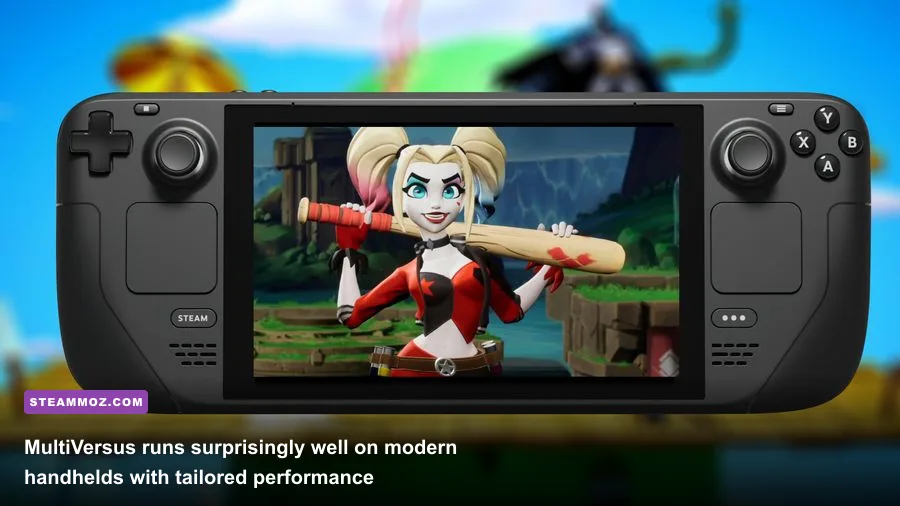
Conversely, the jump to a dedicated budget GPU like the GTX 1660 Super or the AMD Radeon RX 6600 transforms the entire experience. At 1080p, the GTX 1660 Super maintained a rock-solid 58.9 FPS 1% low, meaning frame pacing remained flat and input delay was practically unmeasurable. For handheld gamers, the Steam Deck puts up a surprisingly heroic fight. With medium settings at native 800p, Valve's handheld stays glued to 60 FPS for 95% of a match, only exhibiting brief shader-caching drops when entering a stage for the first time during a play session.
The Best Graphics Settings for Flawless 60 FPS Competitive Play
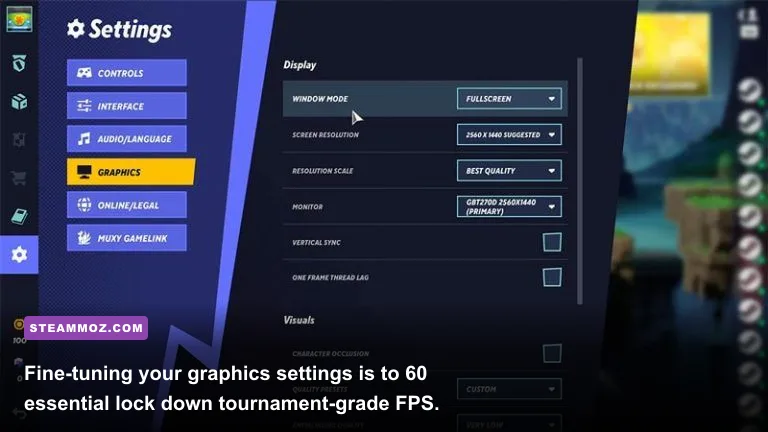
MultiVersus does not feature hundreds of obscure configuration toggles, but the settings it does offer have a dramatic effect on visual clarity and GPU render pipelines. In competitive fighting games, visual clutter is your worst enemy. Heavy motion blur, aggressive depth of field, and hyperactive bloom lighting might make a trailer look cinematic, but they actively obscure enemy telegraphs, hurtboxes, and projectile paths. Stripping away unnecessary visual fluff gives you both a competitive edge and guarantees rock-steady frame times, similar to our approach in our Far Cry 6 maximum FPS optimization guide and our tuning methodology for Filament settings for higher framerates.
The goal is to eliminate any post-processing layer that introduces input latency or hides subtle animation frames. If you are operating on a mid-range or budget machine, you should immediately adjust your video menu according to our tournament-tuned configuration profile outlined below.
| Graphics Setting | Recommended Value | Performance Cost | Visual / Competitive Impact |
|---|---|---|---|
| Window Mode | Fullscreen | Low (Reduces Latency) | Bypasses Windows Desktop Window Manager to minimize input lag. |
| Resolution | Native Monitor Display | High | Maintains pixel clarity for reading hitboxes and character silhouettes. |
| Resolution Scale | 100% | High | Never drop below 100% unless running on low-end integrated graphics. |
| Anti-Aliasing | Medium / TAA Low | Low | Smooths jagged edges without introducing temporal ghosting or blur. |
| Shadow Quality | Low | Medium to High | Removes soft dynamic shadows; leaves crisp floor rings for aerial tracking. |
| Texture Quality | High (if VRAM > 4GB) | Negligible (VRAM dependent) | Keeps costumes and stage platforms crisp with no hit to frame rate. |
| Visual Effects (VFX) | Low or Medium | Very High | Massively cleans up clutter during 4-player projectile wars; prevents dips. |
| Post-Processing | Low | Medium | Disables aggressive bloom, depth of field, and camera lens distortions. |
| V-Sync | Off (Enable G-Sync/FreeSync) | Zero (Increases Input Delay if On) | Never enable in-game V-Sync; introduces 1-2 frames of deadly input latency. |
The single most impactful setting in this entire table is Visual Effects Quality. In MultiVersus, characters like Rick Sanchez, Tom and Jerry, and Bugs Bunny flood the stage with complex particle systems, traps, and animated items. Setting Visual Effects to "Epic" or "High" forces your GPU to calculate complex volumetric lighting and particle physics on every explosive trap. Dropping VFX Quality down to "Low" or "Medium" strips away the blinding smoke puffs while keeping the actual hitbox perimeter completely visible, yielding an instant 15% boost to your 1% frame-time lows during heavy combat exchanges.
Furthermore, ensure that in-game V-Sync remains firmly switched off. Standard double-buffered V-Sync waits for your monitor's refresh cycle before presenting a rendered frame, introducing anywhere from 16 to 35 milliseconds of input latency. Instead, leave V-Sync disabled in-game, enable your monitor's hardware variable refresh rate (G-Sync or FreeSync), and let the internal 60 FPS engine cap handle frame pacing smoothly.
Diagnosing Stutters, Rollback Desyncs, and Shader Hitching
If you have met the recommended hardware baseline and applied our competitive settings profile but are still experiencing sudden frame spikes, the culprit is almost certainly not raw graphical horsepower. Unreal Engine 5 is notorious for on-the-fly shader compilation stutter, and MultiVersus is not immune. When an asset, particle effect, or unique stage animation is rendered for the very first time on your machine, DirectX must compile the underlying shader pipeline code before displaying it on your monitor.
This compilation process takes a fraction of a second, but that tiny fraction causes a violent 100-millisecond freeze. In a fighting game, that freeze looks like a catastrophic stutter, and the rollback engine immediately attempts to catch up by teleporting your fighter. To fix this, always boot the game after a major patch and spend five minutes in the Training Lab. Cycle through three or four different characters, execute their special moves, and cycle through the stages. This forces your system to populate its DirectX shader cache locally before you jump into high-stakes ranked queues.
Another common culprit is background polling software. MultiVersus features high-frequency input polling through the Player First Games official developer framework to ensure inputs are registered down to the millisecond. If you are running third-party mouse software, keyboard illumination suites, or hardware monitoring overlays (like Corsair iCUE or Razer Synapse), these background processes can interrupt the primary game thread, causing sporadic micro-stutters every 30 to 45 seconds.
To guarantee maximum stability on Windows 10 or 11:
- Enable Windows Game Mode: Search for "Game Mode" in your Windows taskbar and ensure it is toggled on. This prioritizes CPU scheduling directly to the game process while deprioritizing background updater tasks.
- Set MultiVersus to High Priority: Open Task Manager while the game is running, navigate to the "Details" tab, right-click the primary MultiVersus executable, select "Set Priority," and change it to "Above Normal" or "High."
- Clear DirectX Shader Cache: If you experience persistent stutters after an engine patch, open Windows Disk Cleanup, select your primary OS drive, check "DirectX Shader Cache," and hit clean. The next time you launch the game, allow it to rebuild cleanly.
- Use an Ethernet Connection: Local hardware stutters and network rollback artifacts feel identical to the naked eye. Playing over unstable 2.4GHz Wi-Fi introduces packet jitter that mimics rendering stutter. A physical Cat6 Ethernet cable is non-negotiable for serious platform fighter competition.
Ultimately, running MultiVersus smoothly on PC does not require an ultra-expensive halo graphics card like an RTX 4090, but it does demand respect for the mechanical constraints of modern fighting game architecture. By moving past the outdated storefront minimums, targeting our verified hardware baseline, and dialing in competitive graphics settings, your PC will deliver the locked, responsive 60 FPS foundation required to dominate the arena and climb the ranked ladder with surgical precision.