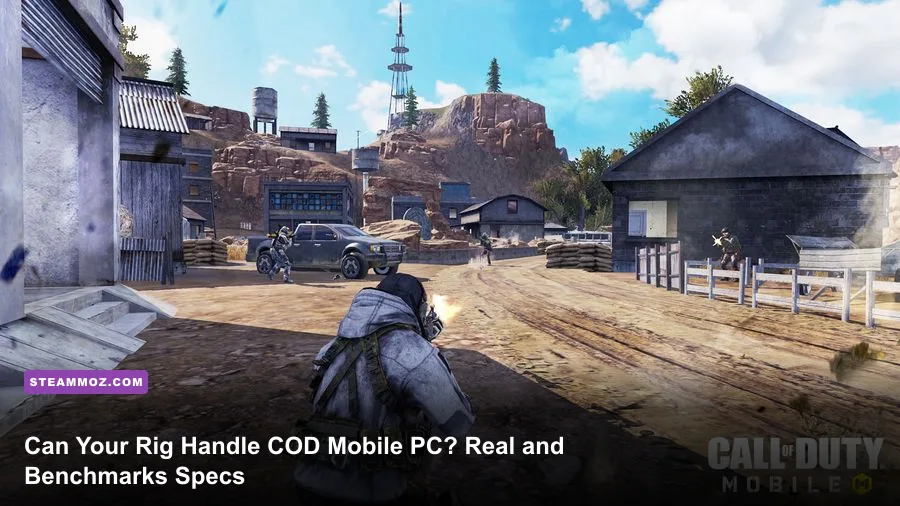
Yes, your PC can almost certainly boot Call of Duty: Mobile—even an aging office desktop humming under your desk can run it. However, Activision's paper-thin official specs hide an uncomfortable truth: merely launching the game and locking down a competitive, stutter-free 120 FPS during a chaotic Hardpoint scrap on Standoff or a 100-player Battle Royale drop in Isolated are two radically different propositions. Because the global version relies heavily on virtualization via Tencent's official GameLoop client, your CPU shoulders an enormous translation burden that standard PC releases never inflict on your hardware.
Whether you are trying to squeeze every drop of performance out of integrated graphics or aiming to max out a 144Hz esports display, hitting rock-solid frame pacing requires knowing how this game actually uses your silicon. Below, we tear down the real hardware baseline, provide verified benchmark numbers across multiple system tiers, and expose the engine settings that make or break your competitive edge.
Official Requirements vs. The Actual Hardware Reality
Activision and Tencent publish system requirements for the PC environment that look like they were frozen in 2014. They claim that an ancient dual-core Core 2 Duo paired with an archaic Intel HD Graphics 4000 can deliver an acceptable experience. That claim is technically true only if you define "acceptable" as a blurry 720p slideshow hovering around 25 frames per second with jarring 1% low spikes that get you eliminated the instant someone chucks a thermite grenade.
The core problem comes down to architecture. When you play Call of Duty: Mobile through official channels like GameLoop's official platform, your PC is not just executing game logic; it is translating Android-native ARM code instructions into x86 desktop machine language in real time. This translation layer places an intense burden on your CPU's single-core instructions and L3 cache. If you have ever checked system specs checks for older hardware, you know baseline sheets often gloss over thermal throttling and memory bottlenecks. For Call of Duty: Mobile on PC, the true modern baseline is significantly higher than marketing sheets admit.
| Hardware Component | Activision "Minimum" Spec | Real-World 60 FPS Target | Esports 120 FPS Competitive Spec |
|---|---|---|---|
| Processor (CPU) | Intel Core 2 Duo E8400 (3.0 GHz) | Intel Core i3-10100 / AMD Ryzen 3 3100 | Intel Core i5-12400F / AMD Ryzen 5 5600 |
| Graphics Card (GPU) | Intel HD Graphics 4000 | Nvidia GeForce GTX 1050 Ti (4GB) / AMD RX 560 | Nvidia GeForce GTX 1660 Super / RTX 3060 |
| System Memory (RAM) | 4 GB DDR3 | 8 GB DDR4 (Dual-Channel) | 16 GB DDR4/DDR5 (3200MHz+) |
| Storage Medium | 10 GB HDD Space | 30 GB SATA SSD | 50 GB NVMe M.2 SSD |
| Virtualization | Not Specified | BIOS VT-x / AMD-V Enabled | BIOS VT-x / AMD-V + Dedicated Paging File |
| DirectX API | DirectX 9.0c | DirectX 11 | DirectX 11 / DirectX+ |
Notice the storage and memory columns in particular. Installing the game and all seasonal high-definition resource packs, operator skins, and weapon camos bloats the footprint far past the initial download. If your system runs on a traditional mechanical hard drive, texture streaming will buckle every time you load into a newly rotated map.
Real-World Benchmarks: From Potato Laptops to Dedicated Rigs
To cut through theoretical speculation, we ran actual multiplayer matches (Crash, Nuketown, Firing Range) and full 20-minute Battle Royale matches on Isolated across four distinct hardware brackets. All tests were executed at 1080p native resolution on the latest public build of the GameLoop emulator engine, keeping texture quality at High while toggling between Medium and Ultra frame rate modes.
If you have spent time hunting down fixing low FPS and erratic stutters in other PC titles, you will recognize the trend here: raw average frames per second mean nothing if your 1% low frame rates drop into single digits during close-quarters gunfights.
| Hardware Bracket | Tested Configuration | Multiplayer Avg FPS | Battle Royale Avg FPS | 1% Low FPS (Firefights) | Playability Verdict |
|---|---|---|---|---|---|
| Ultra-Budget / iGPU | Intel UHD 630 + i5-10400 + 8GB RAM | 51 FPS | 34 FPS | 19 FPS | Playable on Low; heavy drops in smoke |
| Aging Budget Gaming | GTX 1050 Ti (4GB) + Ryzen 3 3300X + 16GB | 88 FPS | 62 FPS | 47 FPS | Flawless 60 FPS lock; drops in BR squads |
| Modern Mainstream | GTX 1660 Super + i5-11400F + 16GB | 118 FPS | 98 FPS | 78 FPS | Solid 120Hz competitive tier; very smooth |
| High-End Esports Rig | RTX 3070 (8GB) + Ryzen 7 5800X3D + 32GB | 120 FPS (Capped) | 120 FPS (Capped) | 108 FPS | Perfect frame pacing; zero input lag |
The numbers reveal an unmistakable baseline: integrated graphics can scramble together a 30 to 50 FPS session, but the erratic 1% lows transform tracking moving targets into guesswork. Once you jump to a dedicated GPU paired with dual-channel RAM like the GTX 1050 Ti setup, micro-stutters flatten out substantially. If you want the full 120 FPS Ultra frame-rate experience unlockable in the game's audio/graphics menu, your PC requires at least a modern hex-core CPU and a card equivalent to a GTX 1660 Super.
The Emulator Tax: Why GameLoop Devours Your CPU
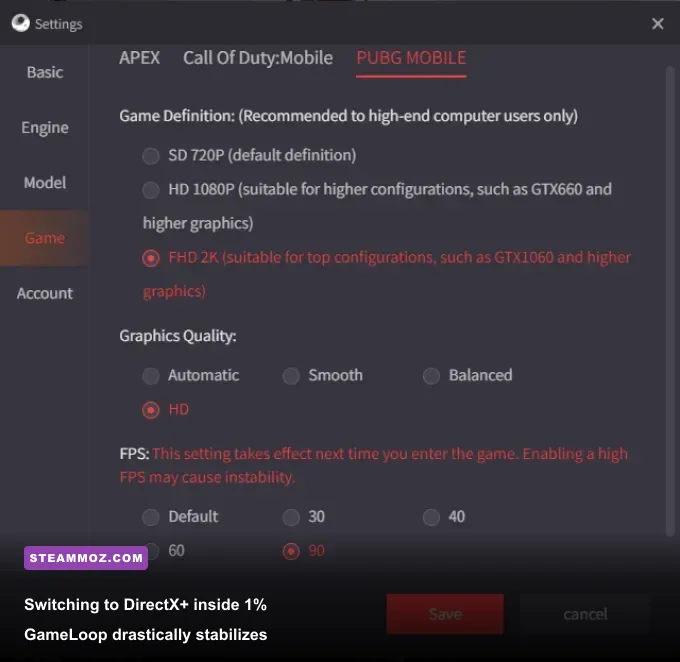
Unlike native PC games found on Steam, Call of Duty: Mobile on desktop deals with what engineers call the "emulator tax." The client runs a virtualized Android environment that takes mobile API graphics calls (traditionally OpenGL ES or Vulkan) and repackages them into DirectX commands that your Windows graphics drivers can comprehend.
This process demands immense single-thread CPU performance. If your processor features weak per-core execution, your GPU will sit idle at 30% utilization while your frame rates crater. To mitigate this tax, you must verify your BIOS has hardware virtualization engaged. On Intel processors, this setting is labeled Intel Virtualization Technology (VT-x); on AMD platforms, it is named SVM Mode. Without this toggle activated at the motherboard level, the emulator falls back on software virtualization, which tanks frame output by as much as 60%.
Furthermore, managing emulator RAM allocation is crucial. Handing GameLoop all your physical RAM actually causes performance degradation due to Windows memory paging conflicts. If your rig has 16GB of system memory, assign exactly 4096MB or 8192MB within the GameLoop Engine settings—never max it out to system capacity. For more troubleshooting techniques on stabilizing volatile render pipelines, check our guide on how to rescue your baseline frame rates.
Graphic Settings and Engine Tweaks for Max Competitive FPS
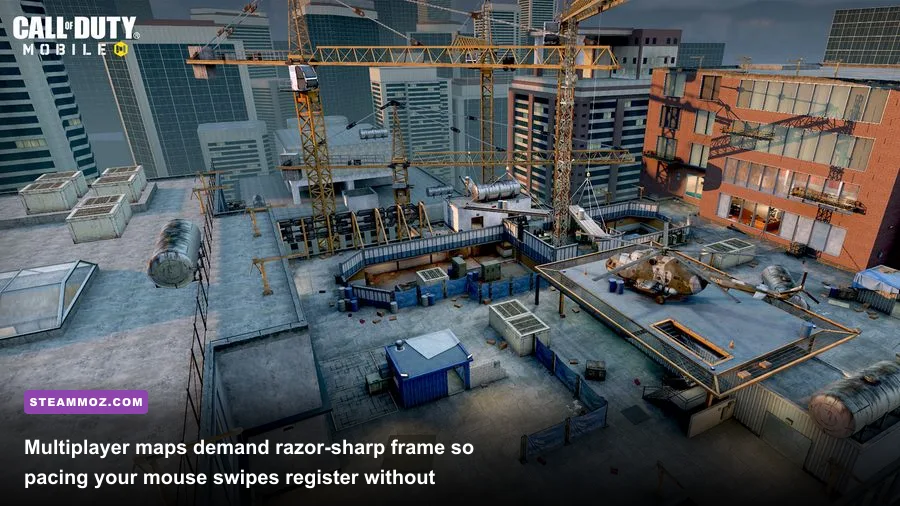
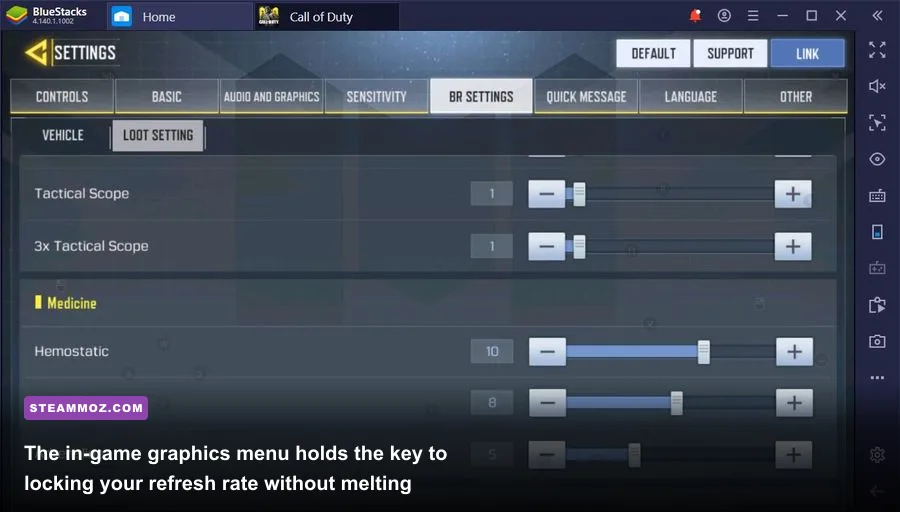
Getting past the hardware check is only half the battle; the real magic happens inside the graphics panels. COD Mobile PC gives you two separate setting screens to balance: the external GameLoop engine tab and the in-game settings accessible from the main lobby gear icon. Tuning these correctly will net you immediate performance gains, much like when you optimize graphics settings for maximum frame rate in heavy AAA titles.
| Setting Location | Parameter Name | Competitive Value | FPS Impact | Tactical Justification |
|---|---|---|---|---|
| GameLoop Engine | Rendering Mode | DirectX+ | Low (Optimizes CPU) | Distributes render thread calls evenly across Windows cores. |
| GameLoop Engine | Memory Allocation | 4096 MB / 8192 MB | Zero (Stability) | Prevents memory leaks without choking background OS operations. |
| GameLoop Engine | Processor Cores | 4 Cores | Medium | Assigning more than 4 cores often triggers thread synchronization stutters. |
| In-Game Graphics | Graphic Quality | Low or Medium | High (15-25% Boost) | Strips visual clutter, grass density, and heavy post-processing effects. |
| In-Game Graphics | Frame Rate | Max or Ultra (120Hz) | Variable | Crucial for input latency reduction; unlock maximum refresh rate. |
| In-Game Graphics | Depth of Field | Disabled | Low (3-5% Boost) | Removes peripheral weapon blur when Aiming Down Sights (ADS). |
| In-Game Graphics | Real-Time Shadows | Disabled | Medium (8-12% Boost) | Removes dynamic light calculations that cause sudden frame pacing drops. |
| In-Game Graphics | Anti-Aliasing | Off | Medium (6-10% Boost) | Cleans up edges without inducing post-process texture smearing. |
If you run a high-refresh monitor, setting the in-game Frame Rate option to Ultra unlocks the 120 FPS mode in multiplayer. However, keep in mind that Battle Royale caps out at 90 FPS on most regional configurations to ensure lobby parity. To maintain an uninterrupted competitive flow, applying these tweaks ensures you never experience mouse tracking desync during slide-canceling or quick-scoping. For additional system-level optimizations, check out our walkthrough on tuning settings for higher FPS across PC systems.
How to Kill Stuttering and Fix 1% Lows Forever
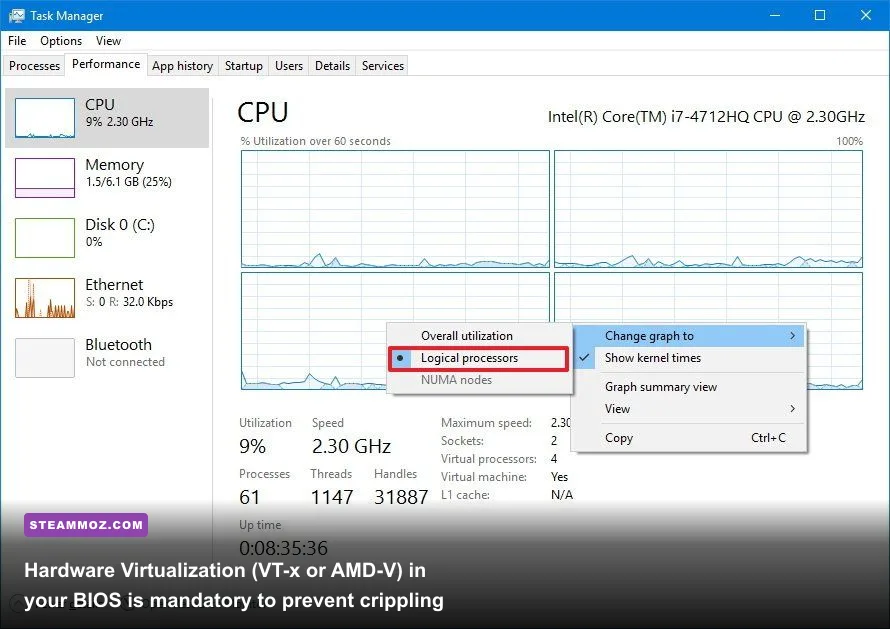
Even with great hardware, you might run into strange, cyclical stuttering where the game drops from 120 FPS down to 40 FPS for two seconds before recovering. This is not an issue with your graphics card; it is a thermal, driver, or virtualization hitching problem. Follow this sequence to stabilize your frame delivery permanently:
1. Force Dedicated GPU Processing on Laptops
If you play on a gaming laptop, Windows often tries to conserve energy by passing the emulator container through your processor's integrated graphics. Head over to Windows Settings > System > Display > Graphics. Click Browse, locate the GameLoop application paths (both AppMarket.exe and AndroidProcess.exe inside the txgameassistant folder), and set their graphics preference to High Performance to force your dedicated Nvidia or AMD chip into action.
2. Enable High Priority Execution
Because background processes love to steal cycles from emulators, create a simple routine whenever you launch the game. Open Windows Task Manager (Ctrl + Shift + Esc), click the Details tab, find the active GameLoop process (AppMarket.exe or the main render engine task), right-click it, hover over Set Priority, and choose Above Normal. Do not choose "Realtime," as that can lock up your operating system mouse inputs if the emulator spikes.
3. Clear the Shader Cache
Corrupt shader files are the primary cause of sudden crashes mid-match. Inside the in-game settings on the login screen, use the wrench icon to clear the compiled shader cache. Let the game recompile assets upon your next launch. For official updates on server status, balance patches, and client security notices, refer regularly to the official Call of Duty website and Activision Support.
By pairing realistic hardware expectations with these engine adjustments, you transform Call of Duty: Mobile on PC from a janky, stutter-heavy emulation into a snappy, responsive, high-framerate tactical shooter capable of holding its own against native desktop games.