The fastest path to a locked, stutter-free frame rate in the official World of Warcraft client is dropping Compute Effects to Low, rolling Shadow Quality back to Fair or Good, keeping Particle Density at Good, and activating the built-in Raid and Battleground Settings toggle. World of Warcraft’s heavily modified engine doesn't behave like a modern Unreal Engine title; throwing a high-end graphics card at it won't fix frame drops in crowded expansion hubs or chaotic 30-man raids if your CPU draw calls get slammed. By tuning a handful of resource-devouring sliders and trimming bloated background addon scripts, you can double your baseline frame rate while preserving sharp character models and vital floor telegraphs.
The Architecture of WoW’s Engine: Why Your Monster Rig Still Stutters

You can drop an RTX 4090 and a top-tier processor into your rig, load into Dornogal or Valdrakken during peak server hours, and still watch your counter drop straight down into the mid-40s. That sudden dive isn't a malfunction on your motherboard—it's the fundamental architecture of Azeroth at work. World of Warcraft’s engine roots trace all the way back to the early 2000s. While Blizzard’s engineering team has performed wizardry over the past two decades—adding DirectX 12 support, ray-traced shadows, and multi-threaded engine pipelines—the core simulation still relies heavily on a single primary game thread.
That main thread handles combat calculations, animation dispatches, server-packet parsing, and rendering submissions. When sixty players mount up in front of the auction house or simultaneously unleash their opening cooldowns on a Mythic raid boss, the volume of draw calls completely saturates a single CPU core. As we've seen when investigating hardware bottlenecks and thermal throttling, a graphics card can only output as many frames as the processor feeds it. If the CPU gets hung up sorting through hundreds of translucent player spell visuals and custom nameplates, your GPU utilization drops to 35%, and your frame pacing falls apart.
Understanding this bottleneck changes how you approach performance tuning. Sliders that push raw pixel-shading fill rates—like texture resolution—cost virtually nothing on modern hardware. Sliders that compound draw calls, object counts, and scene physics—like view distance, compute shaders, and environmental clutter—will hammer your CPU into the dirt. To keep your frame times consistent, we need to balance visual fidelity against draw-call saturation.

🎮 FORM
Looking to experience this game? Grab your digital key directly on our store for $14.99.
View on Steammoz Store →The Master Graphics Settings Tier List: Maximum FPS vs. Visual Impact
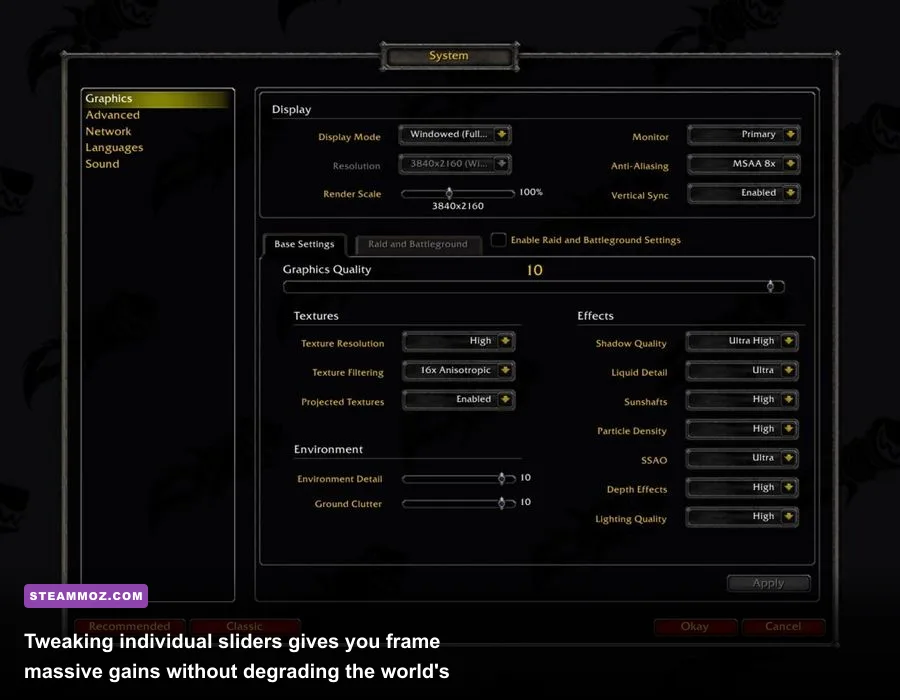
Blizzard provides a basic slider numbered 1 through 10 in the System display panel, but dragging that slider is a trap. Preset 7 or 10 jacks up every obscure, performance-choking setting simultaneously, regardless of whether your eyes can actually perceive the difference during combat. Just as when dialing in sliders for optimal graphics and frame pacing, you need to manually inspect each setting to protect your visual clarity without sacrificing fluidity.
Let's run through the primary suspects. Shadow Quality is historical enemy number one. Setting this to Ultra High demands dynamic, high-resolution soft shadows for every leaf, character, and pet on the screen. Setting it to Fair or Good gives you clean, grounded shadows under character models without forcing the CPU to calculate infinite shadow matrices. Compute Effects is another massive frame thief; this setting handles complex GPU-driven atmospheric fog and volumetric density, yet dropping it to Low or Disabled yields up to a 15% boost in crowded zones with almost zero discernible visual degradation during combat.
Crucially, you must never disable Projected Textures. This setting renders ground swirls, swirlies, frontals, and safe zones cast by bosses. Turning it off might save you two frames per second, but you will repeatedly wipe your raid group because you cannot see the lethal mechanics underneath your boots. Similarly, keep Outline Mode set to High; this setting highlights quest objectives, target markers, and interactable objects cleanly without chewing up processing overhead.
| Setting Name | Optimal Value | FPS Impact | Visual Impact & Mechanical Priority |
|---|---|---|---|
| Base Graphics Quality | Custom (Manual) | Variable | Never use presets; customize sliders individually. |
| Shadow Quality | Fair or Good | High (~12-18%) | Fair keeps grounded character shadows without CPU choking. |
| Liquid Detail | Fair | Moderate (~5-8%) | Cuts complex water reflections; keeps water clean and visible. |
| Particle Density | Good | High (~10-15% in raids) | Shows essential spell indicators without filling the screen with smoke. |
| SSAO (Ambient Occlusion) | Good / Low | Moderate (~6-10%) | Adds depth contact shading; Ultra softens edges unnecessarily. |
| Depth Effects | Good | Low (~3%) | Softens edges where particles touch terrain; safe at Good. |
| Compute Effects | Low or Disabled | Extreme (~12-20%) | Huge resource hog; turns off heavy volumetric fog. |
| Outline Mode | High | Negligible (<1%) | Mandatory for highlighting enemies and quest objectives. |
| Texture Resolution | High | Negligible (VRAM bound) | Modern GPUs with 6GB+ VRAM run this effortlessly. |
| Spell Density | Dynamic or Essential | High (~15% in combat) | Culls non-critical ally spells; preserves boss telegraph clarity. |
| Projected Textures | Enabled | Low (~2%) | CRITICAL: Disabling this hides floor swirlies and wipe mechanics. |
| View Distance | 5 to 7 | High (~15-25%) | Slider 7 reveals horizons; 10 destroys CPU single-core frame times. |
| Environment Detail | 5 to 6 | Moderate (~8-12%) | Maintains landmark structures while culling distant clutter. |
| Ground Clutter | 3 to 5 | Moderate (~5-10%) | Hides excess grass clumps so ground telegraphs remain readable. |
Raid and Battleground Settings: Your Secret Weapon for Smooth Combat
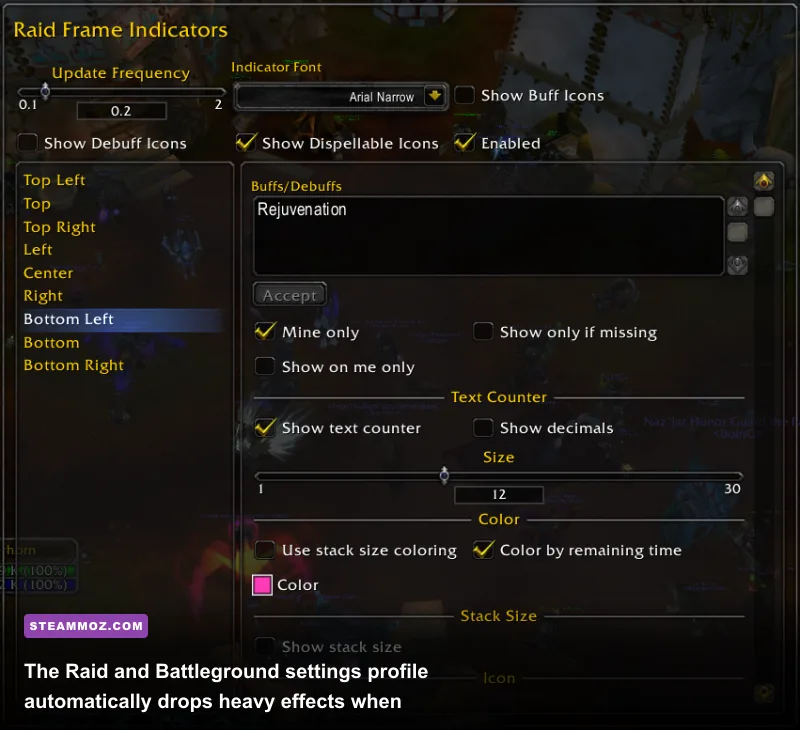
One of the finest quality-of-life tools in the modern engine is the dedicated Raid and Battleground Settings tab. It sits right at the top of your Graphics options window as a small checkbox. When enabled, your game seamlessly swaps to an independent, performance-tuned profile the instant you zone into an instance, dungeon, raid encounter, or rated arena, immediately switching back to your scenic, high-fidelity configuration the moment you hearth back to a capital city.
Leaving this unchecked is the primary reason players complain about frame pacing issues during large-scale combat. Open-world questing can easily handle high draw distances and plush foliage. But when you are battling Queen Ansurek or pushing high Mythic+ keystones, having the engine render hundreds of blades of grass underneath a volcanic affix or calculation-heavy environmental clutter is entirely wasted processing power. In competitive gameplay, visual noise is your worst enemy.
In your Raid profile, aggressively dial back View Distance to 3 or 4. Raid arenas are enclosed spaces; setting this to 10 forces the engine to calculate structural geometry outside the combat walls that you will never see. More importantly, configure Spell Density to "Essential." This brilliant culling feature filters out cosmetic ally visual clutter—like incidental hunter pet abilities or harmless druid heals—while guaranteeing that lethal incoming raid mechanics, dispels, and ground indicators remain crystal clear.
| Setting Option | Base Profile (Open World) | Raid & Battleground Profile | Combat Benefit |
|---|---|---|---|
| View Distance | 7 | 3 or 4 | Eliminates off-screen geometry processing during encounters. |
| Environment Detail | 6 | 4 | Keeps arena geometry intact while minimizing draw calls. |
| Ground Clutter | 5 | 2 or 3 | Leaves arena floors bare so dangerous puddle edges are unmistakable. |
| Shadow Quality | Good | Low or Fair | Relieves CPU load during lust/bloodlust burst windows. |
| Liquid Detail | Good | Fair | Prevents water reflection stutter during water-based encounters. |
| Particle Density | Good | Fair or Good | Balances telegraph visibility against particle alpha overlap. |
| Spell Density | Everything | Essential | Hides visual spam from 20 other players; cuts frame dips in half. |
| SSAO | Good | Disabled | Recovers pure GPU compute budget when screen fills with spell fx. |
Advanced Engine Settings: DX12, Upscaling, and Anti-Aliasing
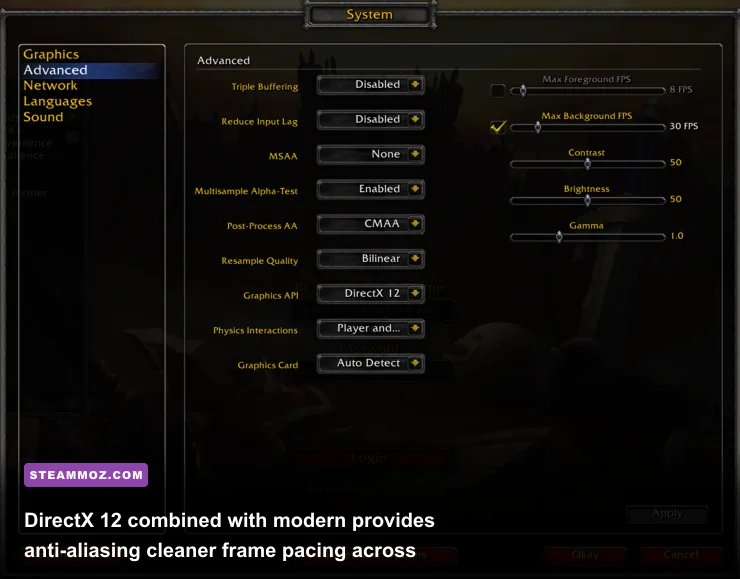
Under the Advanced tab in WoW's options menu, several toggles fundamentally dictate how your hardware interfaces with the software. First and foremost is the Graphics API. Unless you are running an ancient operating system or an obsolete GPU, you should strictly set this to DirectX 12. WoW’s DX12 implementation provides significantly better multi-threaded draw command submissions than the legacy DirectX 11 pipeline. It divides rendering tasks across multiple CPU cores before firing them off to your graphics card, actively smoothing out nasty frame-time spikes when you load into new zones, similar to how modern titles rely on refined pipelines to stabilize erratic frame times.
Next up is anti-aliasing. Modern WoW includes several anti-aliasing passes, including multisampling (MSAA), fast approximate anti-aliasing (FXAA), and Conservative Morphological Anti-Aliasing (CMAA 2). Do not fall into the trap of activating MSAA 8x. World of Warcraft features countless alpha textures on trees, armor, and foliage; MSAA aggressively punishes your GPU fill rate while failing to resolve jagged geometry on moving alpha textures. The absolute sweet spot for clean image quality and stellar performance is CMAA 2. It runs an efficient post-process edge sweep that costs roughly 1% of your frame rate while keeping thin edges sharp and shimmering-free.
If you play on an ultra-wide or 4K monitor and your GPU is fighting for its life, pay close attention to Render Scale and Resample Quality. Setting your Resample Quality to AMD FSR 1.0 (FidelityFX Super Resolution) and dropping your Render Scale down to 85% or 90% lets your graphics card render the game at an internally reduced resolution before smartly upscaling and sharpening it back to your native screen output. Much like configuring display resolution scaling for higher frame rates, this single switch can reclaim 20 to 30 FPS on mid-range cards with almost zero perceptual loss in combat clarity.
Finally, set your Max Foreground FPS cap. Leaving your frame rate completely uncapped causes erratic temperature fluctuations and introduces frame pacing jitter when your GPU violently bounces between 99% usage in empty tunnels and 40% in cities. Match your foreground cap to your monitor’s refresh rate minus three frames (for example, 141 FPS on a 144Hz panel, or 162 FPS on a 165Hz panel) while enabling G-Sync or FreeSync. This ensures buttery smooth frame pacing without triggering display-level input latency.
Hidden Performance Killers: Addons, WeakAuras, and Combat Logs
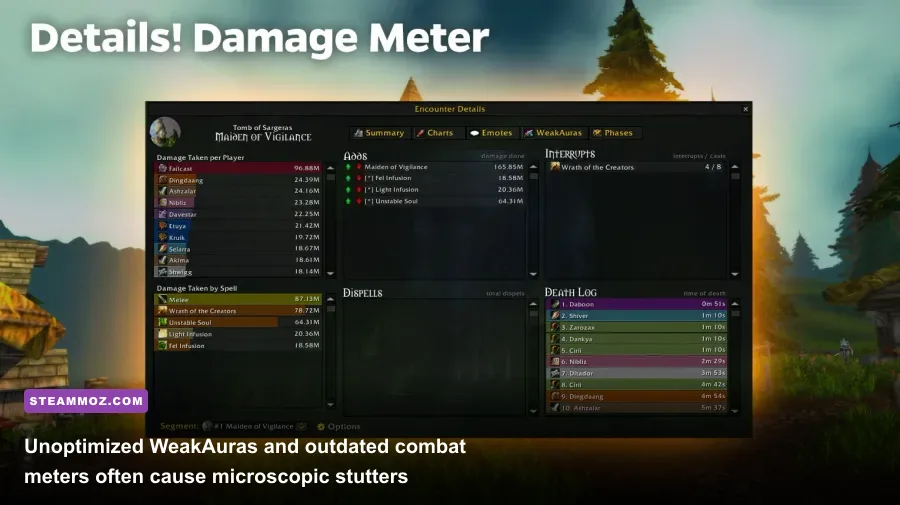
Here is the hard truth that hardware reviewers rarely mention: half of the stuttering issues experienced by World of Warcraft players have nothing to do with their graphics settings. They are caused by the game’s Lua scripting engine choking on poorly maintained third-party modifications. Addons run directly inside WoW’s single main execution thread. If an addon executes an un-throttled calculation on every single render frame, it will hitch your entire screen, regardless of whether your graphics sliders sit at 1 or 10.
The worst offenders are bloated damage meters, unoptimized nameplate modifications, and outdated WeakAuras downloaded from community repositories. If you run comprehensive combat logs or meters, verify their update frequency. Tools like Details! Damage Meter are exceptionally powerful, but if you have your meter set to update display numbers in real-time every 0.05 seconds during a 30-man raid, your CPU spends half its compute budget sorting text updates instead of rendering the world.
To audit your interface, grab an addon profiling tool like Addon Usage or use the built-in system console. If you notice stutter spikes when engaging large trash packs in Mythic+ dungeons, inspect your WeakAura packs. Auras that monitor every unit’s aura status (`UNIT_AURA`) across all 20 allies and 30 enemies simultaneously without proper event filters can chew through 80 milliseconds of frame time in an instant. Just as we recommend addressing frame drops when applying frame pacing and stutter recovery tweaks, stripping your UI down to lean, maintained addon packages from trusted sources like the CurseForge addon repository will immediately restore baseline fluidity.
Console Variables (cVars) and Hardware Tuning for Azeroth
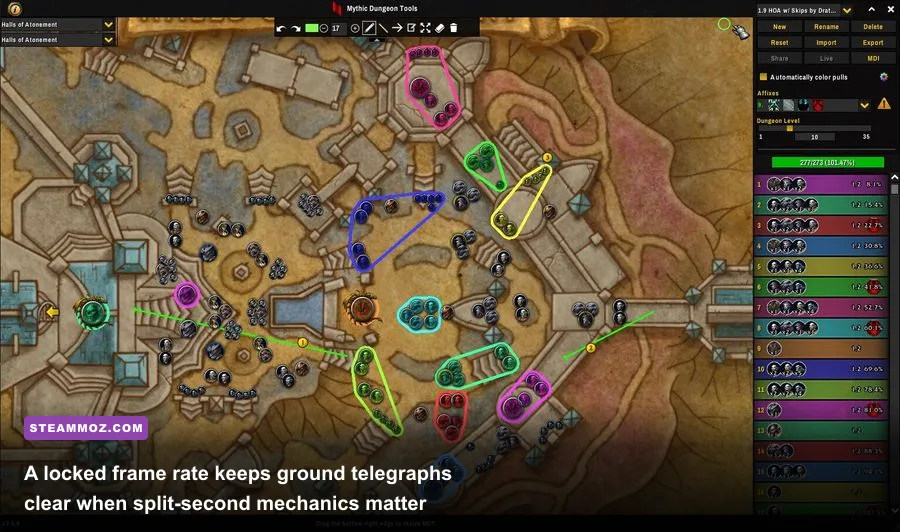
For players seeking every last ounce of performance, World of Warcraft exposes an extensive internal registry of console variables (cVars). These hidden switches modify engine behaviors that don't appear in the regular settings interface. You can execute these directly into your in-game chat box to squeeze extra responsiveness out of the client:
/console gxCursor 1— Forces hardware mouse cursor rendering. If your game ever hitches or drops frames, this ensures your mouse cursor remains perfectly smooth and responsive at your monitor's true refresh rate./console ffxGlow 0— Disables the engine’s full-screen bloom glow effect. Not only does this slightly reduce GPU load, but it also dramatically cuts down on excessive, blinding spell glare in modern raid encounters./console ResampleSharpness 0.2— When using AMD FSR upscaling, this fine-tunes the post-process sharpening filter so your screen looks clean rather than over-sharpened and grainy./console cameraDistanceMaxZoomFactor 2.6— Pushes your camera zoom out to the maximum allowed distance, ensuring you can see boss mechanics from across the room without having your field of view constricted.
Outside of the client, make sure your Windows environment is cooperating with Blizzard's architecture. Confirm that Hardware-Accelerated GPU Scheduling (HAGS) is toggled on inside Windows Display settings, and set your power plan to High Performance or Balanced with a high minimum processor state. If you are shopping for a new rig specifically to dominate World of Warcraft, prioritize processors with stacked L3 cache architecture, such as AMD's Ryzen X3D series. The immense on-die L3 cache directly mitigates WoW’s engine-level draw call bottlenecks, offering monumental frame-rate gains that no graphics card upgrade on earth can match.
By pairing DirectX 12, CMAA 2 anti-aliasing, trimmed ground clutter, and a tailored Raid and Battleground profile, you stop fighting the engine's age and start playing to its strengths. Keep your vital combat telegraphs visible, eliminate dynamic shadow bloat, run a lean user interface, and enjoy butter-smooth frame rates across every corner of Azeroth.