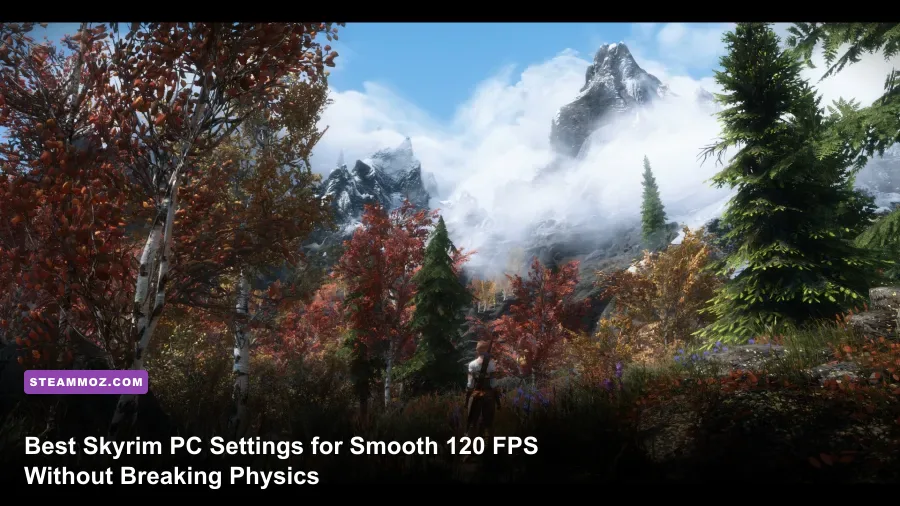
To get silky smooth performance in Skyrim Special Edition or Anniversary Edition on Steam, you don't need a top-tier GPU—you need to bypass the engine's built-in bottlenecks. The quick winning formula is simple: drop Volumetric Lighting (Godrays) to Medium or Low, reduce Shadow Resolution from 4096 down to 2048, pull View Distance sliders back to roughly 70%, and install a frame-rate decoupling mod to run at 120 FPS or 144 FPS without sending Havok physics into a violent death spiral. Implementing these precise adjustments instantly eliminates the notorious stutter in heavy forest holds like Falkreath and Riften while preserving 95% of the visual fidelity.
Unlocking Skyrim's Engine: Why Framerates Over 60 Break Physics
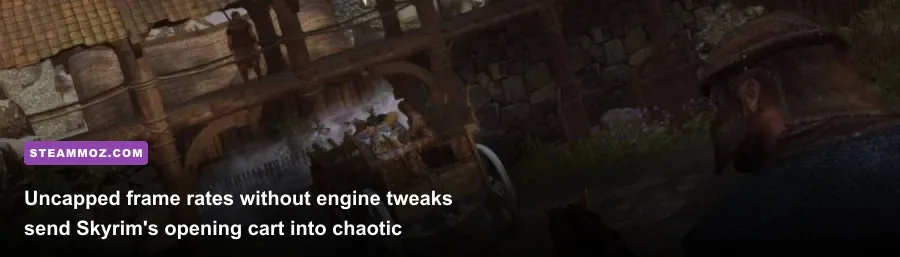
Anyone who has fired up The Elder Scrolls V: Skyrim Special Edition on Steam on a modern high-refresh monitor knows the horror story. You uncap the framerate, load into the Helgen execution wagon, and the cart abruptly launches into low Tamrielic orbit. That happens because Bethesda hardcoded the Havok physics engine's calculation tick rate to a flat 60 Hz interval. When your GPU pushes 120 or 144 frames per second, the physics engine updates twice as fast as intended, turning every plate, skull, and wooden cart into a lethal projectile.
For years, players suffered through a hard 60 FPS lock to prevent game-breaking engine bugs. Today, you don't have to live with that sluggish response time. The modern solution is to use the community tool SSE Display Tweaks alongside your Steam installation. This plugin hooks into the game's internal frame timer, automatically recalculating the Havok delta time (fMaxTime) on every single rendered frame. It lets you run buttery smooth 120Hz, 144Hz, or even 240Hz displays while keeping plates sitting serenely on tables. Much like solving persistent stutter in other engine-heavy titles like in our ELEX PC stutter and crash fix guide, stabilizing the frame-pacing clock is half the battle won before you even touch a texture slider.

🎮 FORM
Looking to experience this game? Grab your digital key directly on our store for $14.99.
View on Steammoz Store →The Complete Graphics Settings Breakdown and FPS Impact
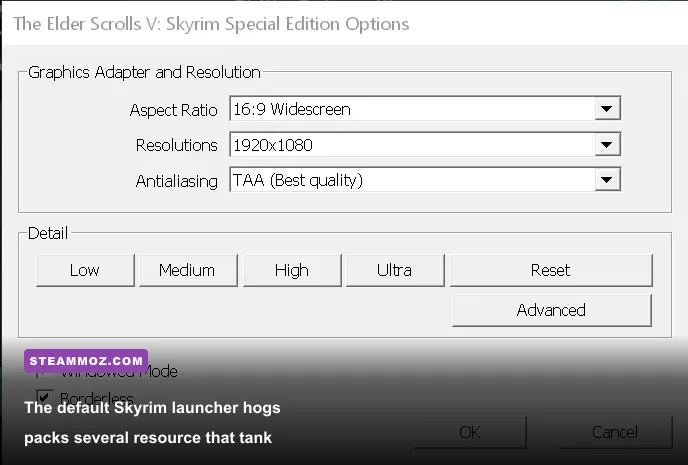
Skyrim's 64-bit engine overhaul brought DX11 rendering, native volumetric godrays, screen-space reflections, and improved shadow filtering. However, the launcher presets are notoriously unoptimized. Ultra simply dials every visual knob to maximum regardless of diminishing returns. Understanding which settings actually stress your hardware allows you to reclaim dozens of wasted frames.
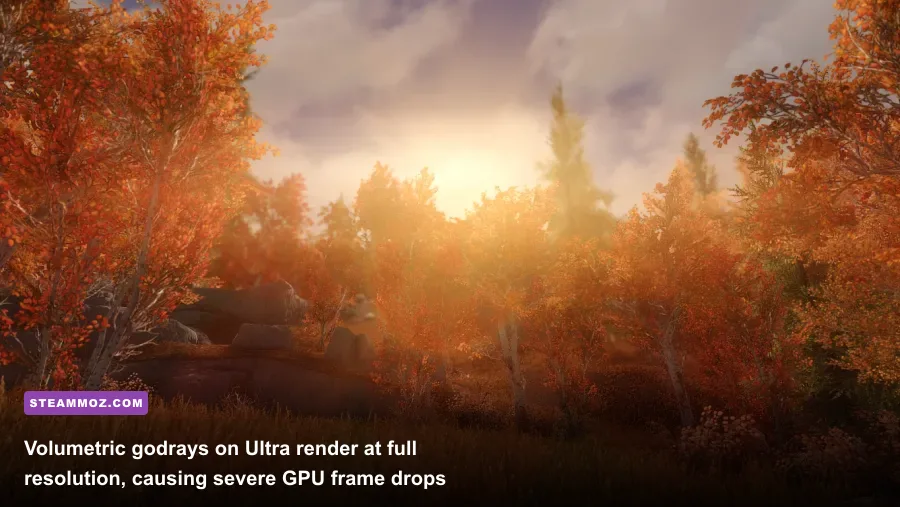
The single greatest offender in the entire launcher is Godrays (Volumetric Lighting). On Ultra, the engine renders volumetric sunbeams at full screen resolution using massive tessellation passes. Dropping Godrays from Ultra to Medium cuts shader overhead dramatically, boosting framerates by up to 18% in outdoor zones while remaining virtually indistinguishable during gameplay. The second biggest culprit is Shadow Quality. Setting shadows to Ultra forces 4096x4096 texture maps with heavy blurring passes. Dropping this to High (2048x2048) slashes VRAM usage and stabilizes frametimes near dense canopy coverage without introducing ugly jagged pixel blocks.
| Setting Name | Launcher Preset | Optimized Choice | Performance Impact | Visual Difference |
|---|---|---|---|---|
| Volumetric Lighting (Godrays) | Ultra | Medium / Low | Very High (+14% to +18% FPS) | Slightly softer sunbeam edges; zero lost detail |
| Shadow Quality | Ultra (4096) | High (2048) | High (+8% to +12% FPS) | Crisp shadows maintained; softer edge filtering |
| Screen Space Ambient Occlusion | On | On | Moderate (-5% FPS) | Essential depth shading around ground clutter and crevices |
| Screen Space Reflections | On | On | Low (-3% FPS) | Realistic water and wet stone surface highlights |
| Snow Shader | On | Off (with visual mods) | Low (+3% FPS) | Disables the harsh, over-bright vanilla white glare on rocks |
| Lens Flare | On | Off | Negligible (<1% FPS) | Removes artificial camera flare for cleaner combat clarity |
| Antialiasing | TAA | TAA + Driver Sharpening | Low (-4% FPS) | Eliminates shimmer on grass; sharpening restores crisp edges |
| Object Detail Fade | On | Off | Moderate (+4% to +6% FPS) | Keeps meshes solid instead of popping in abruptly mid-stride |
Taming View Distances and LODs for Massive Frametime Gains
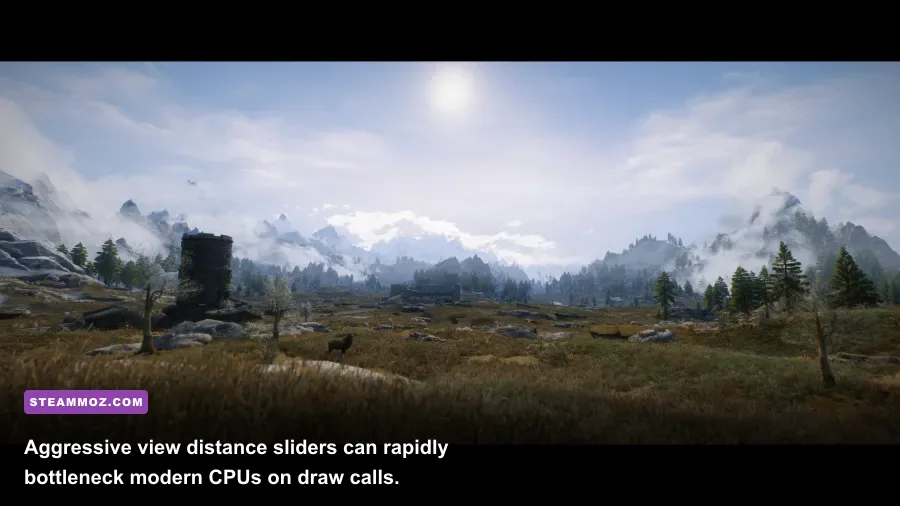
While GPU-bound settings affect your baseline render latency, view distance settings directly hammer your CPU. The Creation Engine relies heavily on single-thread draw calls to load and track actor scripts, object physics, and geometry. When you push view distance sliders to their maximum rightward limit, the engine floods DirectX 11 with thousands of simultaneous draw requests, choking even high-end processors down to the 40s in cities like Whiterun or dense forests.
You can optimize these sliders with surgical precision using the advanced launcher tab. Pulling Actor Fade down to 8 (from 15) stops the engine from computing AI packages for distant bandits and wolves that you can't even hit with an arrow yet. Similarly, setting Grass Fade to 6 or 7 prevents the game from rendering individual blade clusters across entire mountain ridges. Just like tuning complex rendering distances in our Far Cry 6 PC optimization guide or dealing with open-world asset streaming in EscapeVR basement performance tweaks, trimming distant clutter protects you from erratic frametime spikes that cause micro-stutters during camera pans.
For the clearest view across Tamriel's valleys, keep Object Fade and Light Fade at moderate thresholds (between 60% and 70%). Light Fade specifically ensures campfires, torches, and dungeon braziers don't pop into existence five feet in front of your Dragonborn, preserving nocturnal immersion while shaving needless compute cycles off your GPU's raster pipeline.
Essential Engine Tweaks: BethINI and INI File Modifications
Manually tinkering with Skyrim.ini and SkyrimPrefs.ini inside your Documents\My Games\Skyrim Special Edition folder can easily corrupt your profile if you enter invalid syntax. The gaming community's standard protocol is to use BethINI, an open-source standalone configuration tool built specifically for Bethesda games. BethINI cleans out redundant lines, fixes engine memory bugs, and generates rock-solid configuration presets verified by the Unofficial Elder Scrolls Pages (UESP) technical community.
Inside your configuration, there are a few specific values that deliver massive visual returns for virtually zero cost. The shadow bias parameter (fShadowBiasScale) controls shadow acne—those distracting dark stripes that ripple across mountain faces and character armor. Raising this slightly clears up visual noise immediately. Another game-changer is grass density. By setting iMinGrassSize=60 or iMinGrassSize=70, you space grass tufts slightly further apart. Visually, lush modded landscapes still look rich, but your GPU avoids rendering overlapping transparent alpha textures that cause heavy frametime drag.
| INI Parameter | Vanilla Ultra Value | Pro-Tuned Performance Value | Targeted Benefit |
|---|---|---|---|
iShadowMapResolution |
4096 | 2048 | Saves 600MB+ VRAM; stabilizes frametimes across all holds |
iMinGrassSize |
20 | 60 | Reduces alpha-blend overdraw; nets 10-15% FPS in tundra zones |
fTreeLoadDistance |
75000.0 | 45000.0 | Stops remote mountain trees from bogging down draw queues |
fMeshLODLevel1FadeDist |
16384.0 | 8192.0 | Transitions high-poly meshes smoothly without sudden stutter |
bPrecipitation |
1 | 1 | Keep enabled; minimal cost for dynamic blizzards and rain |
If you enjoy squeezing raw efficiency out of PC classics, this is very similar to how we tune legacy settings in our Far Cry 2 PC technical specs and tweaks guide, or how we strip away superfluous post-processing in our Filament Marmalade Edition FPS guide. Clean, well-structured configuration files do more for your gaming experience than brute-forcing settings with raw hardware horsepower.
Eliminating Micro-Stutter and Modded Performance Bottlenecks
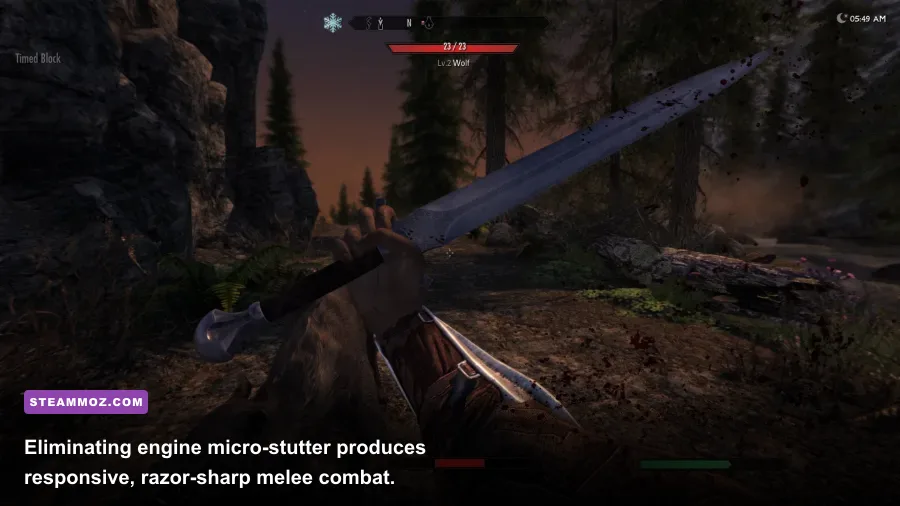
Once your graphics and INIs are dialed in, frame pacing is the final frontier. Skyrim natively runs in an exclusive borderless window or standard fullscreen mode that occasionally clashes with Windows Desktop Window Manager (DWM). This conflict introduces nasty frame hitching during fast turns even when your framerate counter proudly displays 60 or 120 FPS. To solve this, always configure your graphics driver (Nvidia Control Panel or AMD Adrenalin) to override the game's internal sync.
Set Skyrim's internal VSync to disabled via your INI files (iPresentInterval=0) and enforce VSync globally through your GPU driver, paired with G-Sync or FreeSync. If you run an Nvidia card, enable Low Latency Mode set to 'Ultra' or use Nvidia Reflex via engine mods to ensure your render queue never backs up. This locks your frametime line totally flat, giving you that instant, responsive mouse tracking that makes archery and timing shield parries feel like modern competitive action titles.
Finally, keep an eye on your mod load order if you expand beyond vanilla. Heavy script mods running loose scripts in Papyrus will tank your framerates faster than any 4K texture pack ever could. Keep your script load tidy, verify your load orders with LOOT, keep your launcher shadows tuned to 2048, and let your decoupled physics engine run free. Tamriel has never looked sharper or moved smoother.