To get the absolute best balance of crisp visual fidelity and maximum FPS in GTA 5 on PC, set Grass Quality to High, switch MSAA off in favor of FXAA, turn down Post FX to High, and keep every slider in the Advanced Graphics menu entirely disabled. Making those four adjustments alone will instantly claw back up to 45% of your frame rate while completely eliminating the nasty stuttering that plagues Blaine County and Vinewood Hills. GTA 5 remains one of the most scalable PC ports ever made, but several legacy settings will brutalize even modern gaming rigs if you blindly crank everything to its maximum value.
The Fast-Track Tuning Profile: Instant FPS Baseline
Rockstar's RAGE engine handles textures, lighting, and world geometry through a complex web of render passes. While high-end cards like the RTX 4070 or RX 7800 XT can brute-force the title at 1440p or 4K, poor setting configuration introduces micro-stutters that ruin high-speed highway driving and chaotic shootouts. Tuning GTA 5 is all about identifying which toggles deliver actual visual impact and which ones pointlessly burn GPU shader cores and video memory. If you have tackled tweaking for other massive open-world games, like dialing in Far Cry 6 settings for max FPS, you know that blindly hitting the ultra preset is a recipe for uneven frametimes.
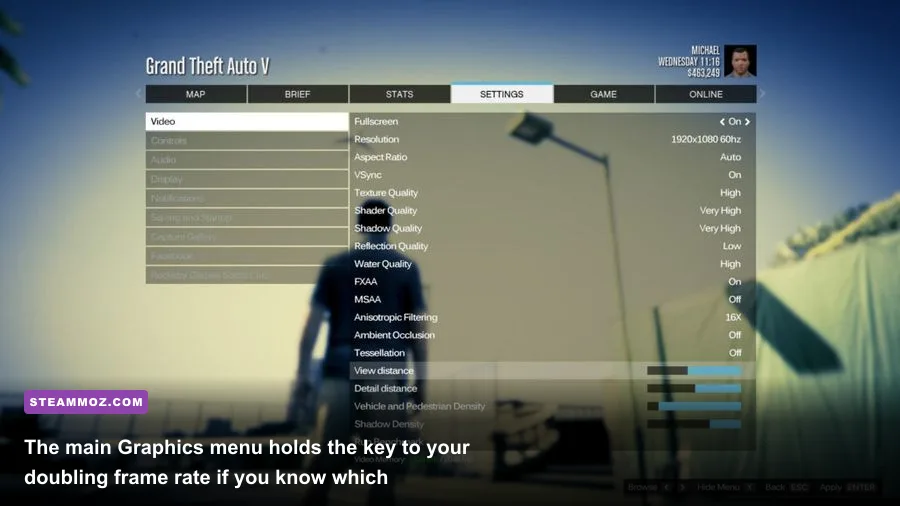
Before touching individual visual toggles, establish your core display baseline. Run the game in DirectX 11 mode; running DirectX 10 or 10.1 disables critical multi-threading optimizations, tessellation, and modern anti-aliasing techniques. Keep your Screen Type on Exclusive Fullscreen to reduce display latency and allow your GPU driver to manage frame presentation cleanly. Leave VSync disabled inside the game menu—we will handle frame capping externally to avoid the sluggish input response typical of Rockstar's internal sync engine.
| Graphic Setting | Recommended Value | Performance Cost | Visual Impact & Tactical Context |
|---|---|---|---|
| DirectX Version | DirectX 11 | Negligible | Mandatory for multi-threaded rendering and modern features. |
| Screen Type | Fullscreen | Low | Bypasses Desktop Window Manager latency; ensures stable frame times. |
| Texture Quality | Very High | 0% (VRAM Bound) | Free visual fidelity if your GPU has 4GB+ of video memory. |
| Shader Quality | High / Very High | Medium (~4-6%) | Governs surface lighting, wet road reflections, and material depth. |
| Shadow Quality | High | Medium (~6-8%) | Very High creates massive CPU draw-call spikes in dense urban areas. |
| Reflection Quality | High | Low (~3%) | Very High/Ultra causes severe drops when driving near glass skyscrapers. |
| Reflection MSAA | Off | High (~7-10%) | Enormously expensive smoothing pass on mirrors and vehicle paint. |
| Water Quality | High | Low (~2%) | Normal flattens ocean swells; High provides realistic wake geometry. |
| Particles Quality | High | Low (~3%) | Controls debris and smoke fidelity; Normal looks noticeably muddy. |
| Grass Quality | High (Never Ultra) | Extreme (~20-30%) | Ultra casts dynamic individual shadows on grass blades, crushing performance. |
| Post FX | High | Medium (~5-7%) | Ultra forces heavy compute-shader bloom and aggressive depth-of-field. |
| Anisotropic Filtering | 16x | Negligible (~1%) | Sharpens ground textures viewed at angles; zero practical performance hit. |
| Ambient Occlusion | Normal / High | Low (~3%) | High grounds contact shadows under cars and trash; essential for depth. |
| Tessellation | High | Negligible (~1%) | Adds 3D relief to tree bark, cobblestones, and tire tracks. |

🎮 FORM
Looking to experience this game? Grab your digital key directly on our store for $14.99.
View on Steammoz Store →The Silent Frame-Killers: Grass, MSAA, and Shadows
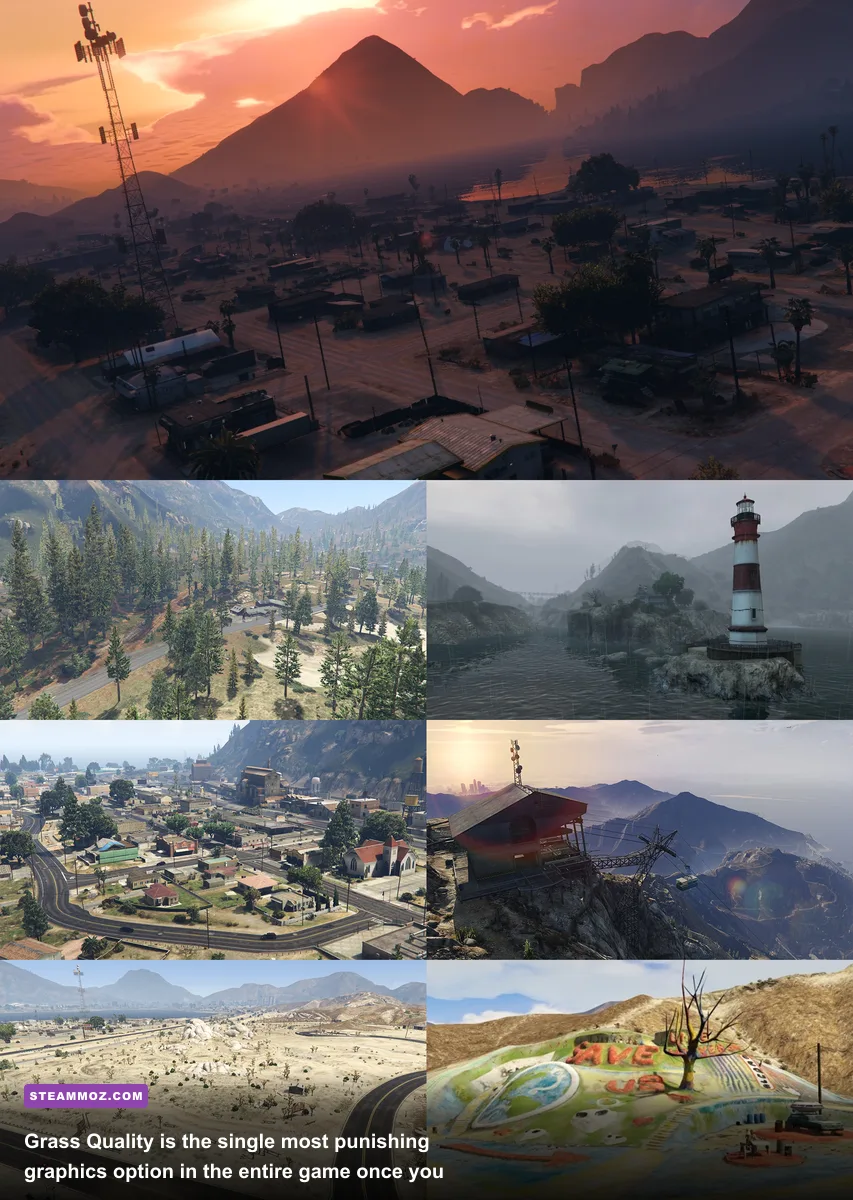
If your framerate suddenly craters from a crisp 120 FPS down into the 50s the second you leave Downtown Los Santos for the Senora Desert, you have fallen victim to Grass Quality. On Normal, grass geometry is sparse with static lighting. On High, density increases to an aesthetically pleasing level. But when set to Very High or Ultra, the engine calculates real-time shadow casting for thousands of individual grass tufts within your field of view, while dramatically increasing draw distance. This single setting can consume more than 25 frames per second on its own. For the smoothest experience across the entire map, lock Grass Quality to High. It looks great, fills out the hillsides, and spares your GPU from an unnecessary computational wall.
Next up is anti-aliasing. GTA 5 relies on a deferred rendering pipeline, which makes multi-sample anti-aliasing (MSAA) exceptionally heavy. Enabling MSAA 4x or 8x will chop your frame rate by 20% to 35% without fully resolving crawling artifacts on thin telephone wires and chain-link fences. Instead, disable MSAA entirely and enable FXAA. While FXAA can introduce a slight softness to the overall image, you can completely offset this blur by applying a light sharpening filter via the NVIDIA Control Panel or AMD Radeon Software (set between 20% and 30% sharpness). Alternatively, if your hardware has surplus headroom, running the game at a higher base resolution via DSR or Virtual Super Resolution offers far cleaner edge coverage than GTA's archaic MSAA implementation ever could.
Shadows demand equal vigilance. Setting Shadow Quality to Very High renders soft shadow maps at a higher internal buffer, which sounds great in theory but triggers enormous CPU bottlenecks during daytime cycles when building shadows stretch across long intersections. High is the sweet spot. For Soft Shadows, avoid "Softest" or the proprietary "NVIDIA PCSS" and "AMD CHS" modes. While PCSS produces realistic contact-hardening shadows, it incurs a severe processing penalty during sunny afternoons and introduces noticeable penumbra artifacts. Choose Softer for a natural, clean aesthetic with practically no performance penalty.
Keeping visual clarity intact while saving hardware resources is a universal challenge across complex titles. Just like resolving FPS drops in ELEX or troubleshooting system overhead seen in EscapeVR's performance fixes, identifying these heavy-hitting options makes all the difference between an erratic stutter-fest and smooth action.
Taming the Advanced Graphics Tab: Traps to Avoid
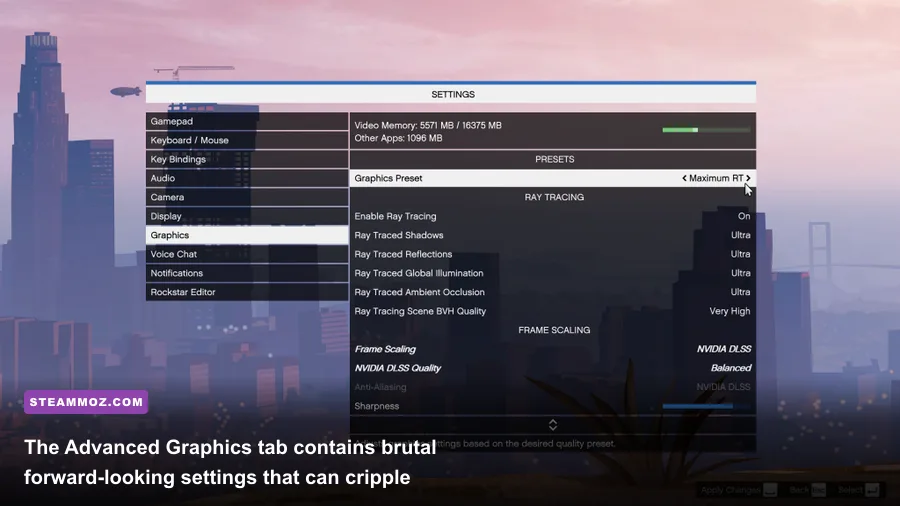
Tucked beneath the primary graphics menu sits the Advanced Graphics tab. When Rockstar released the PC port of Grand Theft Auto V on Steam, they designed this submenu specifically as a stress-test for hardware that did not yet exist. A decade later, these settings remain performance landmines that yield almost zero discernible visual improvement during active gameplay.
The single most destructive setting in the entire game is Extended Distance Scaling. The standard Distance Scaling slider in the main menu already pushes geometric level-of-detail (LOD) transitions far into the horizon. Pushing the Extended slider past zero forces full-detail vehicle models, pedestrian skeletons, and high-polygon architecture to render miles into the distance. This floods your CPU's primary render thread with draw calls, creating severe frame drops regardless of whether you are running a Ryzen 5 3600 or an Intel Core i9-14900K. Keep Extended Distance Scaling set to 0%.
Similarly, leave Extended Shadow Distance bottomed out at zero. GTA 5 already features excellent shadow cascades; forcing the engine to calculate high-resolution dynamic shadows for trees located three city blocks away wastes computational power for detail your eyes will never register while cruising at 120 miles per hour. Turn High Detail Streaming While Flying to On only if you frequently pilot aircraft and notice ground terrain popping in too aggressively; on modern high-speed NVMe SSDs, asset streaming rarely stumbles even with this option turned off. Lastly, ensure Frame Scaling Mode is turned Off unless you are intentionally trying to downsample from an ultra-low base resolution on an integrated graphics chip.
GTA Online vs. Story Mode: CPU Bottlenecks and Networking Hiccups
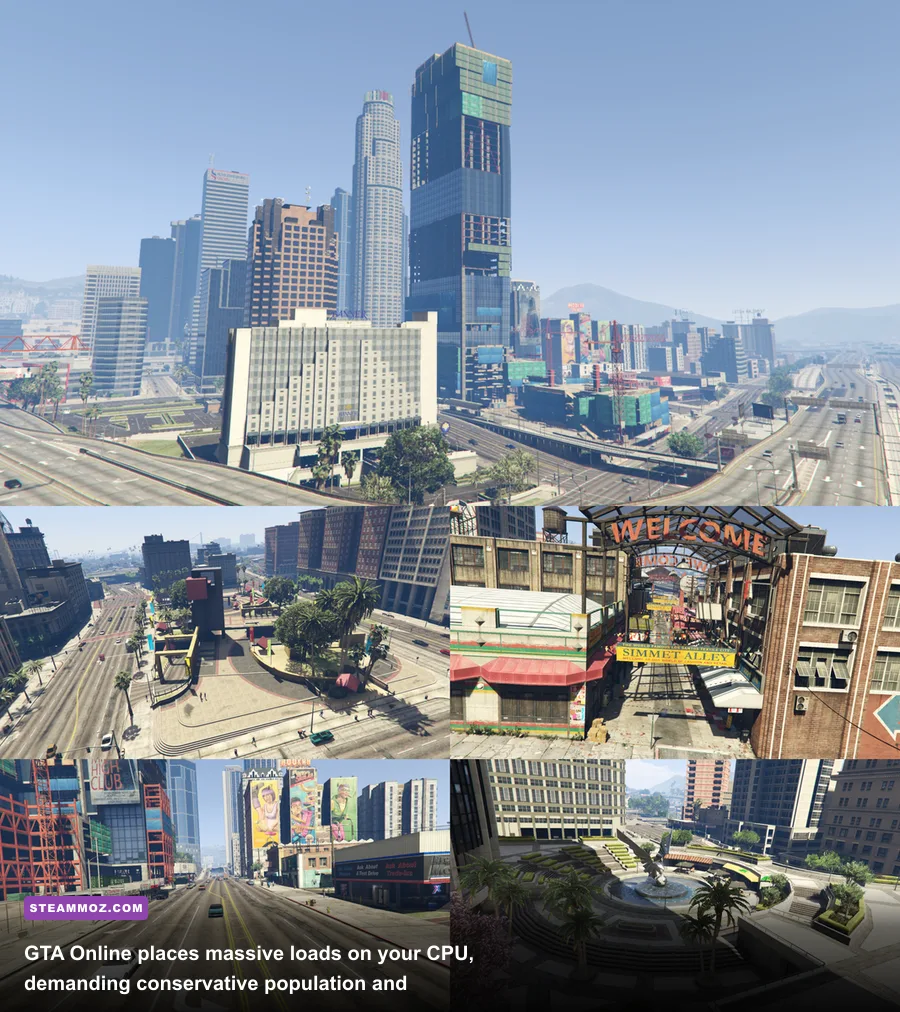
A finely tuned graphics profile that delivers a buttery-smooth 120 FPS in Story Mode as Michael or Franklin can suddenly crawl at 70 FPS with jagged frame pacing the moment you step into a packed 30-player GTA Online lobby. This discrepancy is not caused by your graphics card—it is the direct result of CPU bottlenecks brought on by networked script synchronization.
In GTA Online, your CPU must constantly track customized player vehicles, weapon projectiles, peer-to-peer player position updates, and dynamic global events. To give your processor breathing room and prevent low-1% frametime spikes, make targeted adjustments to the density sliders located in the main Graphics menu:
- Population Density (50% - 70%): Reduces the number of ambient NPC vehicles spawned across the city grid. Lowering this slightly reduces draw calls and mitigates vehicle AI pathfinding overhead during chaotic firefights.
- Population Variety (30% - 50%): Limits the distinct number of unique car models loaded into system memory at any given time. Lowering this slider frees up substantial amounts of shared RAM cache, dramatically curbing stuttering when speeding through high-density intersections.
- Distance Scaling (70% - 100%): Dialing this back to roughly three-quarters prevents unnecessary asset pre-loading while leaving the visual horizon crisp and immersive.
Optimizing CPU overhead and keeping memory uncluttered is vital for online stability, much like managing hardware loads highlighted in our breakdown of PC specs for modern action titles. Keeping ambient variety reasonable ensures that when six Oppressor Mk IIs and customized supercars start lobbing homing rockets in downtown Los Santos, your framerate will not buckle.
Engine Limits, Config Tweaks, and External Optimization
GTA 5's iteration of the RAGE engine harbors an infamous quirk: the 187 FPS Engine Stutter Glitch. If your PC is powerful enough to push the game beyond roughly 185 frames per second, the internal game engine clock desynchronizes from the physics refresh tick rate. This causes the game to violently hitch, skip, and drop frames, mimicking severe network lag even in single-player offline mode. Detailed technical breakdowns on community hubs like the PCGamingWiki GTA 5 Documentation confirm that the engine simply cannot handle uncapped refresh rates past this threshold.
To eliminate this, never leave your framerate uncapped. Open the NVIDIA Control Panel or AMD Software: Adrenalin Edition, navigate to GTA 5's program profile, and set a global Max Frame Rate limit to 140 FPS or 160 FPS (or slightly below your monitor's native refresh rate, such as 141 FPS for a 144Hz panel). This secures flat frametime delivery, prevents the engine stutter glitch, and eliminates screen tearing when paired with G-Sync or FreeSync.
| Hardware Target Profile | Resolution & Refresh | Key Setting Adjustments | Expected Performance |
|---|---|---|---|
| Budget / Handheld Rig (GTX 1650 / Steam Deck / APUs) |
1080p / 720p (Target: 60 FPS) |
Textures: High Shadows: Normal Grass: Normal Post FX: Normal MSAA: Off / FXAA: On |
Locked 60 FPS with stable thermals and minimal battery drain. |
| Mid-Range Sweet Spot (RTX 3060 / RX 6650 XT / RTX 4060) |
1080p / 1440p (Target: 100-120 FPS) |
Textures: Very High Shadows: High Grass: High Post FX: High Advanced Settings: Off |
Silky smooth high-refresh presentation with full environmental details. |
| High-End Enthusiast (RTX 4070 Ti+ / RX 7900 XT+) |
1440p / 4K (Target: 144+ FPS Capped) |
Everything: Very High Grass: High Soft Shadows: Softer Adv. Settings: Off (0% Scaling) Driver Sharpening: Enabled |
Flawless, frame-locked performance that avoids RAGE physics micro-stutters. |
For players running older systems or struggling with background memory allocation, you can fine-tune startup flags via a custom configuration file. Head to your game installation directory, create a plain text file named commandline.txt, and add the argument -ignorepipelinecache. This prevents corrupted shader caches from causing hitching after major title updates. If you still encounter rare visual anomalies or display driver crashes, checking official resources on the Rockstar Support Portal can help verify your game file integrity and redistributable packages.
Finally, keep an eye on your driver-level power delivery. In your graphics control panel, ensure that power management mode for GTA5.exe is configured to "Prefer Maximum Performance" or "Optimal." This keeps your GPU clock speeds from down-throttling during less intensive cutscenes or menu navigation, preventing abrupt frame skips when transitioning back into gameplay. Similar to applying proper performance tweaks for higher FPS in modern titles, tuning system-level behavior ensures that your hardware devotes its complete power budget to rendering Los Santos exactly as intended.
By locking down Grass Quality to High, purging MSAA in favor of driver-sharpened FXAA, zeroing out the traps in the Advanced Graphics menu, and capping your frame rate below the 187 FPS engine ceiling, GTA 5 on PC transforms into an exceptionally responsive, high-refresh masterpiece. You get all the sun-drenched visual splendor of Southern San Andreas with none of the frustrating frame-time spikes that break your immersion.