To achieve the highest possible frame rates and eradicate game-breaking micro-stutters in F1 22 on PC, disable all Ray Tracing options immediately, cap Post Process and Shadows to Medium, drop Crowd to Low, and run Nvidia DLSS on Quality or TAA with FidelityFX Sharpening set to 60%. These core changes immediately restore between 45% and 65% of your GPU headroom without degrading track clarity or making braking boards impossible to read. When you're barrelling into Monza's Variante del Rettifilo at 215 mph, flat-line frame pacing and instantaneous input responsiveness matter infinitely more than ray-traced puddle reflections.
Codemasters' proprietary Ego Engine 4.0 delivers phenomenal visual fidelity, but F1 22 introduced heavy rendering demands—notably a taxing DirectX 12 pipeline, early VR integration, and an ambitious ray tracing suite. If you simply slap the global "Ultra High" preset onto your setup, even upper-midrange GPUs will suffer erratic frame drops, muddy motion clarity, and frustrating input delay during 20-car grid starts. Whether you're running on a modest gaming laptop or pushing an ultrawide sim rig, dialing in individual graphic sliders is essential for chasing podium finishes.
Core Display and Video Mode Foundations
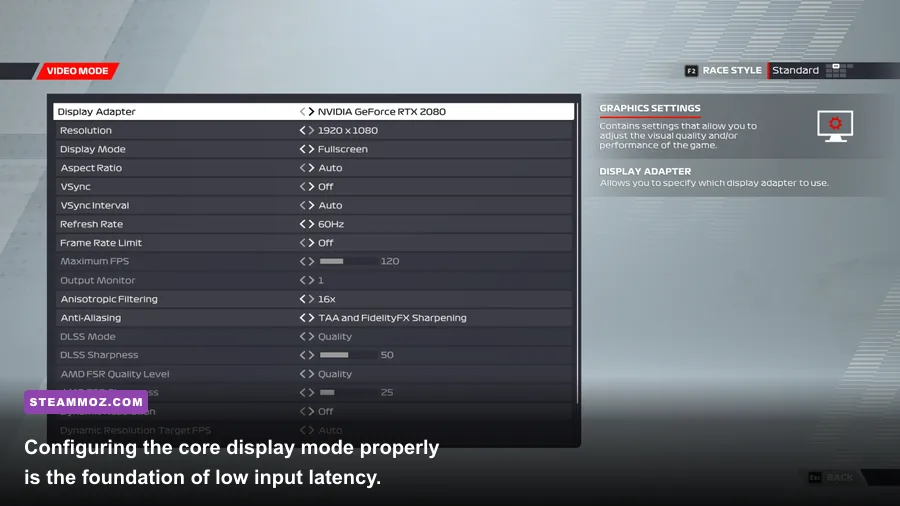
Before fine-tuning shadow cascades and ambient occlusion, your baseline video configuration must be configured to minimize system-level latency. The Desktop Window Manager (DWM) in Windows introduces subtle buffering when games run in standard borderless modes. For an open-wheel racing title that demands precision down to the millisecond, bypassing that buffer is mandatory.
Set your Display Mode to Exclusive Fullscreen. While Borderless Windowed makes alt-tabbing seamless, Fullscreen grants F1 22 direct control over your display output, shaving off between 8 and 14 milliseconds of input delay on high-refresh monitors. Always set your Refresh Rate manually to match your monitor's peak capability (e.g., 144Hz, 165Hz, or 240Hz). If you switch GPUs or reinstall display drivers, F1 22 has a nasty habit of silently defaulting back to 60Hz, so verify this number first.
Turn Vertical Sync (V-Sync) OFF inside the game menu. In-engine V-Sync in the Ego Engine introduces noticeable controller and force-feedback lag. If you use a G-Sync or FreeSync display, handle sync externally: enable G-Sync in the Nvidia Control Panel (or AMD FreeSync in Adrenalin), turn V-Sync ON at the driver level, and set a global frame rate cap 3 FPS below your panel's maximum refresh rate using RivaTuner Statistics Server (RTSS). This setup delivers completely tear-free racing without adding controller latency.
Finally, disable Dynamic Resolution. In racing simulators, dynamic resolution constantly shifts native rendering scale during intense moments—such as bunched-up pack racing through Turn 1. That sudden drop in native clarity blurs distant braking markers right when you need pinpoint accuracy. Keep your internal render resolution locked at 100% native. If your rig is struggling with baseline hardware bandwidth, taking a minute for checking PC system specifications before cranking up presets helps diagnose whether your CPU or GPU is the primary chokepoint.
🎮 FORM
Looking to experience this game? Grab your digital key directly on our store for $14.99.
View on Steammoz Store →Complete Advanced Graphics Settings Breakdown and Recommended Values
F1 22 features over a dozen discrete graphics toggles under its Advanced Setup screen. Some sliders deliver huge visual upgrades with virtually zero performance cost, while others hammer your rasterization pipeline for barely perceptible visual gains. Much like fine-tuning graphics settings for maximum FPS in other open-world and racing titles, you want to locate the exact threshold where performance and clarity intersect.
Here is how the primary advanced settings impact your machine and where you should set them:
- Lighting Quality (Recommended: High): Lighting determines track illumination, car chassis highlights, and global environmental bounce. Ultra High consumes around 7% more GPU performance for marginal upgrades in headlight bloom and cockpit ambient light. High preserves full track immersion without the performance penalty.
- Post Process (Recommended: Medium): Controls depth of field, bloom, camera dirt, and motion blur. High and Ultra High smear camera motion across high-speed chicanes, obscuring the apex. Medium strips away the aggressive blur, sharpening your field of view while saving roughly 5% to 8% in frame rates.
- Shadows (Recommended: Medium): The most demanding non-ray-traced setting in the game. Ultra High generates complex shadow cascades for thousands of grandstand rails, safety fences, and individual tree leaves. Dropping Shadows from Ultra High to Medium immediately delivers an 11% to 15% FPS uplift while maintaining clean, grounding contact shadows beneath the cars.
- Particles (Recommended: Medium): Dictates spark volume from the titanium skid blocks and airborne water droplets. Leaving this on High causes brutal frame drops whenever you follow closely in a rival car's wake. Medium keeps dynamic sparks intact while stabilizing frame times.
- Crowd (Recommended: Low or Off): Renders animated 3D spectators across circuit grandstands. You blast past these stands at 180 mph; spending compute cycles on high-polygon spectator models makes zero sense. Low saves valuable CPU draw calls on packed tracks like Albert Park and Silverstone.
- Mirrors (Recommended: Medium): Renders real-time rear-view geometry. Ultra High forces high-poly car models and track reflections inside your virtual mirrors, which causes micro-stutter when cars enter your blind spot. Medium supplies crisp, readable opponent positions without dropping your 1% low frame rates.
- Car Detail & Track Detail (Recommended: High): Ego Engine handles geometric meshes with remarkable efficiency. Setting these to High prevents jarring level-of-detail (LOD) pop-in on DRS boards and car aero wings without demanding much GPU fill-rate.
- Screen Space Reflections (Recommended: Medium): Controls planar reflections across slick wet tarmac and glossy vehicle liveries. Ultra High eats up to 10% of your performance budget in rain scenarios. Medium delivers believable puddles and track shine without killing your GPU.
- Weather Effects (Recommended: Medium): Determines volumetric rain density and dynamic cloud transitions. Keep this at Medium to avoid the massive performance drop typical of stormy wet races.
- Ground Cover (Recommended: Low): Dictates off-track grass density and gravel geometry. Keeping this on Low frees up memory bandwidth and eliminates trackside micro-stutters.
| Graphic Setting | Recommended Value | Performance Impact | Visual & Gameplay Influence |
|---|---|---|---|
| Lighting Quality | High | Moderate (~5%) | Preserves realistic environmental bounce and track contrast. |
| Post Process | Medium | Moderate (~6%) | Eliminates muddy motion blur, significantly improving apex visibility. |
| Shadows | Medium | Very High (~12-15%) | Reduces excessive shadow draw calls while keeping car ground-shadows intact. |
| Particles | Medium | High in Packs (~8-12%) | Maintains underfloor sparks without tanking FPS in dirty air. |
| Crowd | Low | Moderate CPU (~5%) | Cuts background spectator draw calls; ideal for multi-car starts. |
| Mirrors | Medium | High (~7-9%) | Keeps rearward tracking clear without dual-rendering heavy track geometry. |
| Car & Track Detail | High | Low (~2-3%) | Prevents jarring LOD pop-ins on distance markers and chassis components. |
| Screen Space Reflections | Medium | High in Wet (~10%) | Balances asphalt wet-look sheen with consistent shader performance. |
| Weather Effects | Medium | High (~8-10%) | Prevents volumetric fog and cloud layers from causing frame drops. |
| Ground Cover | Low | Low (~2-4%) | Reduces roadside foliage complexity with zero competitive downside. |
| Skidmarks & Blending | Medium / On | Very Low (<1%) | Leaves visible rubber on optimal racing lines and braking lockups. |
Ray Tracing and Upscaling: Finding the Sweet Spot with DLSS and FSR

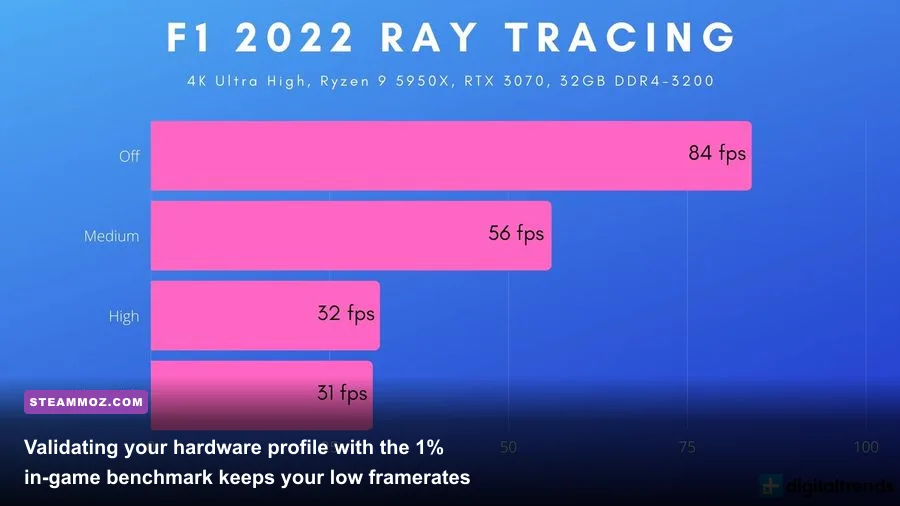
Ray tracing in F1 22 looks stunning in replays and the showroom, but in live racing, it is an absolute framerate executioner. Codemasters implemented four separate ray tracing modules: Ray-Traced Shadows, Ray-Traced Reflections, Ray-Traced Ambient Occlusion, and Ray-Traced Transparent Reflections. Activating all four features cuts your framerate by 45% to 60% on mid-range hardware and triggers noticeable frame-time spikes whenever you round street circuits with dense grandstand fences like Baku or Singapore.
Unless you are exclusively driving time trials with an RTX 4080 or better, turn all Ray Tracing features completely OFF. The standard rasterized lighting engine in F1 22 is already exceptional; turning off ray tracing guarantees rock-solid 1% lows and razor-sharp steering inputs. If you want cinematic screenshots for social media, toggle RT on in Photo Mode, but keep it strictly disabled when your wheels are turning in anger.
When it comes to anti-aliasing and image reconstruction, modern upscalers are your best friend. F1 22 natively supports Nvidia DLSS, AMD FidelityFX Super Resolution (FSR), and traditional TAA with FidelityFX Sharpening. The thin antennae, Halo safety pillars, and fine chain-link catch fencing in modern F1 tracks are notorious for shimmering under basic TAA. Here is how to select your anti-aliasing setup:
- Nvidia RTX Users: Set Anti-Aliasing to Nvidia DLSS and select Quality. At 1440p and 4K, DLSS Quality not only improves average framerates by 18% to 25%, but its temporal reconstruction cleans up fence shimmering significantly better than native TAA. Enable Nvidia Reflex low-latency technology set to "On" (or "On + Boost" if CPU-bound) to bypass render queue latency.
- AMD Radeon and Intel Arc Users: If running at 1440p or 4K, test AMD FidelityFX Super Resolution portal profiles using FSR on Quality. If you notice minor ghosting on tyre tread or rear wing endplates, switch back to TAA and FidelityFX Sharpening with the sharpening slider dialed between 50% and 65%. This eliminates edge blur without introducing harsh pixel ringing.
Wet Weather, VR, and Frame Pacing: Eliminating Stutters
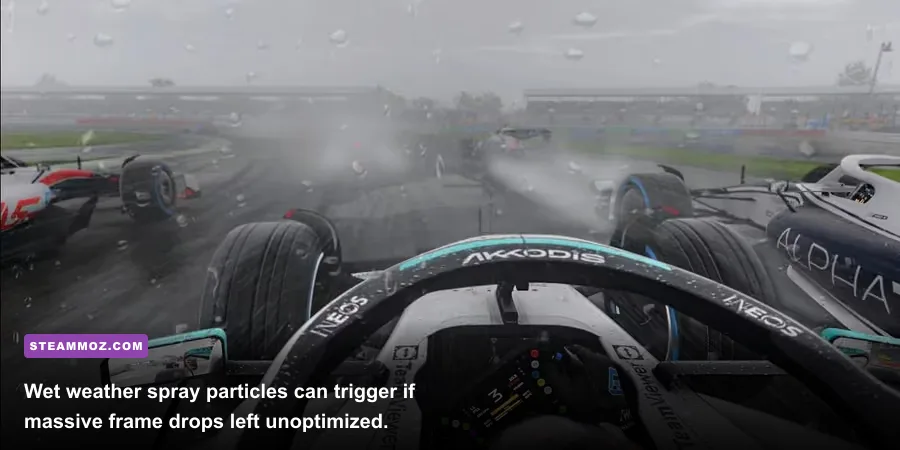
A graphics setup that runs buttery-smooth on a sunny afternoon in Bahrain can completely fall apart during a thunderstorm at Spa-Francorchamps. Wet weather introduces complex compute shaders: twenty cars generating roostertails of volumetric water spray, dynamic puddles reflecting trackside lighting, and rain droplets streaking across the cockpit visor. If your setup is already riding close to 95% GPU capacity in the dry, a wet race will tank your performance right off the cliff.
To bulletproof your setup against wet-race frame drops, prioritize dropping Particles and Screen Space Reflections to Medium. Particles directly dictate how many individual spray sprites are calculated in the air behind each car. In pack racing, having nineteen cars kicking up high-resolution water droplets will drop your framerate by 25 FPS instantly if Particles is set to Ultra High. Medium cuts the particle density while keeping the wet racing feel authentic.
For Virtual Reality sim racers, F1 22's VR integration requires deliberate management. Virtual reality demands high, completely consistent frame rates; a sudden frame drop mid-chicane will induce instant motion sickness. If you run an Oculus Quest 2/3, Valve Index, or HP Reverb G2, apply these specialized VR tweaks:
- Lock SteamVR render resolution to 100% native rather than allowing auto-supersampling.
- Drop Post Process to Low to strip screen-space bloom that looks jarring in head-mounted displays.
- Turn Crowd completely Off to maximize available CPU headroom for tracking positional sensors.
- Set Mirrors to Low; VR headsets already demand double-rendering passes, and calculating dual high-resolution rear-views will trigger heavy asynchronous reprojection. Much like strategies used for eliminating low frame rates and VR latency issues in other virtual simulations, steady frame timing trumps visual excess every time.
If you experience sudden, recurring micro-stutters during normal dry races, your operating system is likely fighting the game for memory bandwidth. Clear your DirectX Shader Cache via Windows Disk Cleanup, disable the Discord and GeForce Experience in-game overlays, and verify that Windows Game Mode is enabled. Gamers wrestling with erratic frame pacing will find that rescuing your PC from frame drops and micro-stutters often comes down to sweeping away background tasks that interrupt rendering threads.
Tuned Hardware Profiles and In-Game Benchmark Testing
Never take your graphics configuration straight into an online ranked lobby or career weekend without verifying your frame pacing first. F1 22 includes one of the best built-in benchmark tools in racing games, accessible directly from the Game Options menu. Use it to stress-test your system properly.
When configuring the benchmark, do not select a dry time trial on an empty track. Set the test circuit to Silverstone or Albert Park, configure Weather to Very Wet, and set the Session to Race (20 Cars). This forces the engine to render full particle spray, dynamic puddles, and 20 individual vehicle physics threads simultaneously. If your rig can maintain your target framerate (e.g., 60, 120, or 144 FPS) with solid 1% lows in this worst-case scenario, you can be 100% confident your framerate will never hiccup during dry qualifying laps.
| Hardware Tier | Target Resolution & FPS | Graphics Preset Strategy | Upscaling / Anti-Aliasing | Ray Tracing |
|---|---|---|---|---|
| Budget Tier (GTX 1660 Super / RX 5600 XT / RTX 3050) |
1080p @ 60–75 FPS | Medium Preset, Crowd Low, Particles Medium, SSR Low | TAA + FidelityFX Sharpening (60%) or FSR Quality | Disabled |
| Midrange Tier (RTX 3060 Ti / RTX 4060 / RX 6700 XT) |
1440p @ 100–120 FPS | High Preset, Shadows Medium, Post Process Medium, Mirrors Medium | DLSS Quality (RTX) or TAA + FidelityFX Sharpening | Disabled |
| Enthusiast Tier (RTX 3080 / RTX 4070 Ti / RX 6800 XT) |
1440p / 4K @ 144+ FPS | Custom Max: Track & Car High, Shadows Medium, SSR Medium, Lighting High | DLSS Quality (4K) or Native TAA with Sharpening | Disabled |
| Sim Rig VR Profile (RTX 3070 Ti / RTX 4080 / RX 7900 XT) |
Native Headset Res @ 90 FPS Locked | Low-Medium Mix: Post Process Low, Crowd Off, Shadows Low, Mirrors Low | Native 100% Render Scale, TAA Only | Disabled |
If you are pushing an older machine or a budget laptop, running practical tweaks for boosting frame rates on modest rigs can bridge the gap toward hitting that crucial 60 FPS threshold. You can also monitor ongoing game patches and community driver advisories directly via the F1 22 Steam store page and check server performance bulletins on EA's official F1 22 portal.
Once you implement these tuned settings, your frame delivery will transform from a jittery roller-coaster into a razor-flat line. You will read curbs cleanly, hit every apex with confidence, and react instantly to overtakes without input lag compromising your steering input. Lock in these values, hit the track, and take full advantage of smooth, high-framerate sim racing.