To lock Clash of Clans at a rock-solid 120 FPS on PC without hitching, you must flip two critical switches right away: enable the native "Higher Frame Rate" option inside the in-game settings and force the Google Play Games on PC platform (or your chosen emulator) to run on your dedicated graphics card with hardware virtualization active. Tying your monitor's high refresh rate directly to the engine eliminates the notorious camera panning stutters and sluggish touch emulation delays that ruin high-stakes Clan War League (CWL) funneling.
The Ideal Clash of Clans PC Graphics Preset Matrix
Clash of Clans was originally architected for mobile chipsets, which means the PC client relies heavily on single-thread CPU speed and efficient frame pacing rather than raw GPU compute power. However, running the game at standard mobile defaults on a desktop monitor looks muddy and caps your refresh rate at an unresponsive 60Hz. To break past this wall, you need a balanced configuration that unlocks the render pipeline while keeping background rendering stable during chaotic raids.
Unlike complex open-world titles where you constantly tune volumetric clouds or ambient occlusion—similar to the optimizations we break down in our Far Cry 6 GOTY settings for max FPS—Clash of Clans relies on 2D sprite layering, real-time particle rendering, and vector UI scaling. When an army of 80 Super Barbarians rushes into multi-target Inferno Towers and Poison Spells, frame drops happen because the renderer chokes on draw calls, not textures. Here is the definitive setup to lock down frame rates across modern gaming rigs:
| Setting Location | Feature / Setting | Recommended Value | FPS & Performance Impact | Tactical Advantage |
|---|---|---|---|---|
| In-Game (More Settings) | Higher Frame Rate | On / Enabled | Unlocks 60 FPS to 120/144 FPS | Instant feedback when placing precision wall breakers |
| In-Game (More Settings) | Screen Shake | Off | Zero FPS change (Reduces visual noise) | Keeps defenses and pathing clear under heavy mortar fire |
| Client / Emulator | Display Resolution | 2560x1440 (or 1080p native) | Low impact on modern GPUs | Sharp base details; crisp visual cues on trap triggers |
| Client / Emulator | Graphics Engine Backend | DirectX / Vulkan | 15-25% higher minimum 1% lows | Eliminates micro-freezes during Grand Warden ability triggers |
| Client / Emulator | CPU Core Allocation | 4 Dedicated Cores | Massive stability boost | Prevents stuttering when deploying hundreds of troops rapidly |
| Client / Emulator | RAM Allocation | 4096 MB (4 GB) | Prevents memory leak crashes | Maintains silky frame pacing during lengthy raiding marathons |

🎮 FORM
Looking to experience this game? Grab your digital key directly on our store for $14.99.
View on Steammoz Store →Configuring Google Play Games on PC for Maximum Throttle
Supercell officially supports Clash of Clans on desktop through Google Play Games on PC, providing a native container that runs cleaner than legacy virtualization platforms. If you haven't optimized the client, it often defaults to integrated system graphics or throttles background threads. Just like troubleshooting engine crashes in our ELEX PC crash and FPS guide, getting underneath the wrapper makes all the difference.
Start by verifying that Hardware Virtualization (Intel VT-x or AMD-V) is enabled in your motherboard BIOS. Without this active, Google Play Games translates CPU instructions through slow software emulation, which cuts your potential frame rate in half. Once in Windows, open Graphics Settings, click Browse, and navigate to the installation directory of Google Play Games (typically inside Program Files\Google\Play Games\). Select the main executable (ServiceProcess.exe and crosvm.exe) and manually set them to High Performance to force execution through your discrete Nvidia GeForce or AMD Radeon card.
Inside the Google Play Games launcher interface, head into Settings, navigate to the graphics options, and set your display to match your desktop's native resolution. If you are gaming on a 144Hz or 240Hz monitor, ensure Windows Advanced Display Settings is actually configured to that refresh rate. Clash of Clans hooks straight into the OS desktop compositor; if your Windows desktop is sitting at 60Hz, the game engine will never hit 120 FPS no matter what options you toggle inside the village menu.
BlueStacks and Third-Party Emulator Power-Tuning
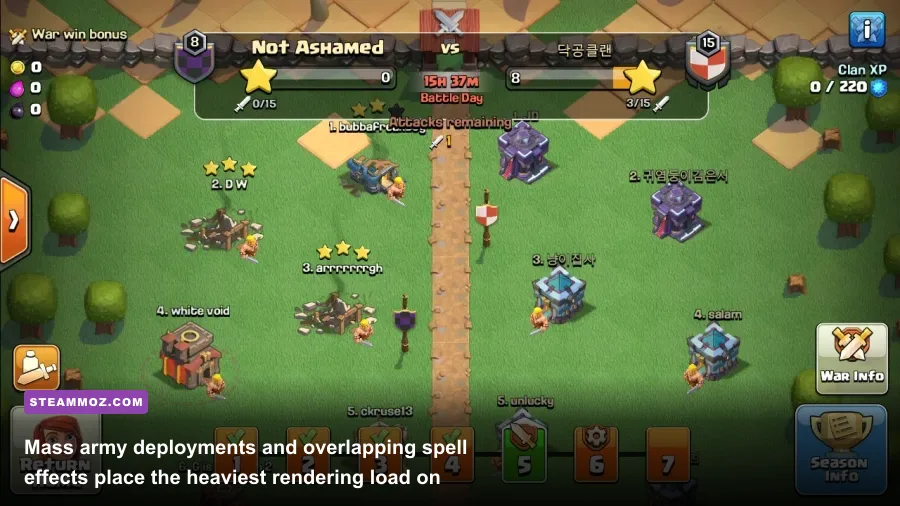
While the official client is fantastic, many veteran clashers still run third-party platforms like BlueStacks 5 or LDPlayer 9 for custom keybinds, multi-instance farming, and macro-free zoom controls. If you're running third-party software, default settings will butcher your frame pacing. You must tune the emulator engine directly to handle Town Hall 15 and 16 war attacks without dropping below the magical 120 FPS barrier, a discipline familiar to anyone who followed our breakdown of Filament Marmalade Edition settings for higher FPS.
First, open your emulator's engine settings. Switch your Graphics Engine Mode to Compatibility and the Graphics Renderer to DirectX if you are running an Nvidia card, or Vulkan if you are on modern AMD hardware. Avoid standard OpenGL here—OpenGL handles multi-layered transparency effects poorly during double Rage Spell and Overgrowth Spell overlaps, resulting in sudden frame dips down to 40 FPS. Set your Interface Renderer to Software to stop mouse-cursor hitching, and turn ASTC Textures completely off to save memory overhead, since Clash of Clans does not utilize heavy ASTC compressed texture maps.
Next, dive into the Performance tab. Manually allocate 4 CPU cores and set memory allocation to High (4GB). Scroll down to the Frame Rate section, check Enable High Frame Rates, check Enable V-Sync (or leave it unchecked if you use G-Sync/FreeSync at the driver level), and drag the FPS slider to 120 or 144. Do not crank the slider all the way to 240 FPS unless you run a top-tier CPU; over-polling the Supercell engine introduces frame time jitter, which feels choppier than a locked 120 FPS presentation.
Driver-Level Optimization: Nvidia and AMD Control Panel Tweaks
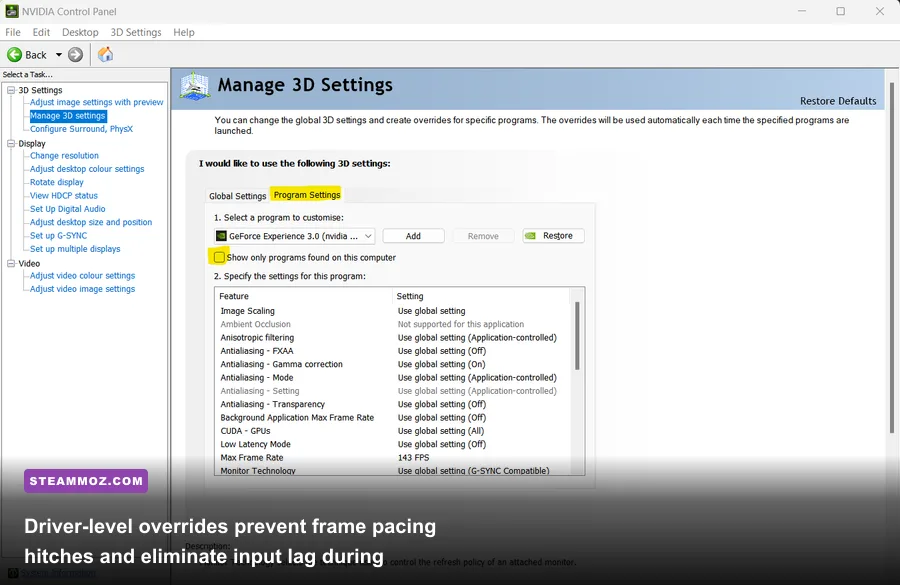
Even with the game client configured, your GPU driver settings dictate how frames are delivered to your display. Mobile titles ported to PC are notorious for poor frame delivery scheduling. Windows will try to drop your GPU clock speeds down to idle states because it assumes Clash of Clans is a lightweight spreadsheet or browser app, causing immediate micro-stutters whenever you switch from checking your base to zooming into a live clan attack.
To eliminate these pacing issues, configure driver profiles specifically for your emulation or Google Play Games executable. If you've tackled stutter-heavy ports using our EscapeVR The Basement low FPS fixes, the strategy here operates on identical principles. Open your GPU control panel and apply the values outlined in the optimization breakdown below:
| Driver Setting (Nvidia / AMD) | Target Configuration | Why It Matters for Clash of Clans |
|---|---|---|
| Power Management Mode | Prefer Maximum Performance | Keeps GPU clocks locked; prevents down-clocking stutters during menus |
| Low Latency Mode / Anti-Lag | On (or Ultra) | Reduces input queue delay between mouse clicks and troop drop execution |
| Max Frame Rate | Matched to Monitor (e.g., 120 or 141) | Stabilizes frametimes and prevents erratic CPU thread spikes |
| Threaded Optimization | On | Forces the driver to utilize multi-core scheduling for emulator draw calls |
| V-Sync (Driver Level) | Fast (Nvidia) / Enhanced Sync (AMD) | Tears away screen tear lines without adding nasty input latency |
For AMD Radeon users, navigate to the Radeon Software Gaming tab, locate your Clash of Clans environment, and switch on Radeon Anti-Lag. Keep Radeon Boost and Radeon Image Sharpening turned off; vector-based UI assets and font glyphs inside Supercell games can render strange halo artifacts around text bubbles and troop health bars when synthetic sharpening filters are applied.
Fixing Zoom Lag, Micro-Stutters, and War Attack Spikes
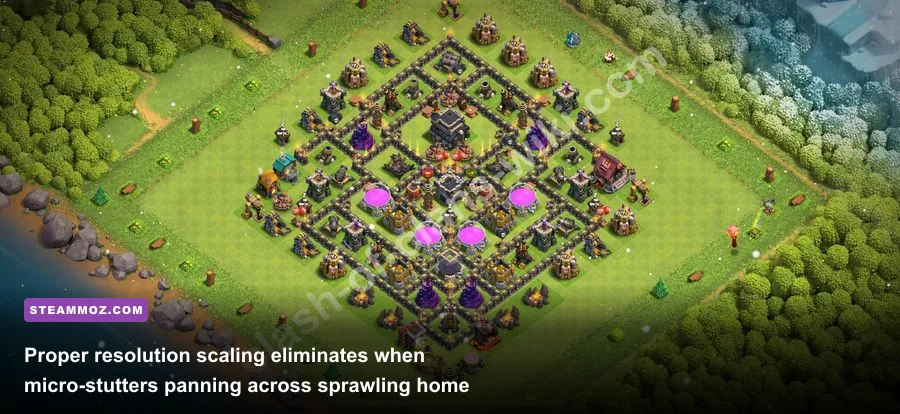
One of the most frustrating performance hurdles on PC is mouse-wheel zoom hitching. When you pull the camera back to view an entire base during a war scout, the engine suddenly processes hundreds of animated asset models at once—including moving builder huts, flowing elixir streams, and hero patrol paths. If your frame rate tanks during zooming, you are suffering from asset streaming bottlenecks rather than pure GPU limitations, a situation we also see in massive simulations analyzed in our Everspace 2 performance troubleshooting.
To clean up zoom hitching, disable Windows Game Bar and background video capture (DVR). Windows often flags emulator windows as non-game applications and fails to assign high-priority CPU cycles through Game Mode. Open your Windows Settings, go to Gaming, and verify that Game Mode is toggled On. However, jump into the Captures tab and turn off background recording completely. Background recording constantly polls the display surface, stealing precious render headroom from single-core emulator processes.
Finally, check your High DPI settings if you play on a 1440p or 4K panel. Right-click the shortcut for your client, select Properties, jump to the Compatibility tab, and click Change high DPI settings. Check the box to Override high DPI scaling behavior and set it to Application. This stops Windows from applying blurry desktop scaling algorithms over the client, giving you razor-sharp asset rendering and eliminating the frame pacing jitters that plague default desktop scaling.
With these hardware allocations, graphics overrides, and driver limits locked in, Clash of Clans delivers an exceptionally responsive, fluid experience on PC. Your troop drops will deploy with zero input latency, spell circles will appear the instant you click, and 120 FPS clan attacks will stay silky smooth from the initial Queen Walk down to the final cleanup building.