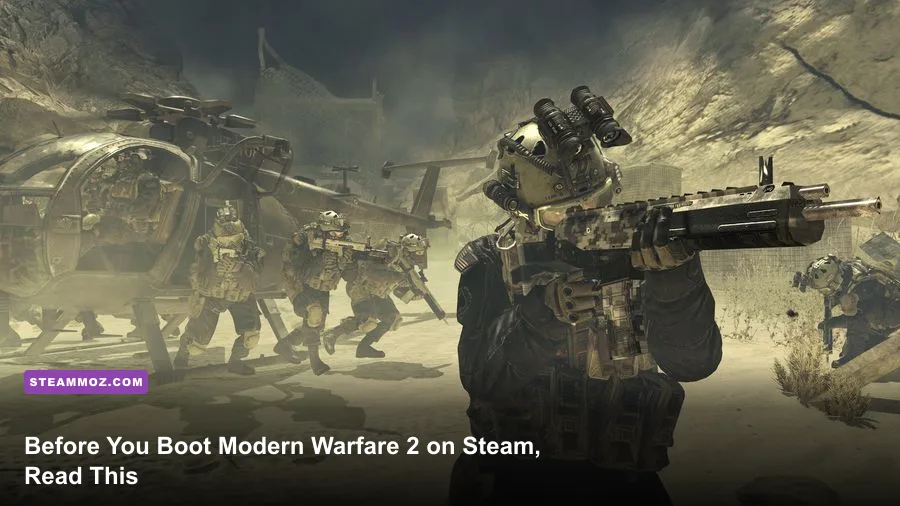
Dropping into Modern Warfare 2 on Steam isn't as simple as clicking "Play" and trusting default settings to deliver a flawless experience. Between Call of Duty HQ's massive storage footprint, mandatory background shader compilation that chokes your CPU if rushed, and a radically redesigned Gunsmith receiver system, jumping in blind will cost you frames, time, and gunfights. Before you queue up for your first 6v6 match, you need to understand how Steam handles the game's launcher ecosystem, how to tame aggressive recoil patterns, and which PC-specific settings keep you from becoming easy pickings.
The Steam HQ Hurdle and Shader Optimization
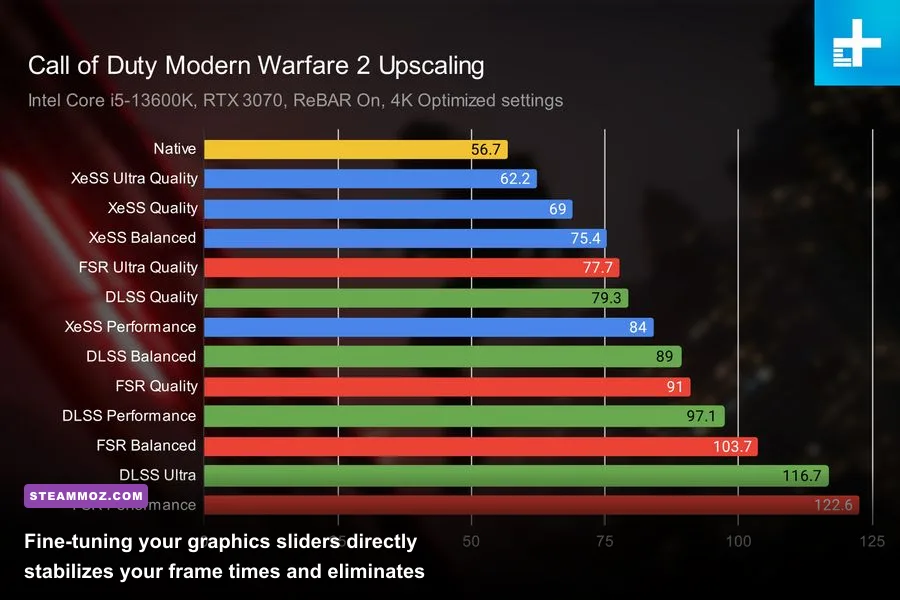
When you install the game through the official Modern Warfare 2 Steam store page, you aren't just downloading a self-contained executable; you're installing the Call of Duty HQ launcher hub. This brings two major hurdles right out of the gate: astronomical storage demands and initial shader compilation. Never hit matchmaking the second you launch the game. Look at the top-left corner of your main menu and wait until the "Compiling Shaders" progress bar hits 100%. If you jump into multiplayer or the firing range while shaders are caching, you will encounter brutal hitching, frame drops from 140 FPS down to 20 FPS, and visual artifacts that ruin gunfights.
Storage management is equally vital. By default, Steam might queue campaign packs, multiplayer modules, and cooperative assets you don't even plan to play immediately. Head into your Steam Library, right-click the game, select Properties > DLC, and uncheck any content packages you won't touch to reclaim dozens of gigabytes. If you've run into stability headaches in other demanding PC titles like our breakdown of ELEX PC fixes that stop crashes or troubleshooting EscapeVR crashing and low FPS issues, you already know that keeping background overhead low is half the battle on Steam.
| Graphics Setting | Competitive Value | FPS Impact | Tactical Advantage |
|---|---|---|---|
| Display Mode | Exclusive Fullscreen | Negligible | Minimizes input latency and prevents desktop compositing lag. |
| Upscaling / Sharpening | AMD FidelityFX CAS (75–80%) | +3% to +5% | Delivers crisp edge clarity without the visual blurring of aggressive DLSS. |
| Video Memory Scale | 80% (or 70% if streaming) | Prevents Spikes | Stops VRAM allocation crashes and micro-stuttering on high-refresh monitors. |
| Spot Cache | Ultra / High | VRAM Heavy | Eliminates stuttering when explosions or muzzle flashes ignite nearby. |
| Particle Quality | Low | +8% to +12% | Prevents catastrophic frame dips inside heavy smoke grenades and thermite. |
Mastering the Weapon Platform Receiver System
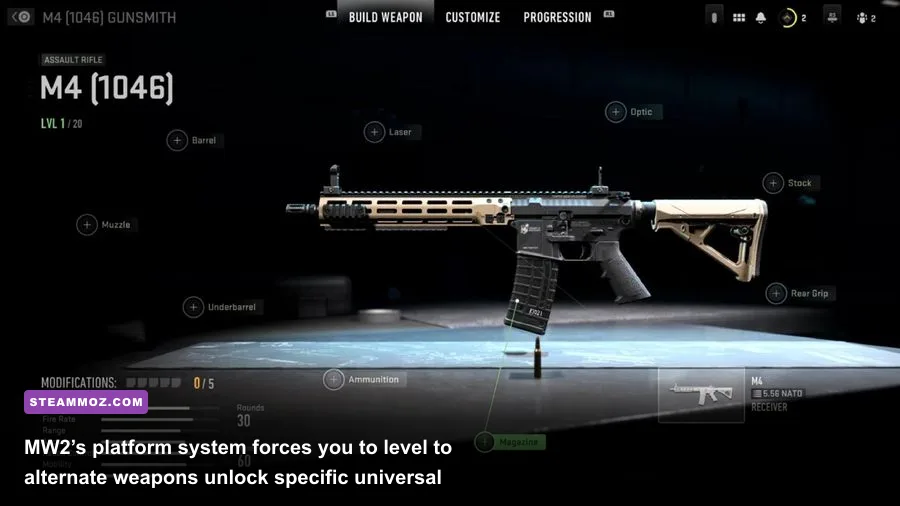
The weapon progression loop in Modern Warfare 2 diverges wildly from classic titles. In past iterations, leveling an assault rifle meant unlocking sights, grips, and barrels strictly for that single firearm. MW2 utilizes the "Weapon Platform" (or Receiver) tree. If you want a specific red dot sight or a high-handling stock for your primary rifle, you might have to level an entirely different submachine gun, battle rifle, or LMG within that platform tree to earn it.
For example, running the standard M4 assault rifle unlocks the FTAC Recon battle rifle receiver at weapon level 13, which subsequently branches into the 556 Icarus LMG, the M16 burst rifle, and the FSS Hurricane SMG. Crucially, universal attachments—such as suppressors, optics, and foregrips—become accessible across multiple platforms once unlocked on a parent weapon. Trying to build a laser-accurate loadout requires looking ahead at unlock prerequisites in Gunsmith rather than blindly grinding a single gun. Much like setting up a lethal inventory in our analysis of Far Cry 3: Blood Dragon weapons ranked from S to C, knowing your unlock path ahead of time prevents dozens of wasted hours.
| Weapon Platform | Starter Firearm | Key Receivers to Unlock | Why You Need to Level It |
|---|---|---|---|
| M4 Platform | M4 (Assault Rifle) | FTAC Recon, FSS Hurricane, 556 Icarus | Unlocks meta low-recoil assault barrels and the 50-round Hurricane SMG. |
| Kastovia Platform | Kastov 762 (Assault Rifle) | Kastov 545, Kastov-74u, Minibak | The Kastov-74u hits like a truck up close; unlocks essential Russian heavy muzzle brakes. |
| Lachmann & Meer | Lachmann-762 (Battle Rifle) | Lachmann-556, Lachmann Sub (MP5) | Grinding the semi-auto battle rifle is painful, but the Lachmann Sub is an S-tier close-range powerhouse. |
| Tactique Verte | TAQ-56 (Assault Rifle) | TAQ-V (Battle Rifle), TAQ-M (Marksman) | The TAQ-56 boasts minimal horizontal recoil and consistent three-to-four-shot kill ranges. |
Taming Visual Clutter and PC Graphics Settings
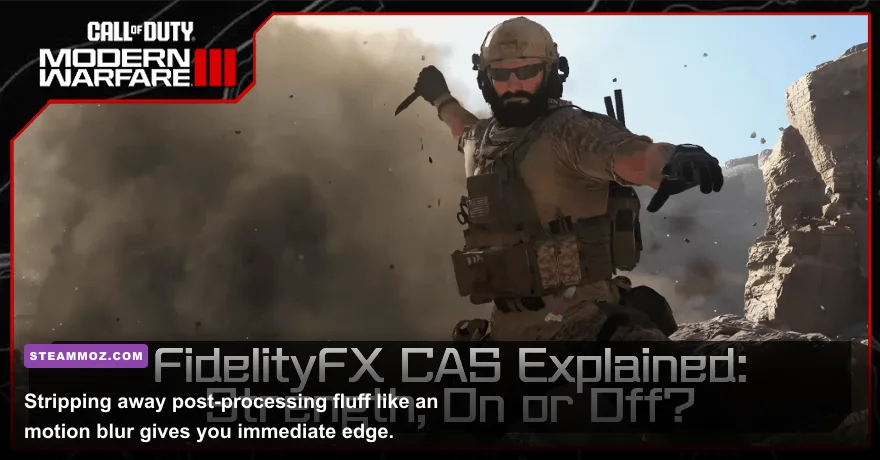
Modern warfare is chaotic, but MW2’s default visual settings make it unnecessarily hard to spot enemy operators. The default presentation layers heavy cinematic post-processing on top of gameplay, creating visual noise that masks opponents camping in dark corners. As soon as you open the Graphics menu, immediately disable both World Motion Blur and Weapon Motion Blur. Leaving these enabled introduces smeared frames every time you snap your crosshairs to clear a doorway.
Next, dial your Film Grain down to 0.00 and set Depth of Field to Off. You want instant, sharp edge definition across your entire display. Under the View tab, adjust your Field of View (FOV). While console versions of older games locked you at an agonizing 80 FOV, MW2 on Steam supports up to 120 FOV. However, cranking it all the way to 120 introduces a noticeable fisheye distortion that shrinks distant targets to pinpricks. The sweet spot for competitive play on standard 16:9 PC monitors is between 100 and 105 FOV, paired with ADS Field of View set to Affected. This prevents your screen from abruptly zooming in and altering your visual recoil muscle memory when you aim down sights.
If you're hunting for every single drop of frame stability on mid-range hardware, similar to our performance breakdown in Far Cry 6 settings for maximum FPS and optimizations found in Filament settings for higher FPS, drop Shadow Map Resolution to Normal or Low and turn Ambient Occlusion completely Off. These visual trims can easily recover 15 to 25 FPS without compromising your ability to spot targets across the map.
Audio Mix and Footstep Tracking Tweaks
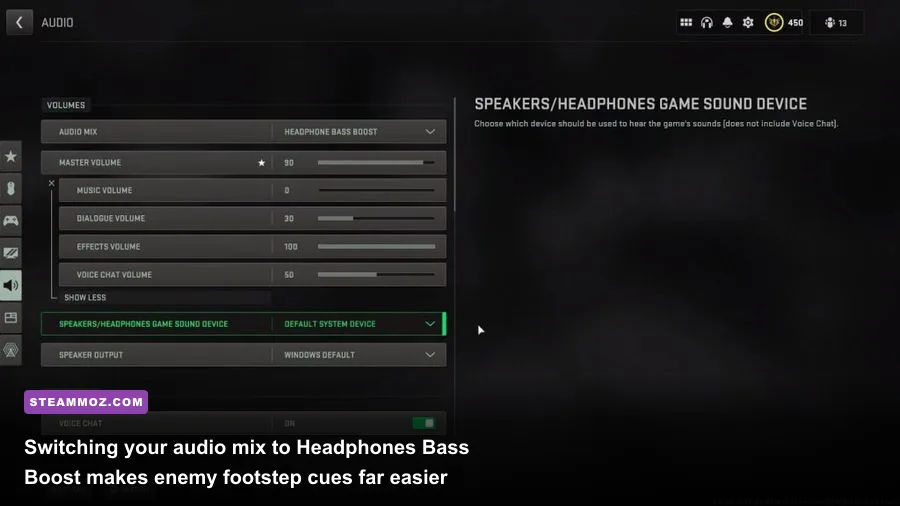
Audio cues are your primary lifeline in MW2, but the default sound profile favors thunderous explosions and soaring orchestral music over the quiet clatter of sprinting footsteps. Navigating to the Audio tab is mandatory before your first match. Change your Audio Mix preset to Headphones Bass Boost. This specific EQ profile raises the low-to-mid frequencies associated with boot treads striking concrete, metal catwalks, and wooden floorboards.
After locking in the mix, trim the clutter from your sliders:
- Master Volume: Set to your comfortable ceiling (e.g., 70–80%).
- Music Volume: Drop this to 0%. Mid-round orchestral stingers only serve to drown out critical reload sounds and defuse attempts.
- Dialogue Volume: 30% to 40%. You only need it loud enough to hear your operator call out incoming killstreaks.
- Effects Volume: 100%. This is where gunshots, equipment clinks, and footfalls live.
- Reduce Tinnitus Sound: Turn this ON. When flashbangs inevitably explode near your face, this setting swaps out the ear-piercing high-frequency ringing for a subdued dull hum.
Check the official patch notes and system advisories hosted on Activision Support if you encounter crackling sound buffers—this is usually tied to high audio bitrates inside Windows Sound Control Panel.
Movement Mechanics: Adapting to the Slower Tactical Pace
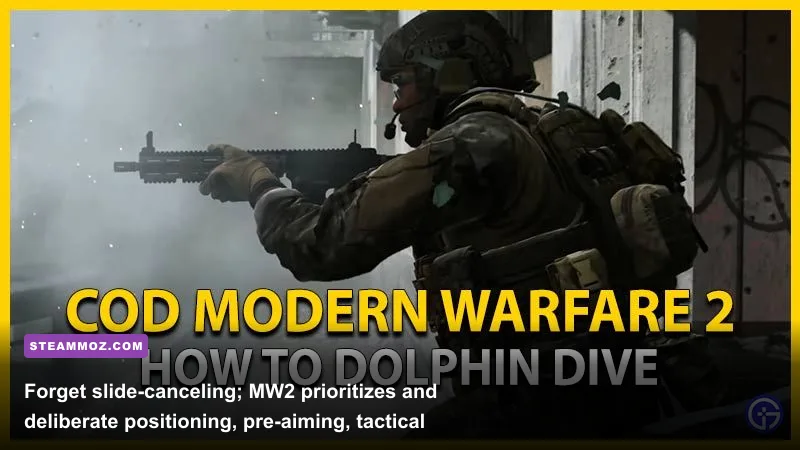
If you are coming straight from 2019's Modern Warfare or original Warzone sessions, discard your muscle memory immediately. Slide-canceling as an infinite sprint-reset mechanism is dead in MW2. Initiating a slide locks you into a fixed animation arc during which you cannot fire your weapon until the slide concludes. Sliding out of cover around corners without ADS pre-aiming is essentially handing free kills to whoever is anchoring the lane.
Instead, your defensive repositioning tool of choice is the Dolphin Dive. By pressing the crouch key while in a full tactical sprint, your operator vaults forward into a flat prone stance. This covers ground quickly, clears open sightlines under sniper pressure, and tucks your hitbox behind low cover like concrete barriers or window ledges. When clearing tight corners, focus on "slicing the pie"—walking slowly while aiming down sights rather than relying on sprint-out speeds. Sprint-to-fire delays in MW2 are significantly harsher across all weapon classes, giving stationary, pre-aimed defenders an inherent Time-to-Kill (TTK) advantage.
Controller Aim Assist vs Raw Mouse Input on Steam
One of the biggest surprises for Steam players is the sheer dominance of controller input in MW2. Infinity Ward built an extraordinarily strong Rotational Aim Assist system into the game engine. Unlike traditional slow-down aim assist that merely lowers your sensitivity when hovering over a target, rotational aim assist actively adjusts your aim to track moving enemies the moment your left analog stick registers movement (strafe tracking). For mouse-and-keyboard purists, tracking enemies through muzzle smoke and screen bounce requires relentless micro-adjustments that controller players can bypass with simple directional strafing.
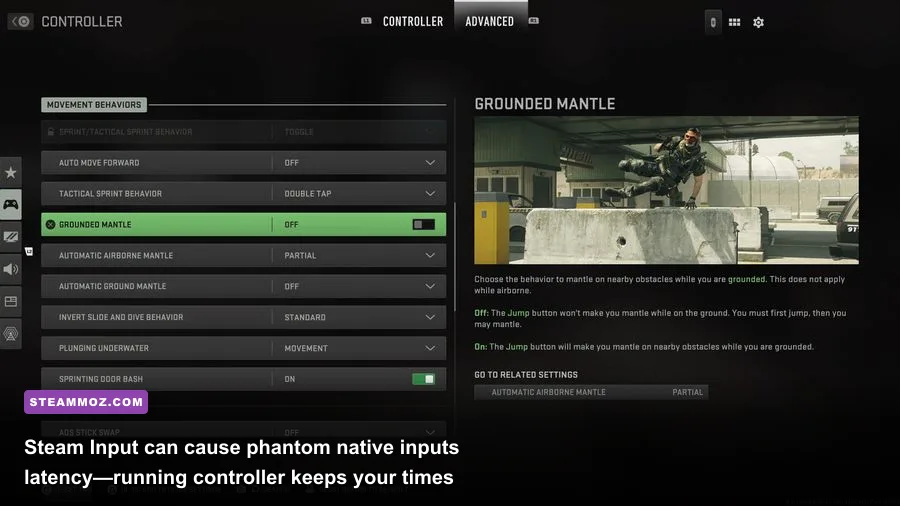
If you choose to play on a controller via Steam, you must watch out for Steam Input conflicts. Modern Warfare 2 natively supports Xbox controllers, PlayStation DualShock 4, and DualSense controllers via direct XInput. When Steam Input is left enabled in the game’s Steam properties, it can introduce 5 to 10 milliseconds of input lag or trigger phantom double-button activations inside Gunsmith menus. Right-click Modern Warfare 2 in your Steam library, head to Properties > Controller, and select Disable Steam Input. Let the in-game options menu handle your button mapping, stick deadzones, and dynamic response curves directly. Keeping your peripheral inputs clean ensures that every reflex flick lands exactly where you intend.