
Architect Life - Architect's Home Office uses the same PC requirements as the main Architect Life: A House Design Simulator package, so you don't need a separate high-end machine just for the Home Office content. The practical target is an Intel Core i5-8400 or AMD Ryzen 5 2600, 8GB of RAM, and a GTX 1060 6GB or Radeon RX 580. For smoother 1080p play while designing busy rooms and exteriors, aim for an Intel Core i7-9700 or Ryzen 7 3700X, 16GB of memory, and an RTX 2070 Super or Radeon RX 5700 XT.
That distinction matters. Architect's Home Office isn't a standalone game with its own independent hardware profile; it's additional design content inside Architect Life. The extra desks, storage units, computers, lighting pieces, and decorative objects can increase scene complexity, but they don't replace the base game's published requirements. If your PC runs the main simulator properly, it should be ready for the Home Office content too.
Before buying, check the official Steam listing for Architect Life because publishers can revise requirements after patches. For context on the game and its release support, the official Nacon page is also worth bookmarking.
Architect Life minimum and recommended PC specs
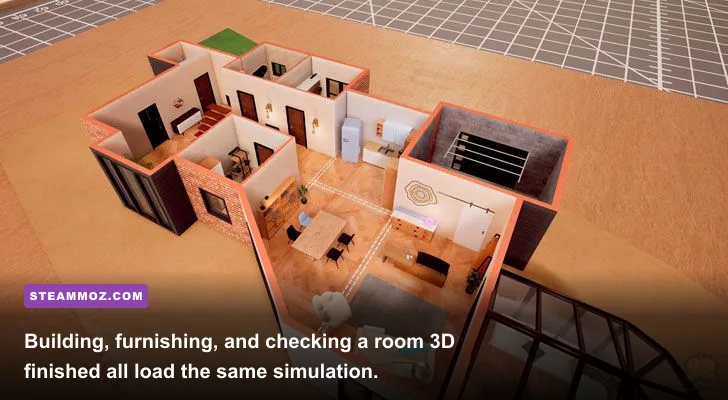
The minimum specification is best treated as a floor, not a promise of locked 60fps. A GTX 1060 6GB and RX 580 remain capable 1080p cards, but they are now older GPUs, and simulation games often become heavier when a single lot contains many objects. Architect Life asks your system to render a complete 3D space while also handling construction tools, lighting, furniture placement, and a camera that can move from a small room to a broader property.
The recommended tier gives you much more breathing room. The RTX 2070 Super and RX 5700 XT are a comfortable match for 1080p at high settings and can usually cope better with dense interiors. The processor recommendation is just as important as the graphics card. A busy house isn't only a GPU problem: object updates, placement tools, pathing, simulation logic, and save operations can all lean on the CPU.
| Component | Minimum | Recommended | What it means |
|---|---|---|---|
| Operating system | Windows 10 64-bit | Windows 10 64-bit | Use a current 64-bit Windows installation with updates applied. |
| Processor | Intel Core i5-8400 / AMD Ryzen 5 2600 | Intel Core i7-9700 / AMD Ryzen 7 3700X | The recommended CPUs provide better headroom in object-heavy builds. |
| Memory | 8GB RAM | 16GB RAM | 16GB is safer when the game, browser, Discord, and recording tools are open. |
| Graphics | GeForce GTX 1060 6GB / Radeon RX 580 | GeForce RTX 2070 Super / Radeon RX 5700 XT | Dedicated GPUs are strongly preferable for stable 1080p rendering. |
| DirectX | DirectX 12 | DirectX 12 | Keep your GPU driver and Windows DirectX components current. |
| Storage | 15GB available space | 15GB available space | An SSD is not always mandatory, but it makes loading and saves feel less sluggish. |
One useful warning: matching the minimum GPU does not compensate for having only 8GB of system memory if your everyday setup is crowded. Windows, Steam, a browser, Discord, and an overlay can consume several gigabytes before the game loads. If your RAM usage is already close to full, you'll see stutters during scene transitions and potentially longer waits when loading a large project.

🎮 Architect Life - Architect's Home Office
Looking to experience this game? Grab your digital key directly on our store for $2.09.
View on Steammoz Store →What the Home Office content changes for performance

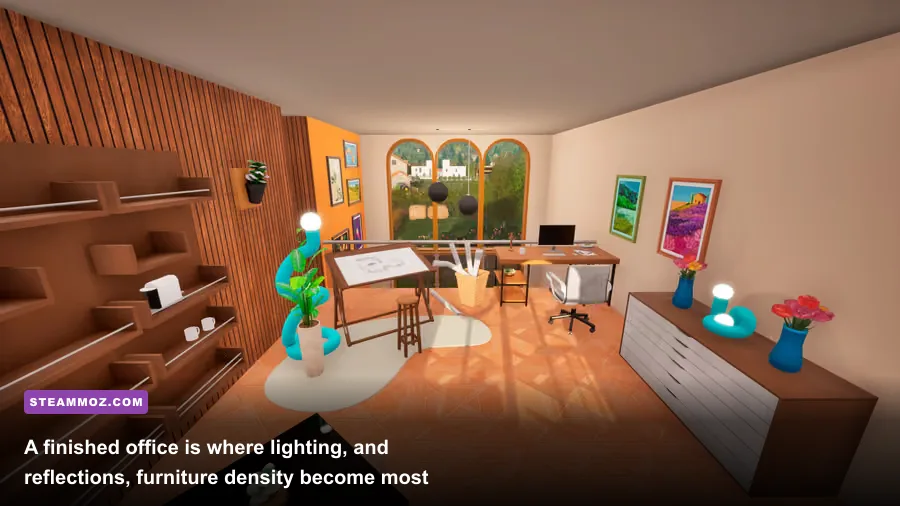
A home office sounds lighter than a full house, but a carefully decorated workspace can still be surprisingly busy. Desks, monitors, desk lamps, shelving, plants, books, cabinets, wall art, and small props all contribute to the rendered scene. The individual object cost is modest; the combined cost appears when you fill a room, add several light sources, and view the space from a wide angle.
Architect Life's performance curve is therefore less about the number of rooms alone and more about density. A bare shell may run comfortably on a borderline machine, while a finished office with reflective surfaces and multiple light sources can expose GPU limits. Exterior views can be heavier still because the camera sees more geometry and environmental detail at once.
The Home Office pack shouldn't be interpreted as requiring an RTX-class card by itself. Think of it as a stress test for the base game's recommended hardware. If you are buying a PC specifically to play and create detailed projects, the recommended specification is the sensible starting point rather than an extravagant upgrade.
| Build situation | Main performance pressure | Likely hardware limit | Best adjustment |
|---|---|---|---|
| Empty room shell | Basic geometry and camera movement | Usually CPU or neither | Keep native 1080p and test your baseline frame rate. |
| Furnished home office | Object count, shadows, and lighting | GPU memory and shader load | Reduce shadows before lowering texture quality. |
| Large finished property | Visible geometry and simulation updates | CPU and GPU together | Use a sensible frame cap and close background applications. |
| High-resolution monitor | More pixels per frame | GPU fill rate and VRAM | Use 1440p selectively or enable a lower internal resolution if available. |
There is no competitive advantage to chasing extremely high frame rates here. A stable 60fps makes room placement and camera navigation feel clean; a fluctuating 90fps that collapses whenever you enter a decorated office feels worse. That makes frame pacing more valuable than a flashy peak number.
Best Architect Life graphics settings for minimum PCs
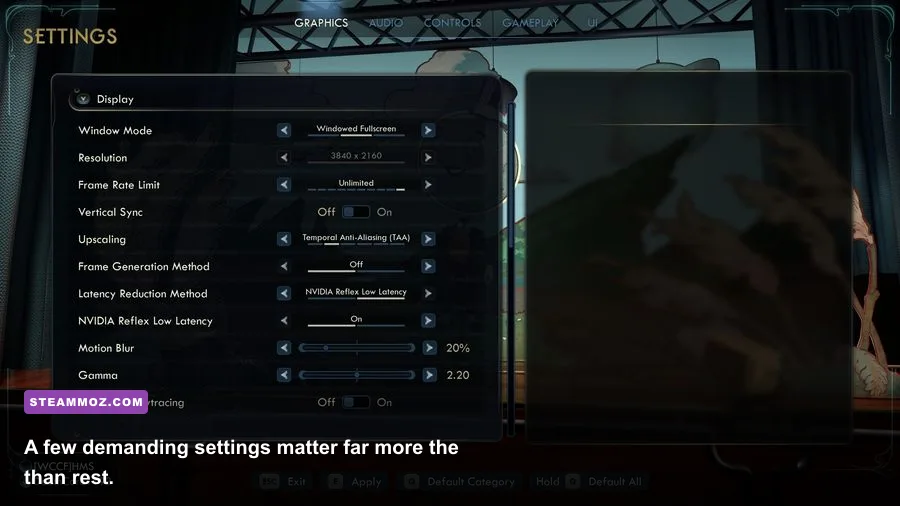
If your computer sits around the minimum specification, start with 1920x1080, a 60fps cap, medium textures, low-to-medium shadows, and ambient occlusion disabled or set low. Textures are often the setting worth preserving because lowering them makes furniture and architectural surfaces look muddy without always delivering a dramatic performance gain. Shadows and post-processing usually produce the cleaner trade.
Run your test in the same kind of scene you actually care about. A newly generated plot can mislead you into thinking the game is faster than it is. Place several office objects, rotate around the room, then switch to an exterior view. Watch for sudden drops rather than judging performance from the highest number shown by an overlay.
| Setting | Minimum-PC value | Recommended-PC value | Performance impact |
|---|---|---|---|
| Resolution | 1920x1080 | 1920x1080 or 2560x1440 | High; resolution scales every rendered pixel. |
| Texture quality | Medium | High | Moderate VRAM impact; usually a better visual upgrade than extra shadows. |
| Shadow quality | Low or Medium | High | High in furnished and exterior scenes. |
| Ambient occlusion | Off or Low | Medium or High | Moderate; improves contact depth around furniture and corners. |
| Reflections | Low | Medium | Moderate to high in glossy offices and rooms with many surfaces. |
| Anti-aliasing | Medium | High | Low to moderate, depending on the selected method. |
| Effects and post-processing | Low | Medium | Moderate; lower this if camera movement causes spikes. |
| Frame limit | 60fps | 60fps or monitor refresh rate | A cap can improve consistency and reduce needless GPU load. |
If your GPU has only 4GB of VRAM, resist the temptation to push texture quality to maximum. The published minimum calls for a GTX 1060 with 6GB, and that memory buffer is relevant when detailed assets fill the camera view. Stutters caused by asset swapping are more annoying than slightly softer surfaces.
For more PC troubleshooting ideas, our guides to Fear Collection crashes and low FPS and Grow: Song of the Evertree performance settings cover the same useful basics: verify files, update drivers, disable conflicting overlays, and test one graphics option at a time.
Recommended settings for smoother 1080p and 1440p

With the recommended CPU, 16GB RAM, and an RTX 2070 Super or RX 5700 XT, start at 1080p high. That profile should leave enough headroom for a detailed Home Office build without turning every shadow into a frame-rate gamble. If the image is stable, move to 1440p before experimenting with ultra-quality effects. Resolution is the most obvious upgrade on a sharper monitor, but it also taxes the GPU consistently.
1440p is realistic on recommended hardware, but don't treat the recommended line as a guarantee of a fixed number in every scene. A large property with a wide exterior view is a tougher test than a compact office. If performance falls, lower shadows and reflections first, then ambient occlusion. Keep textures high unless the game reports VRAM pressure or you see asset streaming stutter.
CPU-bound dips need a different response. Lowering resolution won't fix a processor struggling to update a dense scene. Close background applications, cap the frame rate, and avoid leaving several heavy programs active while designing. Windows Game Mode can help consistency, but it won't transform a below-spec CPU into the recommended Ryzen 7 3700X.
| Target profile | Resolution | Quality starting point | Practical goal |
|---|---|---|---|
| Minimum hardware | 1080p | Low/Medium mix | Stable 30-60fps, depending on scene density. |
| Recommended hardware | 1080p | High | Consistent 60fps in most design scenarios. |
| Recommended hardware with a 1440p display | 1440p | High with reduced shadows if needed | Sharper image with a sensible 45-60fps target. |
| High-end modern PC | 1440p or 4K | High/Ultra where available | Prioritize stable frame pacing over maximum preset branding. |
The RTX 2070 Super's extra rendering headroom also helps with higher-quality ambient occlusion and reflections, two effects that make offices feel less flat. Still, these are luxury settings. The design tools, camera, and furniture workflow remain the same if you turn them down, so protect responsiveness first.
SSD, RAM, drivers, and upgrade priorities
The 15GB storage requirement is small by modern standards, but installing Architect Life on an SSD is still the better move. An SSD won't directly raise your average FPS, yet it can reduce loading friction and make project-heavy sessions feel less interrupted. Keep some free space on the drive rather than filling it to the final gigabyte.
RAM is the easiest upgrade to explain. Eight gigabytes may launch the game, but 16GB is the comfortable baseline for a modern Windows gaming PC. It also gives you room to keep a browser open for design inspiration, Discord for co-op chatter, or OBS for recording without pushing the system into aggressive memory swapping.
CPU and GPU upgrades should follow your actual bottleneck. If lowering resolution barely changes your frame rate in a crowded build, the CPU is probably limiting the scene. If the frame rate jumps immediately when you lower resolution or shadows, the GPU is carrying the problem. Use a monitoring overlay to check utilization, temperatures, VRAM, and RAM instead of guessing.
Before troubleshooting, install the latest stable graphics driver, verify the game's files through Steam, and let shader compilation finish if the game performs it after an update. Avoid stacking several unofficial tweaks at once. That makes it impossible to tell whether a driver change, overlay, or graphics option fixed the issue.
Our dedicated Architect Life crashing and low-FPS fixes guide is the natural next step if the Home Office content stutters, freezes, or refuses to launch. You can also compare the workflow with our Formido PC performance guide and Knightica troubleshooting guide.
Can your PC run Architect's Home Office?
Yes, if it meets the published Architect Life minimums, but expect to tune settings rather than blindly selecting the highest preset. A modern laptop with integrated graphics may launch other simulation games comfortably and still struggle here because the minimum target specifically names dedicated GTX 1060 or RX 580-class hardware. Check your exact GPU model, VRAM, CPU generation, and RAM amount before purchasing.
The best value target is the recommended specification: a six- to eight-core modern processor in the i7-9700 or Ryzen 7 3700X class, 16GB RAM, and an RTX 2070 Super or RX 5700 XT equivalent. That combination gives the Home Office content enough room for detailed furnishing, smooth camera movement, and high-quality lighting at 1080p.
In short, Architect's Home Office is demanding in the way a design simulator should be: dense scenes, lots of objects, and a camera that constantly exposes the whole room. The minimum PC can handle the project with sensible compromises. The recommended PC is where the experience stops feeling like a technical negotiation and lets you concentrate on the fun part—turning an empty shell into an office that actually looks lived in.
For official updates, check the publisher's Architect Life information and the game's Steam system requirements before making an upgrade decision. Requirements can change with patches, but the rule remains simple: 16GB RAM, an SSD, and a recommended-tier dedicated GPU are the safest setup for a smooth Home Office build.