If Arcade Spirits keeps crashing, stuttering, or running below a stable 60 FPS on PC, start with Steam file verification, disable overlays, and launch the game at a sensible desktop resolution. Because Arcade Spirits is a 2D, dialogue-heavy Unity visual novel rather than a demanding 3D game, serious performance problems usually point to corrupted files, compatibility conflicts, display scaling, overlays, or a badly behaved driver—not a weak graphics card.
The fixes below are ordered from safest to most disruptive. Test the game after each major change, and don't delete local data until your saves are backed up. The goal isn't to force extreme graphics settings; it's to identify the process interrupting Arcade Spirits and give the game a clean, predictable Windows environment.
Check the game and Steam installation first
Before touching drivers or Windows compatibility modes, confirm that the installation is intact. Arcade Spirits is distributed through Steam, and a failed download, interrupted update, or damaged Unity asset can produce an immediate crash after the splash screen. It can also create odd symptoms such as missing portraits, a black window, or a crash only when a particular story scene loads.
Verify Arcade Spirits files
- Open Steam and select Library.
- Right-click Arcade Spirits, choose Properties, then open Installed Files.
- Click Verify integrity of game files and wait for Steam to finish.
- Restart Steam completely, then launch the game from the Library rather than an old desktop shortcut.
Steam may report that one or more files were reacquired. That isn't automatically bad news; Unity games often replace a damaged or modified file during this process. If verification repeatedly finds the same file, check whether antivirus software is quarantining it, and avoid installing the game inside a folder controlled by aggressive ransomware protection.
Also remove experimental launch options. In Steam, open Properties and leave Launch Options empty unless you are testing a specific command. Old flags copied from another Unity game can force an incompatible renderer or resolution. Arcade Spirits doesn't need a performance command to run correctly.
| Check | What to do | Why it matters |
|---|---|---|
| Game files | Run Steam verification | Repairs missing or corrupted Unity assets |
| Launch options | Remove untested commands | Prevents forced resolution or renderer conflicts |
| Install location | Check antivirus exclusions | Stops security software blocking game files |
| Steam client | Restart it fully | Refreshes downloads, overlays, and cloud status |
For the official store listing and current platform information, use the Arcade Spirits Steam page. It is also worth comparing your setup with Steam's listed requirements rather than assuming that a modern GPU guarantees perfect compatibility.

🎮 Arcade Spirits
Looking to experience this game? Grab your digital key directly on our store for $1.99.
View on Steammoz Store →Stop startup crashes caused by Windows conflicts
When Arcade Spirits crashes before the main menu, the most useful clue is timing. A crash instantly after launch usually suggests a file, permission, overlay, or display-mode problem. A crash after the menu appears points more often to a specific save, scene, resolution switch, or background hook. Treat those as different problems instead of applying every fix at once.
Run a clean launch test
First, close Discord, GeForce Experience, AMD Adrenalin's overlay, MSI Afterburner/RivaTuner, Xbox Game Bar, Overwolf, and any screen-recording tool. These programs inject overlays into games, and a visual novel has no meaningful need for them. Restart Windows after closing them so a stuck overlay DLL is unloaded.
Next, right-click the Arcade Spirits executable inside the game's installation folder and open Properties. Under Compatibility, test Run this program as an administrator only if the game cannot save settings or closes with an access-related error. Administrator mode isn't a universal crash cure and can create a mismatch with Steam Cloud, so turn it off again if it changes nothing.
Windows compatibility mode is worth testing on older installations, but use it as a controlled experiment. Try Windows 7 compatibility first, launch the game, and see whether the crash disappears. If it does not, return to normal mode. Don't combine compatibility mode, forced DPI scaling, administrator privileges, and several launch flags simultaneously; you won't know which setting helped.
Fix high-DPI and fullscreen behavior
On a 1440p or 4K monitor, Windows display scaling can make older Unity interfaces behave badly during fullscreen transitions. In the executable's Compatibility settings, select Change high DPI settings, enable Override high DPI scaling behavior, and test Application. This can prevent a blurry or oversized window, though it isn't necessary on every system.
If the game crashes when switching from windowed to fullscreen, launch it windowed first. Once inside Arcade Spirits, select a resolution matching your desktop and then test fullscreen. A borderless window is often the most stable choice when multiple monitors, HDR, or mixed refresh rates are involved.
For more Windows-focused troubleshooting, Steamoz's guide to Breathedge system requirements and settings covers the same kind of compatibility checks, while the smooth 60 FPS settings guide explains why borderless and fullscreen can behave differently across PCs.
Use a low-risk performance profile for stable FPS
Arcade Spirits should not need a high-end GPU. Its presentation is built around 2D character art, interface panels, transitions, and occasional animated effects. That means a low frame rate is often a frame-pacing problem rather than a raw rendering limit. The counter may show a respectable average while the game still feels jerky during scene changes.
Start with the game's own display options. Use your native desktop resolution if the window is stable, but test 1280×720 or 1920×1080 when the game stutters during transitions. Lowering resolution won't transform a lightweight visual novel, but it can reduce the cost of scaling on an older integrated GPU or a laptop running on battery mode.
| Setting or test | Recommended value | Expected FPS impact | Visual or stability note |
|---|---|---|---|
| Display mode | Borderless windowed | Low to moderate | Usually smoother with multiple monitors and alt-tab |
| Resolution | Native, then 1920×1080 | Low on most PCs | Lower only if scaling or laptop power is the issue |
| VSync | On for tearing; off for testing | Low | Off can expose whether frame pacing is the real problem |
| Windows scale | 100% for a test | Indirect | Useful when UI scaling causes flicker or oversized windows |
| Overlays | Disabled | Low to moderate | Often more important for stability than image quality |
| Power mode | Best performance while plugged in | Moderate on laptops | Prevents aggressive CPU and GPU downclocking |
Use the Windows power setting called Best performance while testing on a laptop, and plug in the charger. Battery profiles can cap clocks so aggressively that even simple games exhibit stutter. Also check Task Manager for a browser, update client, or antivirus scan consuming CPU time in the background.
If you use an NVIDIA GPU, open NVIDIA Control Panel and set Arcade Spirits to use the high-performance processor under Manage 3D settings. AMD users can make the equivalent per-game selection in Adrenalin. This matters most on laptops with integrated and dedicated graphics. Don't globally force maximum performance for every game; apply it only to Arcade Spirits while troubleshooting.
Repair drivers, overlays, and Unity display behavior
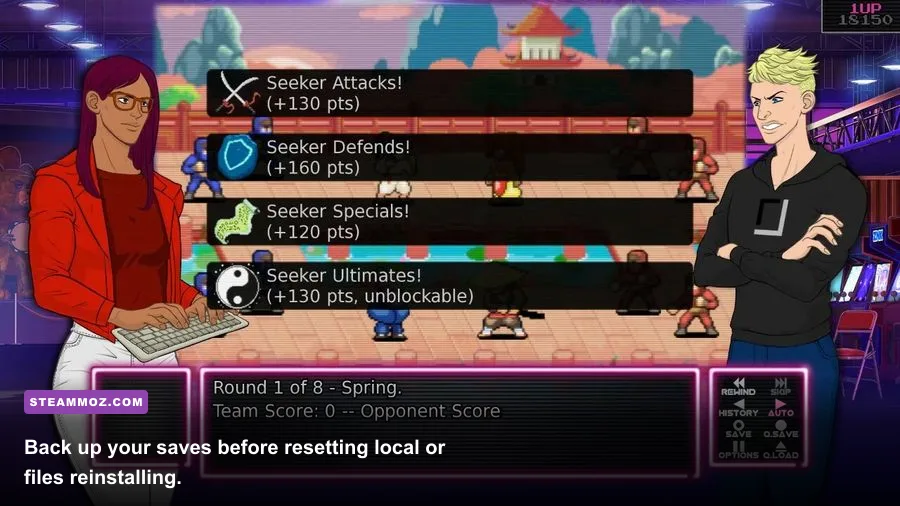
A driver update can fix a crash, but the newest driver isn't automatically the best answer. If Arcade Spirits worked until a recent GPU update, use the clean-install option in your driver installer or roll back to the previous stable package. A clean installation removes profiles and shader components that may have become corrupted.
Test the common overlay offenders
- Steam Overlay: Open Arcade Spirits' Steam Properties and temporarily disable the overlay. Re-enable it if the crash persists, since the overlay is useful for testing whether the hook is responsible.
- Discord Overlay: Disable the game overlay globally or exclude Arcade Spirits. Discord's overlay can conflict with older Unity window handling.
- Xbox Game Bar: Turn it off under Windows Gaming settings if Win+G causes a freeze or the game closes after recording starts.
- RivaTuner Statistics Server: Add the executable to its application list and disable the overlay. Frame limiters and injection hooks can interfere with tiny 2D games.
Don't stack multiple frame limiters. If Steam, your GPU driver, RivaTuner, and the game are all attempting to cap frames, you can create uneven frame delivery. For Arcade Spirits, a simple 60 FPS cap—or the game's default timing—usually makes more sense than a 144 FPS target. The artwork doesn't benefit from pushing hundreds of frames, and lower GPU activity means less heat and fewer laptop power fluctuations.
Use Windows graphics settings carefully
Open Settings > System > Display > Graphics, add the Arcade Spirits executable, and select the preferred GPU. This is particularly important after a Windows update or when a laptop has switched the game to integrated graphics. Restart the game after changing the assignment.
Keep HDR disabled during the first test if you see a black screen or incorrect colors. HDR itself isn't required by Arcade Spirits, and older fullscreen paths can react poorly to an HDR desktop. Once the game is stable, turn HDR back on and test borderless mode if you want it enabled for other applications.
Steamoz's Cthuloot PC crash and FPS fixes and Stardew Valley graphics settings guide offer useful comparisons for lightweight games where overlays, scaling, and frame pacing matter more than demanding 3D options.
Reset settings and protect your Arcade Spirits saves
If the game launches for one Windows account but not another, or crashes immediately after loading a profile, a damaged local configuration is a strong suspect. The exact save location can vary with the build and Windows setup, so don't blindly delete folders. Back up first, then use Windows search for files and folders containing Arcade Spirits, Fiction Factory Games, or the game's executable name.
Back up before resetting
- Exit Arcade Spirits and Steam completely.
- Search your user folders, especially Documents, AppData\LocalLow, and AppData\Roaming.
- Copy any Arcade Spirits save or configuration folder to your desktop or an external backup.
- Rename the original folder by adding .old rather than deleting it.
- Launch the game and let it create fresh settings, then test a new game before restoring saves.
Renaming is safer than deletion because it gives you an easy rollback. If the fresh configuration fixes the crash, restore saves individually rather than copying every old file back at once. A corrupted setting and a corrupted save are different problems, and replacing both together hides the answer.
Steam Cloud can re-download an old broken file. If the crash returns after a reset, temporarily disable Steam Cloud for Arcade Spirits, start with the clean local folder, and make a manual backup of any working save. Re-enable Cloud only after confirming that the game can reach the title screen and load a test scene.
For the developer's information and support links, check Fiction Factory Games. You can also consult the official Arcade Spirits Steam discussions for build-specific reports. Community posts are most useful when you include your Windows version, GPU, driver version, crash timing, and whether overlays were disabled.
Find the real cause with a clean test sequence
When none of the individual fixes works, stop changing random settings and run a short diagnostic sequence. This produces a useful result in minutes:
- Restart Windows and launch Steam with no overlay-heavy apps open.
- Verify Arcade Spirits files.
- Use windowed or borderless mode at 1920×1080.
- Disable Steam Overlay, Discord Overlay, Xbox Game Bar, and RivaTuner.
- Set the correct GPU in Windows Graphics settings.
- Test a new game or an early save before restoring custom files.
- Record exactly when the crash happens: before the menu, during a resolution switch, while loading a scene, or after several minutes.
| Symptom | Most likely cause | Best first fix | What not to do first |
|---|---|---|---|
| Instant crash before menu | Corrupt file, overlay, or renderer conflict | Verify files and disable overlays | Delete every save folder |
| Black screen after launch | Resolution, HDR, or fullscreen issue | Test windowed mode and 1920×1080 | Force several launch commands together |
| Stutter during transitions | Frame pacing, power mode, or background load | Plug in laptop and remove frame hooks | Chase an extreme FPS number |
| Crash after loading a profile | Damaged save or configuration | Back up and rebuild local settings | Overwrite the backup with Steam Cloud |
| Problem began after driver update | Driver profile or shader conflict | Clean-install or roll back driver | Install beta drivers immediately |
Arcade Spirits is designed around story choices, relationship routes, and the day-to-day pressure of keeping an arcade alive—not cutting-edge rendering. A stable 60 FPS, a correctly selected GPU, and a clean display mode are all the performance headroom it needs. If it still crashes after verification, a fresh configuration, disabled overlays, and a clean driver test, gather the crash timing and hardware details before contacting support. That evidence is far more useful than simply reporting that the game is broken.
Once the technical issues are sorted, Steamoz's Arcade Spirits review is a good next stop for route expectations and the game's charm. The important thing is to preserve your saves, change one variable at a time, and avoid turning a lightweight visual novel into a complicated graphics-tuning project.