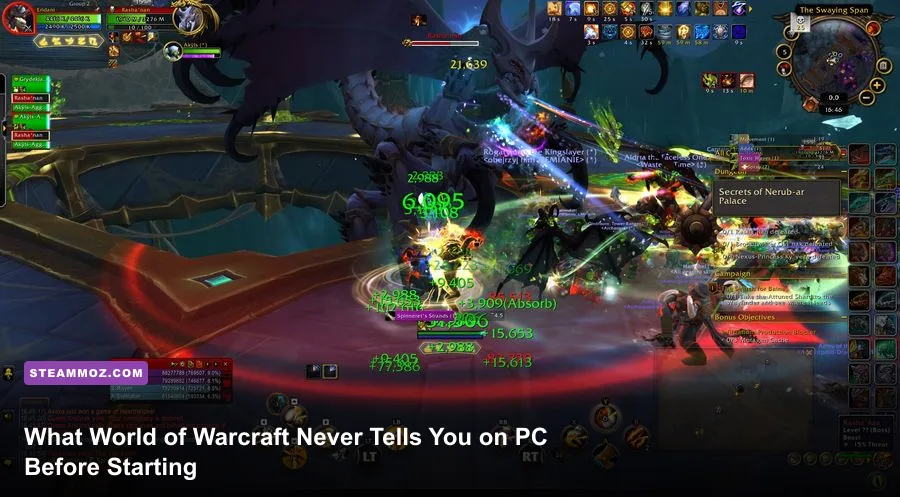
Jumping into World of Warcraft on your PC isn't as simple as rolling an Orc Warrior, picking up a rusty broadsword, and following yellow exclamation marks across Durotar. Beneath the surface sits a heavily modified engine running on code originally written in the late 1990s, built around single-core clock speeds, aggressive memory bandwidth, and an open Lua scripting framework that Blizzard practically expects you to configure yourself. If you jump in using out-of-the-box system defaults, you'll fight atrocious keybind ergonomics, unreadable combat visual clutter, and bizarre frame-rate drops during chaotic 20-player dungeon pulls.
Before putting your first copper coin in your inventory, you need to understand how WoW interfaces with your computer rig, how the combat engine interprets input ticks, and which modern systems prevent you from wasting hundreds of hours in obsolete expansion zones. Here are the hard-hitting mechanical and technical fundamentals every PC gamer needs locked down before launching Azeroth for the first time.
1. Your CPU Dictates Framerates Far More Than Your GPU
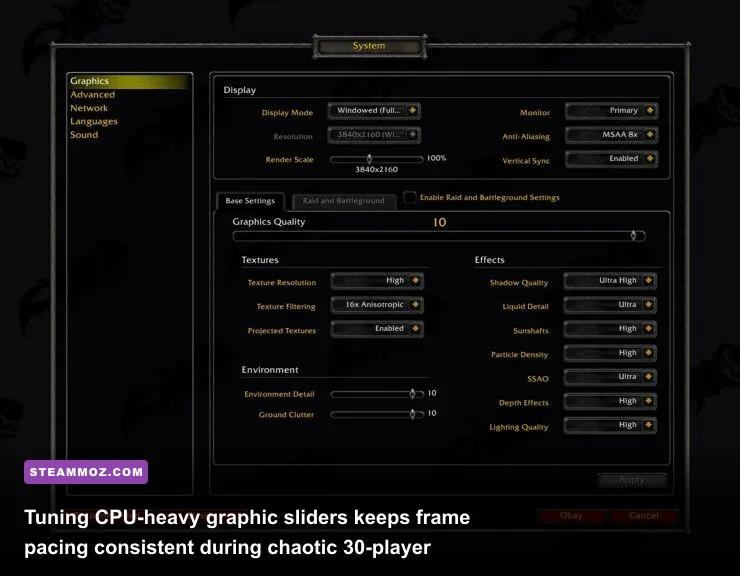
Most modern AAA blockbusters push your graphics card to its limits, but World of Warcraft flips the script. While graphic overhauls have introduced ray-traced ambient occlusion, high-res compute effects, and dense volumetric fog, WoW remains intensely CPU-bound. The game engine processes hundreds of combat log combat events every millisecond—tracking damage over time ticks, aura procs, damage calculations, and visual spell effects across dozens of party members and enemies simultaneously. These processes funnel almost exclusively through one primary execution thread. If your CPU has mediocre single-core instruction throughput, your multi-thousand-dollar GPU won't stop your frame rate from tanking into the low 30s during a 30-man raid boss pull.
To lock in a smooth, stutter-free experience, you need to be surgical with your in-game graphics settings. Blizzard provides two distinct settings profiles: Base and Raid and Battleground. You must configure the Raid profile to automatically scale down CPU-intensive effects the moment you step into instanced group content. Similar to how you'd dial in settings for max FPS in modern shooters, setting clear boundaries here prevents heavy visual bottlenecks.
| Setting Name | Recommended Value | FPS Impact | Tactical Combat Note |
|---|---|---|---|
| Projected Textures | Enabled (Always) | Low | Mandatory. Turning this off hides ground-targeted lethal boss mechanics. |
| View Distance | 5 to 7 | Extreme (CPU) | Values above 7 hammer CPU draw calls with negligible raid-floor benefit. |
| Environment Detail | 5 | Moderate | Controls ground clutter draw distance. Setting to 5 keeps ground clear of visual noise. |
| Compute Effects | Low or Disabled | High (GPU/CPU) | Controls heavy particle physics. Massively tanks FPS inside dense AOE spell fields. |
| Ray Traced Shadows | Disabled | Severe | Massive frame cost with virtually zero readability benefit in high-speed dungeon runs. |
| Spell Density | Essential Only | High (Engine) | Culls non-essential ally spell effects so you can actually spot enemy telegraphs. |
Crucially, keep Projected Textures turned ON under all circumstances. Disabling it to scrape together two frames per second means you won't see fiery boss mechanics rendered on the floor beneath your boots, resulting in instant wipes. If you encounter unexpected engine hitching or crash bugs, reviewing fixes that stop desktop crashes and stabilize frame pacing can help isolate local driver conflicts.
2. Ditch Keyboard Turning and Rebuild Your Input Ergonomics
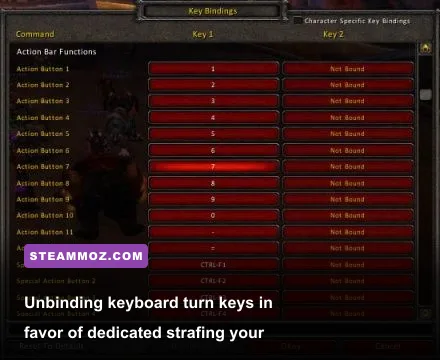
By default, World of Warcraft assigns the A and D keys to turn your character left and right. This design relic from 2004 is the single worst habit a new player can develop. Keyboard turning takes nearly two full seconds to complete a 180-degree rotation. In modern dungeons and PvP, that delay will get you killed by cleave mechanics before you can react.
The very first minute you log in, open your Keybindings menu and remap your layout:
- Remap A and D to Strafe Left and Strafe Right: Eliminate keyboard turning entirely. Your mouse controls your camera and direction. By holding down your Right Mouse Button, your character instantly snaps to wherever your crosshair looks.
- Free Up Prime Real Estate: Rebind Q and E (which default to strafing) to your most critical, high-frequency rotational abilities.
- Embrace Modifier Keys: Don't stretch your left hand across the keyboard past the 5 key. Anchor your fingers on WASD and utilize Shift, Ctrl, and Alt modifiers. A key sequence like
1, 2, 3, 4, Q, E, R, F, C, Vgives you ten easily reachable buttons; applying Shift to those same keys instantly doubles your accessible combat pool to 20 without stretching your tendons.
You also need to become comfortable with basic Macro scripting. For anyone playing a hybrid or healing class, mouseover macros save entire seconds of target-swapping lag. Instead of clicking an ally's health bar and then pressing a heal, a simple script casts the spell directly onto whoever your cursor is hovering over on the screen:
#showtooltip
/cast [@mouseover,help,nodead][] Flash Heal
Getting this muscular ergonomics baseline down early avoids having to unlearn months of muscle memory once you hit challenging Mythic+ keystones.
3. Essential Addons That Fix the UI Before You Hit Endgame
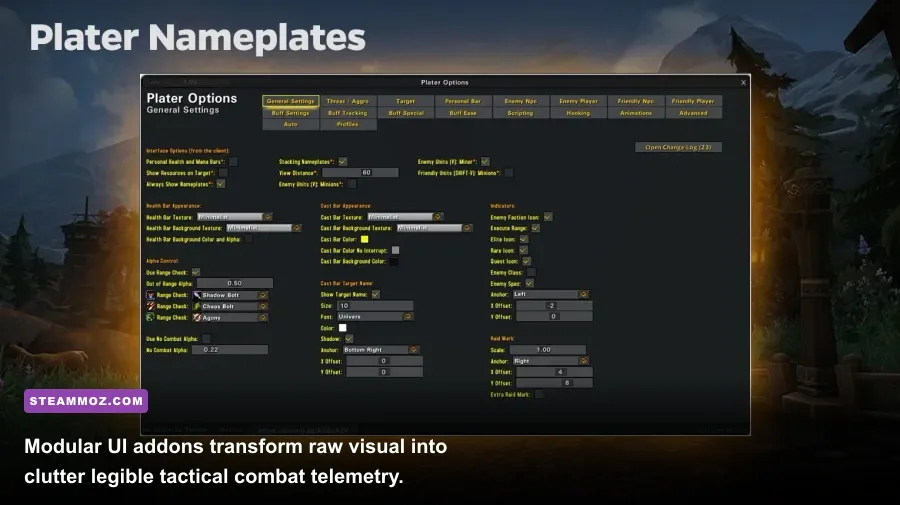
Blizzard overhauled the base user interface with modern HUD edit modes, but serious dungeon and raid play still heavily relies on open-source community addons. You don't need sixty mods running at once—which can cause script lag and crash your memory buffer—but three specific utilities are non-negotiable for readable, high-level combat feedback.
Grab a clean addon manager like CurseForge (or open-source alternatives like WowUp) to maintain and update your mods without manually manipulating zip archives in your computer's directory tree.
| Addon Name | Role & Functionality | Memory Overhead | Why You Can't Skip It |
|---|---|---|---|
| Details! Damage Meter | Combat Logging & Analysis | Moderate | Tracks real-time DPS, healing, interrupts, and damage taken. Shows precisely why you wiped. |
| Plater Nameplates | Threat & Castbar Engine | Moderate to High | Color-codes enemy health bars by threat level and highlights high-priority enemy interrupt casts. |
| WeakAuras | Custom Visual Telemetry | Low to High (Profile dependent) | Builds dynamic visual HUD alerts for major class cooldowns, procs, and incoming boss strikes. |
| Deadly Boss Mods (or BigWigs) | Encounter Timers & Alerts | Low | Displays precise countdown timers for lethal boss abilities and phase transitions. |
A properly configured setup of Plater and WeakAuras pulls crucial game information from the outer edges of your screen and centers it around your character's feet. Instead of glancing up at the top-left corner to check your health or scanning enemy buffs beneath a tiny portrait, your visual focus stays glued to active combat hazards. Just like tuning complex puzzle titles or resource sims, as seen in our Filament settings and performance breakdown, keeping your interface clean prevents costly mental fatigue.
4. Server Selection and Modern Faction Dynamics
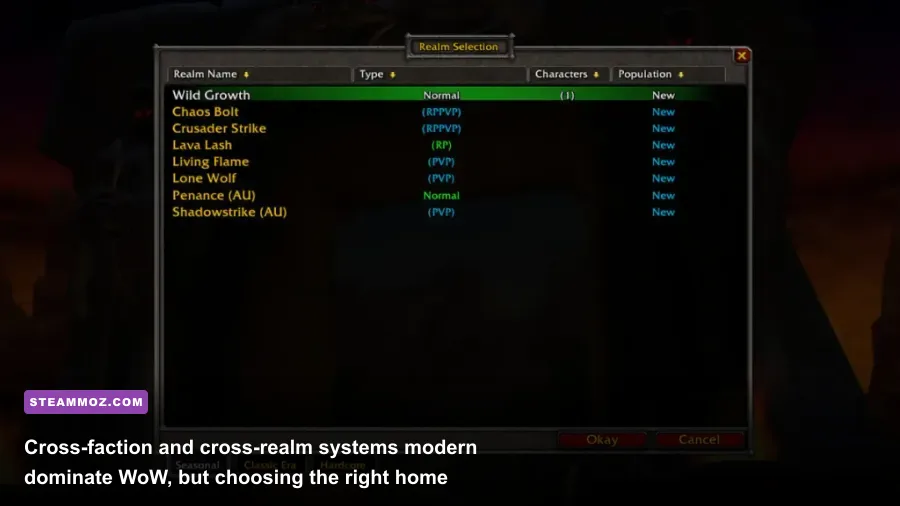
For nearly two decades, choosing between Alliance and Horde on a specific realm dictated your entire social circle, guild availability, and open-world survivability. Modern World of Warcraft has completely upended this structure. Thanks to cross-realm infrastructure, cross-faction grouping, and account-wide Warbands, old restrictions have largely evaporated. You can run dungeons, progress through raids, and join the exact same guild regardless of whether you play a Night Elf or a Blood Elf on an entirely different server.
However, your physical computer's network latency still matters. When browsing the realm select screen, verify whether a server is hosted in your geographic data center (e.g., US West vs. US East in North America, or Frankfurt vs. Paris in Europe). High ping introduces delay to your global cooldowns (GCD), making fast-paced rotations feel sluggish. Additionally, local realm population still governs the active Trade Chat crafting economy. High-population realms ensure you can always find skilled crafters to manufacture top-tier weapons and armor work orders on short notice.
5. Skip the Outdated Zones: Use Chromie Time Correctly

If you're jumping in fresh on a new computer, you might assume you have to play through 20 years of expansions in chronological order—clearing Burning Crusade, Wrath of the Lich King, and Cataclysm before touching current content. Do not do this. Early 2000s quest design is notoriously slow, sending you on long journeys across barren maps for negligible experience payouts.
Blizzard automatically routes true first-time players through the introductory Exile's Reach starter zone (levels 1–10) directly into the modern Dragonflight expansion campaign. This track is deliberately built to teach modern combat mechanics, active movement abilities, and rapid level scaling. Once you establish a high-level character, you unlock Chromie Time via the time-traveling bronze dragon located outside the Orgrimmar or Stormwind embassies.
Chromie Time dynamically scales any legacy expansion you choose from level 10 all the way to modern entry gates. If you prefer high-efficiency dungeon spamming and quest density, opting for expansions like Warlords of Draenor or Legion cuts hours off your leveling timeline compared to older continents. Much like mastering XP efficiency in our leveling and farming roadmap for Kakarot, choosing the right progression path saves massive amounts of wasted effort. Early on, avoid dumping gold into vanity items or outdated professions; save your bankroll for your core flying mounts and primary talent switch costs, treating resource preservation just like an efficient early-game gold farming strategy.
Check the official World of Warcraft portal for current patch notes, examine real-time combat parsing on Warcraft Logs to see how elite specs perform, lock down your PC settings, and you'll step into the endgame ready to pull your weight from day one.