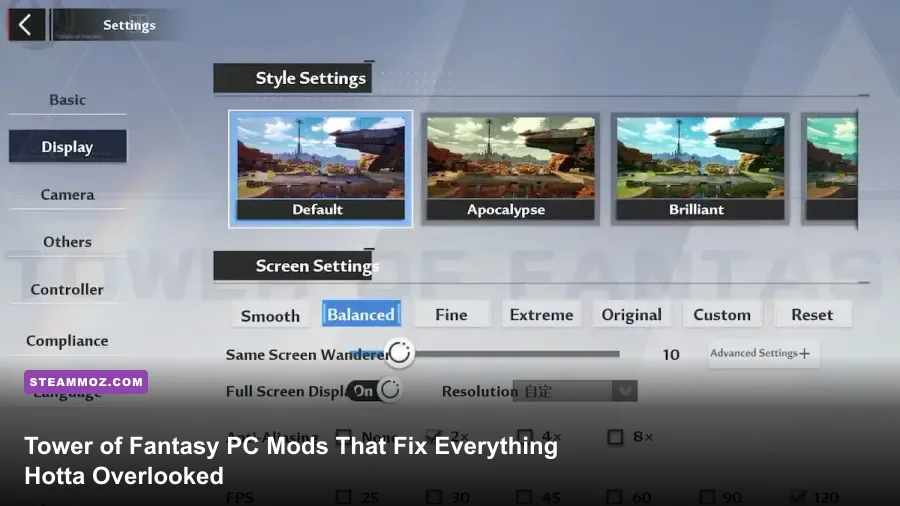
To transform Tower of Fantasy on PC from a washed-out, micro-stuttering mobile port into a sharp, responsive open-world action RPG, you need three critical modding interventions: a tailored ReShade injection pipeline to eliminate the game's flat dynamic range, direct Engine.ini configuration overrides to eradicate Unreal Engine 4's dreadful temporal anti-aliasing (TAA) smear, and an expanded FOV camera tweak to stop dynamic skill animations from blinding you during chaotic boss raids. Because Hotta Studio secures the client with Tencent's Anti-Cheat Expert (ACE), raw executable hacking will land your account in hot water; however, post-processing hooks, memory-isolated local model injectors, and engine configuration tweaks remain the gold standard for players demanding premium visual and mechanical fidelity.
Overhauling the Visual Palette with Custom ReShade Pipelines
Out of the box, Tower of Fantasy looks like a mobile game scaled onto a large monitor. The lighting in Mirroria's neon-drenched streets or the sprawling cloudscapes of Domain 9 suffers from overexposure, crushed black levels, and an aggressive green-yellow color cast. Installing ReShade directly to your client's root executable folder fixes these tonal flaws instantly without triggering anti-cheat hooks.
When configuring ReShade for ToF, skip heavy ambient occlusion shaders like MXAO—the game's depth buffer frequently drops sync during Simulacrum weapon swaps—and focus instead on high-efficiency color grading and contrast restoration shaders. Here is the optimal shader stack you should activate in your pipeline:
- AMD FidelityFX Contrast Adaptive Sharpening (CAS): Unreal Engine 4's native resolution scaler blurs distant landscape geometry in Aesperia and Vera. Setting CAS
Sharpnessto 0.550 cleans up pixel smearing without creating ugly edge halos on character outlines. - qUINT Lightroom: Hotta pushed default gamma levels through the roof to compensate for cheap phone screens. Drop your black floor levels by -0.08 and push contrast to +0.12. Suddenly, the deep canyons of the Grand Sea and the shadows under Innars look dramatic rather than muddy gray.
- DPX (or Tonemap): Set saturation down by 0.10 and lift vibrance by 0.18. This removes the greasy yellow tint from natural daylight while making Simulacrum visual effects—like Lin's Shadow Weaver blooms or Saki Fuwa's glacial ice crystals—burst with electric clarity.
- Curves (Mode: Luma): Apply a subtle S-curve preset to deepen shadow transitions without crushing dark details on darker boss models like Rudolph or Magma.
Much like tweaking PC settings for smoother performance in other puzzle and adventure titles, fine-tuning your shader pipeline yields immense visual returns with an average rendering cost of only 2 to 4 frames per second on modern hardware.

🎮 Everything
Looking to experience this game? Grab your digital key directly on our store for $14.99.
View on Steammoz Store →Deep-Dive Engine.ini Modifications: Eradicating TAA Blur and Expanding Draw Distances
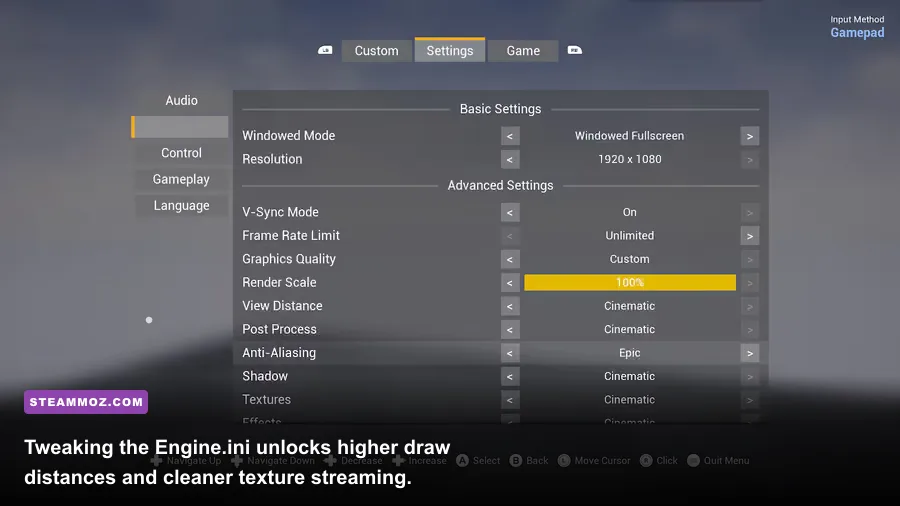
The PC client's in-game graphics menu provides only basic toggles that fail to address the core visual bottlenecks baked into Hotta's Unreal Engine 4 implementation. You can bypass these artificial limits by opening your configuration file located at %LOCALAPPDATA%\Hotta\Saved\Config\WindowsNoEditor\Engine.ini. Setting this file to "Read-Only" after editing prevents the game launcher from reverting your hardcoded values.
Default TAA introduces intense ghosting whenever you sprint on a vehicle or dash through combat rotations with fast-moving weapons like Fenrir's Gleipnir or Alyss's Unyielding Wing. Adding low-overhead, crisp post-processing parameters eliminates this smearing entirely, while forcing higher asset streaming limits terminates the notorious pop-in of mineral deposits, supply pods, and scenic viewpoints.
| Engine.ini Variable | Recommended Value | FPS Cost | Operational Impact |
|---|---|---|---|
r.PostProcessAAQuality |
3 (or 4 with Gen5 TAA) | 0% | Swaps blurry full-screen blur for crisp edge anti-aliasing. |
r.MotionBlurQuality |
0 | +2-3% | Completely disables nauseating camera velocity blur. |
r.SceneColorFringeQuality |
0 | 0% | Kills ugly chromatic aberration on UI and character edges. |
r.ViewDistanceScale |
2.5 to 3.0 | -5% to -8% | Pushes world asset rendering out to render far cliffs and puzzles. |
r.Streaming.PoolSize |
4096 (for 8GB+ VRAM) | 0% | Allocates dedicated VRAM cache; stops texture pop-in during teleports. |
r.Shadow.DistanceScale |
2.0 | -4% | Extends high-resolution dynamic cascade shadows across open terrain. |
If you have struggled with frame hitching while traversing dense metropolitan areas like Mirroria District B, this dedicated VRAM pool adjustment works just as effectively as the system tweaks highlighted in our guide on resolving low frame rates and stutter.
Camera and FOV Injection: Conquering Boss Telegraphs in High-End Raids
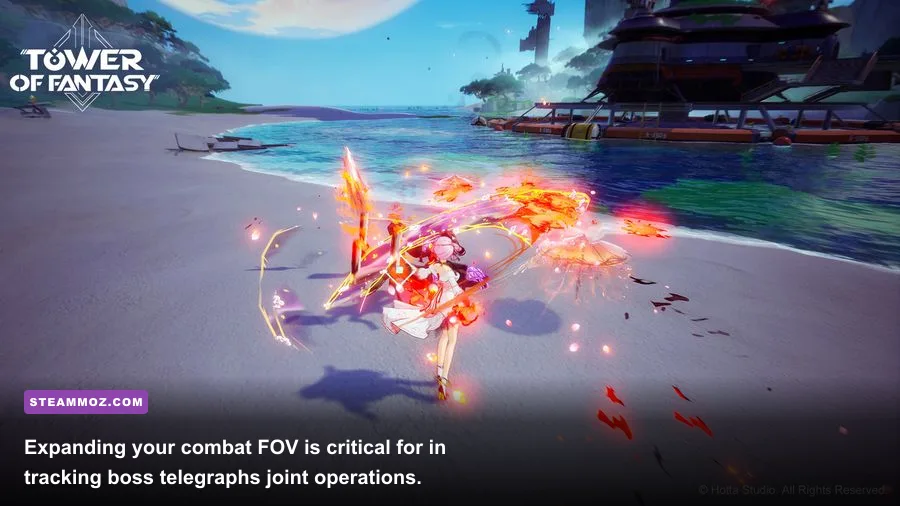
One of the most maddening design choices in Tower of Fantasy is how the virtual camera aggressively tethers to your character model. Even with the in-game FOV slider maxed out at 90 degrees, activating complex discharge attacks—such as Fiona's Moon Star Bracelet or Lan's Vermilion Bird—forces dramatic cinematic camera zooms that ruin your peripheral vision. In end-game raids like Void Abyss 6 or Origin of War floor 25, losing track of lethal boss telegraphs from Haboela, Scylla, or Nakia results in an immediate wipe.
You can override this limitation by injecting custom aspect-ratio scaling scripts or using universal Unreal Engine 4 unlockers (such as UUU by Otis_Inf) run in non-hooking, passive camera observation modes. Forcing a true vertical FOV of 105 to 110 degrees fundamentally transforms combat awareness:
- Telegraph Readability: You can track ground-based shockwaves and overhead windups from bosses even while executing mid-air aerial combos with dual blades or spears.
- Phantasia Trigger Precision: Dodging right as an enemy attack enters your hitbox requires clean depth perception. Wide FOV cameras remove the perspective distortion that causes mistimed dodges.
- Simulacrum Clarity: Multi-layered particle effects from high-synergy team comps (such as triple-Volt or Frost resonance teams) no longer fill the entire monitor, letting you spot incoming stun attacks before they land.
Implementing wide camera scaling functions similarly to optimizing graphics settings for max FPS: you strip away aggressive dynamic shifts in favor of consistent visual clarity.
3DMigoto and Model Replacement: Navigating the Anti-Cheat Danger Zone
The community's desire for character customization has spawned an active modding subculture using 3DMigoto—a dedicated DirectX 11/12 buffer-hooking framework originally popularized across other anime-style action games. These mods let you replace Simulacra meshes with custom community models, restore censored cosmetic variants, or introduce alternative weapon skins entirely on the client side.
However, this is where you must proceed with extreme caution. The official Tower of Fantasy platform utilizes ACE kernel-level monitoring. If you decide to explore 3DMigoto skin mods, you must adhere strictly to these protective guidelines to avoid triggering server-side integrity alerts:
| Mod Category | Methodology | Account Ban Risk | Recommended Action |
|---|---|---|---|
| ReShade & Color Filters | DirectX post-processing hook | Zero (Safe) | Install globally; bypasses game memory entirely. |
| Engine.ini Tweaks | Native Unreal Engine config override | Zero (Safe) | Fully approved; utilizes native engine render calls. |
| Sound & Audio Swaps | Local .paks replacement | Low / Moderate | Use isolated loader folders; avoid editing master sound banks. |
| 3DMigoto Model Injections | DirectX runtime buffer diversion | Moderate | Never touch multiplayer memory addresses; keep textures purely local. |
| Memory / Cooldown Edits | DLL injection into game RAM | Extreme (Guaranteed Ban) | Never use. Instantly flagged by ACE anti-cheat systems. |
If you run 3DMigoto, make sure the injection wrapper does not intercept encrypted packet streams sent between your local client and the Level Infinite servers. If a patch update rolls out, immediately clear your hook folder until mod authors verify compatibility with the new binary checksum.
Particle Culling and UI Streamlining: Stabilizing 8-Player Raids

Visual spectacle is a hallmark of high-tier gacha combat, but in 8-player Joint Operations and Frontier Clash Evolution, the sheer density of particle effects will tank even an RTX 4080 down into the mid-40s. Between Alyss's sweeping ice domes, Tian Lang's lightning bolts, and Lin's blooming floral fields, visual saturation regularly causes severe frame dips and input lag that eat your dodge inputs.
By extracting and repacking the visual effect manifests using community-approved asset extraction tools, you can implement customized particle suppression profiles. These tweaks leave character combat motions untouched while dialing back the blinding bloom radius of secondary projectile explosions.
Combine this with UI culling mods that turn off duplicate floaty combat text. When your DPS rotation spits out 45 damage ticks per second, stacking damage numbers do nothing but create rendering bottlenecks on your CPU. Stripping away non-critical floating numbers and leaving only critical hits visible speeds up frame times and cleans up screen clutter during tight mechanics.
Much like the diagnostic methods outlined in our guide on PC performance troubleshooting, isolating UI draw-calls from core gameplay logic helps maintain a locked 120 FPS refresh rate. This frame stability ensures you hit every dodge frame and discharge rotation with pixel-perfect consistency, which is vital when optimizing your end-game progression loops in demanding competitive titles.
Take the time to deploy a tuned ReShade configuration, clean out your Engine.ini anti-aliasing bloat, and unlock your combat field of view. Taking manual control of your PC client turns Tower of Fantasy into the lightning-fast, visually striking sci-fi spectacle it was always meant to be.