For the best Call of Duty Warzone PC performance, start with 1920x1080 or your monitor's native resolution, use NVIDIA DLSS Quality or AMD FSR 3.0 Quality when available, disable motion blur and depth of field, keep texture quality at Normal, set VRAM Scale Target around 80, and cap FPS just below your monitor's refresh rate. That combination delivers a sharp image, cleaner target visibility, and far smoother 1% lows than simply turning every option to Low.
Warzone is unusually sensitive to frame-time spikes. A system showing 140 average FPS can still feel awful if traversal, smoke effects, or a crowded final circle drags the 1% low into the 50s. The goal here isn't a benchmark screenshot; it's consistent input response while sliding through Rebirth Island, rotating across Urzikstan, or tracking a moving target through a window.
Start With the Right Warzone PC Performance Profile

Before changing individual options, choose a profile based on your hardware and monitor. Competitive players should prioritize latency and visibility over cinematic shadows. If you're using a 1440p display, rendering at 1080p can be a valid trade, but test it carefully: distant enemies become harder to identify when the image is both upscaled and softened by low-quality anti-aliasing.
| Hardware Target | Resolution | Upscaling | Texture Quality | Practical FPS Goal |
|---|---|---|---|---|
| GTX 1660 / RX 5600 XT | 1080p | FSR 3.0 Balanced or CAS | Low/Normal | 60–100 FPS |
| RTX 3060 / RX 6600 XT | 1080p | DLSS Quality or FSR Quality | Normal | 90–140 FPS |
| RTX 4060 / RX 7600 | 1080p | DLSS Quality or Native + CAS | Normal | 100–160 FPS |
| RTX 4070 / RX 7800 XT | 1440p | DLSS Quality or FSR Quality | Normal/High | 120–180 FPS |
| RTX 4080 / RX 7900 XTX | 1440p | Native + CAS or Quality upscale | High selectively | 160 FPS and above |
Those ranges are sensible targets, not promises. Warzone performance changes with the map, driver version, CPU, memory configuration, and the current game build. A six-core Ryzen 5 3600 can limit high-end GPUs in busy areas, while a faster Ryzen 7 7800X3D may keep frame times steady even with a midrange graphics card. For broader troubleshooting, our PC crash and FPS fixes guide covers several useful Windows-side checks.

🎮 FORM
Looking to experience this game? Grab your digital key directly on our store for $14.99.
View on Steammoz Store →Best Warzone Graphics Settings for Maximum FPS
Open the Graphics menu and work through the Quality tab rather than blindly selecting the lowest preset. Some Low settings create shimmering or poor visibility without saving meaningful GPU time, while a few Normal settings are cheap enough to keep enabled.
| Setting | Recommended Value | FPS Impact | Visual and Gameplay Note |
|---|---|---|---|
| Display Mode | Fullscreen Exclusive if available; Fullscreen otherwise | Low | Usually gives the most consistent input behavior. |
| Screen Refresh Rate | Monitor maximum | None | Confirm Windows is also set to the same refresh rate. |
| Dynamic Resolution | Off for clarity; On for a strict FPS target | Medium–High | Can visibly soften the image during heavy fights. |
| V-Sync Gameplay | Off | Low | Use G-Sync or FreeSync correctly instead of traditional V-Sync. |
| Custom Frame Rate Limit | Refresh rate minus 3 FPS | None | Try 141 FPS at 144Hz or 237 FPS at 240Hz. |
| Quality Preset | Custom | Varies | Presets often enable expensive effects you don't need. |
| Texture Resolution | Normal | Low–Medium | Low can make surfaces and distant objects look muddy. |
| Texture Filter Anisotropic | High or Normal | Very Low | Improves ground clarity for little performance cost. |
| Depth of Field | Off | Low | Removes cinematic blur when aiming or using optics. |
| World Motion Blur | Off | Low | Prevents visual smearing during rotations and parachuting. |
| Weapon Motion Blur | Off | Low | Keeps your weapon model from obscuring fast target movement. |
| Shadow Quality | Low | Medium–High | One of the best settings to reduce GPU load. |
| Screen Space Shadows | Off | Low–Medium | Small lighting loss, useful frame savings indoors. |
| Particle Quality | Low or Normal | Medium | Helps during explosions, thermite, and smoke-heavy fights. |
| Bullet Impacts and Sprays | On | Very Low | Useful feedback for recoil and wall interactions. |
| Volumetric Quality | Low | Medium | Reduces fog and atmospheric rendering cost. |
| Water Quality | Low | Low–Medium | Worth lowering on maps with large water areas. |
Keep Anisotropic Filtering at High unless you're desperately GPU-bound. It sharpens surfaces viewed at an angle, including roads, rooftops, and floor textures where enemies frequently crouch. By contrast, shadows and volumetrics can consume resources while offering little competitive information. Turning them down is one of the rare choices that improves both FPS and target readability.
DLSS, FSR, CAS, and Frame Generation Explained
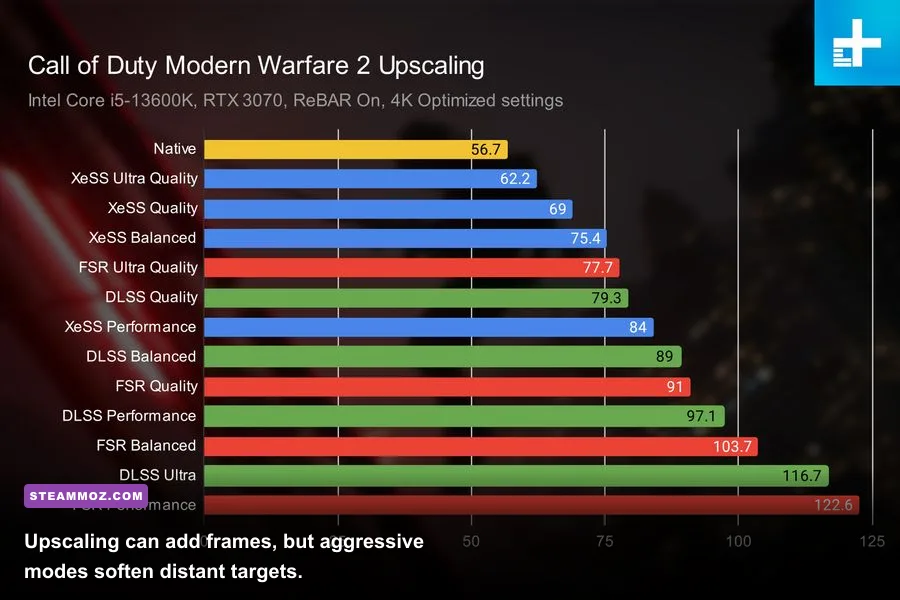
Upscaling is often the biggest performance lever in Warzone. NVIDIA RTX owners should begin with DLSS Quality. It renders internally below native resolution and reconstructs the image, usually delivering a better clarity-to-FPS balance than DLSS Performance. Use DLSS Balanced only when your GPU cannot hold the desired frame rate at Quality.
AMD and Intel users can test FSR 3.0 Quality or XeSS Quality, depending on which options your build exposes. FSR can produce more visible shimmer around fencing, foliage, and thin geometry, so don't judge it in the lobby. Drop into a match, inspect a distant rooftop, and fire at a wall to check whether the reconstruction introduces distracting ghosting.
FidelityFX CAS is the better choice if your GPU is strong enough for native rendering. Set the strength around 70–80 rather than maxing it immediately; excessive sharpening creates bright halos around windows and player models. For a competitive 1080p setup, native resolution plus CAS can look cleaner than an aggressive upscale, even if the FPS number is lower.
Frame generation can raise the displayed FPS on compatible RTX 40-series or newer hardware, but it doesn't create the same amount of responsive input as traditional rendered frames. Treat it as a smoothness feature, not a substitute for a high base frame rate. If your real rendered FPS is 55, generated frames won't make aiming feel like native 120 FPS. Disable it when latency matters more than visual fluidity, especially in Ranked Play or close-range fights.
Latency Settings That Make Aim Feel Better
Turn on NVIDIA Reflex when you have an NVIDIA GPU. The “On + Boost” option can keep the GPU clocked higher and reduce latency in some CPU-limited situations, but it also increases power use and heat. Start with plain On; switch to On + Boost only if clocks are dropping or your frame-time graph shows inconsistent delivery.
AMD users should enable Radeon Anti-Lag if supported by the current driver and game integration, but don't stack multiple third-party latency tools. Avoid forcing driver-level frame caps on top of an in-game cap unless you're testing a specific setup. Two limiters can fight each other and produce uneven pacing.
For G-Sync or FreeSync, enable the display's adaptive sync, disable in-game V-Sync, and cap FPS slightly below refresh. At 144Hz, 141 FPS is a reliable starting point; at 165Hz, try 162 FPS. This keeps the GPU from repeatedly hitting the ceiling where adaptive sync disengages. Competitive players with powerful systems may prefer uncapped FPS, but only if their frame-time graph remains stable and input latency is the priority.
Use the in-game telemetry options to show FPS, GPU time, CPU time, packet loss, and latency. If GPU time is consistently higher than CPU time, lower resolution, upscaling quality, shadows, and particles. If CPU time is higher, reducing resolution may barely help; lower world detail, close background applications, and investigate memory or processor limits instead.
VRAM, Texture Streaming, and Stutter Fixes
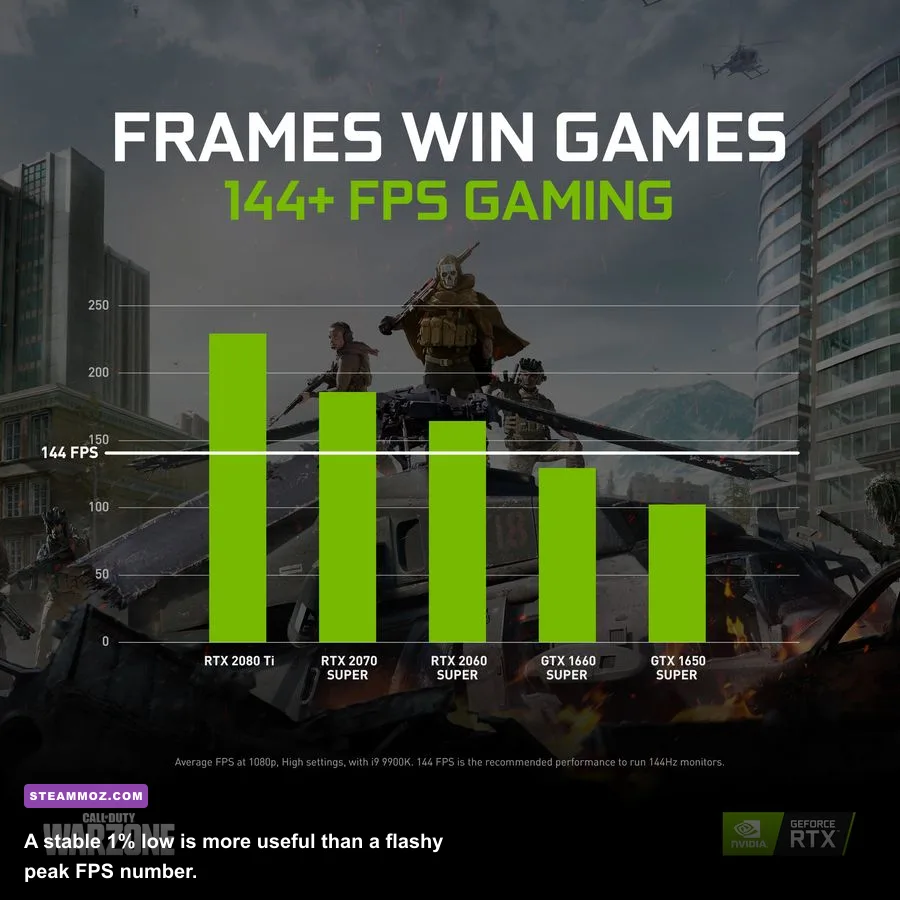
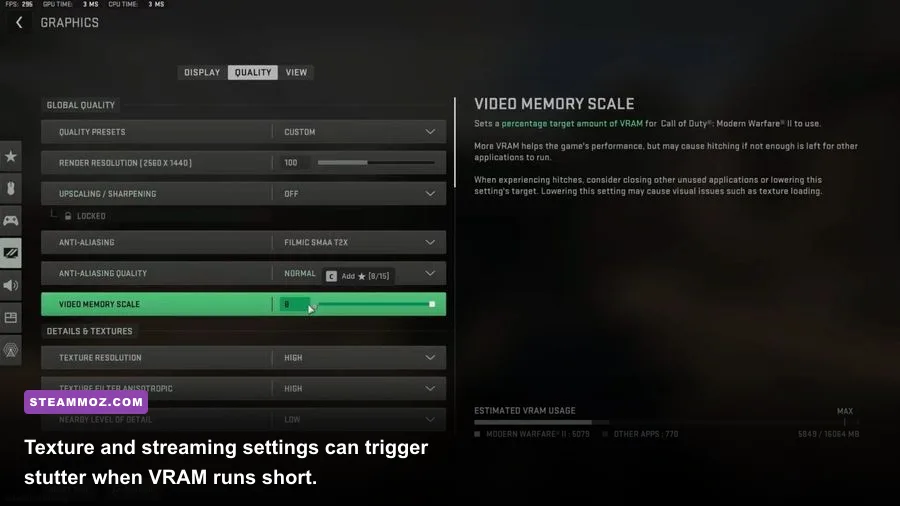
Warzone's texture pipeline can cause stutter even when average FPS looks healthy. Set the VRAM Scale Target to roughly 80 rather than pushing it to 90 or 100. The slider isn't a magic allocation of physical VRAM, but it helps the engine avoid filling the graphics card's memory with assets that later need eviction. On an 8GB card, High textures and aggressive streaming are a risky combination.
Use Normal textures on 8GB GPUs and reserve High for cards with 10–12GB or more, provided your FPS and frame times remain stable. Texture quality mostly affects memory use and visual sharpness, not raw frame rate. If the game warns about video memory, trust the warning: lowering textures and restarting the shader or texture-streaming process is more useful than chasing another five average frames.
On-demand texture streaming can improve detail, but it relies on bandwidth and background downloads. Disable it while diagnosing hitching, especially on Wi-Fi, limited data plans, or systems with a slow hard drive. Install Warzone on an SSD with plenty of free space, keep your GPU driver current, and allow shader preloading to finish before judging performance. After a major patch, the first matches may stutter while shaders rebuild.
If you also play demanding PC releases, Steamoz's low-FPS troubleshooting guide has additional storage, driver, and background-process advice. The same basics apply here: avoid overlays you don't need, close browsers with hardware acceleration, and don't record at an unnecessarily high bitrate while testing.
CPU, Windows, and Driver Tweaks Worth Using
Warzone is both GPU-heavy and CPU-hungry, particularly in large Battle Royale matches. Enable your motherboard's XMP or EXPO memory profile, because running DDR4 or DDR5 at default speeds can noticeably hurt CPU-limited 1% lows. Keep the game and Windows on an SSD, use Game Mode, and test Hardware-Accelerated GPU Scheduling rather than assuming it helps every machine.
Don't automatically use a “High Performance” power plan if it makes your processor run hot. Windows Balanced is often fine on modern CPUs, while a laptop should be plugged in and set to its performance profile. Thermal throttling can look like a graphics problem: FPS starts strong, then collapses after ten minutes of sustained play.
Update graphics drivers after checking release notes, but keep a stable driver if a new version introduces shader compilation problems. Reset shader caches only when troubleshooting persistent hitching after an update; doing it routinely can make the next launch worse while the cache rebuilds. Activision's official Warzone support hub and Call of Duty patch notes are the best places to check for known performance issues.
How to Test Your Settings Without Fooling Yourself
Change one group of settings at a time and test in the same kind of scenario. The firing range or a quiet lobby won't reproduce the CPU load of a packed drop. Play a few minutes in a real match, rotate through a dense area, look across the map, and fight near smoke or explosions. Record average FPS and 1% lows with the telemetry overlay or a tool such as CapFrameX.
| Symptom | Likely Limit | First Change | What to Watch |
|---|---|---|---|
| GPU time is high and FPS falls at native resolution | GPU-bound | Use DLSS/FSR Quality, then lower shadows | Image clarity and GPU utilization |
| CPU time exceeds GPU time in crowded areas | CPU-bound | Lower world detail and close background apps | 1% lows during traversal |
| Short freezes when entering new areas | Streaming or shader hitch | Disable on-demand streaming and finish shader preload | Frame-time spikes, not average FPS |
| Image shimmers on fences and foliage | Upscaling or sharpening artifact | Move from Balanced to Quality or reduce CAS strength | Distant target stability |
| FPS is high but aim feels delayed | Sync or queue latency | Enable Reflex, use adaptive sync, cap below refresh | Input response and frame pacing |
Finally, don't copy a professional player's settings without considering the hardware behind them. A streamer running an RTX 4090 at 1080p can afford native resolution and a high frame cap; a midrange laptop cannot. The best Warzone PC settings are the ones that keep your 1% lows stable, your distant targets readable, and your input consistent from the opening drop to the final circle. For more PC performance tuning, see our FPS settings guide for Far Cry 6 and additional graphics optimization tips.
For official hardware guidance, compare your system against the Warzone Steam listing, then adjust expectations around your actual CPU and GPU pairing. Start with the balanced profile above, measure real match performance, and only spend visual quality where it improves information you can act on.