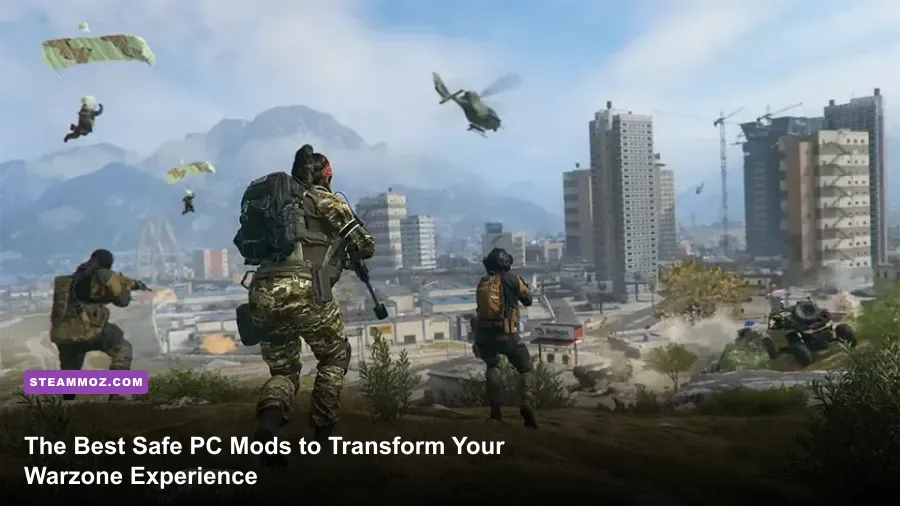
If you drop into Urzikstan or Rebirth Island expecting to install traditional engine mods, cosmetic skin swappers, or file-injecting scripts, stop immediately. Attempting to modify core game archives in Call of Duty: Warzone will trigger an instant, permanent hardware ID ban from Activision's kernel-level RICOCHET anti-cheat. However, the competitive PC community relies on an entirely different category of transformational "mods": external engine configuration overhauls, parametric audio equalizers, driver-level post-processing pipelines, and controller bus overclocking tools. These fully compliant, legal modifications strip away visual clutter, expose hidden enemy footsteps, eliminate frame stutters, and drop input latency down to sub-millisecond territory.
Why Traditional Warzone Mods Get You Banned (and What to Use Instead)

Before touching a single file, you have to understand where Activision draws the line. According to the official Call of Duty Security and Enforcement Policy, any application that hooks into the game's executable memory, alters DLLs, or injects code into the DirectX/Vulkan runtime is classified as unauthorized software. That means popular single-player tools like ReShade or custom texture packs will earn you an unforgiving shadowban or permanent hardware lockout.
Transforming your experience safely means utilizing external system hooks, native driver pipelines, and direct configuration script editing. These methods don't touch protected game memory; instead, they refine how Windows, your graphics card, and your audio hardware handle Warzone's massive data stream. Much like we uncovered when applying pc fixes that stop crashes and rescue your fps across stubborn PC ports, the secret to peak stability lies in fine-tuning your operating environment rather than forcing unsafe third-party executables.
| Modification Method | Target System Component | Gameplay Benefit | RICOCHET Safety Status |
|---|---|---|---|
| options.cst Configuration Scripting | CPU Thread Scheduling & VRAM Allocator | Eliminates 1% low frame dips and shader stutters | 100% Safe (Native File) |
| SteelSeries Sonar / Equalizer APO | Windows Core Audio Architecture | Amplifies footstep audio while dampening airstrikes | 100% Safe (OS-Level Audio) |
| Driver-Level Sharpening & Vibrance | NVIDIA / AMD Display Control Pipeline | Cuts environmental haze and dark corner shadows | 100% Safe (Driver-Level) |
| HIDUSBF Controller Overclocking | USB Input Polling Bus | Lowers controller input delay from 4ms to 1ms | 100% Safe (System Driver) |
| Memory Hooking / Texture Injections | Warzone Memory & Game Executable | Custom skins or custom UI shaders | Instant Permanent Ban |

🎮 FORM
Looking to experience this game? Grab your digital key directly on our store for $14.99.
View on Steammoz Store →Config File Modding: Unlocking Hidden Engine Performance in options.cst

Warzone's in-game settings menu is surprisingly deceptive. Even when you drop your graphics settings to the competitive baseline, the underlying engine frequently misallocates your CPU cores, causing terrible frame-pacing issues and sudden stutters during high-density engagements in downtown Urzikstan. To fix this, you need to manually modify the engine's master configuration file.
Navigate to your PC's directory: Documents\Call of Duty\players. Inside, you'll locate a file titled options.4.cod24.cst (or the corresponding active year string). Open this file using a clean text editor like Notepad++. There are two mission-critical parameters you must tweak:
- RendererWorkerCount: Warzone defaults this setting to an arbitrary value that rarely matches your CPU's physical core layout. If you run an 8-core, 16-thread processor like the AMD Ryzen 7 7800X3D, the game might assign it 6 or 7 threads, creating internal scheduling bottlenecks. Set this number to your CPU's exact count of physical performance cores (e.g., set to
8on an 8-core chip, or set to6on a Core i5-13600K to account for its 6 P-cores). - VideoMemoryScale: By default, the game attempts to reserve up to 80% or 90% of your total VRAM. This aggressive reservation causes Windows desktop composition to fight Warzone for memory space, leading to memory-leak crashes. Change this variable to
0.65or0.70. This forces the engine to operate within a tighter, stable memory envelope, completely curing erratic hitching similar to our recommendations for troubleshooting frame dips and system stability.
Once saved, right-click the file, select Properties, and check Read-only. This prevents Warzone's launcher from overwriting your custom hardware allocation whenever a seasonal patch drops.
Footstep Audio Mods: Tuning Custom EQ Profiles with Sonar and Loudness Equalization
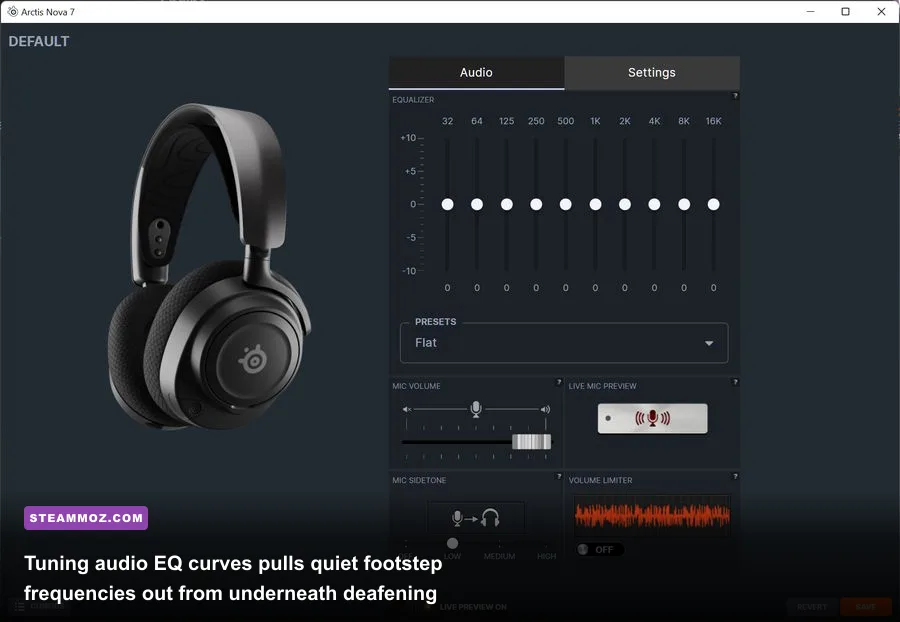
Warzone's default soundscape is an absolute nightmare for competitive awareness. The audio mix aggressively prioritizes cinematic bass—precision airstrikes, exploding vehicles, and loot crate hums completely drown out approaching enemy footsteps. You can transform your audio pipeline without touching game files by chaining custom EQ software like SteelSeries Sonar or Equalizer APO with Windows Loudness Equalization.
The secret lies in frequency compression and selective parametric boosting. Enemy footsteps, mantle noises, and parachute deployment sounds reside between 60 Hz to 120 Hz (foot thump) and 2,500 Hz to 4,500 Hz (scuffs, gravel movement, and tactical gear rustle). Meanwhile, deafening cluster strikes blast through the sub-bass 20 Hz to 50 Hz range.
| Frequency Range | Recommended Gain | Filter Q-Factor | Tactical Sound Target |
|---|---|---|---|
| 30 Hz – 60 Hz | -6.0 dB to -8.0 dB | 1.2 (Wide Cut) | Dampens killstreak explosions and ambient rumbling |
| 100 Hz – 150 Hz | +3.5 dB | 2.0 (Targeted) | Accentuates physical boots striking wooden/metal floors |
| 300 Hz – 600 Hz | -3.0 dB | 1.0 (Mild Cut) | Reduces hollow environmental mud and room echo |
| 2,800 Hz – 4,200 Hz | +5.0 dB | 2.5 (Tight Peak) | Sharpens armor plating, reload clicks, and sliding dirt |
| 8,000 Hz – 12,000 Hz | +2.0 dB | 1.4 (High Shelf) | Enhances directional parachute flaps and glass breaks |
Next, enable Windows Loudness Equalization. Head to Windows Sound Control Panel > Playback Devices > Properties > Enhancements and toggle it on with a short release time. This functions as an aggressive hardware compressor: it automatically raises the volume of faint audio cues (like an enemy sprinting three rooms away) while clamping down the deafening decibels of close-range gunshots.
Visual Clarity Mods: Driver-Level Color and Sharpening Tweaks
One of the biggest complaints among competitive players is Warzone's persistent volumetric fog and dull, washed-out color grading. While casual players turn to NVIDIA Shadowplay overlay filters, those filters incur an unacceptable 8% to 15% drop in average framerate and introduce several milliseconds of rendering latency. If you're hunting for maximum clarity without performance penalties, look to our strategies for settings for max fps: rely on your GPU's driver hardware rather than software layers.
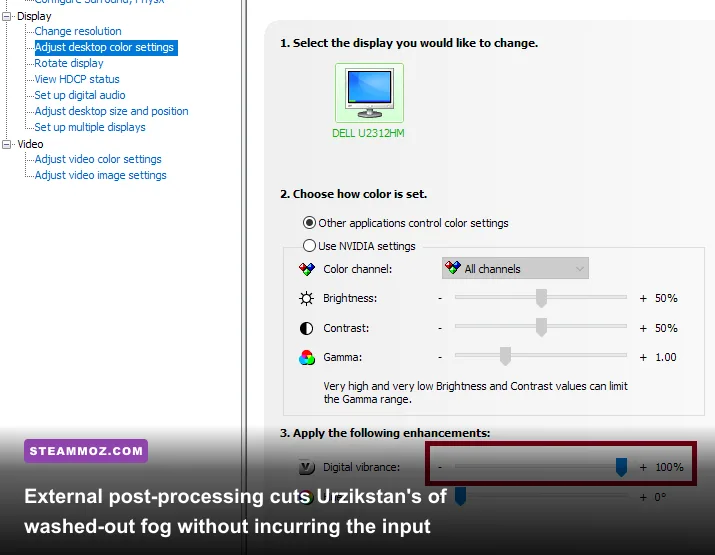
Open the NVIDIA Control Panel (or AMD Software: Adrenalin Edition) and apply these system-level display adjustments:
- Digital Vibrance (Color Saturation): Boost this from the baseline 50% up to 65% – 70%. This instantly separates enemy player skins from the drab concrete and foliage textures of Urzikstan, making silhouette identification instantaneous at extreme ranges.
- Driver-Level Image Sharpening: Under Manage 3D Settings, enable Image Scaling/Sharpening set to 25% with film grain ignore at 100%. This restores razor-sharp edge definition around snipers peeking head glitches without the performance hit of the game's internal FidelityFX CAS filter running at extreme values.
- In-Game Brightness Balancing: Inside Warzone's graphic menu, lower your in-game brightness to 47, but compensate by increasing gamma to 2.4 (BT.1886) if you play on an SDR monitor. This pulls deep shadow information forward, preventing "Roze skin" campers from hiding in dark staircase corners.
Balancing these driver controls provides identical clarity improvements to an invasive Reshade injector without risking a false-positive ban from automated anti-cheat integrity scans.
Input Latency Mods: Overclocking Polling Rates and Reducing System Delay
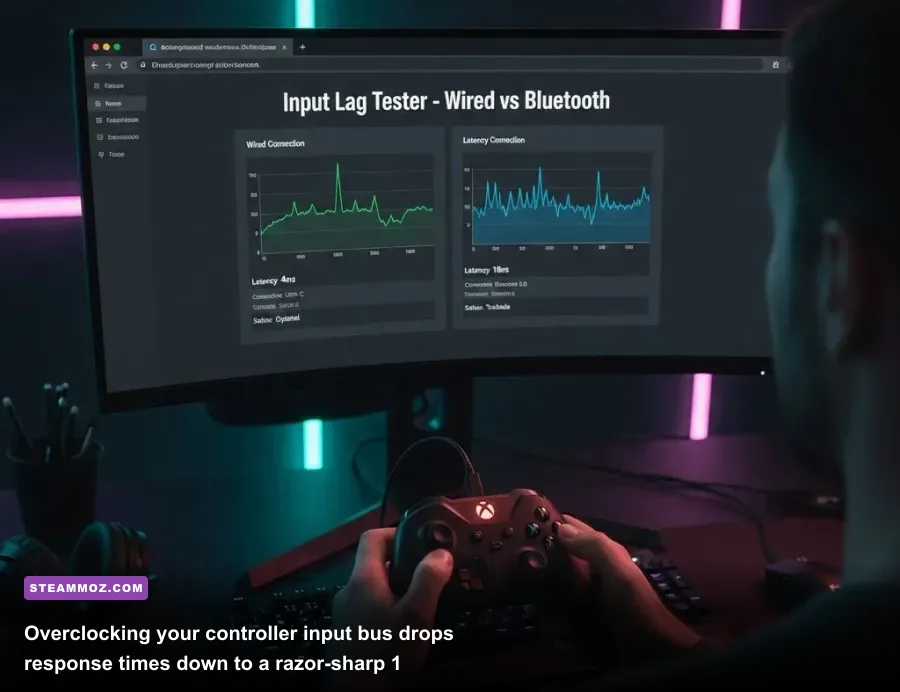
Warzone's aggressive aim assist and high-mobility mechanics mean that whoever lands the first shot in a close-quarters sliding duel takes the kill. Most PC players plug their DualSense, DualShock 4, or third-party controllers into a USB port without realizing Windows limits their polling rate to an agonizing 250 Hz (4ms response time). By applying a driver-level polling mod, you can force your USB hub to communicate at a blistering 1,000 Hz or even 8,000 Hz (sub-1ms delay).
To safely execute this modification, use LordOfMice's open-source HIDUSBF driver utility:
- Download the signed HIDUSBF driver package and extract it to your desktop.
- Run
Setup.exeas Administrator. - Select your gamepad from the device list (it often appears as a generic "HID-compliant game controller").
- Check the Filter On Device box, select a polling rate of 1000 Hz (or 8000 Hz if your gamepad controller PCB supports it), and click Install Service.
- Unplug your controller, plug it back in, and verify that the line item reflects the new sampling rate.
Cutting your controller's input latency down from 4.0ms to 0.8ms radically sharpens centering accuracy and rotational aim-assist tracking during rapid bunny-hopping and slide-canceling. Paired with strict frame-time pacing—which you can study in our breakdown of optimizing graphics settings for higher fps—your mouse or thumbstick inputs will feel instantaneous, completely eliminating the sluggishness that plagues stock PC setups.
Whitelisted Overlays: Real-Time Tactical Stats Without the Ban Risk
If you miss the rich information overlays of traditional modding suites, you don't have to fly blind. While memory scanners like Cheat Engine will terminate your account, Activision maintains an explicit whitelist for approved Overwolf companion apps such as Warzone Tracker and WZ Stats.
These companions use sanctioned API telemetry to project real-time weapon damage profiles, optimal TTK (Time-To-Kill) loadouts, and lobby distribution metrics directly onto your secondary monitor or transparent non-injected screen overlay. By relying solely on authorized API parsers rather than internal game hooks, you ensure that your competitive advantage remains strictly within the bounds of fair play, keeping your account secure while lifting your game to the next tier.
By treating your PC configuration as an integrated gaming pipeline—tuning core processor affinity in options.cst, compressing audio frequencies to highlight enemy movements, cleaning up textures via GPU drivers, and pushing input polling to hardware limits—you effectively overhaul Warzone from top to bottom. It turns an inconsistent, visually chaotic battle royale into a razor-sharp, ultra-responsive competitive arena.