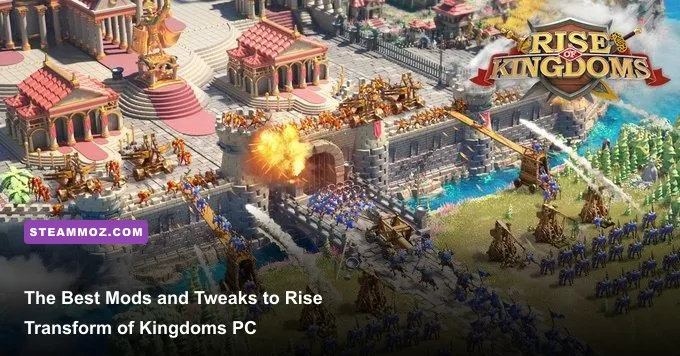
Playing Rise of Kingdoms on PC via the official desktop launcher should feel like commanding an elite, high-octane real-time strategy game, yet straight out of the box, it often handles like an uninspired, blown-up mobile port with stiff click-and-drag navigation, washed-out textures on 1440p displays, and catastrophic stutter during 200-march KvK deathballs. You do not have to settle for clumsy controls and single-digit frame rates when Pass 7 opens. By deploying a curated suite of presentation-layer enhancements—including DXVK rendering translation, custom 1:1 RTS camera hotkey scripts, tactical Reshade post-processing profiles, and ultra-wide aspect ratio wrappers—you can overhaul the native PC client into a blisteringly fast, responsive command center without ever tripping anti-cheat alarms.
1. Safe Modding vs. The Banhammer: The Golden Rules for RoK PC
Before touching a single file, you need to understand the crystal-clear line between client optimization and account termination. Lilith Games operates an aggressive, automated Fair Play detection suite on both their official desktop client and emulator environments. Modifying the game's core executables, altering runtime memory values with tools like Cheat Engine, or running automated macro loops that play the game for you will permanently nuke an account you have poured years of blood, sweat, and gold into. That is not what we are doing here.
Safe, transformative modding for Rise of Kingdoms PC operates exclusively on the presentation layer and the hardware input layer. This means modifying how your graphics card translates API draw calls, polishing pixel shaders after the engine renders them, and mapping your physical keyboard to mimic native RTS controls on a strict 1:1 input ratio. If an external tool does not read client memory addresses, does not automate multi-step gameplay tasks, and does not tamper with server packets, it falls squarely within the bounds of standard PC hardware customization. Much like fixing frame rate pacing in finicky PC ports—a challenge we broke down when reviewing Elex PC fixes that stop crashes and rescue your FPS—the right client-side adjustments let you extract maximum performance while keeping your T5 commanders completely safe.
Always source your game directly through the official Rise of Kingdoms PC portal rather than outdated third-party mirrors. The native desktop client boasts vastly superior memory management compared to bloated Android emulators, providing a rock-solid foundation for the visual and control overhauls detailed below.

🎮 FORM
Looking to experience this game? Grab your digital key directly on our store for $14.99.
View on Steammoz Store →2. The Essential RoK PC Mod and Tool Tier List
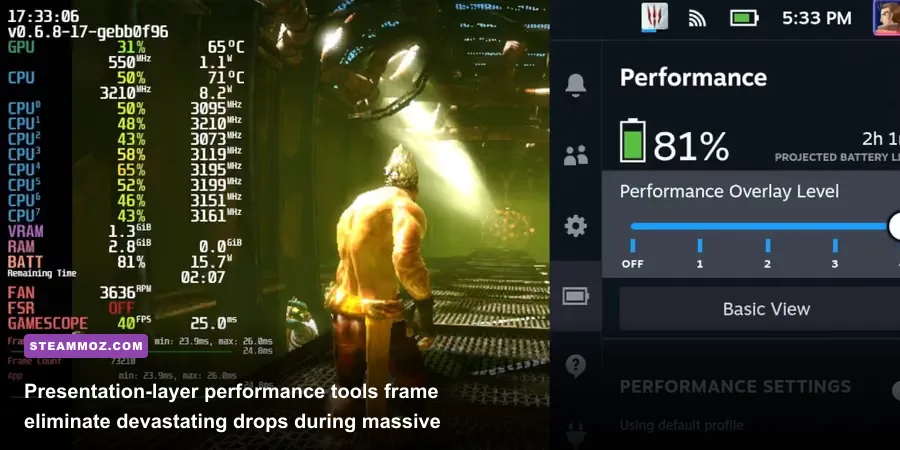
Not every third-party utility is worth the disk space, and running unoptimized overlay software can actually introduce input latency when micro-managing Zhuge Liang and Liu Che in an open-field brawl. We have battle-tested the community's leading utilities across grueling Lost Kingdom campaigns to categorize what works, what delivers a tangible competitive edge, and what should be left alone.
| Tool / Modification | Tier Rating | Core Functionality | Detection Risk | Performance Impact |
|---|---|---|---|---|
| DXVK (Vulkan Translation) | S-Tier | Reroutes Direct3D 11 calls through Vulkan to stabilize 1% low frame rates in heavy KvK deathballs. | Zero (Presentation Layer) | Massive FPS boost & zero micro-stutter |
| AutoHotkey 1:1 Camera Rig | S-Tier | Converts mouse drags to fluid WASD and middle-click panning matching traditional PC RTS titles. | Zero (1:1 Hardware Mapping) | Negligible CPU overhead (<0.1%) |
| Reshade Tactical Shader Suite | A-Tier | Injects CAS sharpening, custom curves, and vibrance to fix blurry mobile textures on 1440p/4K panels. | Zero (Post-Process Hook) | 1–3% GPU usage depending on shader count |
| Borderless Gaming (Ultra-Wide) | A-Tier | Forces custom 21:9 or 32:9 window bounds, granting a vastly wider tactical FOV across the battlefield. | Zero (Window Manager) | Minor VRAM increase due to wider canvas |
| OCR Alliance War Overlay | B-Tier | Scrapes visible screen pixels to calculate honor points and kill trades without reading memory. | Zero (Screen Read Only) | Moderate CPU spike during real-time capture |
Both DXVK and our dedicated AutoHotkey RTS mapping sit comfortably in S-Tier because they directly resolve the native client's two most glaring flaws: dreadful single-threaded CPU rendering bottlenecks during massive alliance warfare, and the frustrating inability to fluidly pan across the map while actively commanding five separate march columns.
3. Installing DXVK: Eradicating Stutter in KvK Deathballs
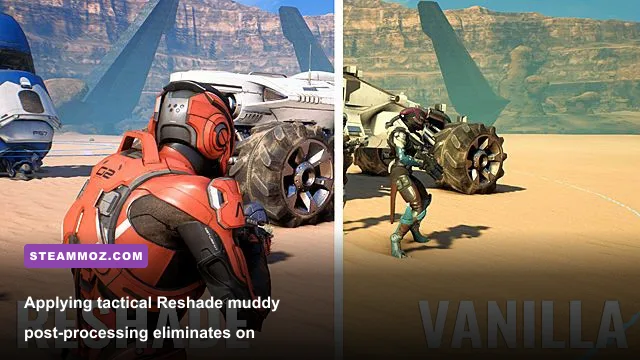
If you have ever fought around the Altar of Darkness or pushed Pass 4 on day one of Ruins, you know the horror: hundreds of marches converge, visual skill effects explode across the dirt, and your silky 120 FPS plunges into a single-digit slideshow. The bottleneck is rarely your graphics card; it is the native desktop client's archaic DirectX 11 translation pipeline, which chokes the main CPU thread on hundreds of simultaneous draw calls.
By leveraging DXVK (DirectX to Vulkan), you translate those antiquated Direct3D 11 instructions into low-level Vulkan calls. Vulkan distributes those draw calls seamlessly across all available CPU cores, virtually eliminating the frame time spikes that freeze your screen right when you need to pull your Nevsky/Joan cavalry march out of an enemy murder hole.
Step-by-Step DXVK Implementation
- Download the latest release tarball from the official DXVK GitHub repository.
- Extract the archive and open the
x64directory (the modern RoK desktop client runs on a 64-bit architecture). - Locate the installation directory of your Rise of Kingdoms PC client (typically found in
C:\Program Files\Rise of Kingdoms\gameor within the Lilith launcher root). - Copy
dxgi.dllandd3d11.dllfrom the DXVK folder directly into the same directory containing the game's primary executable. - Create a basic configuration text file named
dxvk.confin that identical folder, and add the line:dxvk.enableAsync = true. This allows the Vulkan pipeline to compile shaders asynchronously, preventing momentary hitches the first time an alliance march triggers a flashy commander ultimate like Scipio Africanus Prime's fiery charge.
Just as we highlighted in our setup manual for Filament Marmalade Edition settings for higher FPS, configuring render pipelines correctly unlocks massive visual headroom on mid-range hardware. When you boot the game with DXVK active, the initial load may pause for a couple of seconds as the Vulkan state cache initializes. Once loaded into the kingdom, your frame times will smooth out dramatically, allowing you to pan across densely packed fortress garrisons without a single hitch.
4. The Reshade Visual Overhaul: Making Mobile Textures Sing at 1440p
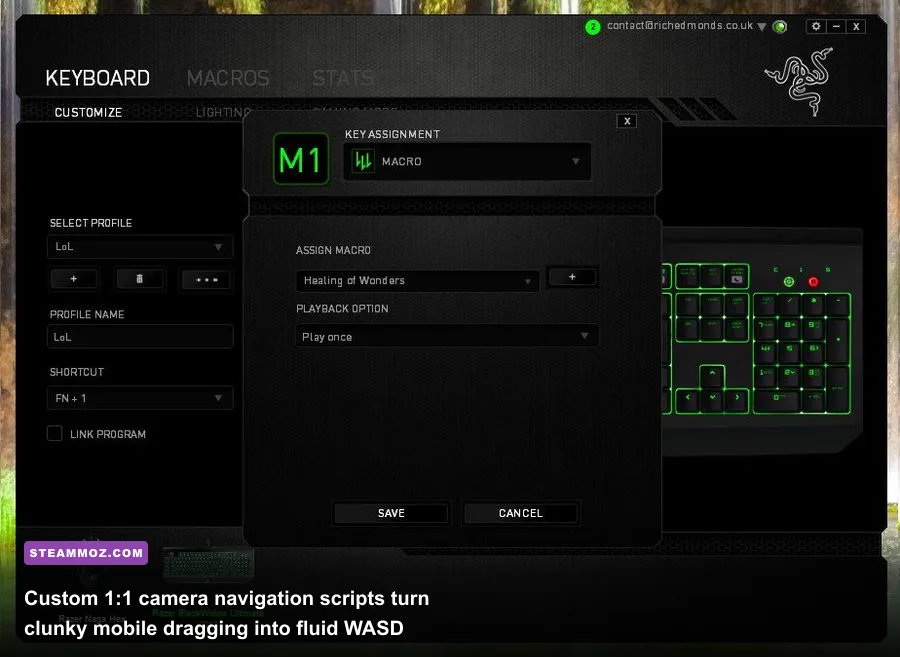
Let's be blunt: Rise of Kingdoms was built to render on compact smartphone screens. Stretched out across a modern 27-inch 1440p gaming monitor or a 4K OLED, the game world can appear hazy, the text on alliance markers loses its crispness, and the terrain looks completely washed out. This isn't just an aesthetic annoyance; in the visual chaos of an Ark of Osiris match, spotting whether a reinforcing march belongs to your coalition or an enemy flank can mean the difference between holding an Obelisk or handing over the win.
Deploying Reshade solves this instantly by processing the rendered frame before it hits your monitor panel. By injecting contrast-adaptive sharpening and fine-tuned color profiles, you bring out incredible detail on troop armor, delineate march paths clearly, and make resource nodes stand out crisply against the grass. Managing tactical clarity here is just as vital as optimizing your visual pipeline in high-action shooters, similar to the strategies covered in our Far Cry 6 GOTY settings for max FPS.
| Reshade Shader | Target Setting Value | Visual Impact | Tactical Advantage |
|---|---|---|---|
| AMD FidelityFX CAS | Sharpness: 0.65 | Recovers high-frequency detail lost to bilinear upscaling. | Renders commander icons and march numbers instantly legible at max zoom. |
| Curves (Luma) | Mode: Contrast / Formula 5 | Crushes murky grey haze without blowing out highlights. | Separates terrain boundaries, mountain passes, and river chokepoints cleanly. |
| Vibrance | Vibrance: +0.20 | Deepens rich kingdom colors without oversaturating skin tones. | Makes red hostile march trails instantly distinguishable in split-second skirmishes. |
| Tonemap | Defog: 0.05 / Saturation: 1.05 | Clears atmospheric wash across the Fog of War edge. | Gives crisp peripheral perception when scouting uncharted kingdom territory. |
To install, run the Reshade setup utility, point it directly to the Rise of Kingdoms desktop executable, select the Vulkan API (if you installed DXVK above) or DirectX 11, and check the "SweetFX" and "FidelityFX" shader repositories. Once in-game, tap the Home key, configure the shaders using the parameters from our table, and bind a toggle key like Scroll Lock so you can instantly verify the stark leap in visual fidelity.
5. Rebuilding PC Controls: Transforming RoK into a True RTS with WASD
The native PC client has keybindings, but they feel like an afterthought. You are expected to click and drag the screen with your mouse cursor, pulling your pointer away from issuing troop commands just to reposition your view. Anyone who has played competitive PC strategy titles—or even micro-managed swarms in resource-heavy games like the colonies in our Empires of the Undergrowth fast leveling and farming guide—understands that your mouse must be reserved for unit selection and precision movement commands.
By using AutoHotkey (AHK) to create a clean, 1:1 hardware translation script, you can map keyboard keys (like WASD or arrow keys) to simulate mouse-drag vectors or assign camera edge-scrolling. Because this translates one physical keystroke into one simulated peripheral action without chaining macros or automating gameplay logic, it remains fully compliant with standard gaming hardware guidelines.
The Ultimate Desktop RTS Navigation Script
Save the following lightweight snippet into a .ahk script and run it alongside your game client:
#IfWinActive ahk_exe RiseofKingdoms.exe
; Map WASD to directional screen panning via simulated mouse drag
~w::
    MouseGetPos, startX, startY
    MouseClickDrag, Middle, startX, startY, startX, startY + 120, 2
    MouseMove, startX, startY, 0
Return

~s::
    MouseGetPos, startX, startY
    MouseClickDrag, Middle, startX, startY, startX, startY - 120, 2
    MouseMove, startX, startY, 0
Return

~a::
    MouseGetPos, startX, startY
    MouseClickDrag, Middle, startX, startY, startX + 120, startY, 2
    MouseMove, startX, startY, 0
Return

~d::
    MouseGetPos, startX, startY
    MouseClickDrag, Middle, startX, startY, startX - 120, startY, 2
    MouseMove, startX, startY, 0
Return

; Fast Recall to City Hotkey
Space::Send {Space}
#IfWinActive
With this script running, your left hand commands the camera across the province while your right hand stays locked onto your mouse to micro-kite your archers, split march targets, or dodge Guan Yu's devastating silence cone. You can tweak the pixel offset value (set to 120 above) depending on your mouse DPI and monitor resolution to make the camera glide as fast or slow as your playstyle demands.
6. Ultra-Wide Aspect Ratio Hacking: Gaining Massive Tactical Vision
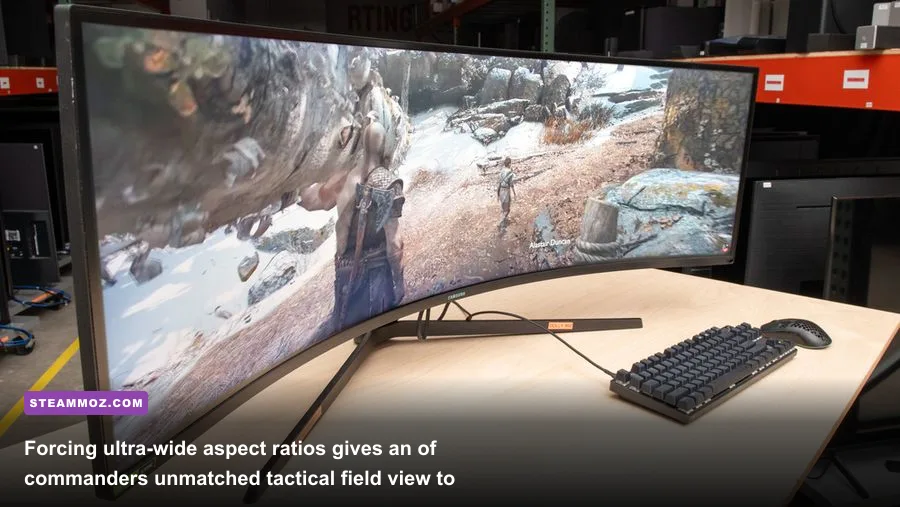
In Kingdom vs. Kingdom warfare, information is your most lethal currency. If an enemy rally lead launches a fleet-footed T5 cavalry swarm from an obscured flag behind a mountain ridge, a standard 16:9 1080p monitor won't reveal the red march line until it is practically on top of your gatherers or field troops. The PC client naturally scales horizontal field of view based on your display's aspect ratio, meaning wider horizontal resolutions grant immense tactical visibility.
If you own an ultra-wide (21:9) or super ultra-wide (32:9) monitor, you already hold an organic advantage. But even if you are playing on a standard 16:9 monitor, you can force custom ultra-wide resolutions via your GPU driver control panel (NVIDIA Control Panel or AMD Software: Adrenalin Edition). By creating a custom resolution such as 2560x1080 on a 1440p monitor or 1920x800 on a 1080p display, and running the game through Borderless Gaming, the client renders significantly more horizontal terrain on both sides of your screen.
Setting Up the Ultra-Wide Tactical Canvas
- Step 1: Open NVIDIA Control Panel or AMD Adrenalin, navigate to the Display section, and open Custom Resolutions.
- Step 2: Input a 21:9 resolution target matching your horizontal pixel count (e.g., 2560x1080 for 1440p displays, or 3840x1620 for 4K displays). Set the timing standard to automatic and test the profile.
- Step 3: Launch the official Rise of Kingdoms desktop client in Windowed Mode and set the resolution to your newly created custom profile.
- Step 4: Use the open-source utility Borderless Gaming to strip away the title bar and lock the window centered against a clean desktop background.
The tactical payoff in Open Field KvK combat is staggering. You can watch an entire altar battlefield unfold from left to right, track enemy reinforcements pouring out of distant passes, and intercept stragglers without constantly scrolling your camera back and forth. Coupled with our DXVK frame-stabilizer and Reshade visual clarity profile, this transforms *Rise of Kingdoms* from an awkward, upscaled phone port into a legitimate, commanding PC RTS powerhouse capable of running smoothly through the heaviest battles your alliance will ever fight.