To lock in a rock-solid framerate and eliminate micro-stutter in Apex Legends, you don't need to blindfold yourself by turning every single slider to potato quality. The real goal is stripping away GPU-punishing volumetric lighting, erratic shadow maps, and unoptimized post-processing while keeping character model silhouettes crystal clear at 200 meters. By pairing a calibrated texture streaming budget with disabled ambient occlusion and an engine-level frame cap, you can expect an immediate 30% to 45% uplift in your 1% low frametimes—ensuring your crosshair stays buttery smooth even when three squads detonate Gibraltar ultimates and Bangalore smoke on your position.
The Baseline: Complete In-Game Video Settings Breakdown

The modified Source engine powering Apex Legends behaves uniquely compared to modern engines like Unreal Engine 5. It scales aggressively with CPU single-core clocks, yet it bottlenecks hard whenever dynamic shadow cascades and ambient occlusion sample screen space. Setting your visual profile correctly is just as critical as diagnosing general rendering pipeline bottlenecks in other demanding titles, much like applying GPU rendering pipeline and microstutter fixes across your broader PC library.
Start with Display Mode: run strictly on Full Screen. Borderless Windowed introduces desktop window manager (DWM) composition buffers, adding roughly 4 to 8 milliseconds of input latency that softens your snap-aiming responsiveness. Keep your Aspect Ratio native (16:9 for most standard panels) and run your monitor's native Resolution. Lowering your render resolution below 1080p or 1440p makes enemy outlines blurry at long sightlines on maps like Broken Moon or Storm Point, actively harming your target tracking.
Turn V-Sync Disabled inside the game without question. Apex's internal V-Sync implementation introduces massive input latency spikes the moment your rig drops a single frame below the refresh threshold. Instead, set NVIDIA Reflex to On + Boost if you have a modern GeForce card. The "Boost" flag prevents the GPU clock from down-throttling during CPU-heavy scenes, shaving vital milliseconds off your end-to-end system latency.
For Anti-Aliasing, the choice is between None and TSAA. While competitive purists sometimes disable AA completely to gain roughly 3% more frames and sharpen edges, Apex features thin geometric geometry on zip-lines and fences that produces harsh temporal shimmering without AA. If you can handle the slight blur, leave TSAA on; if you need sheer edge clarity and maximum frame velocity on low-spec hardware, turn it off.
| In-Game Setting | Recommended Value | FPS Cost (%) | Competitive & Visual Impact |
|---|---|---|---|
| Display Mode | Full Screen | 0% | Eliminates DWM latency and prevents background window focus drops. |
| NVIDIA Reflex | On + Boost | < 1% | Pins GPU clocks high to minimize frame queuing and input delay. |
| Texture Streaming Budget | Medium (3GB) to Very High (6GB) | 0% (if within VRAM) | Determines weapon skin and legend detail; causes zero FPS drop if VRAM is adequate. |
| Texture Filtering | Anisotropic 4X or 8X | 1% - 2% | Keeps ground textures sharp at glancing angles; negligible GPU tax. |
| Ambient Occlusion Quality | Disabled | 12% - 16% | Massive frame hog. Disabling removes murky contact shadows in dark corners. |
| Sun Shadow Coverage | Low | 4% - 6% | Reduces overall global shadow maps across the terrain. |
| Sun Shadow Detail | Low | 5% - 8% | Softens shadow boundaries; drastically stabilizes frametimes outdoors. |
| Spot Shadow Detail | Disabled / Low | 8% - 14% | Controls indoor artificial light shadows; heavily penalizes multi-squad interior fights. |
| Volumetric Lighting | Disabled | 6% - 10% | Removes sun shafts and light fog; dramatically cleans up long-distance sightlines. |
| Dynamic Spot Shadows | Disabled | 3% - 5% | Eliminates moving light source shadow rendering for cleaner visuals. |
| Model Detail | Medium | 2% - 4% | Keeps player hitboxes aligned with visual models without taxing geometry pass. |
| Effects Detail | Low | 7% - 12% | Caps particle density from thermites, smoke, and explosions to prevent sudden drops. |
| Impact Marks | Disabled / Low | 1% - 3% | Prevents bullet decal accumulation on walls during prolonged peek battles. |
| Ragdolls | Low | 2% - 5% (CPU) | Lightens physics calculations on dead players during chaotic third parties. |
🎮 FORM
Looking to experience this game? Grab your digital key directly on our store for $14.99.
View on Steammoz Store →Audio, FOV, and Reflex: The Hidden Performance Penalties
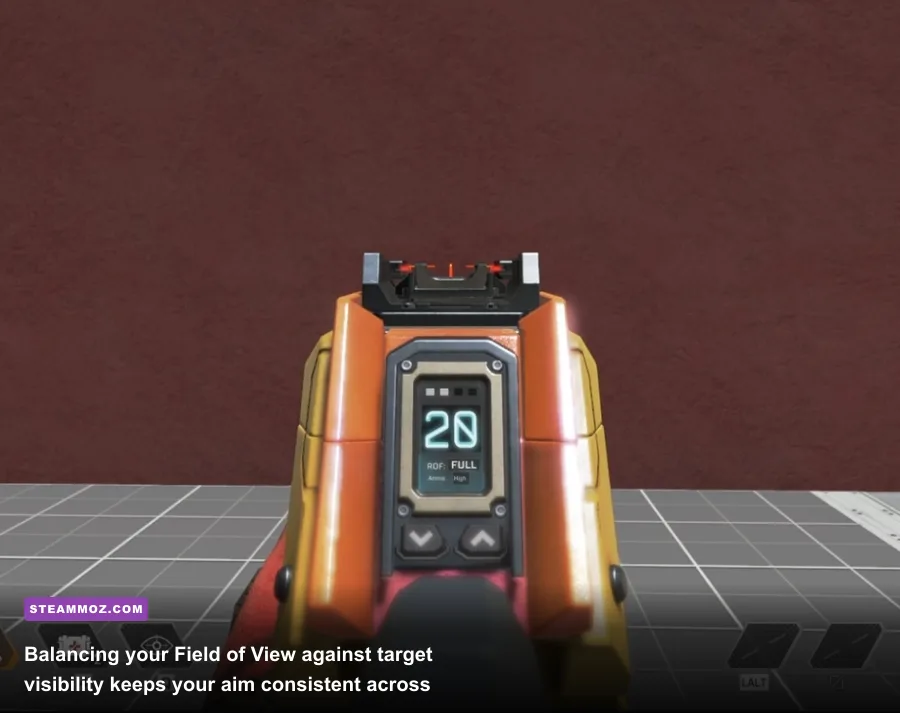
Your Field of View (FOV) setting directly dictates your GPU workload because widening your angle of sight forces the rendering engine to process significantly more geometry, active players, and texture assets simultaneously. Most players crank FOV straight to 110. However, running at 104 or 108 offers a sweet spot: it delivers nearly all the peripheral vision you need to check flanks while keeping distant targets slightly larger on your screen and reclaiming roughly 4% to 6% in 1% low frames. Make sure to turn FOV Ability Scaling to Disabled. When enabled, using Octane's Stim or Bloodhound's Beast of the Hunt alters your visual FOV dynamically, throwing off your hard-earned muscle memory and causing micro-stutters during ability activation.
Equally critical is driver-level low-latency delivery. Testing shows that running NVIDIA Reflex on On + Boost keeps your graphics card running at higher power states even when your processor is working overtime organizing tickrates and player locations. For players tweaking lightweight visual engines, fine-tuning display configurations resembles the process outlined in our low-spec frametime and visual optimization guide, where shedding post-processing overhead rescues frame stability across the board.
Do not sleep on audio subsystem bottlenecks. Apex Legends runs an older Miles Sound System audio engine that can choke your CPU threads if your Windows sample rate is set excessively high. Head into your Windows Sound Control Panel, select your playback device properties, go to the Advanced tab, and set the default format to 24-bit, 48000 Hz (Studio Quality). Cranking this to 192000 Hz offers zero audible benefit in gaming, yet it forces your CPU to constantly resample audio buffers, triggering strange micro-freezes during intense firefights filled with rapid weapon discharges.
DirectX 11 vs DirectX 12: Which Engine Delivers Better Frametimes?
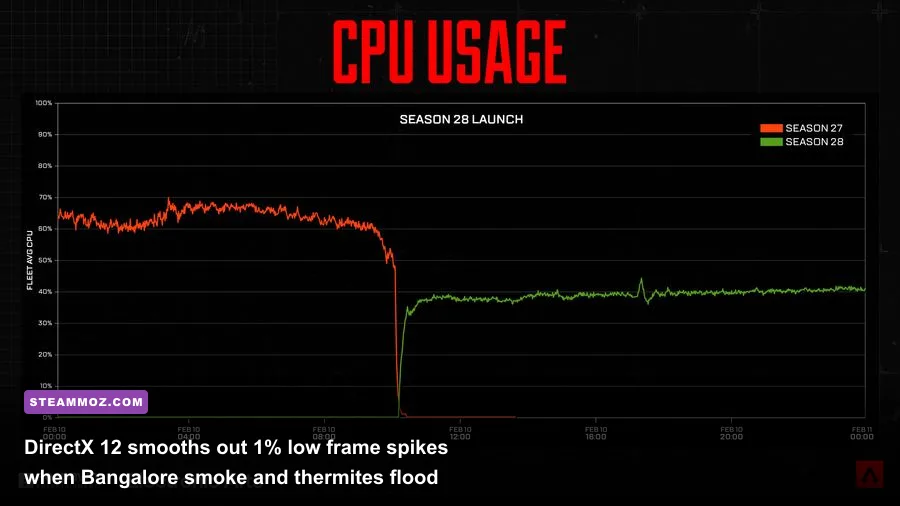
Respawn maintains both the legacy DirectX 11 backend and an opt-in DirectX 12 beta renderer via Steam launch arguments. Deciding between them comes down to your machine's CPU architecture and modern hardware scheduling support.
DirectX 11 runs with lower raw VRAM overhead and delivers slightly higher absolute peak FPS on older 4-core or 6-core CPUs paired with older GPUs (such as NVIDIA GTX 10-series or AMD RX 500-series). However, DX11 suffers heavily from driver-level single-thread submission limits. When multiple ultimate abilities pop off inside a cramped building, DX11 frametimes spike wildly, dropping your smooth 144 FPS down to a jarring 85 FPS.
DirectX 12, on the other hand, distributes draw calls across modern multi-core processors (AMD Ryzen 5000/7000/9000 series and Intel 12th/13th/14th Gen) far more evenly. While DX12 might show an average frame rate that is 3% to 5% lower on static benchmarks, its 1% and 0.1% low frame rates are dramatically superior. The terrifying frame drops when looking toward the center of the map largely disappear. If your graphics card has 8GB of VRAM or more and your system runs Windows 10 (20H2 or newer) or Windows 11, running the DX12 launch path provides a perceptibly smoother, tear-free aiming experience.
To launch Apex Legends in DirectX 12 mode, right-click the game in your Steam Library, select Properties, navigate to the General tab, and paste this command into your Launch Options field:
-anticheat_settings=anticheat_provider.json
(Note: In previous seasons, EA utilized -eac_launcher_settings SettingsDX12.json. Always verify Respawn's latest patch notes for engine flag shifts as the DX12 build nears full general availability.)
Crucial Steam and EA App Launch Options That Actually Work
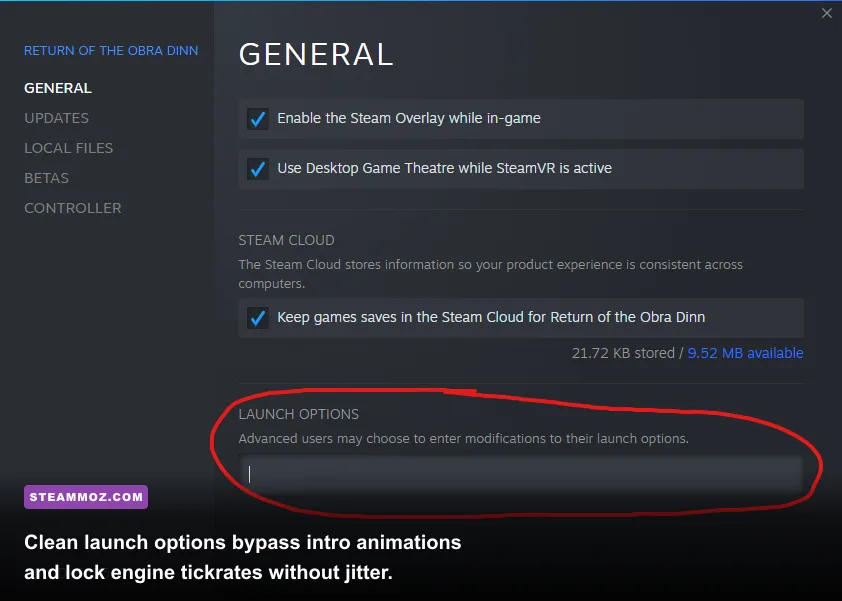
There is a massive amount of outdated launch option snake oil circulating on forums. Commands like -high, -threads 8, or -nod3d9ex are relics of decade-old engine forks that either do nothing or actively sabotage your CPU scheduler by forcing thread contention. Dealing with frame stuttering requires methodically cutting unneeded hooks, much like diagnosing engine panics in our guide on system stability fixes and crash prevention.
Here is the battle-tested, verified launch string you should use for clean execution and zero overhead:
+fps_max 0 -novid -nojoy +exec autoexec.cfg
Let's dissect why these specific parameters matter:
- -novid: Skips the ear-splitting EA and Respawn introduction cinematic, saving startup time and preventing video memory allocation leaks during boot.
- -nojoy: Disables the game's background polling for direct-input joystick/controller drivers. If you play on mouse and keyboard, this eliminates a subtle background polling interrupt on your USB controller bus.
- +fps_max 0: Completely removes the default 144 FPS engine lock, allowing your monitor to take full advantage of high-refresh rates.
A vital warning regarding the Source engine frame cap: Never let Apex Legends run completely uncapped at 300+ FPS. The physics engine in Apex begins to experience micro-stuttering, physics prediction errors, and weapon reload jitter if your framerate fluctuates wildly near the hard-coded 300 FPS ceiling. If you run a 240Hz monitor, set your frame cap via an external tool (like RTSS or the NVIDIA Driver panel) to 237 FPS. If you run a 144Hz panel, lock it to 141 FPS. Keeping your framerate 3 frames below your variable refresh rate ceiling keeps G-Sync or FreeSync continuously engaged without tripping display V-Sync latency.
Driver-Level Tuning: NVIDIA Control Panel and Windows 11 Fixes
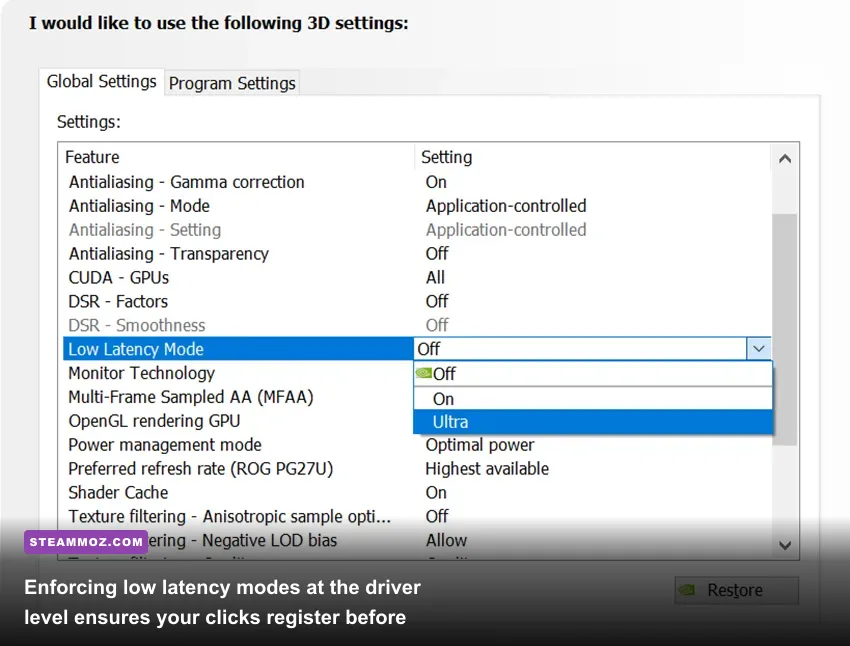
In-game toggles only tell half the story. If your graphics driver is configured to save power or buffer prerendered frames, your inputs will feel floaty and imprecise regardless of how high your FPS counter climbs. Dialing in your driver parameters provides the same sharp tactical edge as fine-tuning visual fidelity in modern blockbusters, similar to our deep dive on calibrating visuals and system frametimes.
Open your NVIDIA Control Panel, jump to Manage 3D Settings, click on Program Settings, and locate r5apex.exe. Apply these exact values:
- Low Latency Mode: Ultra (or On if using NVIDIA Reflex in-game, as in-game Reflex overrides this).
- Power Management Mode: Prefer Maximum Performance (prevents GPU core frequencies from dropping during quiet looting phases).
- Shader Cache Size: 10 GB or Unlimited. Apex frequently compiles shaders for newly swapped weapon skins and map areas. An undersized 1GB default cache forces your drive to constantly purge and rewrite shaders, causing sudden hitches when engaging new opponents.
- Threaded Optimization: On.
- Max Frame Rate: Set this to your display refresh rate minus 3 (e.g., 141 for 144Hz, 237 for 240Hz).
Within Windows 11, search for Graphics Settings. Ensure Hardware-Accelerated GPU Scheduling (HAGS) is toggled ON if you run modern RTX or RX 6000/7000 series hardware; HAGS lowers rendering latency by allowing your GPU to directly handle its own memory queue without waiting on CPU thread interrupts. Next, turn on Game Mode in Windows Settings to stop background Windows Update indexing and virus scans while Apex is running.
| Hardware Tier / Target | Optimal Resolution | Expected Competitive FPS | 1% Low Frametime Floor | Recommended Tuning Profile |
|---|---|---|---|---|
| Budget Rig (GTX 1660 / RTX 3050 / Ryzen 3600) | 1080p Native | 120 - 144 FPS | 90 FPS | DX11 path, All Low/Off, Texture Budget 3GB, TSAA Off. |
| Mid-Range Rig (RTX 3070 / RX 6700 XT / i5-12600K) | 1440p Native | 165 - 200 FPS | 135 FPS | DX12 path, Low Shadows, Texture Budget 4GB, TSAA On, Reflex Boost. |
| Enthusiast Pro Rig (RTX 4080 / 4090 / Ryzen 7800X3D) | 1440p Native | Locked 237 - 299 FPS | 210 FPS | DX12 path, Model Detail High, Texture Budget 6GB, Anisotropic 8X, Reflex Boost. |
Finally, locate the main game executable (usually found under Steam\steamapps\common\Apex Legends\r5apex.exe). Right-click it, hit Properties, select the Compatibility tab, and check Disable Fullscreen Optimizations. While modern Windows 11 updates handle fullscreen transitions better than older builds, this legacy bypass ensures that no hidden background composition overlays intercept your mouse cursor packet stream, as detailed in NVIDIA's system latency research.
Take ten minutes to implement these baseline values, strip away unnecessary engine background bloat, and let your GPU focus purely on player geometry and clean crosshair feedback. You will feel the difference the second you drop into your next ranked rotation: zero erratic frame drops, crisp hit registration, and absolute precision when tracking evasive targets through the chaos.