
For the best Syberia The World Before PC graphics settings, start with 1080p, disable motion blur and film grain, keep textures on High, and lower shadows, effects, and post-processing before touching resolution. That profile preserves the game’s gorgeous Vaghen architecture and character detail while removing the settings most likely to cause stutter or sudden FPS drops. On a mid-range gaming PC, it’s the sensible target for a stable 60 FPS; older hardware should use 900p or 720p with Medium shadows and effects.
Syberia The World Before is a story-driven adventure game, not a twitch shooter, so a locked and consistent frame rate matters more than chasing a huge peak number. A perfectly steady 45 FPS feels better during exploration than a meter jumping between 38 and 70. The game also moves between Kate Walker’s present-day journey and Dana Roze’s 1937 storyline, which means scene complexity changes dramatically between a quiet interior, a crowded Vaghen street, and a wide Taiga view.
The best starting profile for most PCs

Begin by selecting the game’s High preset, then make targeted changes instead of dragging every option to Low. High textures are usually the safest visual upgrade because they sharpen signs, walls, machinery, and character clothing without placing the same sustained load on the GPU as shadows or screen-space effects. If your graphics card has limited VRAM, Texture Quality is the exception: reduce it one step when you see hitching while turning the camera or entering a new area.
Use exclusive fullscreen if the game offers it and select your monitor’s native resolution. Borderless windowed mode is convenient for switching applications, but fullscreen can deliver more predictable frame pacing on some systems. Start with VSync disabled while testing, then enable it if you see obvious horizontal tearing. If your display supports FreeSync or G-SYNC, use variable refresh with an FPS cap a few frames below the panel’s maximum refresh rate.
| Setting | Recommended Value | FPS Impact | Visual Note |
|---|---|---|---|
| Resolution | Native 1080p | Very High | Best clarity; lower to 900p or 720p only when GPU-limited |
| Overall Quality | High, then customize | Medium | High is a useful starting point, not always the best final profile |
| Texture Quality | High | Low to Medium | Preserves environmental and character detail |
| Shadow Quality | Medium | High | Large FPS gain in streets and outdoor scenes |
| Effects Quality | Medium | Medium to High | Reduces expensive lighting and atmospheric effects |
| Post-Processing | Medium | Medium | Good compromise for bloom, ambient shading, and image treatment |
| Anti-Aliasing | High or the second-highest option | Low to Medium | Retains clean building edges and character silhouettes |
| Motion Blur | Off | Small | Improves clarity during camera movement |
| Film Grain | Off | Negligible | Produces a cleaner image without the artificial noise |
| VSync | Off for testing; On if needed | Variable | Controls tearing, but may add latency or frame pacing limits |
That profile is deliberately conservative. Syberia’s strongest visual work comes from its art direction: the clockwork machinery, weathered buildings, snowy routes, and expressive faces. Dropping shadows from Ultra or High to Medium often costs far less image quality than lowering the entire preset. You’ll still see convincing contact shadows beneath props and characters, while the GPU avoids spending too many milliseconds on distant shadow maps that add little during a puzzle sequence.
🎮 FORM
Looking to experience this game? Grab your digital key directly on our store for $14.99.
View on Steammoz Store →Which settings cost the most FPS?
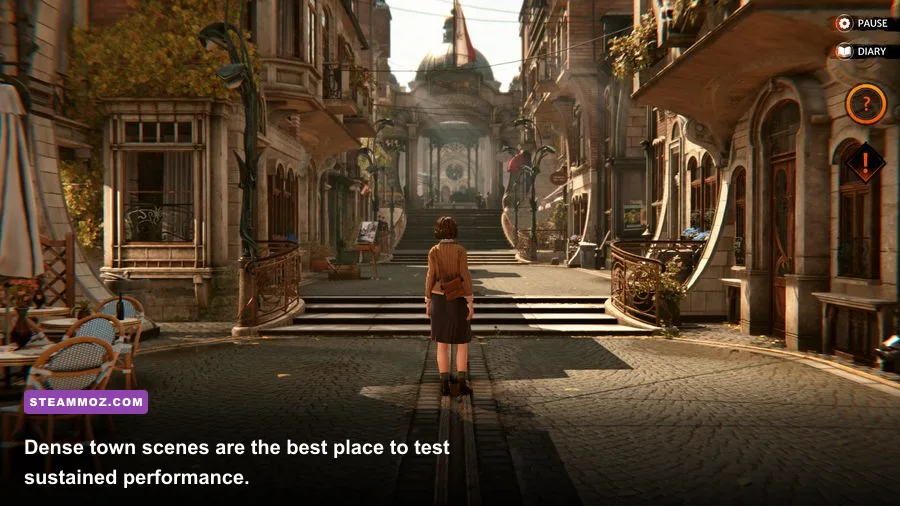
Resolution is the biggest lever because it changes the number of pixels your GPU must shade. Moving from 1440p to 1080p renders roughly 44 percent fewer pixels, while moving from 1080p to 720p cuts the workload by roughly 56 percent. That doesn’t translate into the exact same FPS increase, but the relationship explains why resolution is the right emergency adjustment when your GPU is pinned at 99 percent.
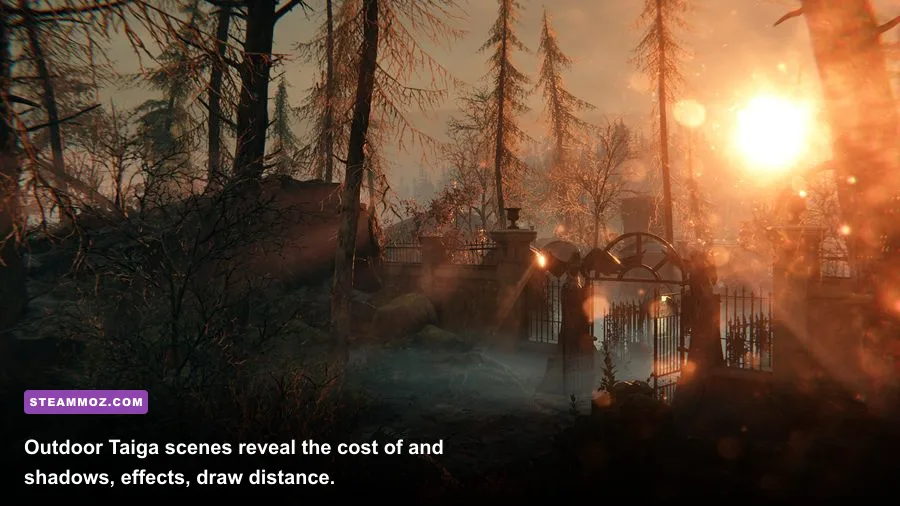
Shadows are usually the next major culprit. Outdoor scenes around Vaghen and the Taiga contain more geometry, foliage, light sources, and cast-shadow calculations than compact interiors. Medium shadows are my first serious performance recommendation. Low shadows can look noticeably flat around buildings and props, so only use them if Medium still misses your target.
Effects and post-processing deserve separate attention. Effects can influence volumetric lighting, particles, and other scene treatments, while post-processing controls the final image pass. Lowering both from High to Medium can remove a surprising amount of GPU pressure in atmospheric scenes without making textures blurry. Keep anti-aliasing higher if jagged railings, rooflines, or machinery bother you; it usually gives a better visual return than maxing post-processing.
| Priority | Option to Change | Typical Performance Benefit | What You Give Up |
|---|---|---|---|
| 1 | Resolution | Largest GPU improvement | Image sharpness and fine detail |
| 2 | Shadow Quality | High in outdoor areas | Shadow softness and distant shadow detail |
| 3 | Effects Quality | Medium to High in busy scenes | Atmospheric lighting and effect complexity |
| 4 | Post-Processing | Medium | Bloom, shading, and cinematic treatment |
| 5 | Anti-Aliasing | Low to Medium | Cleaner edges around architecture and props |
| 6 | Textures | Mostly VRAM-dependent | Surface detail and visual sharpness |
Use the built-in display readout, if available, or an overlay such as MSI Afterburner to identify the bottleneck. GPU usage near 95–99 percent means resolution, shadows, effects, or post-processing are your likely targets. If GPU usage is low while the frame rate remains poor, the CPU, background applications, shader compilation, or streaming behavior may be responsible. Lowering textures in that situation won’t solve the real problem.
Three PC presets for 30, 60, and 120 FPS
60 FPS balanced profile
This is the profile most players should try first: native 1080p, High textures, Medium shadows, Medium effects, Medium post-processing, and High anti-aliasing. Turn motion blur and film grain off. Keep foliage, view distance, or geometry options at High if the menu exposes them, because Syberia’s carefully dressed environments lose more atmosphere when distant detail disappears than when shadows become slightly less refined.
On a machine with a modern six-core CPU and a mainstream GPU, target a 60 FPS cap rather than allowing unlimited frames. A cap reduces power spikes, fan noise, and frame-time swings, especially when the game transitions between interactive exploration and cinematic sequences. If 60 is not stable, test a 45 FPS cap. It’s a much better fallback than letting performance bounce unpredictably.
30 FPS quality profile
For older laptops or integrated graphics, choose 720p or 900p, Medium overall quality, Medium textures if VRAM is tight, Low or Medium shadows, and Low effects. Keep anti-aliasing at Medium where possible; a soft but stable image is preferable to harsh shimmering on the ornate mechanical objects found throughout the story. Disable blur and grain regardless of resolution.
A locked 30 FPS profile is perfectly playable for this adventure. Dialogue, clue inspection, inventory interaction, and environmental puzzles don’t demand competitive latency. The important part is locking the rate consistently. If your frame time fluctuates around 30, lower effects and shadows until the busiest outdoor scene stays above the cap.
High-refresh 90–120 FPS profile
High-refresh play is possible on powerful hardware, but it isn’t the game’s natural performance target. Use 1080p, High textures, Medium shadows, Medium effects, and a conservative post-processing setting. Cap at 90 or 120 only after checking the demanding areas around Vaghen and the Taiga. Unlimited FPS can create unnecessary heat without changing how quickly puzzles or conversations respond.
| Target | Resolution | Textures | Shadows | Effects/Post-Processing |
|---|---|---|---|---|
| 30 FPS quality | 720p–900p | Medium | Low–Medium | Low |
| 60 FPS balanced | 1080p native | High | Medium | Medium |
| 90–120 FPS performance | 1080p native | High | Low–Medium | Low–Medium |
| 1440p quality | 1440p native | High | Medium | Medium |
Players using a 1440p monitor should resist the temptation to drop every setting immediately. Keep the native resolution if your GPU can maintain the target, then reduce shadows and effects first. If it can’t, 1080p with a clean, stable image will generally look better than 1440p with severe stutter. Check your monitor’s scaling mode too; blurry driver scaling can make a correct performance compromise look worse than it really is.
How to stop stutter and uneven frame pacing
Average FPS doesn’t tell the whole story in Syberia The World Before. A scene can report 60 FPS while producing visible hitches whenever Kate enters a new district or the camera reveals a large section of Vaghen. Watch frame times rather than only the headline number. A stable 16.7 ms frame time equals 60 FPS; spikes to 30 ms or 50 ms are the stutters you feel.
First, install the game on an SSD if possible. Adventure games stream environmental assets as you move between locations, and a hard drive can turn those transitions into pauses. Leave adequate free space on the drive, close browsers and launchers that are consuming memory, and allow shader compilation to finish if the game performs it on first launch. Don’t judge performance during the first few minutes after a driver update or fresh installation.
Update your GPU driver, but don’t automatically assume the newest driver is always best. If a problem begins immediately after an update, a clean reinstall or rollback can isolate the cause. Windows Game Mode is generally safe to leave enabled, while aggressive third-party overlays should be disabled during testing. Steam, Discord, GeForce Experience, AMD Software, and recording tools can all add another layer to frame pacing.
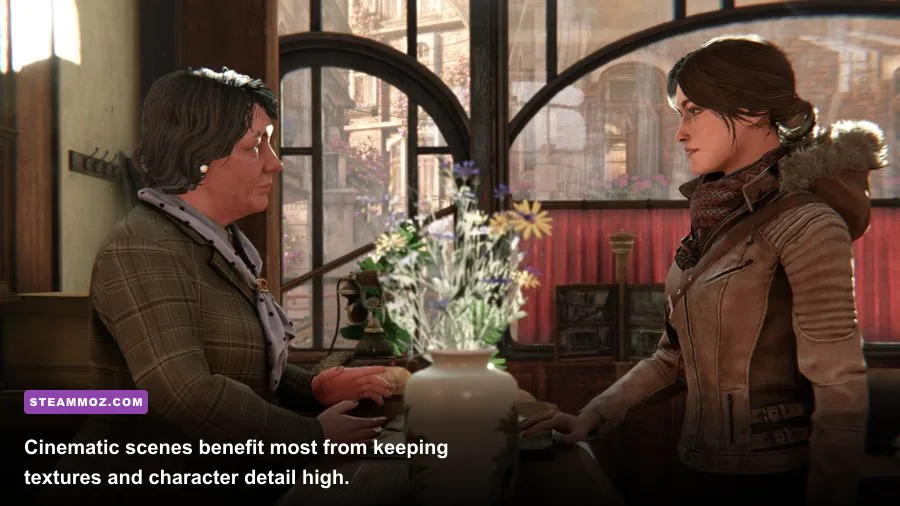
Use one repeatable route for testing: load a save near a busy outdoor area, walk through the same street, rotate the camera across the densest architecture, then enter an interior. Repeat after each change. Cinematic sequences featuring Kate Walker or Dana Roze are useful for checking image quality, but they aren’t reliable benchmarks because they may not stress the hardware in the same way as free camera movement.
If stutter remains after lowering GPU-heavy options, test borderless versus fullscreen, disable overlays, and cap the frame rate. An external limiter can sometimes produce smoother pacing than an in-game cap, but don’t stack multiple limiters without a reason. Choose one method, compare frame-time graphs, and keep the configuration that produces fewer spikes.
Visual settings you should leave alone
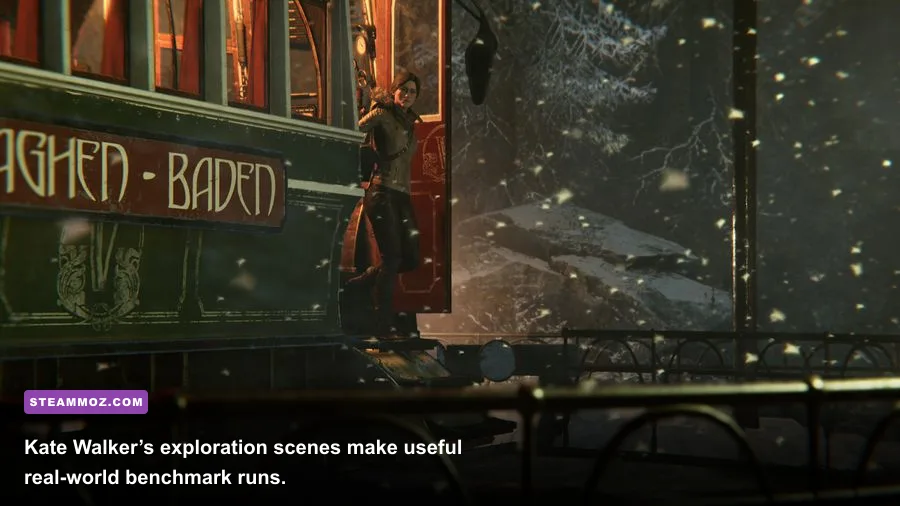
Textures are the setting I’d protect longest. Syberia The World Before depends on readable surfaces: painted signs, aged stone, wood grain, clothing, and the intricate mechanisms that sell its steampunk world. Lowering textures saves little if the GPU has enough VRAM, yet it can make every scene look muddy. Reduce them only when you see VRAM-related hitching, texture pop-in, or a major drop when moving through detailed areas.
Anti-aliasing is another setting worth keeping above Low. Thin rails, cables, railings, window frames, and mechanical parts create constant opportunities for shimmering. If the game offers more than one anti-aliasing quality level, choose High on a 60 FPS system and Medium on a weaker machine. If the image looks soft, adjust sharpening in the driver or monitor only after testing the game’s own presentation; excessive sharpening creates halos around text and character silhouettes.
Motion blur and film grain are easy wins because they mostly affect personal preference rather than scene detail. Motion blur can make camera pans feel smeared, especially at 30 FPS, while film grain masks fine texture and text clarity. Chromatic aberration, if present, is also a good candidate for disabling. These options rarely transform performance, but removing them makes the image cleaner and helps you spot texture or aliasing problems accurately.
Keep the art direction intact by avoiding extreme low presets. Syberia’s appeal comes from its deliberate compositions, from Vaghen’s layered streets to the historical contrast between Kate’s investigation and Dana’s story. A balanced Medium/High mix preserves that identity far better than a blanket Low profile. For more PC troubleshooting ideas, Steamoz’s guides on crash fixes and FPS recovery and low-FPS troubleshooting cover the same practical diagnosis process.
Final tuning checklist for smooth exploration
Before starting a long session, confirm that the display mode and resolution are correct, then cap the frame rate to the lowest value your busiest test scene can hold. For most systems, that means 60 FPS at 1080p with High textures and Medium shadows. Laptop players should connect AC power, use the high-performance profile, and make sure the dedicated GPU is assigned to the game rather than integrated graphics.
Make changes one at a time. If you lower five options together and gain 12 FPS, you won’t know which change mattered. Start with shadows, then effects, then post-processing. If that still isn’t enough, lower resolution. Only after those steps should you reduce textures or anti-aliasing. This order gives you the highest performance return while protecting the visual details that make Kate Walker’s journey worth seeing on PC.
| Symptom | Likely Cause | First Fix | Second Fix |
|---|---|---|---|
| Low FPS with GPU at 99% | Resolution or heavy GPU settings | Lower shadows and effects | Drop resolution one step |
| Hitches when entering areas | Asset streaming or storage | Move the game to an SSD | Close overlays and background apps |
| Blurry image | Low resolution, scaling, or AA | Restore native resolution | Raise textures and anti-aliasing |
| Tearing | Frame rate exceeds refresh timing | Enable VSync or VRR | Use a suitable FPS cap |
| Uneven 30/60 FPS | Uncapped frame pacing | Set a stable cap | Lower outdoor shadows and effects |
For official reference, check the Syberia The World Before Steam page, the developer’s Microids website, and the publisher’s official Syberia series site for updates and support information. If you enjoy tuning demanding PC releases, Steamoz also has guides for Far Cry 6 graphics settings and higher FPS in Filament.
The short version is simple: use native 1080p, High textures, Medium shadows, Medium effects, Medium post-processing, and disabled blur and grain. Cap the result to a stable 60, 45, or 30 FPS instead of worshipping the highest peak number. That setup keeps Vaghen’s architecture, Dana Roze’s historical scenes, and Kate Walker’s detailed journey looking sharp while cutting the settings most likely to punish your frame time.