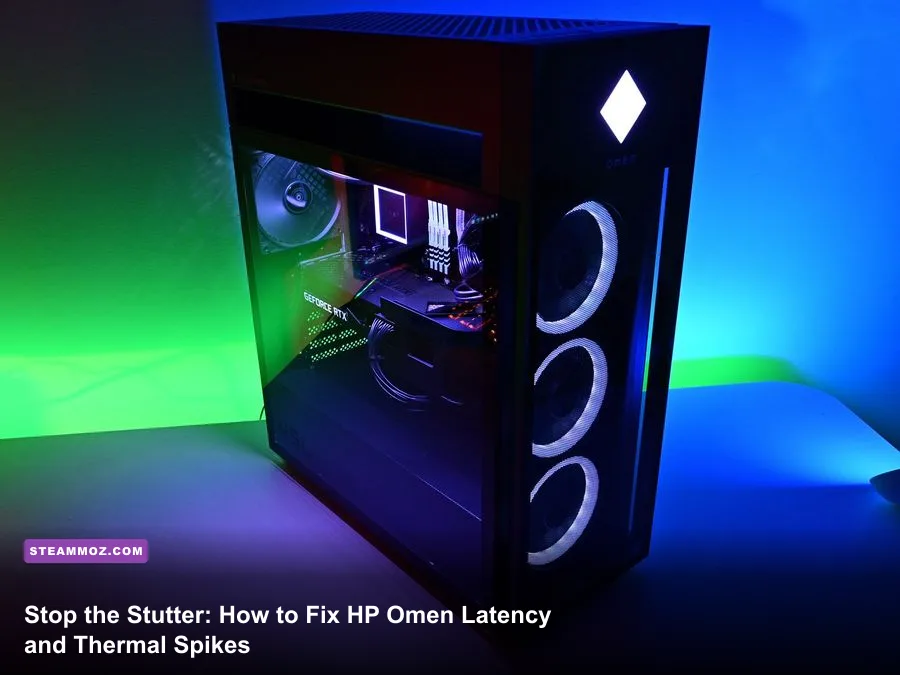
If your HP Omen desktop or laptop is randomly hitching, dropping frames during firefights, or running fan speeds that sound like an idling jet engine, you aren't imagining things. The primary culprits behind HP Omen performance hiccups are aggressive thermal throttling on stock fan profiles, high DPC (Deferred Procedure Call) latency caused by factory telemetry, and the poorly tuned packet-filtering of the built-in HP Network Booster. Solving these issues doesn't require rebuilding your rig from scratch; by trimming bloated HP background services, dialing in a sensible undervolt curve, and locking down your display switch, you can transform an erratic Omen into the silky-smooth battlestation HP promised on the box.
Diagnosing the Omen Stutter: DPC Latency and Background Bloat
Micro-stuttering is the ultimate buzzkill in fast-paced shooters and tactical racers. You might see a steady 140 FPS on your overlay, but the gameplay feels jagged and unresponsive. On HP Omen systems—spanning prebuilt rigs like the Omen 25L, 40L, and 45L to laptops like the Omen 16 and 17—the hidden thief is usually DPC latency. When Windows drivers take too long to complete their tasks, incoming audio and video buffers choke. If you have ever run into similar problems in other modern releases, applying sound system repairs like those in our guide to rescuing stuttering frame rates can make a world of difference.
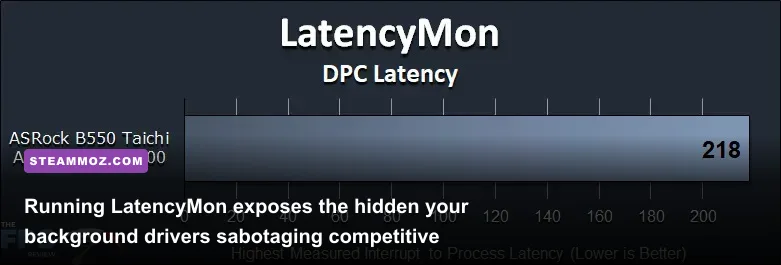
To verify this on your own machine, grab LatencyMon by Resplendence. Run the tool, click the green Play button, and jump into an intense round of your favorite multiplayer game for five minutes. If LatencyMon throws a wall of red text shouting that your system is struggling with real-time audio and kernel routines, take a look at the Drivers tab. On factory HP installations, you'll frequently see HDAudBus.sys, ndis.sys, or proprietary HP helper services racking up absurdly high execution times exceeding 1,500 microseconds.
HP bundles several persistent services that constantly phone home with usage stats and ping your hardware sensors every few milliseconds. These micro-interruptions stall your processor's execution threads. You don't need to nuke the entire operating system, but you do need to declutter the service registry.
| Service / Process Name | Factory Role | Performance & Latency Impact | Recommended Action |
|---|---|---|---|
| HP Touchpoint Analytics Client | Collects diagnostic and usage data | High CPU wakeups, constant storage I/O | Disable completely in services.msc |
| HP Network Optimizer | Omen Gaming Hub packet prioritization | Severe packet jitter, DPC latency spikes | Disable and uninstall packet filter |
| HP App Helper Custom Cap Service | Links system telemetry to HP software | Periodic thread stalls and micro-stutters | Set Startup type to Manual |
| OMEN Command Center Background | RGB sync, dynamic overclock hooks | Moderate background memory & polling | Keep enabled only if using custom RGB |
| Realtek Audio Universal Service | OEM audio suite and effects | Buffer under-runs, crackling, driver latency | Update to generic Realtek DCH drivers |
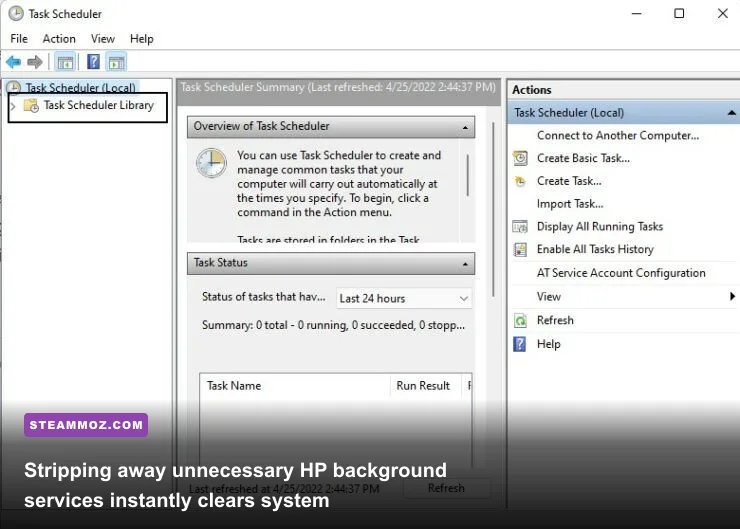
To disable the worst offenders, press Windows Key + R, type services.msc, and hit Enter. Scroll down to locate HP Touchpoint Analytics Service. Right-click it, hit Properties, switch the Startup Type to Disabled, and click Stop. Repeat this exact process for HP System Info HSA Service and HP Analytics service. You will retain all core gaming features, but your baseline background CPU utilization will drop noticeably, cleaning up intermittent hitching.
Taming the Heat: Thermal Throttling and Custom Fan Curves
HP Omens pack serious hardware into tight enclosures. Desktops like the Omen 25L and 40L rely heavily on negative air pressure through narrow front vents, while Omen laptops feature dense copper heat-pipe assemblies. Left on factory profiles, both designs frequently slam into thermal ceilings. When an Intel Core i7-13700K or AMD Ryzen 7 7800X3D hits 95°C to 100°C, the processor initiates clock-throttling, dropping from 5.2 GHz down to 3.4 GHz in a fraction of a second. This thermal drop manifests in-game as an instantaneous framerate crash before clawing its way back up.
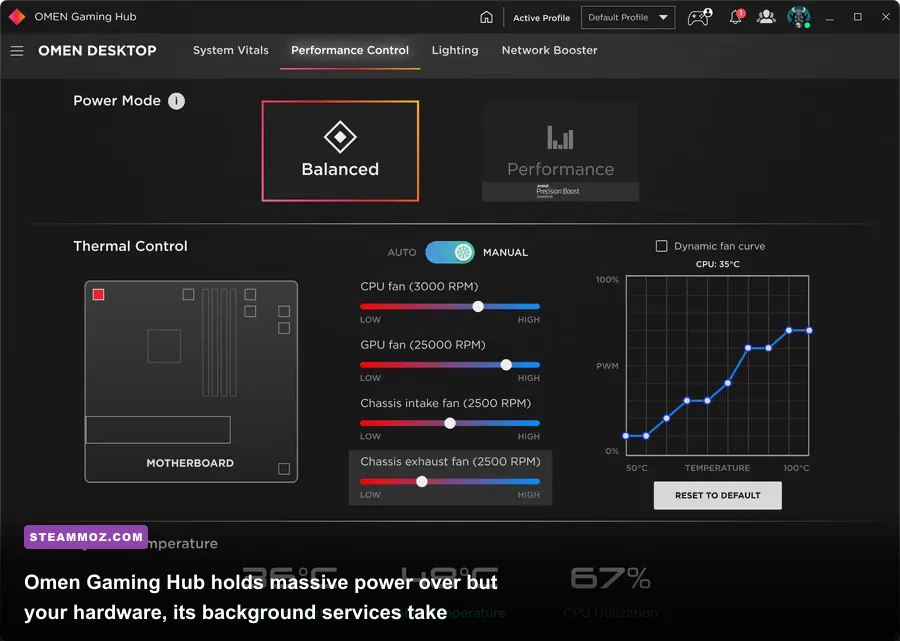
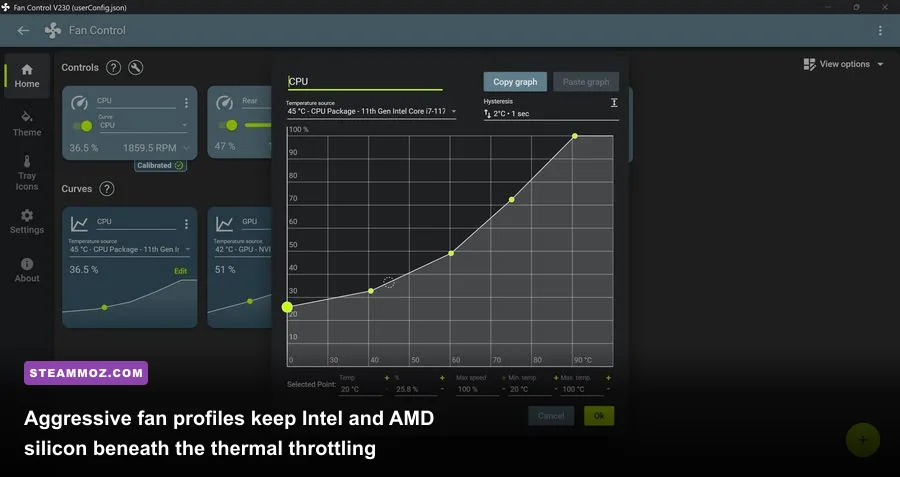
Your first line of defense is the cooling configuration inside the HP Omen Gaming Hub. By default, the software runs in "Balanced" mode. In this mode, fan profiles stay conservative to keep acoustics quiet, but the fan RPM ramps up far too late after thermal throttling has already begun. Switch your power profile to Performance, but don't stop there. Head into the Fan Control sub-menu and change it from Auto to Manual.
Establish an aggressive, stepped fan curve: set the fans to spin at 45% once your CPU passes 50°C, ramp up to 75% at 70°C, and command a full 100% blast whenever temperatures cross 82°C. While your rig will sound louder, preventing the CPU and GPU from hitting thermal panic limits eliminates mid-game stuttering. If you run intensive shooters, matching your fan curve with targeted system settings—much like the performance tweaks detailed in our guide for maximizing game frame rates—guarantees stable clock speeds throughout multi-hour sessions.
For laptop players dealing with soldered mobile silicon, software undervolting is your best friend. HP actually includes a dedicated undervolting module within the Omen Gaming Hub for supported Intel chips. If unlocked, use the Intelligent mode or shift into Custom mode to apply an initial offset of -0.050V. Run a demanding benchmark or play an uncompressed match. If the system remains stable, walk the offset down in increments of -0.010V until you find your silicon's sweet spot (typically between -0.060V and -0.085V). Dropping your core voltage lowers operating temps by 4°C to 8°C without shaving a single megahertz off your clock speeds.
Eliminating Network Lag and In-Game Ping Spikes
Network latency is just as deadly as hardware stutter. You line up a crosshair, click, and your shot vanishes into the void while your character rubber-bands back behind a wall. Many Omen owners immediately blame their internet service provider, but the culprit is often sitting right inside HP's software stack: the HP Network Booster.
Marketed as a high-tech Quality of Service (QoS) engine, the Network Booster attempts to inspect and prioritize gaming packets over background downloads or streaming services. In reality, its real-time packet inspection adds an unnecessary software bottleneck to your network adapter. Worse, if your Omen laptop or motherboard features "Dual Force" networking—which claims to route game data over Ethernet and secondary traffic over Wi-Fi simultaneously—it can cause packet routing desyncs that show up as severe jitter in titles like Valorant, Counter-Strike 2, and Apex Legends.
Fixing this is straightforward:
- Launch OMEN Gaming Hub and select Network Booster from the left-hand navigation pane.
- Toggle the main Network Booster switch completely to Off.
- If you want total peace of mind, press Windows Key + X, choose Device Manager, expand Network adapters, right-click your active adapter (Intel Wi-Fi 6E or Realtek Gaming GbE Family Controller), open Properties, switch to the Advanced tab, and set Energy Efficient Ethernet to Disabled.
Disabling power-saving features on your network card stops the interface from slipping into lower-power standby states during quiet gaming moments, preventing that sudden 200ms ping surge the moment heavy firefights kick off.
Display Settings, MUX Switch, and GPU Power Profiles
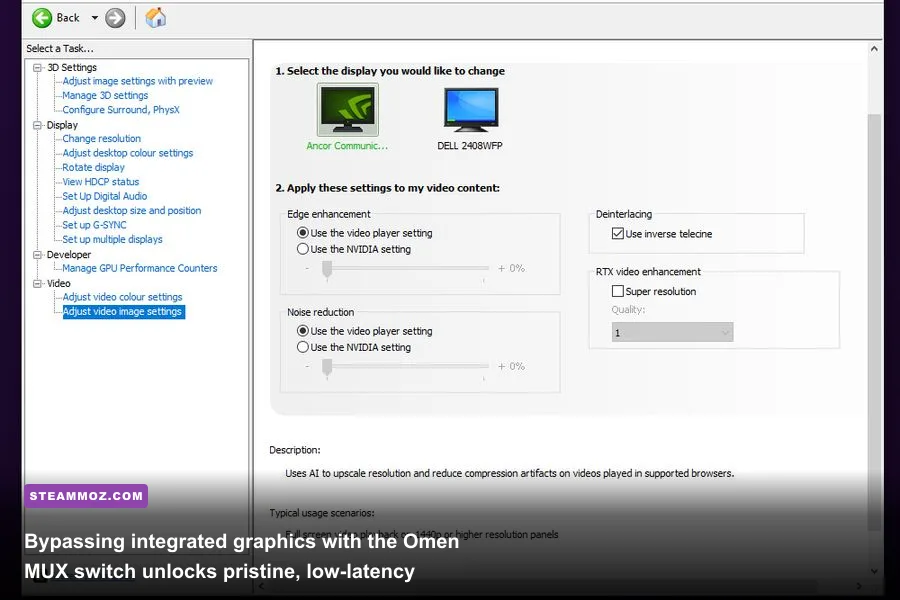
If you game on an Omen laptop, your dedicated NVIDIA GeForce RTX graphics card might be handcuffed by your processor's integrated display chip. Stock laptops often run in "Hybrid" or "Optimus" mode, where the dedicated GPU renders the frames but routes them through the CPU's integrated graphics before painting them on your screen. This handshake incurs a measurable latency penalty of anywhere from 5ms to 15ms and trims 10% to 20% off your maximum framerates in competitive esports titles.
To eliminate this latency trap, access your laptop's physical MUX switch. Open the Omen Gaming Hub, navigate to your laptop's main dashboard, click the Graphics Switcher tab, and select Discrete instead of Hybrid. The system will prompt you for a reboot. Once restarted, your display is wired directly to the NVIDIA GPU. If you want to explore the baseline hardware limits required by next-gen titles before pushing settings higher, check out our breakdown of PC hardware specs and requirements.
| Display / Driver Feature | Default Factory State | Tuned Low-Latency Profile | Performance Benefit |
|---|---|---|---|
| Omen Graphics Switcher | Hybrid / Dynamic Optimus | Discrete GPU Only | Cuts display latency, gains 10-20% FPS |
| NVIDIA Low Latency Mode | Off | On (or Ultra for GPU-bound scenarios) | Limits render queue to prevent input lag |
| Power Management Mode | Optimal Power / Normal | Prefer Maximum Performance | Prevents core clock fluctuations |
| G-Sync / FreeSync State | Variable (often unlinked) | Enabled + V-Sync On in Driver + In-Game Cap | Eliminates tearing with zero input delay penalty |
| Windows Game Mode | User Defined | Forced ON | Prioritizes game threads over OS processes |
After locking your display to the discrete chip, dive into the NVIDIA Control Panel. Under Manage 3D Settings, set Low Latency Mode to On. This prevents your CPU from queueing up more than a single frame ahead of the GPU, locking input latency down to the millisecond. For puzzle games, high-refresh platformers, or physics-heavy adventures where timing is king—similar to the optimizations we showcase in our guide on display pacing and higher FPS—this combination yields instantaneous mouse response.
BIOS Tweaks, RAM XMP Profiles, and Power Delivery
HP has historically kept their desktop and laptop BIOS environments locked down tight, but modern Omen motherboards have received vital firmware updates unlocking enthusiast-grade controls. If your memory is running at slow factory baseline clocks, your CPU's memory controller is starved for bandwidth, leading to sudden 1% low frame dips during open-world asset streaming.
Restart your HP Omen and immediately tap the F10 key repeatedly to enter the BIOS setup utility. Navigate to the Advanced menu and inspect the memory configuration tab. Many Omen desktop builds (especially those shipping with Kingston Fury Beast modules) arrive from the factory running at standard JEDEC frequencies—such as DDR4-2400 or DDR5-4800—even though the memory sticks are rated for DDR4-3200 or DDR5-5200. Toggle your memory profile to XMP Profile 1. Save and exit (F10). Unlocking that extra memory bandwidth smooths out asset streaming in demanding open-world games, eliminating the stutter you feel when entering a dense city or driving at high speeds.
Next, check the Windows Power Plan settings. Open the classic Windows Control Panel, navigate to Hardware and Sound > Power Options, and select High Performance or balanced with fine-tuned parameters. Click Change plan settings, then Change advanced power settings. Expand Processor power management and find Minimum processor state. Ensure this is set to 5% rather than 100%—leaving it at 100% prevents your processor from dropping into idle thermal recovery states between loads, keeping your chassis hot for no operational gain.
If your system suffers from sudden game crashes or GPU driver resets during heavy thermal loads, you may be pushing graphics stability past its breaking point. Following the recovery steps outlined in our breakdown for fixing mid-game crashes can rescue your display pipeline from sudden driver timeouts.
Fine-tuning an HP Omen doesn't demand exotic cooling mods or a fresh Windows installation key. Once you silence telemetry bloat in the services registry, cut the cord on the buggy Network Booster, lock your display directly to your discrete GPU, and set a responsive fan profile, your Omen will perform the way you always expected: responsive, whisper-steady, and ready for competitive play.