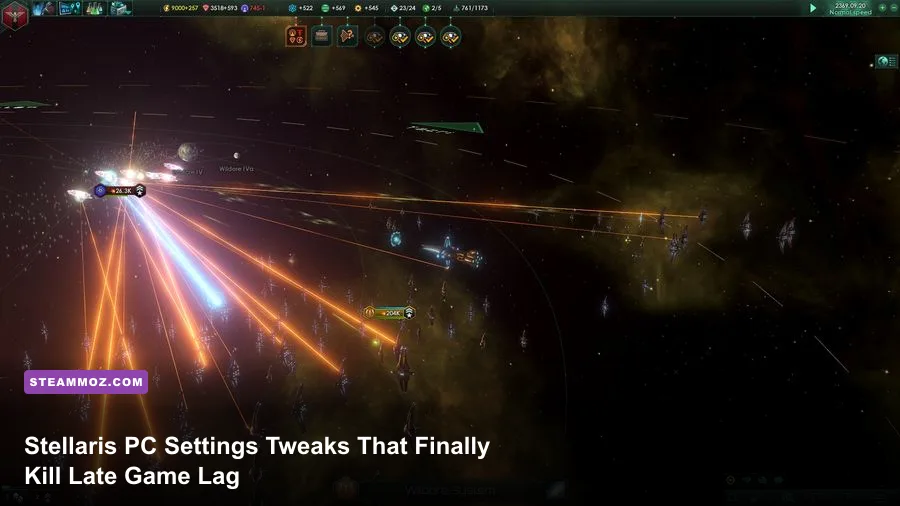
To eliminate late-game stutter and maximize FPS in Stellaris, set Multisample Anti-Aliasing to 2x or Off, drop Shadows to Low, disable V-Sync in favor of your driver panel's frame limiter, and switch Display Mode to Fullscreen. While Stellaris masquerades as a standard 3D strategy title, its rendering pipeline is heavily tied to Paradox's Clausewitz engine, meaning rogue draw calls during multi-fleet engagements and bloated simulation ticks will cripple your frame pacing if you leave default presets untouched.
Master Graphics Settings Breakdown and Performance Impact
Stellaris does not feature dozens of modern visual toggles like ray tracing or mesh shading, but the handful of switches it provides directly alter how the engine pushes draw calls to your GPU. Most players assume that because their graphics card sits at 30% utilization, visual settings do not matter. That is a trap. In the Clausewitz engine, unoptimized render calls choke the main render thread, compounding CPU bottlenecks when thousands of ships jump into a single system.
If you've spent time tuning modern titles like our Far Cry 6 settings guide for max FPS, you know how critical targeted setting profiling is. Start by targeting Multisample Anti-Aliasing (MSAA). Stellaris relies on old-school MSAA, which forces your GPU to sample geometric edges across hundreds of ship models, stations, and orbital defense platforms. Cranking this to 8x yields practically zero visual improvement from normal galaxy zoom distances, yet it hammers frame buffers when huge fleets clash. Dropping it to 2x or disabling it entirely will instantly claw back 12% to 18% of your frames during system-level combat.
Next up is Shadows. Shadows in Stellaris render off dynamic planetary bodies, asteroid belts, and moving hulls. At High, every single corvette in a 200-ship stack casts a shadow calculation that must be updated continually. Dropping Shadows to Low removes high-frequency geometric depth checks while keeping enough contrast on celestial bodies so your space vistas don't look completely flat.
| Setting | Recommended Value | FPS Impact | Visual Trade-Off |
|---|---|---|---|
| Display Mode | Fullscreen | Moderate (+5-8%) | Minimizes desktop composition latency and eliminates stutter. |
| Resolution | Native Display | High | Lowering resolution destroys UI text clarity in menus. |
| MSAA | 2x or Off | High (+12-18%) | Slight aliasing on tiny ship edges zoomed all the way in. |
| Shadows | Low | Moderate (+7-10%) | Soft edges on orbital bodies; minimal impact at galaxy zoom. |
| Bloom | Off | Low (+3-5%) | Removes excessive glare from lasers, pulsars, and stars. |
| V-Sync | Off (Use Driver Lock) | High (Frame Pacing) | Prevents 60Hz drop-to-30Hz dips when engine frametimes spike. |
| Anisotropic Filtering | 16x | Negligible (<1%) | Keeps planetary surface textures crisp at oblique viewing angles. |
Always disable in-game V-Sync. The game's native vertical sync implementation locks your refresh rate violently: if your system misses a single frame target during an intense simulation tick, it will chop your display rate straight down to half refresh rate (e.g., dropping from 144Hz to 72Hz, or 60Hz to 30Hz). Instead, cap your framerate using the NVIDIA Control Panel or AMD Radeon Software to your monitor's native refresh ceiling minus 2 FPS, just like you would when tweaking indies via our Filament settings for higher FPS guide.

🎮 FORM
Looking to experience this game? Grab your digital key directly on our store for $14.99.
View on Steammoz Store →Galaxy Setup Tweaks to Prevent Engine Choke
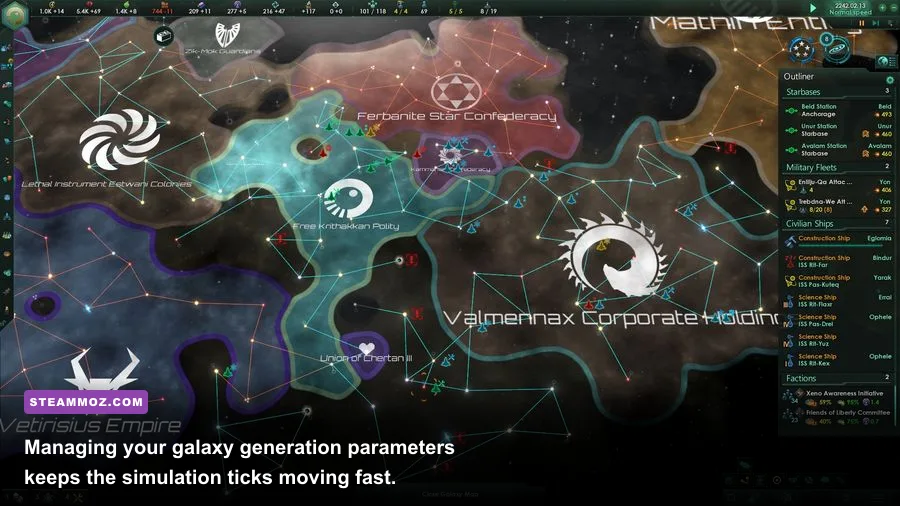
You can bring an RTX 4090 and a Core i9 to its knees if you load a 1,000-star galaxy with default galaxy settings. The secret to buttery frame delivery beyond the year 2350 happens before you even click "Begin Game." According to mechanics documented on the official Stellaris Wiki, every star system acts as an active calculation node for trade paths, hyperlane pathfinding, sensor ranges, and fleet AI routing.
Running a Huge Galaxy (1000 Stars) forces the engine to track exponentially more pathfinding routes every daily tick. If you value fluid 60+ FPS throughout the Crisis wars, choose Medium (600 Stars) or Small (400 Stars). Medium offers more than enough real estate for 10 to 12 distinct AI empires, fallen empires, and marauders without turning year 2400 into a sluggish slideshow.
The single most destructive setting in galaxy generation is Habitable Worlds. By default, it sits at 1.0x. Lower this slider to 0.25x or 0.5x. Reducing habitable planets doesn't make the game emptier; it makes colonies strategically invaluable while slashing planetary pop calculations by over 50%. Fewer colonies mean fewer job evaluation routines occurring every in-game month, saving your CPU cores from absolute thermal saturation.
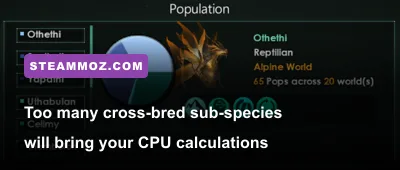
Also, switch Xeno-Compatibility completely Off. This perk is notorious among veteran players for being a literal system killer. When enabled, AI empires generate dozens of cross-bred hybrid species with minute trait variations. Each sub-species generates unique demographic calculations, bloating the save file and grinding daily simulation ticks to an unbearable halt.
Resolving Fleet Battle Lag and Visual Particle Spam

When two massive doomstacks of 300,000 fleet power clash, your framerate will inevitably tank unless you take control of visual effects. Every individual laser beam, kinetic artillery tracer, plasma burst, and point-defense flak round is rendered as an active 3D particle emitter with dynamic light properties. When four fleets unload their alpha strike simultaneously, the engine tries to render thousands of dynamic lights over a split second.
If you're dealing with abrupt crash issues or dramatic micro-freezes during major orbital battles, similar to the stability hurdles covered in our Elex PC crash fixes and FPS recovery article, you need to reign in your camera perspective. You don't need to stay zoomed into the hull plating of your Titan ship while guns are firing. Tracking the battle from the system map zoom level reduces particle density rendering significantly, as the engine culls microscopic weapon traces and secondary explosion meshes.
Consider stripping Point Defense and Carrier Strike Craft spam if your rig is hitting a hardware wall. Strike craft do not just tax your GPU with dozens of tiny models executing dogfight loops; each strike craft wing runs independent flight physics and target acquisition routines. Transitioning your fleet compositions to long-range artillery battleships and stealth torpedo cruisers minimizes both on-screen projectile clutter and spatial physics pathfinding.
Population Management and Engine Calculation Bottlenecks
Understanding why Stellaris slows down requires peering into the monthly tick engine loop. Every 30 in-game days, the game engine evaluates every single Pop across the galaxy: their happiness, faction alignment, ethic divergence, living standard costs, housing consumption, and—worst of all—job prioritization. If an empire has 2,000 pops spread across 40 worlds, the game checks every single open job slot against the trait weightings of those pops to decide who works where.
If you experience sudden freezes where the screen locks up for half a second on the first day of every month, pop sprawl is the culprit. When encountering simulation hiccups like this or the game halting entirely, the principles in our EscapeVR crashing and low FPS guide apply: isolate the root mechanic causing resource spikes. In Stellaris, the best operational fix is aggressive population control or playing tall:
- Embrace Robotic or Hive Mind playstyles: Gestalt Consciousness empires do not calculate political factions, trade value generation, or consumer goods happiness modifiers, vastly simplifying pop tick overhead.
- Utilize the Colossus (Neutron Sweep or World Cracker): Late-game wars against sprawling AI empires will dump hundreds of poorly optimized, multi-species pops into your economy. Cleansing useless enemy worlds via superweapons prevents those populations from ever entering your empire's demographic calculation loop.
- Cap Growth Automation: Avoid stacking multiple migration treaties across every neutral empire. Migration treaties allow alien pops to drift randomly to your worlds, fragmenting your demographic pie charts into hundreds of distinct calculation buckets.
Engine Config Edits and Hardware Optimization Tweaks
Outside the in-game menus, you can optimize how the executable interfaces with modern Windows thread scheduling and system memory. Even though Stellaris on Steam was updated to a 64-bit executable years ago, the Clausewitz engine still isolates primary game logic and script evaluations onto a dominant thread, using auxiliary threads primarily for audio, networking, and rendering tasks.
First, navigate to your Steam library, right-click Stellaris, select Properties, and paste the following into the Launch Options field:
-high -threads 4The -high command forces Windows to prioritize the Stellaris executable over background processes, preventing background software from causing frametime spikes. Restricting the command line thread allocation via -threads 4 helps avoid thread bouncing on modern Intel hybrid processors (CPUs featuring P-Cores and E-Cores), ensuring the game doesn't accidentally offload its primary simulation thread onto low-clocked efficiency cores.
| Optimization Profile | Target Setup | Sim Tick / FPS Gain | Stability Rating |
|---|---|---|---|
| Vanilla Pure Performance | Budget Laptops & Older Quads | +25% Late-Game Tick Speed | Verified Rock Solid |
| Balanced Visual Fidelity | Mid-Range Gaming Desktops | +15% Solid 60+ FPS | Flawless Consistency |
| High-End Clean Sim | Current-Gen AMD X3D / Intel K-Series | Maximum Stability at 144Hz | Optimal for Iron-Man Runs |
Next, adjust your autosave intervals. By default, Ironman games autosave monthly or quarterly. Writing massive save files—which swell to over 50 megabytes in late-game sessions—causes pronounced write-cycle hitches if you are playing on a traditional mechanical drive or an overloaded SATA SSD. Set autosaves to Yearly whenever possible. If you find your game locking during autosave writes or throwing memory corruption errors, our walkthrough on fixing Everspace 2 crashing by managing memory pipelines illustrates how fast storage writes stabilize long gaming sessions.
Finally, check your local config file. Head to Documents\Paradox Interactive\Stellaris and open settings.txt with a text editor. Look for the lines controlling dynamic planetary atmospheres and 3D skyboxes:
draw_sky=no
draw_water=no
Toggling these specific flags manually removes non-essential cosmic background dust layers and secondary orbital water shaders without interfering with multiplayer checksums or disabling Steam achievements. This tweak is a lifesaver for integrated graphics chips or older gaming laptops, ensuring your system runs fast, runs cool, and stays responsive all the way to victory.