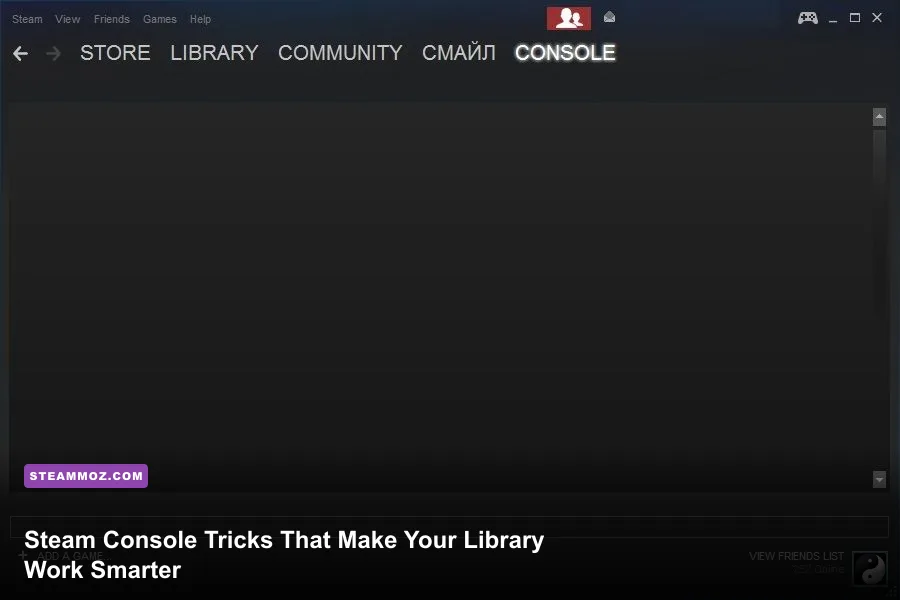
Steam Console is most useful when you treat it as a precision tool, not a cheat-code menu: open it with steam://open/console, use commands such as app_info_print and download_depot to inspect or retrieve specific files, and keep everyday fixes inside Steam’s normal settings. That approach lets you diagnose stubborn downloads, identify AppIDs and depots, recover older builds where distribution permits it, and build repeatable SteamCMD workflows without randomly deleting folders or hammering the client with unsupported commands.
There’s an important distinction here. “Steam Console” usually means the hidden console page inside the Steam desktop client; it doesn’t mean the Steam Deck, Steam Machine, or a game’s developer console. Valve exposes plenty of useful commands, but the interface is undocumented, changes over time, and isn’t a magic back door around ownership checks, region restrictions, DRM, or multiplayer anti-cheat. The smart play is to understand what each command actually touches, make a backup first, and stop using a command the moment its output looks different from the expected result.
Before you begin, update Steam, close games, and note the game’s AppID from its store URL. For example, https://store.steampowered.com/app/730/ identifies Counter-Strike 2 as AppID 730. You can confirm game IDs through the SteamDB database, while Valve’s official Steam store remains the authority for ownership and install availability.
Open Steam Console safely and learn its limits
The quickest method is to press Win + R on Windows, paste steam://open/console, and press Enter. If Steam is already running, the client should switch to a Console tab beside the usual Store, Library, and Community tabs. On Linux, you can use the same steam:// URI from a browser or launch dialog. On macOS, opening the link through a browser may work, although Steam’s client behavior can vary by release.
You can also pass the URI to Steam directly. A Windows shortcut target can use steam.exe steam://open/console, while a Linux terminal can generally use steam steam://open/console. Don’t confuse this with SteamCMD. The client Console is an interactive diagnostic and content-management interface attached to your normal Steam installation. SteamCMD is Valve’s separate command-line program designed for dedicated servers, automation, and headless installs.
The first rule is to read output before entering another command. Many commands return nothing obvious, run asynchronously, or write information into Steam’s log files rather than showing a friendly success message. Commands can also behave differently after a client update. If you’re fixing a crash rather than investigating a depot, start with Steam’s supported repair tools and our guide to PC crash and FPS fixes; the Console is not automatically the better answer.
| Task | Best Tool | Why | Risk Level |
|---|---|---|---|
| Clear a stuck download | Steam Settings | Clears cache without touching game content | Low |
| Inspect game metadata | Client Console | Shows AppID, depots, branches, and manifests | Low to medium |
| Retrieve a specific depot | Client Console | Useful for supported archival or mod workflows | Medium |
| Install a dedicated server | SteamCMD | Built for unattended command-line installs | Low to medium |
| Bypass ownership or DRM | Neither | Not a legitimate Steam function | Unsafe and unsupported |
Use metadata commands before touching game files
The safest productive use of Steam Console is inspection. Type app_info_print 730, replacing 730 with the AppID you need. Depending on the current client build, Steam can print a large block of app metadata: depots, branches, launch configuration, operating-system requirements, and manifest identifiers. The output may be dense, but the key words are depots, manifests, branches, and platform labels such as config/oslist.
Use this command when a guide gives you a depot number but not enough context to know whether it belongs to Windows, Linux, a language pack, or downloadable content. An AppID identifies the product; a depot is the actual file container; a manifest is a particular version of that depot. Mixing those three up is the most common reason a download command appears to do nothing or produces files that won’t launch.
app_status 730 is another useful check on supported clients. It can report whether an app is installed or currently being processed. For license and package information, commands such as licenses_print and package_info_print may expose account or package metadata, but their output and availability are especially client-version dependent. Don’t paste that output into public forums: license records can reveal account-related identifiers even when they don’t show your password.
Here’s the practical workflow. First, open the game’s store page and record the AppID. Second, run app_info_print APPID and save the output locally if you’re comparing versions. Third, identify the depot that matches your operating system and the manifest or branch you actually need. Only then should you consider a content command. This method is slower than copying a random command from a forum, but it prevents the classic “I downloaded the wrong language depot and broke my install” disaster.
| Identifier | Example | What It Represents | Common Mistake |
|---|---|---|---|
| AppID | 730 | The Steam product or application | Assuming it identifies one exact file set |
| DepotID | Game-specific number | A content container for an app | Choosing DLC or server files by accident |
| ManifestID | Long numeric value | A snapshot of a depot’s files | Expecting every manifest to remain available |
| Branch | public or beta name | A release channel for an app | Downloading test content for a live install |
Make download_depot useful instead of dangerous

download_depot is the command most players search for, and also the one most likely to be misunderstood. Its basic form is download_depot APPID DEPOTID. If you have a permitted manifest identifier, the extended form is download_depot APPID DEPOTID MANIFESTID. Steam normally writes the retrieved content into a depot cache or download location associated with the client, rather than neatly replacing the files in your game’s install directory.
That separation is a feature. Download the depot to a temporary folder, compare its contents, and keep a backup of your live installation before copying anything. Never point an experimental build straight at a multiplayer game’s active folder. Older executables can fail to connect, trigger anti-cheat warnings, or create a mismatch between files Steam expects and files you manually inserted. For single-player games, use the same caution: mods, config files, and save folders often live beside the executable, and a careless overwrite can destroy a working setup.
Availability is controlled by Valve, the publisher, ownership, branch permissions, and the depot’s current status. A manifest found in an old forum post may no longer be downloadable. Console commands do not grant ownership and cannot legitimately unlock a depot attached to an account that doesn’t own the product. They also won’t defeat a game’s DRM. If Steam returns an access error, treat that as a permissions or availability issue, not a puzzle that needs increasingly aggressive commands.
For a clean rollback, rename your current game folder instead of deleting it. Download the target depot into a separate location, launch the executable only after checking its files, and turn off automatic updates if the game’s supported beta or update controls provide that option. When you’re done testing, use Steam’s Properties menu and “Verify integrity of game files” to restore the official branch. Valve’s Steam Support portal is the right place for account, license, or download-permission problems.
| Command or Step | Use Case | What to Check | Do Not Do |
|---|---|---|---|
app_info_print APPID | Find depot and branch metadata | Platform, depot type, manifest data | Assume every listed depot is game content |
download_depot APPID DEPOTID | Retrieve current depot files | Output path and free disk space | Overwrite the live install immediately |
download_depot APPID DEPOTID MANIFESTID | Retrieve a known permitted snapshot | Ownership and manifest availability | Use a random unverified manifest ID |
| Verify integrity | Return to the official branch | Download queue and changed files | Run while manually modified files are backed up nowhere |
Fix downloads with normal Steam settings first
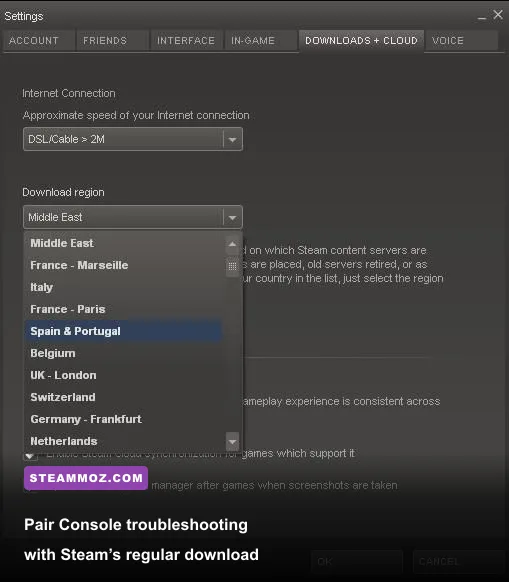
A slow or frozen download rarely requires Console. Steam’s regular download page exposes the fixes that are easier to understand and safer to reverse. Open Steam > Settings > Downloads, choose a nearby Download Region, remove any unnecessary bandwidth limit, and check whether “Schedule auto-updates” is delaying the queue. A full system drive can also make a download look stuck because Steam needs temporary space for patch staging, not merely the final installed size.
“Clear Download Cache” signs you out and clears Steam’s local download data. It does not uninstall your games, but you should know your Steam Guard and account credentials before using it. After restarting, sign back in and test one small download. If the issue affects only one library, right-click the game, open Properties > Installed Files, and run “Verify integrity of game files.” If every game is slow, test the network, disable bandwidth-heavy cloud-sync tools temporarily, and inspect the disk for errors.
Steam’s patch system can also create confusing disk behavior. A 2 GB update may temporarily require much more free space while Steam rebuilds a large archive. On an HDD, antivirus scanning and fragmented writes can make the progress bar appear frozen; on an SSD, the same patch may finish quickly but still spike disk usage. Watch the Downloads page’s network and disk graphs rather than judging by network speed alone. Our crash and low-FPS troubleshooting guide covers the same “change one variable at a time” approach for game problems.
| Symptom | First Fix | Console Relevance | Best Evidence |
|---|---|---|---|
| Download stuck at 0 B/s | Check region, queue, and network | Usually unnecessary | Downloads page network graph |
| Disk usage at 100% | Free staging space and wait for patching | Doesn’t speed disk writes | Task Manager or system monitor |
| One game has corrupt files | Verify integrity | Use metadata only if investigating versions | Verification result and changed-file count |
| All libraries fail to update | Clear cache and check permissions | Console won’t repair account access | Steam Support error code |
Use SteamCMD for repeatable server installs
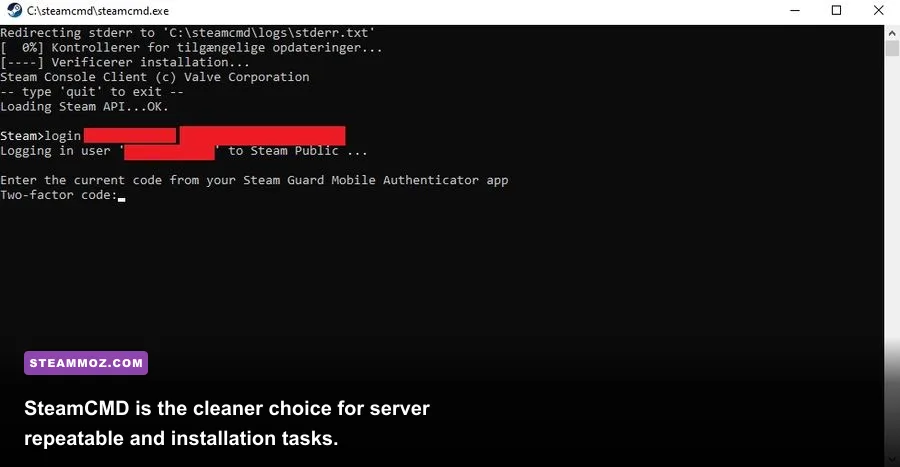
If your real goal is installing a dedicated server, stop forcing the desktop Console to do SteamCMD’s job. Download SteamCMD from the Valve Developer Community documentation, extract it to a short folder such as C:\steamcmd or ~/steamcmd, and run it from there. The core sequence is straightforward: login anonymous where the server supports anonymous access, force_install_dir ./server, app_update APPID validate, and quit.
Not every server accepts anonymous login. Some require a Steam account with the relevant license, and Valve may require a separate server-token setup depending on the game. Never place a password directly into a script that will be uploaded or shared. SteamCMD supports interactive login, and a protected credential workflow is safer than leaving secrets in batch files.
The validate parameter checks installed server files against Steam’s expected content. It’s excellent after a failed update, but it can overwrite deliberate modifications. Keep custom configuration, plugins, and startup scripts outside the managed content folder or back them up before validation. For repeatable maintenance, put only non-sensitive commands in a batch or shell script, log the output, and schedule updates during a quiet period instead of restarting a busy server mid-match.
SteamCMD also makes it easier to separate game content from server content. A server AppID may not match the retail game AppID, and using the retail ID can install the wrong files or refuse to work entirely. Check the game’s official documentation before selecting an ID. For broader PC troubleshooting, our guides to FPS-first crash fixes and performance settings are useful reminders that stable installation is only half the battle.
| SteamCMD Command | Purpose | Safe Habit | Potential Problem |
|---|---|---|---|
login anonymous | Sign in where anonymous access is supported | Confirm the server permits it | Some apps require an owned account |
force_install_dir ./server | Choose the installation directory | Use a dedicated folder | Relative paths can confuse new users |
app_update APPID | Install or update server content | Log the AppID and version | Wrong AppID installs wrong content |
app_update APPID validate | Repair files while updating | Back up configs and plugins first | Modified files may be replaced |
Build a safer troubleshooting routine
The best Steam Console trick is knowing when not to use it. Start with a reproducible symptom: record the game, AppID, Steam client version, operating system, library drive, and the exact error. Then change one thing. If you clear the cache, switch download region, reinstall a driver, and run a Console command at the same time, you won’t know which step helped—or which one made the problem worse.
Keep three folders separate: the official installation, a backup of saves and configuration, and any depot or mod experiment. Save command output with a date in the filename. On Windows, game saves may live in Documents, AppData, or Steam Cloud-managed locations; on Linux, Proton saves can appear under the game’s compatibility prefix. Steam Cloud is convenient, but it isn’t a substitute for a manual backup before testing an old build.
Watch for security traps. No legitimate Steam repair requires you to give a stranger your password, Steam Guard code, recovery code, or remote desktop access. A website promising “free depot access,” a magical Console command that unlocks paid DLC, or an executable that claims to automate manifest downloads is a major red flag. Stick to Valve documentation, the game developer’s instructions, and reputable technical references such as Steam Community. If a command needs elevated operating-system permissions, ask why before approving it.
Finally, restore the supported state when testing is over. Remove launch options you no longer need, re-enable automatic updates, verify the game files, and delete temporary depot copies once you’ve confirmed the result. Steam Console can reveal the machinery behind your library, but the payoff comes from controlled experiments—not from typing obscure commands until something changes. Used with that discipline, it’s a sharp diagnostic instrument for PC players, server admins, modders, and anyone tired of treating Steam’s download problems like black magic.
A compact command checklist
steam://open/consoleopens the client Console through Steam’s URI handler.app_info_print APPIDinspects app metadata, depots, branches, and manifests.app_status APPIDchecks installation and processing status where supported.download_depot APPID DEPOTID [MANIFESTID]retrieves content only when your account and the depot permit it.app_update APPID validatebelongs to SteamCMD workflows, especially for dedicated servers.- Back up saves, use a temporary destination, and verify the official install before returning to normal play.