
If Starship Troopers: Extermination is stuttering, dropping below 60 FPS, or crashing on PC, start with a clean graphics reset, updated GPU driver, verified Steam files, and a capped frame rate. Then lower shadows, effects, foliage, and resolution scaling before touching texture quality. Those changes target the game's heaviest CPU and GPU spikes without making the whole battlefield look muddy.
This is a demanding Unreal Engine 5 co-op shooter, and its worst performance usually appears during base defense, extraction, and giant Arachnid waves. A quiet opening can run beautifully, only for frame times to collapse when dozens of Warrior Bugs, projectiles, fire effects, and player-built structures fill the screen. The goal isn't just a higher average FPS; it's consistent frame pacing when the battlefield gets chaotic.
Use the right performance profile first

Before changing individual options, restart the game after selecting the correct display mode. Use exclusive fullscreen if your system behaves better with it; otherwise, borderless windowed is perfectly acceptable on Windows 11. Set the monitor's native resolution, disable unnecessary motion blur, and cap FPS to a number your PC can actually hold. A locked 60 FPS feels much better than a swing between 90 and 42.
Start with the game's recommended settings, then apply the profile below. The FPS impact is approximate because the number of bugs, map, weather, resolution, and CPU speed all matter. Test each change in the same type of mission rather than judging performance in an empty deployment area.
| Setting | Recommended Value | FPS Impact | Visual Trade-Off |
|---|---|---|---|
| Resolution | Native, or 90% scale | High | Lower scale improves GPU headroom but softens distant targets |
| Upscaling | DLSS Quality, FSR 2 Quality, or TSR High | High | Usually the best performance-to-clarity improvement |
| Shadows | Medium | Medium to high | Less contact-shadow detail around bases and bugs |
| Effects | Medium | High during bug waves | Reduces smoke, fire, explosions, and plasma complexity |
| Foliage | Medium | Medium | Thinner grass and fewer distracting distant plants |
| Textures | High with 6GB or more VRAM | Low unless VRAM is full | Keep high if stutters are not caused by memory pressure |
| View Distance | Medium or High | Medium | Lower values reduce distant terrain and object detail |
| Motion Blur | Off | Negligible | Sharper camera movement and aiming |
Upscaling deserves special attention. On an RTX card, try DLSS Quality first. On Radeon hardware, FSR 2 Quality is a sensible starting point, while TSR High can look cleaner in some scenes at the cost of more GPU work. If the image shimmers around barbed wire or bug legs, increase the render scale slightly rather than immediately returning to native resolution.
Fix stuttering caused by shaders and frame-time spikes
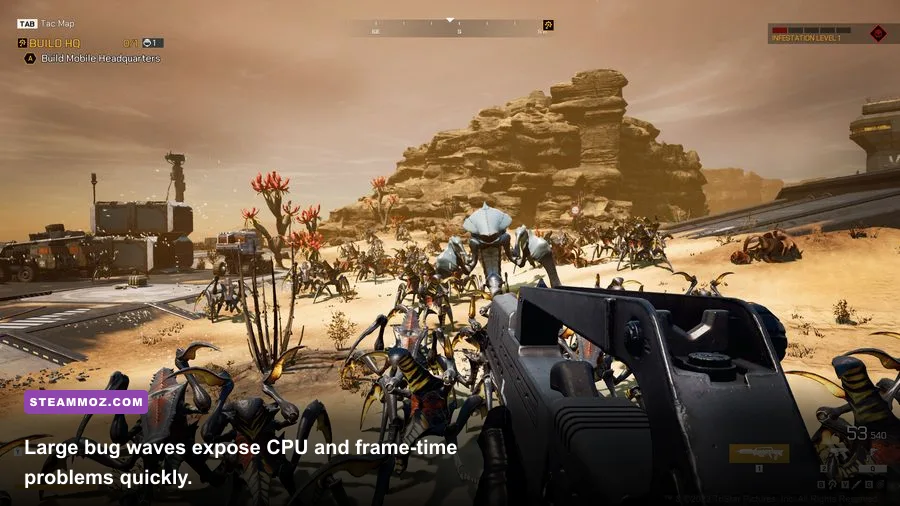
Stuttering in Extermination is often a frame-time problem rather than a simple lack of average FPS. The game has to process AI, destruction, network activity, particle effects, and a large number of characters at once. If your FPS counter says 70 but the game pauses for a fraction of a second whenever a plasma blast lands, the CPU or shader pipeline is probably spiking.
1. Let shader preparation finish
After a GPU driver update or major game patch, the first match can hitch while shaders are compiled or cached. Launch the game, sit in the menu for a minute, and play through a low-pressure section before judging performance. Repeatedly quitting during the first shader-heavy encounter can make the experience feel worse because the cache never gets a chance to settle.
2. Cap the frame rate below your reliable average
Use the in-game limiter if it behaves consistently. If not, NVIDIA Control Panel, AMD Software, or RTSS can provide a steadier cap. A 60 FPS cap is ideal for a mid-range system; a machine that normally sits around 80 FPS may feel better locked to 72 or 75 than left uncapped. Keep V-Sync off when using VRR, and enable G-Sync or FreeSync for the display range your monitor supports.
3. Separate GPU limits from CPU limits
Lower resolution and upscaling quality primarily help the GPU. If that barely changes your FPS during a swarm, you're CPU-limited. In that situation, reduce view distance, foliage, effects, and shadows, close browser tabs, and stop recording software. Lowering textures won't fix a CPU bottleneck. Conversely, if GPU usage stays near 99 percent, resolution scale, effects, and shadows are the levers that matter.
Windows Game Mode can remain enabled, but disable overlays one at a time while testing: Steam Overlay, Discord Overlay, Xbox Game Bar, GeForce Experience, AMD Metrics, and MSI Afterburner’s on-screen display. Overlay conflicts aren't guaranteed, but they are easy to rule out. Our broader PC crash and FPS troubleshooting guide covers the same clean-testing approach for other demanding games.
Stop crashes, freezes, and sudden desktop exits
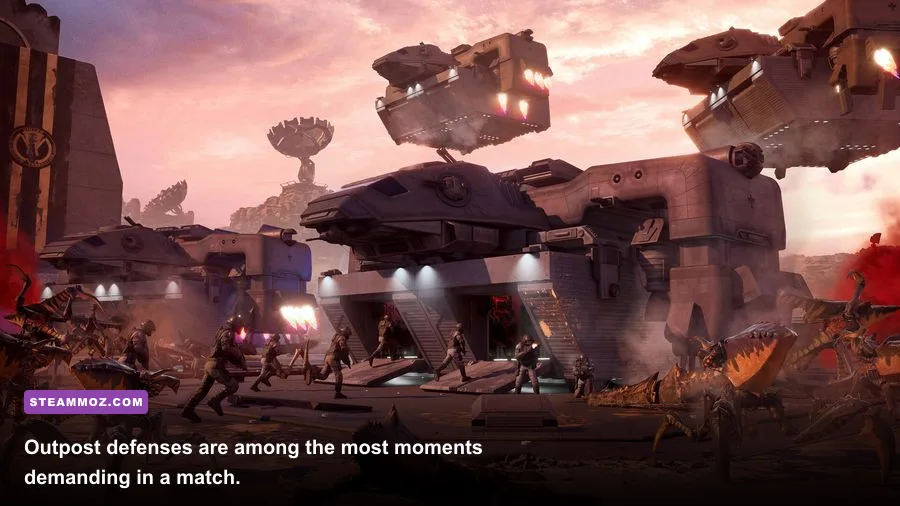
Crashes after loading, during extraction, or when a massive bug wave arrives usually come from corrupted files, unstable drivers, memory pressure, overclocks, or an overlay hooking into Unreal Engine. Work through these fixes in order and test after each one. Changing ten things at once makes it impossible to identify the real culprit.
Step 1: Verify the installation
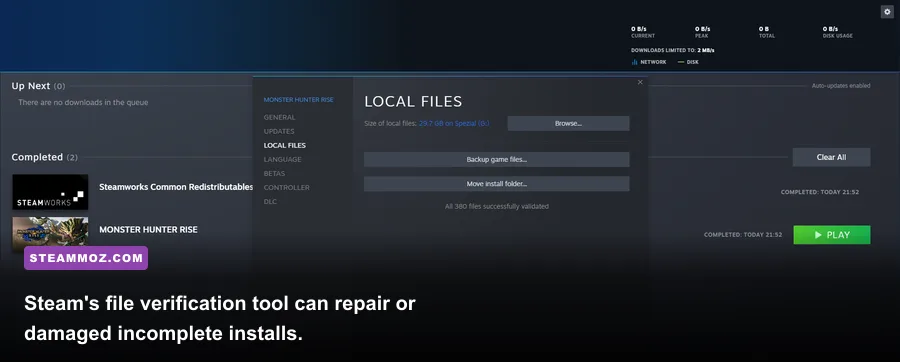
In Steam, right-click the game, choose Properties, open Installed Files, and select Verify integrity of game files. Steam may redownload damaged files and restore a failed patch. Check the official Steam page for Starship Troopers: Extermination as well as the developer's Offworld Industries site for patch notes and known issues.
Step 2: Perform a clean GPU driver update
Install the newest stable NVIDIA or AMD driver rather than an optional beta package. If crashes began immediately after a driver update, roll back to the previous stable release. For stubborn problems, use Display Driver Uninstaller in Windows Safe Mode, then install only the graphics driver and its basic control panel. Avoid adding recording, broadcast, or automatic game-optimization components until the game is stable.
Step 3: Remove unstable tuning
Return GPU undervolts, CPU overclocks, XMP or EXPO profiles, and aggressive fan curves to stock settings temporarily. A setting that survives a benchmark can still fail in a long co-op match. Also check temperatures: sustained GPU temperatures in the mid-80s Celsius or a CPU repeatedly hitting its thermal limit can cause clocks to fall and may trigger instability.
Step 4: Reset local configuration
Close the game and back up its local settings, then rename the game's folder under %LOCALAPPDATA% if a corrupted configuration is suspected. Unreal Engine titles commonly store saved settings below a Saved directory. Do not delete the folder immediately; renaming it lets you restore key files if needed. The game will rebuild clean settings on its next launch.
Step 5: Check virtual memory and background apps
Keep a system-managed page file enabled on an SSD with free space. Sixteen gigabytes of RAM matches the published recommended memory target, but large maps, browsers, launchers, and capture tools can consume enough RAM to cause hitching or crashes. Close unnecessary applications and leave at least 20GB of free space on the Windows drive where shader caches and temporary files are written.
| Symptom | Likely Cause | First Fix | What Not to Lower First |
|---|---|---|---|
| Hitches when bugs spawn | CPU, shaders, or AI workload | Cap FPS, wait for shader cache, reduce view distance | Textures |
| Constant low FPS with 99% GPU use | GPU or resolution bottleneck | Use DLSS/FSR/TSR and lower effects | Network settings |
| Crash while loading a mission | Corrupt files or driver conflict | Verify files and clean-install driver | Random config deletion |
| Black screen after launch | Display mode or overlay conflict | Use borderless mode and disable overlays | Reinstalling Windows |
| Crash during long sessions | Heat, RAM, VRAM, or unstable tuning | Return hardware to stock and monitor usage | Texture quality without checking VRAM |
Recommended PC profiles for stable FPS
The published Steam requirements list a minimum-class setup around an Intel Core i5-8400 or AMD Ryzen 5 2600, 16GB of RAM, and a GTX 970 or Radeon RX 570. The recommended tier is around a Core i7-8700K or Ryzen 7 3700X with 16GB of RAM and an RTX 2060 or Radeon RX 5700. Those targets describe whether the game launches and runs acceptably; they don't promise a locked frame rate during a 16-player battle.
| Hardware Class | Target | Profile | Realistic Goal |
|---|---|---|---|
| Minimum-class PC | GTX 970/RX 570, i5-8400/Ryzen 5 2600 | 1080p, low-medium, upscaling enabled | 30-45 FPS with drops in major waves |
| Recommended-class PC | RTX 2060/RX 5700, i7-8700K/Ryzen 7 3700X | 1080p, medium-high, Quality upscaling | 45-60 FPS depending on battle intensity |
| Modern mid-range | RTX 3060/4060 or RX 6600/7600 | 1080p high, DLSS/FSR Quality | 60 FPS target with sensible caps |
| Modern upper mid-range | RTX 4070 or RX 7800 XT and newer CPU | 1440p high, Quality upscaling | 60-100 FPS outside the heaviest events |
Don't chase Ultra settings just because your GPU has enough VRAM. Shadows, effects, and view distance are the settings most likely to turn a comfortable match into a stuttery mess. High textures are usually safe when VRAM is sufficient, while effects at Ultra can become expensive during fire, explosions, and plasma attacks. If you play competitively, Medium effects can also make enemies easier to read through visual clutter.
A clean testing routine that actually finds the problem
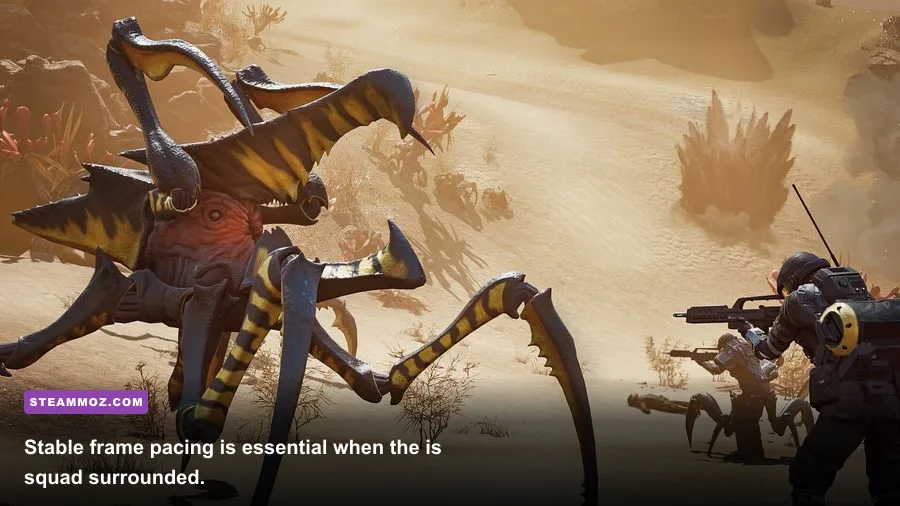
Use this five-minute routine after every major change. First, reboot Windows to clear driver and background-process noise. Second, launch with overlays disabled and use the same resolution, upscaler, and FPS cap. Third, enter a mission and record the result during deployment, the first bug engagement, a base-defense event, and extraction. Finally, compare frame-time consistency rather than only the highest FPS number.
- Establish a baseline: note average FPS, one-percent lows if your overlay provides them, GPU usage, CPU usage, VRAM, and temperatures.
- Test the GPU path: lower resolution scale by 10 percent. A major improvement confirms a GPU limit.
- Test the CPU path: lower view distance, foliage, and effects. Improvement during swarms points toward simulation or draw-call pressure.
- Test software conflicts: disable overlays, capture tools, RGB utilities, and third-party antivirus game monitoring.
- Test stability: play a full mission at stock hardware settings before restoring any overclock or undervolt.
If problems continue, capture the crash time, map, mission phase, GPU driver version, and whether the crash reproduces in solo play. Send that information through the official Steam community discussions or the developer's support channels instead of reporting only “it crashed.” Specific reproduction details are far more useful.
For more PC performance reading, Steamoz's guides to crashing and low FPS fixes, prioritizing FPS before crash fixes, and settings for higher FPS use the same diagnosis-first philosophy.
The short version is simple: verify files, clean-install the driver, disable overlays, reset unstable tuning, use Quality upscaling, cap FPS, and lower effects before textures. Starship Troopers: Extermination will always become more demanding when the entire planet seems to be moving, but a sensible frame-time target can turn those giant bug waves from a slideshow into the glorious chaos the game is built to deliver.