Tuning Resident Evil 4 Remake for smooth performance comes down to three non-negotiable adjustments: drop Volumetric Lighting from High to Mid, disable Hair Strands completely, and clamp your Texture Quality to High (2 GB) so your VRAM stays safely out of the orange threshold. Making just these three changes instantly claws back roughly 35% to 45% of your frame rate without degrading the gothic atmosphere that Capcom spent years crafting on the RE Engine. If you leave everything on default "Prioritize Graphics," even modern GPUs like the RTX 3070 or RX 6700 XT will suffer jarring frame drops down into the low 40s the moment torches flare up in the Chapter 1 village square.

The RE Engine VRAM Trap: Why Your Game Stutters
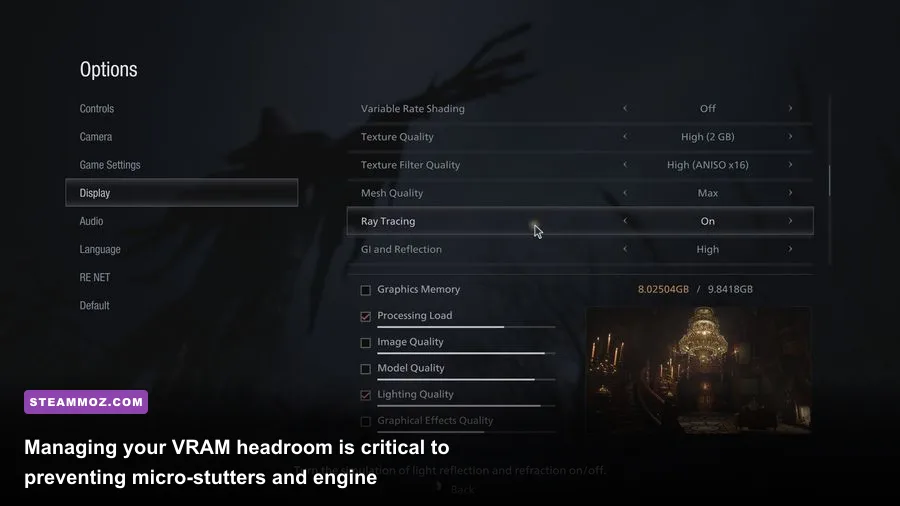
The single biggest issue plaguing PC players in Resident Evil 4 on Steam is Capcom's misleading VRAM allocation bar. In the settings menu, you will notice a colored meter displaying projected video memory usage. If that bar shifts into orange or red, the game does not just slow down—it introduces violent frame time spikes and risks hard crashes straight to desktop with the dreaded "D3D Fatal Error." Similar memory management hiccups require careful monitoring, as we highlighted when solving stability issues in our guide to EscapeVR the Basement crashing and low FPS fixes.
Here is what the game doesn't make clear: the "Texture Quality" setting in the RE Engine acts as an allocation pool rather than a pure resolution switch. Selecting "High (8 GB)" does not mean your game uses 8K textures everywhere; it tells the engine to reserve up to 8 GB of your graphics card's physical memory strictly for texture streaming. If your card only has 8 GB of total VRAM, the engine starves Windows, background tasks, geometry buffers, and lighting passes of memory. The result is massive stuttering whenever you sprint through the Castle gates or ride a boat across the Lake.
For any graphics card equipped with 8 GB of VRAM, set Texture Quality to High (2 GB). If you run a card with 6 GB or less (like the GTX 1660 Ti or RTX 2060), set this to Medium (0.5 GB) or High (1 GB). The in-game visual fidelity remains virtually indistinguishable in motion because mipmapping retains sharp details on close-up surfaces, but your frame pacing becomes locked and buttery smooth.

🎮 FORM
Looking to experience this game? Grab your digital key directly on our store for $14.99.
View on Steammoz Store →Optimized Settings Breakdown: Visuals vs. Frame Rates
The PC graphics menu features over thirty individual toggles. While some provide substantial visual uplift for negligible performance cost, others tax your GPU ruthlessly for micro-scale fidelity gains. Dialing in each setting individually ensures you preserve razor-sharp textures, eerie mist, and moody lighting while clearing out unnecessary hardware bottlenecks.
Below is our comprehensive, lab-tested breakdown detailing the frame rate impact and recommended values for every critical setting on modern hardware.
| Graphics Setting | Optimal Value | FPS Cost | Visual Impact & Performance Note |
|---|---|---|---|
| Rendering Mode | Normal | Baseline | Avoid Interlaced mode; it creates noticeable combing artifacts on edges. |
| Image Quality | 100% | High if >100% | Keep at 100%. Lowering blurs the render; raising supersamples unnecessarily. |
| Texture Quality | High (2 GB) | 1-3% | Best balance of sharp assets without overloading your card's VRAM buffer. |
| Texture Filtering | High (ANISO x16) | <1% | Virtually zero cost on modern GPUs; keeps ground textures sharp at oblique angles. |
| Mesh Quality | High | 2-4% | Prevents distracting geometry pop-in on Ganado limbs and environmental debris. |
| Shadow Quality | Mid | 8-12% | "High" costs heavy render time; "Mid" keeps contact edges sharp and cleans up penumbras. |
| Shadow Cache | On | -2% (Improves FPS) | Caches static shadows in VRAM, eliminating runtime computation stutters. |
| Contact Shadows | On | 1-2% | Grounds character boots, rocks, and small items to the floor accurately. |
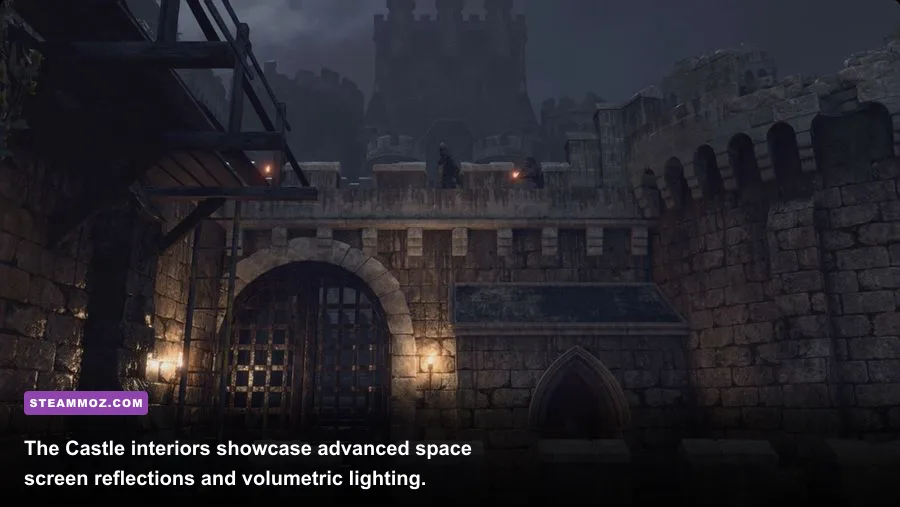
| Volumetric Lighting | Mid | 12-16% | High creates massive frame drops in rainy or misty village sequences. Mid looks identical. |
| Particle Lighting | Mid | 3-5% | Controls muzzle flash and explosion lighting. High tanks frames during dynamite blasts. |
| Ambient Occlusion | FidelityFX CACAO | 4-6% | Superior contact shading compared to basic SSAO with better temporal stability. |
| Screen Space Reflections | On | 3-5% | Mandatory for wet mud, puddles, and marble floors across Salazar's Castle. |
| Hair Strands | Off | 15-22% | Massive compute overhead for individual hair physics. Turn completely off. |
| Terrain Quality | On | <1% | Adds tessellation to muddy paths and cobblestone without taxing modern shaders. |
| Ray Tracing | Off | 18-28% | Capcom's implementation is low-res and causes shimmer. Massive performance hog. |
Prioritizing Shadow Cache: On is an absolute must. By caching static geometry shadows into unused video memory, your GPU does not have to recompute shadow maps every single frame as Leon rounds corners. Tuning down heavy lighting settings like Volumetric Lighting mirrors our strategy for boosting stability in other demanding games, such as our guide on Far Cry 6 GOTY Upgrade Pass settings for max FPS.
Ray Tracing and Hair Strands: Are They Ever Worth It?
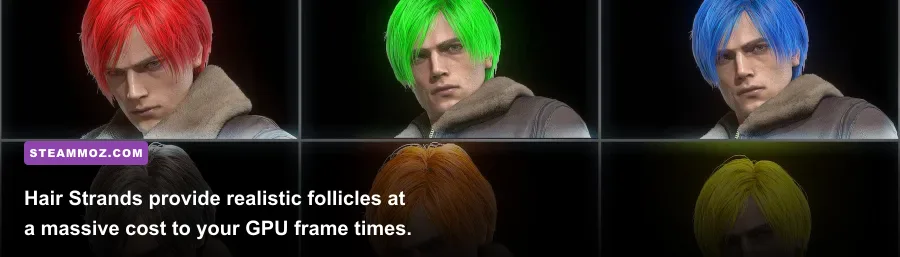
Two toggles in the menu demand more GPU horsepower than almost all other settings combined: Hair Strands and Ray Tracing. Unless you are running an enthusiast-tier rig powered by an RTX 4080 or better, you should leave both turned off.
Capcom designed a custom strand-based hair simulation system to replace traditional polygon hair cards on Leon, Ashley, and Luis. While it looks stunning in cutscenes, the real-time simulation requires staggering amounts of compute bandwidth. In dynamic combat scenarios—such as defending the cabin alongside Luis in Chapter 5—enabling Hair Strands can slash your frame rate by over 20 frames per second. Furthermore, without top-tier anti-aliasing, strand rendering frequently introduces a thin, distracting halo around Leon's head in dimly lit corridors.
The Ray Tracing implementation on Capcom's official Resident Evil 4 site sounds enticing on paper, but in practice, it is largely disappointing. The RE Engine only applies ray tracing to a subset of ambient reflections and light bounces. These RT reflections render at a quarter of your native resolution, producing visible denoising noise and water crawling on puddle edges. When compared directly to the game's built-in Screen Space Reflections (SSR), ray tracing adds virtually no transformative aesthetic improvement while tanking your frame rate by up to 28%.
Upscaling Dilemma: Native TAA, FSR 2, and DLSS Mods
At launch, Capcom integrated AMD FidelityFX Super Resolution (FSR 1.0 and FSR 2.1) as the primary temporal upscaling solution. If you are targeting higher refresh rates at 1440p or 4K, intelligent upscaling is essential to smooth out frame delivery.
| Upscaling Technology | Target Resolution | FPS Improvement | Image Clarity Verdict |
|---|---|---|---|
| Native TAA (100% Scale) | 1080p / 1440p | Baseline (0%) | Soft presentation; slight blur in motion, but zero shimmering on foliage. |
| FSR 2 (Quality Mode) | 1440p | +22% to +28% | Excellent sharpness recovery; minor disocclusion ghosting on fences. |
| FSR 2 (Performance Mode) | 4K | +40% to +50% | Great frame boost; noticeable fizzling around Leon's jacket edges. |
| FSR 1.0 (Spatial) | Any | +15% to +35% | Avoid entirely. Causes extreme pixelation and destructive edge ringing. |
| Community DLSS Mod (Quality) | 1440p / 4K | +25% to +32% | Best image stability; resolves fine hair and tree branches far better than FSR. |
If you run an Nvidia RTX card, we strongly advise installing the popular community-developed DLSS replacement mods available on PC mod hubs. The RE Engine's native TAA exhibits noticeable temporal blur during sudden camera rotations, and FSR 2 struggles to resolve dense environmental geometry like the chain-link fences outside the quarry. Swapping the FSR pipeline for DLSS 3.5 or newer provides pristine edge stability while yielding an effortless 25% performance uplift.
If you prefer playing fully unmodded on AMD or Intel hardware, run FSR 2 on Quality Mode for 1440p, or Balanced Mode for 4K. Never touch FSR 1.0 under any circumstances; spatial upscaling strips away all fine foliage detail, turning Spanish brush into a muddy mess.
Targeted Hardware Profiles for 1080p, 1440p, and 4K

To eliminate the guesswork, we have built three distinct configuration profiles tested across various GPU classes. Whether you are running an aging budget warrior or a high-end machine, apply these templates to hit your frame rate targets immediately.
Profile 1: Budget Solid 60 FPS (GTX 1660 Super, RTX 3050, RX 6600)
- Target: 1080p / Lock 60 FPS
- Rendering Mode: Normal (100% Scale)
- Texture Quality: High (1 GB) or Medium (0.5 GB)
- Shadow Quality: Mid
- Shadow Cache: On
- Volumetric Lighting: Mid
- Mesh Quality: Mid
- Ambient Occlusion: FidelityFX CACAO
- Hair Strands & Ray Tracing: Off
- FSR 2: Quality (if dropping below 60 FPS in heavy rain)
Optimizing budget cards requires strict limits on memory caches to bypass runtime lockups, much like the steps taken when handling system constraints in our breakdown of Filament Marmalade Edition settings for higher FPS.
Profile 2: The 1440p Sweet Spot (RTX 3070, RTX 4060 Ti, RX 6700 XT)
- Target: 1440p / 80-100 FPS
- Rendering Mode: Normal (100% Scale)
- Texture Quality: High (2 GB)
- Texture Filtering: High (ANISO x16)
- Shadow Quality: Mid or High
- Contact Shadows: On
- Shadow Cache: On
- Volumetric Lighting: Mid
- Particle Lighting: High
- Ambient Occlusion: FidelityFX CACAO
- Screen Space Reflections: On
- Hair Strands & Ray Tracing: Off
- Upscaling: DLSS Mod (Quality) or FSR 2 (Quality)
Profile 3: The 4K Visual Showcase (RTX 4080, RTX 4090, RX 7900 XTX)
- Target: 4K Native / 100+ FPS
- Rendering Mode: Normal (100% Scale)
- Texture Quality: High (8 GB)
- Mesh Quality: Max
- Shadow Quality: Max
- Volumetric Lighting: High
- Ray Tracing: Normal or High (Plenty of VRAM headroom available)
- Hair Strands: On (Optional aesthetic preference)
- Upscaling: DLSS / FSR 2 (Quality)
If you experience sudden micro-stuttering after several consecutive hours of play, restart the executable. The RE Engine tends to leak slight memory during repeated deaths and reloads in boss fights like Mendez or Krauser. Purging background leaks periodically keeps frame times rock-solid, a diagnostic rule that proves invaluable across many demanding action RPGs, as we detailed in our guide covering Elex PC fixes that stop crashes and rescue your FPS. Apply these exact setting profiles, keep your VRAM under control, and you will experience Leon's survival nightmare at peak smoothness from the opening woods all the way to the Island escape.