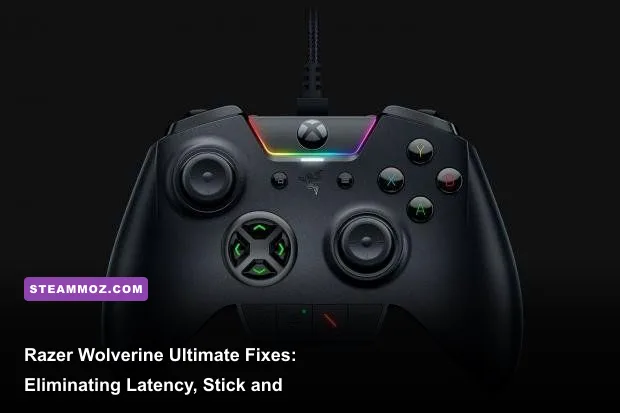
If your Razer Wolverine Ultimate feels unresponsive, suffers erratic stick drift, or suffers from missed paddle inputs, the culprit almost always traces back to conflicting XInput drivers, an uncalibrated deadzone floor, or USB power-state throttling. You can immediately crush latency and restore pinpoint accuracy by disabling USB selective suspend in Windows, forcing a direct motherboard USB 2.0/3.0 connection to avoid packet polling drops, and re-centering your potentiometers through the dedicated Razer Controller Setup for Xbox app. This controller is a mechanical masterpiece, but its custom hardware layer demands precise configuration to unlock tournament-grade performance.
Slashing Input Latency: Polling Rates, USB Hubs, and Port Allocation
While wireless pads deal with Bluetooth interference, the wired Razer Wolverine Ultimate should theoretically deliver instantaneous actuation. Yet, thousands of players complain about a muddy, sluggish float when aiming. The Wolverine Ultimate runs on standard XInput architecture, polling natively at 250Hz (a 4ms report interval). When plugged into front-panel PC case headers or unpowered external USB hubs, the controller often experiences severe packet loss. Front headers route through cheap internal passthrough cables that introduce electrical interference and sporadic polling drops down to 125Hz (8ms), doubling your perceived input delay.
To secure a rock-solid 4ms polling window, always plug the braided cable directly into your motherboard's rear I/O panel. Avoid high-bandwidth USB 3.2 Gen 2 ports (typically red or teal), which share controller lanes with external NVMe drives and can create sporadic timing desyncs. A plain black USB 2.0 or blue USB 3.0 port provides the cleanest dedicated line. Furthermore, navigate to your Windows Device Manager, expand Universal Serial Bus controllers, right-click your USB Root Hub entries, select Properties, and uncheck "Allow the computer to turn off this device to save power" under the Power Management tab. This prevents Windows from downclocking the controller during quieter gaming moments.
Steam Input is another frequent culprit. When Steam forces its generic controller translation layer over the native Razer drivers, it introduces a buffer pipeline that increases input latency. Open Steam settings, click into the Controller menu, and ensure Enable Steam Input for Xbox controllers is toggled off unless a specific title requires custom trackball emulation. In fast-twitch shooters where every millisecond dictates survival—like dialing in Far Cry 6 GOTY settings for max FPS—bypassing Steam's input wrapper eliminates roughly 3 to 6ms of software-level frame lag.
Eliminating Stick Drift and Dialing In Custom Deadzones
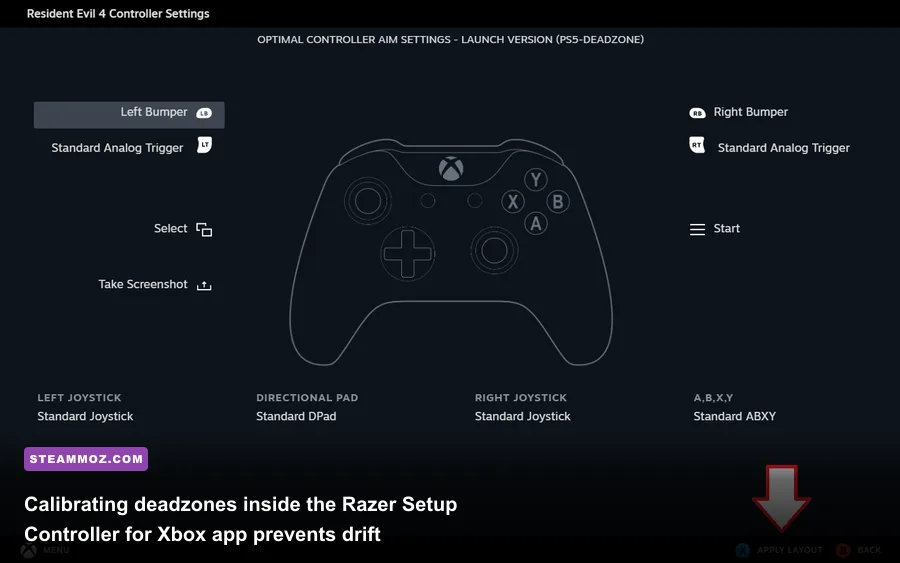
Stick drift on the Wolverine Ultimate rarely stems from worn potentiometers right out of the gate. More often, it comes from an offset zero-point stored in the onboard memory or an overly aggressive zero-deadzone profile in your game's menu. Unlike standard Xbox controllers that calibrate through Windows joy.cpl, the Wolverine Ultimate handles its curve mappings through firmware. You cannot configure this controller using standard Razer Synapse 3 on PC; you must download the Razer Controller Setup for Xbox app from the Microsoft Store.
Launch the app and create a dedicated competitive profile. The software features an individual sensitivity deadzone slider ranging from 0 to 10. Setting this slider to 0 gives you instant crosshair movement, but because mechanical analog modules feature tiny resting tolerances, a 0-value will register phantom drift in games without native deadzone filtering. Set your Razer app deadzone between 1 and 2. This creates a microscopically tight deadband that prevents auto-panning without deadening your fine tracking adjustments.
| Game Genre | Software Deadzone | Agility Clutch Target | Focus Clutch Target | Trigger Stop Setup |
|---|---|---|---|---|
| Competitive FPS (Apex, CoD) | 1 – 2 | +3 (Dynamic tracking) | -4 (Sniper stabilization) | Engaged (Hair-Trigger) |
| Fighting Games | 0 – 1 | Disabled | Disabled | Disengaged (Full throw) |
| Racing / Flight Sim | 3 – 4 | Disabled | -2 (Fine rudder/steering) | Disengaged (Full throttle travel) |
| Action-RPGs / Open World | 2 – 3 | +2 (Quick camera pans) | -3 (Ranged targeting) | Engaged (Instant heavy melee) |
If physical drift persists, pop off the magnetic thumbstick cap. The Wolverine Ultimate ships with interchangeable concaves and tall convex sticks. Dirt, dead skin, and carpet fibers love to settle inside the dome socket around the potentiometer neck. Blast the exposed housing with clean compressed air while rotating the stick stem 360 degrees. Apply two drops of quick-drying electrical contact cleaner (such as DeoxIT D5) directly into the housing seams, rotate the stick for sixty seconds, and let it dry completely before reconnecting. For gamers jumping into complex RPG rotations like those found in Elex PC crash fixes and combat tuning, this quick physical cleanup instantly solves erratic movement bugs.
Firmware Flashing and Driver Conflicts That Freeze Your Inputs
One of the most maddening Wolverine Ultimate glitches occurs when the controller abruptly freezes mid-match: the Chroma lighting stays illuminated, but buttons stop responding until you physically rip out the USB cable and plug it back in. This issue is almost universally caused by corrupted onboard firmware interacting with outdated Windows 10/11 XInput bus drivers.
To resolve this permanently, download the standalone Razer Wolverine Ultimate Firmware Updater directly from Razer Support (look for version v1.01.01 or later). Note that this updater will fail if any background Razer processes are active. Close the Xbox accessory software, kill Razer Synapse tasks in Task Manager, run the updater as Administrator, and follow the on-screen prompts while keeping the controller plugged into a rear USB port. Do not disconnect the controller while the firmware writes to the internal flash ROM.
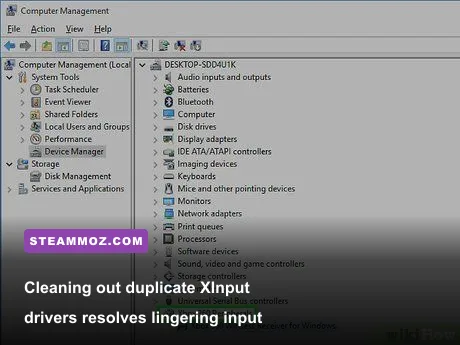
Once flashed, clean your driver stack. Open Windows Device Manager, click View > Show hidden devices, expand Xbox 360 Peripherals, and uninstall every dimmed or ghosted controller instance you see. If Windows assigns the pad as a generic "HID-compliant game controller" instead of an official Xbox peripheral, right-click the entry, select Update driver > Browse my computer for drivers > Let me pick from a list of available drivers on my computer, and select Xbox 360 Controller for Windows. For deeper system troubleshooting instructions, review official guidelines on Xbox Official Support to ensure your operating system's gaming subsystem remains pristine.
Resolving Breakaway Cable Flaws and Headphone Jack Static
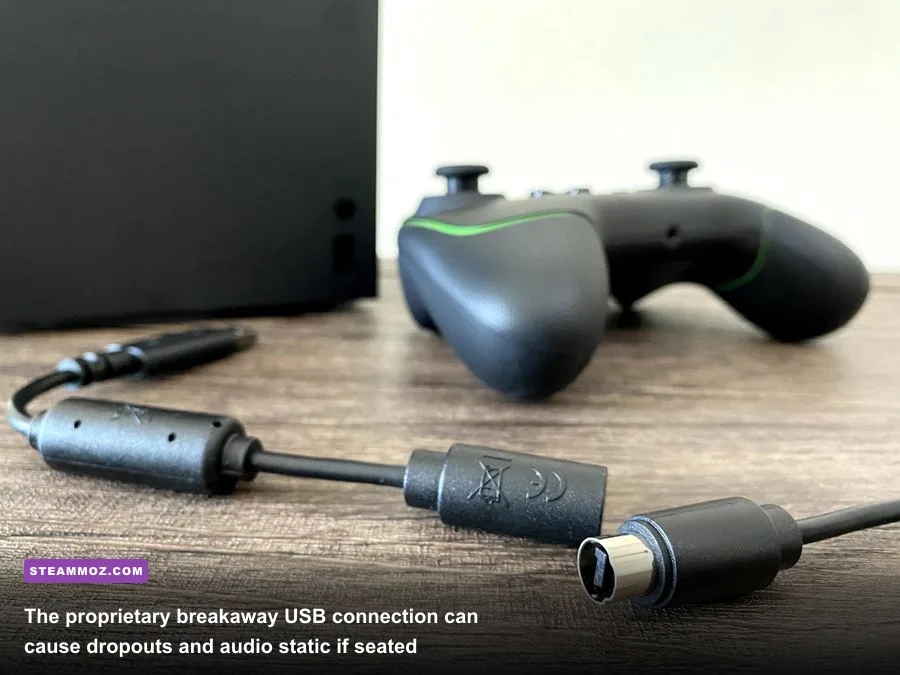
The proprietary cable included with the Wolverine Ultimate features a deep, custom-molded micro-USB sleeve alongside an inline quick-release breakaway segment. While great for preventing an Xbox console from tumbling off an entertainment center, that inline breakaway dongle is notorious for collecting pocket lint, bending slightly out of alignment, and causing sudden disconnects or loud crackling in the 3.5mm audio jack.
If your headset pops, whines, or cuts out during gameplay, detach the inline breakaway segment completely. Inspect the gold contact pins inside the round junction sleeve. If the ground pins are depressed or coated in debris, use a wooden toothpick and a spot of isopropyl alcohol to wipe them clean. When reattaching the cable, verify that the alignment notch clicks home with absolute firmness. Inside the controller's front recessed socket, push the micro-USB connector firmly until it locks against the chassis ridges. Any micro-wobble in that port interrupts both power delivery and digital audio streaming.
On PC, 3.5mm audio static frequently stems from sample rate mismatches. Open your Windows Sound Control Panel, find the Headphones (Xbox Controller Audio) playback device, click Properties > Advanced, and switch the default format to 2 channel, 16 bit, 48000 Hz (DVD Quality). Disable all spatial audio enhancements like Windows Sonic temporarily to isolate signal noise. If system stutters plague your sessions in demanding open-world titles, stabilizing your audio driver helps prevent hard frame locks, much like clearing out background threads in our Everspace 2 crashing guide.
Remapping Paddle Ergonomics and Hair-Trigger Stops for Fast Actions
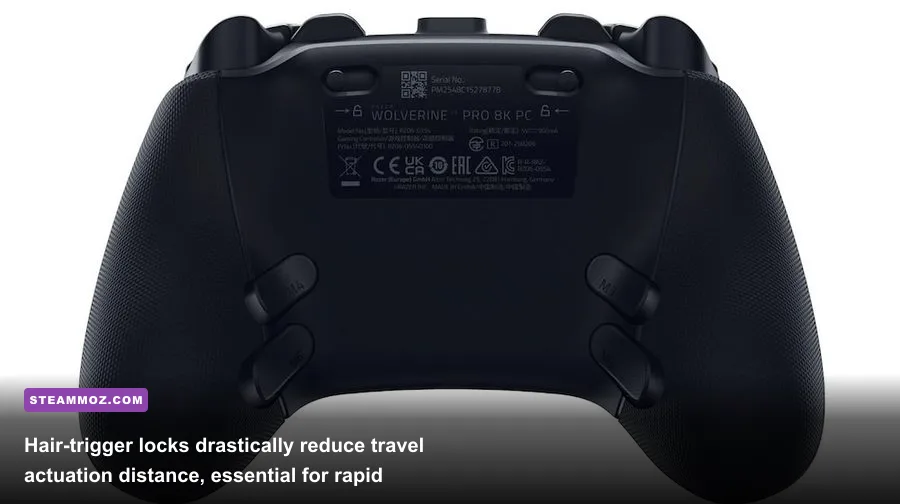
The Wolverine Ultimate is equipped with four underside paddles (M1, M2, M3, M4) and two tactile shoulder bumpers (M5, M6) nestled between the standard bumpers and triggers. Mastering these inputs gives you a massive tactical advantage, but only if configured correctly alongside the mechanical hair-trigger switches.
On the back of the controller, you'll find two physical slider switches next to the trigger wells. Sliding these inward activates the Hair Trigger Mode, physically slashing the trigger pull distance from roughly 10mm down to just 2mm. However, flipping the physical switch is only half the job! If you do not calibrate the internal trigger threshold, the controller still waits for a full 50% analog depression before registering a shot. In the Razer Controller Setup app, ensure that your hair-trigger software calibration matches the physical stop, converting the trigger stroke into an ultra-fast digital mouse click.
| Issue / Symptom | Probable Root Cause | Verified Resolution |
|---|---|---|
| Audio crackling in 3.5mm jack | Dirty breakaway connector or sample rate conflict | Clean inline breakaway pins; set Windows audio to 16-bit 48kHz |
| Hair triggers not firing in game | Physical stop engaged without software toggle | Enable Hair-Trigger Mode inside Razer Controller Setup app |
| Controller randomly turns off / freezes | USB power saving or corrupted firmware | Disable USB Selective Suspend; run Razer Firmware Updater v1.01 |
| Slow crosshair drift | Zero deadzone in app or potentiometer dust | Increase app deadzone to 2; blast stick housing with compressed air |
| Heavy button actuation delay | Steam Input wrapper running on top of XInput | Disable Steam Input for Xbox pads in Steam controller settings |
For your paddle setup, avoid assigning face buttons (A, B, X, Y) purely out of habit. Instead, map M1 and M2 to jump and crouch/slide so your right thumb never leaves the right analog stick during aerial combat. Use the shoulder bumpers (M5 and M6) for your Agility or Focus sensitivity clutches. When Focus is assigned to M5, holding that bumper instantly drops your stick sensitivity by 40%, giving you absolute precision when sniping across long distances in tactical shooters or executing frame-perfect movements in fast titles like Fatal Fury City of the Wolves. For precision-heavy puzzlers where smooth camera movement prevents spatial disorientation—such as optimizing your setup for Filament Marmalade Edition—these sensitivity clutches turn a good run into a flawless one.
Take the time to lock in these hardware stops, firmware adjustments, and driver cleanups. Once your Razer Wolverine Ultimate is freed from Windows driver conflicts and calibrated to your exact mechanical preferences, it transforms into an absurdly responsive, pro-grade weapon that consistently outclasses standard wireless gamepads.