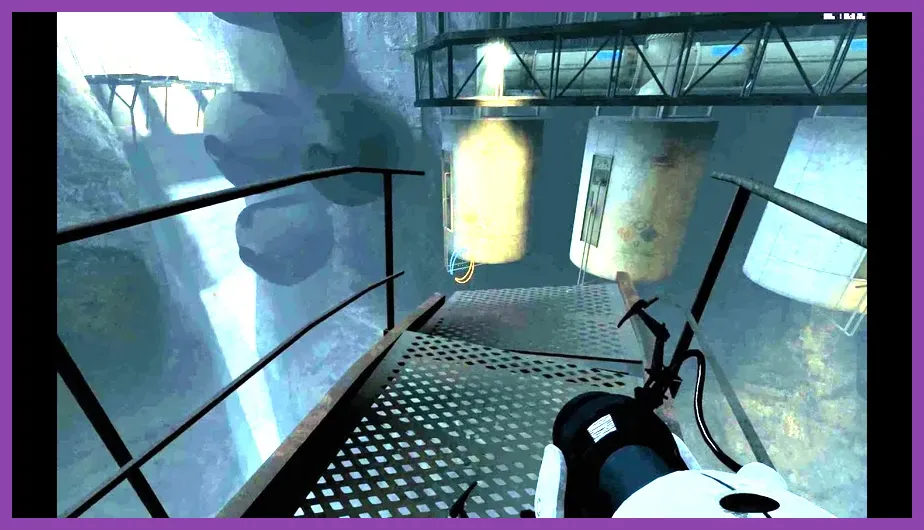
To achieve the absolute highest frame rates in Portal 2, you need to configure your advanced video menu by lowering shadow detail to low, disabling vertical sync (V-Sync), setting texture filtering to bilinear or trilinear, and utilizing specific Source engine launch parameters like -novid -high -threads [your_cpu_cores]. While Valve's legendary puzzle game runs on an optimized iteration of the Source engine and is historically easy to run on modern hardware, older rigs or high-refresh-rate competitive setups still require precise configuration to eliminate micro-stutters, maintain a locked 300+ FPS cap, and ensure pixel-precise portal physics synchronization.
Understanding the Source Engine Performance Bottlenecks
Portal 2 is built on a heavily modified version of the Source engine, meaning its performance characteristics differ significantly from modern DirectX 12 or Vulkan titles. The engine relies heavily on single-core CPU clock speeds for physics calculations, portal rendering recursions, and entity tracking, while the GPU handles dynamic lighting, projected textures, and anti-aliasing. If you are experiencing unexpected frame drops in massive chambers like Chapter 5: The Escape or during frantic cooperative puzzles with Atlas and P-Body, your bottleneck is likely CPU thread scheduling or excessive dynamic shadow rendering rather than raw GPU power.
Before diving into specific in-game menus, it is vital to check the official Valve Developer Wiki for Portal 2 to understand engine-level limitations and developer console commands. Tuning your hardware starts by establishing a baseline configuration that relieves unnecessary strain on your processor, allowing the game loop to process input polling and portal viewports without delay. For more general PC optimization tips, check out our guide on roblox best beginner tips and tricks to refine your system habits.
Optimal In-Game Video Settings for Maximum FPS
Navigating to Options > Video > Advanced Settings reveals the granular controls that dictate your frame rate output. Applying the following exact profile will strip away redundant visual overhead while preserving the clean, industrial aesthetic of Aperture Science laboratories:
- Aspect Ratio: Native (Matches your monitor's physical resolution)
- Resolution: Native (Avoid lower resolutions unless running on extreme legacy integrated graphics like Intel HD 4000)
- Display Mode: Fullscreen (Crucial for bypassing Windows DWM desktop composition lag and ensuring direct GPU resource allocation)
- Brightness: User preference (Does not impact performance)
- Color Mode: PC Screen
- Aspect Ratio: Widescreen 16:9 or 16:10
- Wait for Vertical Sync (V-Sync): Disabled (Mandatory to eliminate input latency and unlock maximum framerates beyond your monitor's refresh rate)
- Multicore Rendering: Enabled (Absolute must-have setting that distributes engine workloads across multiple CPU cores)
- Shader Detail: Low (Reduces complex lighting calculations on walls and metallic surfaces)
- Effect Detail: Low (Minimizes particle clutter from laser fields, destruction debris, and aerial faith plate transitions)
- Paged Pool Memory Available: High (Allocates sufficient RAM cache for quick asset streaming during chamber loads)
- Model/Texture Detail: Medium or High (Portal 2 textures are lightweight; setting this to High rarely impacts FPS on cards with 2GB+ VRAM)
- Antialiasing Mode: None or 2x MSAA (Higher MSAA values severely tax fill-rate during dual-portal recursive rendering)
- Filtering Mode: Bilinear (Least intensive texture filtering option, boosting frame rates in corridor-heavy environments)
- Horizontal FOV Slider: 90 to 110 (Higher FOV renders more objects on screen simultaneously, slightly reducing CPU performance in open areas)
Managing system resources efficiently is a core skill for PC enthusiasts. If you enjoy optimizing complex titles, you might also appreciate our deep dive into subnautica 2 best early skills to unlock for survival optimization strategies.
Advanced Steam Launch Options to Boost Performance
Beyond the graphical menus, applying specific command-line arguments via the Steam client forces the Source engine to initialize with maximum efficiency. Right-click Portal 2 in your Steam Library, select Properties, navigate to the General tab, and paste the following string into the Launch Options field:
-novid -high -threads 8 -dxlevel 98 +mat_queue_mode 2 -freq 240
Here is what each parameter does for your framerate stability:
- -novid: Skips the Valve intro cinematic, booting you directly to the main menu and saving precious seconds.
- -high: Forces Windows Task Manager to assign High priority to the
portal2.exeprocess, ensuring background applications do not steal CPU cycles. (Note: Replace your core count in the parameters above; change8to match your physical CPU core count, e.g.,4,6,12, or16). - -threads: Explicitly tells the engine how many processing threads to utilize, preventing thread starvation on modern Ryzen or Intel architectures.
- -dxlevel 98: Forces DirectX 9.0M rendering optimizations designed specifically for stability and high frame throughput on Source engine games.
- +mat_queue_mode 2: Enables asynchronous material system threading, which is the single most powerful command for boosting multi-core CPU performance in Portal 2.
- -freq [Hz]: Forces your monitor's maximum refresh rate directly into the engine initialization sequence.
For players who love tactical games and hardware fine-tuning, exploring our breakdown of squad busters best weapons tier list 2026 provides another great look at optimization and meta choices.
Console Commands for Unlocking the Framerate Cap
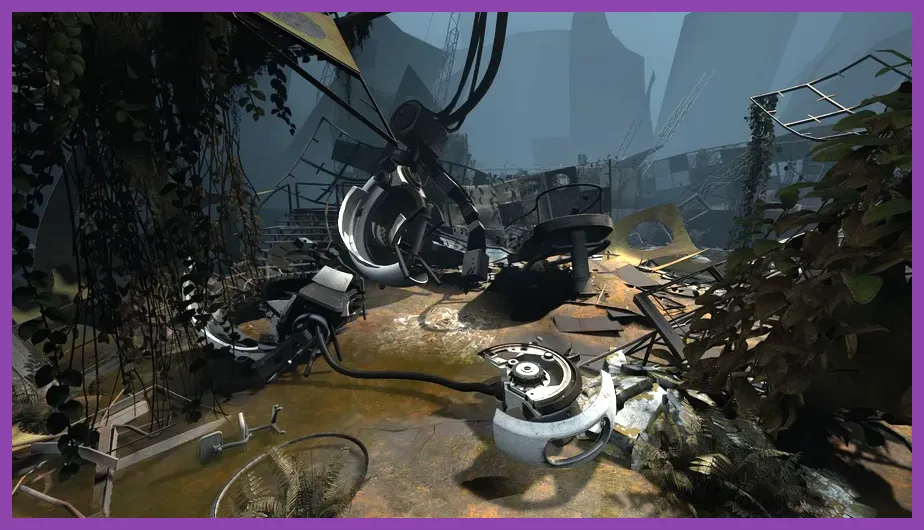
Portal 2 locks your frame rate by default to maintain physics consistency, but competitive players and speedrunners often need hundreds of frames per second to minimize input latency. To unlock your FPS entirely, you must enable the developer console in Keyboard/Mouse settings, press the tilde key (~), and input specific console variables (cvars).
Type the following commands into the developer console:
fps_max 0— Unlocks the framerate completely (0 removes the cap, while setting it to300or999establishes a steady upper boundary).mat_vsync 0— Double-checks that V-Sync is forcefully disabled at the engine level.r_dynamic 0— Disables dynamic lighting from flashlight beams and exploding turrets, providing a massive FPS boost in dark test chambers.r_drawparticles 1— Keeps essential particles active while preventing particle bloat during high-explosive sequences.cl_showfps 1ornet_graph 1— Displays real-time framerate, latency, and tick rate in the corner of your screen to monitor performance gains.
Keeping track of your system stats is vital when pushing hardware to its limits. Similar analytical approaches are required when building efficient rosters, as seen in our guide on roblox best team composition guide.
Optimizing for Gel Physics and Portal Recursions
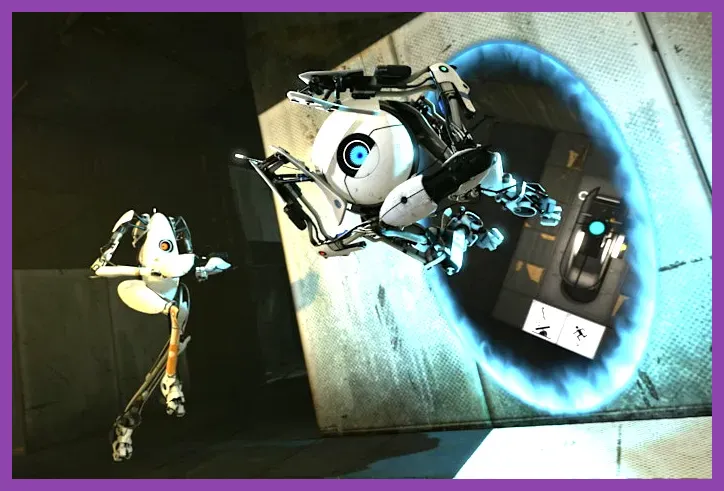
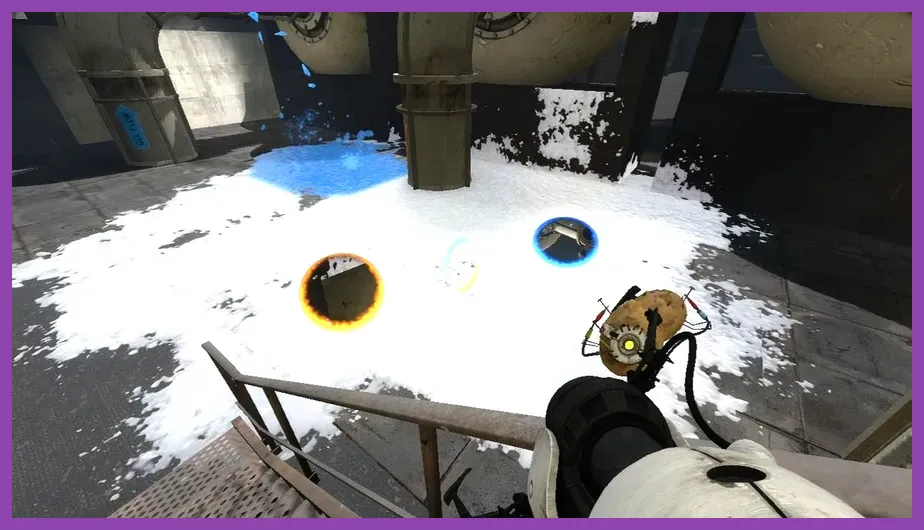
The most demanding scenarios in Portal 2 occur when Repulsion Gel (blue), Propulsion Gel (orange), and Conversion Gel (white) cover large areas while the player looks through a portal portal-in-portal recursion view. When two portals are placed facing each other, the engine renders a recursive loop of the room, which can cut your frame rate in half if your GPU fill rate is saturated.
To mitigate recursion lag, avoid placing portals directly opposite each other in large, highly detailed chambers unless strictly necessary for puzzle progression. Furthermore, if you notice stuttering when stepping onto gel splatters, lowering Effect Detail to Low removes complex fluid simulation physics splashes without hindering your ability to bounce or run across surfaces. You can also consult the Combine OverWiki Portal 2 entry for historical data on map optimization and engine quirks.
Resource management is a common theme across many top-tier PC titles. If you are looking for more ways to streamline your gaming experience across different genres, check out our insights on smite best skills to unlock first and starfield how-to get legendary weapons fast to master efficient progression loops.
GPU Control Panel Tweaks for Ultimate Smoothness
To extract the absolute final drops of performance, configure your dedicated graphics driver outside of the game. Whether you use NVIDIA Control Panel or AMD Software: Adrenalin Edition, applying global or profile-specific overrides prevents driver-level bottlenecks.
For NVIDIA users, right-click your desktop, open NVIDIA Control Panel, go to Manage 3D Settings, select Program Settings, add portal2.exe, and apply these settings:
- Low Latency Mode: Ultra (Reduces input queue times down to single-digit milliseconds).
- Power Management Mode: Prefer maximum performance (Prevents your GPU from downclocking during less intensive puzzle rooms).
- Texture Filtering - Quality: High Performance.
- Vertical Sync: Off.
- Background Application Max Frame Rate: Off.
AMD users should navigate to Gaming > Graphics in the Adrenalin software, select Portal 2, and enable Radeon Anti-Lag alongside setting Texture Filtering Quality to Performance. By combining these driver-level tweaks with multicore rendering, proper launch options, and console variable locks, your copy of Portal 2 will deliver an ultra-responsive, high-framerate experience that handles speedruns, custom workshop maps, and intense co-op sessions effortlessly.