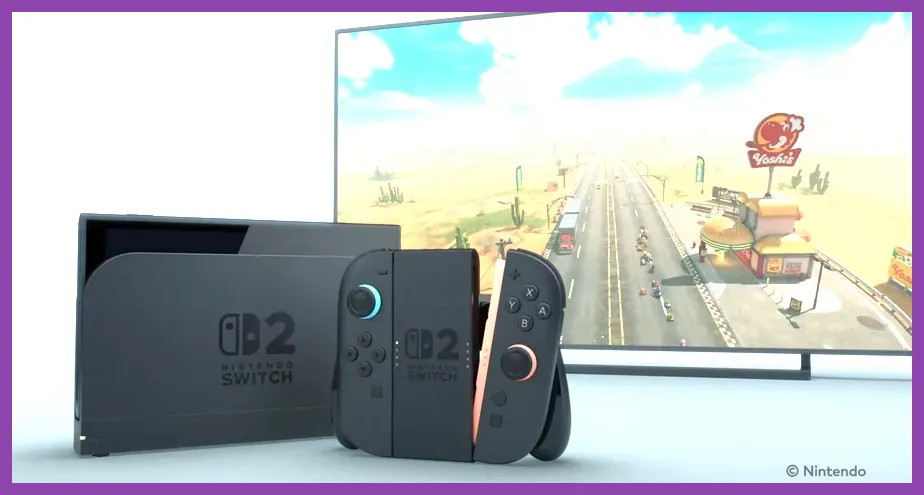
Unlocking the absolute maximum frame rate on the Nintendo Switch 2 requires a precise balance of system-level configurations, in-game graphic preset tweaks, and understanding the console's advanced Nvidia-powered architecture. To achieve a stable 60 or 120 frames per second in demanding titles, you must bypass aggressive default quality presets and manually configure rendering scales, dynamic resolution scalers, and hardware-accelerated upscaling parameters. Whether you are transitioning from older hardware or looking to optimize your official Nintendo Switch setup, dial in these exact profiles to eliminate stuttering, reduce input lag, and maximize overall smoothness.
Configuring System-Level Display and Power Profiles
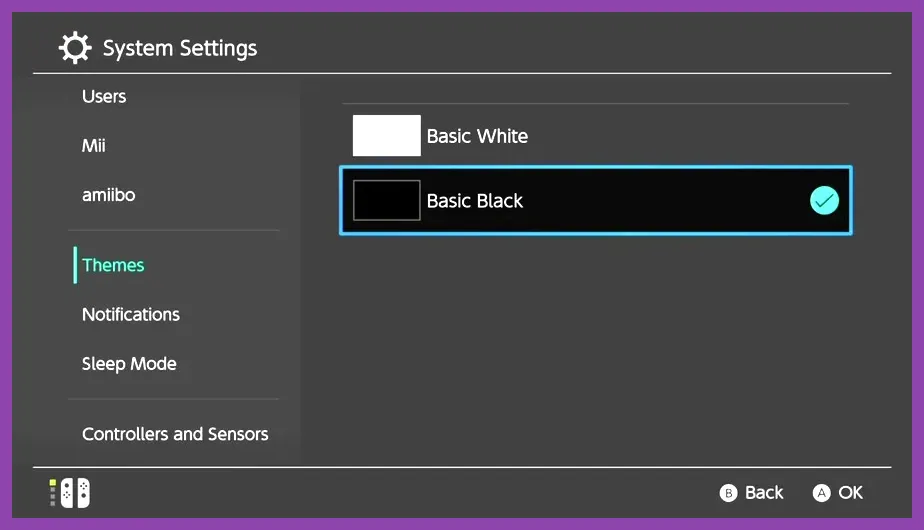
Before tweaking individual game menus, your system's operating environment must be properly primed. The Nintendo Switch 2 introduces multiple power delivery profiles and native display handshakes that directly impact frame pacing and baseline GPU clock speeds.
Docked Mode vs. Handheld Mode Clock Speeds
When striving for maximum frame rates, playing in docked mode is non-negotiable for high-end titles. In docked mode, the custom Nvidia SoC unlocks higher thermal limits and elevated GPU/CPU core frequencies:
- Power State: Set your console power management profile to 'Performance Priority' rather than 'Balanced' or 'Energy Saver'.
- Docked Resolution Output: Force the system output to 1080p if your display supports it natively, rather than letting the console attempt native 4K upscaling. Lowering the output pipeline reduces the post-processing overhead on the frame buffer.
- RGB Range: Lock your RGB Range to 'Full' in the system video settings to ensure proper contrast ratios without straining the display scaler chip.
For players tackling demanding cooperative titles or fast-paced action games, similar optimization strategies can be found in our Terraria best co-op multiplayer builds guide, where frame stability dictates survival success.
Leveraging Hardware-Accelerated Upscaling (DLSS Profiles)
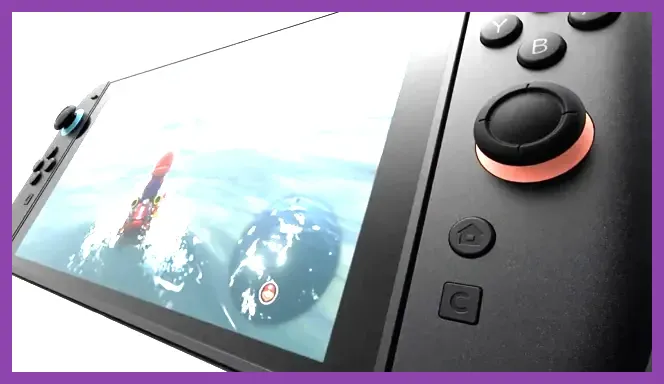
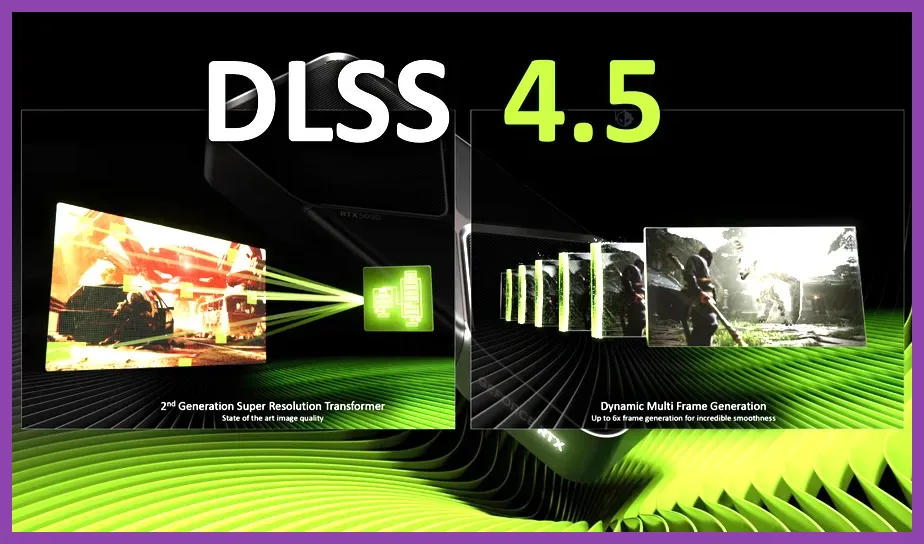
One of the most powerful features baked into the Nintendo Switch 2 hardware architecture is dedicated tensor core integration, enabling advanced upscaling technologies. Turning on and correctly configuring these features will net you an instant 30% to 50% boost in frame rates.
In-Game DLSS and FSR Configuration Rules
When entering a game's graphics settings menu, look for upscaling solutions and apply the following strict profile guidelines:
- Upscaler Mode: Set to Performance for competitive shooters and fast action titles targeting 120 FPS, or Quality for cinematic single-player RPGs targeting a locked 60 FPS.
- Sharpening Filter: Set the sharpness slider between 0.35 and 0.50. This compensates for the lower internal rendering resolution without introducing distracting pixel shimmering or edge artifacts.
- Dynamic Resolution Scaling (DRS): Disable generic DRS if you are using DLSS, as running both simultaneously can cause jarring, sudden resolution shifts that destabilize frame pacing.
If you enjoy optimizing hardware parameters and tuning your system for peak efficiency, you may also appreciate checking out the Total War Warhammer 3 best graphics settings for performance.
Optimizing Advanced Rendering and Post-Processing Settings
Raw hardware power means little if intensive post-processing effects are needlessly dragging down your frame rate. Modern games loaded onto the Switch 2 feature a suite of graphical toggles that heavily tax fill rates and memory bandwidth.
Crucial Graphic Setting Toggles for Max FPS
Navigate to your game's advanced video options and apply these exact parameter adjustments:
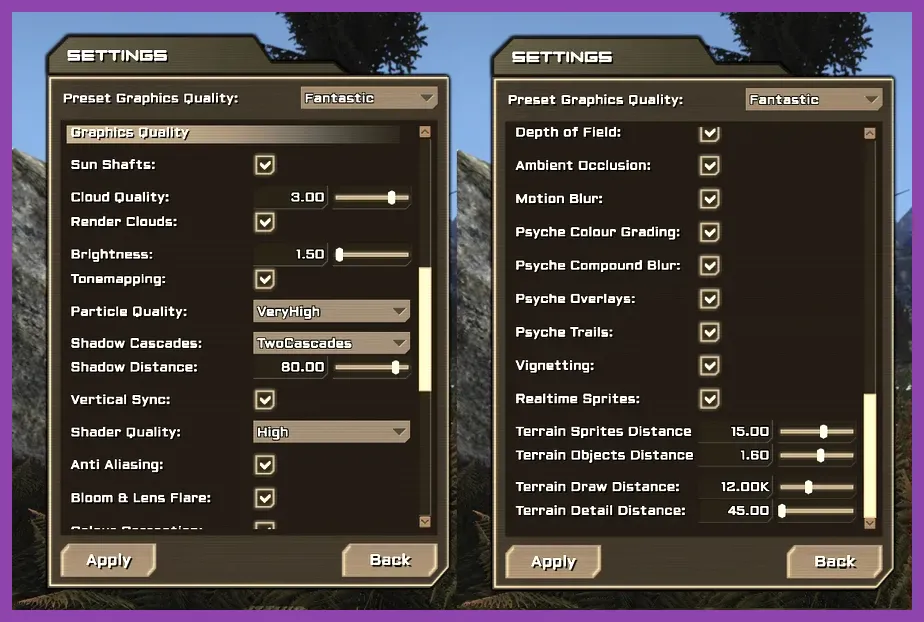
- Shadow Quality: Set to Medium or Low. High shadow maps consume massive amounts of VRAM and fill rate with minimal perceptual difference during fast movement.
- Ambient Occlusion (HBAO/SSAO): Set to SSAO or turn it Off entirely. Advanced ray-marched ambient occlusion modes devour GPU cycles on portable hardware.
- Ray Tracing Reflections/GI: Turn Off. While the Switch 2 supports hardware ray tracing, running it will instantly cut your frame rate in half unless paired with aggressive ultra-performance upscaling.
- Motion Blur and Depth of Field: Turn Off. Disabling these post-processing filters not only increases your raw frame rate but also significantly cleans up visual clarity during high-speed camera pans.
- Texture Filtering (Anisotropic): Set to 4x or 8x. Unlike heavy texture resolution scaling, anisotropic filtering has an extremely low performance cost while keeping ground and wall textures crisp at oblique angles.
Optimizing your settings for maximum smoothness in fast-paced environments shares similarities with gearing up for intense multiplayer encounters, much like optimizing your loadout in Team Fortress 2 best unlockable weapons to get first.
Managing Thermal Throttling and Storage Latency
Even with perfect in-game settings, physical and storage bottlenecks can cause micro-stutters and sudden frame-rate drops during extended play sessions. Maintaining peak hardware health is critical for sustained high-FPS gaming.
Cooling and Storage Maintenance Best Practices
Follow these hardware-level maintenance rules to prevent thermal throttling:
- Physical Ventilation: Ensure your dock is placed in an open, well-ventilated area. Never box the Nintendo Switch 2 inside a closed entertainment center cabinet, as thermal throttling will automatically downclock the GPU within 20 minutes of heavy play.
- Storage Speed: Always install demanding, open-world titles directly onto high-speed internal flash storage or an SD Express-certified microSD card. Slow read speeds cause asset streaming hitches that manifest as severe frame stuttering.
- Background Downloads: Pause all active software updates and background cloud saves before launching performance-critical games to free up CPU threads and system memory bandwidth.
For gamers who love diving deep into mechanical mastery and system optimization across multiple platforms, exploring guides like The Witcher 3 best skills to unlock first provides a great blueprint for building efficient systems from the ground up.
Advanced Frame Pacing and V-Sync Management
Achieving a high number of frames per second is only half the battle; ensuring those frames display smoothly without tearing or erratic pacing determines how fluid the game actually feels.
Locking Down Your Frame Rate Limiters
If a game supports an unconstrained frame rate option, it can often lead to inconsistent frame delivery times, creating a choppy experience even when the counter reads 70 or 80 FPS:
- Cap at Refresh Rate: If your connected display runs at 60Hz, use an in-game frame limiter to lock the maximum FPS at 60. This prevents the GPU from wasting cycles rendering frames your monitor cannot physically display.
- Adaptive V-Sync: Enable adaptive vertical sync if available in the display profile to eliminate screen tearing without introducing the massive input latency penalties associated with traditional triple-buffered V-Sync.
- Input Polling Rate: When playing docked with a Pro Controller, connect via the direct USB-C cable mode rather than wireless Bluetooth if you want absolute zero input delay paired with your newly unlocked high frame rate profile.
By strictly applying these display rules, hardware power profiles, and rendering tweaks, your Nintendo Switch 2 will consistently deliver the smoothest, highest-performing gaming experience possible across all your favorite titles.