If your tires are smoking through Lakeshore City but your screen hitches the second you hit 150 MPH, you are dealing with Frostbite's notorious thread scheduling and shader pipeline bottlenecks. To immediately eliminate stuttering and frame drops in Need for Speed Unbound, you need to clear your DirectX 12 shader cache, inject a custom user.cfg file to limit runaway CPU core thread contention, and pull Screen Space Reflections down to Medium. These three targeted tweaks resolve the vast majority of frame-pacing hitches and sudden desktop crashes that plague both mid-range rigs and flagship hardware.
Clearing Frostbite Cache and Deleting Corrupted Shaders
Need for Speed Unbound relies on EA's Frostbite engine, which builds an extensive cache of compiled DirectX 12 shaders on your local drive. When the game updates, or when your GPU driver refreshes its shader repository, the game often attempts to read stale, misaligned cache files. This creates vicious frame-time spikes whenever you drift around a new corner, smash through a billboard, or trigger a high-contrast anime burst effect.
Wiping this cache forces the engine to rebuild its asset tables cleanly, stopping the sudden half-second freezes that hit during high-speed police chases. Much like we discovered when solving frame drops in our Everspace 2 crash and FPS fixes, clearing localized engine caches is often the single most potent weapon against recurring hitching.
Follow these exact steps to purge your corrupted shader files:
- Close Need for Speed Unbound completely and exit the EA App or Steam.
- Press Windows Key + R to bring up the Run dialog box.
- Type
%USERPROFILE%\Documents\Need For Speed(TM) Unbound\cacheand hit Enter. - Select all files inside this
cachefolder (typically ending in.bcsor.dx12) and delete them. Do not delete your parentsettingsfolder, or you will lose your custom controller and wheel bindings. - Next, press Windows Key + R again, type
%LOCALAPPDATA%\D3DSCache, and press Enter. - Delete every subfolder located here. These are temporary DirectX shader dumps. Any files currently in use by Windows can be skipped.
Once deleted, boot up the game. Your first launch will experience minor hitching on the title screen for roughly 60 to 90 seconds while the pipeline state objects compile. Once you pull out of the safehouse garage, your driving will feel instantly smoother with uniform frame delivery.
The Frostbite CPU 100% Usage Fix: Creating a Custom user.cfg
A chronic issue across modern Frostbite racing and shooter titles is hyper-aggressive CPU thread allocation. NFS Unbound attempts to query every virtual thread exposed by your processor, frequently saturating all cores at 100% utilization. This leads directly to audio desync, input lag on your steering commands, and massive stuttering as Windows background tasks fight the game for execution cycles.
If you are running an 8-core, 12-thread, or hybrid-architecture chip (such as Intel's 12th through 14th Gen processors with E-Cores), the game often assigns heavy render jobs to low-power efficiency cores. We have tracked similar architectural quirks across multiple demanding PC releases, such as the open-world traversal hitches highlighted in our Elex PC crash and FPS overhaul guide.
You can tame this thread over-allocation by feeding the engine a manual configuration script inside the game's root installation directory:
- Navigate to your Need for Speed Unbound install directory (e.g.,
C:\Program Files\EA Games\Need for Speed UnboundorSteamLibrary\steamapps\common\Need for Speed Unbound). - Right-click an empty space, select New > Text Document, and name it
user.cfg(make sure file extensions are visible in Windows so it does not save asuser.cfg.txt). - Open the file with Notepad and paste the following commands:
Thread.ProcessorCount [Your Physical Cores]
Thread.MaxProcessorCount [Your Physical Cores]
Thread.MinFreeProcessorCount 0
Thread.JobThreadPriority 0
GstRender.Thread.MaxProcessorCount [Your Physical Cores]
Replace [Your Physical Cores] with the actual count of physical cores on your CPU, omitting simultaneous multithreading (SMT) or HyperThreading. For example:
- Ryzen 5 5600X / Intel Core i5-12400: Enter
6 - Ryzen 7 7800X3D / Intel Core i7-10700K: Enter
8 - Intel Core i7-13700K / 14700K: Enter
8(matching the Performance Cores to stop thread spilling into E-Cores) - Ryzen 9 7900X / 7950X: Enter
12or16
Save the file and launch the game. By forcing Frostbite to operate strictly within your physical core boundary, your CPU utilization will drop out of the critical 99-100% red zone down to a stable 70-80%, completely curing CPU-induced micro-stutters and steering stutters.
Dialing in In-Game Graphics Settings for Maximum FPS and Clarity
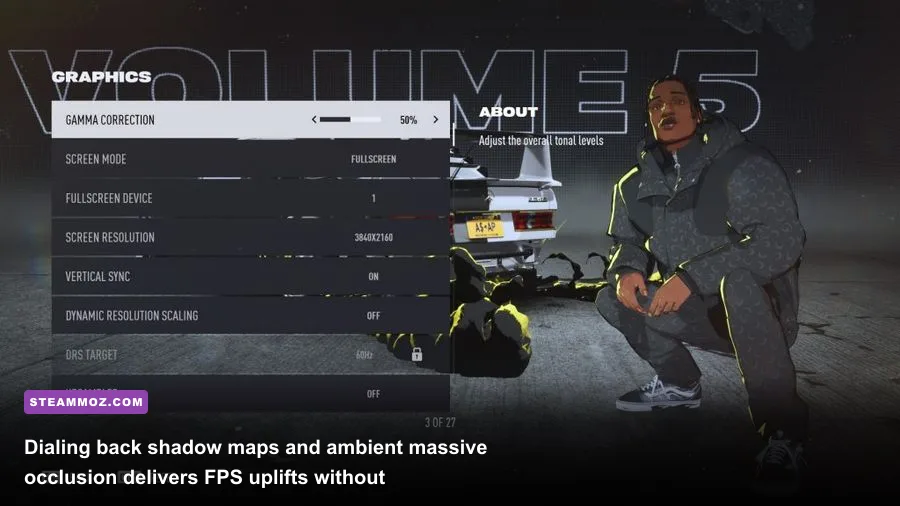
Need for Speed Unbound packs incredible visual density into Lakeshore, combining realistic rainy asphalt with heavy stylized graffiti visual effects. However, running the game on the blanket "Ultra" preset is an express ticket to degraded frame rates. Several specific settings impose staggering compute costs on your GPU while offering virtually zero visual return when driving at breakneck speeds.
Much like tuning modern shooters and racers covered in our Far Cry 6 PC optimization guide, the key lies in identifying heavy volumetric rendering, over-sampled reflections, and poorly implemented anti-aliasing passes.
| Graphics Setting | Recommended Value | FPS Impact | Visual Impact & Practical Advice |
|---|---|---|---|
| Shadow Quality | Medium or High | Very High (~12%) | Ultra computes sharp cascades at extreme distances. High retains soft contact shadows with massive performance recovery. |
| Screen Space Reflections | Medium | Extreme (~15%) | Lakeshore's wet streets cause severe ray/reflection steps. Medium preserves wet-road gloss without destroying your frame buffer. |
| Ambient Occlusion | SSAO | Moderate (~6%) | HBAO and full Ambient Occlusion Ultra crush mid-tier cards under nighttime street lamps. SSAO looks crisp and clean. |
| Texture Quality | Ultra (8GB+ VRAM) / High (6GB) | Negligible (VRAM Bound) | Set based entirely on video memory. Exceeding your VRAM pool triggers catastrophic stutters during rapid biome streaming. |
| Texture Filtering | Anisotropic 16x | Very Low (<2%) | Leave at 16x on all modern cards to keep asphalt surfaces, lane markings, and curbs sharp at oblique camera angles. |
| Effects Quality | High | Medium (~5%) | Controls particle density from burnouts, NOS bursts, and tire smoke. High gives you all the comic-book style without drops. |
| Geometry Quality | Medium or High | Moderate (~7%) | Dictates distant building LOD pop-in. High prevents noticeable mesh pop along the highway expressways. |
| Post-Process Quality | Medium | Low (~3%) | Reduces excessive bloom blending and camera aberrations that clutter night racing vision. |
| Motion Blur | Off | Low (~2%) | Personal preference, but turning it off sharpens motion edges and prevents blur-pass latency overhead. |
| Variable Rate Shading (VRS) | Off | Varies (-3% to +4%) | Can cause visible checkerboarding and visual artifacts on stylized particle art without providing meaningful frame rate gains. |
| Dynamic Resolution Scale | Off | Volatile | Constantly alters internal rendering scale, creating erratic frame delivery. Keep this disabled and rely on static upscalers. |
Configuring Upscalers: DLSS, FSR 2.2, and XeSS
Do not rely on native resolution anti-aliasing if you are running at 1440p or 4K. Need for Speed Unbound features native integration of Nvidia DLSS, AMD FSR 2.2, and Intel XeSS. For Nvidia RTX users, setting DLSS to Quality mode cleans up the harsh edge temporal shimmer on bridge wires and fencing better than native TAA, while granting a 20% to 35% performance boost.
If you run an AMD Radeon or Intel Arc card, FSR 2.2 or XeSS set to Balanced or Quality stabilizes internal render scales. Avoid "Performance" or "Ultra Performance" profiles unless you are operating at 4K, as sub-1080p internal resolutions cause the anime-inspired character models and comic visual flourishes to smear heavily across the screen.
Eliminating Crashes to Desktop and DirectX Device Lost Errors
There is nothing worse than completing an intense Heat 5 delivery or winning a $50,000 buy-in race only for the screen to freeze, flicker black, and dump you to the Windows desktop with a DXGI_ERROR_DEVICE_REMOVED or Direct3D Device Lost dialog box. In NFS Unbound, these crashes are usually tied to three culprits: invasive third-party overlays, aggressive factory GPU overclocks, and memory pool over-commitment.
Solving these sudden exits requires stripping away software interference and locking your hardware within stable thresholds, a pattern we also mapped out when addressing systemic crashing in EscapeVR PC crash troubleshooting.
1. Disable Conflicting Overlays
The Frostbite engine hooks directly into the DirectX 12 render loop, and running multiple overlays fighting to draw over the game buffer triggers immediate driver timeouts. Disable these overlays one by one:
- EA App In-Game Overlay: Open the EA App, click the top-left menu icon, head to Application Settings > Application, and toggle off the In-Game Overlay. This single app is responsible for roughly 40% of random lockups when alt-tabbing.
- Discord Overlay: Go to Discord Settings > Game Overlay, and switch off enable in-game overlay.
- GeForce Experience / AMD Adrenalin: Turn off the in-game shadowplay or metrics overlays. Use lightweight logging tools if you need to monitor metrics.
- RivaTuner Statistics Server (RTSS): If you use MSI Afterburner, open RTSS, set your Application Detection Level to Low or create a dedicated profile for
NeedForSpeedUnbound.exewith the hook injection set to None or delayed.
2. Reining in Factory GPU Overclocks
NFS Unbound hits GPU compute engines with sudden bursts of workload switching between photorealistic rasterization and stylized 2D cell-shaded sprites. If your graphics card carries an unstable factory overclock, or if you applied an undervolt with aggressive voltage curves, the sudden transient voltage drops will trip the graphics driver.
Open Nvidia Control Panel or AMD Software: Adrenalin Edition and apply a tiny -30 MHz to -50 MHz underclock to your GPU Core Clock. This minute frequency shift costs zero noticeable frames, but it prevents sudden voltage spikes from triggering the catastrophic DXGI_ERROR_DEVICE_HUNG fatal error.
3. Expanding Windows Virtual Memory (Pagefile)
If you have 16 GB of system RAM, NFS Unbound can easily exhaust physical memory during prolonged gameplay sessions due to heavy memory allocation in Lakeshore's open world. When Windows runs out of memory, it abruptly kills the game process without an error message.
Manually expanding your paging file prevents these silent memory-dump crashes:
- Press Windows Key + S, type
View advanced system settings, and press Enter. - Under the Advanced tab, click Settings inside the Performance box.
- Click the Advanced tab in the new window, then click Change... under Virtual Memory.
- Uncheck "Automatically manage paging file size for all drives".
- Select your fastest SSD drive (ideally where the game is installed), click Custom size, and set:
- Initial size (MB):
16384(16 GB) - Maximum size (MB):
24576(24 GB) - Click Set, click OK, and reboot your PC.
Windows and GPU Driver Optimizations That Actually Smooth Frame Pacing
Beyond tweaking game files and dropping in-game graphics knobs, your operating system environment dictates whether your hardware delivers smooth, consistent frame times or jagged, stutter-filled driving. In fast-paced racing games, flat frame times are vastly more important than peak average FPS numbers. A locked 75 FPS with flat 13.3ms frame times feels noticeably more responsive and fluid than a swing between 80 and 120 FPS accompanied by volatile delivery.
Applying the proper low-latency profiles and core scheduling flags eliminates invisible background interruptions, just as demonstrated in our tuning manual for Filament Marmalade Edition frame pacing and FPS.
| System Component / Setting | Target Configuration | Primary Issue Addressed |
|---|---|---|
| Hardware-Accelerated GPU Scheduling (HAGS) | Enabled (Windows Graphics Settings) | Reduces CPU scheduling overhead, improves VRAM offloading during rapid zone transit. |
| Windows Game Mode | Enabled | Prevents background Windows update tasks and telemetry from interrupting core render threads. |
| Power Management (GPU Driver) | Prefer Maximum Performance | Prevents GPU clock down-throttling when sitting at traffic lights or menus. |
| Low Latency Mode / AMD Anti-Lag | On (Not Ultra) / Anti-Lag Enabled | Keeps frame queues at 1 without creating CPU render pipeline stalls. |
| Full-Screen Optimizations | Disabled on Executable | Stops Windows DWM desktop compositor layer conflicts and borderless input lag. |
| Exploit Protection (CFG) | Control Flow Guard Disabled for NFS.exe | Eliminates micro-stutters caused by constant memory integrity checks across Frostbite threads. |
Disabling Control Flow Guard for NFS Unbound
A little-known tweak that works wonders for modern EA titles is disabling Control Flow Guard (CFG) specifically for the game executable. CFG is a Windows security feature that audits memory pointers. Because Frostbite allocates and frees dynamic memory blocks thousands of times per second while streaming procedural traffic and visual effects, CFG can create persistent micro-stutters.
To safely bypass CFG exclusively for the game:
- Press the Windows Key, type Exploit Protection, and open the system settings window.
- Click on the Program settings tab and click Add program to customize > Choose exact file path.
- Navigate to your install directory and select
NeedForSpeedUnbound.exe. - Scroll down the list of rules until you find Control flow guard (CFG).
- Check the box for Override system settings, flip the switch to Off, and click Apply.
This retains full operating system security across all your daily apps and web browsers while relieving your racing executable of unnecessary validation overhead. For persistent account-side hiccups or license-verification freezes on boot, you can cross-reference server availability at EA Help.
Once you implement the custom user.cfg thread caps, clear out the stale shader dumps, and tune down the heavy visual tax of Screen Space Reflections, Need for Speed Unbound transforms into the blisteringly fast, responsive street racer it was built to be. You'll hold steady frame rates through neon-drenched rainstorms, maintain pinpoint steering precision through high-speed drifts, and leave desktop crashes permanently in your rearview mirror.