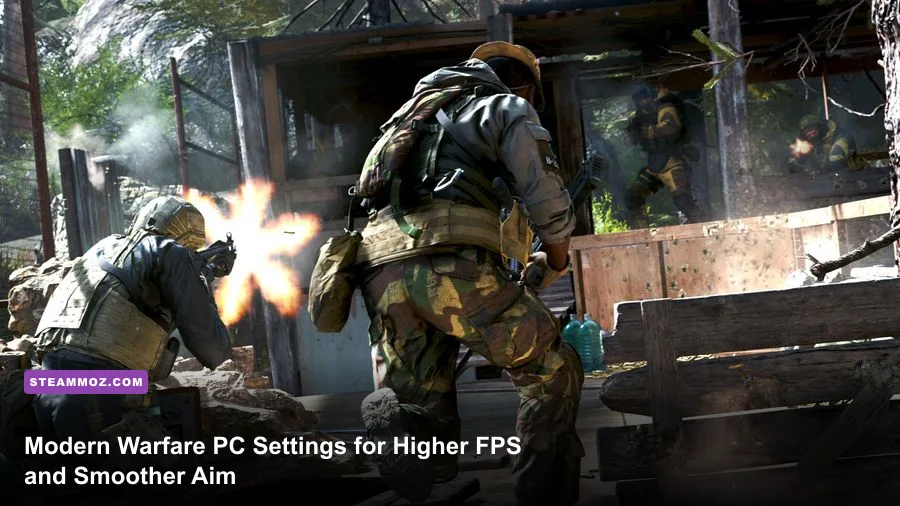
For the 2019 Call of Duty: Modern Warfare on PC, the best performance setup is 1080p or 1440p, Fullscreen, a capped refresh-rate-matched frame rate, NVIDIA Reflex set to Enabled + Boost, low shadows and volumetrics, and textures kept at Normal or High if your VRAM allows it. That combination protects visibility and input response without turning every surface into a blurry smear. The settings below target multiplayer and Warzone-style play, where stable frame times matter more than a flashy benchmark average.
This guide focuses on the reboot released in 2019, not the similarly named 2007 original or the later Modern Warfare II. Menu names can shift slightly between Battle.net, Steam-linked Call of Duty installations, and post-launch updates, but the performance logic remains the same. Before changing anything, check Activision's official Modern Warfare support page and the game's official Modern Warfare site for current patches.
The Best Modern Warfare PC Settings at a Glance
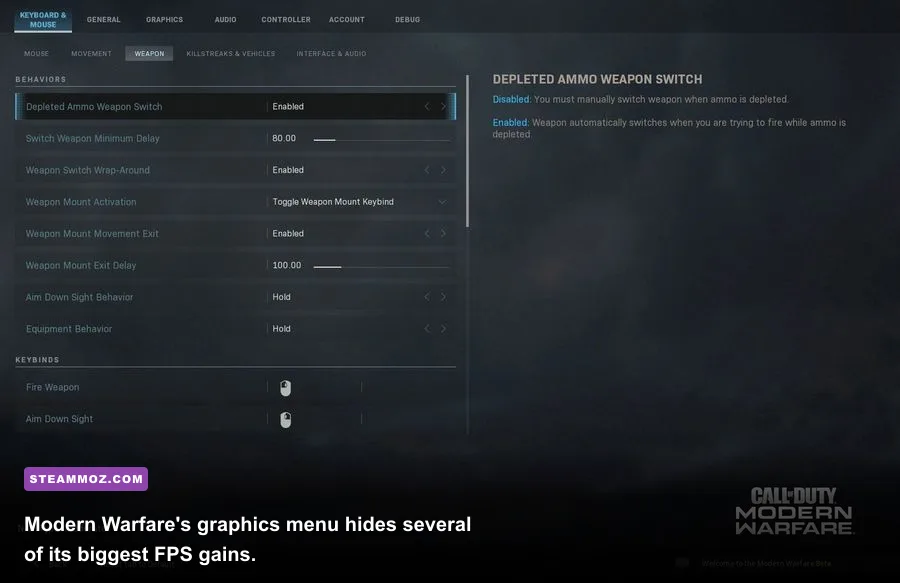
Start with this profile, then adjust only one option at a time. The goal is not simply the highest number shown in the top-left corner. A 120fps game that repeatedly dives to 70fps during explosions feels worse than a locked 90fps presentation, especially when tracking a sliding opponent through smoke.
| Setting | Recommended Value | FPS Impact | Visual Note |
|---|---|---|---|
| Display Mode | Fullscreen | Low | Usually gives the cleanest latency and frame pacing. |
| Screen Refresh Rate | Highest available | None | Use your monitor's real maximum refresh rate. |
| Custom Frame Rate Limit | Refresh rate minus 2-3fps | None | Use 141fps for 144Hz or 237fps for 240Hz. |
| Dynamic Resolution | Off initially | Very high benefit | Useful only when maintaining a hard target matters most. |
| Texture Resolution | Normal or High | Low to medium | Raise it until VRAM usage approaches, but does not exceed, your limit. |
| Texture Filter Anisotropic | High | Very low | Keeps floors and distant surfaces readable. |
| Shadow Map Resolution | Low or Normal | Medium to high | One of the safest competitive cuts. |
| Particle Quality | Low | Medium | Reduces visual clutter from smoke, sparks, and explosions. |
| Ambient Occlusion | Off or Static Objects | Medium | Off gives clearer interiors and more headroom. |
| Screen Space Reflection | Off | Medium | Reflections rarely help identify enemies. |
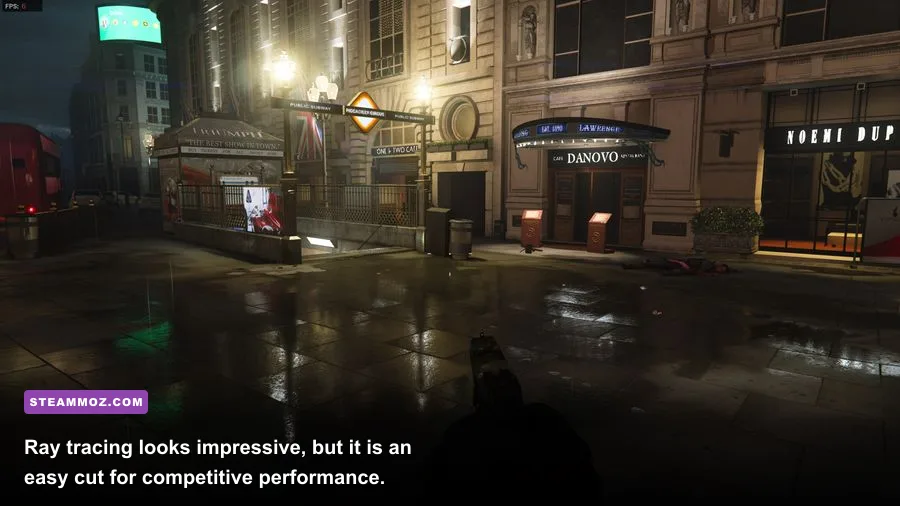
| Ray Tracing | Off | Very high | Save it for campaign screenshots, not ranked gunfights. |
| Depth of Field | Off | Low | Removes artificial blur while aiming. |
| World and Weapon Motion Blur | Disabled | Low | Improves target clarity during quick turns. |
| Film Grain | 0.00 | None | Produces a cleaner image and clearer distant silhouettes. |

🎮 FORM
Looking to experience this game? Grab your digital key directly on our store for $14.99.
View on Steammoz Store →Build Three Profiles for Different Gaming PCs
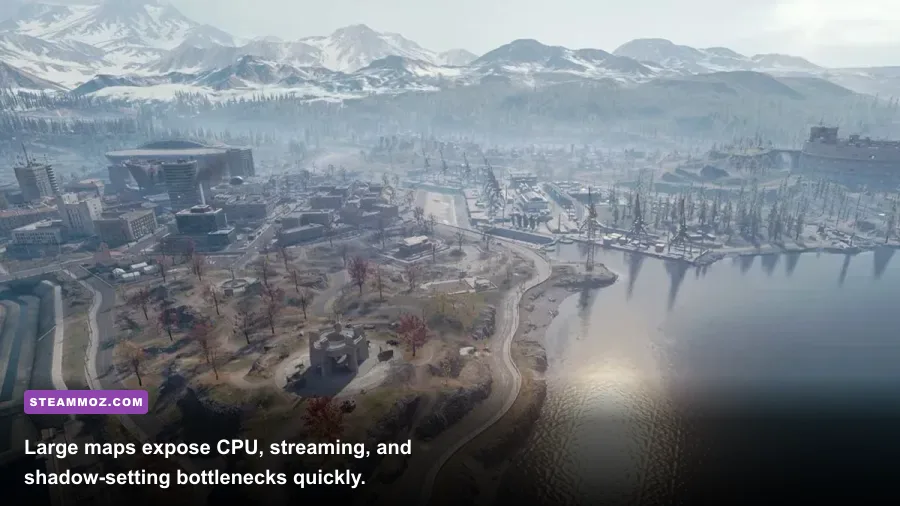
There is no single “best” preset because Modern Warfare behaves differently at 1080p, 1440p, and 4K. Resolution determines GPU load, while Warzone's large spaces and high player counts can expose a CPU limit. Use the profile closest to your hardware instead of blindly selecting the game's High preset.
| Profile | Target Hardware | Resolution and FPS Target | Key Settings |
|---|---|---|---|
| Competitive 1080p | GTX 1660 Super, RTX 2060, RX 5600 XT, or faster | 1080p, 120-240fps | Low shadows, low particles, textures Normal, Reflex Enabled + Boost, ray tracing Off. |
| Balanced 1440p | RTX 3060 Ti, RTX 3070, RX 6700 XT | 1440p, 90-165fps | Textures High, anisotropic filtering High, shadows Normal, volumetrics Low, upscaling optional. |
| Quality 4K | RTX 4070 or RX 7800 XT and above | 4K, 60-120fps | Textures High, resolution scaling or DLSS Quality, shadows Normal, ray tracing usually Off. |
| Older GPU | GTX 970, GTX 1060 6GB, RX 580 | 1080p, 60-90fps | Textures Normal, shadows Low, SSR Off, dynamic resolution targeting 75 or 90fps. |
The game's older minimum specification lists hardware around an Intel Core i3-4340 or AMD FX-6100, 8GB of RAM, and a GeForce GTX 670/GTX 1650 or Radeon HD 7950-class GPU. That is a launch baseline, not a promise of smooth Warzone performance. A modern 6-core processor, 16GB of RAM, and an SSD are much more realistic for stable multiplayer frame times. If the game stutters while rotating through a dense area, your problem may be streaming or CPU scheduling rather than a weak graphics card.
For comparison, Steamoz's ELEX PC performance fixes cover the same useful fundamentals: clean driver installs, background-process control, and checking whether the game is installed on a fast drive.
Which Settings Actually Cost the Most FPS?
Shadow Map Resolution is usually the first major cut. High shadows add detail to every light source and can hit both the GPU and memory bandwidth, while Low or Normal still leaves enough contrast to read doorways and cover. Cache Spot Shadows and Cache Sun Shadows should remain enabled when available; they use storage and memory to reduce repeated shadow calculations, particularly during campaign missions and larger multiplayer maps.
Particle Quality and Particle Lighting are deceptively expensive during thermite, grenades, killstreaks, and dense smoke. Low settings can make explosions less cinematic, but they also reduce the frame-time spikes that happen exactly when a fight becomes chaotic. Volumetric Lighting is another easy cut. If you see a sudden dip when looking toward sunlight, dust, or smoke, lower it before dropping texture quality.
Textures work differently. They mostly consume VRAM rather than raw shader performance. On an 8GB card, High textures are generally comfortable at 1080p and 1440p, but an overfilled VRAM budget can cause hitching and texture pop-in. If the in-game VRAM meter crosses its warning line, choose Normal textures before lowering your resolution. Texture Filter Anisotropic should stay High because its cost is tiny and it keeps long corridors, roads, and rooftops readable.
Screen Space Reflection, Ambient Occlusion, Tessellation, and Ray Tracing are visual luxury settings for this game. SSR improves wet floors and reflective windows, not enemy recognition. Ambient Occlusion adds contact shading around objects but can muddy dark interiors. Ray tracing is particularly punishing in scenes with multiple light sources. Turn all four off for a competitive profile, then add them back individually if you have substantial GPU headroom.
Upscaling, Dynamic Resolution, and Image Clarity
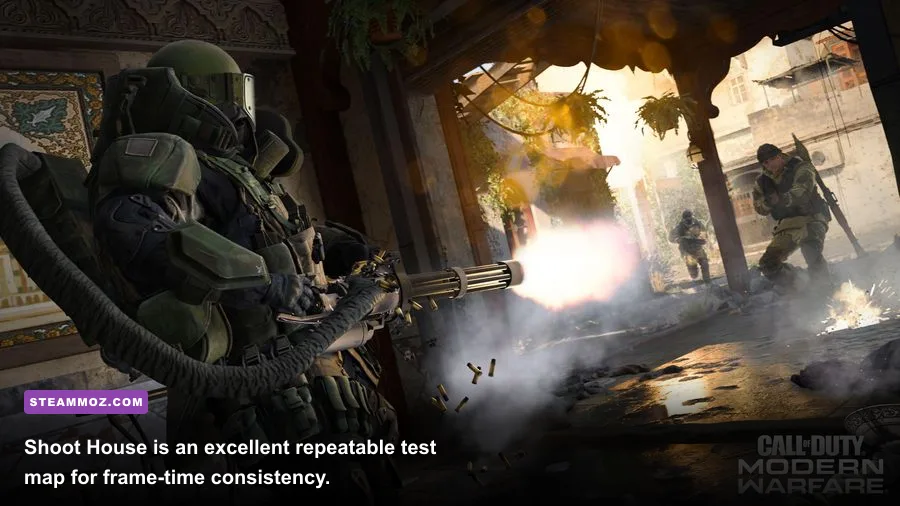
Dynamic Resolution is powerful but easy to misuse. Set a target that your PC can hold during the worst scene, not the average corridor. At 1080p, try 120fps on a 120Hz display or 141fps on a 144Hz display. If the internal resolution visibly pulses during every firefight, lower the target or use a fixed resolution instead. Constant softness makes distant targets harder to identify than a stable 90fps image.
If your version exposes NVIDIA DLSS, use Quality at 1440p or 4K before trying Balanced. DLSS Quality generally preserves edge detail better, while Balanced can introduce shimmer around wires, foliage, and weapon sights. AMD FSR options can help Radeon users and older Nvidia cards, but compare them in Shoot House or another familiar map; sharpening halos around player models are a warning that the setting is too aggressive.
Modern Warfare's Filmic Strength, Anti-Aliasing, and sharpening controls need a careful balance. Filmic SMAA T2X produces a smoother image but can look soft. Keep Filmic Strength low, set Film Grain to 0.00, and use a modest sharpening value if your build offers one. Don't stack heavy driver sharpening on top of aggressive in-game sharpening. The result is a crunchy outline that looks sharp in a screenshot but becomes distracting during rapid aim transitions.
Latency Settings for Faster Multiplayer Gunfights
Frame rate and latency are connected, but they are not identical. NVIDIA Reflex Low Latency should be set to Enabled + Boost if your GPU supports it and you are chasing the lowest possible response time. Enabled is often enough on a desktop with spare CPU and GPU headroom; Boost keeps GPU clocks elevated and can help when the card downclocks between engagements, though it increases power use and heat.
Use Fullscreen where the current Windows and driver combination behaves correctly, then verify the refresh rate in the menu. Cap the frame rate a few frames below the display's maximum if you use G-SYNC or FreeSync. A 141fps cap on a 144Hz panel leaves room for the synchronization system and often feels steadier than an uncapped 170fps average that repeatedly slams into the limit.
Turn off World Motion Blur, Weapon Motion Blur, Depth of Field, and Film Grain. These effects don't directly create massive FPS gains, but removing them improves visual information. Weapon blur is especially annoying during a fast slide-cancel-style turn because the gun itself becomes a large moving obstruction in the center of the screen.
Enable your monitor's adaptive sync, but don't blindly enable every driver feature. Radeon Anti-Lag or NVIDIA Reflex should be tested with a frame-time overlay, not judged by the menu description. Keep the Windows Xbox Game Bar, browser tabs with hardware acceleration, RGB utilities, and recording software under control if your CPU is close to its limit. For more troubleshooting ideas, Steamoz's low-FPS and crashing checklist and Far Cry 6 settings guide cover practical Windows-side fixes that apply here too.
How to Test Your Settings Without Guessing
Don't judge performance from the first thirty seconds after changing a preset. Modern Warfare may rebuild shaders, stream textures, or settle into a different cache state. Restart the game after major driver changes, allow shader compilation to finish, and then play the same map or training sequence for several minutes. Watch the 1% low figure and frame-time graph, not just the headline FPS counter.
- Set your monitor refresh rate and an initial cap three frames below it.
- Apply the Competitive, Balanced, or Quality profile above.
- Restart the game if shaders or texture streaming are rebuilding.
- Test a dense multiplayer fight, an outdoor sightline, and an effect-heavy moment with smoke and explosions.
- Lower shadows, volumetrics, and particles first if frame times spike.
- Only lower textures or resolution when VRAM usage or GPU utilization proves they are the bottleneck.
- Keep the setting that improves the 1% low without making enemy silhouettes harder to read.
For a 144Hz monitor, a locked 141fps target is a strong starting point. For 240Hz, don't sacrifice clarity chasing a number your CPU cannot sustain; 180-220fps with clean frame pacing can be more useful than unstable 240fps. If GPU utilization sits below 90 percent while frames remain low, reduce CPU-heavy effects less aggressively and investigate background processes, RAM usage, and the processor limit instead.
Finally, save a screenshot of your working configuration before experimenting. That small habit saves time after a driver update or a reset settings prompt. Modern Warfare rewards a tuned, consistent image more than maximum presets: clear textures, restrained shadows, disabled blur, sensible upscaling, and a stable frame cap will make aiming feel faster even when the benchmark number barely changes. If your installation still stutters after this profile, check Steamoz's FPS-first troubleshooting approach before dropping every option to Low.