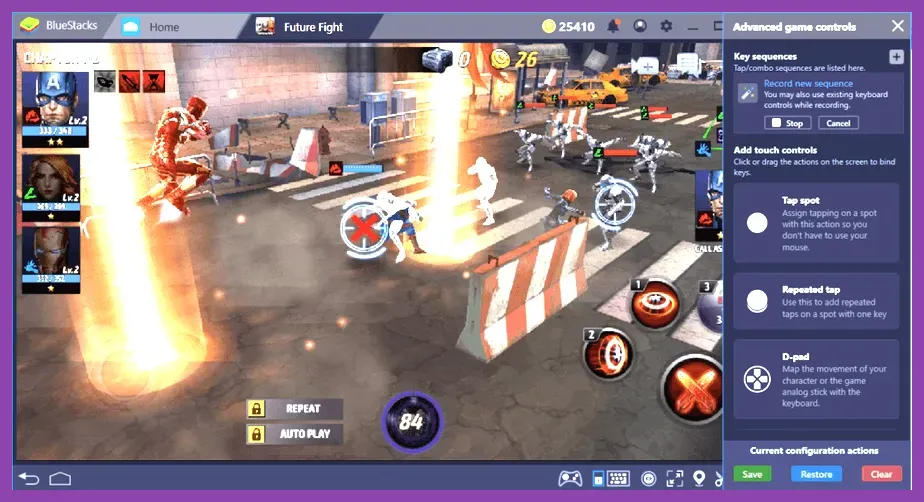
To achieve a steady, rock-solid 60 or 120 FPS in Marvel Future Fight on PC, you must configure your emulator to allocate 4 CPU cores, 4GB to 8GB of RAM, set the graphics rendering mode to DirectX 11 or Vulkan, and map your keyboard shortcuts to execute complex skill rotations seamlessly. Playing Netmarble's flagship mobile Marvel RPG on PC via an emulator like BlueStacks or LDPlayer elevates your gameplay, allowing for pixel-perfect timing during grueling World Boss Legend clears against Knull, Mephisto, and Gorr, or grinding Dimension Missions without experiencing thermal throttling on your mobile device. If you are also exploring other mobile and desktop titles, check out guides like Squad Busters tier list all characters ranked for 2026 and Stardew Valley mobile how to get skins for free to expand your gaming library.
Choosing the Right Emulator for Marvel Future Fight
Selecting the correct Android emulator forms the foundation of your performance setup. Not all emulators handle Netmarble’s heavy resource demands equally. For the smoothest experience playing Marvel Future Fight, your primary choices are BlueStacks 5 (Pie 64-bit or Android 11 instance) and LDPlayer 9. Both offer advanced virtualization support, high-refresh-rate unlocks, and robust macro management systems. However, configuring them out of the box will lead to input lag, stuttering frame rates during Alliance Conquest, and crashes during GBR (Giant Boss Raid) if you do not tweak the underlying engine parameters.
Before launching your emulator, ensure that Hardware Virtualization (VT) is enabled in your PC's BIOS/UEFI settings. Without VT enabled, your emulator will rely purely on software simulation, rendering Marvel Future Fight completely unplayable at acceptable frame rates. Once virtualization is active, create a 64-bit Pie or Android 11 instance, as running 32-bit instances severely throttles RAM usage and causes memory leaks during extended farming sessions for Phoenix Feathers and M'Kraan Crystals.
Optimal Engine and Performance Settings
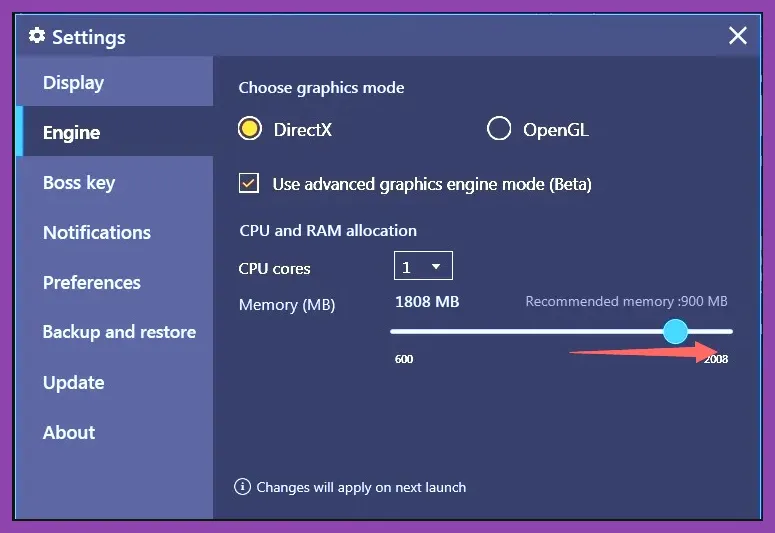
To prevent frame drops when casting massive area-of-effect T4 skills—such as Jean Grey's (Dark Phoenix) or Thanos's Tier-4 ultimate animations—you must carefully balance your emulator's resource allocation. Navigate to your emulator's Settings menu, locate the Engine tab, and apply the following hardware parameters:
- CPU Allocation: Set to 4 Cores (or Custom 6-8 cores if you run a high-end Ryzen 9 or Intel Core i9 processor). Never allocate all of your physical CPU cores, as your host Windows operating system needs processing power to manage background background tasks.
- RAM Allocation: Assign 4096 MB (4GB) to 8192 MB (8GB). Allocating less than 4GB will result in frequent stuttering when loading heavy asset files in Shadowland or Timeline Battle.
- Performance Mode: Select "High Performance" or "Optimize Memory usage" depending on your PC's hardware capabilities.
For graphics rendering engines, choose Vulkan if you are using an NVIDIA RTX or AMD Radeon modern graphics card, as it offers lower CPU overhead and superior shader compilation speeds compared to OpenGL. If you experience visual artifacting or flickering on older GPUs, fallback to DirectX 11. For further optimization tips across different platforms, you can look at Summoners war redeem codes active-today and Space marine 2 how to unlock all characters and champions for cross-platform inspiration.
Display Resolution and High FPS Tweaks
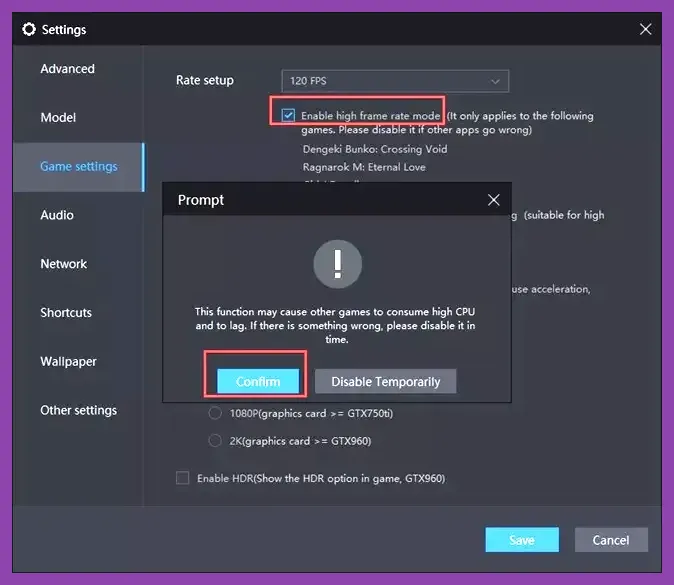
Marvel Future Fight natively supports high refresh rates, but emulators often default to a locked 60 FPS profile at 1080p resolution. To unlock true fluid motion that rivals native PC releases, navigate to the Display tab in your emulator settings. Set your resolution to 1920x1080 (1080p) or 2560x1440 (1440p) depending on your monitor's native panel capability. Avoid running at 4K resolution unless you are packing a top-tier GPU like an RTX 4080, as the UI scaling and text rendering in Marvel Future Fight can stretch awkwardly.
Next, enable High Frame Rate (HFR) mode. Check the box to "Enable High Frame Rate" and drag the FPS slider up to 120 or 240 FPS. Crucially, you must also navigate to your emulator's Device Settings profile and select a high-end preset device (such as the ASUS ROG Phone 6 or Samsung Galaxy S23 Ultra) to trick the game into unlocking ultra-graphic fidelity options. To check official patch notes and system requirements for similar heavy titles, visit the Official Steam Platform.
Advanced In-Game Graphic Settings Configuration

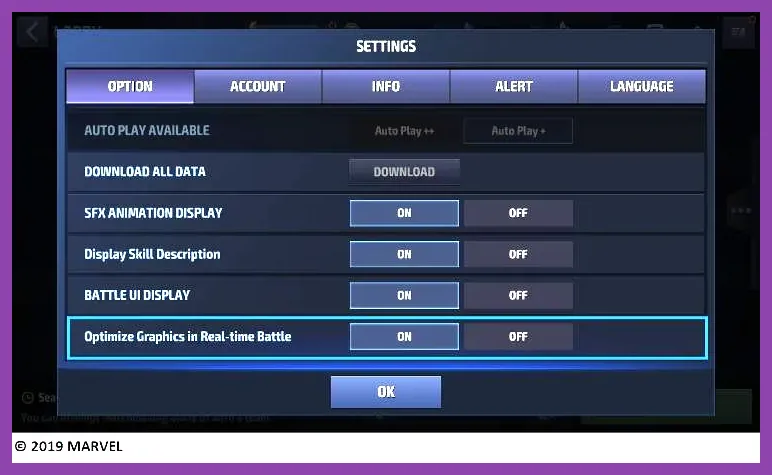
Once your emulator backend is optimized, launch Marvel Future Fight and navigate to the in-game Settings > Options menu. Your graphical choices here dictate whether your hardware can maintain stable frame pacing during chaotic battles. Adjust your sliders to these exact specifications:
- Graphic Quality: Set to High or Very High. Lowering this diminishes character model textures, making it difficult to distinguish uniform variations for characters like Spider-Man or Captain America.
- Resolution: Set to High.
- Frame Rate: Set to High (this unlocks up to 60+ FPS in-match when paired with your emulator's HFR toggle).
- Shadows: Set to Medium or Low. Shadows consume massive amounts of GPU rendering power during crowded multiplayer modes like Timeline Survival and Alliance Tournament without providing any tactical advantage.
- Special Effects / Skill FX: Set to High. While turning this down helps visibility, keeping it on is essential for reading boss telegraphs and tracking active buff timers on your characters' skill bars.
For additional guidance on team composition strategies and tactical progression, review resources like Roblox best beginner tips and tricks and Roblox best team composition guide.
Keymapping Setup for Precision Combat
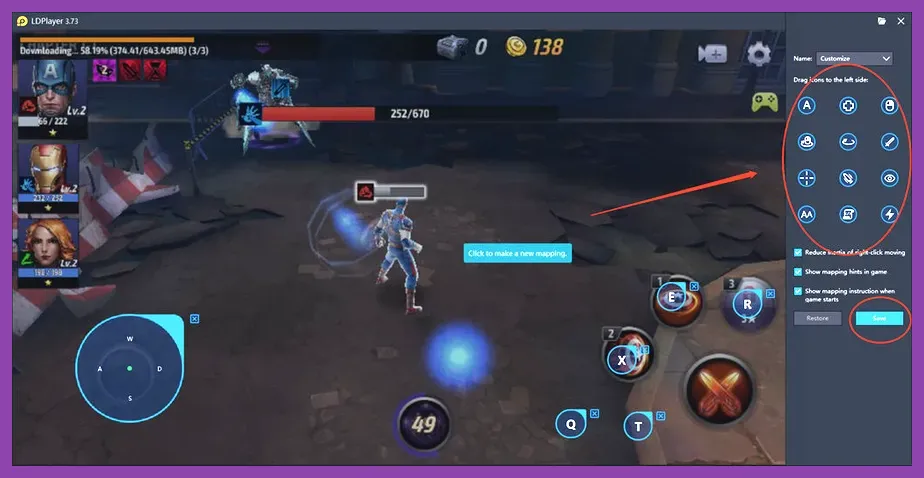
Playing an action RPG with mouse clicks alone will severely limit your combat efficiency. Setting up a robust keymapping profile is the single most important step for executing high-level skill rotations. Open your emulator's Keymapping Editor and map your controls as follows:
- Movement: Use the standard WASD directional pad. Adjust the D-Pad sensitivity radius to prevent input drift when executing quick directional dashes.
- Basic Attack: Map to the J key or Left Mouse Click.
- Active Skills (1 through 5): Map to Q, E, R, F, and Spacebar respectively. This places your primary combat rotation directly under your left hand, allowing for instantaneous reaction inputs.
- Tier-3 / Awakened / Tier-4 Skill: Map to a dedicated macro or a prominent thumb button (Mouse Button 4 or 5) to trigger your ultimate game-ending burst damage instantly.
- Cooperative Skill / Character Swap: Map your team swap buttons to 1, 2, and 3 so you can cycle your support passives (such as Nick Fury, Shuri, or White Fox) with zero hesitation.
Precision control mapping is vital when mastering complex character rotations, ensuring you never miss a skill cancellation window. For more deep dives into character synergies and specialized tier rankings, check out Tekken 8 best team comp synergy guide and Smite best skills to unlock first.
Troubleshooting Stutter and Connection Drops
Even with optimal hardware settings, network instability or background Windows processes can introduce micro-stutters that ruin your damage procs on Custom Gears and C.T.P.s (Authority, Energy, or Judgment). To eliminate input delay, disable Windows Core Isolation and Memory Integrity in your Windows Security settings, as virtualization-based security (VBS) frequently conflicts with Android emulators, causing massive frame rate drops.
Furthermore, ensure that your PC is connected via an Ethernet cable rather than Wi-Fi to maintain stable synchronization with Netmarble's servers during cooperative modes like Giant Boss Raid and World Boss cooperative phases. If you notice severe graphical corruption, clear your emulator's system cache through the Android settings menu or reinstall the game instance cleanly within a Pie 64-bit environment. For comprehensive developer notes and community discussions, consult the Netmarble Official Support Portal and the Marvel Future Fight Reddit Community.