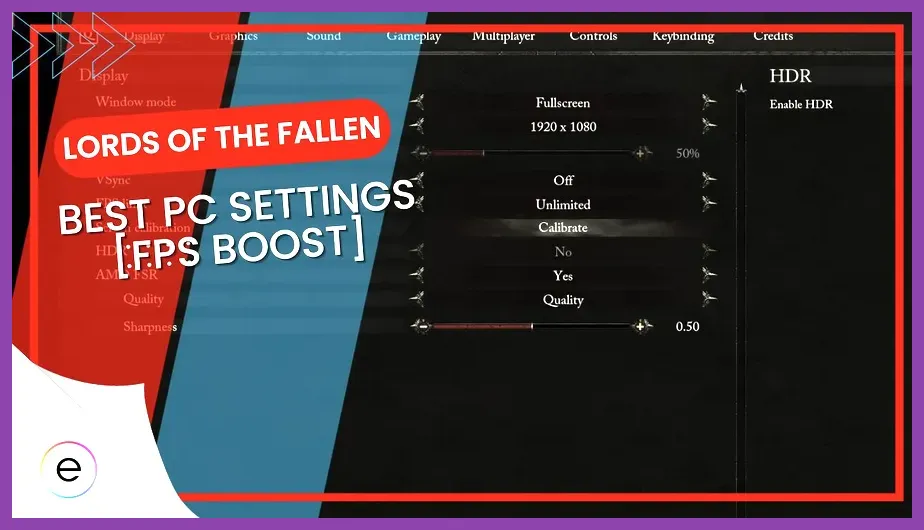
To achieve a smooth 60+ FPS in Lords of the Fallen without sacrificing its grim dark-fantasy atmosphere, you must immediately lower Shadow Quality to Medium, set Global Illumination to Performance, and enable DLSS or FSR Quality mode. Hexworks built this title using Unreal Engine 5, meaning heavy ray-traced reflections and high-density volumetric fog will aggressively cripple mid-range GPUs if left on default settings. By optimizing these resource-heavy parameters, you can eliminate frame drops during frantic combat encounters in both the Axiom and Umbral realms while maintaining crisp visual clarity.
Understanding Unreal Engine 5 Bottlenecks in Axiom and Umbral
Lords of the Fallen renders two parallel worlds simultaneously—the living realm of Axiom and the decaying nightmare of Umbral. This dual-world rendering mechanic places an enormous strain on your CPU and VRAM. If you are experiencing micro-stutters when transitioning between dimensions or when casting heavy radiance and inferno spells, your system is likely hitting a VRAM bottleneck. For similar optimization approaches on demanding titles, check out our guide on Stardew Valley 16 best settings for max fps, though Lords of the Fallen requires a significantly more aggressive hardware configuration. Ensure your GPU drivers are up to date via the NVIDIA official website or AMD equivalent before tweaking in-game files.
Recommended Display and Resolution Settings

Before diving into advanced graphics parameters, establish a solid foundation with your display settings. Running the game in Fullscreen mode rather than Borderless Windowed is mandatory for reducing input latency and ensuring your graphics card dedicates all resources to rendering the game engine.
- Display Mode: Exclusive Fullscreen
- Resolution: Native monitor resolution (1080p or 1440p)
- V-Sync: Off (Enable NVIDIA G-Sync or AMD FreeSync in your driver control panel instead)
- Max FPS: Match your monitor's refresh rate to maintain frame pacing
Best Advanced Graphics Settings Profile
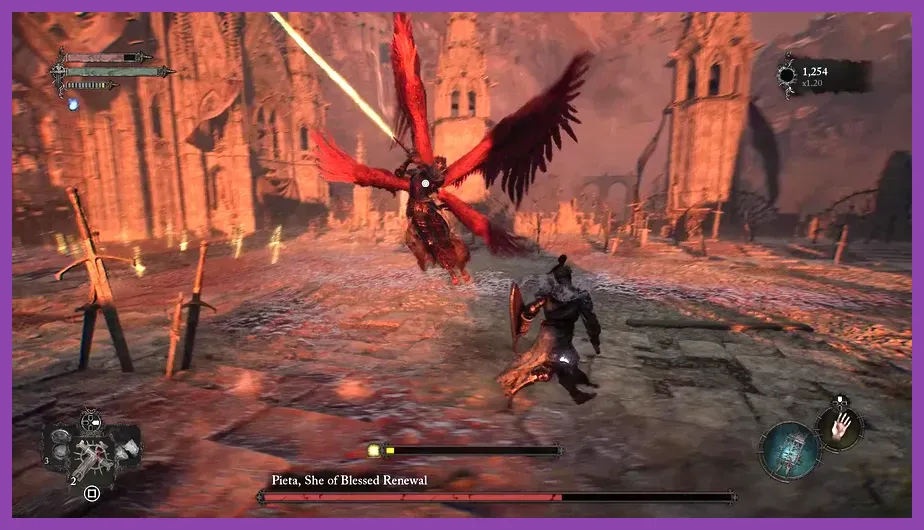
Applying the correct preset adjustments will yield an immediate 25 to 40 percent performance increase with minimal visual degradation. Apply the following configuration directly in your settings menu:
- Shadow Quality: Medium (High introduces heavy CPU overhead during large mob pulls)
- Global Illumination Quality: Performance (Crucial for stabilizing frame rates near bonfire vestiges)
- Reflection Quality: Medium
- Effects Quality: Medium (Prevents frame drops during massive AOE spell casts like Cleansing Spring)
- Post-Processing: Low
- Texture Quality: High (Only lower to Medium if your GPU has less than 8GB VRAM)
- View Distance: High (Prevents enemy pop-in during ranged combat with crossbows or catalysts)
- Foliage Quality: Medium
Upscaling and Anti-Aliasing Configurations
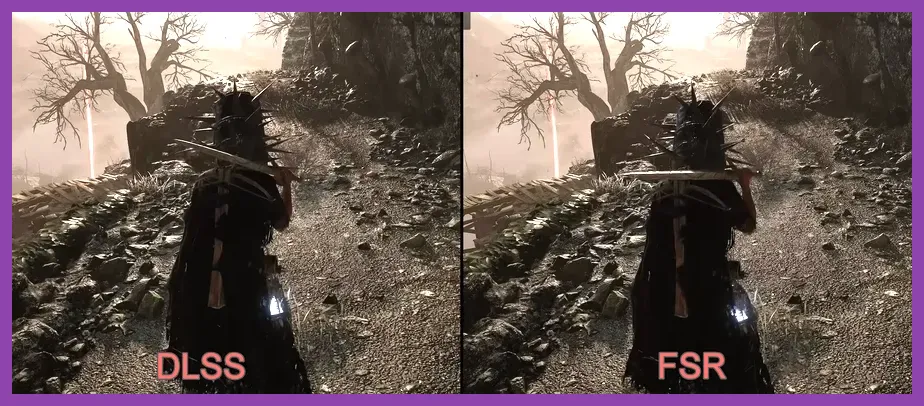
Upscaling is non-negotiable for smooth combat in Lords of the Fallen. Native TAA (Temporal Anti-Aliasing) can make the game look overly blurry and introduces ghosting around fast-moving enemies like the Crimson Rector or Pieta.
- Upscaler Type: DLSS (NVIDIA RTX cards), FSR 2 (AMD cards), or XeSS (Intel/Alternative)
- Upscaler Mode: Quality (Yields the best pixel reconstruction while boosting base frame rates)
- AMD FSR 3 Frame Generation: Enable only if your base framerate exceeds 60 FPS; otherwise, it will introduce noticeable input lag during parry windows
- Motion Blur: Off (Essential for clear visibility during fast-paced dodging)
- Film Grain: Off
Fixing Stuttering and Shader Compilation Issues
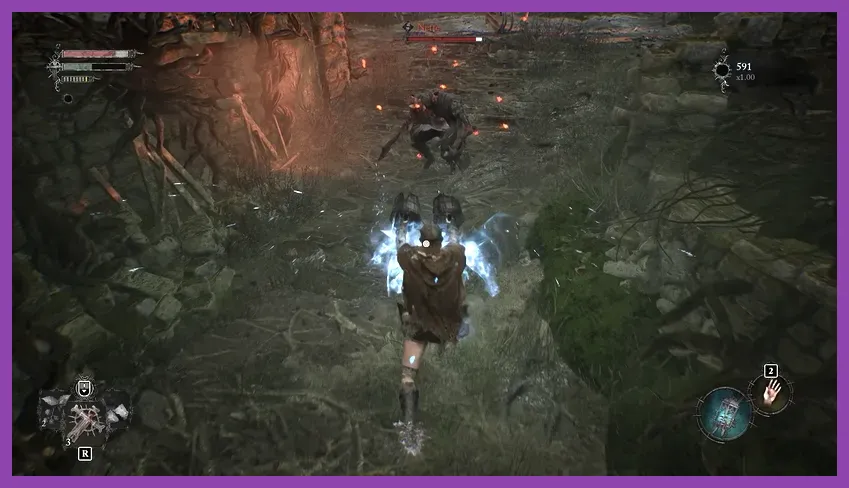
One of the most common performance complaints in Lords of the Fallen is traversal stutter caused by real-time shader compilation when entering new zones like Skyrest Bridge or the Fen. To mitigate this, let the game sit in the main menu for five minutes upon launch to allow pipeline state object (PSO) caching to complete. Furthermore, navigate to your local AppData folder and increase the shader cache size in your GPU control panel to 10GB or higher. For tactical positioning insights in complex environments, consult our comprehensive Stalker 2 best secret locations and stashes guide. By keeping your hardware cool and enforcing these precise performance settings, you will experience responsive, buttery-smooth combat from your first step in Axiom to the final boss battle.