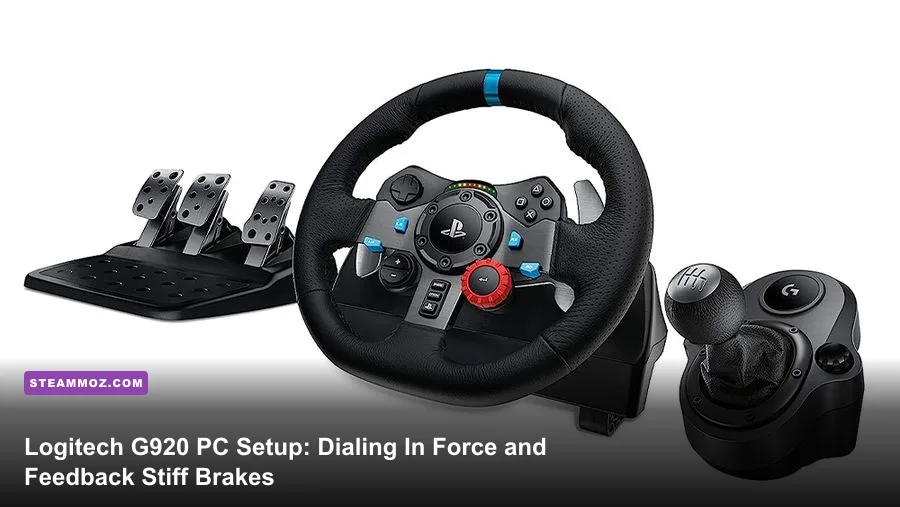
To get the Logitech G920 feeling responsive instead of sluggish on PC, you need to lock your rotation to 900 degrees in Logitech G HUB, shut off the artificial centering spring, clamp your in-game force feedback gain below the clipping threshold, and calibrate your brake pedal's outer deadzone to roughly 80%. Out of the box, the G920's dual-motor helical gearing suffers from a distinct center deadband and a notoriously stiff rubber brake block that prevents 100% brake engagement without breaking your chair. By dialing in your operating parameters at both the driver and sim levels, you eliminate the toy-like deadzone, save your motor from overheating, and transform a budget staple into an authentic, precision instrument.
Logitech G HUB Baseline: The Foundation of Clean Force Feedback
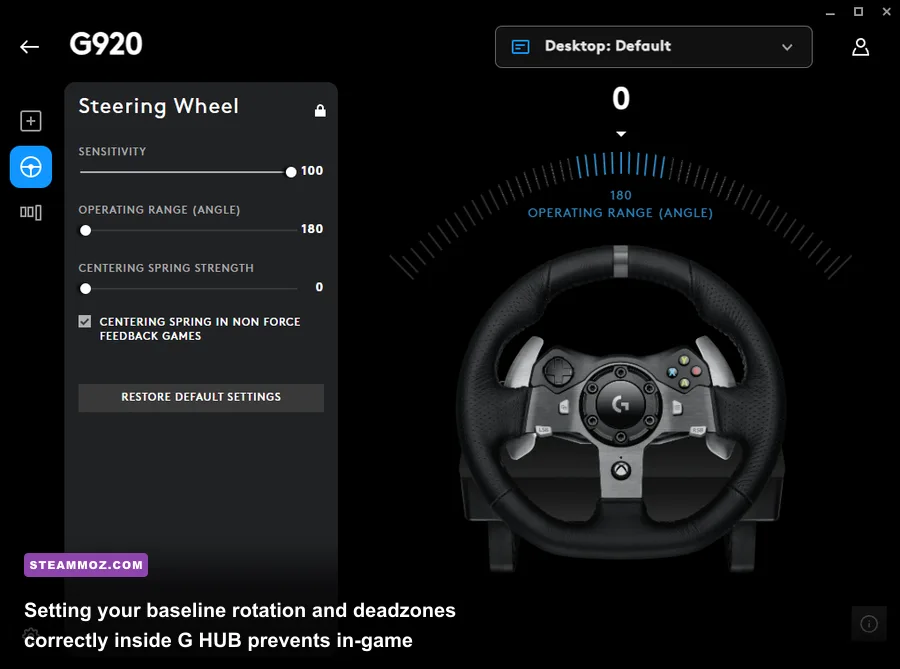
Before launching a single title, you have to tame Logitech G HUB. The software often overrides in-game physics if left on default auto-profiles. Install the latest revision, plug the wheel into a rear-IO USB 2.0 or 3.0 motherboard port (avoid unpowered front panels or unpowered hubs), and navigate to the steering wheel configuration pane. Set your Operating Range (Degrees of Rotation) to exactly 900°. Modern sims handle dynamic vehicle steering locks automatically; constraining this inside G HUB will destroy 1:1 steering rack synchronization in GT3, open-wheel, and rally vehicles.
Keep the Sensitivity slider locked strictly at 50 (which represents a true 1:1 linear input curve). Any number higher or lower introduces an artificial exponential S-curve, ruining muscle memory when making micro-corrections on corner entry. Crucially, look for the Centering Spring in Force Feedback Games option: ensure this box is completely unchecked and leave the centering spring strength at 0. Games calculate self-aligning torque (SAT) through their tire physics engine. Enabling G HUB's static centering spring forces the dual helical motors to fight the sim's genuine telemetry, producing an artificial, muddy resistance that masks oversteer snap cues.
Solving the Infamous G920 Brake Pedal Problem
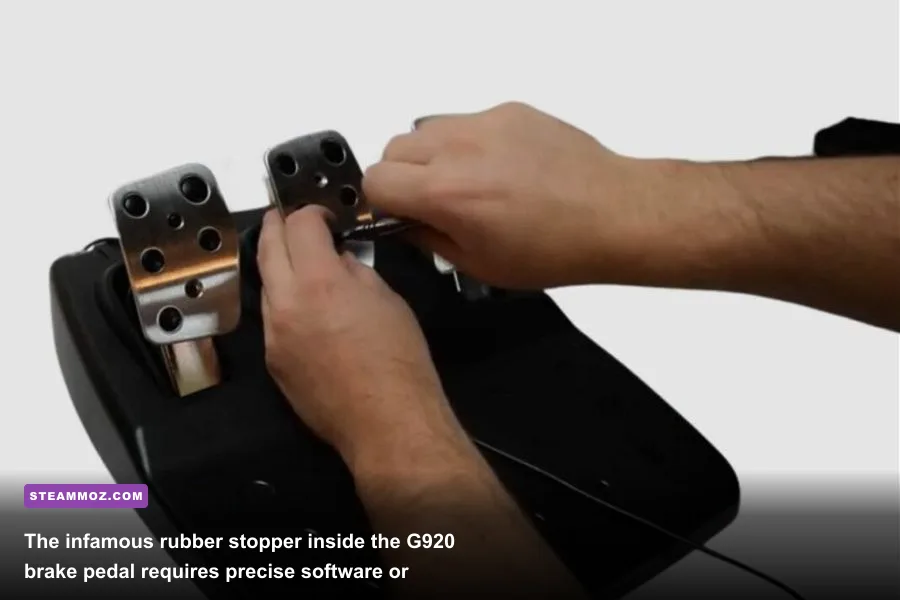
Ask any sim racer about the Logitech G920, and their first complaint is always the same: you have to stomp on the brake pedal with the force of a hydraulic press just to register 70% input. Logitech engineered the G920 pedals with a progressive black rubber bumper lodged inside the brake spring to simulate hydraulic fluid compression. However, because the pedal relies on a standard rotary potentiometer rather than a pressure-sensitive load cell, the physical rubber prevents the potentiometer from rotating through its full physical sweep. If your game expects 100% potentiometer travel for maximum brake pressure, your ABS won't engage and you'll blow straight through turn one.
You have two distinct paths to solve this issue: a zero-cost software adjustment or a hardware mod. The software route involves re-mapping the pedal's upper threshold. Open the native Windows Game Controller utility (press Win + R, type joy.cpl, select your G920, and hit Properties) or enter your game's input configuration menu. Set the Brake Pedal Outer Deadzone / Saturation to 75% - 80%. This tells the game that reaching the physical limit of the rubber bumper represents 100% threshold braking, granting full stopping power without forcing you to push your seat through the floorboard.
| Pedal Axis | Inner Deadzone | Outer Saturation / Deadzone | Recommended Sensitivity Curve |
|---|---|---|---|
| Throttle | 0% - 2% | 100% | 100% (Linear) |
| Brake (Stock Rubber) | 3% - 5% | 75% - 82% | 100% (Linear, adjust in-game) |
| Brake (Rubber Removed Mod) | 2% - 3% | 98% - 100% | 70% - 85% (Logarithmic curve) |
| Clutch | 5% | 95% | 100% (Linear) |
If you prefer a natural pedal stroke and don't care about voiding the pedal warranty, unscrew the 12 underside Allen screws on the pedal casing, pop open the brake cylinder housing, and physically pull the rubber cube out of the central spring. If you do this, set your outer deadzone back to 100%, but add a slight gamma curve (around 1.8 to 2.2 in sim settings) to retain modulation control under trail braking.
Game-by-Game Force Feedback Profiles
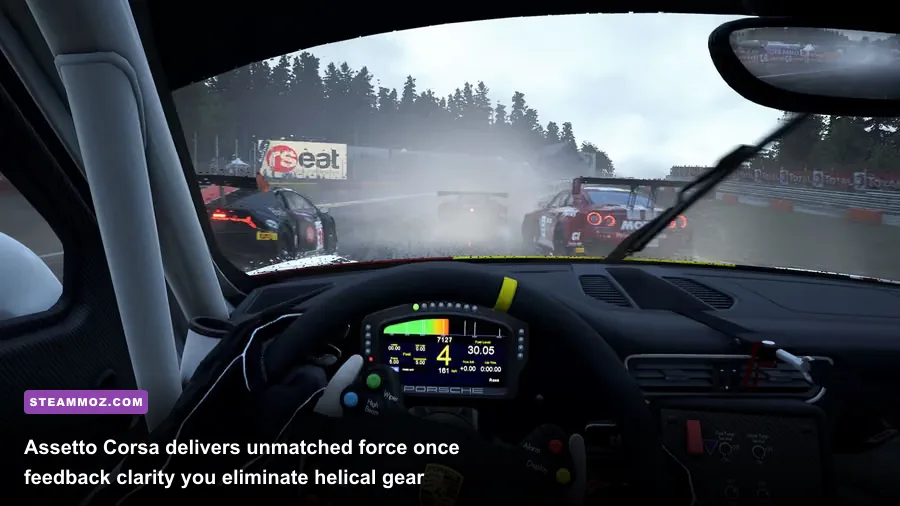
The G920 delivers roughly 2.1 to 2.2 Newton-meters (Nm) of peak torque through dual brushed motors linked to helical gears. Because peak torque is limited compared to direct-drive bases, setting overall gain too high creates clipping—a disastrous condition where telemetry forces exceed the motor's power output. When clipping occurs, the wheel simply saturates at 100% torque output, flattening curb strikes, road textures, and slip angles into one constant, violent buzz. To get granular control, each major title needs specific tuning.
Assetto Corsa and Content Manager
Inside Assetto Corsa on Steam, default profiles drown the G920 in unnatural canned effects. Set Gain to 75%, Filter to 0%, and Minimum Force to 2.5%. That minimum force value is essential: it instructs the motors to instantly push past the helical gear deadband in the center of the wheel, eliminating the loose, disconnected sensation when tracking straight down the road. Keep Kerb Effects at 15%, Road Effects at 10%, and Slip Effects at 0%. Run the community-standard FFB Clip app alongside a custom Look-Up Table (LUT) generated via WheelCheck to linearize the G920's natural torque output dip.
iRacing
Launch iRacing Official Site, enter a test session, and pull up the Options menu. Uncheck Linear Mode—the G920's motor curve is fundamentally non-linear, so forcing linear mode weakens your mid-corner load sensations. Set Wheel Force to 2.1 Nm. Set Damping to 0% and Min Force to 2.0%. Once on track, drive two clean, hard laps, then open your F9 Black Box. Look at the bottom right corner for the Auto button next to the FFB Strength slider. Click it. iRacing will automatically calculate the maximum telemetry overhead for that exact car and track pairing, dropping clipping down to zero percent.
| Sim Title | Master Gain / Overall | Minimum Force | Damper / Friction | Key Specialty Setting |
|---|---|---|---|---|
| Assetto Corsa | 75% - 80% | 2.5% - 3.0% | 0% | LUT Calibration Profile Active |
| iRacing | Auto (Per Car) | 2.0% | 0% - 2% | Linear Mode: Disabled |
| Forza Horizon 5 | 65% | 10% | 15% | Mechanical Trail Scale: 125% |
| DiRT Rally 2.0 | 70% | 0% | 10% - 15% | Suspension: 80% | Collision: 50% |
For gravel grinders running DiRT Rally 2.0, dial down collision impacts to 50%. The violent snapback on stage obstacles can stress the internal plastic gearing and trigger thermal throttling on longer stages, which causes the motor to cut its torque output in half mid-run to save the circuitry.
Hardware Mounting and Desk Stability Hacks
You can dial in your drivers all day, but if your wheel clamp slips five degrees sideways during a frantic counter-steer, your precision evaporates. The G920's built-in dual clamps are lined with plastic feet that struggle on slick laminated desks. Unscrew the two top dial pegs, push down, and twist them clockwise to lock the desk clamp spacers in place. If your tabletop is thicker than 1.5 inches, remove the plastic spacer blocks beneath the clamp jaws.
For desktop users, place a rubberized non-slip tool-drawer liner beneath the wheel base before tightening the clamps. This protects your desk finish while providing enough traction to withstand heavy torque spikes. On the pedal deck, if you're on carpet, deploy the integrated spring-loaded carpet spike strip by flipping the latch on the base. If you are racing on tile or wood floors, the spike strip will only scratch your surface; instead, butt the front edge of the pedal base against the wall or anchor it against your chair's wheels using heavy-duty rubber caster cups or a plank of wood.
Input Lag and Latency Optimization on PC
Sim racing demands immediate visual-to-motor feedback. A delay of just 30 milliseconds between your wheel input and your front tires pivoting on screen completely ruins your ability to catch an oversteer slide. To minimize latency, make sure your operating system processes USB polling rates without driver contention. Just like tackling frame pacing when using settings for higher FPS, ensuring low system latency pays massive dividends in your car handling.
First, verify your system handles hardware background processes cleanly. Sim racers frequently run into random disconnects or wheel center re-calibration loops when USB power drops. Open your Windows Device Manager, expand Universal Serial Bus controllers, right-click every USB Root Hub, select Properties, and under the Power Management tab, uncheck Allow the computer to turn off this device to save power. If you experience random stuttering or micro-freezes when your wheel rattles over high-frequency curbs, check out our guide on PC fixes that stop crashes and rescue your FPS to identify background polling bottlenecks.
Keep in mind that GPU render buffering also adds physical latency to your steering. In titles like Forza or high-overhead simulators, turn off standard V-Sync in favor of G-Sync/FreeSync coupled with an in-engine frame cap just below your monitor's maximum refresh rate. If your rendering latency is sluggish, stripping away resource-heavy graphical options will sharpen your wheel response, much like dialing in settings for max FPS on performance-heavy titles. If your game crashes immediately upon connecting your hardware, resolving underlying input conflicts by following standard crashing and low FPS fixes will guarantee your USB drivers maintain dedicated communication lines with the game engine.
Once you dial in these driver values, set realistic in-game forces, and tune your brake deadzone around the rubber stop, the Logitech G920 transforms from a stubborn, clunky peripheral into an honest, predictable racing companion that lets you push hard right to the edge of the friction circle.