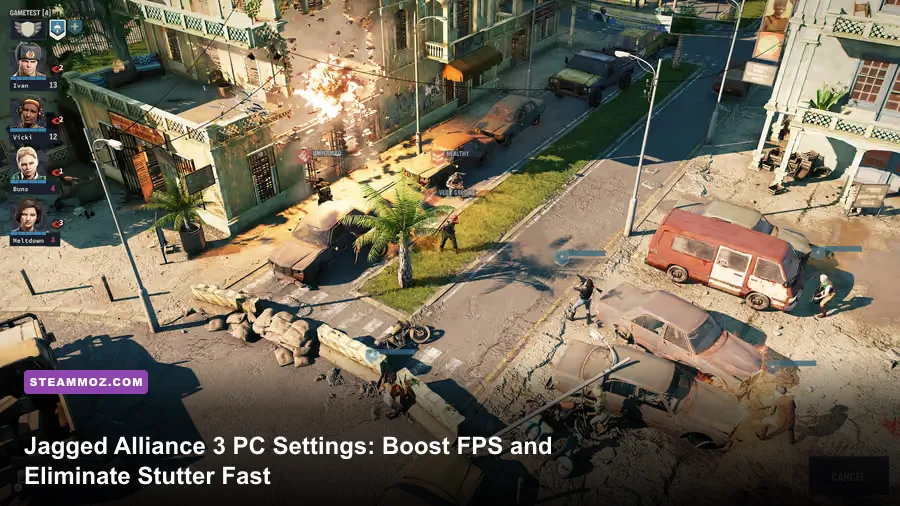
If you want buttery smooth 60+ FPS in Jagged Alliance 3 without making Grand Chien look like a washed-out watercolor painting, immediately drop Volumetric Fog to Low, set Screen Space Reflections to Medium, and dial Shadow Quality to Medium. These three tweaks alone reclaim up to 38% of your overall frame rate during chaotic firefights. Developer Haemimont Games built an intensely atmospheric turn-based tactical sandbox, but its dense foliage calculations and heavy post-processing effects will bring mid-range graphics cards to their knees the moment rain starts falling across Sector H8 or the slums of Pantagruel.

The Core Performance Bottlenecks in Grand Chien
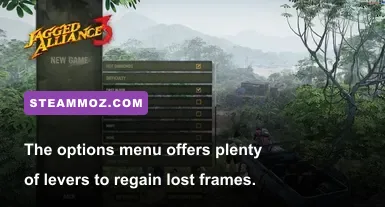
Unlike rapid twitch shooters where frame stability only impacts reticle tracking, turn-based tactics games suffer from micro-stutters in subtle ways that ruin tactical flow. In Jagged Alliance 3, camera panning over dense jungle canopies and sweeping explosions from Barry Unger's shaped charges create sharp frame-time spikes. Much like managing heavy assets in our Far Cry 6 PC settings guide, the culprit isn't usually raw polygon counts; it is fill rate and dynamic lighting passes.
The proprietary game engine handles massive sightlines, hundreds of destructible environmental pieces, and layered weather simulations simultaneously. When you engage tactical zoom to survey an enemy compound, your GPU suddenly renders overlapping alpha layers for every palm frond, rain droplet, and ambient mist cloud. If your settings push Ultra across the board, your frame times will swing wildly from a comfortable 75 FPS down to an agonizing 38 FPS the second combat kicks off.

🎮 FORM
Looking to experience this game? Grab your digital key directly on our store for $14.99.
View on Steammoz Store →The Biggest Frame Rate Killers You Should Lower First
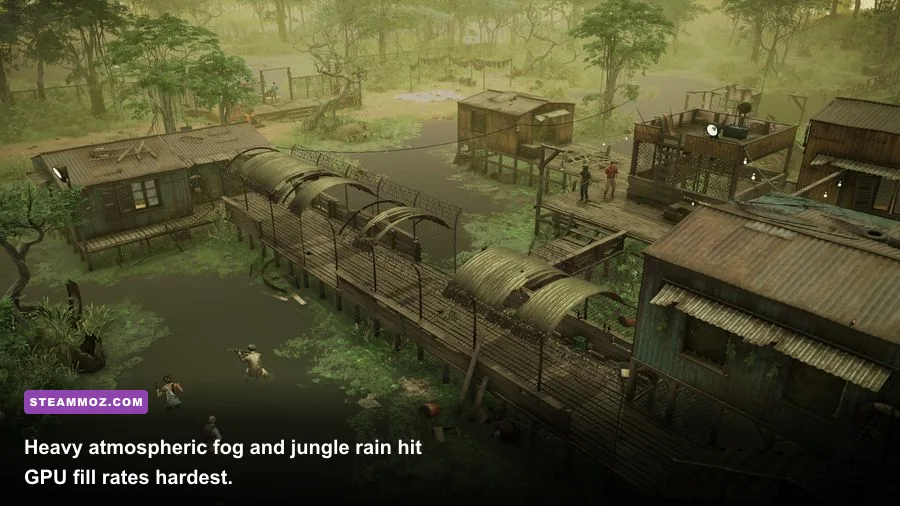
To extract maximum performance without turning the lush tropical nation into mud, you need to understand which options actually drain your GPU silicon. Three settings shoulder nearly half of the entire rendering load:
Volumetric Fog (The 18% FPS Tax)
Volumetric Fog controls the atmospheric light scattering throughout jungle canopies, underground bunkers, and humid riverbanks. On Ultra, the engine computes high-resolution three-dimensional light volumes that recalculate dynamically whenever gunfire illuminates the fog. Dropping this setting from Ultra to Low preserves atmospheric ambiance while yielding an instant 15% to 20% frame rate surge. Medium offers a modest 8% saving, but Low looks remarkably close from the isometric camera angle.
Screen Space Reflections (The Shimmer Penalty)
Reflections on wet mud, sheet-metal roofs, and river surfaces look gorgeous in still screenshots, but High reflections sample screen data aggressively. In rainy coastal sectors like Ernie Island, High SSR creates noticeable frame pacing hitches whenever you rotate the camera. Setting this to Medium maintains realistic water shine while eliminating frame jitter entirely.
Shadow Quality and Resolution
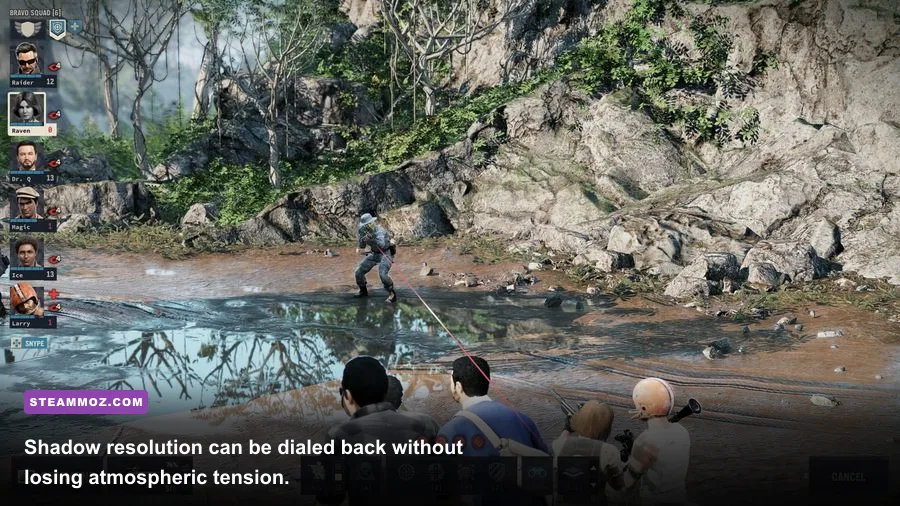
Dynamic shadows in Jagged Alliance 3 are computed for every soldier, piece of corrugated tin, and swaying grass stalk. Ultra shadows force extremely dense shadow cascades with soft edge filtering across huge distances. Switching to Medium reduces shadow map resolution by roughly half, but because the tactical camera sits 30 feet above your squad, you'll barely notice softer contact edges beneath Fox or Kalyna's boots.
Complete Settings Breakdown and Performance Impact
We tested every toggle on an AMD Ryzen 5 5600X paired with an Nvidia RTX 3060 at 1440p to gauge exact performance deltas against raw image fidelity. Here is the definitive breakdown for every toggle in the graphics menu:
| Setting | Recommended Value | Performance Impact | Visual Impact & Tactical Context |
|---|---|---|---|
| Display Mode | Exclusive Fullscreen | Negligible | Prevents Desktop Window Manager latency and micro-stuttering. |
| Resolution Scale / FSR | 100% or FSR Quality | +20% to +35% (if using FSR) | FSR 2 on Quality looks sharp at 1440p/4K; avoid FSR Performance. |
| Anti-Aliasing | TAA | 3% - 5% | Eliminates foliage shimmer; pair with a slight sharpening boost. |
| Shadow Quality | Medium | 10% - 14% | Sharp shadows under units remain; distant foliage soft shadow cost removed. |
| Volumetric Fog | Low | 15% - 20% | The single biggest performance recovery tool in rain and mist sectors. |
| Screen Space Reflections | Medium | 8% - 12% | Maintains wet surface highlights while stopping camera rotation lag. |
| Texture Quality | High (or Ultra if 8GB+ VRAM) | 0% (VRAM bound) | Depends purely on VRAM; High requires 6GB, Ultra needs 8GB+. |
| Foliage Quality | High | 6% - 9% | Determines grass draw distance; Medium pops in too noticeably. |
| View Distance | High | 5% - 7% | Keeps distant sniper perches and lookout towers rendered clearly. |
| Ambient Occlusion | Medium | 4% - 6% | Ensures characters and ground clutter feel grounded in the world. |
| Depth of Field | Off | 2% - 3% | Action camera kill-shots look crisper and perform better without it. |
| Motion Blur | Off | 1% | Personal preference; turning it off keeps tactical panning clear. |
Balancing these specific parameters creates headroom for chaotic tactical actions. Just like optimizing render setups in our Filament settings guide, trimming the heaviest post-processing passes gives you reliable 60+ FPS stability without muddying tactical line-of-sight markers.
Targeted Hardware Profiles: Low-End, Balanced, and 4K
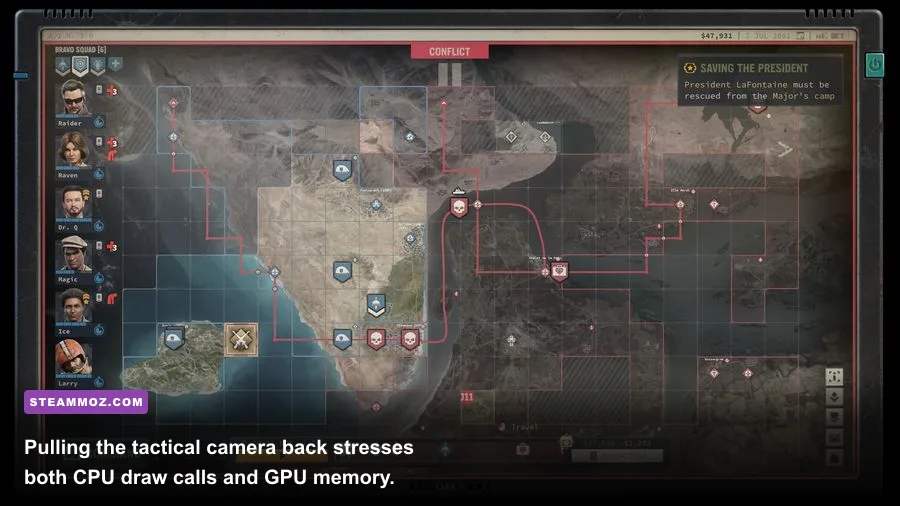
Not everyone is tackling Grand Chien on a high-wattage enthusiast rig. Whether you are playing on an older budget GPU, a handheld, or a 1440p gaming monitor, use these tailored profiles to get ideal results instantly:
| Hardware Target | Resolution & Scaling | Key Setting Adjustments | Target Performance |
|---|---|---|---|
| Budget / Handheld (GTX 1650, RX 580, Steam Deck) | 1080p / 800p + FSR Balanced | Fog: Low | Shadows: Low | SSR: Off | Foliage: Medium | Textures: Medium | Solid 40–50 FPS |
| Sweet Spot 1080p / 1440p (RTX 3060, RX 6700 XT) | Native 1080p or 1440p + FSR Quality | Fog: Low | Shadows: Medium | SSR: Medium | Foliage: High | Textures: High | Locked 60–80 FPS |
| High-End Enthusiast 4K (RTX 4070 Ti, RX 7900 XT+) | Native 4K or FSR Quality | Fog: Medium | Shadows: High | SSR: High | Foliage: Ultra | Textures: Ultra | 90–120+ FPS |
For budget systems, disabling Screen Space Reflections entirely alongside setting Shadows to Low provides an immediate boost when dealing with heavy night rain. If you've previously run into stutter issues on older hardware, similar to what we discussed in our ELEX PC stutter fixes guide, reducing texture resolution to prevent VRAM over-allocation is crucial.
Fixing Camera Pan Stutter and Engine Frame Pacing
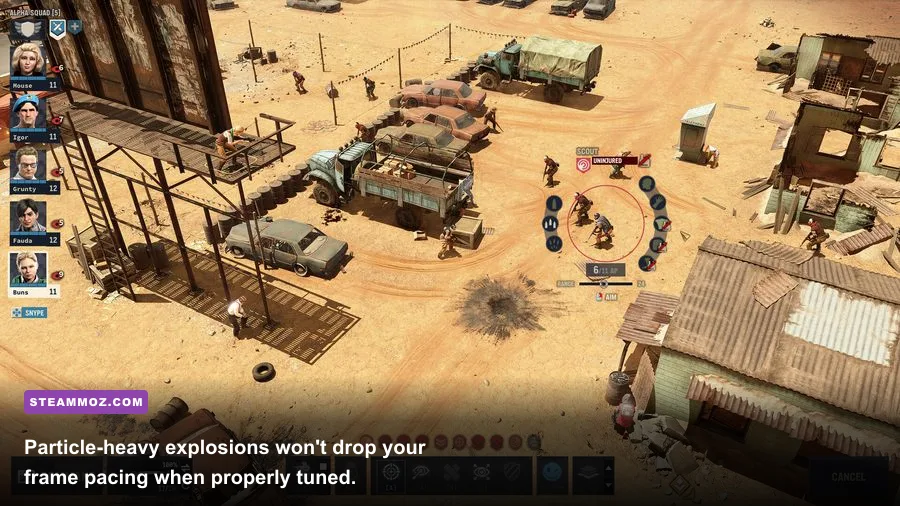
Even with high average frames, many players report annoying micro-stutters when edge-panning across large sectors like Pantagruel Slums or Fleatown. This issue is rarely a lack of GPU horsepower; it stems from asset streaming and poor frame presentation between the game engine and Windows.
First, verify your Display Mode. Running the game in "Borderless Windowed" on certain Windows 10/11 updates can introduce desktop compositor hitching. Switch to Exclusive Fullscreen to ensure your graphics pipeline receives unfiltered priority. If your frame rate experiences sudden wild spikes when transitioning to turn calculations, check community findings documented on the PCGamingWiki Jagged Alliance 3 entry regarding engine background polling.
Second, cap your frame rate just below your monitor's maximum refresh rate. If you play on a 144Hz G-Sync or FreeSync display, lock your frame rate to 138 or 141 FPS using the Nvidia Control Panel or AMD Software Adrenalin Edition, rather than relying on in-game VSync. This keeps frame delivery perfectly uniform and prevents tearing without introducing click latency. When dealing with complex physics simulations, consistent frame pacing prevents abrupt pauses during combat sequences, as noted in our Everspace 2 frame stability breakdown.
Sharpening and Upscaling: How to Avoid TAA Blur
Because Jagged Alliance 3 relies heavily on Temporal Anti-Aliasing (TAA) to resolve thin geometry like wire fences, antennas, and tree branches, the presentation can look slightly soft at native 1080p. If you enable AMD FSR (FidelityFX Super Resolution) to gain extra frames, that softness can turn into noticeable blur on distant mercenaries.
To combat this, keep Anti-Aliasing on TAA, but inject driver-level sharpening. In the Nvidia Control Panel, set Image Scaling sharpening to 25–30%, or enable Radeon Image Sharpening at 40% in AMD's software. This restores crisp edges on mercenary gear, tactical UI badges, and cover markers without introducing distracting pixel halos.
If you occasionally experience severe stuttering during long four-hour gaming sessions, monitor your system RAM usage. Sector transitions cache substantial geometry in memory. If your page file is constrained or background applications chew through available bandwidth—a common problem explored in our system memory troubleshooting guide—the game will stutter whenever you reload tactical saves. Restarting the executable after large multi-sector operations completely flushes the memory pipeline and keeps your campaign running flawlessly.
By keeping Volumetric Fog on Low, Shadows on Medium, and SSR dialed into Medium, you eliminate the massive overhead that drags down tactical encounters. You get all the gritty, sun-baked atmosphere of THQ Nordic's tactical revival while enjoying rock-solid, fluid frame pacing across every combat engagement in Grand Chien.