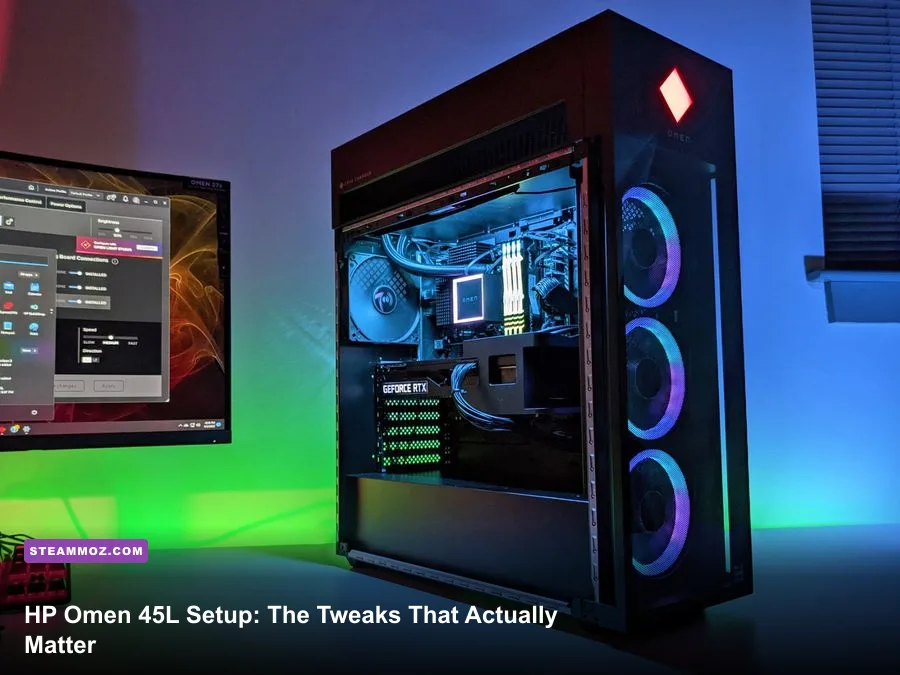
The best HP OMEN 45L setup is surprisingly simple: update the BIOS and drivers, enable the correct memory profile, use OMEN Gaming Hub's Performance mode only when temperatures allow, cap FPS just below your monitor's refresh rate, and tune the GPU with sensible power and fan limits. That combination delivers steadier frame times than blindly selecting every maximum setting, while keeping the 45L's CPU and graphics card away from unnecessary heat.
There isn't one universal OMEN 45L configuration. HP has sold this chassis with Intel Core i7 and i9 processors, AMD Ryzen 7 and Ryzen 9 chips, and graphics cards ranging from the GeForce RTX 3060 Ti and RTX 3070 to the RTX 4080 and RTX 4090. Memory, power supply wattage, storage, and cooling also vary by product number. Before changing anything, identify the exact machine in Windows under Settings > System > About, then check HP's official support portal for the matching BIOS and driver package.
Start With a Clean, Cool 45L
The OMEN 45L's headline feature is its Cryo Chamber: the top-mounted liquid-cooling radiator sits in a separate upper compartment rather than exhausting directly into the main component area. That layout is excellent for CPU temperatures, but it doesn't make the case immune to dust, blocked vents, or a bad desk position. Leave at least 10 centimeters of clearance around the rear and top exhaust areas, and don't push the glass side against a wall.
Set the tower on a hard surface, not carpet. Remove the front filter every few months and clean it with compressed air while the PC is powered off and unplugged. Hold each fan still as you clean it; letting a fan spin freely can stress its bearing or generate unwanted electrical current. The 45L generally has a front-to-back airflow pattern, with cool air entering through the front and warm air leaving through the rear and top.
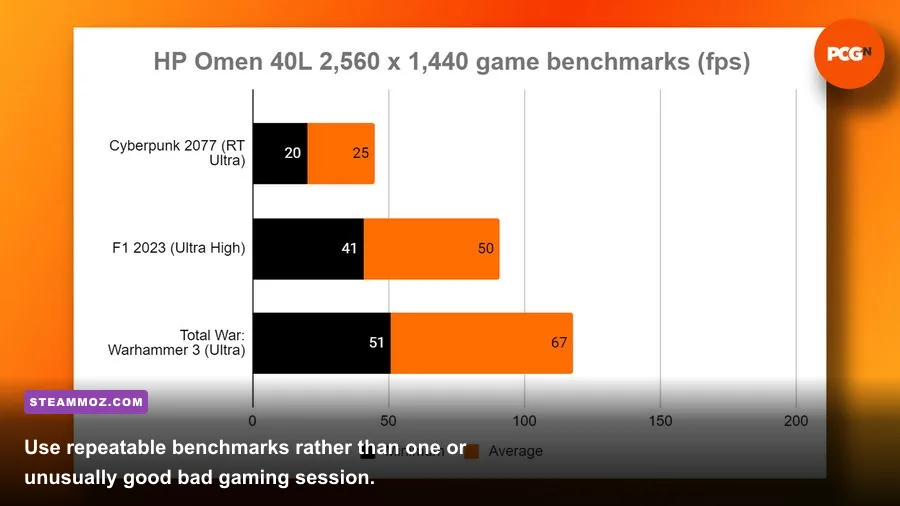
Before optimization, record a baseline. Run a repeatable ten-minute session in a demanding title such as Cyberpunk 2077, Starfield, or Alan Wake 2. Log average FPS, one-percent-low FPS, GPU temperature, CPU temperature, GPU utilization, and clock speed with CapFrameX, HWiNFO64, or the NVIDIA overlay. If your results are dramatically worse than expected, troubleshoot first; our PC crash and FPS fixes offer a useful checklist for driver conflicts and background processes.
| Baseline Check | Healthy Gaming Target | Warning Sign | What to Inspect |
|---|---|---|---|
| GPU temperature | 65-82°C under sustained load | 83-87°C constantly | Front filter, fan curve, room temperature |
| CPU temperature | 55-85°C in games | 90°C or more repeatedly | Radiator pump, BIOS, thermal contact |
| GPU utilization | 90-99% at a GPU-limited setting | Below 80% with poor FPS | CPU limit, frame cap, power plan |
| One-percent lows | Within roughly 25% of average FPS | Severe stutter or 40%+ gap | Shader compilation, overlays, RAM profile |

🎮 Matter
Looking to experience this game? Grab your digital key directly on our store for $4.99.
View on Steammoz Store →BIOS, Windows, and Driver Setup
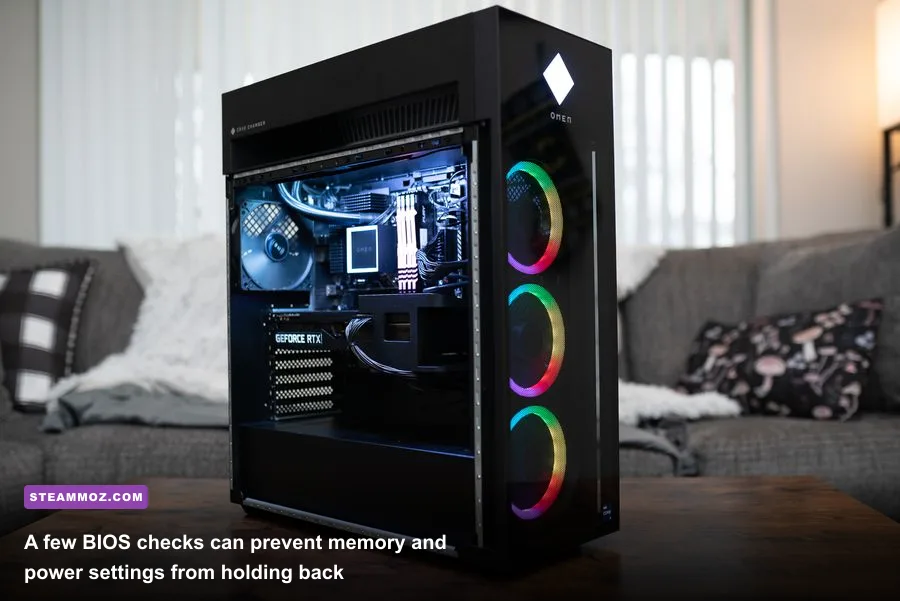
Install updates in the right order. Start with the motherboard BIOS from HP, then the AMD chipset package or Intel chipset and Management Engine components appropriate to your model. Finish with a clean graphics driver installation from NVIDIA's official driver page or AMD's support page. A BIOS intended for another OMEN 45L product number is not a harmless experiment, so verify the model before flashing.
In BIOS, confirm that the installed memory is running at its advertised speed. Depending on the motherboard generation, this may appear as XMP, EXPO, or a memory overclocking profile. A 32GB DDR5 kit rated for 6000 MT/s can boot at a much slower JEDEC speed if the profile is disabled. That difference is particularly visible in CPU-limited games and in one-percent lows. If the system becomes unstable, return to default rather than forcing an aggressive profile; prebuilt boards sometimes have tighter memory compatibility limits than enthusiast retail boards.
Enable Resizable BAR or Smart Access Memory if the firmware exposes it, and leave Windows 11's Hardware-accelerated GPU scheduling enabled unless testing shows a specific title performs worse. Turn off unnecessary startup apps in Settings > Apps > Startup. Keep Windows Game Mode on, but disable third-party RGB suites, browser overlays, motherboard monitoring tools, and duplicate FPS counters while benchmarking. HP's official OMEN Gaming Hub documentation explains the application's performance controls and supported features.
Don't use registry cleaners or random BIOS tweaks from a forum post. They rarely create measurable gaming performance and can complicate recovery. Create a restore point before major driver changes, and save your original fan and GPU settings so you can undo an experiment in seconds.
Choose the Right OMEN Gaming Hub Profile
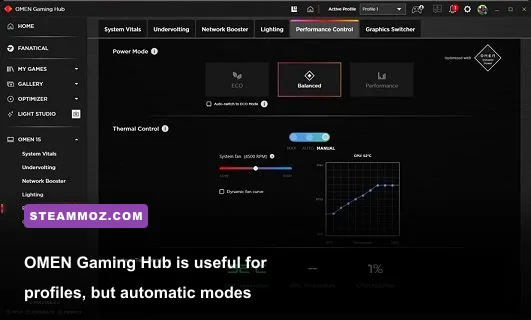
OMEN Gaming Hub's default Balanced mode is the right starting point for most owners. Performance mode typically raises power limits and allows more aggressive fan behavior, which can improve sustained CPU clocks by a few percent but also increases noise. The difference is most valuable in CPU-heavy games, compilation workloads, and long sessions; it won't magically turn an RTX 3060 Ti into an RTX 4070.
Use Performance mode when the GPU is not already power-limited and temperatures remain controlled. For competitive games such as Counter-Strike 2, Valorant, and Rainbow Six Siege, Balanced mode with a stable frame cap is often better. A loud fan curve that constantly ramps between 2,000 and 3,000 RPM can make the PC feel less responsive even when the frame rate barely changes.
| Profile | Best Use | Expected Trade-Off | Recommended Control |
|---|---|---|---|
| Balanced | Daily gaming and esports | Lower noise, slightly lower sustained CPU boost | Use a frame cap and default fan curve |
| Performance | CPU-heavy games and long renders | More heat, power draw, and fan noise | Monitor CPU temperature for 15 minutes |
| Custom | Experienced tuning and quiet builds | Requires repeatable testing | Change one setting at a time |
| Eco or Quiet | Light games and late-night sessions | Lower boost clocks and possible FPS dips | Pair with 60 or 90 FPS cap |
For a practical custom profile, keep the case fans at roughly 35-40% below 55°C, 55-65% around 70°C, and 75-85% above 80°C, assuming OMEN Gaming Hub exposes comparable controls. Avoid setting every fan to 100%; the noise gain is enormous while the temperature benefit is often tiny. If your CPU reaches the thermal limit even with the pump and radiator fans running correctly, stop tuning and investigate hardware health.
Graphics Settings That Deliver Real FPS
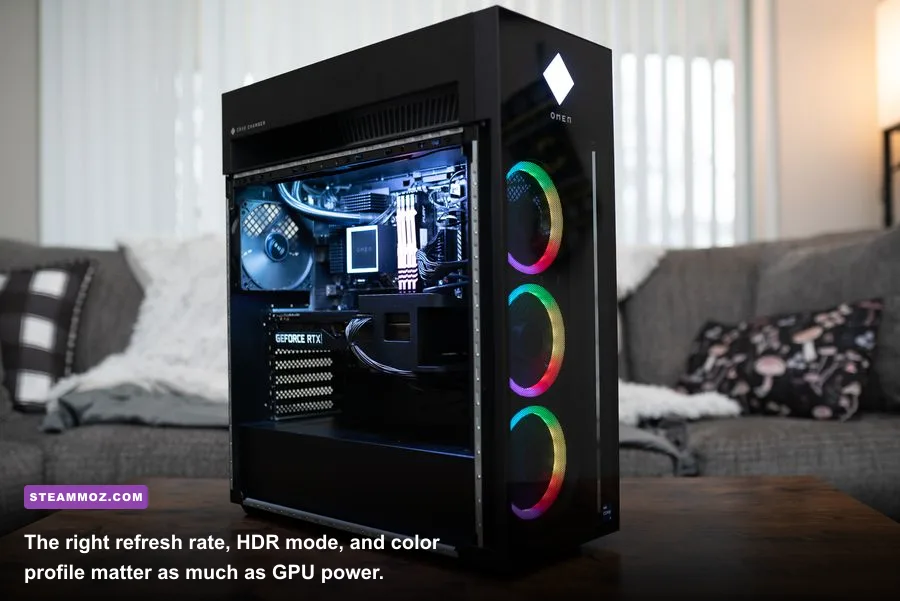
Graphics optimization starts with your target, not the Ultra preset. At 1080p, an RTX 3060 Ti or RTX 3070 OMEN 45L can be CPU-limited in esports games, while at 1440p the GPU usually becomes the main constraint. RTX 4080 and RTX 4090 configurations are designed for high-refresh 1440p or 4K, but ray tracing can still overwhelm them without DLSS or another upscaler.
Set the Windows desktop and game to the monitor's native resolution. In NVIDIA Control Panel, choose the highest available refresh rate and enable G-SYNC if your display supports it. In AMD Software, use FreeSync. For variable-refresh displays, cap the game at two or three FPS below the refresh rate: 141 FPS for 144Hz, 162 FPS for 165Hz, or 237 FPS for 240Hz. This keeps the GPU inside the VRR range and avoids the latency spike caused by hitting the ceiling.
| Setting | Recommended Value | Typical FPS Impact | Visual Difference |
|---|---|---|---|
| Upscaling | DLSS Quality at 1440p; FSR Quality where needed | +15-35% | Small loss of fine detail, often hard to notice in motion |
| Ray-traced reflections | Low or Off for high refresh | +8-20% | Less accurate reflections and lighting |
| Volumetric fog | Medium | +5-12% | Lower fog density and light shafts |
| Shadow quality | High, not Ultra | +3-10% | Minimal difference outside close inspection |
| Textures | High or Ultra if VRAM allows | Usually 0-5% | Sharper surfaces; watch VRAM usage |
| Motion blur and film grain | Off | 0-3% | Cleaner image and better visibility |
Textures are the setting to protect when you have enough VRAM. Dropping from Ultra to High rarely transforms performance, but lowering ray-traced lighting, volumetrics, shadows, and crowd density can. If a game stutters while average FPS looks healthy, lower texture streaming quality one step and watch VRAM allocation. Background asset streaming is a common culprit in open-world games, much like the issues covered in our Far Cry 6 performance settings guide.
GPU Tuning Without Gambling With Stability
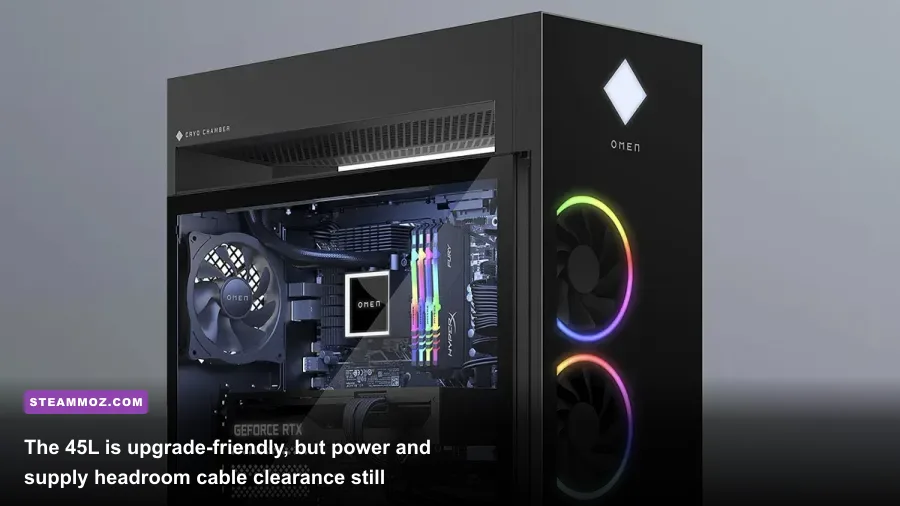
Use MSI Afterburner or the official NVIDIA and AMD control software, and take a conservative approach. Start with a 5% lower GPU power limit only if your goal is quieter operation. In many OMEN 45L systems, that costs little performance while trimming heat. For an undervolt, test a modest voltage-frequency point rather than copying a competitive overclocker's profile: an RTX 4070 might begin around 0.950V at its stable boost clock, while an RTX 4090 needs its own testing and should never be tuned by assumption.
Test each change with a demanding game for at least 20 minutes, followed by a benchmark loop such as 3DMark Time Spy or Unigine Superposition. Look for driver resets, black screens, corrupted textures, sudden clock drops, and audio glitches. A profile that survives one short benchmark may still fail after the card reaches heat saturation. Save the stock profile and keep your GPU temperature below the low-to-mid 80s Celsius whenever possible.
CPU tuning deserves even more restraint. Many OMEN 45L processors use boost algorithms that already chase thermal and power limits automatically. Disable manual overclocks unless your exact board, cooler, and processor support them and you understand how to clear CMOS. A gentle negative Curve Optimizer offset on a Ryzen system can reduce temperature, but stability testing is mandatory. Intel systems may benefit more from sensible power limits than from fixed all-core clocks, especially in a compact prebuilt motherboard ecosystem.
Calibrate the Monitor, HDR, and Input Lag
A perfectly tuned tower can still look wrong if the display is running at 60Hz or using a crushed factory preset. Open Settings > System > Display > Advanced display and select the panel's maximum refresh rate. Use the monitor's native DisplayPort or HDMI connection; older cables and ports can limit 1440p at 165Hz or 4K at 120Hz.
For SDR, select the monitor's sRGB, Standard, or Custom mode rather than an exaggerated FPS preset. Set brightness according to your room, then adjust gamma so dark detail is visible without making black look gray. The Lagom LCD test patterns are useful for checking black level, white saturation, and sharpness. Disable artificial sharpening, dynamic contrast, and motion interpolation unless you specifically prefer them.
HDR is worth enabling only when the display has convincing HDR hardware. On Windows 11, run Microsoft's Windows HDR Calibration app. Set the minimum luminance until the dark test pattern disappears, raise maximum luminance until the brightest pattern clips, and tune the color saturation slider conservatively. Cheap edge-lit monitors often look flatter or more washed out in HDR; SDR may genuinely be the better gaming mode.
For competitive play, enable Reflex in supported NVIDIA games and choose the game's own low-latency mode rather than stacking multiple latency tools. Use V-SYNC with G-SYNC according to your preference, but keep the frame cap below the refresh ceiling. Test with the same mouse polling rate and sensitivity every time; changing peripherals during a benchmark makes input-lag comparisons meaningless.
Storage, Memory, and Upgrade Planning
Keep at least 15-20% free space on the system SSD. A nearly full drive has less room for temporary files, shader caches, and Windows maintenance, and game patching becomes painfully slow. Install frequently played games on the fastest NVMe drive available, but don't expect a PCIe 4.0 SSD to double FPS. It mostly improves loading and asset-streaming behavior.
The practical memory target is 32GB for a new gaming setup. Sixteen gigabytes remains workable for many games, but browsers, Discord, launchers, and mod managers can consume enough headroom to damage one-percent lows. Match the existing kit's capacity, speed, timings, and voltage where possible. Mixing random DDR5 kits can force lower speeds or create intermittent crashes that look like GPU failures.
| Component | Minimum Sensible Setup | Recommended Setup | Upgrade Priority |
|---|---|---|---|
| Memory | 16GB dual-channel | 32GB matched dual-channel | High for modern multitasking |
| System storage | 512GB NVMe SSD | 1TB or 2TB NVMe SSD with 20% free space | Medium unless the drive is full |
| Power supply | OEM wattage matched to installed GPU | 750W-1000W quality unit for high-end upgrades | Critical before a GPU upgrade |
| Network | Wired Gigabit Ethernet or stable Wi-Fi 6 | Wired connection for ranked play | High for online consistency |
Before installing a larger graphics card, measure length, thickness, radiator clearance, and connector bend space. Check the PSU label and the GPU manufacturer's recommendation. A high-end card with a 12VHPWR or 12V-2x6 connector needs the plug fully seated with no sharp bend immediately at the socket. Never force a side panel closed against the cable.
The Final Profile for Smooth, Quiet Gaming
After tuning, create two profiles: a quiet daily profile and a maximum-performance profile. The daily profile should use Balanced mode, a moderate fan curve, your monitor's VRR cap, and DLSS or FSR Quality where available. The performance profile can use OMEN Performance mode, a more assertive fan curve, and higher power limits for games that genuinely need them. Keeping both avoids rebuilding your settings every time you switch from an esports match to a ray-traced blockbuster.
Retest after major Windows, BIOS, and graphics-driver updates. Drivers can change shader compilation behavior, power management, and game-specific profiles. If performance suddenly collapses, return to stock GPU settings first, confirm the monitor refresh rate, clear only the relevant shader cache, and compare against your original baseline. Our guides for crashes and low FPS and frame-time troubleshooting can help isolate software problems.
The HP OMEN 45L is already a fast gaming machine; the win is consistency, not a flashy overclock number. Give it clean airflow, correct memory settings, a calibrated display, and a frame-rate target your hardware can actually sustain. The result is lower noise, steadier one-percent lows, and a PC that feels faster every time you sit down to play.