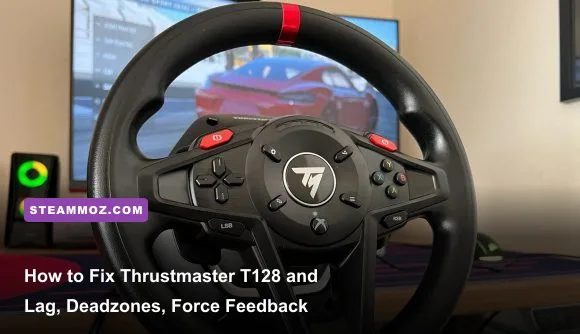
If your Thrustmaster T128 feels sluggish, fights your inputs with spongy resistance, or refuses to center properly mid-turn, the culprit is almost certainly driver desynchronization, uncalibrated rotation locks, or signal throttling caused by unpowered USB hubs. To instantly wipe out latency and mushy force feedback, connect the base directly to a rear motherboard USB 3.0 port, cap Master Gain at 75% in the Thrustmaster software to eliminate hybrid-drive motor clipping, and disable Steam Input to prevent double-axis polling. Fine-tuning these baseline parameters immediately transforms this hybrid-drive entry wheel from a sloppy plastic toy into a razor-sharp apex hunter.
Flashing Firmware and Nuking the USB Latency Trap
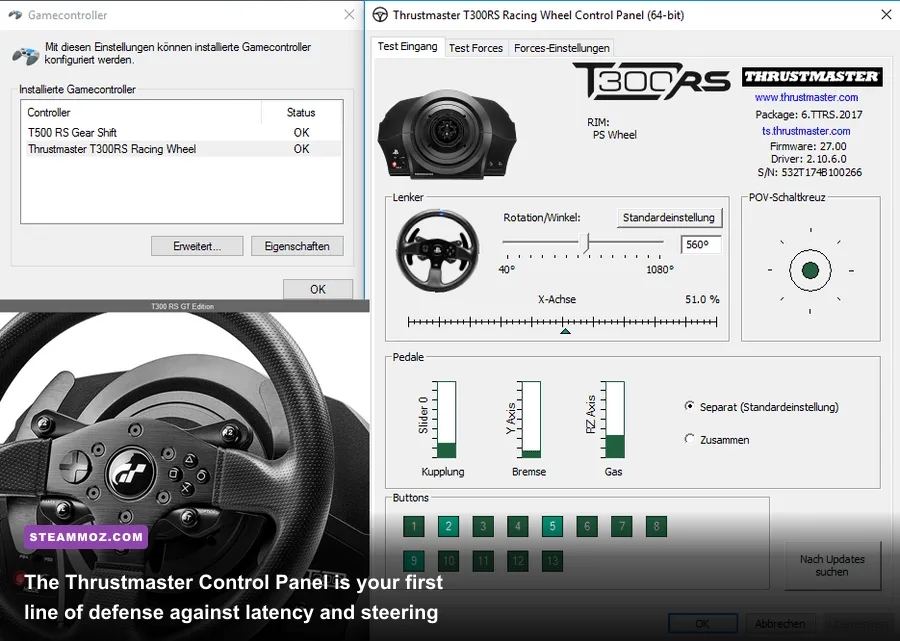
Input lag on the Thrustmaster T128 almost never stems from raw mechanical defect; it is almost universally a communication breakdown between the wheel's internal controller and Windows driver polling. When you route the wheel through unpowered front-panel PC cases or low-spec USB splitters, voltage drops trigger intermittent millisecond dropouts. These micro-disconnects cause steering latency, missed paddle shifts, or sudden dead-center float during heavy countersteers.
Start by plugging the T128's USB-C cable directly into your motherboard's rear I/O panel. Avoid passive hubs entirely. Head straight to the official Thrustmaster Technical Support portal and download the latest Unified Drivers package (look for the PC Driver package supporting T128). Run the updater with your wheel disconnected, reboot your PC, and then plug the wheel back in while watching the self-calibration sweep.
Check the base LED status indicator right next to the MODE button. If you are on PC, that LED must illuminate blue (or green depending on whether you own the T128 Xbox or T128 PS variant running in PC mode). If it shows orange or red, your wheel base is trying to communicate through a console handshake layer, adding massive input buffering. Press and hold the MODE button for five seconds until the LED shifts to confirm native PC telemetry pass-through.
Another silent killer of steering response is Steam's native controller override. When Steam Input hooks into the T128, it often wraps the wheel inputs inside an emulated Xbox 360 controller container. This forces harsh deadzones and linear lag curves onto raw steering inputs. Open your Steam Library, right-click your racing title, select Properties > Controller, and flip the dropdown to Disable Steam Input. Much like resolving system-level frame drops in our EscapeVR baseline performance fix or clearing out thread hangs detailed in our ELEX stability tuning breakdown, cutting out unnecessary background software layers keeps your hardware running at pure hardware-level refresh speeds.
Thrustmaster Control Panel: The Sweet-Spot Gain Profile
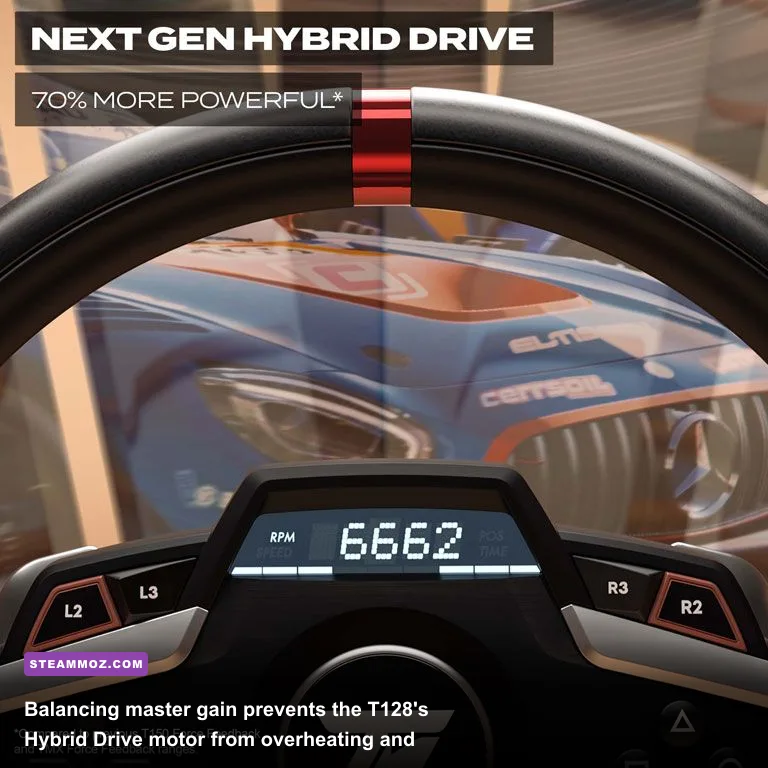
The T128 relies on Thrustmaster's Hybrid Drive—a proprietary combination of internal gears and a belt pulley driven by a modest electric motor. It puts out roughly 2.0 Nm of peak torque. The absolute biggest mistake new drivers make is cranking the Control Panel Master Gain to 100% in hopes of getting heavier steering. Doing this immediately pushes the motor into severe digital clipping, where detail like understeer scrub and kerb strikes flatten into a single muddy, unresponsive vibration hum.
Open the Thrustmaster Control Panel by typing "joy.cpl" into your Windows Run prompt (Win + R), select the T128, and click Properties. To preserve dynamic range and avoid thermal throttling during long endurance stints, configure your software sliders to the baseline values below:
| Control Panel Setting | Default Value | Recommended Value | Performance Trade-Off & Impact |
|---|---|---|---|
| Rotation Angle | 900° | Game Dependent (540°-900°) | Locks ratio 1:1 with car steering rack; avoids artificial ramp-up. |
| Master Gain | 100% | 75% - 80% | Prevents motor clipping, preserves rack detail, prevents heat fade. |
| Constant Forces | 100% | 100% | Raw telemetry baseline; scales directly from the physics engine. |
| Periodic Forces | 100% | 90% - 95% | Governs kerb buzz and engine rumble; slight trim cleans up road noise. |
| Spring Forces | 100% | 0% | Artificial return-to-center spring; destroys real tire self-aligning torque. |
| Damper Forces | 100% | 0% - 10% | Artificial fluid drag; set to 0% to eliminate mushy steering lag. |
| Auto-Center Settings | By the Wheel | By the Game | Mandatory. Allows physics engine telemetry to dictate centering force. |
Setting Spring and Damper to 0% in the driver menu is non-negotiable for modern sim racing. Modern simulators like Assetto Corsa, iRacing, and Automobilista 2 calculate pneumatic trail, caster angles, and tire scrub directly within their core physics loops. If the driver is superimposing an artificial spring tension on top of that signal, your steering inputs will feel slow, sticky, and detached from the front tires.
Taming Pedals and Eliminating Phantom Braking
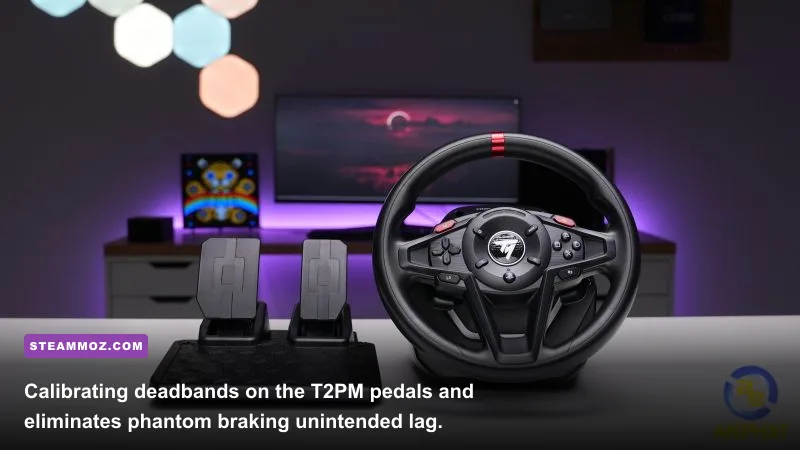
The T128 ships with Thrustmaster’s T2PM two-pedal set. While they use contactless H.E.A.R.T. magnetic sensors that will not wear out like cheap potentiometers, they suffer from two major setup pitfalls: deadband drift and base flex on carpet. If you leave the pedal configuration uncalibrated, you will frequently suffer from either phantom brake dragging down long straights or throttle inputs that fail to register 100% wide-open throttle (WOT).
To diagnose this, launch the Control Panel and watch the pedal input bars as you rest your feet on the pedals. Even the slightest foot weight can trigger a 1% to 3% brake input. In modern sims, that slight registration trips the brake light and bleeds off 10 to 15 mph at top speed. Set a minimum lower deadzone of 5% in your simulator's controls menu. Similarly, map the upper deadzone to 95%. This guarantees you hit full mechanical throttle even if the lightweight plastic pedal base flexes away from your heel plate on carpet.
If your throttle and brake pedals suddenly swap axes or combine into a single single-axis slider—a bug that pops up after certain Windows updates—look down at the base. Hold the MODE button and press the Left Paddle Shifter simultaneously. The status LED will flash twice, switching the pedal mapping mode back to independent separate channels.
In-Game Tuning Profiles: Assetto Corsa, F1, and Forza
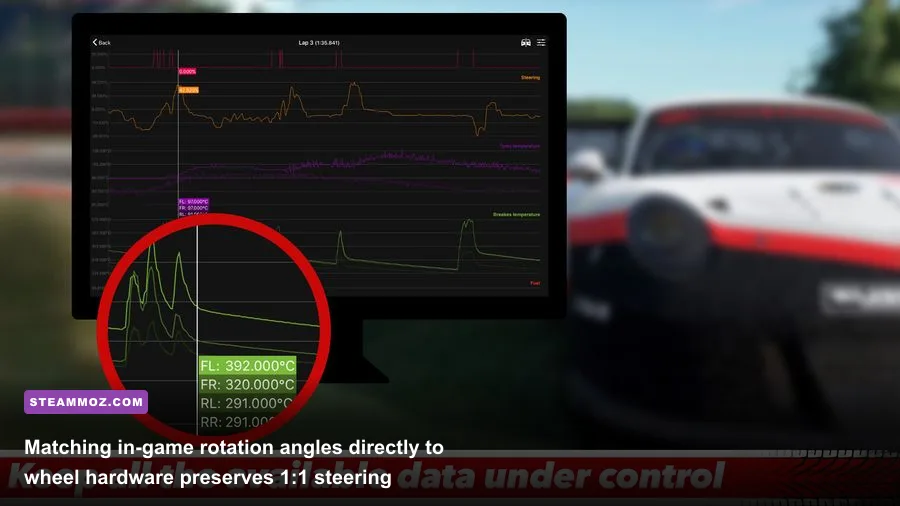
Every racing engine handles wheel physics differently. Assetto Corsa transmits pure steering rack torque, EA Sports F1 synthesizes exaggerated chassis vibration, and Forza mixes gamepad-centric smoothing algorithms. Taking the exact same hardware setup across all three titles will leave you fighting bizarre oscillations or complete numbness at the apex. Proper tuning requires tailoring your in-game values around the T128's modest motor capacity.
| Game Title | In-Game Gain | Min Force | Damper / Friction | Steering Angle | Critical In-Game Tweak |
|---|---|---|---|---|---|
| Assetto Corsa | 70% | 3% | 0% | Match Car (Auto) | Enable Gyro tracking; keep Kerb effects under 25%. |
| EA Sports F1 24 | 65% | N/A | 5% | 360° - 400° | Drop Wheel Damper to 0; set Off-Track effects to 15%. |
| Forza Horizon 5 | 55% | 2% | 10% | 540° | Set Force Feedback Scale to 1.1; set Center Spring to 0. |
| iRacing | Linear Mode ON | 2.5% | 0% | 900° | Set Wheel Max Force to 2.2 Nm in the calibration wizard. |
In Assetto Corsa, setting a 3% Minimum Force is crucial. Because the T128 features internal hybrid-drive gearing, there is a tiny mechanical deadband right around dead center where the motor teeth rest between rack loads. Injecting a 2% to 3% Min Force artificially steps up the signal across center, eliminating that loose, floaty sensation down long straights without inducing unwanted chatter. If you run into stuttering visuals while dialling in these values, our guide to tuning frame rates and display sync walks through eliminating micro-stutters that break your visual timing.
Forza Horizon 5 and Forza Motorsport require deep adjustments in the Advanced Controller menu. By default, Forza runs heavy "Pneumatic Trail Alignment" and mechanical damper layers designed to simulate tire weight on a controller thumbstick. On the T128, that translates directly into heavy, slow countersteering. Zero out the Steering Damper Scale, set Center Spring Scale to 0, and bump Mechanical Trail to 1.2 to let the T128 quickly snap over when catching drifts.
Troubleshooting Desync, Disconnects, and Center Calibration Loops
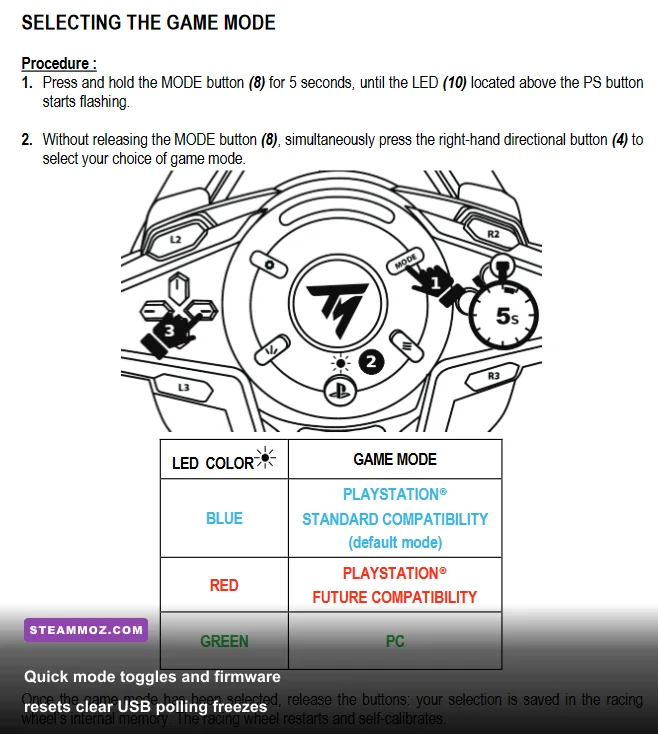
Few things ruin an online race faster than your wheel losing center calibration after brushing a wall, leaving your physical wheel turned 45 degrees sideways just to keep the car rolling straight. The T128 relies on an optical sensor and magnetic encoder to track its rotational point. If a violent countersteer or power surge breaks alignment, you do not need to pull over, unplug cables, or restart your game mid-session.
You can execute a manual hardware re-center on the fly. Turn the rim so that it is perfectly level horizontally. Simultaneously press and hold the MODE + ENGINE SELECT (UP) buttons (or the equivalent Options/Menu pair depending on your rim layout) for two seconds. The LED will flash three times, writing the current physical position directly to internal flash memory as the new absolute center.
If you experience sudden USB disconnect loops accompanied by the Windows hardware chime during hard cornering, check the power barrel jack connector on the rear underside of the base. The T128 power socket is relatively shallow; cable tugging from active desk mounts can unseat the connection by half a millimeter. This allows standard 5V USB power to keep the logic board alive while dropping the 12V motor rail, crashing the driver thread instantly. Secure the cable with the integrated plastic guide channel under the base to relieve strain.
Keep an eye on system bottlenecks if you run tight, high-refresh simulation setups. Racing simulators heavily lean on single-core CPU clocks to process complex physics alongside input polling. If your rig struggles with frame timing spikes while managing wheel telemetry, reviewing our technical breakdowns like PC specs and optimization guidelines or our optimization strategies in fixing frame pacing first will help ensure your graphics engine delivers frames in lockstep with your wheel's 1000Hz polling rate. Dialing in these hardware fixes gives the T128 the speed, clarity, and precision you need to consistently land podium finishes.