If your night at Hackett’s Quarry is marred by hitching cutscenes, random desktop crashes during critical Quick Time Events, and frame drops that turn cinematic horror into a slideshow, you can stabilize the game immediately. The most effective fix is bypassing the bloatware-heavy 2K Launcher through custom Steam arguments, switching the rendering API from the unstable default DirectX 12 down to DirectX 11, and disabling resource-hogging Volumetric Lighting and Screen Space Reflections. Doing so clears up the memory leaks and pipeline hitches that plague Supermassive Games' Unreal Engine 4 implementation.
Just as troubleshooting technical snags in other intensive titles requires targeting system-level bottlenecks—much like solving ELEX PC crashes and frame drops or applying EscapeVR basement crashing fixes—getting The Quarry running smoothly demands an aggressive cleanup of background hooks, shader caches, and graphics settings.

Bypassing the 2K Launcher to Eliminate Desktop Crashes
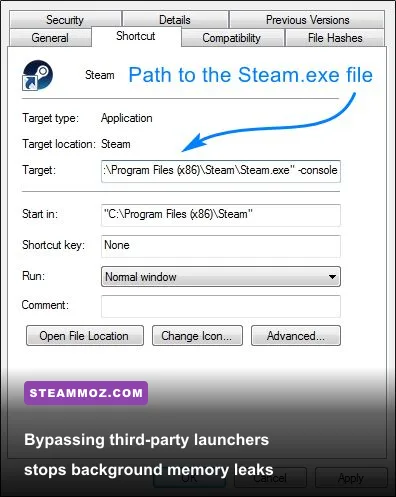
The single greatest source of instability in the PC release of The Quarry on Steam is the mandatory 2K Launcher. This auxiliary client runs Chromium-based web processes in the background while you play, constantly pinging telemetry servers. On multi-threaded CPUs, this parasitic background process frequently triggers thread conflicts, spikes RAM usage, and causes crash-to-desktop (CTD) events, especially at the transition between playable exploration and pre-rendered cinematic transitions.
You do not need to uninstall the launcher manually; you simply instruct Steam to bypass it completely and boot the primary executable directly. Here is how you set up the launch parameter:
- Open Steam, navigate to your Library, right-click The Quarry, and select Properties.
- In the General tab, locate the Launch Options input field at the bottom.
- Find your raw installation path for the main game binary (not the 2K launcher executable). By default, this path is:
"C:\Program Files (x86)\Steam\steamapps\common\The Quarry\TheQuarry.exe" %command%. - If you installed the game on an auxiliary NVMe or SSD drive, substitute your exact drive letter and folder path. Ensure the quotation marks surround the file path, followed by a space and
%command%. - Close the properties window and launch the game through your Steam Library.
Bypassing this launcher immediately removes background CPU spikes, restores up to 800MB of reserve system memory, and completely resolves the pervasive Chapter 1 and Chapter 2 loading screen crashes. If you frequently jump between heavy story-driven titles, you will recognize that launcher overhead is an all-too-common culprit, similar to the issues addressed when fine-tuning Far Cry 6 settings for higher FPS.
🎮 The Quarry
Looking to experience this game? Grab your digital key directly on our store for $5.99.
View on Steammoz Store →DirectX 11 vs DirectX 12: Which API Actually Runs Smoother?
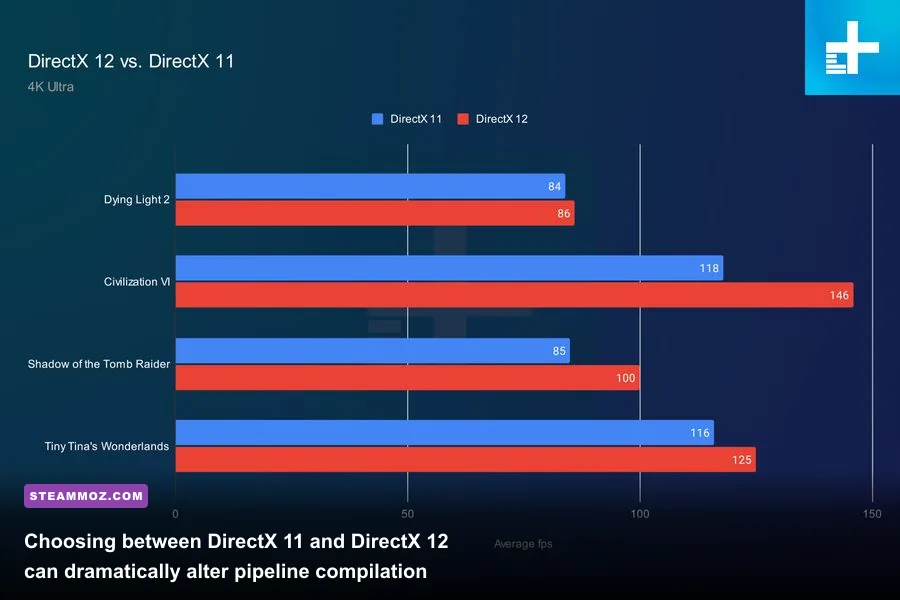
By default, the developers configured the title to run on Microsoft's DirectX 12 API to leverage advanced visual rendering pipelines. However, Unreal Engine 4's implementation of DX12 in this title does not pre-compile its full shader repository during initial setup. Instead, it compiles shaders asynchronously on the fly. The moment Laura swings her flashlight through a misty forest clearing or Ryan enters the Hackett lodge, the engine attempts to compile complex lighting pipelines in real time, causing agonizing 200-millisecond frame stutters.
For roughly 85% of PC systems—especially rigs rocking mid-range hardware like Nvidia RTX 2060/3060 or AMD Radeon RX 5700/6600 cards—forcing DirectX 11 clears out these hitching spikes. While DX12 offers slightly better multi-core utilization on top-tier processors, its erratic frametime variance makes action sequences and life-or-death decision prompts feel terrible.
| API Mode | Frametime Consistency | Shader Cache Stutter | VRAM Consumption | System Recommendation |
|---|---|---|---|---|
| DirectX 11 (-dx11) | Extremely Stable | Minimal to None | Moderate (Lower Overhead) | GTX 10-Series, RTX 20/30-Series, RX 5000/6000 |
| DirectX 12 (Default) | Volatile Peaks | Frequent During Scene Cuts | High (+1.2GB Allocated) | RTX 4080/4090, High-End Modern Intel/Ryzen Rigs |
To force the game into DirectX 11 mode, return to your Steam Launch Options. If you are already using the launcher bypass string mentioned above, simply append -dx11 or -d3d11 after the game path. Alternatively, if you run the game directly from its root folder shortcut, right-click TheQuarry.exe, select Create Shortcut, access the shortcut's Properties, and append -dx11 to the end of the Target field.
If you encounter unexpected visual artifacts or wish to consult platform diagnostic standards, reviewing the troubleshooting documentation on 2K Official Support will confirm that swapping command-line rendering flags remains an approved method for mitigating low-level engine exceptions.
Optimizing Graphic Settings for High Framerates and Zero Lag
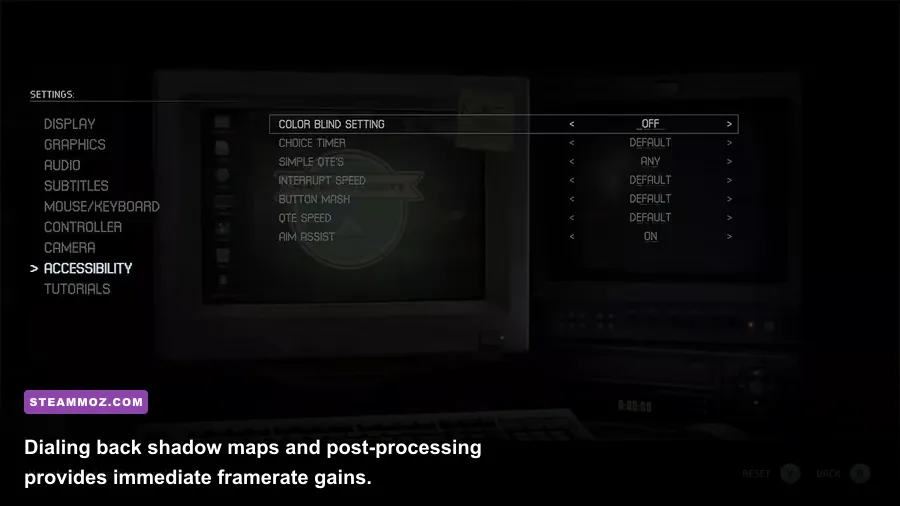
Photorealism is the entire selling point of Supermassive Games' cinematic design, but several graphical presets punish your GPU with diminishing visual returns. The post-processing pipeline uses an aggressive temporal anti-aliasing (TAA) buffer coupled with full-scene chromatic aberration, film grain, and depth-of-field filters. These do not just soften the image; they crush your fill rate when rendering volumetric fog at native 1440p or 4K resolutions.
To strike the ideal balance between cinematic atmosphere and rock-solid 60+ FPS playback, you need to manually configure the graphics menu rather than relying on the broad presets.
| Graphic Setting | Default / Ultra | Pro-Tuned Setting | Estimated FPS Gain | Visual Trade-Off Impact |
|---|---|---|---|---|
| Volumetric Lighting | Ultra | Medium | 12% – 16% | Slightly less atmospheric fog density; dramatically cleaner frames |
| Shadow Quality | High / Ultra | Medium | 9% – 14% | Softens edge resolution on complex foliage shadows without artifacting |
| Post Processing | Ultra | High | 5% – 8% | Removes excessive edge bloom while preserving character skin shaders |
| Screen Space Reflections | Ultra | Medium or Off | 7% – 11% | Reduces shimmer across wet mud and lake surfaces during night scenes |
| Anti-Aliasing Quality | High (TAA) | DLSS / FSR Quality | 15% – 25% | Sharper facial textures, cleaner hair rendering, huge performance leap |
| Motion Blur & Film Grain | On | Off (Slider to 0%) | 2% – 4% | Massively improves visual clarity and cuts internal render passes |
Take special note of the upscaling parameters. If you own an Nvidia GeForce card, select Nvidia DLSS set to Quality mode. It completely replaces the game's blurry TAA solution while delivering a substantial frame boost. AMD and Intel users should engage AMD FSR 2.0 on Quality or Balanced mode. Much like tweaking visual sliders when tuning Filament Marmalade Edition settings, trimming unneeded post-processing passes gives your hardware the breathing room it needs to maintain frame stability.
Fixing Audio Desync, Black Screens, and Chapter Loading Freezes
One of the most immersion-breaking glitches in The Quarry is audio desynchronization during cinematic conversations. You will see a character’s lips move, only for their dialogue to trigger three seconds later, or sound effects like gunshots and breaking glass fire long before the action occurs. In severe cases, cutscenes freeze into a black screen while the audio track plays hopelessly in the background.
This failure occurs because the game's streaming asset loader is strictly tied to disk bandwidth and frametime pacing. The game streams gigabytes of high-poly character assets, 4K facial textures, and multi-channel uncompressed audio simultaneously. If you encounter these hitches, apply these critical system adjustments:
1. Relocate the Game to an Internal NVMe SSD
Running this title off a mechanical hard disk drive (HDD) or a slow external USB drive is a recipe for disaster. The engine cannot pull asset chunks quickly enough during camera angle cuts, forcing the video stream to wait while the audio clock continues running forward. Move the game directory onto your fastest internal Solid State Drive via the Steam Storage Manager.
2. Enforce a Strict Framerate Cap (60 FPS or Monitor Native)
Wildly fluctuating framerates wreak havoc on the engine’s internal scene-clock synchronizer. Letting your GPU run uncapped—bouncing from 110 FPS during simple indoor scenes down to 48 FPS during outdoor downpours—causes the timing registers between the cutscene playback video and the game engine logic to drift apart.
- Open the Nvidia Control Panel (or AMD Software: Adrenalin Edition).
- Navigate to Manage 3D Settings > Program Settings, and select The Quarry.
- Locate Max Frame Rate, turn it On, and set it to 60 FPS (or match your monitor's native refresh rate, such as 120 or 144, if your rig has the overhead).
- Set Vertical Sync to Fast (Nvidia) or Enhanced Sync (AMD) to eliminate screen tearing without introducing input latency to your quick-time inputs.
3. Disable Windows Control Flow Guard (CFG) for the Game Executable
Windows Exploit Protection uses a feature called Control Flow Guard (CFG) to protect memory allocation. While vital for web browsers, CFG routinely misidentifies Unreal Engine 4 memory allocation routines as suspicious activity, causing micro-freezes and random black-screen exceptions. Managing memory allocation conflicts like this is as critical as resolving system freezes when applying an Everspace 2 crashing fix.
To safely disable CFG for the game: open the Windows Search bar, type Exploit Protection, click on the Program Settings tab, choose Add program to customize > Choose exact file path, select TheQuarry.exe, scroll down to Control Flow Guard (CFG), check Override system settings, toggle the slider to Off, and click Apply.
Advanced Config Tweaks: Engine.ini Edits for Fluid Frame Pacing
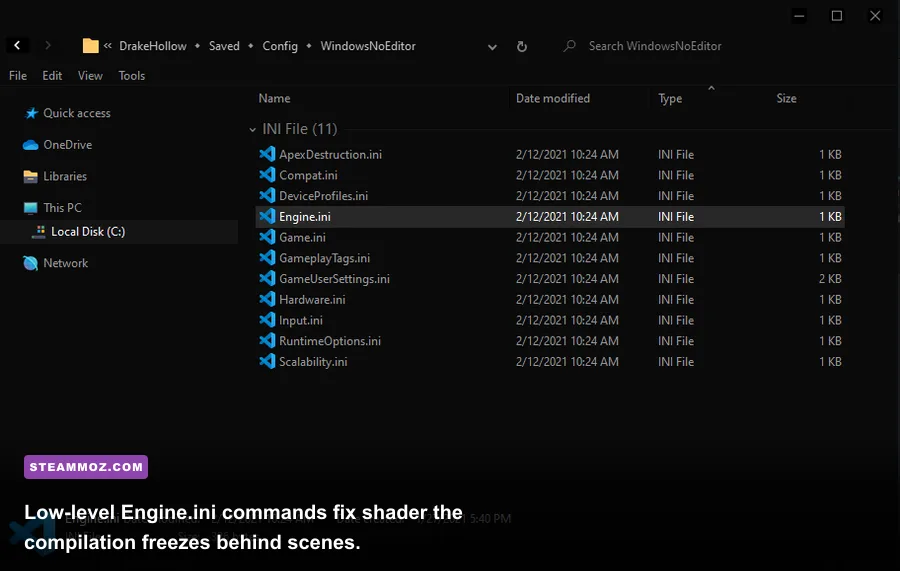
If you have implemented standard graphics tweaks and still experience stubborn hitching during woodland exploration, the game's internal configuration files require manual adjustment. The in-game settings menu does not expose the raw streaming pool size or shader compilation concurrency values, but you can configure them directly through the game's initialization files.
Close the game completely, press Windows Key + R on your keyboard, paste the following path into the Run box, and hit Enter:
%LOCALAPPDATA%\TheQuarry\Saved\Config\WindowsNoEditor\
Locate the file named Engine.ini. Right-click it, select Open With, and choose Notepad. Scroll to the very bottom of the document, leave one blank line, and paste the following optimization block:
[SystemSettings]
r.CreateShadersOnLoad=1
r.Shaders.Optimize=1
r.Streaming.PoolSize=4096
r.Streaming.LimitPoolSizeToVRAM=1
r.bForceCPUAccessToGPUBuffers=0
r.Tonemapper.Quality=1
r.DepthOfFieldQuality=0

[/Script/Engine.RendererSettings]
r.DefaultFeature.MotionBlur=0
r.DefaultFeature.Bloom=1
r.DefaultFeature.AutoExposure=1
Here is what these exact lines accomplish behind the scenes:
r.CreateShadersOnLoad=1forces the engine to pre-build shaders into your local storage during loading screens rather than compiling them on the fly in the middle of gameplay.r.Streaming.PoolSize=4096allocates 4GB of dedicated video memory specifically for texture caching. If you have an 8GB or higher GPU, this stops the irritating texture pop-in visible on clothing and wood textures. (If your GPU only has 6GB of VRAM, change this number to3072).r.DepthOfFieldQuality=0strips out the intense background blur during close-ups, instantly freeing up valuable compute power and eliminating camera switch stutters.
Save the file and close Notepad. Right-click Engine.ini, click Properties, check the Read-only box at the bottom, and click Apply. This prevents the game from overwriting your custom tuning whenever a patch drops or when you alter settings in-game.
Once you cut loose the bloated launcher, rein in the volumetric lighting, lock your frametimes, and force shader pre-loading, The Quarry transforms from an unstable slog into the seamless, terrifying teen-slasher cinema Supermassive intended. Keep your drivers updated, verify your Steam installation files if assets fail to load, and survive the night with clean, stutter-free performance.