Squad’s stuttering, jarring frame drops during 100-player firefights, and sudden desktop crashes stem directly from three core culprits: broken Unreal Engine 4 shader compilation under DirectX 12, severe system memory allocation limits on dense maps like Fallujah, and stale game caches surviving across major game updates. To stabilize performance immediately, switch the game to run under DirectX 11 via Steam launch options (-dx11), manually purge the local AppData configuration folder, disable the "Uncap Texture Poolsize" option, and assign a dedicated 16 GB Windows pagefile on your fastest NVMe solid-state drive. These fundamental adjustments stop asset streaming pipeline hitches and resolve the vast majority of out-of-memory and memory-access-violation crashes before you even spawn onto your next Forward Operating Base.
Clearing Cache and Switching to DirectX 11: The Immediate Fixes
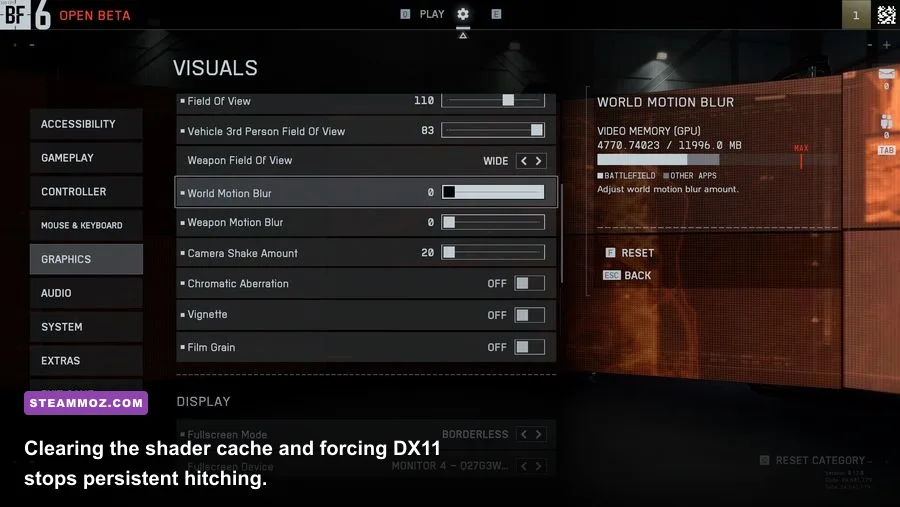
Whenever Offworld Industries releases a patch, old compiled pipeline state objects (PSOs) linger in your local directory. These outdated shader files cause catastrophic frame hitching every time an asset loads into your screen space—whether that is a Russian BTR-82A rolling through an intersection or an artillery barrage landing 200 meters out. While Squad has an in-game "Clear Cache" button in the settings menu, it often leaves corrupted binary assets behind. A complete manual reset guarantees your game builds fresh, uncorrupted shaders from scratch.
To perform a deep manual wipe, close Squad on Steam completely. Press Windows Key + R, type %localappdata%\SquadGame\Saved, and hit Enter. Locate the Config folder and delete it. Do not worry about losing your profile stats; these are tracked server-side. However, this process will reset your custom keybinds and sensitivity values, so take a screenshot of your key bindings beforehand if you use customized flight or infantry controls. When you launch the game again, Unreal Engine will rebuild your configuration files cleanly.
Next comes the single most impactful stability change: ditching DirectX 12. While DX12 theoretically provides lower-level hardware abstraction, Squad’s implementation within Unreal Engine 4.27 suffers from aggressive CPU-bound draw call stalls and random driver timeouts on both NVIDIA GeForce and AMD Radeon hardware. Forcing DirectX 11 circumvents this instability completely, providing smooth frametime delivery and eradicating constant micro-stutters. Much like the stability troubleshooting detailed in our Elex PC crash troubleshooting guide, getting rid of unstable modern rendering wrappers restores baseline game stability.
To force DX11, open your Steam Library, right-click Squad, select Properties, and look at the General tab. In the Launch Options box at the bottom, enter:
-dx11If you were stuck on a black screen or suffered immediate crashes on boot due to an incompatible DX12 state, this single launch command forces the engine back into its battle-tested DX11 fallback pipeline. Combine this with Steam’s file verification—accessible by right-clicking Squad, selecting Installed Files, and clicking Verify integrity of game files—to ensure no broken PAK files are silently killing your game sessions.

🎮 Squad
Looking to experience this game? Grab your digital key directly on our store for $49.99.
View on Steammoz Store →Optimal In-Game Graphics Settings for Maximum FPS and Visual Clarity
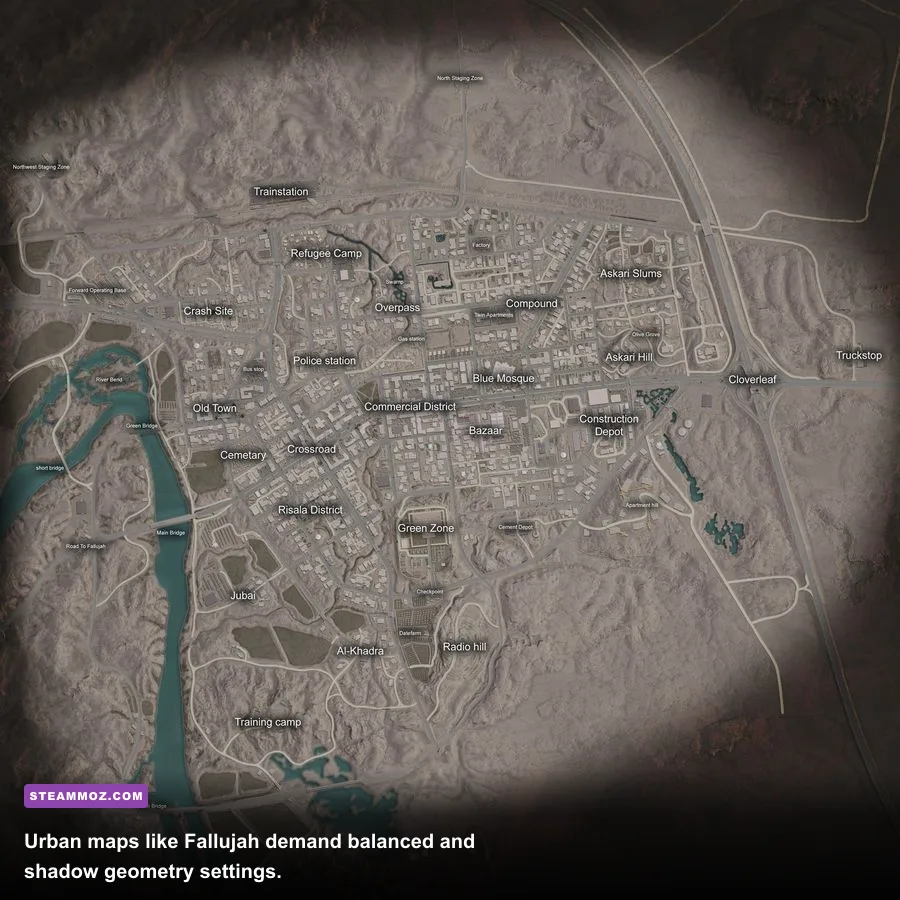
Squad is brutally CPU-bound because it tracks 100 players, real-time vehicle physics, ballistic trajectory math, and spatial audio propagation across massive 4x4 kilometer landscapes. Setting every slider to Ultra will choke your system, while setting everything to Low can shift excess processing overhead directly back onto your CPU. You need a finely tuned configuration that keeps target visibility crystal clear across long-range engagements while keeping your frametimes flat and predictable.
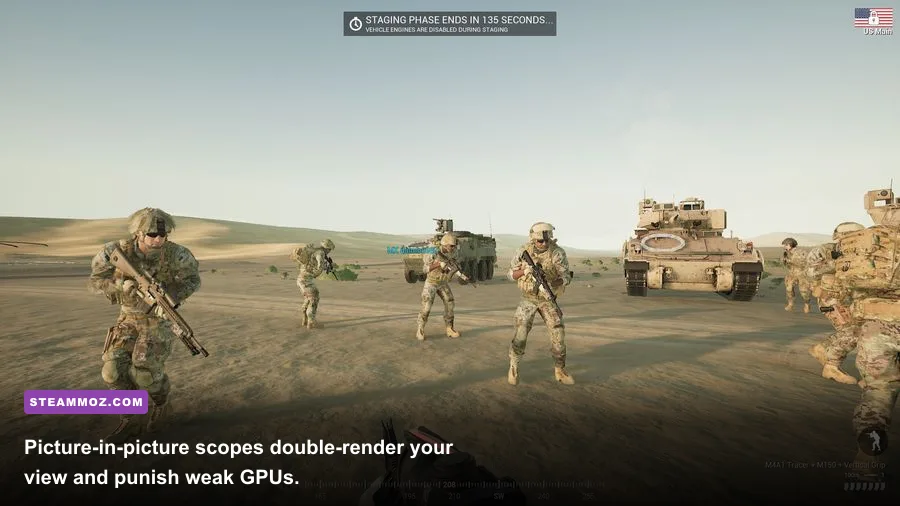
The biggest performance trap in the graphics menu is the Picture-in-Picture (PIP) scope system introduced in the Infantry Overhaul updates. Unlike legacy single-camera zoom systems, PIP scopes render the battlefield twice: once for your peripheral environment and once inside the optic glass. This double-rendering cuts your frame rate by 25% to 40% the instant you aim down sights. Mitigating this massive performance penalty requires balancing your base resolution scaling and setting Scope Quality to Prioritize Clarity rather than excessive post-processing.
| Graphic Setting | Recommended Value | Frametime / FPS Impact | Competitive & Tactical Rationale |
|---|---|---|---|
| Display Mode | Fullscreen | Moderate (Reduces Stutters) | Eliminates Desktop Window Manager buffering latency; ensures exclusive GPU control. |
| DirectX Version | DirectX 11 | High (Eliminates Spikes) | Bypasses broken DX12 shader caching bugs and minimizes frame spikes during asset streaming. |
| Resolution Scale | 100% | Extremely High | Running above 100% destroys fill rate; running below blurs distant enemy infantry models. |
| Anti-Aliasing | TAA (Low / Medium) | Low | Smooths pixel crawling on chain-link fences and trees without muddying optics. |
| Screen Sharpening | 0.30 - 0.50 | Zero (No Performance Cost) | Counteracts native TAA temporal blur so you can spot helmet silhouettes in tree lines. |
| Shadow Quality | Medium | Very High | High and Epic dynamically cast shadows on distant foliage, crushing your CPU draw threads. |
| Contact Shadows | Disabled | Moderate | Adds fine ambient self-shadowing to tiny objects; consumes GPU cycles without tactical benefit. |
| Textures | High (Depends on VRAM) | Zero (if within VRAM budget) | Use High for 8 GB+ cards; drop to Medium for 6 GB cards to avoid severe VRAM thrashing. |
| Uncap Texture Poolsize | Disabled (Unchecked) | Severe (When Misused) | Checking this allows textures to overflow past your GPU's physical memory, triggering fatal crashes. |
| Effects Quality | Medium | High (During Explosions) | Epic effects cause instant 30 FPS drops when 155mm artillery strikes pepper your position. |
| Foliage Quality | Low or Medium | Moderate to High | Controls grass rendering distance. Lower settings maximize your ability to spot prone targets. |
| Ambient Occlusion | Disabled or Low | Moderate | Disabling brightens darkened corners inside compounds, giving you a spotting edge indoors. |
| Screen Space Reflections | Disabled | Moderate to High | Puddle and wet-mud reflections cost valuable GPU overhead with zero practical benefit. |
| Tessellation | Disabled | Low to Moderate | Disables complex terrain mesh displacement, smoothing out frametimes on rugged maps. |
| Particle Quality | Medium | High (In Combat) | Reduces volumetric smoke fill-rate strain during intense firefights around capture points. |
If you need extra headroom on mid-range GPUs, enable AMD FSR 2 or NVIDIA DLSS in "Quality" mode. Do not drop down to "Performance" or "Ultra Performance" mode in Squad; doing so degrades distant detail so severely that identifying infantry targets past 200 meters becomes nearly impossible. For players managing older rendering hardware, reviewing display compromises like those covered in our Far Cry 6 performance tuning guide illustrates how balancing post-processing effects dramatically preserves visual clarity while lifting average frame rates.
Eliminating Micro-Stutters: Virtual Memory, Audio Quality, and Shader Pre-Caching
You can run a powerhouse graphics card like an RTX 4080 and still experience hitching in Squad if your background Windows environment is bottlenecking data delivery. Squad streams gigabytes of uncompressed audio assets, high-polygon vehicle meshes, and terrain heightmaps continuously. When these assets fail to stream into system memory smoothly, your game freezes for fractions of a second. These hitching events ruin your aim during critical rifle engagements.
The primary offender behind intermittent micro-stutters during heavy mortar fire is the game's audio driver. Under Squad's Audio Settings, set Audio Quality to Low. This setting does not degrade acoustic fidelity or positional surround sound directionality; rather, it reduces the simultaneous sound channel processing limit from 128 voices down to 64. When multiple machine-gun nests, mortar rounds, and squad radio transmissions fire at the same time, the high voice channel limit easily overwhelms CPU audio threads, creating devastating frame latency spikes.
Another critical tweak involves adjusting the NVIDIA Shader Cache size inside the NVIDIA Control Panel. By default, Windows allocates a conservative 1 GB shader cache. Squad burns through this allowance within a single match on a large map like Gorodok or Goose Bay, forcing your system to purge and recompile shaders on the fly. Open your NVIDIA Control Panel, go to Manage 3D Settings, locate Shader Cache Size, and change it from "Driver Default" to 10 GB. This gives the GPU ample room to preserve compiled shaders across multiple maps and server rotations.
Virtual memory management is equally vital. Even if you have 16 GB or 32 GB of high-speed DDR4 or DDR5 RAM installed, Squad uses a virtual memory paging file to park inactive game threads. If Windows manages this file automatically on a slow mechanical hard drive, or limits its scale, you will experience sudden client lockups. Configure a manual pagefile on your fastest NVMe solid-state drive using these steps:
- Press
Windows Key + Pause/Breakor open Settings > System > About and click Advanced system settings. - In the Advanced tab, click Settings under the Performance header.
- Select the Advanced tab, then click Change... under Virtual memory.
- Uncheck Automatically manage paging file size for all drives.
- Select your fastest SSD drive (usually
C:), choose Custom size, and set both Initial size (MB) and Maximum size (MB) to16384(16 GB) or24576(24 GB). - Click Set, then OK, and reboot your PC.
Setting static minimum and maximum values prevents Windows from constantly resizing the paging file dynamically during gameplay, which is a major source of background disk access stalls. Similar memory bottleneck issues are detailed in our analysis of low FPS and memory fixes in modern engines, proving that solid pagefile management is mandatory for modern PC gaming.
Fixing Squad Desktop Crashes, Unreal Engine Exceptions, and Easy Anti-Cheat Errors
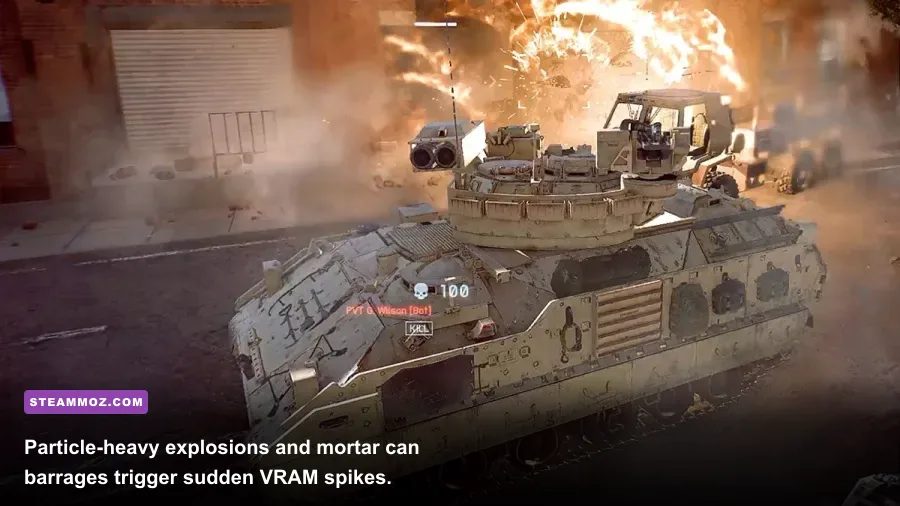
Few things are more frustrating than organizing a squad, staging a logistics run, and having your client crash directly to desktop right as combat begins. Squad crashes usually spit out an Unreal Engine Crash Reporter dialog box with vague strings like 0xc0000005: Access Violation, DXGI_ERROR_DEVICE_REMOVED, or an Easy Anti-Cheat Untrusted System File popup. These crashes are almost always solvable once you isolate their root technical causes.
| Crash Error / Symptom | Underlying Root Cause | Targeted Technical Fix |
|---|---|---|
| Crash to Desktop without Error Dialog | VRAM exhaustion or System RAM out-of-memory exception. | Uncheck "Uncap Texture Poolsize"; lower Textures to Medium; set a static 16 GB Windows Pagefile. |
DXGI_ERROR_DEVICE_REMOVED / HUNG |
Unstable factory GPU overclock; graphics driver timeout (TDR). | Switch to DirectX 11; underclock GPU core clock by -50 MHz in MSI Afterburner; clean-install drivers with DDU. |
0xc0000005: Access Violation |
Unstable XMP/EXPO memory profile or corrupted game PAK file. | Verify Steam game integrity; test memory stability in MemTest86; loosen DDR4/DDR5 sub-timings in BIOS. |
| Easy Anti-Cheat "Untrusted System File" | Corrupted Windows system DLL or modified background third-party hook. | Run sfc /scannow in elevated Command Prompt; reinstall EAC via Squad's root folder. |
| Black Screen Freeze on Startup | Corrupted local user configuration or invalid DX12 screen handshake. | Delete %localappdata%\SquadGame\Saved\Config; add -dx11 into Steam launch parameters. |
| Fatal Server Connection Disconnects | Packet loss triggering EAC timeout or firewall packet inspection. | Whitelist Squad.exe and SquadGame.exe in Windows Defender Firewall; flush DNS cache. |
If you are encountering DXGI_ERROR_DEVICE_HUNG, your graphics card driver has timed out and stopped responding to Unreal Engine. This often happens on factory-overclocked GPUs that push aggressive clock boosts when encountering sudden voltage swings inside dense smokescreens. To fix this, download Offworld Industries' recommended baseline settings or launch MSI Afterburner and reduce your GPU Core Clock by -50 MHz and Memory Clock by -100 MHz. This small step adds rock-solid voltage stability under unpredictable rendering spikes.
When Easy Anti-Cheat throws an integrity violation error, the issue is almost always a corrupted local certificate or conflict with an outdated antivirus definition. Navigate to your Squad installation directory (typically C:\Program Files (x86)\Steam\steamapps\common\Squad\EasyAntiCheat), right-click EasyAntiCheat_Setup.exe, run it as Administrator, and click Repair Service. If the crash persists, open Command Prompt as Administrator and run:
DISM.exe /Online /Cleanup-image /Restorehealth
sfc /scannow
This checks Windows system binaries for corruption, replacing damaged libraries that EAC relies on to verify platform integrity. Resolving such systemic crashes shares identical diagnostic procedures with other titles struggling with engine exceptions, such as those highlighted in our Everspace 2 crash fix breakdown.
Advanced Engine Tuning and Steam Launch Options for High-End and Budget Rigs
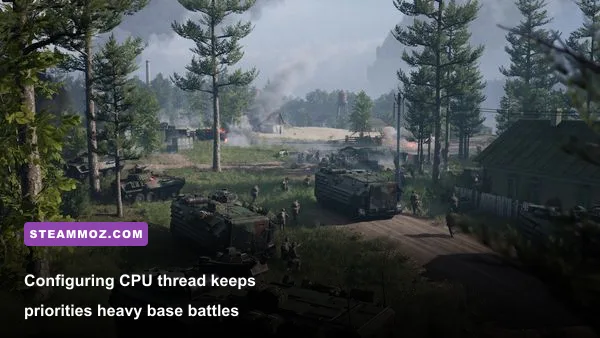
Once you dial in standard menu options and clear your caches, you can extract even greater frametime stability by tuning how your operating system handles Squad's processor scheduling. Because Unreal Engine 4.27 relies heavily on a single primary game thread that hands draw instructions off to worker threads, low single-core IPC or improper thread assignment will manifest as stutter, regardless of your hardware tier.
If you are playing on an Intel 12th, 13th, or 14th Generation processor featuring hybrid architecture (Performance Cores and Efficient Cores), Windows will occasionally assign critical Squad rendering threads to low-clocked E-cores. When this happens, your frame rate plummets and your inputs feel sluggish. You can easily fix this using software like Process Lasso:
- Launch Squad and join a local training range or online server.
- Open Process Lasso, locate
SquadGame.exein the active processes list. - Right-click the process, navigate to CPU Affinity > Always.
- Select Disable Efficiency Cores (or manually uncheck your high-numbered E-core threads, keeping only CPU 0 through CPU 15 checked for an 8-P-core chip).
This forces Squad to live exclusively on your high-frequency Performance Cores, eliminating thread migration hitches completely. For more detailed system tuning concepts across varied game architectures, explore our optimization coverage in the Filament Marmalade Edition performance guide.
Next, evaluate your active Steam Launch Options. The internet is littered with outdated, snake-oil launch parameters that do nothing or cause severe instability in modern Unreal Engine builds (such as -USEALLAVAILABLECORES or -malloc=system, which the engine completely ignores). Stick strictly to clean, proven parameters:
-dx11 -highHere is what these flags actually do:
-dx11: Bypasses the volatile DirectX 12 backend, cutting pipeline compilation stalls and rendering timeouts.-high: Instructs the Windows scheduler to assign Squad elevated CPU thread priority, preventing low-priority background applications from stealing cycles during intense combat.
Finally, enable NVIDIA Reflex Low Latency inside Squad's graphics menu if your graphics card supports it. Set it to On + Boost. This forces your GPU clock speeds to remain at their highest state even when you are bottlenecked by CPU-heavy urban areas on maps like Fallujah or Mutaha. It also empties your render queue faster, shaving off milliseconds of mouse input lag. For players looking to master team communication, map strategy, and squad leading without fighting technical hurdles, consulting the Squad Official Wiki provides complete faction, vehicle armor, and tactical ballistics references.
By enforcing DirectX 11, purging your stale shader configurations, reining in Picture-in-Picture scope quality, and stabilizing your system memory, you turn Squad from a stuttering, crash-prone tactical shooter into a razor-sharp, responsive military simulator. Lock these optimizations into place, rally your squad, and get back onto the objective with absolute confidence in your machine's performance.