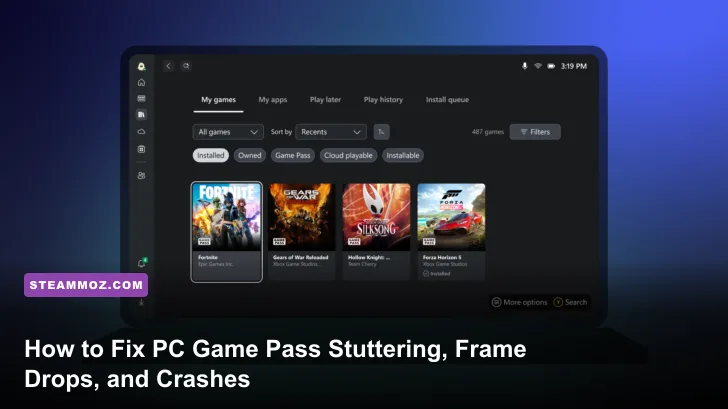
If your PC Game Pass titles stutter relentlessly, drop frames during fast camera sweeps, or crash straight to desktop without an error code, the problem rarely comes down to your raw graphics card muscle. The real culprits are almost always Windows Gaming Services file-locking, aggressive Universal Windows Platform (UWP) background virtualization, undersized GPU shader caches, and misconfigured virtual memory limits. Fixing these issues requires targeting how the Xbox platform interacts with your operating system, bypassing its storage restrictions, and stabilizing frame delivery.
Unlike Steam or GOG releases that run as clean Win32 executables inside open file directories, PC Game Pass packages its games inside encrypted WindowsApps and MSIXVC containers. This sandboxed architecture introduces background permission checks, erratic DirectStorage handshakes, and virtualized asset streaming that can turn a rock-solid 120 FPS render into a jagged, micro-stuttering mess. Whether you are battling brutal hitching across open-world titles or random desktop dumps during loading screens, here is the proven blueprint to fix Game Pass performance once and for all.
Tame Gaming Services and Broken MSIXVC Permissions
Microsoft Gaming Services acts as the background DRM manager for everything running through the Xbox PC ecosystem. When this background process corrupts—which frequently occurs after minor Windows cumulative updates—it repeatedly locks and unlocks game assets while you play. This constant permission polling introduces vicious 50-to-100 millisecond frame time spikes that register as violent micro-stutters, even on high-end rigs powered by RTX 4080s or Radeon 7900 XTXs. Resolving this requires stripping out the background daemon and re-registering clean access rights.
Start by terminating the background services cleanly through an elevated terminal. Right-click your Start button, select PowerShell (Admin) or Terminal (Admin), and run the following command to completely erase the existing package registration:
get-appxpackage Microsoft.GamingServices | remove-AppxPackage -allusersOnce executed, immediately launch the Windows Registry Editor by pressing Windows + R, typing regedit, and hitting Enter. Navigate directly to the following registry pathways:
HKEY_LOCAL_MACHINE\System\CurrentControlSet\Services\GamingServicesHKEY_LOCAL_MACHINE\System\CurrentControlSet\Services\GamingServicesNet
Delete both folder keys entirely, close the Registry Editor, and restart your computer. Upon reboot, launch the Xbox app. The application will present a blue banner notification at the bottom declaring that an essential update is required. Click install, let Windows download a fresh copy of Gaming Services directly from the Microsoft Store, and verify your files. If you run into unexplainable crash issues across other complex RPGs or heavy sandboxes, our breakdown on Elex PC crash fixes and FPS recovery highlights how legacy process handling behaves similarly when low-level storage permissions get mangled.
Next, you must address drive permissions. If you install Game Pass titles on a secondary NVMe SSD or hard drive, Windows creates hidden .GamingRoot, WpSystem, and MSIXVC folders. If your current Windows User ID lacks full ownership over these system directories, asset-heavy titles will drop frames whenever textures load into VRAM. Open the Xbox app settings, head to General > Game Install Options, change your installation directory to a clean custom folder (such as D:\XboxGames), and enable the toggle that allows you to move and modify install files freely.
Eliminate Shader Compilation Stutters and Expand Cache Allocations
Shader compilation stutter remains the primary killer of smooth frame pacing on modern PC ports, and Game Pass builds suffer twice as hard as their Steam counterparts. Steam delivers pre-cached shader binaries for many popular DirectX 12 and Vulkan titles through its client pipeline. PC Game Pass does not. Every single visual effect, particle explosion, and dynamic light source has to compile in real time on your GPU compute units the very first time it renders on screen.
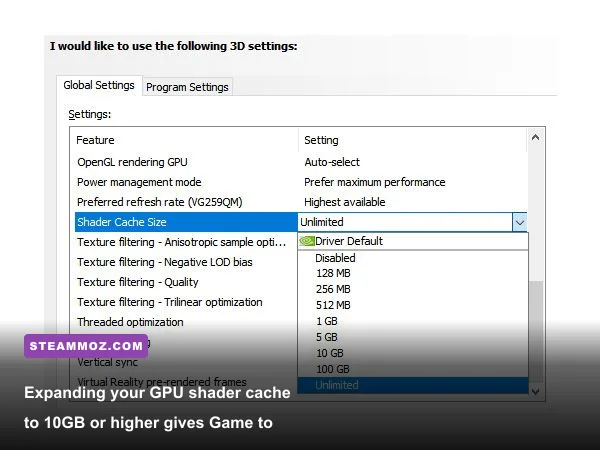
By default, both NVIDIA and AMD drivers allocate conservative limits for their local shader disk cache—frequently capping out at a paltry 1GB. When playing sprawling Game Pass epics like Forza Horizon 5, Starfield, or Halo Infinite, that 1GB allocation fills up within an hour. Once full, the driver actively purges older compiled shaders to make room for new ones. The moment you return to a previously visited city or race track, the game stalls as it re-compiles those exact same shaders all over again.
To eliminate this cycle, open the NVIDIA Control Panel, navigate to Manage 3D Settings, scroll down to Shader Cache Size, and manually change the value from Driver Default to 10GB (or even Unlimited if you have plenty of storage space on your boot drive). For AMD Radeon users, open the AMD Software: Adrenalin Edition, jump to Gaming > Graphics > Advanced, and set your Shader Cache to Enabled / Reset Shader Cache to clear out fragmented legacy files.
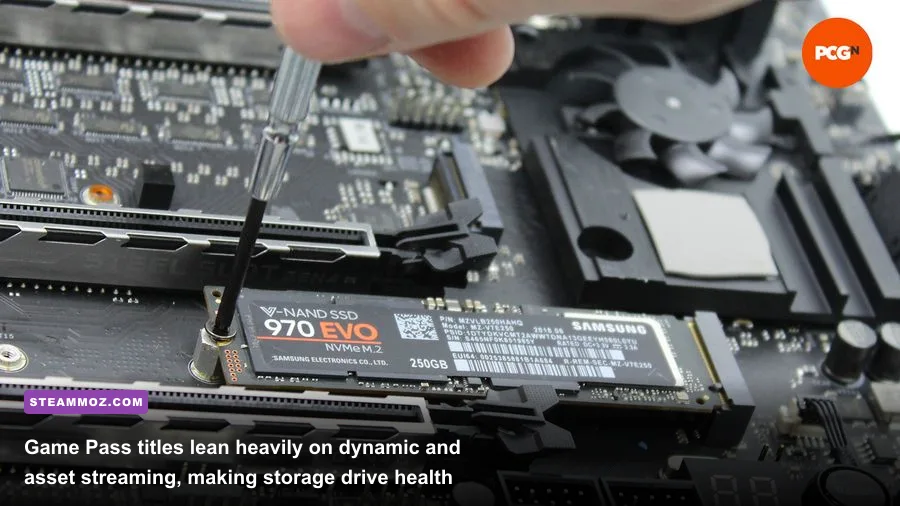
Furthermore, ensure your storage drive uses the modern NTFS file structure formatted to a 4KB cluster size. DirectStorage implementations integrated into Game Pass titles rely on fast uncompressed asynchronous I/O loops. If your install drive is configured with non-standard allocation units or formatted to exFAT, storage throughput collapses. When tuning demanding open-world military titles, frame pacing stability mirrors the tweaks covered in our Far Cry 6 GOTY settings guide for maximum FPS, where disk streaming bottlenecks directly sabotage baseline rendering pipelines.
Tune Windows 10 and 11 Display Subsystems for Pure Frame Pacing
Windows handles UWP container windows differently from native Win32 games. Because Game Pass titles frequently run in a specialized "Borderless Windowed" hybrid presentation mode rather than true Exclusive Fullscreen, background Windows processes can siphon GPU scheduling priority away from your active game. You need to enforce aggressive GPU prioritization at the OS level.
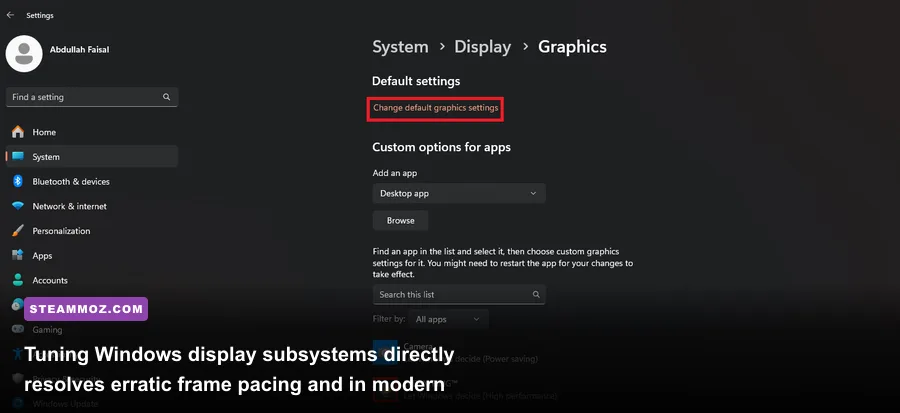
Navigate to Windows Settings > System > Display > Graphics (or Graphics Settings on Windows 10). Under the default settings section, click Change default graphics settings. Ensure the following options are configured correctly:
- Hardware-Accelerated GPU Scheduling (HAGS): Set this to On. HAGS offloads frame scheduling tasks from your CPU directly to your graphics card's dedicated scheduling processor, cutting frame time jitter in dynamic workloads. Note: If you run an older mid-range GPU with under 6GB of VRAM, test with this off, as HAGS carries a slight VRAM allocation overhead.
- Optimizations for windowed games: Turn this On. This critical Windows 11 feature applies the modern Flip Model presentation queue to windowed and borderless titles, effectively matching the low input latency and tear-free frame delivery of legacy Exclusive Fullscreen.
- Auto HDR: Toggle this Off while troubleshooting erratic stutters. On certain Game Pass builds, Auto HDR injects an aggressive tone-mapping pass into the composition swapchain that introduces sporadic hitching.
You must also rein in the Xbox Game Bar. While handy for party chat, its background screen capture and telemetry threads constantly poll rendering threads. Open Windows Settings > Gaming > Captures and disable Record what happened (Background recording) entirely. If you do not use Xbox party voice overlays, consider disabling the Game Bar overlay entirely under Windows Settings > Gaming > Xbox Game Bar to recover vital frame-time headroom.
| System Setting / Tweak | Optimal Configuration | Performance / Stability Impact | Core Operational Benefit |
|---|---|---|---|
| Hardware-Accelerated GPU Scheduling | Enabled (On) | +3% to +7% 1% Low FPS | Reduces CPU rendering latency bottlenecks |
| Optimizations for Windowed Games | Enabled (On) | Removes presentation jitter | Forces modern Flip Model onto UWP containers |
| GPU Driver Shader Cache | Locked at 10GB | Eliminates recurring hitches | Prevents repetitive background recompilation loops |
| Xbox Game Bar Background Capture | Disabled (Off) | +5% to +10% 1% Low Stability | Frees up constant storage and encoder polling |
| Windows Virtual Memory (Paging File) | Manual: 16384MB to 24576MB | Fixes 90% of launch crashes | Prevents out-of-memory heap allocation crashes |
For players tackling complex, system-heavy titles that place intense demands on geometric calculation, small overhead leaks accumulate quickly. Even puzzle-focused experiences can suffer from sudden micro-stutter when presentation layers clash, as we documented in our Filament Marmalade Edition FPS settings guide. Stripping away Windows visual bloat allows your hardware to process game geometry uninterrupted.
Stop Instant Crashes, Memory Leaks, and Out-of-Memory Dumps
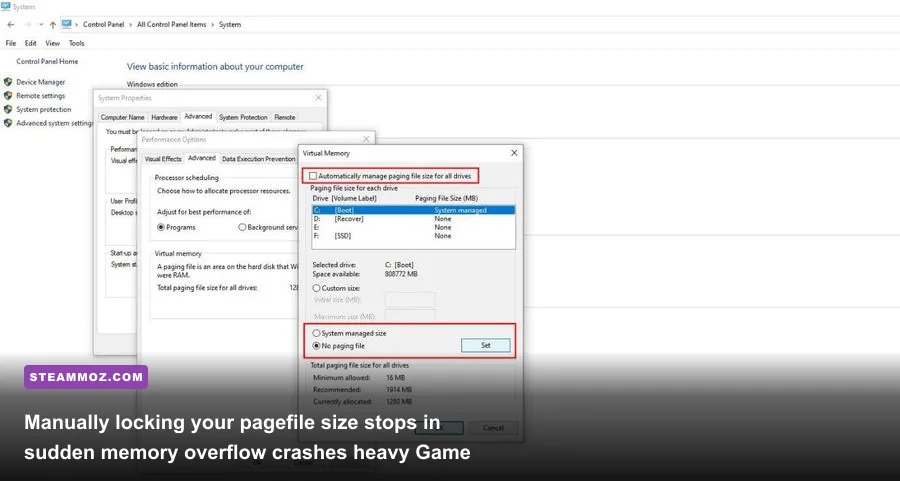
Nothing kills a gaming session faster than an unprompted crash to desktop (CTD) two minutes after loading a save file. In the PC Game Pass ecosystem, unexpected crashes usually trace back to two culprits: virtual memory exhaustion and broken runtime dependencies. Because of how UWP aggregates memory pools, Game Pass games frequently demand significantly larger Windows Pagefiles than Steam titles.
If Windows manages your paging file automatically, it often fails to expand the swap space quickly enough when a title like Starfield, Senua's Saga: Hellblade II, or Ark: Survival Ascended spikes its committed memory footprint during scene transitions. The operating system refuses the allocation request, and the game instantly terminates without throwing a single crash log. You must lock down a static, custom virtual memory pool.
To configure your paging file manually:
- Press
Windows + S, type View advanced system settings, and hit Enter. - Under the Advanced tab, click the Settings button located in the Performance section.
- In the new window, switch to the Advanced tab and click Change under Virtual memory.
- Uncheck Automatically manage paging file size for all drives.
- Select your fastest solid-state drive (preferably your system NVMe drive), choose Custom size, and set both Initial size and Maximum size to 16384 MB (for 16GB systems) or 24576 MB (for 32GB systems). Setting both values to the exact same number prevents Windows from dynamically resizing the paging file on the fly, which causes frame drops.
- Click Set, then click OK, and reboot your machine.
Next, install missing or damaged C++ dependencies. Game Pass installers frequently fail to pull the entire Visual C++ runtime stack, leading to silent crashes caused by missing DLL files (such as vcruntime140.dll or msvcp140.dll). Head straight to the official Microsoft Visual C++ Redistributable repository and download the combined x86 and x64 architecture installer package. Run the installer as administrator, select repair if already installed, and restart.
| Game Pass Title | Common Crash / Stutter Cause | Primary Hotfix Action | Secondary Tuning Step |
|---|---|---|---|
| Forza Horizon 5 | VRAM memory leakage during streaming | Lower Environment Texture Quality one notch | Cap framerate to match monitor refresh rate |
| Starfield | Shader compilation & DirectStorage stalls | Move to NVMe SSD; install on C: drive | Expand NVIDIA Shader Cache to 10GB |
| Palworld | Unreal Engine heap allocation crash | Lock Windows Pagefile to 16GB minimum | Disable Motion Blur and DLSS Frame Gen |
| Halo Infinite | Dynamic resolution scaling conflicts | Set Minimum & Maximum Frame Rate to 'Off' | Uninstall High-Res Textures DLC via Xbox App |
| Lies of P | Third-party overlay hooks tripping anti-cheat | Disable Discord, GeForce, and RivaTuner OSD | Run Xbox App in Administrator Mode |
Sudden GPU hangs during rapid state changes or physics calculations are not unique to Game Pass, but the platform's encrypted wrappers make recovering from graphics driver timeouts much harder. We broke down similar hardware-recovery steps when tackling sudden crash loops in our Everspace 2 crash and FPS solutions. If your game locks up during loading gates, driver timeouts are almost always the hidden trigger.
Do not overlook third-party software interference. Background software that injects custom hooks or statistics overlays—such as RivaTuner Statistics Server (RTSS), MSI Afterburner, Discord, or anti-virus monitoring shields—can cause immediate anti-tamper conflicts with Game Pass executables. In RTSS, set the Application Detection Level to None or Low for any Game Pass game executable, or add a dedicated profile for the title with injection disabled. Furthermore, if you experiment with physics-heavy VR ports or indie simulators, background overlay collisions cause identical instability, as highlighted in our EscapeVR The Basement low FPS and crash guide.
The Master Diagnostic Checklist: Keep Game Pass Running Clean
Once you dial in your OS permissions, shader caches, and memory allocations, keeping PC Game Pass running at peak performance requires following a strict diagnostic routine whenever new game builds roll out. Because the Xbox app relies heavily on Windows Store package services, updates can occasionally leave orphaned registry entries or fragmented container packages behind.
Whenever a specific game exhibits sudden frame drops or refuses to launch following a patch, execute the built-in package verification tool before you waste hours redownloading hundreds of gigabytes. Open the Xbox app, right-click the offending title in your sidebar library, select Manage, jump to the Files tab, and click Verify and Repair. This instructs the client to cross-check file hashes against the master Microsoft deployment manifest, restoring corrupted or mismatched container files in minutes without touching your saved progress.
Keep your graphics drivers completely clean. When jumping between major Game Pass releases, perform a pristine driver wipe using Display Driver Uninstaller (DDU) in Windows Safe Mode. Download the latest official drivers directly from NVIDIA's official driver portal or AMD's support platform, and avoid stacking dirty driver updates over months of cumulative gaming patches. Should stubborn connection or license handshakes trigger launch aborts, reference official Xbox Support Windows troubleshooting documentation to ensure your Microsoft Account identity tokens match your machine's primary administrative account.
By breaking out of Windows' default power-saving limitations, wiping damaged Gaming Services entries, expanding your shader storage, and establishing a fixed virtual memory safety net, you eliminate the artificial roadblocks baked into Microsoft's desktop environment. You do not need to settle for frustrating stutters or sudden desktop crashes—take control of your operating system, configure your system parameters with precision, and enjoy the butter-smooth PC Game Pass experience your hardware was built to deliver.